Unreal Chat SDK
Build real-time gaming chat with the Unreal chat SDK
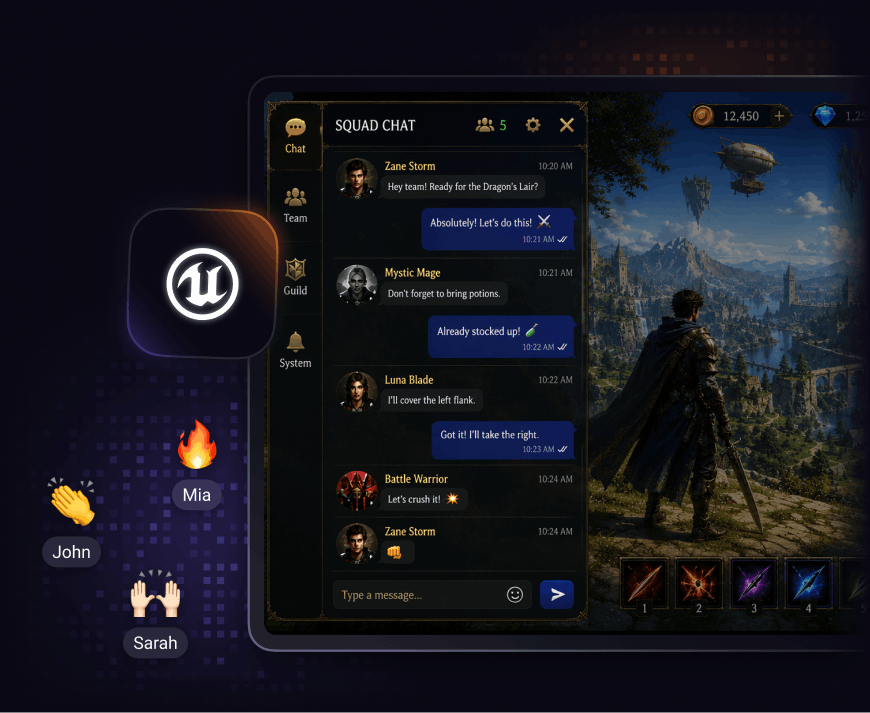


Step 1: Set Up SDK
Integrate CometChat into Unreal Engine
Bring CometChat into your Unreal project by installing the SDK and preparing your environment for real-time chat.
-
Import the CometChat Unreal SDK plugin into your project.
-
Configure project dependencies and platform settings.
-
Add your App ID and Region from the CometChat Dashboard.
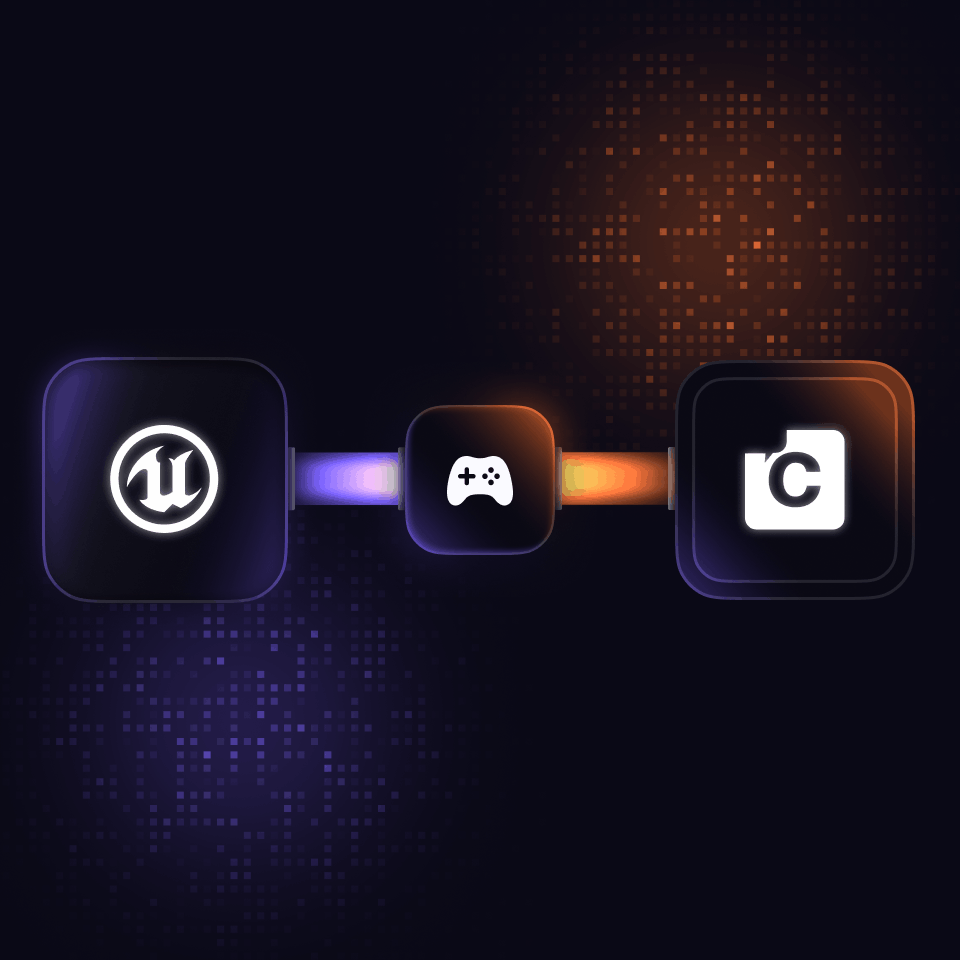
Step 2: Enable Chat Features
Wire Up Messaging, Presence, and Channels
Connect CometChat features to your game logic to enable player-to-player and group communication.
-
Set up user login and session handling.
-
Enable 1:1 and group chat using Conversations and Messages APIs.
-
Subscribe to presence and real-time events for live updates
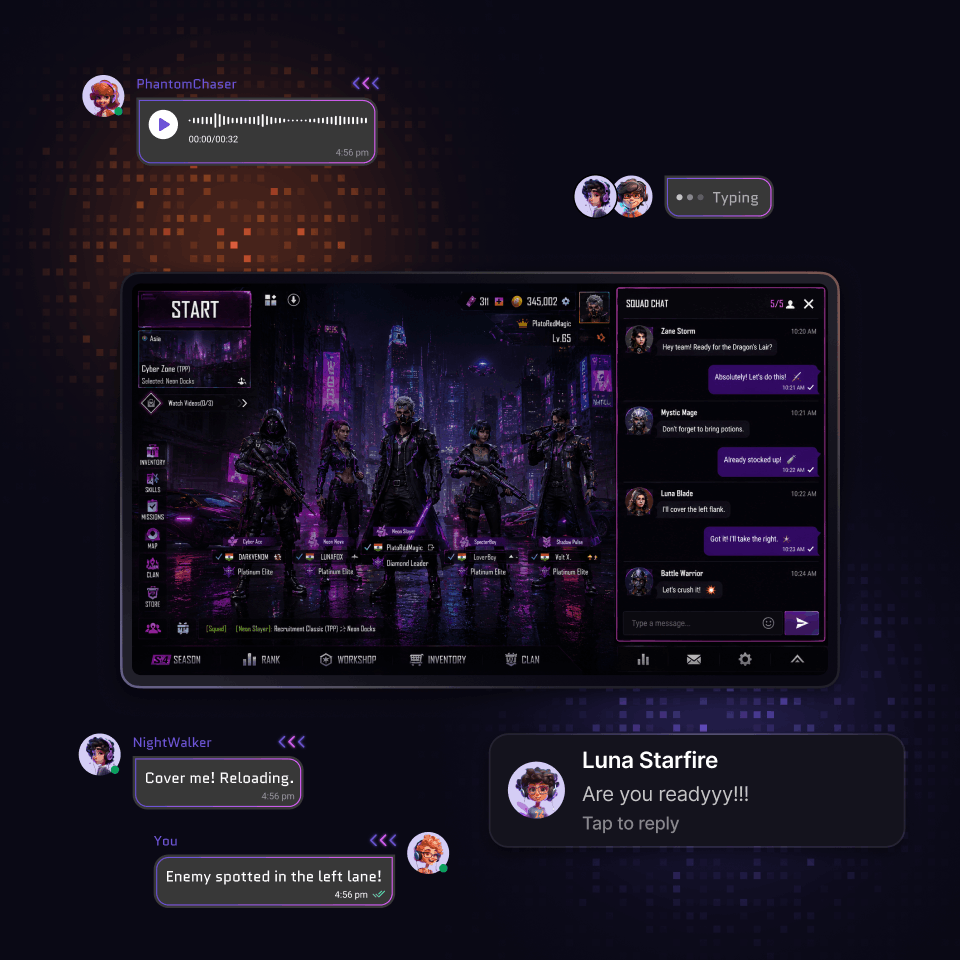
Step 3: Build Gaming Chat
Design immersive player communication
Craft chat experiences that feel native to your game, from UI to real-time interactions and moderation.
-
Build custom chat UI using Unreal widgets and CometChat events.
-
Add features like typing indicators, read receipts, and media sharing.
-
Implement moderation, roles, and controls for safe interactions.
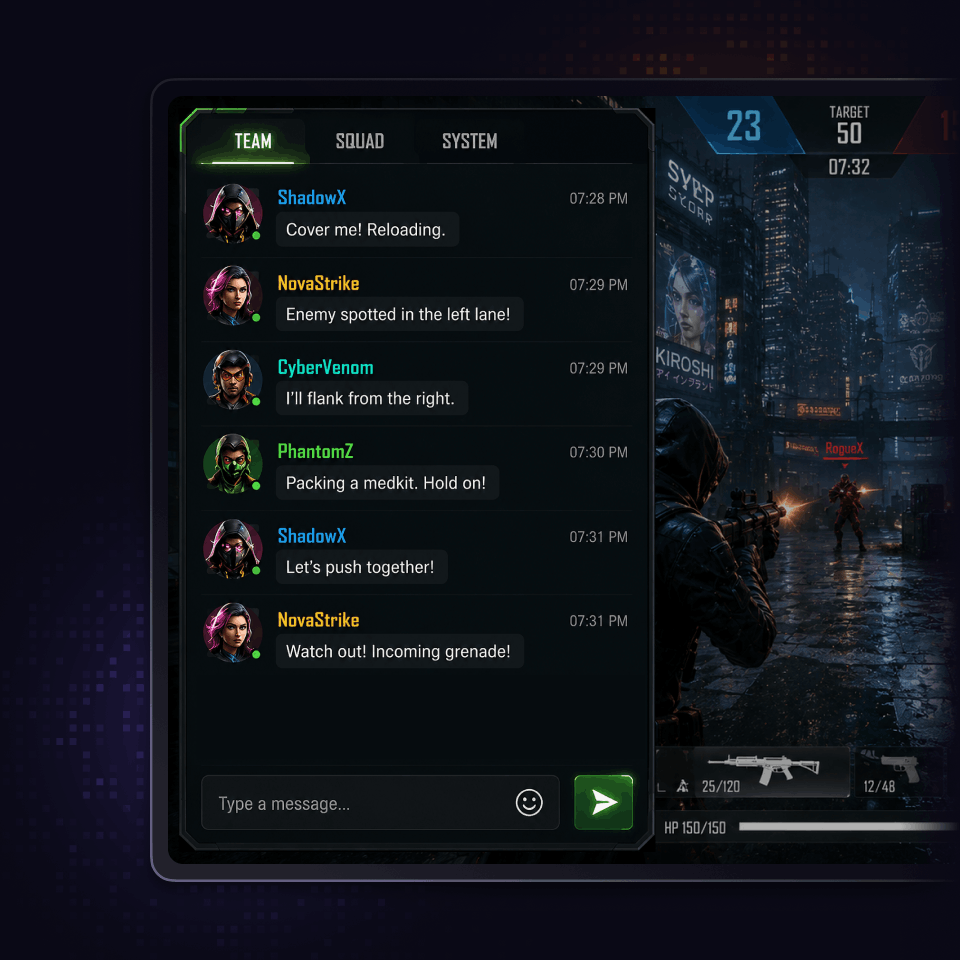
Key concepts
Building blocks behind your gaming chat
Core communication systems powering your Unreal chat experience
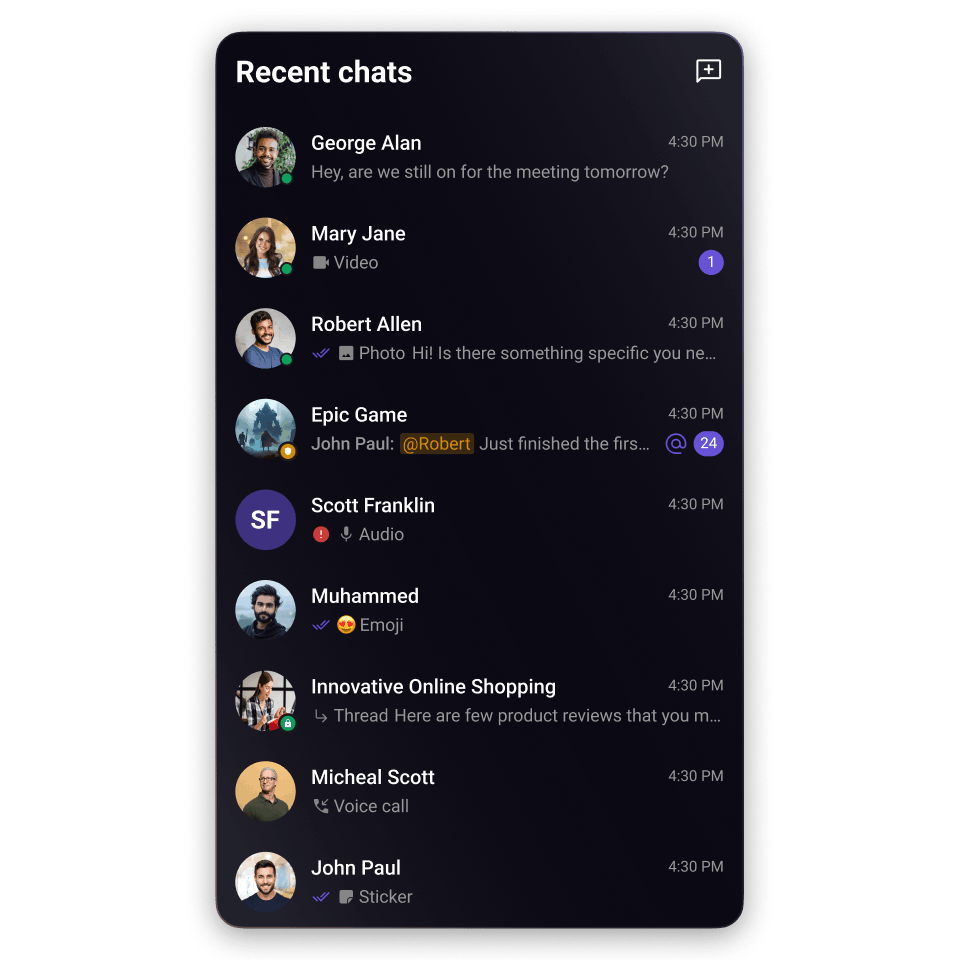
Manage player identities, login sessions, and secure access to chat using UIDs, Auth Keys, and Auth Tokens.
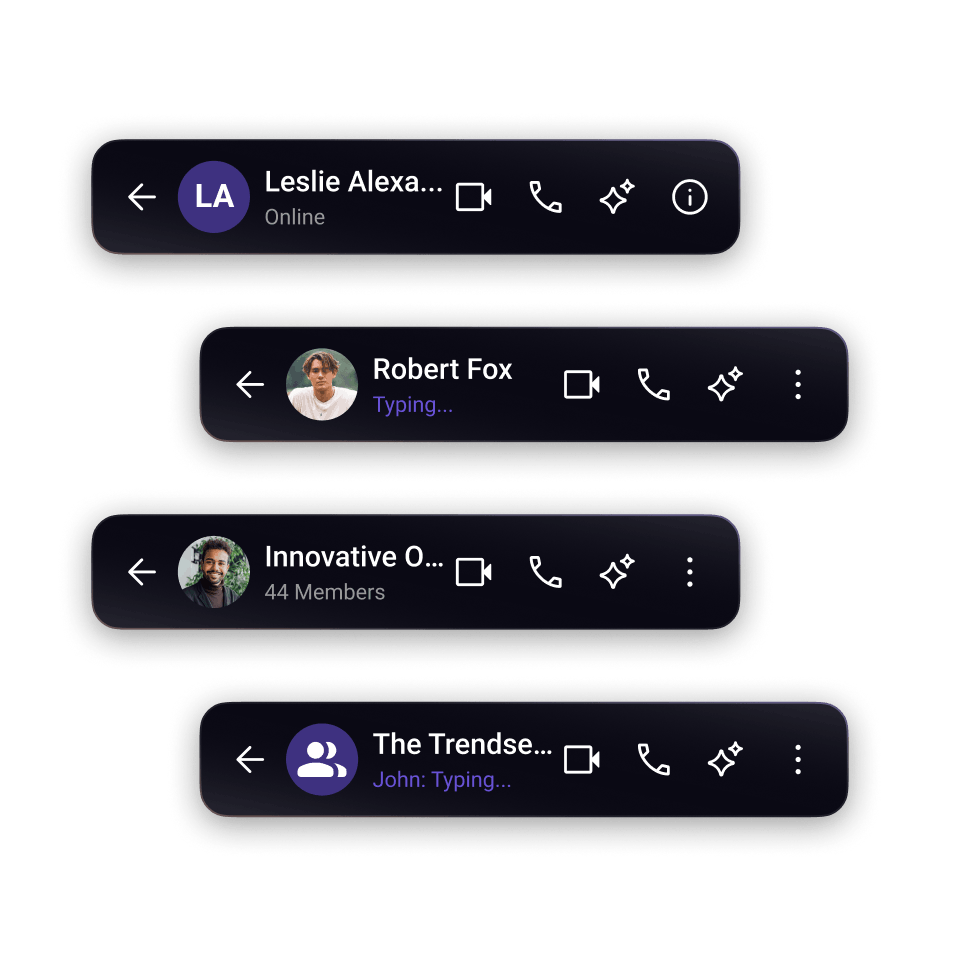
Power 1:1 chats, multiplayer channels, guilds, and lobbies with support for text, media, custom, and interactive messages.
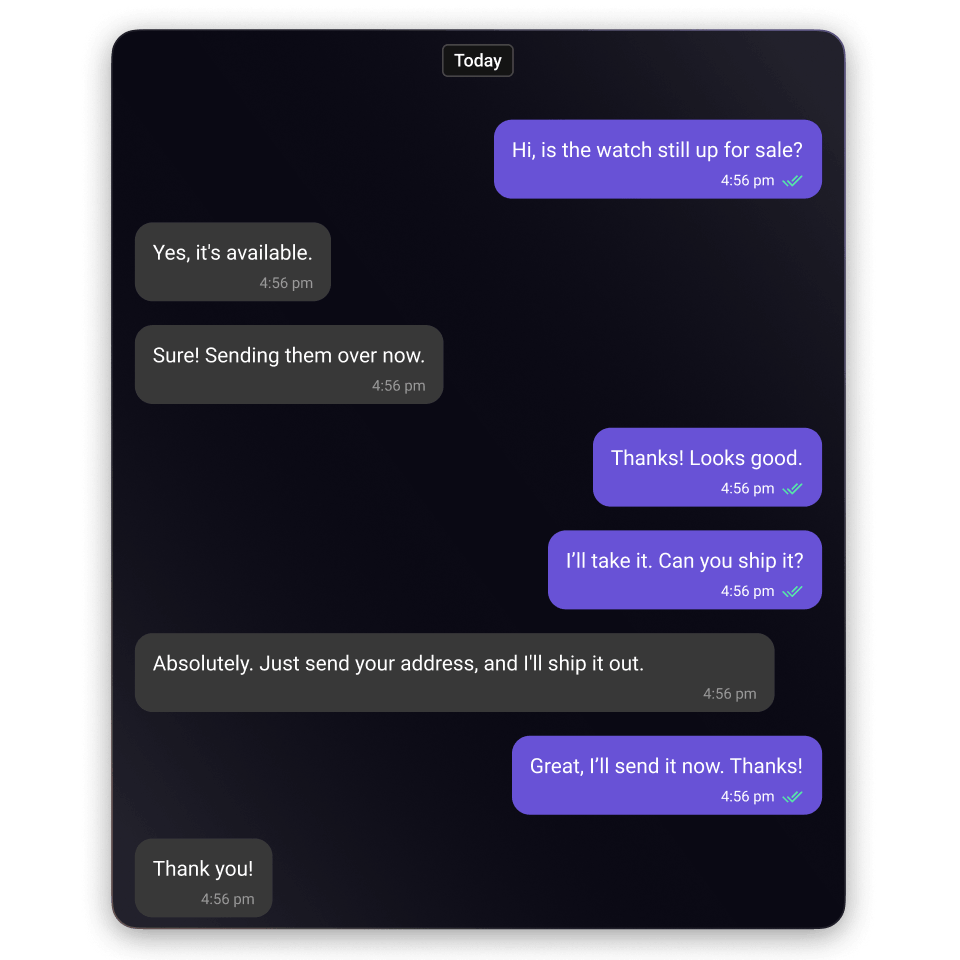
Enable live messaging experiences with typing indicators, presence updates, message events, and WebSocket-powered listeners
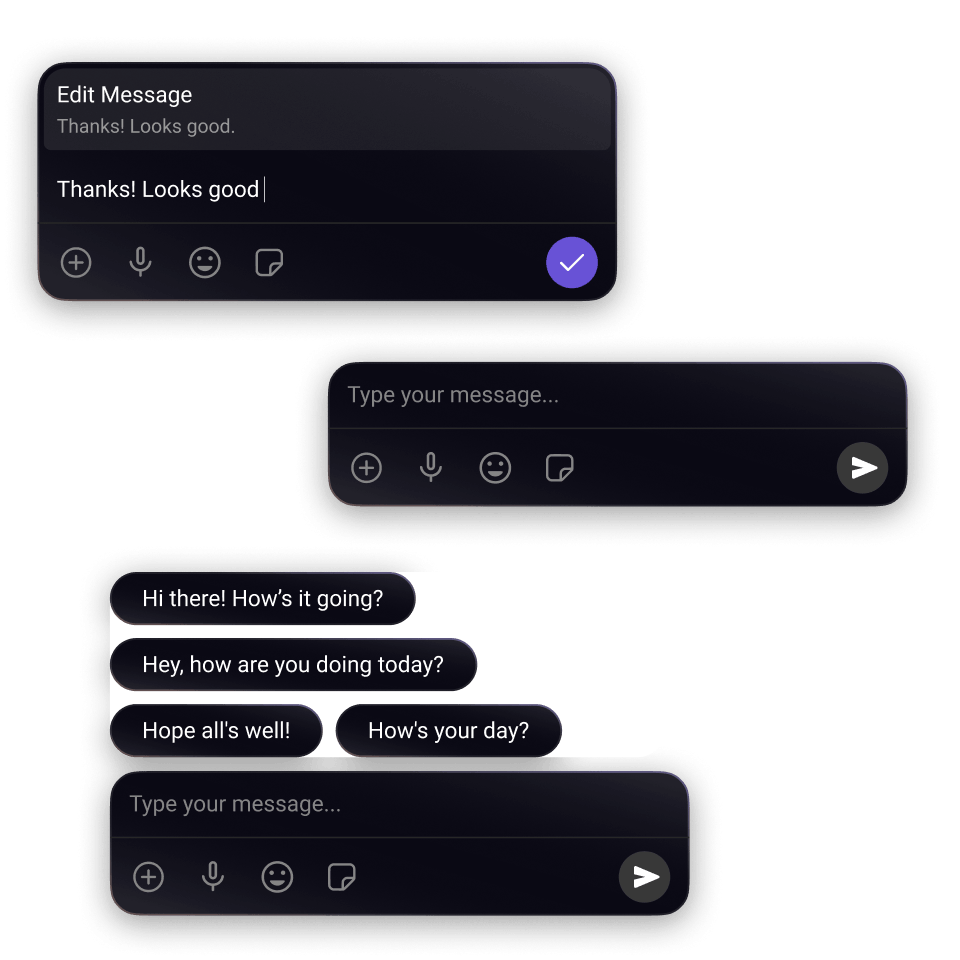
Control player interactions with admin roles, moderation tools, member permissions, and group management features.
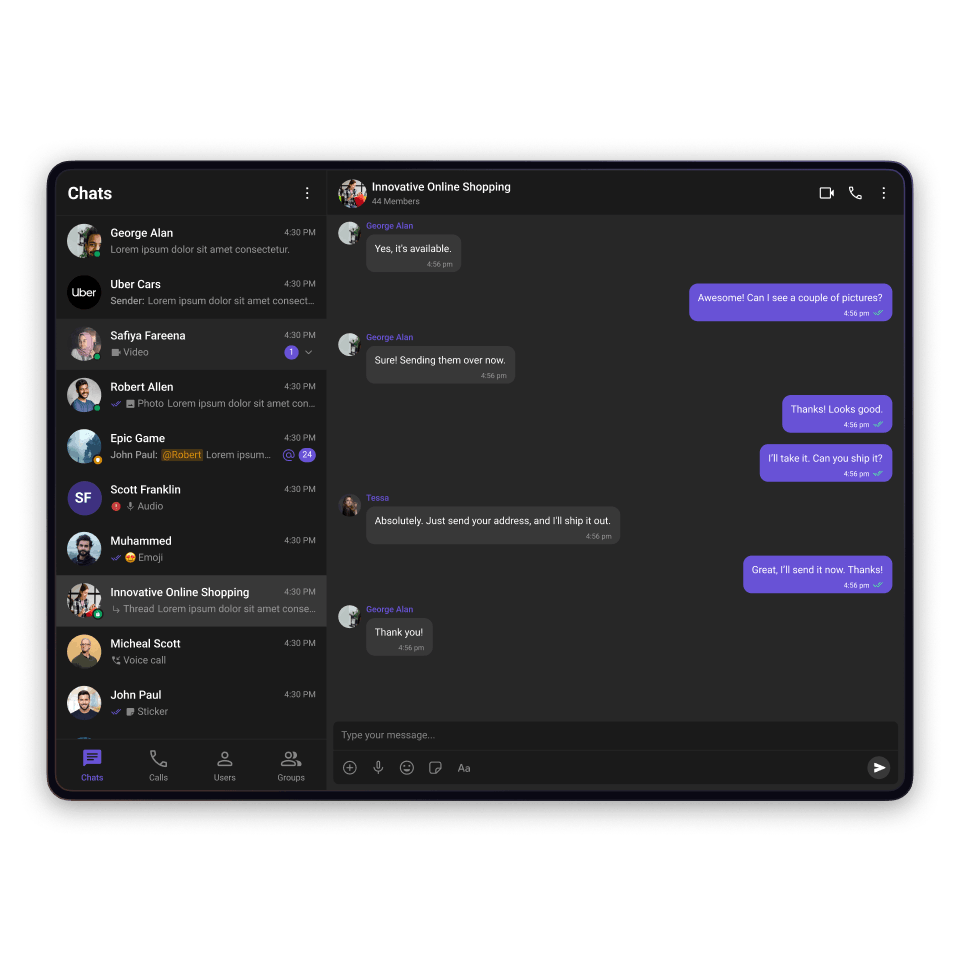
Configure AppSettings, region handling, presence subscriptions, and real-time connection behavior for scalable gameplay communication.
Messaging features
Built for real-time in-game communication
Deliver responsive multiplayer chat experiences with live messaging, player presence, typing states, and real-time communication events.
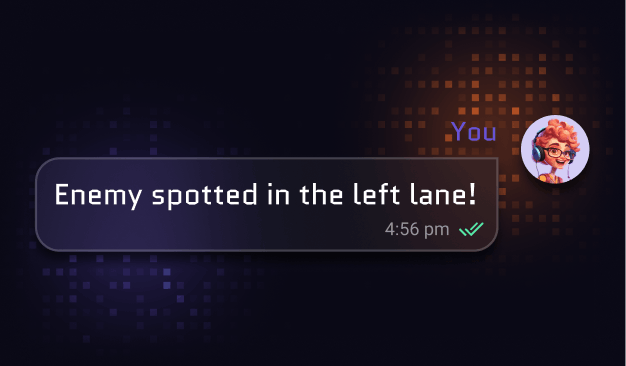
Message sent
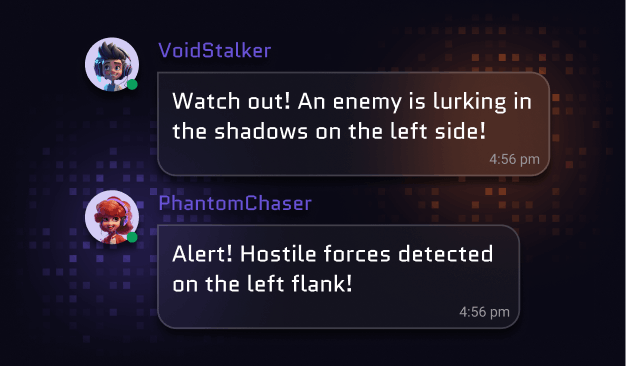
Message received
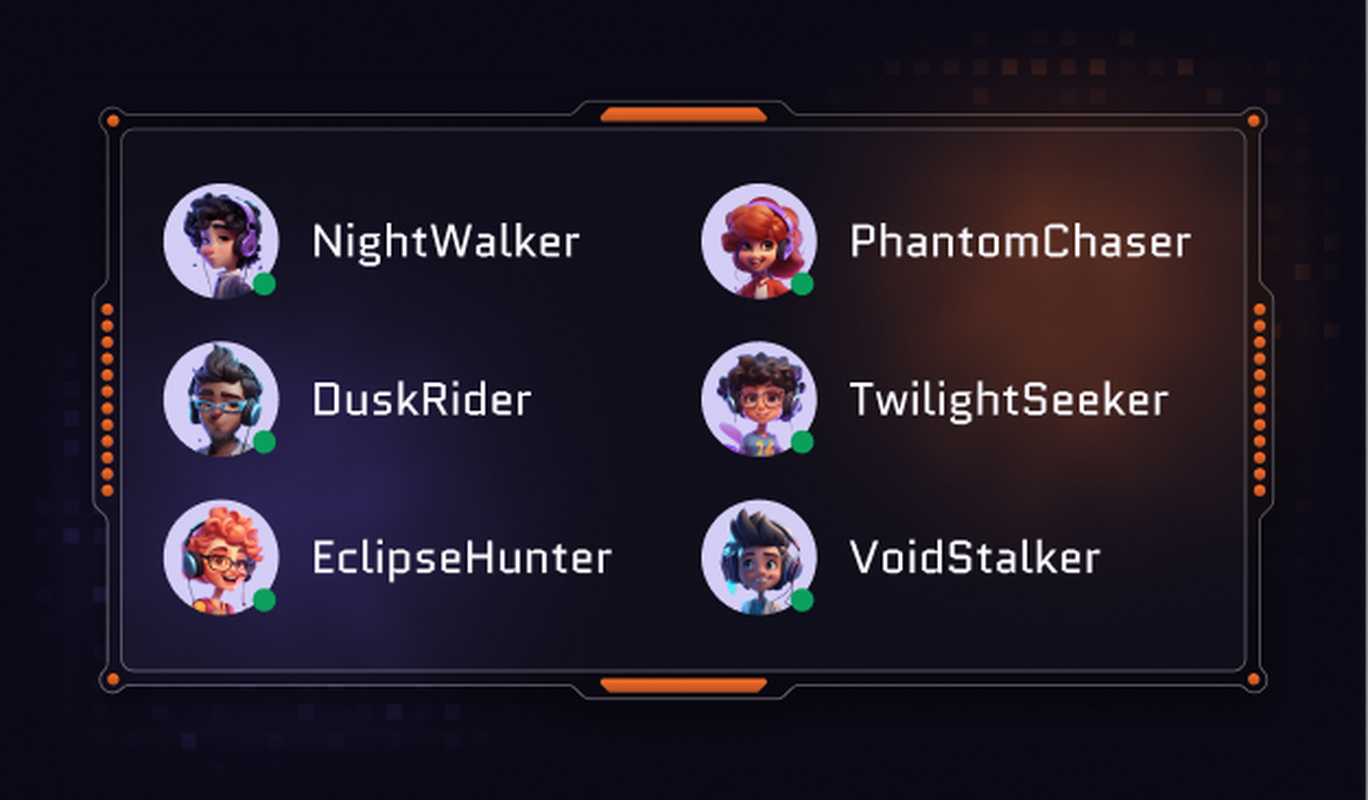
Real-time events
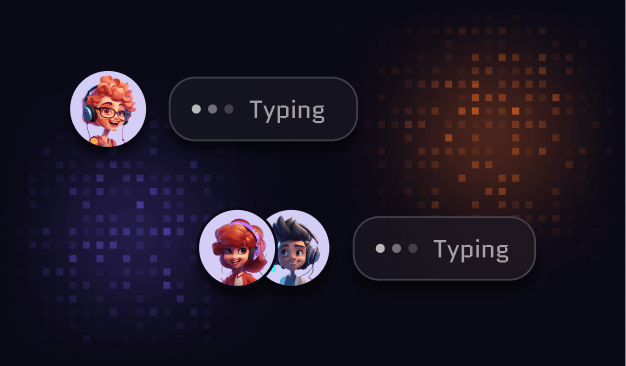
Typing indicators
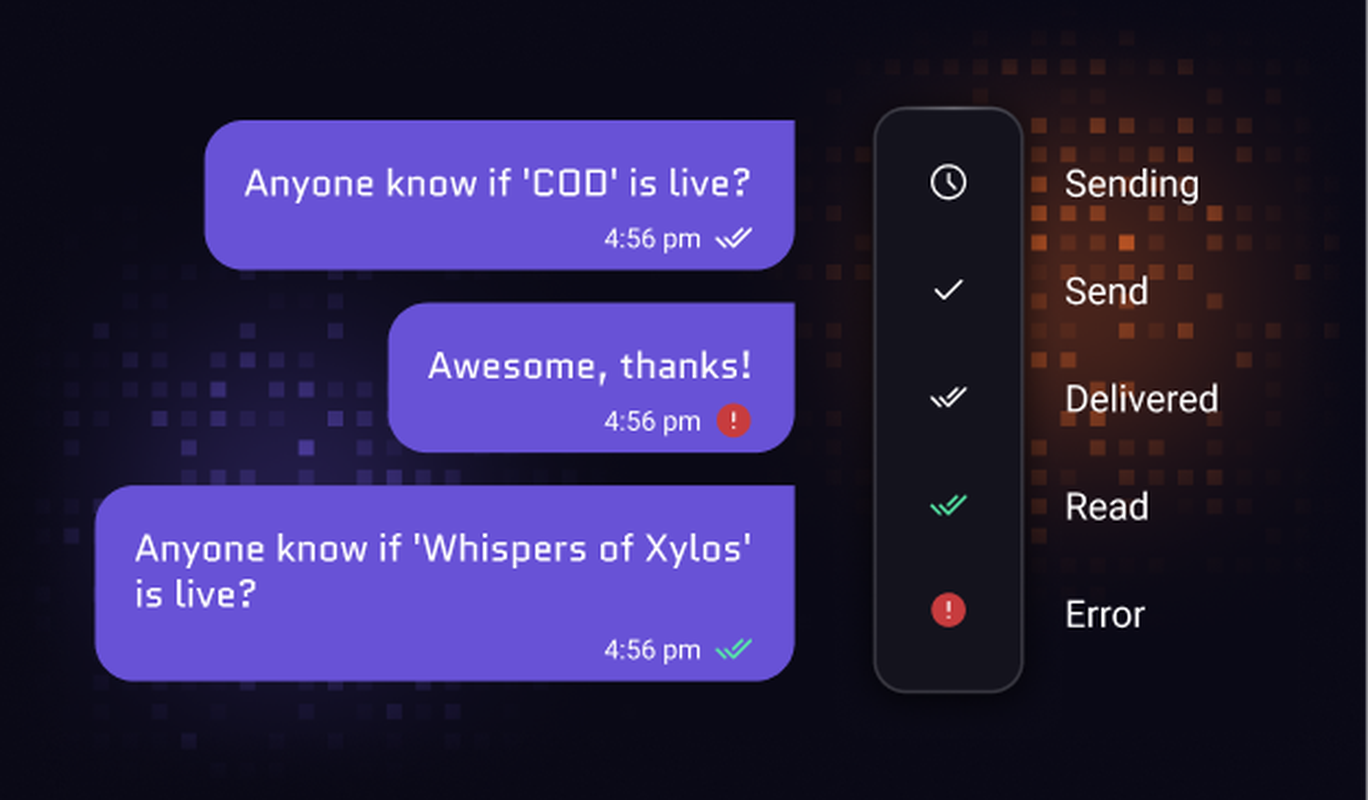
Read & delivery receipts
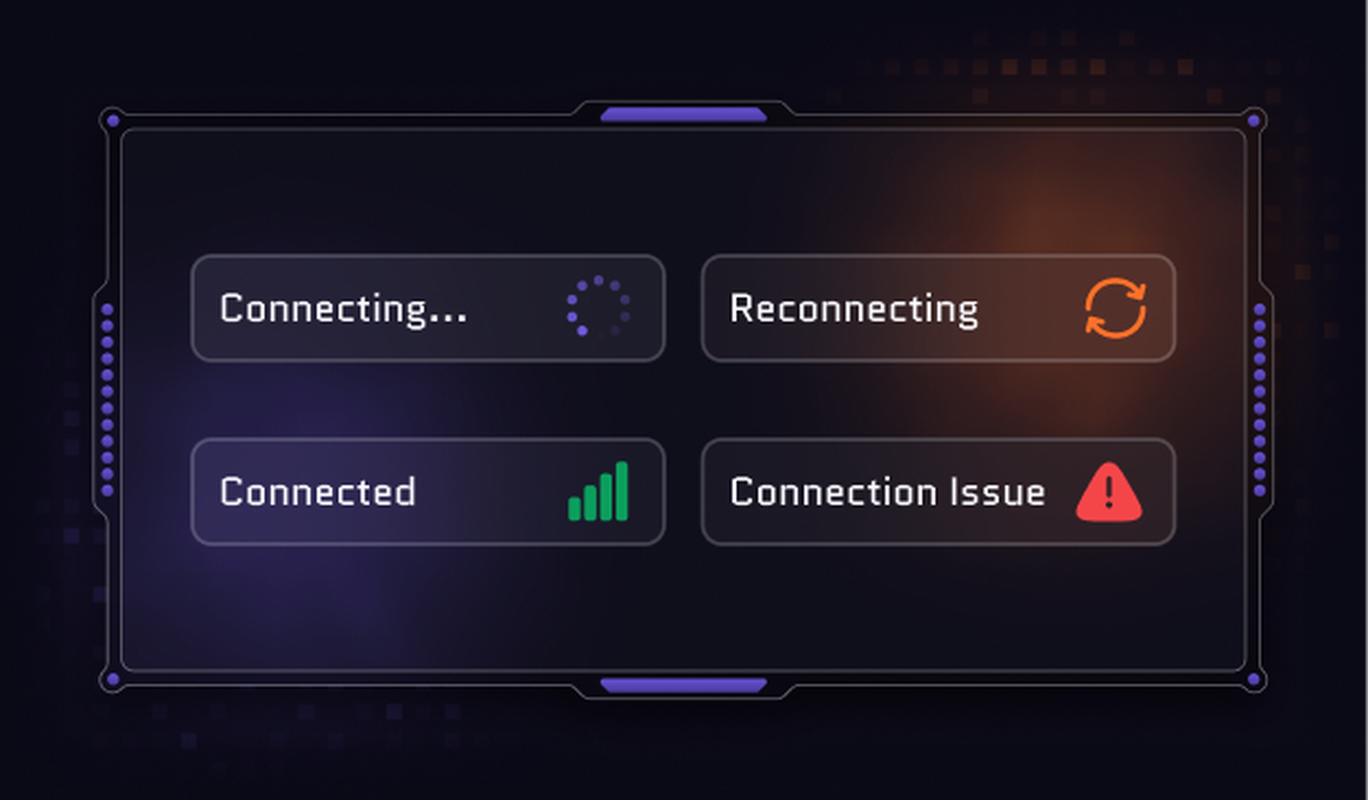
Connection status
Let's map out how CometChat works for you.
30 minutes. Real answers. A plan you can actually act on.
Pick a time that works, talk to someone who knows the product.
Your use case shapes the call - no guessing, no repeating yourself.
No commitment. Just a straight conversation about how this fits - and if it doesn't, we'll say so.
Trusted by teams building conversations at scale.