

AI Integration Quick Reference
AI Integration Quick Reference
Overview
CometChatMessageComposer is a rich text input component for sending messages. It supports attachments, emoji, voice recording, mentions, rich text formatting, and reply/edit previews. Wire it alongside CometChatMessageList and CometChatMessageHeader to build a complete messaging experience.
Live Preview — interact with the default message composer.Open in Storybook ↗
The component handles:
- Text input with placeholder and auto-resize
- Rich text formatting (bold, italic, links, code, lists)
- File attachments with preview thumbnails
- Emoji keyboard
- Voice recording
- @mentions with user/group member search
- Edit and reply mode with preview banners
- Typing indicator events
- Live reactions
Usage
Flat API
Compound Composition
Full Layout Example
Multi-Attachment Staging Tray
WhenenableMultipleAttachments is true (the default), picking a file does not send it immediately. Files are staged in a tray above the input, uploaded in the background, and sent together when the user hits send. This is the composer half of the end-to-end multi-attachment flow:
- Pick — choose files from the attachment (
+) menu, drag-and-drop them onto the composer (unlessdisableDragAndDropis set), or paste image/file data straight into the composer — pasted media stages into the tray just like a pick. - Stage & upload — each file becomes a tile in the tray and begins uploading directly to storage right away, showing its own progress. The user can keep typing or add more files while uploads run. The voice-recording button hides while attachments are staged.
- Review — remove any tile, or retry one whose upload failed. A file that can’t be accepted shows why on hover (see Why a file is rejected).
- Send — on send, the staged files fan out into media messages that share a single batch, so the message list renders them as a connected group of media bubbles (see Batch send).
Live Preview — interact with the message composer staging tray.Open in Storybook ↗
Tray item states
Each staged file is a tile with its own upload lifecycle:
This mirrors the underlying SDK upload semantics: failed uploads are transient and can be retried, while rejected files must be swapped out.
Attachment limits
- Count — a single batch can hold up to a configurable maximum (default 10, from the
file.count.maxapp setting, resolved at runtime). The limit is all-or-nothing: if a pick would push the tray past the maximum, the entire new selection is rejected — nothing is staged — and a validation banner is shown. The composer does not partially accept a subset of files to fill the remaining slots. - Per-file size — a file larger than the allowed size (
file.size.max) is rejected as an individual tile.
These limits are Dashboard/app-level settings, not UI Kit props. The maximum file count (
file.count.max) and size (file.size.max) are read from your CometChat app settings at runtime, and permitted file types are governed by your app’s role-based file-type permissions (RBAC/SBAC). If an attachment is rejected unexpectedly, verify these settings for your app and role in the CometChat Dashboard — they are not overridable from the composer.Why a file is rejected
A rejected tile explains itself on hover via a tooltip:The per-file size and type rejections surface on the individual tile (with the hover tooltip above). The count limit is different — it rejects the whole over-limit pick at once and surfaces as a validation banner, not a per-tile tooltip.
Batch send
On send, the staged files are grouped by media kind and sent as one media message per kind, in a fixed order — images → videos → audio → files — with all of the resulting messages sharing a singlebatchId. The composer’s text is sent as the batch caption, carried on the last message of the batch; when you’re replying, the quoted message is attached to the first. The message list groups messages with the same batchId and renders them as one visually connected set, with shared avatar/sender on the first bubble and receipts on the last.
Disabling the tray
SetenableMultipleAttachments to false to revert to legacy single-select, send-immediately behavior: each attachment option sends one file straight away, with no staging tray. Pasting or dropping files behaves the same way — the first file is sent immediately, matching the attachment picker (whether you pick, paste, or drop, only a single attachment is sent).
Actions and Events
Callback Props
Events Emitted
UI events this component publishes:Events Received
UI events this component subscribes to (published by other components) — part of the UI Kit’s Event System. Publishingui:compose/edit or ui:compose/reply (e.g. from the Message List edit/reply actions) is how another component drives this composer into edit/reply mode without prop drilling:
SDK Listeners (Automatic)
The composer does not subscribe to SDK listeners directly. It relies on typing indicator events emitted via the SDK whendisableTypingEvents is false.
Customization
View Props
Use view props to replace sections of the default UI while keeping the component’s behavior intact:attachmentOptions
Override the default attachment options.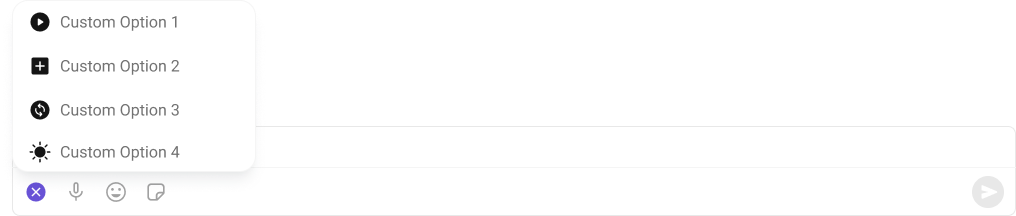
Each custom option’s
onClick is a handler you implement — the composer only renders the menu. To send a message from a custom option, use the CometChat SDK or the UI Kit’s Event System (e.g. optimistic-send flows). Custom attachment options can also be provided by a plugin; sendTextMessageOverride similarly lets you intercept the outgoing text before send.auxiliaryButtonView
Replace the auxiliary button area.
toolbarTrailingView
Render a node at the trailing end of the rich-text formatting toolbar, after the built-in buttons and an auto-inserted separator. This is the place for a button that drives a custom formatter fromtextFormatters — for example, a color button that wraps the selected text.
The toolbar (and therefore the trailing view) only renders when the rich-text editor is enabled — pass
enableRichTextEditor. For a complete walkthrough that builds the button and formatter, see the Custom Text Formatter guide..cometchat-formatting-toolbar, after an auto-inserted .cometchat-formatting-toolbar__separator.
sendButtonView
Replace the send button.
Compound Composition
For full layout control, use sub-components. Omit any sub-component to hide it:CSS Styling
Override design tokens on the component selector:Props
All props are optional unless noted.View slot props (
headerView, sendButtonView, auxiliaryButtonView, toolbarTrailingView, attachmentButtonIconView, voiceRecordingButtonIconView, emojiButtonIconView) are convenience props available only on the flat API. In compound composition mode, use the corresponding sub-components directly or pass children to them.Entity
The composer requires exactly one entity — a
user (1:1) or a group — to know where to send messages. Without either prop it has no conversation to post to. For how to derive the active entity from a conversation/user/group selection and mount the composer, see the New Chat Creation guide.user
User for 1:1 conversations.group
Group for group conversations.parentMessageId
Parent message ID for threaded replies.Layout
layout
Layout mode for the composer.compact keeps everything on one line; multiline expands the input area.
Text Input
initialText
Initial text to pre-fill the input (uncontrolled).text
Controlled text value. When provided, the consumer owns the text state and must update it viaonTextChange.
placeholder
Placeholder text shown when the input is empty.enterKeyBehavior
What happens when the user presses Enter.maxInputHeight
Maximum height for the input area in pixels before it scrolls.Rich Text
enableRichTextEditor
Enable rich text formatting (toolbar, keyboard shortcuts, markdown auto-conversion).hideRichTextFormattingOptions
Hide the rich text formatting toolbar (shortcuts still work).showBubbleMenuOnSelection
Show a floating bubble menu near selected text with formatting options (desktop only).Edit / Reply
messageToEdit
Message to edit (triggers edit mode).CometChat.MediaMessage is accepted from 7.1.0, when media captions became editable. On 7.0.x only CometChat.TextMessage is accepted.
messageToReply
Message to reply to (triggers reply mode with preview).Attachments
Extension-backed options are always shown — the extension decides whether they work. The attachment menu lists Polls, Collaborative Document and Collaborative Whiteboard whenever they are not hidden by
hideAttachmentOptions; Stickers is a separate composer button governed by hideStickersButton, not an entry in this menu. The composer does not check whether the matching extension is enabled in the CometChat Dashboard, so an option stays visible even when its extension is off, and using it then fails. Enable the extension — Polls, Collaborative Document, Collaborative Whiteboard, Stickers — or hide the option yourself. See Extensions for the full list the composer integrates.The three menu options are also hidden automatically in a thread composer (when parentMessageId is set), because they do not support a parent message.attachmentOptions
Custom attachment options (overrides plugin-provided ones).hideAttachmentOptions
Hide specific attachment options in the default layout. Replaces the seven individualhide*Option booleans from v6.
Every key is an optional
boolean, defaulting to false. Set a key to true to hide that option; omitted keys leave the option visible.
Stickers are not a key on this object — hide them with the separate
hideStickersButton prop, since the sticker picker is its own composer button rather than an entry in the attachment menu.showAttachmentPreview
Whether to show attachment preview thumbnails before sending.enableMultipleAttachments
Enable multi-attachment staging tray and batch send. Whentrue (default), selecting an attachment option stages files in a tray for a single batched send. When false, each attachment option reverts to legacy single-select, send-immediately behavior.
disableDragAndDrop
Disable drag-and-drop file upload on the composer.
Drag-and-drop is also disabled while a message is being edited, regardless of this prop. Attachments cannot be added to an existing message, so the drop overlay does not appear and dropped files are discarded. The drop is still cancelled rather than passed to the browser, so editing in progress is never lost to a navigation. Drop behaviour resumes once the edit is sent or cancelled.
allowedFileTypes
Allowed file MIME types for attachments.Hide Buttons
hideAttachmentButton
Hide the attachment (”+”) button entirely.hideEmojiKeyboardButton
Hide the emoji keyboard button.hideVoiceRecordingButton
Hide the voice recording button.hideStickersButton
Hide the stickers button.hideSendButton
Hide the send button.hideError
Hide the error state UI.Mentions
textFormatters
Text formatters pipeline for custom text processing.disableMentions
Disable @mentions entirely.disableMentionAll
Disable the @all mention option in groups.mentionAllLabel
Label for the @all mention option.mentionsUsersRequestBuilder
Custom request builder for mention user search.mentionsGroupMembersRequestBuilder
Custom request builder for mention group member search.Sound
disableTypingEvents
Disable typing indicator events.disableSoundForMessage
Disable sound on message send.customSoundForMessage
Custom sound URL for message send.Misc
disableAutoFocusOnMobile
Disable auto-focus on mobile devices to prevent the keyboard from automatically opening on load.liveReactionIcon
Custom icon URL for the live reaction button.showScrollbar
Show the native scrollbar on the input area.Custom Views
attachmentButtonIconView
Custom ReactNode to replace the content inside the attachment button (keeps action wired).voiceRecordingButtonIconView
Custom ReactNode to replace the content inside the voice recording button (keeps action wired).emojiButtonIconView
Custom ReactNode to replace the content inside the emoji button (keeps action wired).sendButtonView
Custom ReactNode to replace the content inside the send button (keeps send/edit action wired).auxiliaryButtonView
Custom ReactNode for additional buttons rendered in the actions area before the send button.toolbarTrailingView
Custom ReactNode rendered at the trailing end of the rich-text formatting toolbar, after the built-in buttons and an auto-inserted separator. Only shown when the rich-text editor and its toolbar are enabled. Intended for a button that drives a custom formatter fromtextFormatters. See the Custom Text Formatter guide.
headerView
Custom ReactNode for the header area above the input (replaces edit/reply preview + validation).Callbacks
onTextChange
Called when text changes.onSendButtonClick
Called when a message is sent or edited.sendTextMessageOverride
Override the internal SDK sendTextMessage call for optimistic updates. When provided, called instead ofCometChat.sendMessage().
onError
Called when an error occurs.onClosePreview
Called when reply/edit preview is closed.onAttachmentAdded
Called when a file attachment is added.onAttachmentRemoved
Called when a file attachment is removed.onMentionSelected
Called when a mention is selected from the suggestions list.CSS Selectors
Next Steps
Message List
Display messages for the selected conversation
Thread Header
Show threaded replies for a parent message
Theming
Customize colors, fonts, and spacing