

AI Integration Quick Reference
AI Integration Quick Reference
| Field | Value |
|---|---|
| Package | @cometchat/chat-uikit-angular |
| Peer deps | @cometchat/chat-sdk-javascript, rxjs ^7.8.1 |
| Init | CometChatUIKit.init(UIKitSettings) — must resolve before login() |
| Login | CometChatUIKit.login("UID") — must resolve before rendering components |
| Order | init() → login() → render. Breaking this order = blank screen |
| Auth Key | Dev/testing only. Use Auth Token in production |
| CSS | Add css-variables.css to angular.json styles array or import in global styles.css via @cometchat/chat-uikit-angular/styles/css-variables.css |
| Calling | Optional. Install @cometchat/calls-sdk-javascript and call .setCallingEnabled(true) on the builder to enable |
Prerequisites
You need three things from the CometChat Dashboard:| Credential | Where to find it |
|---|---|
| App ID | Dashboard → Your App → Credentials |
| Auth Key | Dashboard → Your App → Credentials |
| Region | Dashboard → Your App → Credentials (e.g. us, eu, in) |
- Node.js (v18+) and npm installed
- Angular CLI (
npm install -g @angular/cli)
Step 1 — Create an Angular Project
Step 2 — Install the UI Kit
- npm
- yarn
Step 3 — Initialize CometChat
Initialize the UI Kit inmain.ts before bootstrapping the Angular app. This uses the static CometChatUIKit.init() method — the dual-API pattern lets you call it outside Angular’s dependency injection context.
src/environments/environment.ts
src/main.ts
Step 4 — Login
After init resolves, log the user in. For development, use one of the pre-created test UIDs:cometchat-uid-1 · cometchat-uid-2 · cometchat-uid-3 · cometchat-uid-4 · cometchat-uid-5
Add the login logic to your root component. Use CometChatUIKit.getLoggedinUser() to check for an existing session before calling login().
src/app/app.component.ts
getLoggedinUser()checks for an existing session so you don’t re-login unnecessarily.login(uid)skips the API call if a session already exists and returns the cached user.- Components must not render until login resolves — use a boolean flag to gate rendering with
@if.
For production, use
loginWithAuthToken() instead of Auth Key. Generate tokens server-side via the REST API.Step 5 — Add the CSS Import
CometChat components rely on CSS custom properties for theming. Add the stylesheet using one of these methods:- angular.json (recommended)
- Global styles.css
Add the CSS file to the
styles array in your angular.json:angular.json
Register UIKit Assets
The UIKit ships icons, images, and audio files that Angular’s build system won’t serve automatically. Add the assets path to yourangular.json so they are copied to the build output:
angular.json
Step 6 — Choose a Chat Experience
Integrate a conversation view that suits your app’s UX. Each option below includes a step-by-step guide.Conversation List + Message View
Two-panel layout — conversation list on the left, messages on the right. Think WhatsApp Web or Slack.- Two-panel layout with conversation list and active chat window
- Switch between one-to-one and group conversations
- Tap-to-view on mobile — tapping a conversation opens the message view
- Real-time updates and message sync across sessions
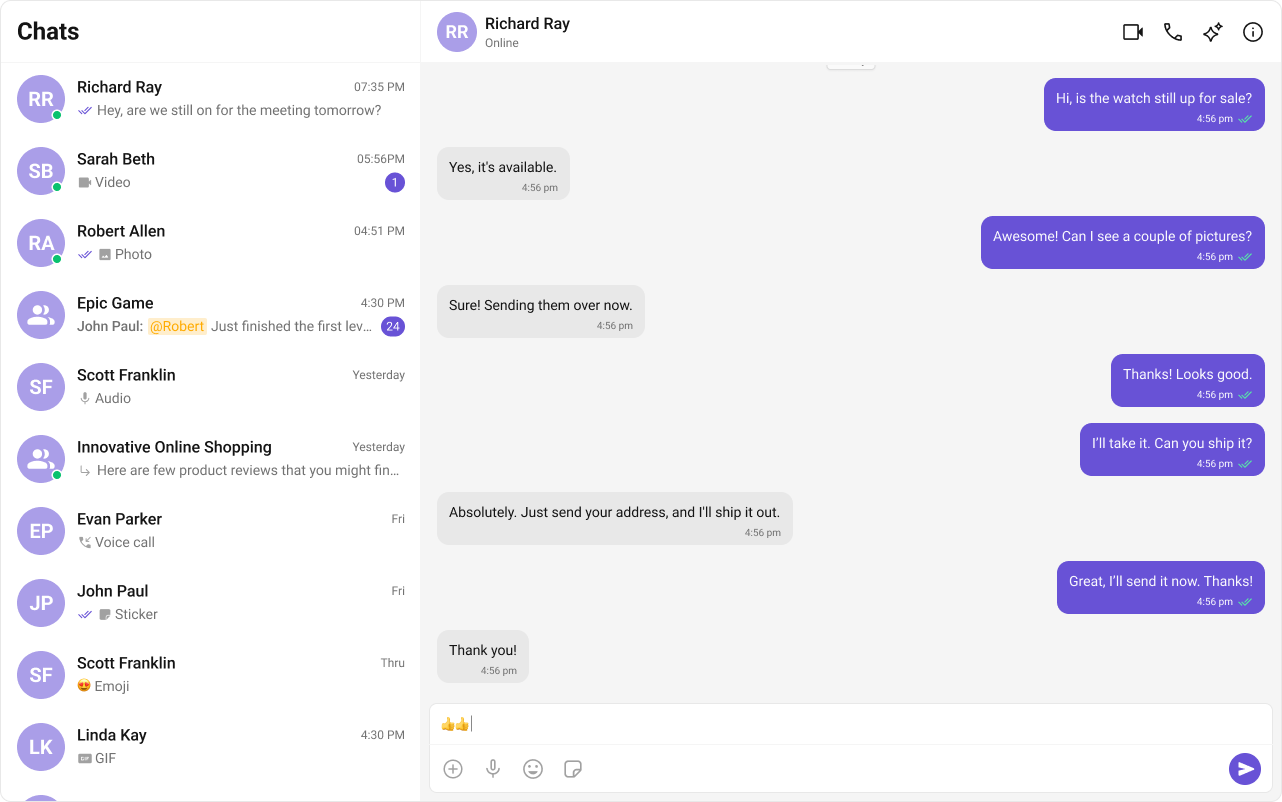
Build Conversation List + Message View
Step-by-step guide to build this layout
One-to-One / Group Chat
Single chat window — no sidebar. Good for support chat, embedded widgets, or focused messaging.- Dedicated chat window for one-on-one or group messaging
- No conversation list — users go directly into the chat
- Full-screen experience optimized for mobile
- Ideal for support chat or community messaging
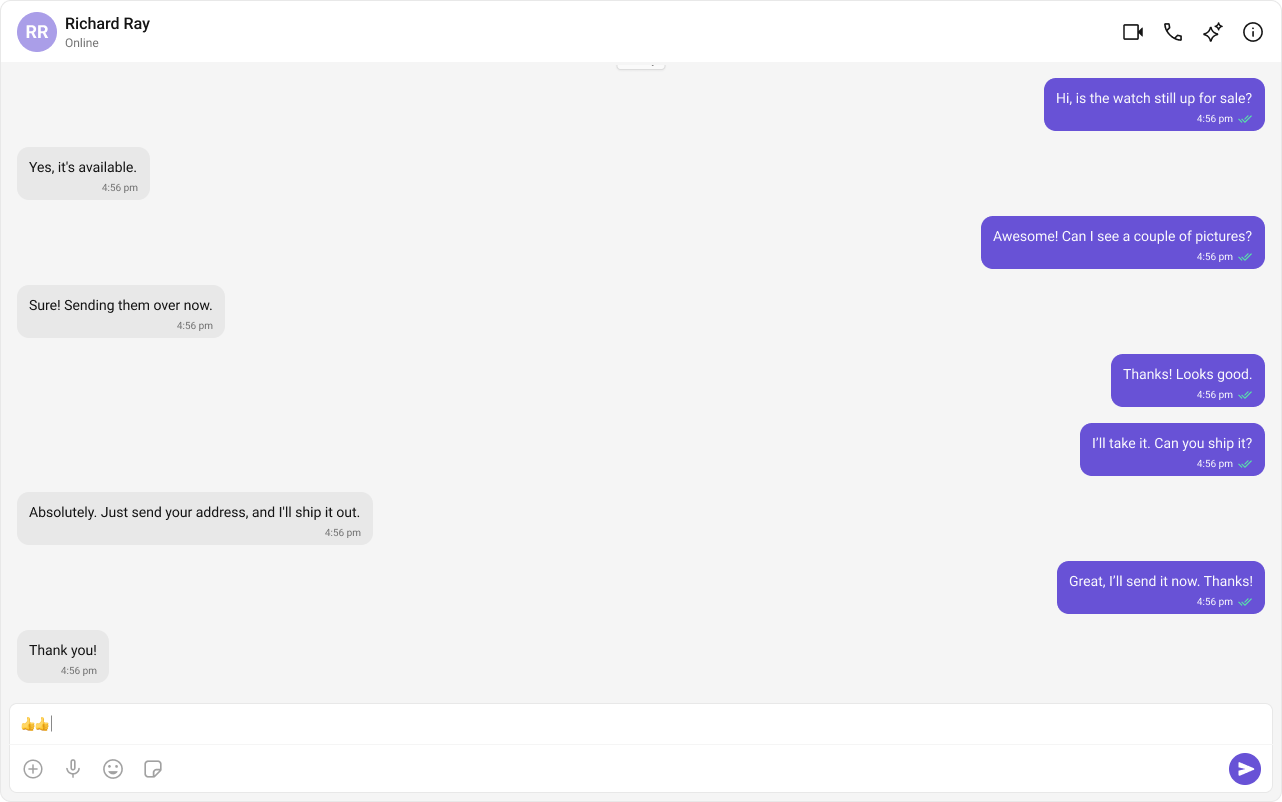
Build One-to-One / Group Chat
Step-by-step guide to build this layout
Tab-Based Chat
Tabbed navigation — Chat, Call Logs, Users in separate tabs. Good for full-featured apps.- Tab navigation between Chat, Call Logs, and Users
- Full-screen messaging within each tab
- Unified experience for conversations, call history, and settings
- Scales well for adding future features like notifications or contacts
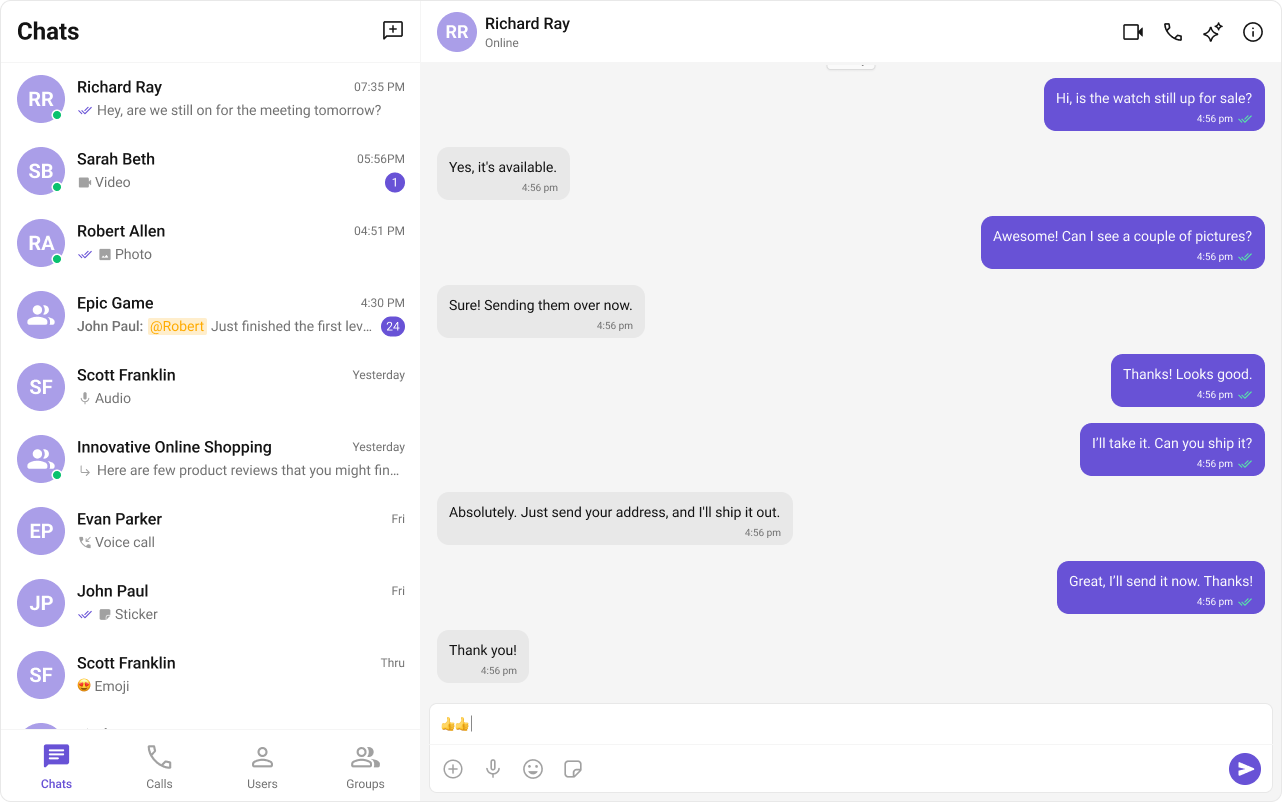
Build Tab-Based Chat
Step-by-step guide to build this layout
Build Your Own Chat Experience
Need full control over the UI? Use individual components, customize themes, and wire up your own layouts.- Components — All prebuilt UI elements with inputs and customization options
- Core Features — Messaging, real-time updates, and other capabilities
- Theming — Colors, fonts, dark mode, and custom styling
Next Steps
Components Overview
Browse all prebuilt UI components
Theming
Customize colors, fonts, and styles
Core Features
Chat features included out of the box
Troubleshooting
Common issues and fixes