FieldValue
Package@cometchat/chat-uikit-angular
FrameworkAngular
ComponentsCometChatConversationsComponent, CometChatCallLogsComponent, CometChatUsersComponent, CometChatMessageHeaderComponent, CometChatMessageListComponent, CometChatMessageComposerComponent
LayoutTabbed sidebar (Chats, Calls, Users) + message view
PrerequisiteComplete Angular Integration Steps 1–5 first
PatternFull-featured messaging app with multiple sections
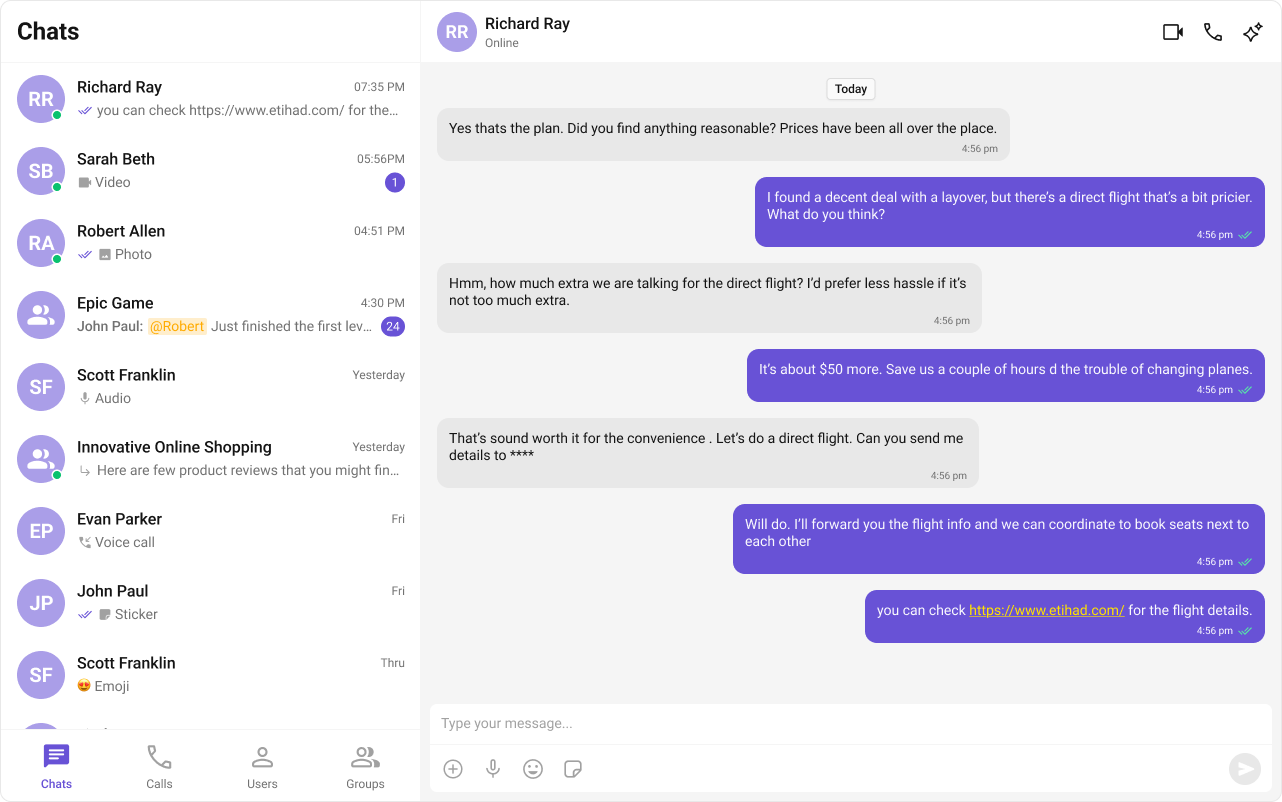
This guide builds a tabbed messaging UI — Chats, Calls, and Users tabs, with a message view. Good for full-featured apps that need more than just conversations. This assumes you’ve already completed Angular Integration (project created, UI Kit installed, init + login working, CSS imported).

What You’re Building

Three sections working together:
  1. Tab bar — switches between Chats, Call Logs, and Users
  2. List view — renders the list for the active tab (conversations, call logs, or users)
  3. Message view — header + messages + composer for the selected item

Step 1 — Update AppComponent

Wire everything together. ChatStateService handles the state — cometchat-conversations and cometchat-users automatically update the service when an item is clicked, and the message components auto-subscribe.
src/app/app.component.ts
import { Component, inject, OnInit } from "@angular/core";
import {
  CometChatUIKit,
  CometChatConversationsComponent,
  CometChatUsersComponent,
  CometChatCallLogsComponent,
  CometChatMessageHeaderComponent,
  CometChatMessageListComponent,
  CometChatMessageComposerComponent,
  ChatStateService,
} from "@cometchat/chat-uikit-angular";
import { CometChat } from "@cometchat/chat-sdk-javascript";

@Component({
  selector: "app-root",
  standalone: true,
  imports: [
    CometChatConversationsComponent,
    CometChatUsersComponent,
    CometChatCallLogsComponent,
    CometChatMessageHeaderComponent,
    CometChatMessageListComponent,
    CometChatMessageComposerComponent,
  ],
  template: `
    @if (isLoggedIn) {
      <div class="tab-layout">
        <div class="sidebar">
          <nav class="tab-bar">
            <button
              [class.active]="activeTab === 'chats'"
              (click)="activeTab = 'chats'"
            >
              Chats
            </button>
            <button
              [class.active]="activeTab === 'calls'"
              (click)="activeTab = 'calls'"
            >
              Call Logs
            </button>
            <button
              [class.active]="activeTab === 'users'"
              (click)="activeTab = 'users'"
            >
              Users
            </button>
          </nav>
          <div class="tab-content">
            @switch (activeTab) {
              @case ('chats') {
                <cometchat-conversations></cometchat-conversations>
              }
              @case ('calls') {
                <cometchat-call-logs></cometchat-call-logs>
              }
              @case ('users') {
                <cometchat-users></cometchat-users>
              }
            }
          </div>
        </div>
        @if (chatStateService.activeUser() || chatStateService.activeGroup()) {
          <div class="chat-window">
            <cometchat-message-header></cometchat-message-header>
            <cometchat-message-list></cometchat-message-list>
            <cometchat-message-composer></cometchat-message-composer>
          </div>
        } @else {
          <div class="empty-conversation">
            Select a conversation to start chatting
          </div>
        }
      </div>
    } @else {
      <p>Loading...</p>
    }
  `,
  styles: `
    :host {
      display: flex;
      height: 100vh;
      width: 100vw;
    }
    .tab-layout {
      display: flex;
      width: 100%;
      height: 100%;
    }
    .sidebar {
      width: 400px;
      display: flex;
      flex-direction: column;
      border-right: 1px solid #e0e0e0;
    }
    .tab-bar {
      display: flex;
      border-bottom: 1px solid #e0e0e0;
    }
    .tab-bar button {
      flex: 1;
      padding: 12px;
      border: none;
      background: transparent;
      cursor: pointer;
      font-size: 14px;
    }
    .tab-bar button.active {
      border-bottom: 2px solid #3399ff;
      font-weight: 600;
    }
    .tab-content {
      flex: 1;
      overflow: hidden;
    }
    .chat-window {
      flex: 1;
      display: flex;
      flex-direction: column;
    }
    .empty-conversation {
      height: 100vh;
      width: 100%;
      display: flex;
      justify-content: center;
      align-items: center;
      background: var(--cometchat-background-color-03, #F5F5F5);
      color: var(--cometchat-text-color-secondary, #727272);
      font: var(--cometchat-font-body-regular, 400 14px Roboto);
    }
    .cometchat .cometchat-message-composer {
      border-radius: 0px;
    }
  `,
})
export class AppComponent implements OnInit {
  chatStateService = inject(ChatStateService);
  isLoggedIn = false;
  activeTab: "chats" | "calls" | "users" = "chats";

  ngOnInit(): void {
    CometChatUIKit.getLoggedinUser().then((user: CometChat.User | null) => {
      if (!user) {
        CometChatUIKit.login("cometchat-uid-1")
          .then(() => (this.isLoggedIn = true))
          .catch(console.log);
      } else {
        this.isLoggedIn = true;
      }
    });
  }
}
How it works:
  • The activeTab property drives which list component renders — cometchat-conversations, cometchat-call-logs, or cometchat-users.
  • cometchat-conversations calls ChatStateService.setActiveConversation() on click, which extracts the User or Group and sets it as the active entity.
  • cometchat-users calls ChatStateService.setActiveUser() on click.
  • cometchat-message-header, cometchat-message-list, and cometchat-message-composer auto-subscribe to ChatStateService — no [user] or [group] bindings needed.
  • The @if block reads chatStateService.activeUser() and chatStateService.activeGroup() signals to show the chat window or the empty state.

Step 2 — Run the Project

ng serve
You should see the tab bar at the top of the sidebar. Switch between Chats, Call Logs, and Users — tapping any item loads the message view on the right.

Next Steps

Theming

Customize colors, fonts, and styles to match your brand

Components Overview

Browse all prebuilt UI components

Angular Integration

Back to the main setup guide

Core Features

Chat features included out of the box