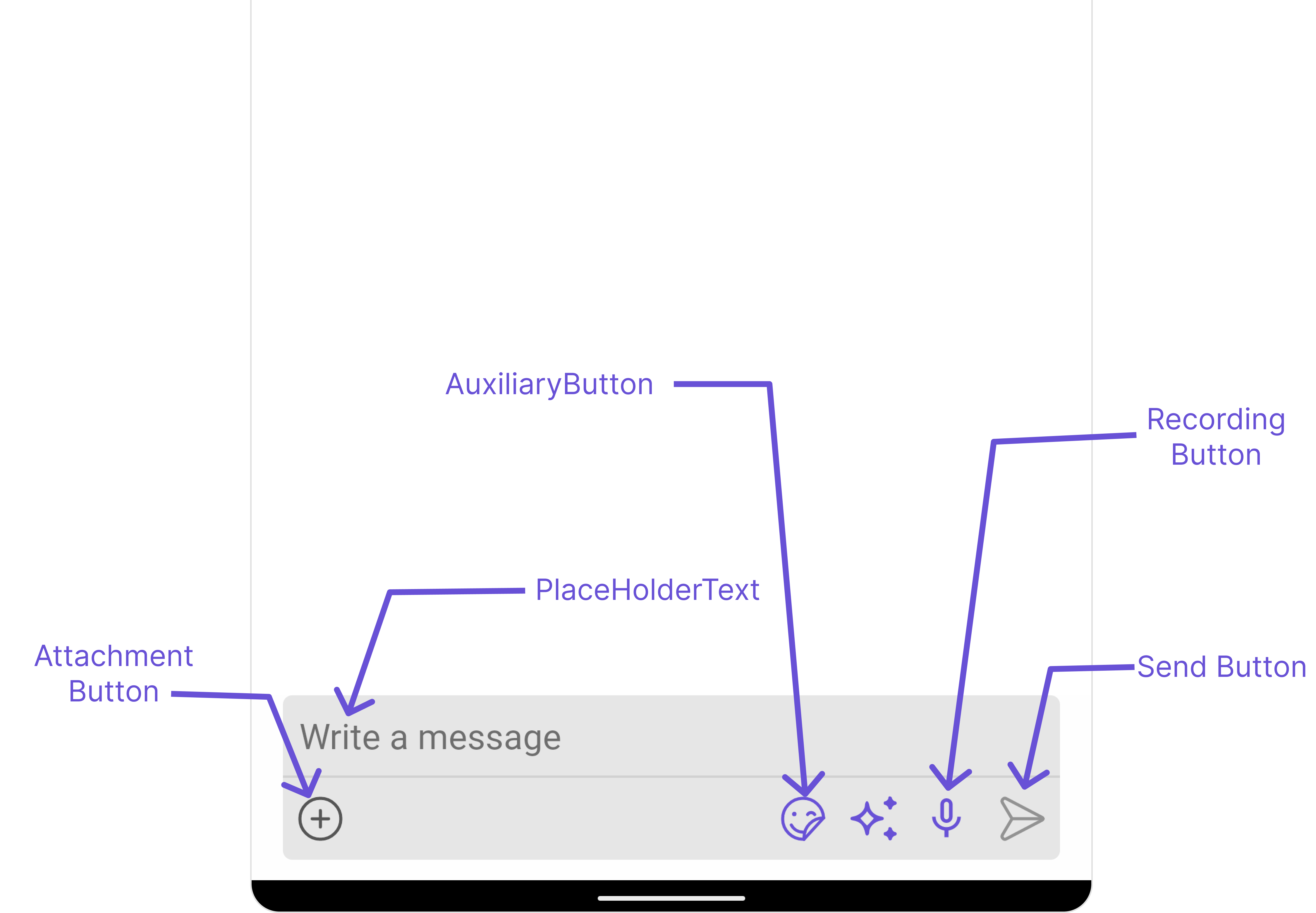
MessageComposer is a Component that enables users to write and send a variety of messages, including text, image, video, and custom messages.Features such as Live Reaction, Attachments, and Message Editing are also supported by it.
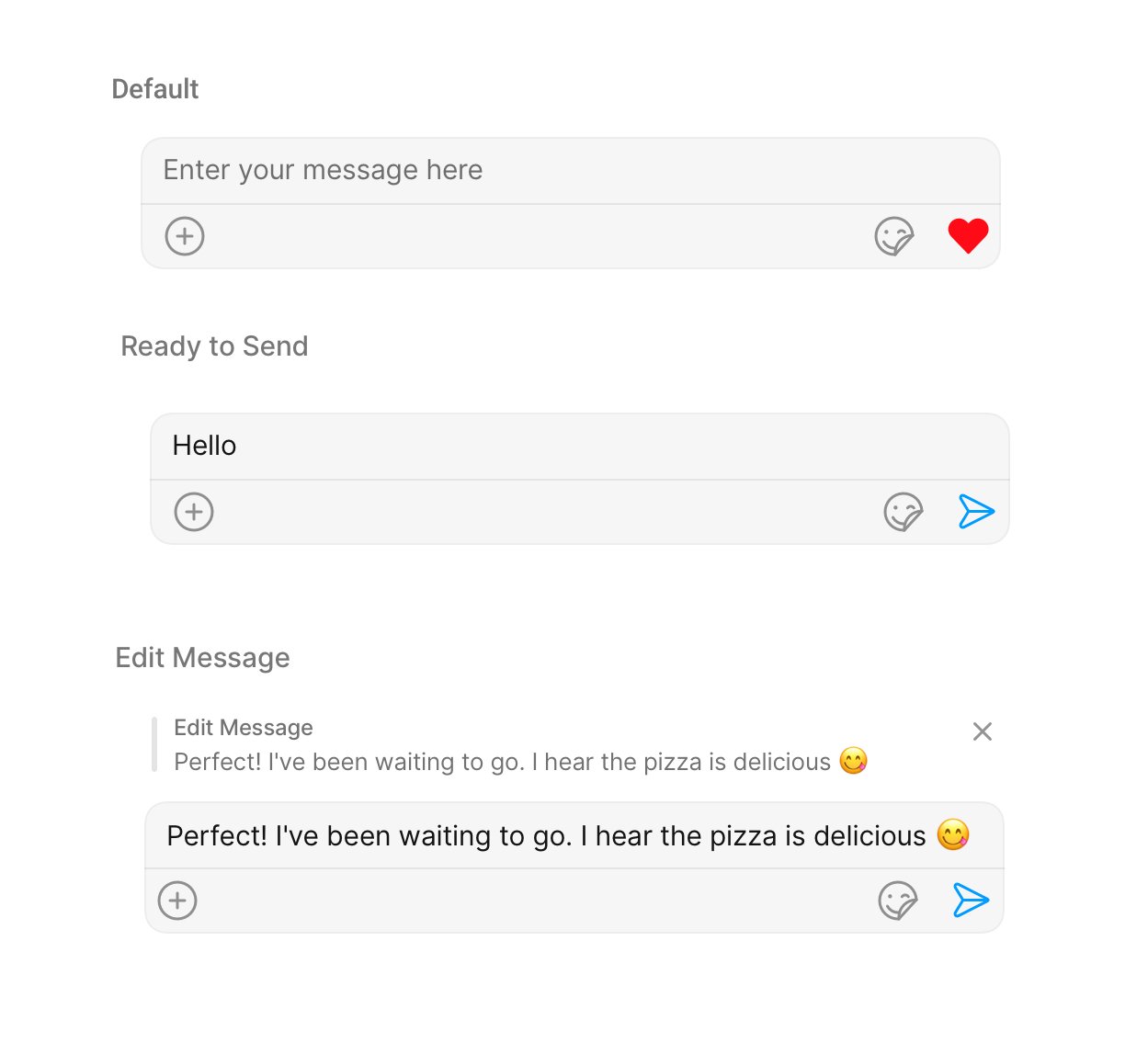
MessageComposer is comprised of the following Base Components:
The MessageComposer is responsible for managing runtime permissions. To ensure the ActivityResultLauncher is properly initialized, its object should be created in the the onCreate state of an activity. To ensure that the composer is loaded within the fragment, it is important to make sure that the fragment is loaded in the onCreate state of the activity.
Actions dictate how a component functions. They are divided into two types: Predefined and User-defined. You can override either type, allowing you to tailor the behavior of the component to fit your specific needs.
1. OnSendButtonClick
The OnSendButtonClick event gets activated when the send message button is clicked. It has a predefined function of sending messages entered in the composer EditText. However, you can overide this action with the following code snippet.
Events are emitted by a Component. By using event you can extend existing functionality. Being global events, they can be applied in Multiple Locations and are capable of being Added or Removed.The MessageComposer Component does not emit any events of its own.
To fit your app’s design requirements, you can customize the appearance of the MessageComposer component. We provide exposed methods that allow you to modify the experience and behavior according to your specific needs.
Using Style you can customize the look and feel of the component in your app, These parameters typically control elements such as the color, size, shape, and fonts used within the component.
1. MessageComposer Style
To modify the styling, you can apply the MessageComposerStyle to the MessageComposer Component using the setStyle method.
Java
Kotlin
Report incorrect code
Copy
Ask AI
MessageComposerStyle messageComposerStyle = new MessageComposerStyle();messageComposer.setStyle(messageComposerStyle);
Report incorrect code
Copy
Ask AI
val messageComposerStyle = MessageComposerStyle()messageComposer.setStyle(messageComposerStyle)
The following properties are exposed by MessageComposerStyle:
Property
Description
Code
Set BorderWidth
Used to set outermost border
.setBorderWidth(int)
Border Color
Used to set border color
.setBorderColor(@ColorInt int)
Corner Radius
Used to set corner radius
.setCornerRadius(int)
Background
This method will set the background color for message list
.setBackground(@ColorInt int)
Set InputBackgroundColor
Used to set input background color
.setInputBackgroundColor(@ColorInt int)
Set TextAppearance
Used to set input text style
.setTextAppearance(@StyleRes int)
Set PlaceHolderTextColor
Used to set placeholder text color
.setPlaceHolderTextColor(@StyleRes int)
Background
This will set drawable component for list background
.setBackground(@drawable int)
Set AttachIconTint
Used to set attachment icon tint
.setAttachIconTint(@ColorRes int)
Set SendIconTint
Used to set send button icon tint
.setSendIconTint(@ColorRes int)
Set SeparatorTint
Used to set separator color
.setSeparatorTint(@ColorRes int)
Set VoiceRecordingIconTint
used to set voice recording icon color
.setVoiceRecordingIconTint(@ColorRes int)
2. MessageInput Style
To customize the styles of the MessageInput component within the MessageComposer Component, use the .setMessageInputStyle() method. For more details, please refer to MessageInput styles.
Java
Kotlin
Report incorrect code
Copy
Ask AI
MessageInputStyle messageInputStyle = new MessageInputStyle();messageInputStyle.setBackground(Color.BLUE);messageInputStyle.setCornerRadius(50);messageComposer.setMessageInputStyle(messageInputStyle);
Report incorrect code
Copy
Ask AI
val messageInputStyle = MessageInputStyle()messageInputStyle.setBackground(Color.BLUE)messageInputStyle.setCornerRadius(50)messageComposer.setMediaRecorderStyle(mediaRecorderStyle)
3. MediaRecorder Style
To customize the styles of the MediaRecorder component within the MessageComposer Component, use the .setMediaRecorderStyle() method. For more details, please refer to MediaRecorder styles.
Java
Kotlin
Report incorrect code
Copy
Ask AI
MediaRecorderStyle mediaRecorderStyle = new MediaRecorderStyle();mediaRecorderStyle.setBorderColor(Color.BLACK);mediaRecorderStyle.setRecordedContainerColor(Color.RED);messageComposer.setMediaRecorderStyle(mediaRecorderStyle);
Report incorrect code
Copy
Ask AI
val mediaRecorderStyle = MediaRecorderStyle()mediaRecorderStyle.setBorderColor(Color.BLACK)mediaRecorderStyle.setRecordedContainerColor(Color.RED)messageComposer.setMediaRecorderStyle(mediaRecorderStyle)
These are a set of small functional customizations that allow you to fine-tune the overall experience of the component. With these, you can change text, set custom icons, and toggle the visibility of UI elements.
val messageComposer: CometChatMessageComposer = findViewById(R.id.composer)messageComposer.hideLiveReaction(true)messageComposer.disableTypingEvents(true)
Below is a list of customizations along with corresponding code snippets
Property
Description
Code
User
Used to pass user object of which header specific details will be shown
.setUser(user)
Group
Used to pass group object of which header specific details will be shown
.setGroup(Group)
Set PlaceHolderText
Used to set composer’s placeholder text
.setPlaceHolderText("Your_Text")
Disable TypingEvents
Used to disable/enable typing events , default false
.disableTypingEvents(boolean)
Disable SoundForMessages
Used to toggle sound for outgoing messages
.disableSoundForMessages(boolean)
Set SendButtonIcon
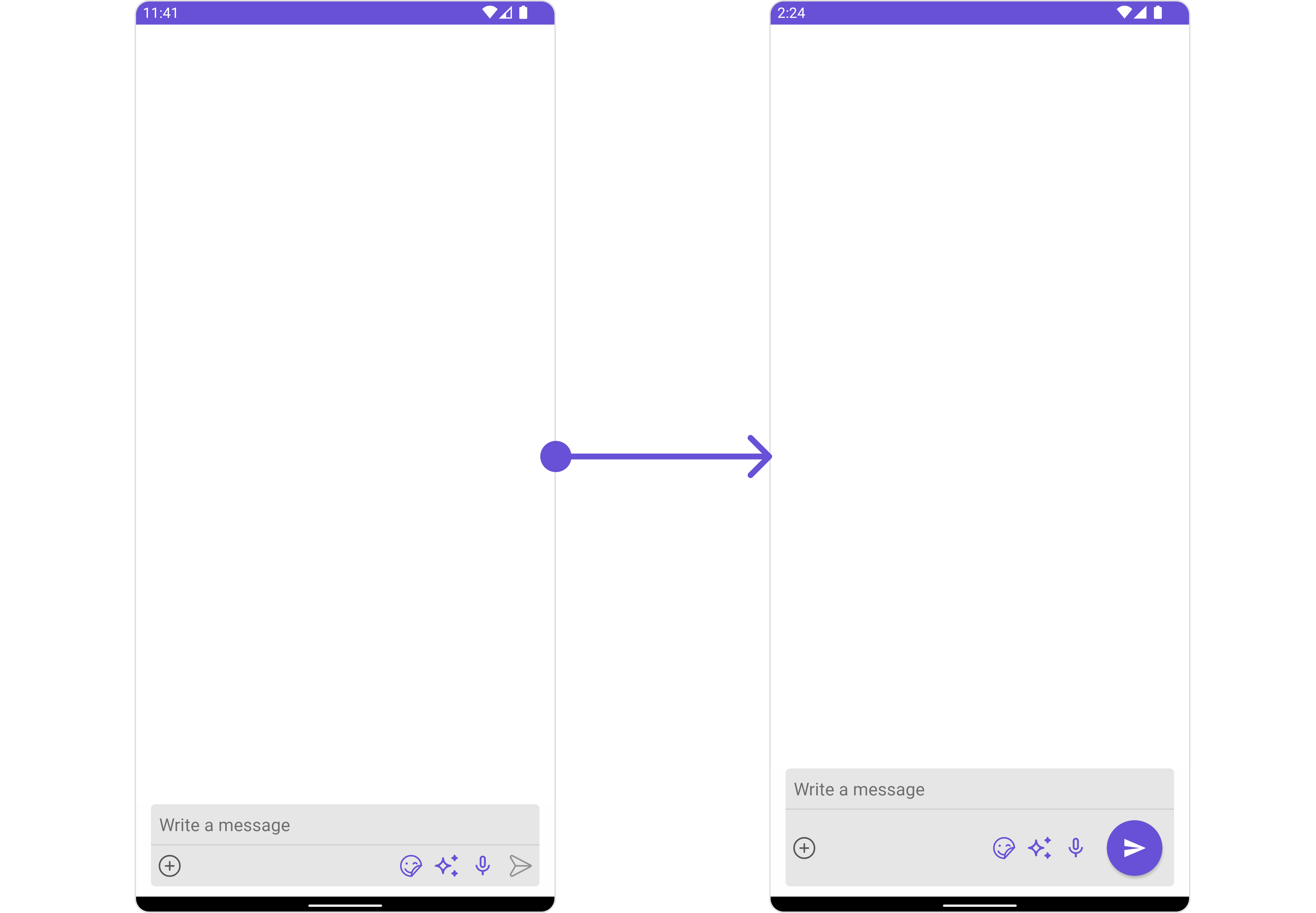
Used to set send button icon
.setSendButtonIcon(@DrawableRes int)
Set Text
Used to set predefined text
.setText("Your_Text")
Set MaxLine
Maximum lines allowed to increase in the input field
.setMaxLine(int)
Set VoiceRecordingIcon
Sets custom drawable resources for the record buttons.
.setVoiceRecordingIcon(@DrawableRes int)
Set VoiceRecordingVisibility
The visibility constant for the voice recording view. Use View.VISIBLE, View.INVISIBLE or View.GONE.
.setVoiceRecordingVisibility(int)
Set PauseIcon
Sets custom drawable resources for the pause buttons.
.setPauseIcon(@DrawableRes int)
Set PlayIcon
Sets custom drawable resources for the play buttons.
.setPlayIcon(@DrawableRes int)
Set DeleteIcon
Sets custom drawable resources for the delete buttons.
.setDeleteIcon(@DrawableRes int)
Set StopIcon
Sets custom drawable resources for the stop buttons.
.setStopIcon(@DrawableRes int)
Set AuxiliaryButtonAlignment
controls position auxiliary button view , can be left or right . default right
used to toggle visibility for live reaction component
.hideLiveReaction(boolean)
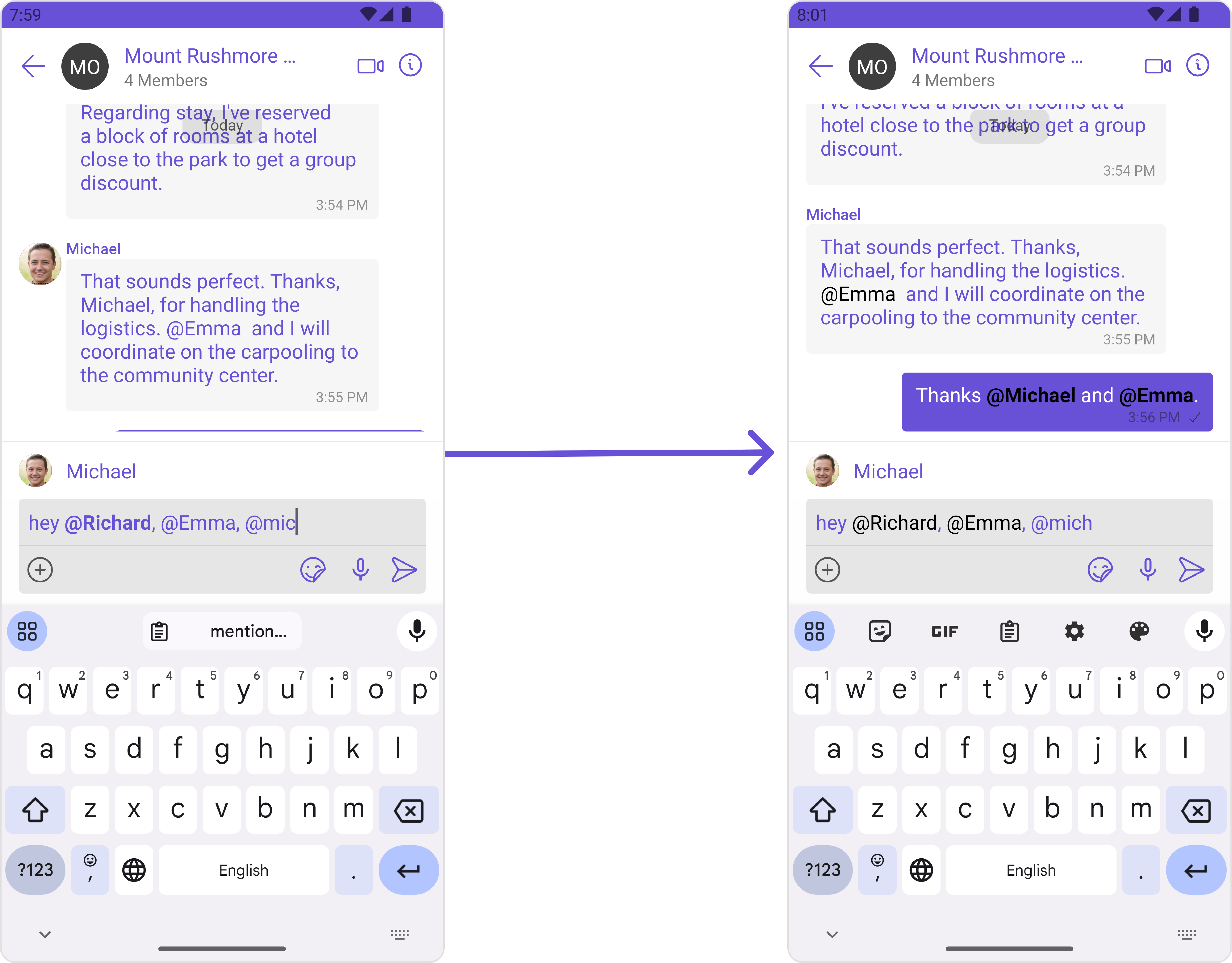
Disable Mentions
Sets whether mentions in text should be disabled. Processes the text formatters If there are text formatters available and the disableMentions flag is set to true, it removes any formatters that are instances of CometChatMentionsFormatter.
For advanced-level customization, you can set custom views to the component. This lets you tailor each aspect of the component to fit your exact needs and application aesthetics. You can create and define your views, layouts, and UI elements and then incorporate those into the component.
Assigns the list of text formatters. If the provided list is not null, it sets the list. Otherwise, it assigns the default text formatters retrieved from the data source. To configure the existing Mentions look and feel check out CometChatMentionsFormatterExample
Java
Kotlin
Report incorrect code
Copy
Ask AI
// Initialize CometChatMentionsFormatterCometChatMentionsFormatter mentionFormatter = new CometChatMentionsFormatter(context);// set style to customize composer mention textmentionFormatter.setComposerMentionTextStyle(new MentionTextStyle() .setLoggedInUserTextStyle(Typeface.defaultFromStyle(Typeface.BOLD)) .setTextColor(Color.parseColor("#000000")));// This can be passed as an array of formatter in CometChatMessageComposer by using setTextFormatters method.List<CometChatTextFormatter> textFormatters = new ArrayList<>();textFormatters.add(mentionFormatter);messageComposer.setTextFormatters(textFormatters);
Report incorrect code
Copy
Ask AI
// Initialize CometChatMentionsFormatterval mentionFormatter = CometChatMentionsFormatter(context)// set style to customize composer mention textmentionFormatter.composerMentionTextStyle = MentionTextStyle().setLoggedInUserTextStyle(Typeface.defaultFromStyle(Typeface.BOLD)).setTextColor(Color.parseColor("#000000"))// This can be passed as an array of formatter in CometChatMessageComposer by using setTextFormatters method.val textFormatters: MutableList<CometChatTextFormatter> = ArrayList()textFormatters.add(mentionFormatter)messageComposer.setTextFormatters(textFormatters)
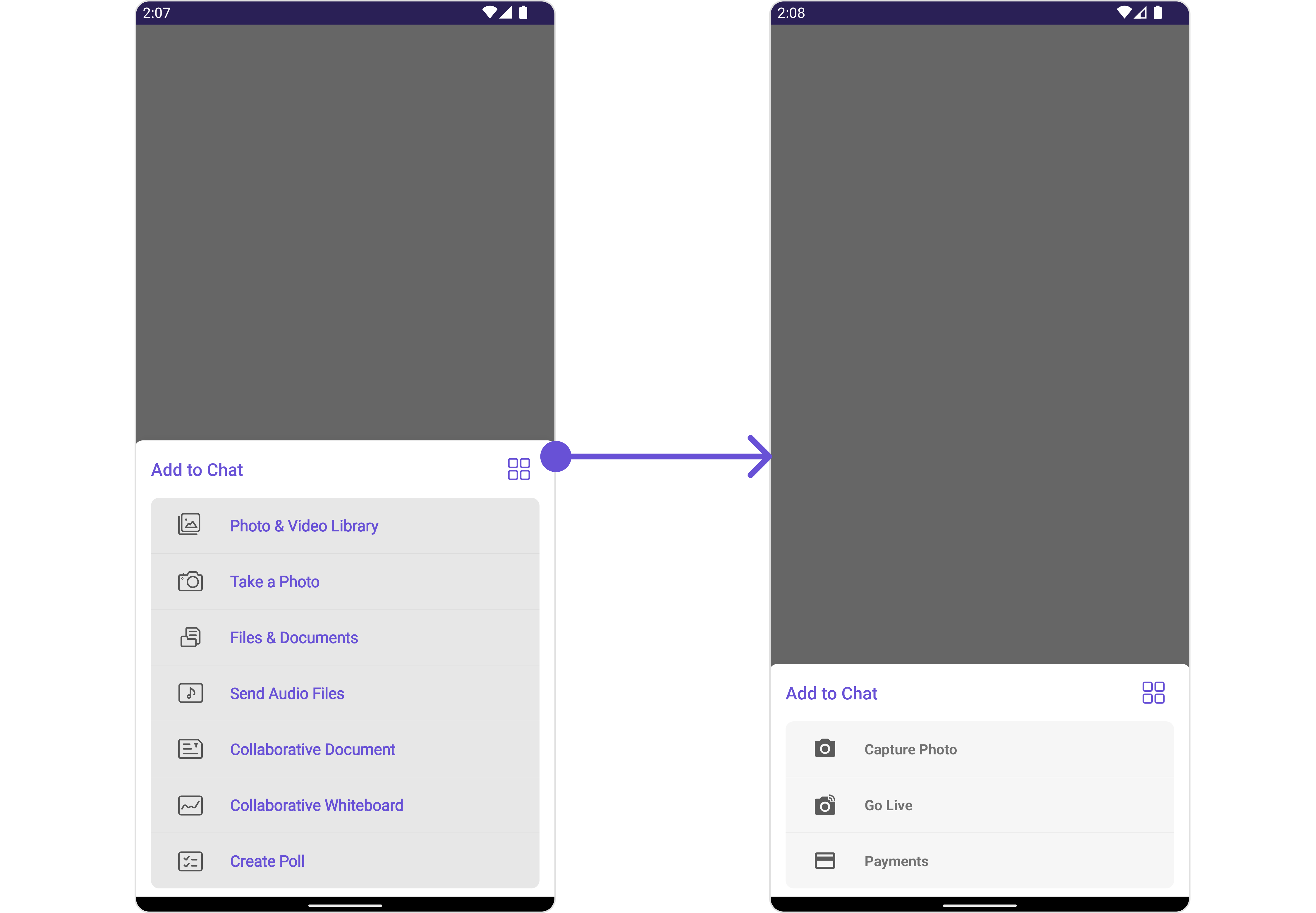
By using setAttachmentOptions(), you can set a list of custom MessageComposerActions for the MessageComposer Component. This will override the existing list of MessageComposerActions.
Java
Kotlin
Report incorrect code
Copy
Ask AI
messageComposer.setAttachmentOptions()
Report incorrect code
Copy
Ask AI
messageComposer.setAttachmentOptions()
Example
In this example, we are overriding the existing MessageComposerActions List with Capture Photo, Go Live & Payments actions.
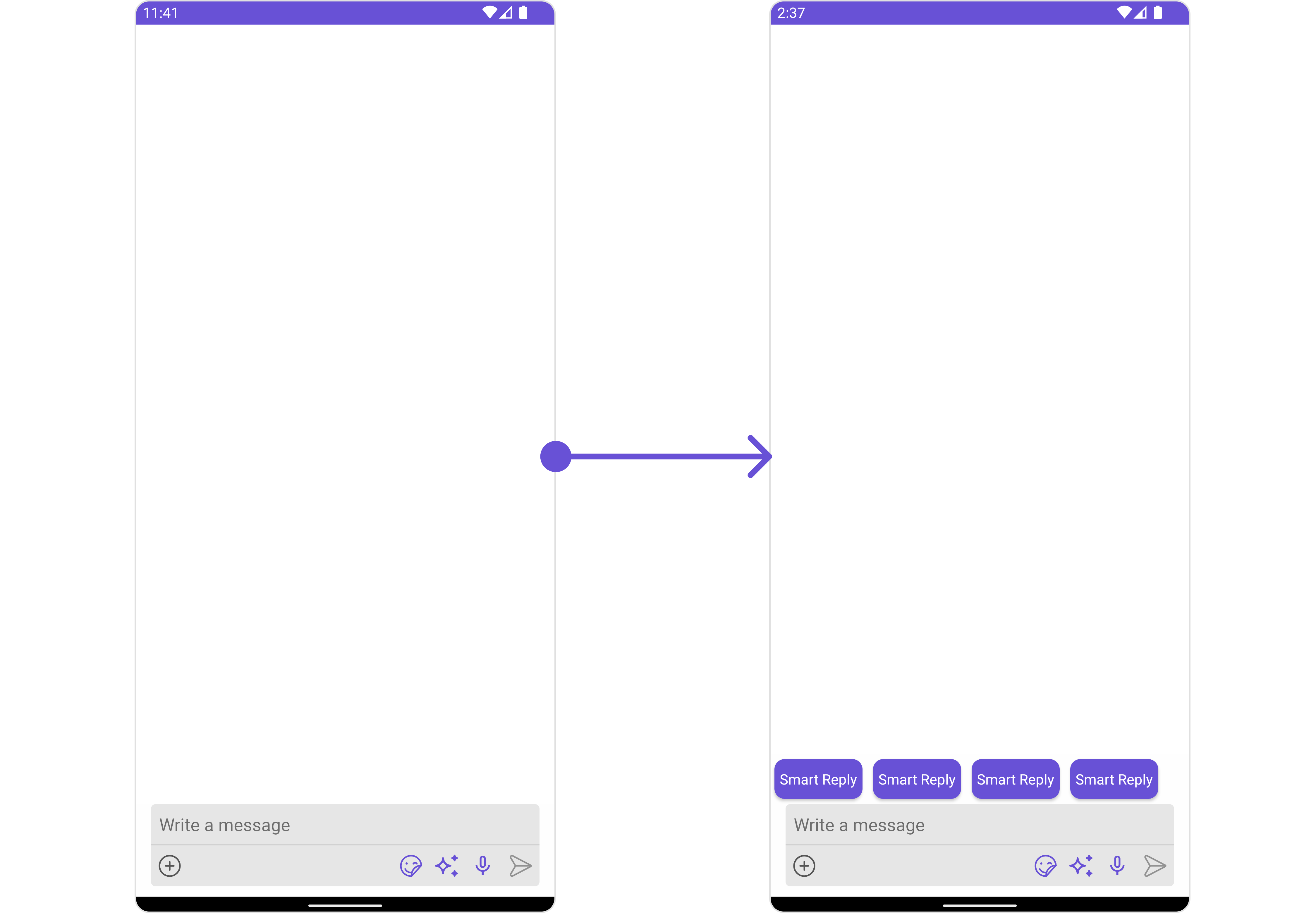
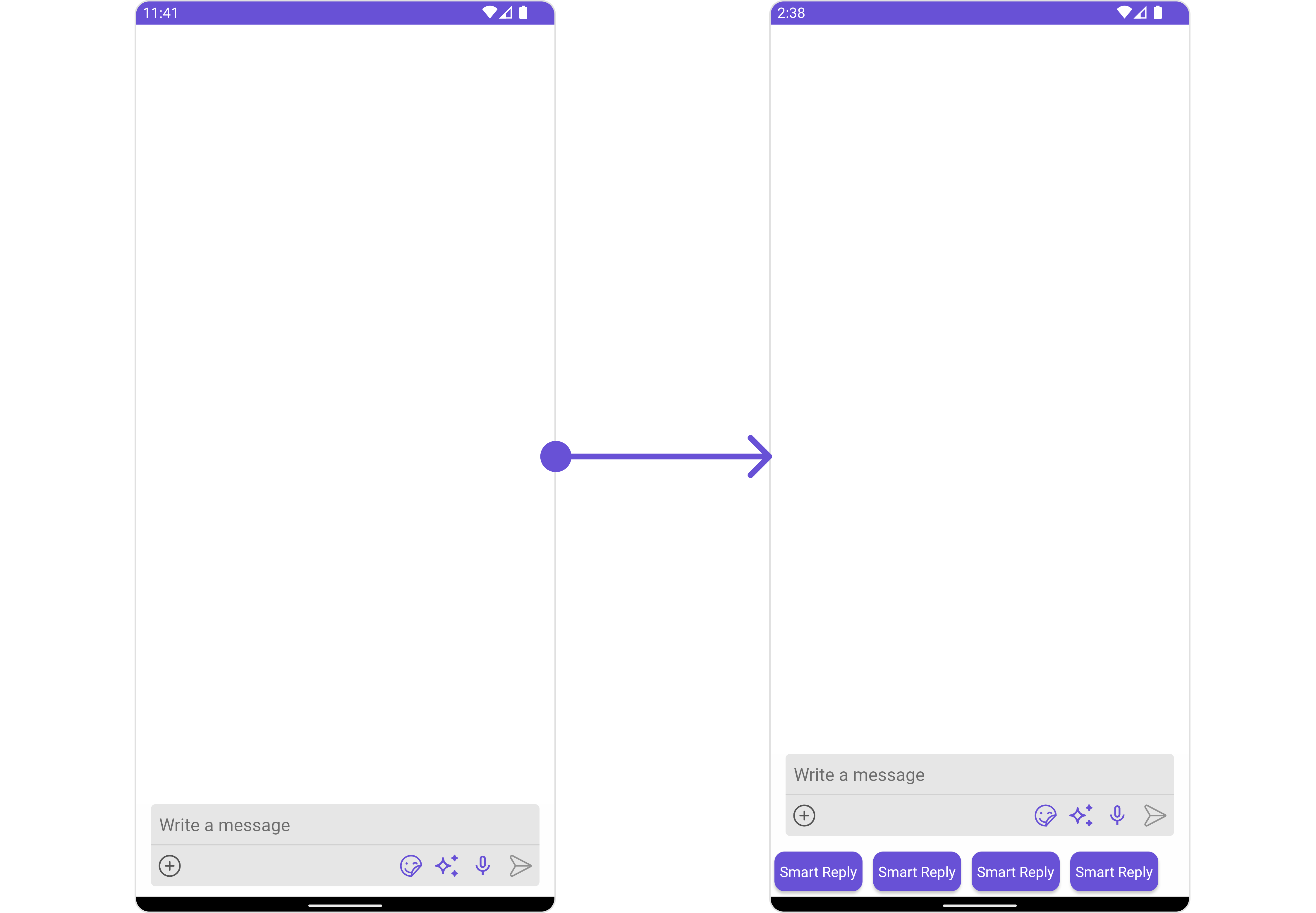
You can insert a custom view into the MessageComposer component to add additional functionality using the following method.
Java
Kotlin
Report incorrect code
Copy
Ask AI
messageComposer.setAuxiliaryButtonView()
Report incorrect code
Copy
Ask AI
messageComposer.setAuxiliaryButtonView()
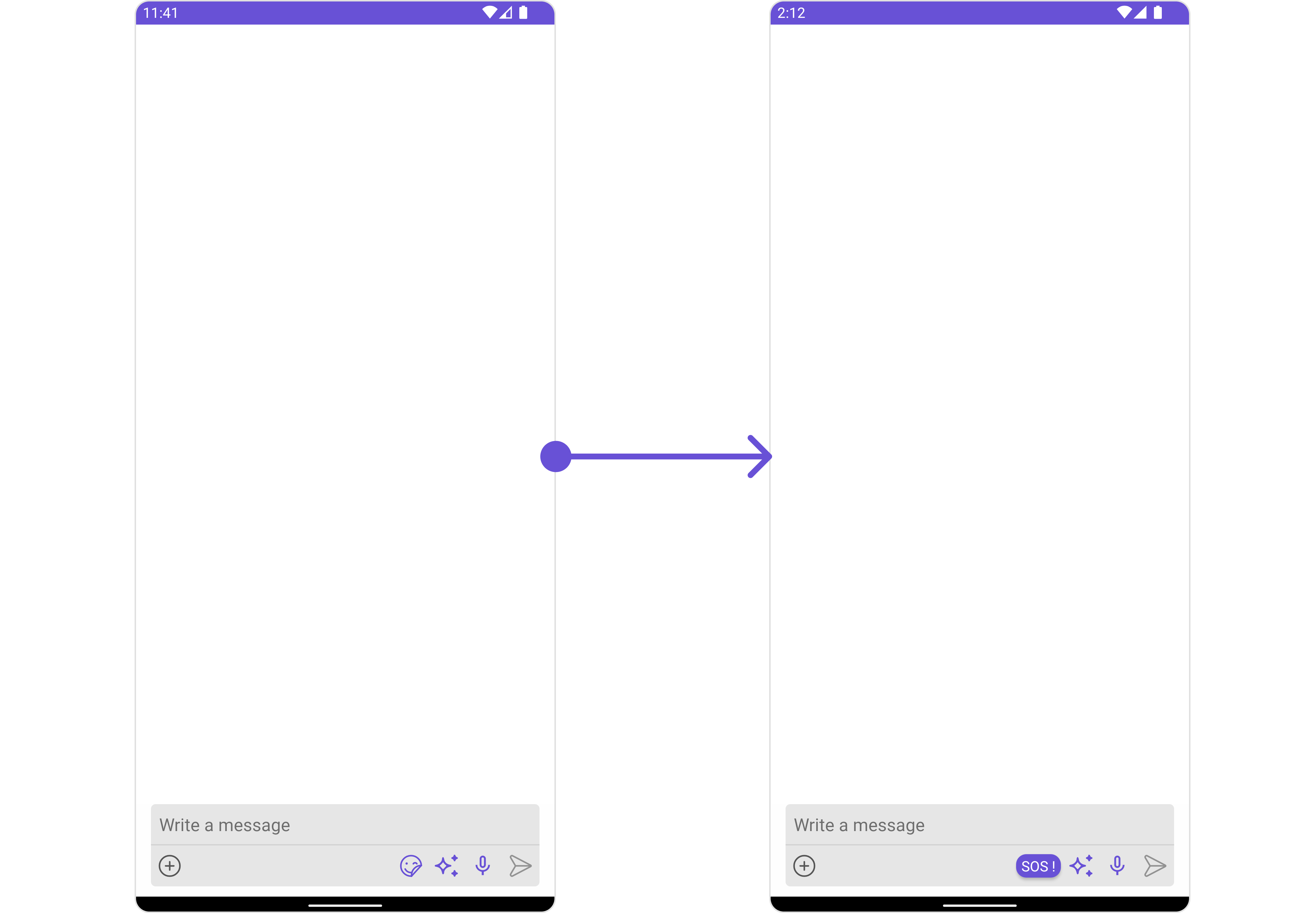
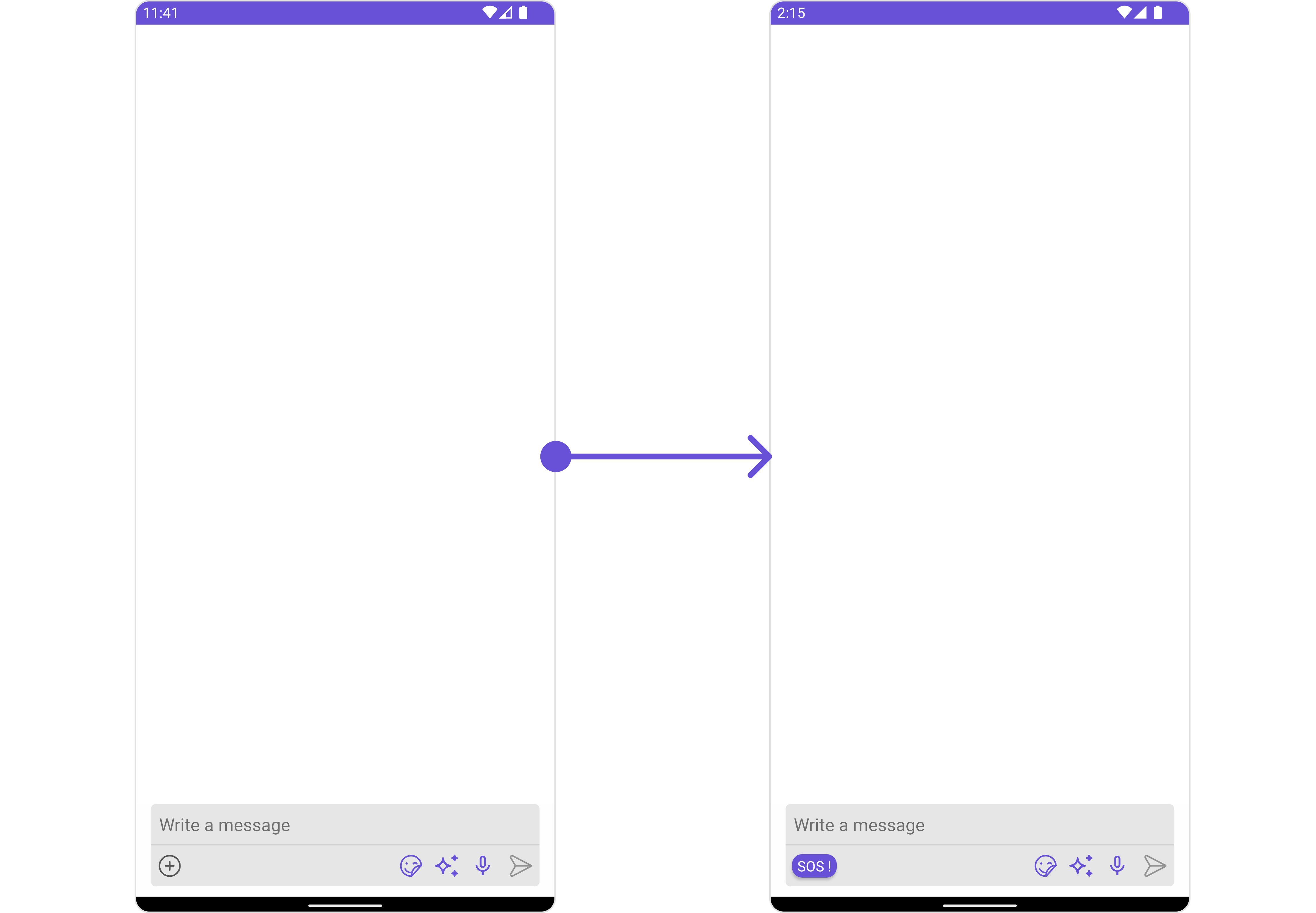
Please note that the MessageComposer Component utilizes the AuxiliaryButton to provide sticker functionality. Overriding the AuxiliaryButton will subsequently replace the sticker functionality.Example
In this example, we’ll be adding a custom SOS button with click functionality. You’ll first need to create a layout file and then inflate it inside the .setAuxiliaryButtonView() function.
You can add a custom view into the SecondaryButton component for additional functionality using the below method.
Java
Kotlin
Report incorrect code
Copy
Ask AI
messageComposer.setSecondaryButtonView()
Report incorrect code
Copy
Ask AI
messageComposer.setSecondaryButtonView()
Please note that the MessageComposer Component uses the SecondaryButton to open the ComposerActionsList. Overriding the SecondaryButton will replace the ComposerActionsList functionality.Example
In this example, we’ll be adding a custom SOS button with click functionality. You’ll first need to create a layout file and then inflate it inside the .setSecondaryButtonView() function.