

Flutter UI Kit Sample App
Reference implementation of Flutter UI Kit, FCM and Push Notification Setup.
What this guide covers
- CometChat dashboard setup (enable push, add FCM provider) with screenshots.
- Firebase/FCM + Flutter wiring (credentials, pubspec, Firebase init).
- Copying the sample notification stack and aligning package IDs/provider IDs.
- Native Android glue (manifest, MethodChannel, lock-screen call activity/receiver).
- Token registration, notification/call handling, navigation, testing, and troubleshooting.
- App icon badge count and grouped notifications using
unreadMessageCountfrom the CometChat push payload.
How FCM + CometChat work together
- FCM’s role: Issues the Android registration token and delivers the push payload to the device.
- CometChat’s role: The FCM provider you add in the CometChat dashboard stores your Firebase service account. When
PNRegistry.registerPNService(token, true, false)runs after login, CometChat binds that token to the logged-in user and sends pushes to FCM on your behalf. - Flow: Permission (Android 13+
POST_NOTIFICATIONS) → Firebase returns FCM token → afterCometChatUIKit.login, register withPNRegistry(usesAppCredentials.fcmProviderId) → CometChat sends to FCM → FCM delivers to the device →NotificationLaunchHandler/VoipNotificationHandlerroute taps and call actions.
1. Enable push and add providers (CometChat Dashboard)
- Go to Notifications → Settings and enable Push Notifications.
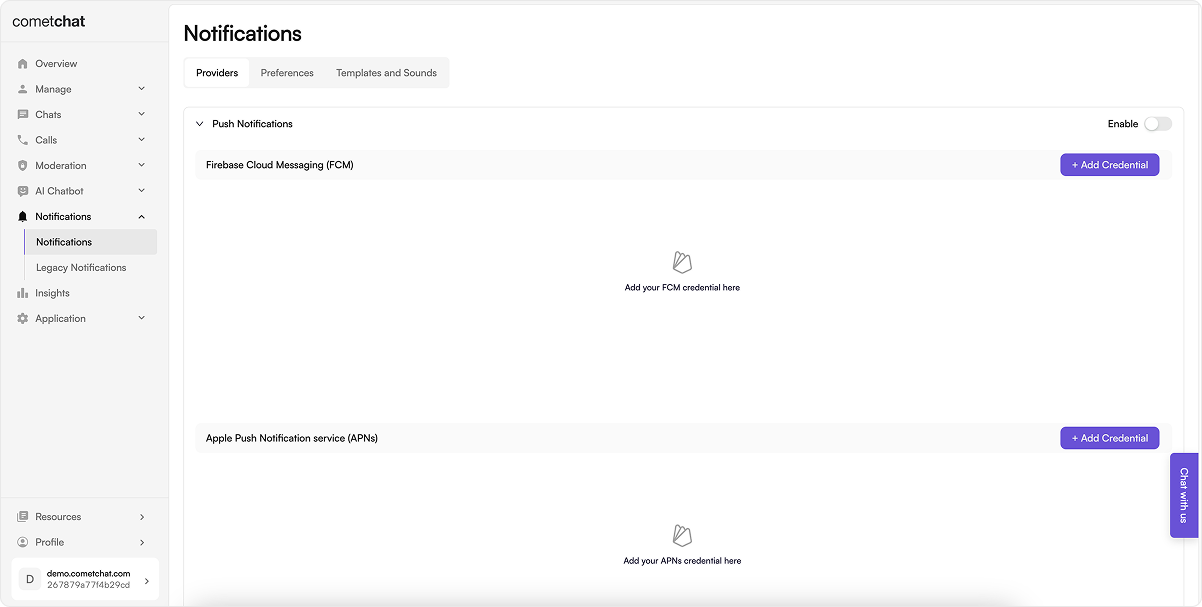
- Click Add Credentials, choose FCM, upload the Firebase service account JSON (Firebase → Project settings → Service accounts → Generate new private key), and copy the Provider ID.
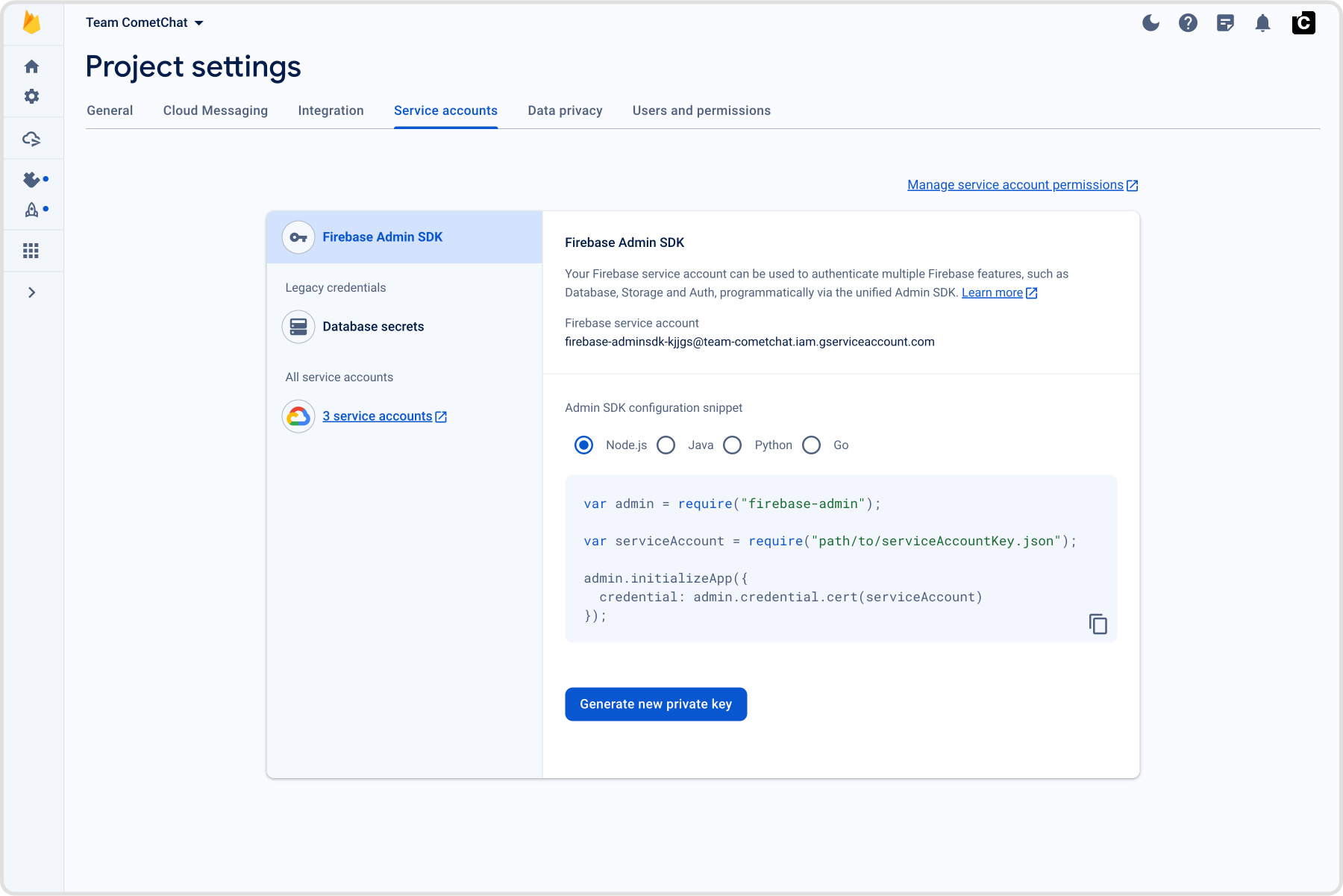
AppCredentials.fcmProviderId.
2. Prepare Firebase and credentials
2.1 Firebase Console
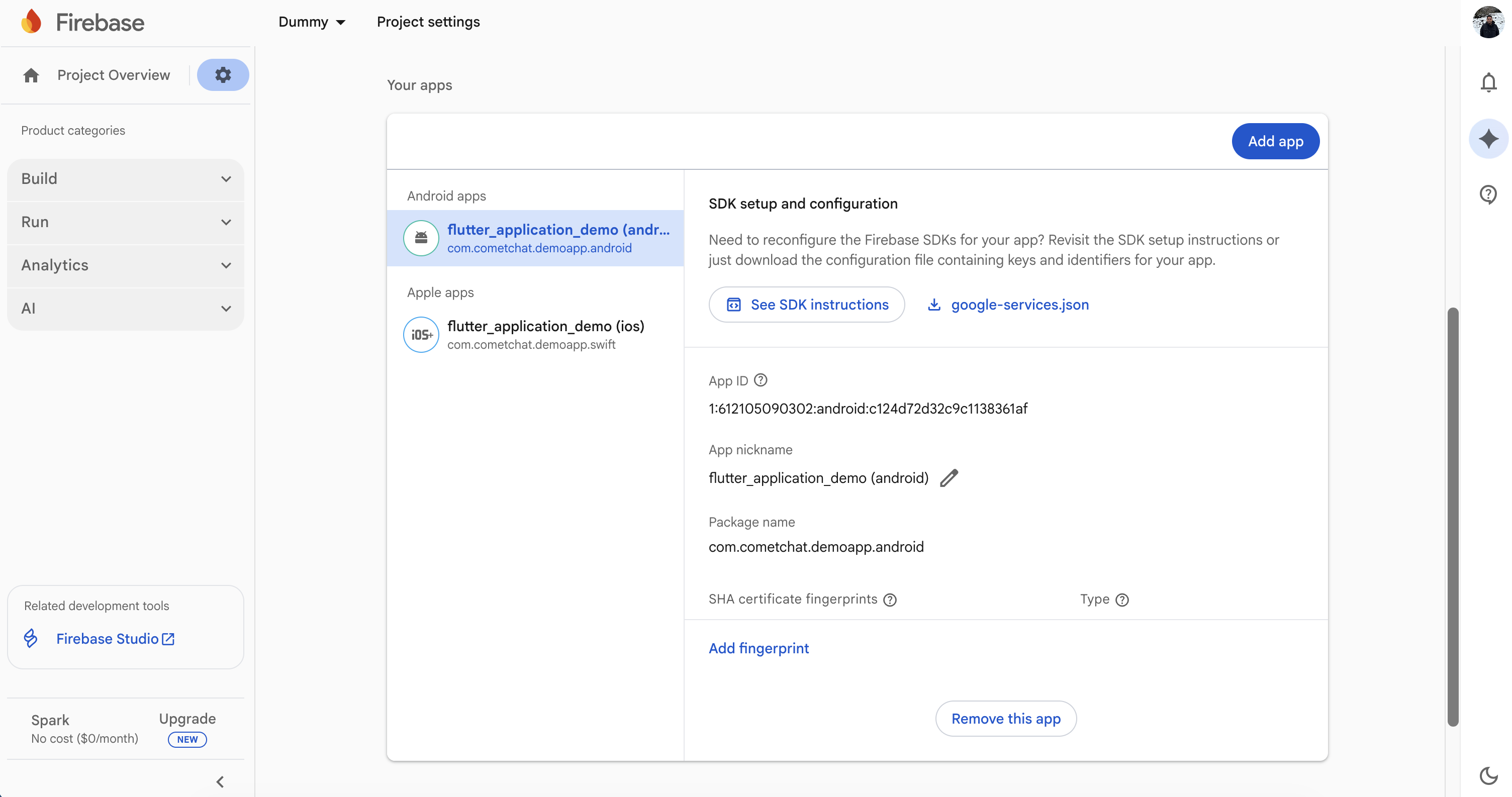
- Register your Android package name (the same as
applicationIdinandroid/app/build.gradle) and downloadgoogle-services.jsonintoandroid/app. - Enable Cloud Messaging and copy the Server key if you want to send test messages manually.
2.3 Local configuration file
Updatelib/app_credentials.dart so it exposes your credentials and provider IDs:
SharedPreferences; saveAppSettingsToNative() passes them to Android so CallActionReceiver can reject calls even if Flutter is not running.
3. Bring the notification stack into Flutter
3.1 Copy lib/notifications
- Clone or download the sample once.
- Copy the entire
lib/notificationsdirectory (models, Android/iOS services, helpers) into your app. - Update the import prefixes (for example replace
package:sample_app_push_notifications/...with your own package name). Keeping the same folder names avoids manual refactors later.
3.2 Wire the entry points
lib/main.dart
- Initialize
SharedPreferencesClass,FlutterLocalNotificationsPlugin, and Firebase before callingrunApp. - Cache
NotificationLaunchHandler.pendingNotificationResponsewhen the app is launched from a tapped notification while terminated. - Keep the
callMainentrypoint;CallActivityuses it to render the ongoing-call UI over the lock screen.
lib/guard_screen.dart / lib/dashboard.dart (or your first screen after login)
- Ensure
CometChatUIKit.init()andCometChatUIKit.login()finish before rendering the dashboard. - On Android, instantiate
FirebaseServiceand callnotificationService.init(context)once; on iOS, keepAPNSService. - Replay
NotificationLaunchHandler.pendingNotificationResponseafter the widget tree builds so taps from a killed app still navigate toMessagesScreen. - Forward lifecycle changes to
IncomingCallOverlay/BoolSingletonto hide stale overlays when the app resumes. VoipNotificationHandler.handleNativeCallIntent(context)runs after the first frame to act on accept/decline actions that were tapped from the Android notification before Flutter started.
3.3 Align dependencies and configuration
Mirror the samplepubspec.yaml versions (update as needed when newer releases ship):
flutter pub get, then flutterfire configure if you still need to generate firebase_options.dart.
4. Configure the native Android layer
4.1 Gradle + Firebase
- Add
google-services.jsontoandroid/app. - Ensure
android/app/build.gradleapplies the plugins used in the sample:
applicationId to your package name and keep minSdk 24 or higher. compileSdk 36 / targetSdk 35 match the sample but can be raised if your project already targets a newer API.
4.2 Manifest permissions and components
Use the sampleAndroidManifest.xml as a baseline:
- Permissions for notifications, audio/video, and lock-screen call UI:
POST_NOTIFICATIONS,RECORD_AUDIO,CAMERA,FOREGROUND_SERVICE,USE_FULL_SCREEN_INTENT,WAKE_LOCK,SHOW_WHEN_LOCKED,TURN_SCREEN_ON, andSYSTEM_ALERT_WINDOW. MainActivityuseslaunchMode="singleTask"withandroid:showWhenLocked="true"/android:turnScreenOn="true"so incoming calls can wake the screen.CallActivityis a dedicated entrypoint (usescallMain) to render the ongoing call over the lock screen and is excluded from recents.CallActionReceiverlistens toflutter_callkit_incomingactions (and mirrored app-specific actions) so Accept/Decline from the native notification reach Flutter.- Set
default_notification_iconmeta-data to your icon if you change the launcher asset.
4.3 Kotlin bridge for call intents
MainActivity.ktexposes aMethodChannel("com.cometchat.sampleapp")that supports:get_initial_call_intent– read and clear any call intent extras soVoipNotificationHandler.handleNativeCallIntentin Dart can react after Flutter launches.setupLockScreenForCall/restoreLockScreenAfterCall– temporarily bypass and then restore the lock screen when a call is accepted.saveAppSettings– stores your App ID and Region for the broadcast receiver.
CallActionReceiver.ktwakes the app for Accept/Decline actions. On decline, it can initialize the CometChat SDK headlessly (using the saved App ID/Region) to reject the call as busy even if Flutter is not running.CallActivity.ktoverridesgetDartEntrypointFunctionNametocallMain, letting the ongoing-call UI render in its own activity with lock-screen flags.
voipPlatformChannel inside lib/notifications/services/save_settings_to_native.dart to match.
5. Token registration and runtime events
5.1 FCM tokens
FirebaseService.init requests notification permission, sets the background handler (firebaseMessagingBackgroundHandler), and registers tokens:
PNRegistry pulls the provider ID from AppCredentials.fcmProviderId. Call this only after CometChatUIKit.login succeeds.
5.2 Local notifications and navigation
LocalNotificationService.showNotificationrenders a high-priority local notification when the incoming CometChat message does not belong to the currently open conversation.NotificationLaunchHandler.pendingNotificationResponsecaches taps triggered while the app is terminated;dashboard.dartreplays it after navigation is ready.LocalNotificationService.handleNotificationTapfetches the user/group and pushesMessagesScreenwhen a notification is tapped from foreground, background, or terminated states.
5.3 Call events (VoIP-like pushes)
- The top-level
firebaseMessagingBackgroundHandlershows the incoming-call UI by callingVoipNotificationHandler.displayIncomingCall, which usesflutter_callkit_incomingto render a full-screen notification. FirebaseService.initializeCallKitListenersbindsFlutterCallkitIncoming.onEventso Accept/Decline/Timeout actions map toVoipNotificationHandler.acceptVoipCall,declineVoipCall, orendCall.VoipNotificationHandler.handleNativeCallIntentreads Accept/Decline extras passed fromCallActionReceivervia the MethodChannel if the user acted before Flutter started.saveAppSettingsToNative()runs duringFirebaseService.initto persist App ID/Region for the native receiver; keep it in place orCallActionReceivercannot initialize CometChat when rejecting a call from the lock screen.
6. Badge count and grouped notifications
CometChat’s Enhanced Push Notification payload includes anunreadMessageCount field (a string) representing the total unread messages across all conversations for the logged-in user. You can use this to set the app icon badge and enrich local notifications.
6.1 Enable unread badge count on the CometChat Dashboard
- Go to CometChat Dashboard → Notifications → Settings → Preferences → Push Notification Preferences.
- Scroll to the bottom and enable the Unread Badge Count toggle.
unreadMessageCount field in every push payload sent to your app.
6.2 Add the app_badge_plus dependency
flutter pub get.
6.3 Expected payload format
CometChat sends FCM data messages with this structure (relevant fields):unreadMessageCount is a string representing the total unread messages across all conversations for the logged-in user.
6.4 Update the app badge from the push payload
Inside your local notification handler (for exampleLocalNotificationService.showNotification), parse unreadMessageCount and update the badge:
app_badge_plus uses launcher-specific APIs (Samsung, Huawei, etc.) to display a badge number on the app icon. Passing 0 clears the badge.
6.5 Show grouped notifications with unread count
UseconversationId.hashCode as the notification ID so each new message from the same conversation replaces the previous notification instead of creating a new one. Accumulate message lines per conversation for inbox-style display:
subTextshows the unread count below the notification title on most Android devices.numberdisplays a count badge on the notification icon (Samsung One UI).- When the user opens a conversation, clear its accumulated messages by removing the key from
_conversationMessages.
6.6 Clear badge and notifications when the app opens
Clear the badge count and dismiss all local notifications when the app launches and every time it resumes from the background. AddWidgetsBindingObserver to your root widget and register/remove the observer in initState() and dispose():
cancelAll() removes stale notification banners from the tray so they stay in sync with the badge count.
7. Testing checklist
- Run on a physical Android device. Grant notification, microphone, and camera permissions when prompted (Android 13+ requires
POST_NOTIFICATIONS). - Send a message from another user:
- Foreground: a local notification banner shows (unless you are in that chat).
- Background: FCM notification appears; tapping opens the right conversation.
- Force-quit the app, send another message push, tap it, and confirm
NotificationLaunchHandlerlaunchesMessagesScreen. - Trigger an incoming CometChat call. Ensure:
- The full-screen call UI shows caller name/type with Accept/Decline.
- Accepting on the lock screen notifies Flutter (
handleNativeCallIntent), starts the call session, and dismisses the native UI when the call ends. - Declining from the notification triggers
CallActionReceiverto reject the call server-side.
- Rotate through Wi-Fi/cellular and reinstall the app to confirm token registration works after refresh events.