Legacy Notice: This extension is already included as part of the core messaging experience and is scheduled for deprecation in the near future.Please note: Legacy extensions are no longer actively maintained and will not receive feature updates or enhancements.
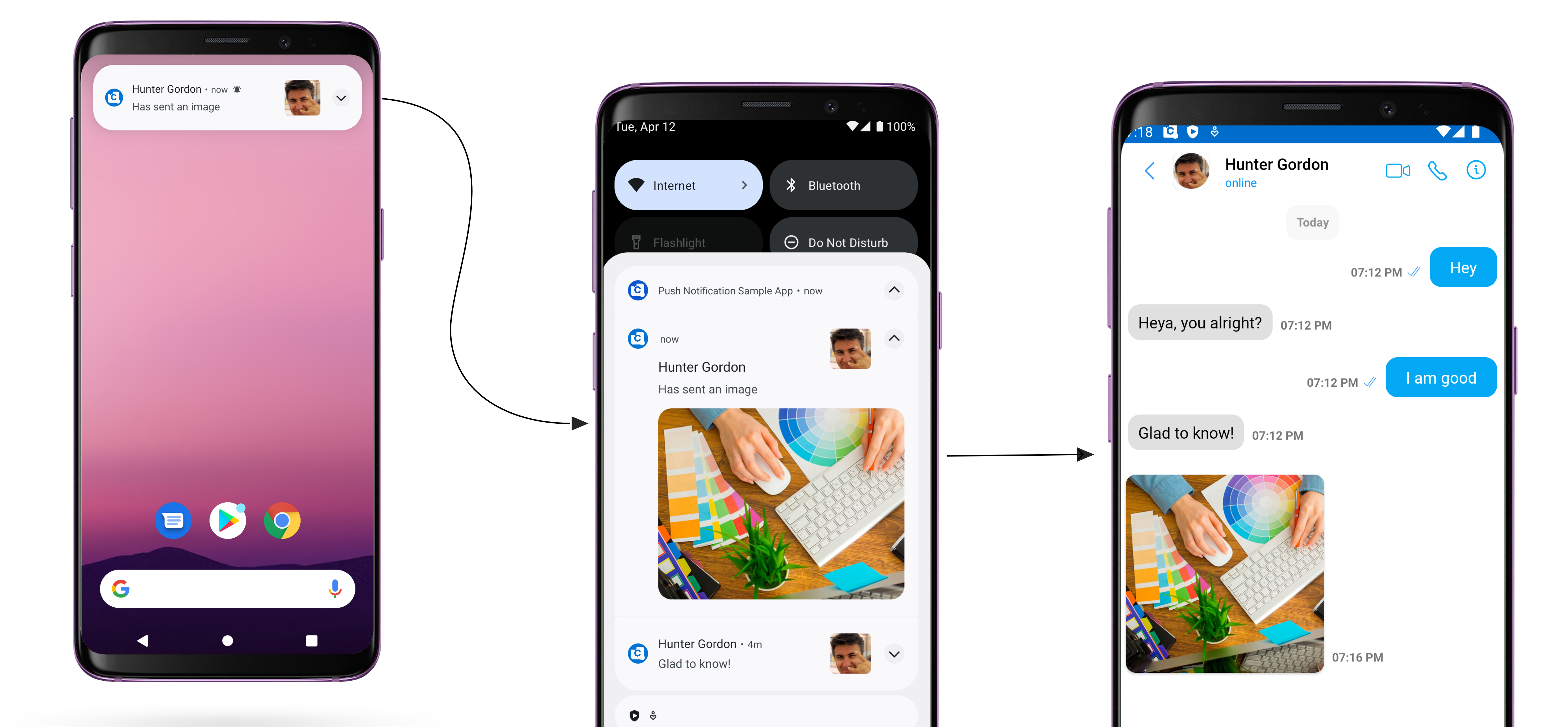
Learn how to send push notifications to mobile apps and desktop browsers.Push notifications will work in iOS and Android apps as well as desktop browsers that support Push API. These browsers include:
The Push Notification extension allows you to send push notifications to mobile apps and desktop browsers.Push notifications will work in all desktop browsers which support Push API. These include:
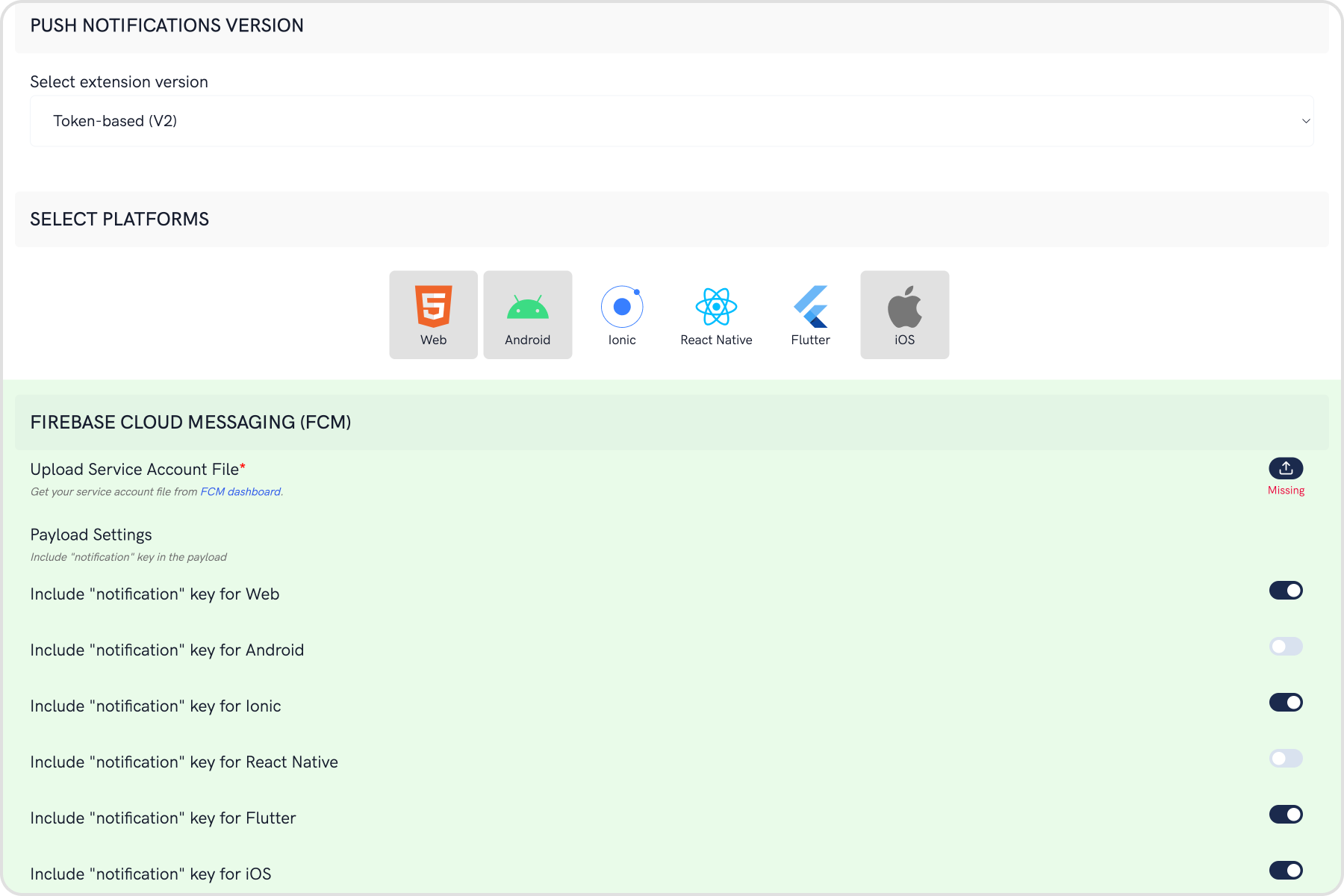
On the Settings page you need to enter the following:
Set extension version
If you are setting it for the first time, Select V2 to start using the token-based version of the Push Notification extension.
If you already have an app using V1 and want to migrate your app to use V2, then Select V1 & V2 option. This ensures that the users viewing the older version of your app also receive Push Notifications.
Eventually, when all your users are on the latest version of your app, you can change this option to V2, thus turning off V1 (Topic-based) Push Notifications completely.
You can control if the notification key should be in the Payload or not. Learn more about the FCM Messages here.
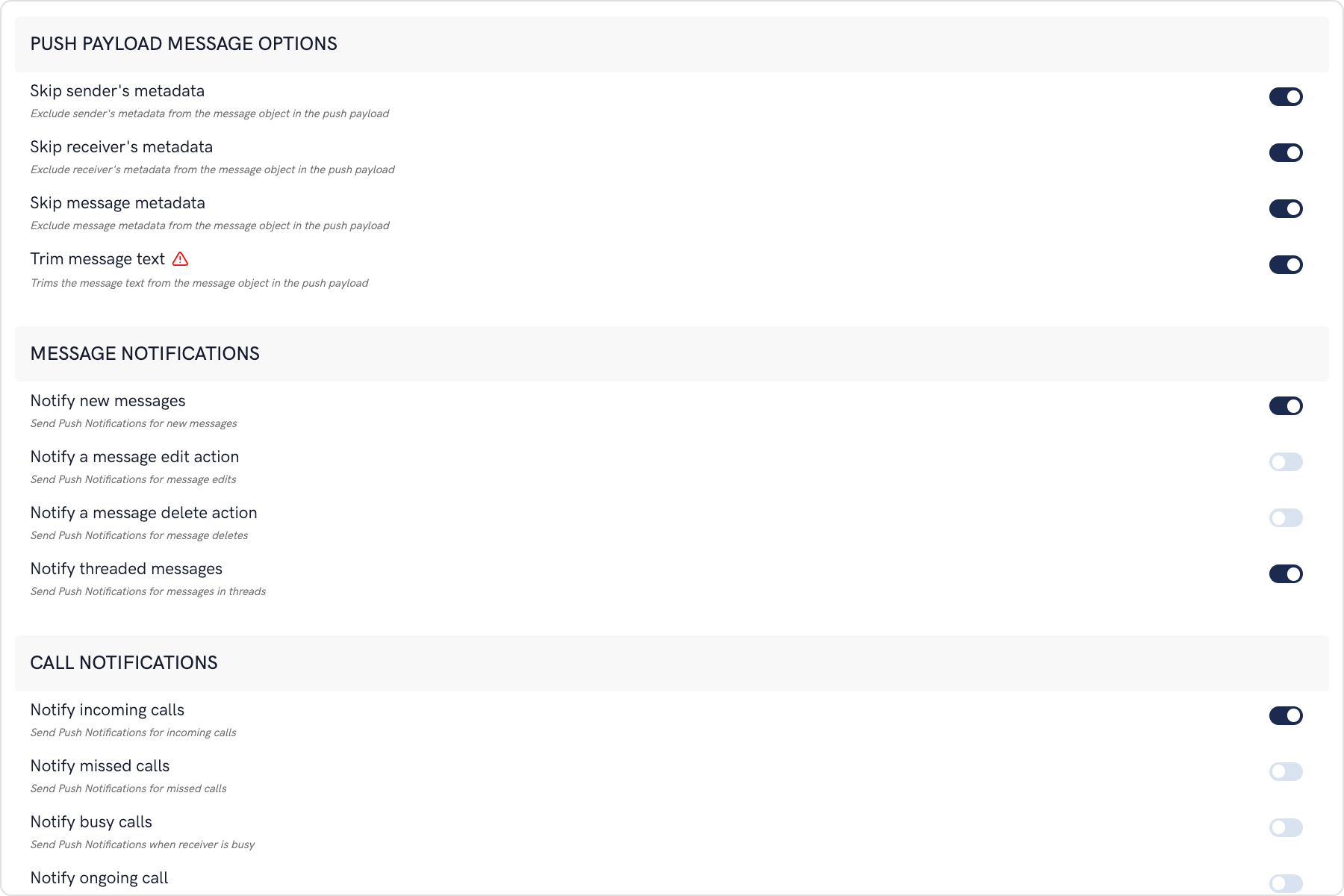
Push payload message options
The maximum payload size supported by FCM and APNs for push notifications is approximately 4 KB. Due to the inclusion of CometChat’s message object, the payload size may exceed this limit, potentially leading to non-delivery of push notifications for certain messages. The options provided allow you to remove the sender’s metadata, receiver’s metadata, message metadata and trim the content of the text field.
The message metadata includes the outputs of the Thumbnail Generation, Image Moderation, and Smart Replies extensions. You may want to retain this metadata if you need to customize the notification displayed to the end user based on these outputs.
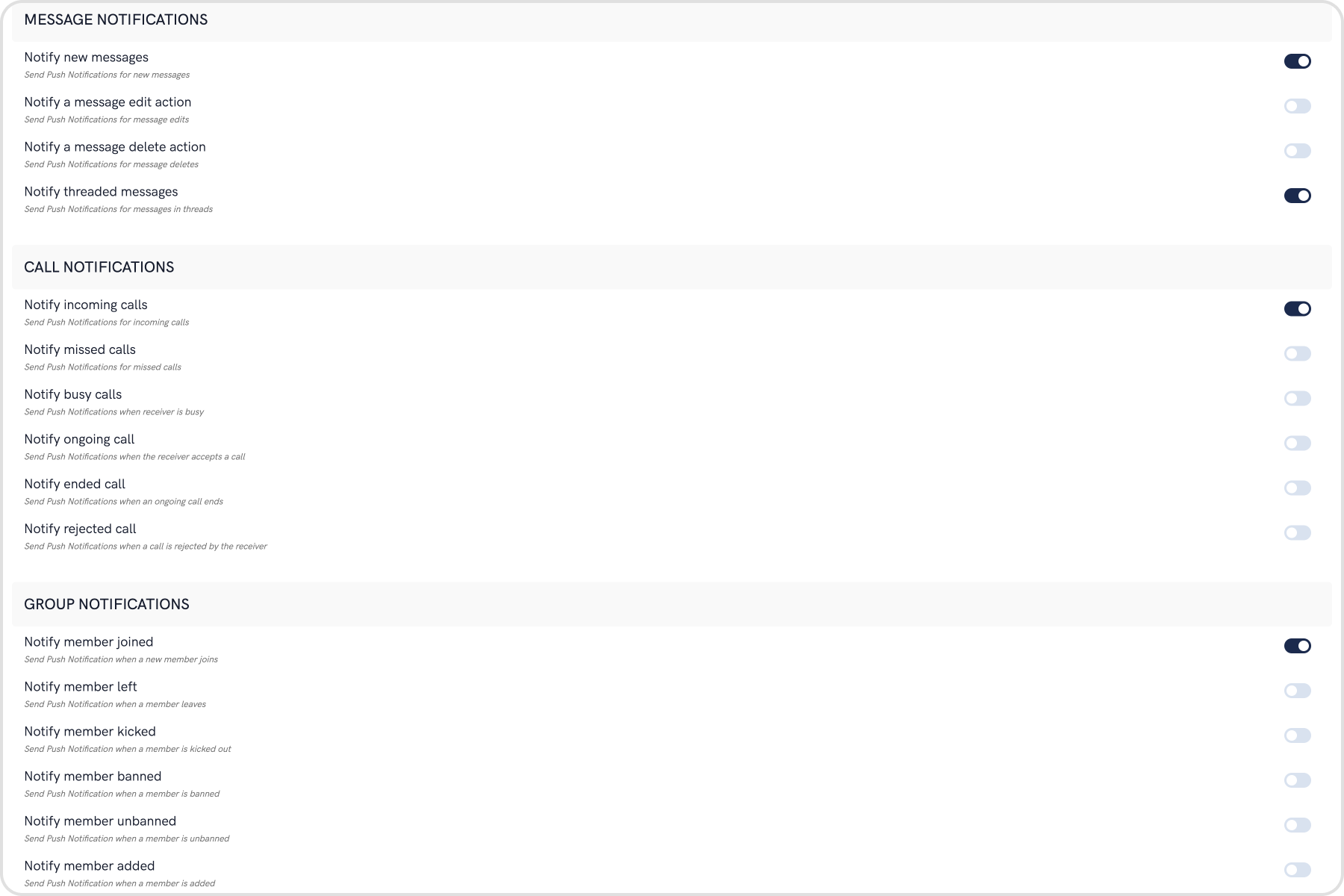
Notification Triggers
Select the triggers for sending Push Notifications. These triggers can be classified into 3 main categories:
Message Notifications
Call Notifications
Group Notifications
These are pretty self-explanatory and you can toggle them as per your requirement.
Use importScripts to include the firebase-app.js and firebase-messaging.js files in the service worker.
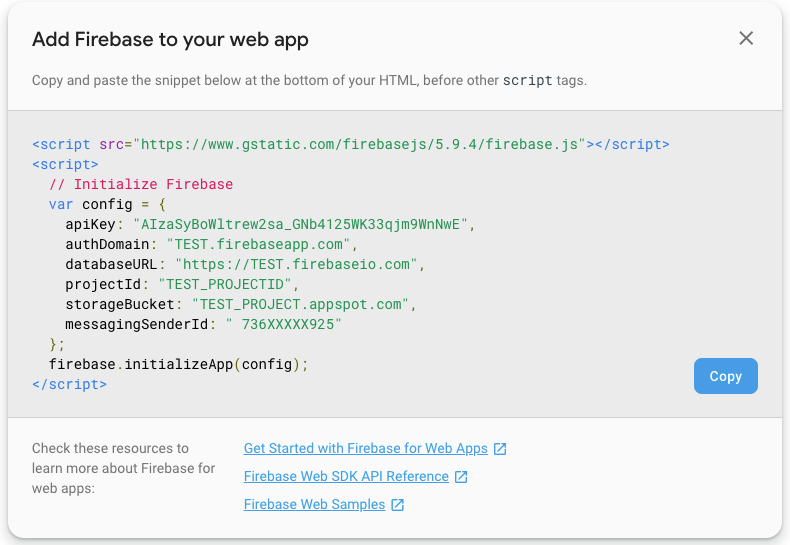
Also paste in the FIREBASE_CONFIG object again in this file.
Initialize the Firebase object using the config.
Call the messaging() on the Firebase object.
Once done, your firebase-messaging-sw.js file should look like this:
JavaScript
Report incorrect code
Copy
Ask AI
importScripts('https://www.gstatic.com/firebasejs/7.21.0/firebase-app.js');importScripts( 'https://www.gstatic.com/firebasejs/7.21.0/firebase-messaging.js');const FIREBASE_CONFIG = { // Your Config};// Initialize firebase in the service worker.firebase.initializeApp(FIREBASE_CONFIG);// Start Receiving Push Notifications when// the browser tab is in the background or closed.firebase.messaging();
Service worker registration when the index.html loads for the first time.
Next, we can focus on the flow to setup CometChat login process along with the steps required to setup Push Notifications using Firebase Cloud Messaging (or FCM).During login:
Initialize CometChat.
Login using CometChat user.
Ask for the User’s permission to show Push Notifications.
If permission is granted, obtain the FCM_TOKEN.
Register the obtained FCM_TOKEN with the extension.
During logout:
First delete the token using the firebase object.
Logout CometChat user.
The above steps have been implemented in the login and logout functions in the PushNotifications.js file. You can copy paste the below code. Do not forget to replace the APP_ID, REGION, AUTH_KEY of your app in the code below.
The Push Notification extension allows you to send push notifications to mobile apps and desktop browsers. In this section, we will see how to send Push Notifications to your Android app using Firebase Cloud Messaging or FCM.
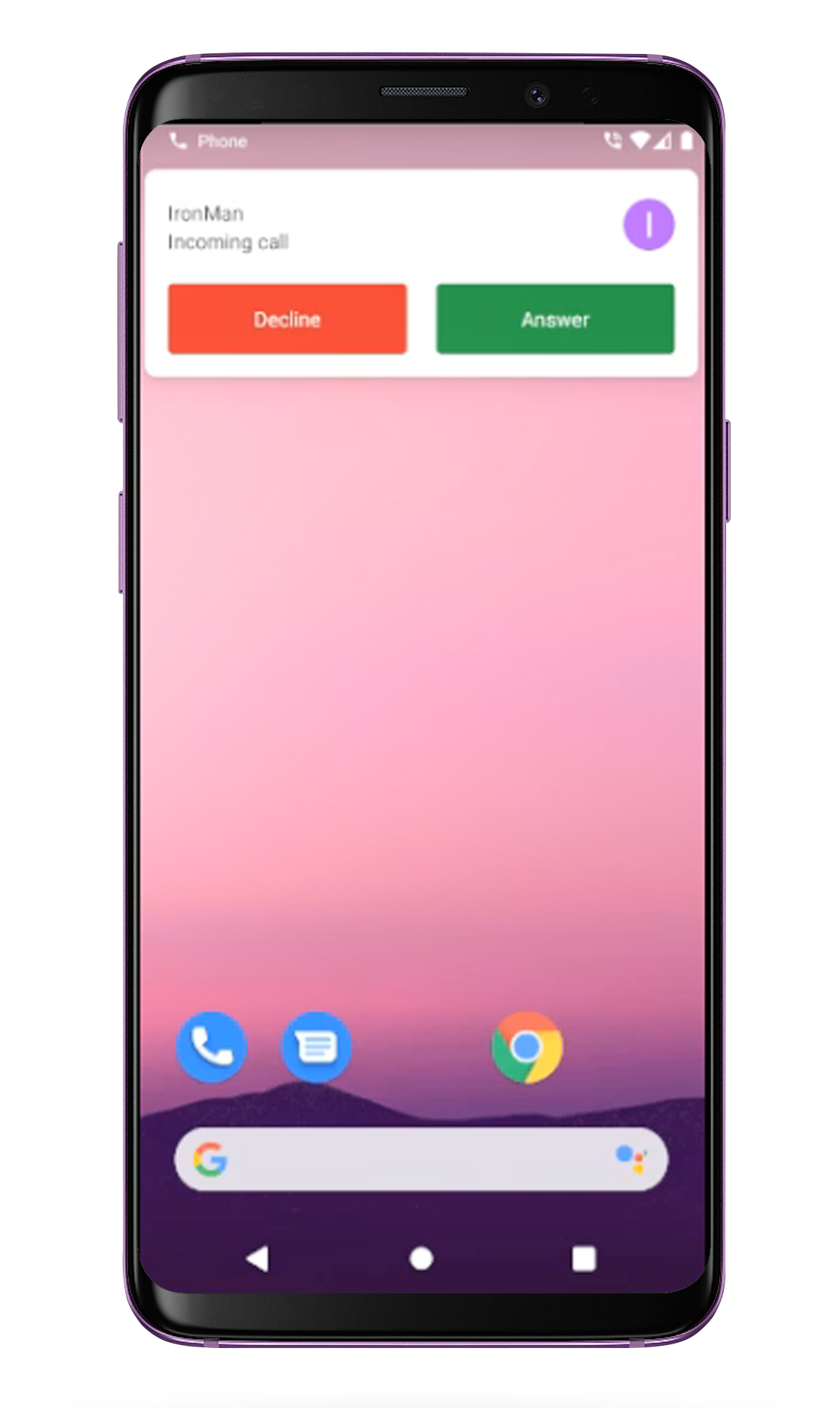
Use Connection ServiceIf you want to use the System’s native call service to handle calls, please refer to our guide on Android - Connection Service
On the Settings page you need to enter the following:
Set extension version
If you are setting it for the first time, Select V2 to start using the token-based version of the Push Notification extension.
If you already have an app using V1 and want to migrate your app to use V2, then Select V1 & V2 option. This ensures that the users viewing the older version of your app also receive Push Notifications.
Eventually, when all your users are on the latest version of your app, you can change this option to V2, thus turning off V1 (Topic-based) Push Notifications completely.
You can control if the notification key should be in the Payload or not. Learn more about the FCM Messages here.
Push payload message options
The maximum payload size supported by FCM and APNs for push notifications is approximately 4 KB. Due to the inclusion of CometChat’s message object, the payload size may exceed this limit, potentially leading to non-delivery of push notifications for certain messages. The options provided allow you to remove the sender’s metadata, receiver’s metadata, message metadata and trim the content of the text field.
The message metadata includes the outputs of the Thumbnail Generation, Image Moderation, and Smart Replies extensions. You may want to retain this metadata if you need to customize the notification displayed to the end user based on these outputs.
Notification Triggers
Select the triggers for sending Push Notifications. These triggers can be classified into 3 main categories:
Message Notifications
Call Notifications
Group Notifications
These are pretty self-explanatory and you can toggle them as per your requirement.
On successful login, you can register the obtained FCM Token using CometChat.registerTokenForPushNotification() function call. (You can see the process of getting the FCM Token in the next step)
Java
Kotlin
Report incorrect code
Copy
Ask AI
CometChat.registerTokenForPushNotification(MyFirebaseMessagingService.token, new CometChat.CallbackListener<String>() { @Override public void onSuccess(String s) { Log.e( "onSuccessPN: ",s ); } @Override public void onError(CometChatException e) { Log.e("onErrorPN: ",e.getMessage() ); }});
The FCM Token can be received by overriding the onNewToken() method. This token is stored as a String variable. You can choose to store it in SharedPreferences as well.
To receive messages, you need to override the onMessageReceived(RemoteMessage remoteMessage).
PushNotificationService.java has the code that provides a way you can handle messages received from CometChat users and groups.
CallNotificationAction.class is a BroadcastReceiver which is used to handle call events when your app is in the background state.
Since Android O, there have been certain restrictions added for background tasks and users cannot launch intent directly from the service. More details here.
We suggest you to create notification channel inside your application class. After Android O, it is necessary to register notification channel to allow notifications of your apps.
Java
Report incorrect code
Copy
Ask AI
private void createNotificationChannel() { // Create the NotificationChannel, but only on API 26+ because // the NotificationChannel class is new and not in the support library if (Build.VERSION.SDK_INT >= Build.VERSION_CODES.O) { CharSequence name = getString(R.string.app_name); String description = getString(R.string.channel_description); int importance = NotificationManager.IMPORTANCE_HIGH; NotificationChannel channel = new NotificationChannel("2", name, importance); channel.setDescription(description); channel.enableVibration(true); channel.setLockscreenVisibility(Notification.VISIBILITY_PUBLIC); // Register the channel with the system; you can't change the importance // or other notification behaviors after this NotificationManager notificationManager = getSystemService(NotificationManager.class); notificationManager.createNotificationChannel(channel); } }
You also need to add both of the above-mentioned files in your AndroidManifest.xml to make Push notification work in the background as well.
Push notification has 2 parts, namely, the notification title and notification body. The title can be: a. Name of the sender in case of one-on-one message. (E.g.: Nancy Grace) b. Name of the sender followed by group name for group messages (E.g.: Nancy Grace @ Hiking Group)The body of the message depends upon the type of message being sent. You can send a custom body by specifying the pushNotification key followed by some user-defined string for the notification body inside metadata while sending the message.The following code shows an example of a Custom body using a message of category=custom. This is however not just limited to a custom category of messages.
Converting Push Notification Payloads to Message Objects
CometChat provides a method CometChatHelper.processMessage() to convert the message JSON to the corresponding object of TextMessage, MediaMessage, CustomMessage, Action or Call.This code needs to be added to the onMessageReceived() method of the FirebaseMessagingService class.
Type of Attachment can be of the following the type CometChatConstants.MESSAGE_TYPE_IMAGE CometChatConstants.MESSAGE_TYPE_VIDEO CometChatConstants.MESSAGE_TYPE_AUDIO CometChatConstants.MESSAGE_TYPE_FILE
Push Notification Payload sample for text and media messages-
Step 1. Process push notification payload and grab BaseMessage objectTo open a chat view, firstly you will need a BaseMessage object. You can grab this from the push notification payload received in onMessageReceived(RemoteMessage message). You need to call CometChat.processMessage() method to process push notification payload.
Java
Report incorrect code
Copy
Ask AI
@Overridepublic void onMessageReceived(RemoteMessage remoteMessage) { try { JSONObject messageData = new JSONObject(remoteMessage.getData().get("message")); BaseMessage baseMessage = CometChatHelper.processMessage(messageData); //Process BaseMessage and show Notification } catch (JSONException e) { e.printStackTrace(); }}
Step 2 . Handle Notification ActionsYou can launch the chat view after you tap on the Message Notification by creating PendingIntent and set it with NotificationBuilder object.
CometChatMessageListActivity is part of UI Kit Library. You can replace CometChatMessageListActivity with your required class.
On the Settings page you need to enter the following:
Set extension version
If you are setting it for the first time, Select V2 to start using the token-based version of the Push Notification extension.
If you already have an app using V1 and want to migrate your app to use V2, then Select V1 & V2 option. This ensures that the users viewing the older version of your app also receive Push Notifications.
Eventually, when all your users are on the latest version of your app, you can change this option to V2, thus turning off V1 (Topic-based) Push Notifications completely.
You can control if the notification key should be in the Payload or not. Learn more about the FCM Messages here.
Push payload message options
The maximum payload size supported by FCM and APNs for push notifications is approximately 4 KB. Due to the inclusion of CometChat’s message object, the payload size may exceed this limit, potentially leading to non-delivery of push notifications for certain messages. The options provided allow you to remove the sender’s metadata, receiver’s metadata, message metadata and trim the content of the text field.
The message metadata includes the outputs of the Thumbnail Generation, Image Moderation, and Smart Replies extensions. You may want to retain this metadata if you need to customize the notification displayed to the end user based on these outputs.
Notification Triggers
Select the triggers for sending Push Notifications. These triggers can be classified into 3 main categories:
Message Notifications
Call Notifications
Group Notifications
These are pretty self-explanatory and you can toggle them as per your requirement.
On successful login, you can register the obtained FCM Token using CometChat.registerTokenForPushNotification() function call. (You can see the process of getting the FCM Token in the next step)
Java
Kotlin
Report incorrect code
Copy
Ask AI
CometChat.registerTokenForPushNotification(MyFirebaseMessagingService.token, new CometChat.CallbackListener<String>() { @Override public void onSuccess(String s) { Log.e( "onSuccessPN: ",s ); } @Override public void onError(CometChatException e) { Log.e("onErrorPN: ",e.getMessage() ); }});
ConnectionService is an abstract service used to handle VoIP & other calls. It is part of android.telecom package which helps to handle telecom services. ConnectionService can be used either as System-Managed Service where System defined UI is shown to handle the calls. It can also be used as Self-Managed Service where users can show their own calling UI to handle the calls.Note - Currently the sample app uses system-managed connection service, So the System UI will be displayed to handle incoming calls.Learn more about ConnectionService.
Custom ConnectionService file which is used to handle incoming & outgoing calls. It is used to manages the ConnectionService with your app. It also handles PhoneAccounts and bind it’s services to Telecom.
The FCM Token can be received by overriding the onNewToken() method. This token is stored as a String variable. You can choose to store it in SharedPreferences as well.
To receive messages, you need to override the onMessageReceived(RemoteMessage remoteMessage).
PushNotificationService.java has the code that provides a way you can handle messages received from CometChat users and groups.
Since Android O, there have been certain restrictions added for background tasks and users cannot launch intent directly from the service. More details here.
You also need to add the above-mentioned MyFirebasMessagingService.java fil in your AndroidManifest.xml to make Push notification work in the background as well.
Converting Push Notification Payloads to Message Objects
CometChat provides a method CometChatHelper.processMessage() to convert the message JSON to the corresponding object of TextMessage, MediaMessage, CustomMessage, Action or Call.This code needs to be added to the onMessageReceived() method of the FirebaseMessagingService class.
Type of Attachment can be of the following the type CometChatConstants.MESSAGE_TYPE_IMAGE CometChatConstants.MESSAGE_TYPE_VIDEO CometChatConstants.MESSAGE_TYPE_AUDIO CometChatConstants.MESSAGE_TYPE_FILE
Push Notification Payload sample for text and media messages-
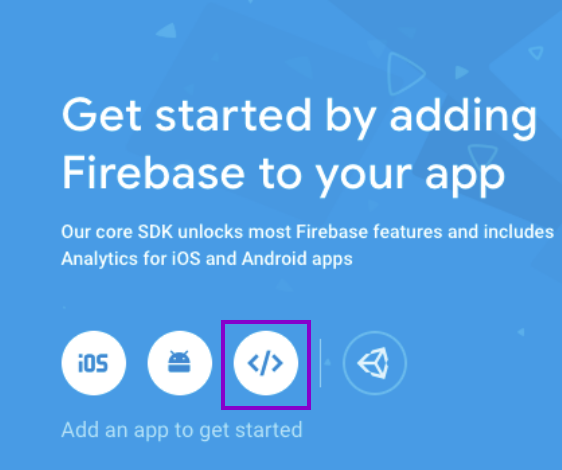
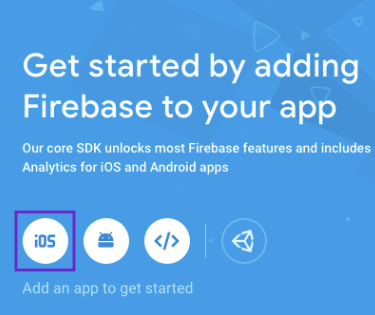
Click on the iOS icon as shown on the screen below.
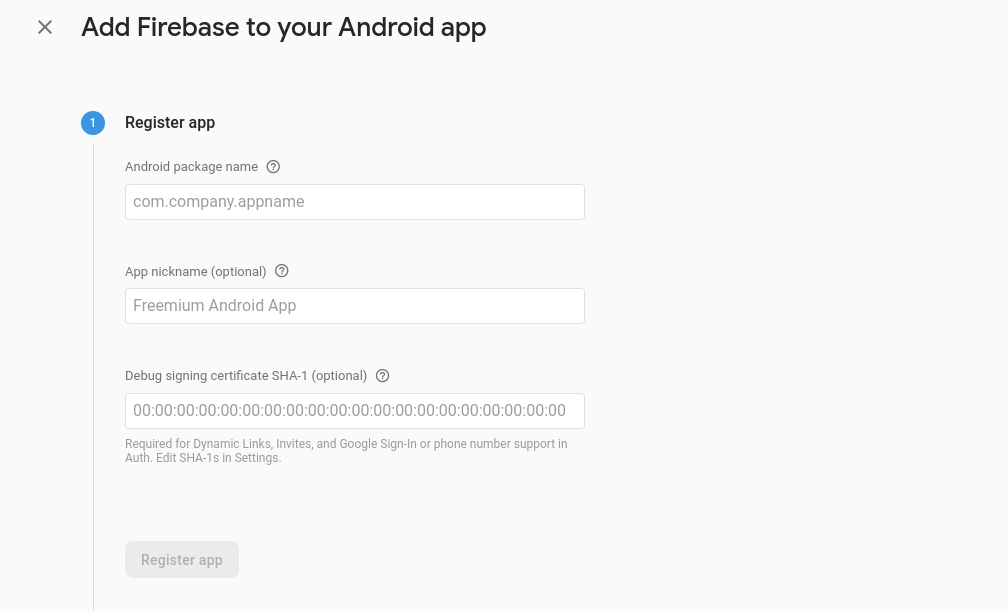
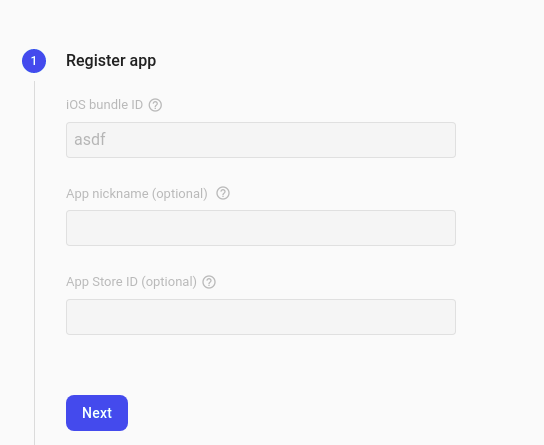
Register your Android app by providing the following details: a. iOS bundle name b. App nickname (optional) c. App Store ID (optional)
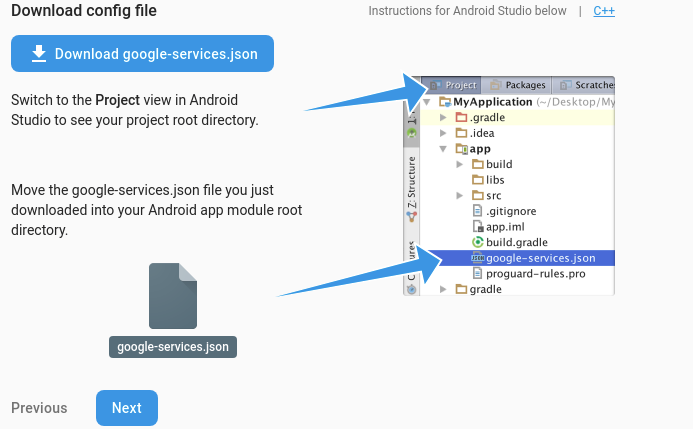
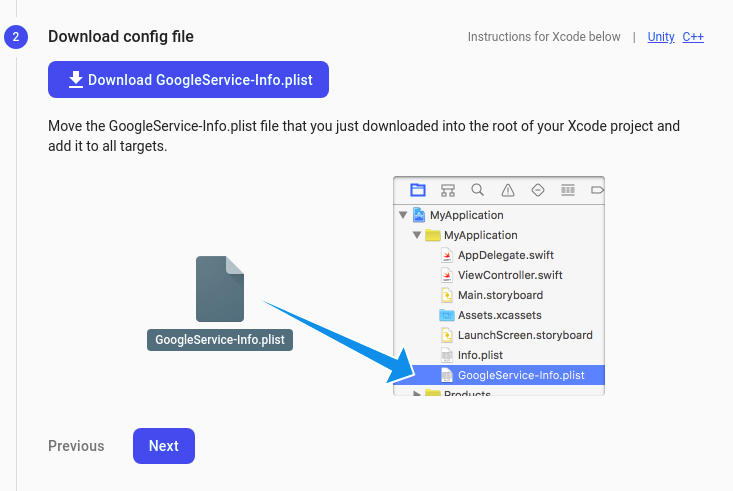
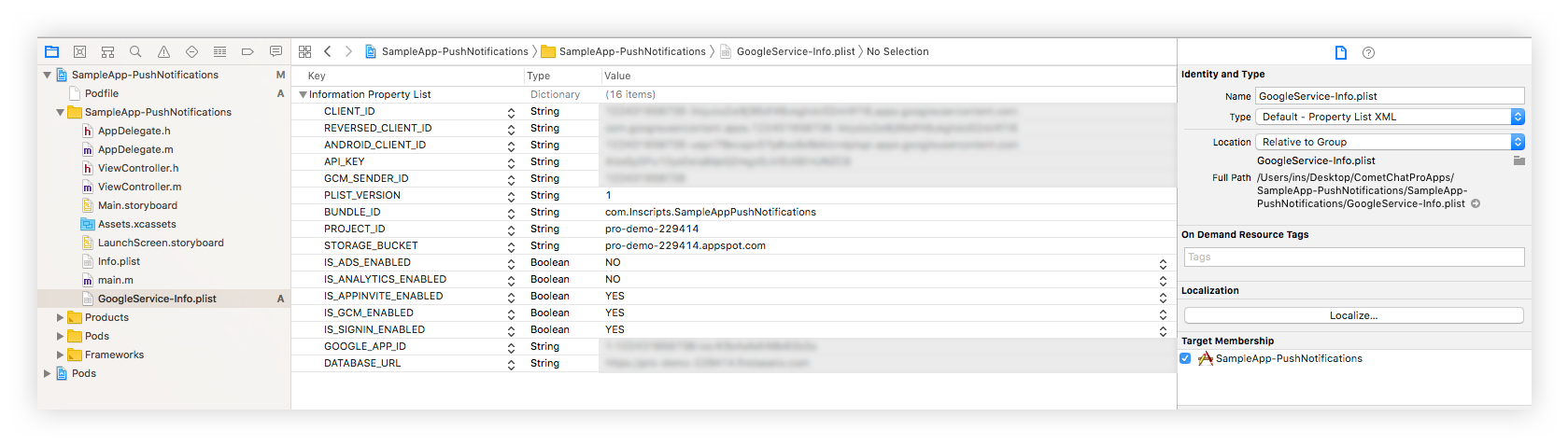
Download the GoogleService-Info.plist file and place it in the mentioned location of your project. Move your config file into the root of your Xcode project. If prompted, select to add the config file to all targets as follows.
We will Add Firebase SDK and Initialisation code later. So, click on ‘Next’, ‘Next’, and ‘Continue to the Console’.
On the Settings page you need to enter the following:
Set extension version
If you are setting it for the first time, Select V2 to start using the token-based version of the Push Notification extension.
If you already have an app using V1 and want to migrate your app to use V2, then Select V1 & V2 option. This ensures that the users viewing the older version of your app also receive Push Notifications.
Eventually, when all your users are on the latest version of your app, you can change this option to V2, thus turning off V1 (Topic-based) Push Notifications completely.
You can control if the notification key should be in the Payload or not. Learn more about the FCM Messages here.
Push payload message options
The maximum payload size supported by FCM and APNs for push notifications is approximately 4 KB. Due to the inclusion of CometChat’s message object, the payload size may exceed this limit, potentially leading to non-delivery of push notifications for certain messages. The options provided allow you to remove the sender’s metadata, receiver’s metadata, message metadata and trim the content of the text field.
The message metadata includes the outputs of the Thumbnail Generation, Image Moderation, and Smart Replies extensions. You may want to retain this metadata if you need to customize the notification displayed to the end user based on these outputs.
Notification Triggers
Select the triggers for sending Push Notifications. These triggers can be classified into 3 main categories:
Message Notifications
Call Notifications
Group Notifications
These are pretty self-explanatory and you can toggle them as per your requirement.
To obtain a signing certificate required to sign apps for installation on iOS devices, you should first create a certificate signing request (CSR) file through Keychain Access on your Mac.
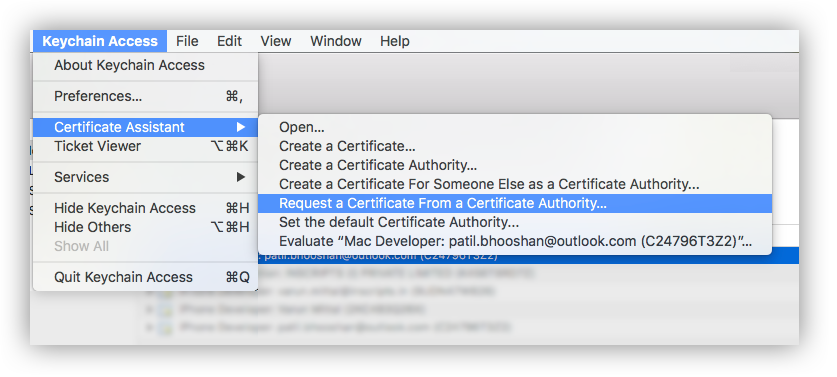
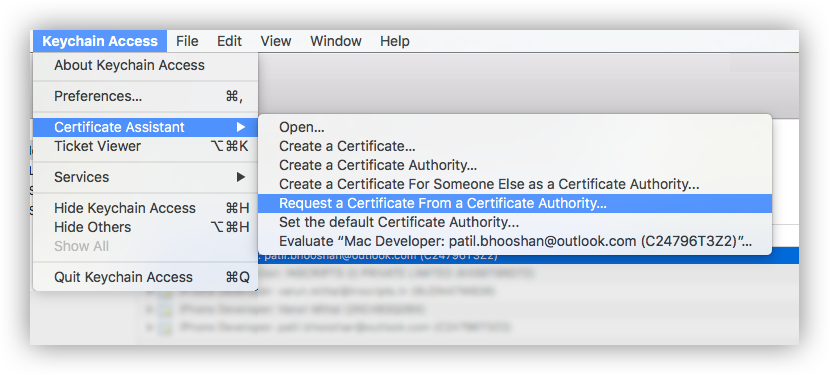
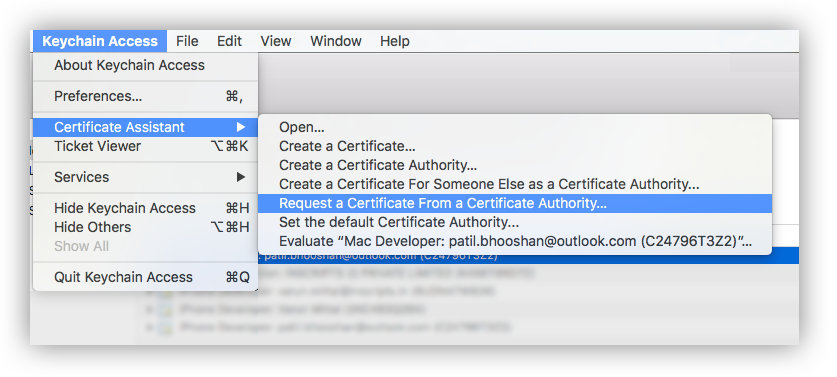
Open the Keychain Access from the utility folder, go to Keychain Access > Certificate Assistant > Request a Certificate From a Certificate Authority, and then click.
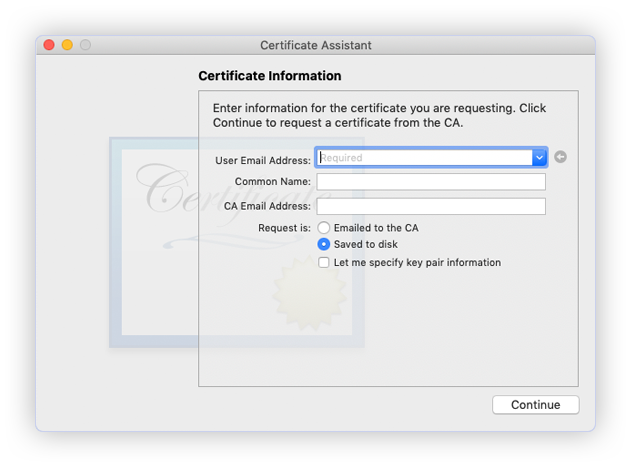
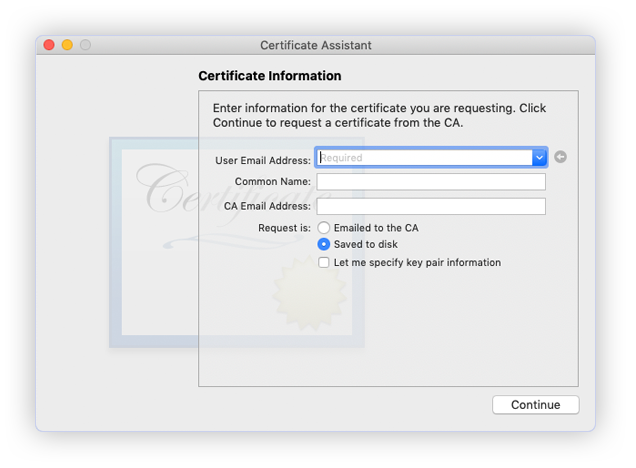
The Certificate Information dialog box appears. Enter the email address that you use in your Apple Developer account, and enter a common name for your private key. Don’t enter CA email address, choose Saved to disk, and then click the Continue button.
Specify the name of your CSR to save and choose the location to save the file on your local disk. Then your CSR file is created, which contains a public/private key pair.
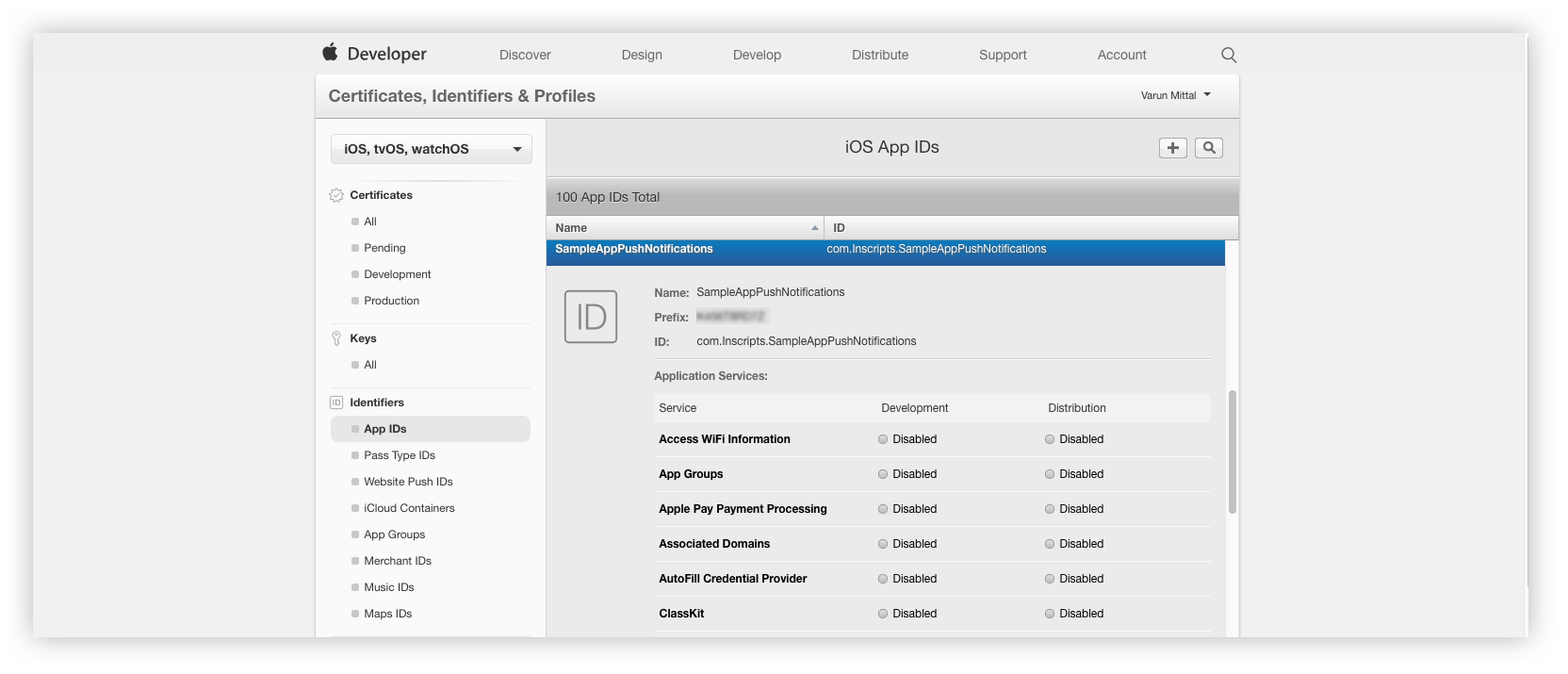
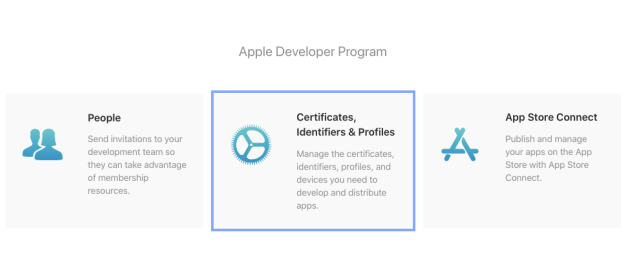
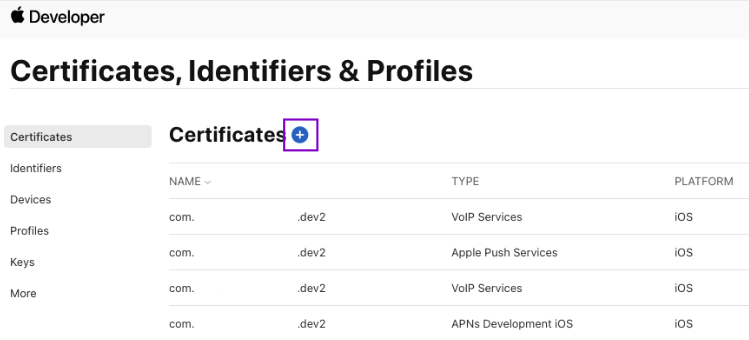
Go to Certificates, Identifiers & Profiles. In the Identifiers > App IDs and select the Push Notifications service under Application Services
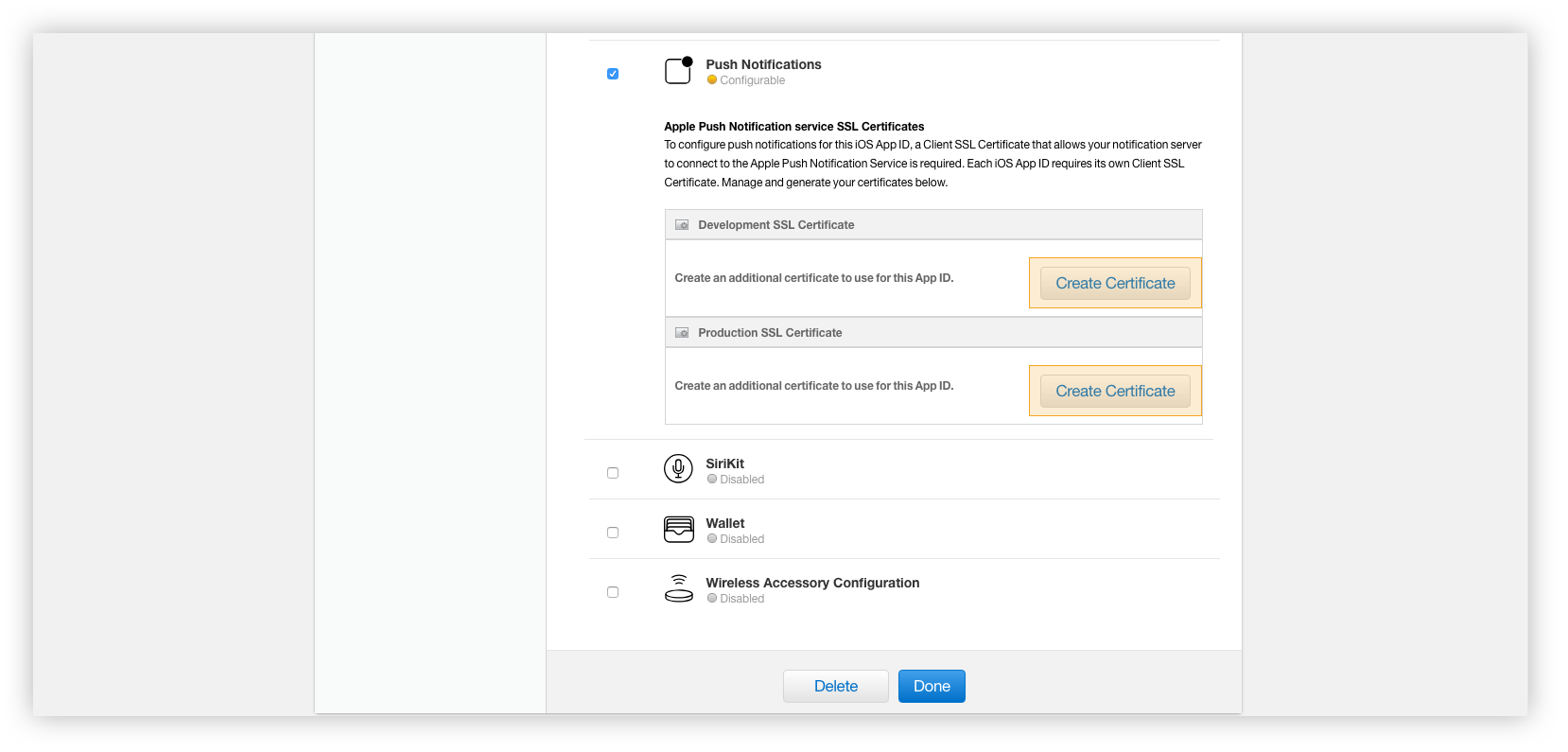
Click the Edit button.
Under the Push Notifications service, choose which SSL certificate to create either Development or Production.
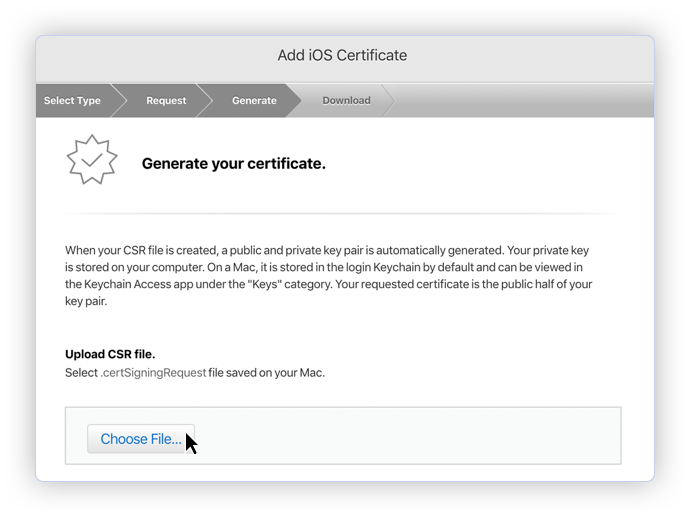
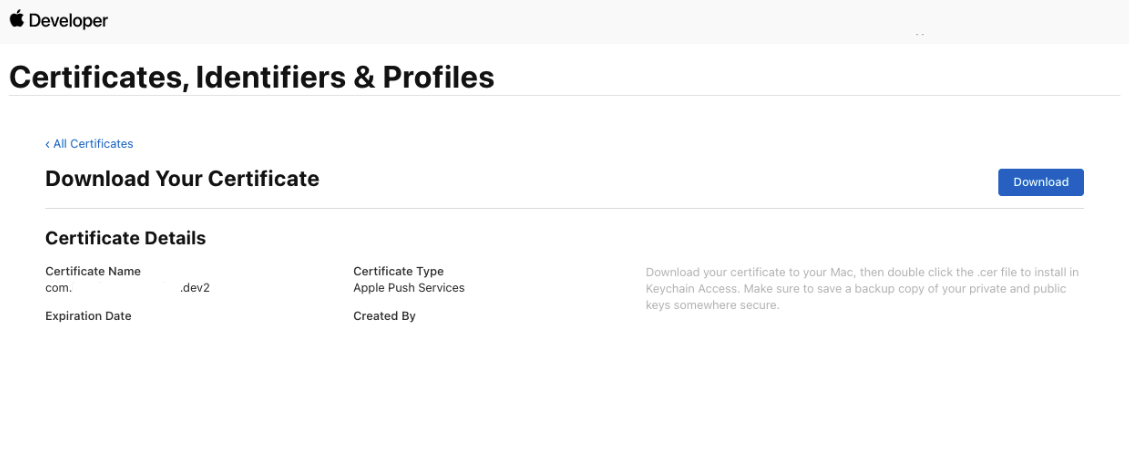
In the Generate your certificate pane that appears after the selection, under Upload CSR file., upload the CSR file you created through the Choose File… button. To complete the process, choose Continue. When the certificate is ready, choose Download to save it to your Mac.
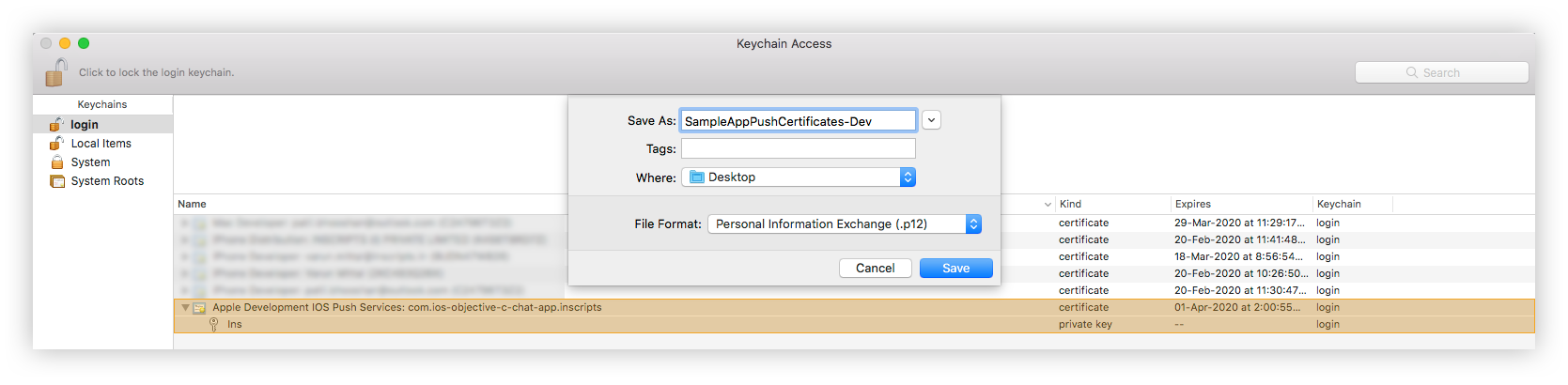
In order to install the downloaded certificate to the KeyChain Access on your Mac, double-click it. You can find the certificate in the KeyChain Access > login > Certificates.
Type a name for the .p12 file and save it to your Mac.
Browse to the location where you saved your key, select it, and click Open. Add the key ID for the key (available in Certificates, Identifiers & Profiles in the Apple Developer Member Center) and export it.
To receive and display notifications for CustomMessage, the developer needs to set metadata while sending the CustomMessage value as follows:
Swift
Objective C
Report incorrect code
Copy
Ask AI
var receiverID = "cometchat-uid-1";var message = [ "someRandomKey": "someRandomData"];var customMessage = CustomMessage(receiverUid: receiverID, receiverType: ReceiverTypeUser, customData: message);// to display custom notification banner add this , "pushNotification" key is not to modify, although you can modify banner text as shown beow //var customNotificationDisplayText = [ "pushNotification": "notification_banner_text_here";];// set it as metadata of `Custom message`customMessage.metaData = customNotificationDisplayText;CometChat.sendCustomMessage(withMessage: customMessage, onSuccess: { sentMessage in print("sentMessage \\(sentMessage.stringValue)");}, onError: { error in if let error = error?.errorDescription() { print("error sending custom message \\(error)"); }});
Convert Push Notification payload to Message object
CometChat SDK provides a method CometChat.CometChatHelper.processMessage() which will take the JSON received in The push notification as input, and return the corresponding TextMessage, MediaMessage,CustomMessage or Call object in return. Once the message object is received, you can use the entity as per your requirements.This code needs to be added to the willPresent notification method of the UNUserNotificationCenterDelegate delegate.
Swift
Report incorrect code
Copy
Ask AI
func userNotificationCenter(_ center: UNUserNotificationCenter, willPresent notification: UNNotification, withCompletionHandler completionHandler: @escaping (UNNotificationPresentationOptions) -> Void) { if let userInfo = notification.request.content.userInfo as? [String : Any], let messageObject = userInfo["message"], let str = messageObject as? String, let dict = str.stringTodictionary() { if let baseMessage = CometChat.processMessage(dict).0 { switch baseMessage.messageCategory { case .message: if let message = baseMessage as? BaseMessage { switch message.messageType { case .text: print("text Messagge is: \\((message as?TextMessage)?.stringValue())") case .image: print("image Messagge is: \\((message as? MediaMessage)?.stringValue())") case .video: print("video Messagge is: \\((message as? MediaMessage)?.stringValue())") case .audio: print("audio Messagge is: \\((message as? MediaMessage)?.stringValue())") case .file: print("file Messagge is: \\((message as? MediaMessage)?.stringValue())") case .custom: print("custom Messagge is: \\((message as? MediaMessage)?.stringValue())") case .groupMember: break @unknown default:break} } case .action: break case .call: if let call = baseMessage as? Call { print("call is: \\(call.stringValue())") } case .custom: if let customMessage = baseMessage as? CustomMessage { print("customMessage is: \\(customMessage.stringValue())") } @unknown default: break } } } completionHandler([.alert, .badge, .sound]) }extension String { func stringTodictionary() -> [String:Any]? { var dictonary:[String:Any]? if let data = self.data(using: .utf8) { do { dictonary = try JSONSerialization.jsonObject(with: data, options: []) as? [String : Any] if let myDictionary = dictonary { return myDictionary; } } catch let error as NSError { print(error) } } return dictonary; }}
Apple Push Notification service or APNs is used to send notifications to iOS devices. With this, you can also use Apple’s CallKit for showing the call screen.
To obtain a signing certificate required to sign apps for installation on iOS devices, you should first create a certificate signing request (CSR) file through Keychain Access on your Mac.
Open the Keychain Access from the utility folder, go to Keychain Access > Certificate Assistant > Request a Certificate From a Certificate Authority, and then click.
The Certificate Information dialog box appears. Enter the email address that you use in your Apple Developer account, and enter a common name for your private key. Don’t enter CA email address, choose Saved to disk, and then click the Continue button.
Specify the name of your CSR to save and choose the location to save the file on your local disk. Then your CSR file is created, which contains a public/private key pair.
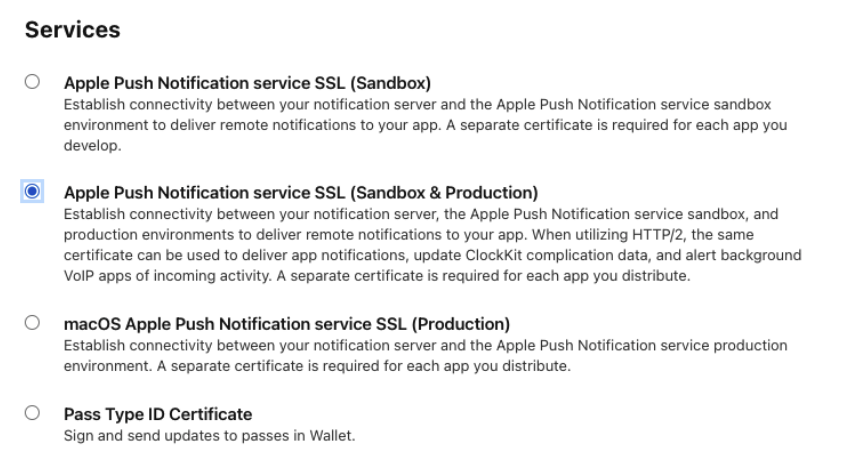
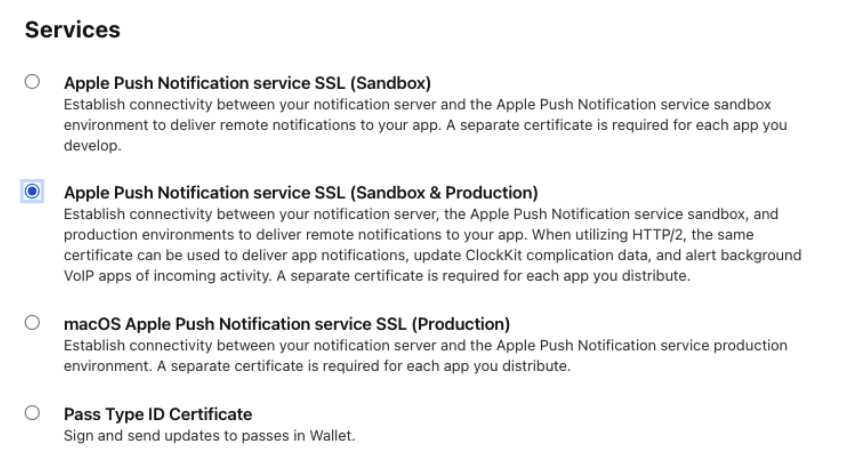
Under Services, select - Apple Push Notification services SSL (Sandbox & Production)
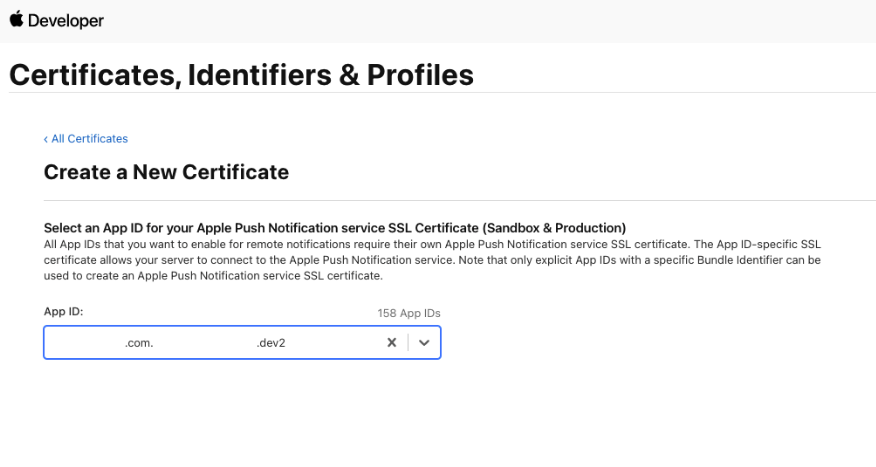
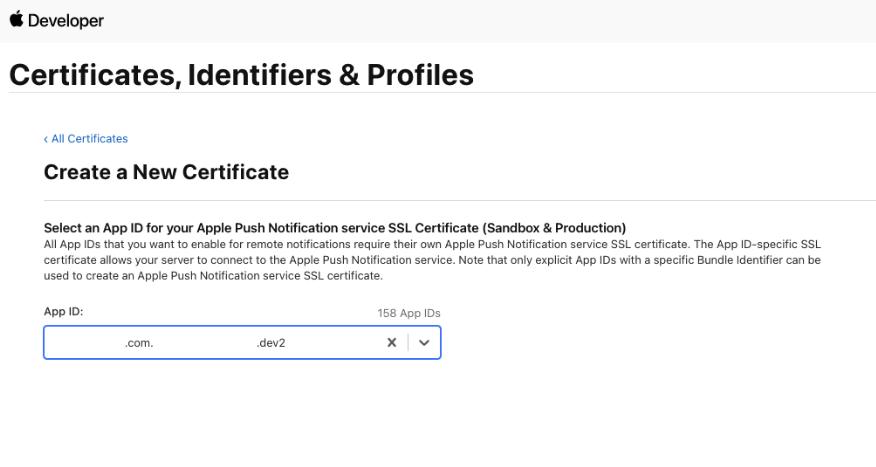
Select your App ID from the dropdown.
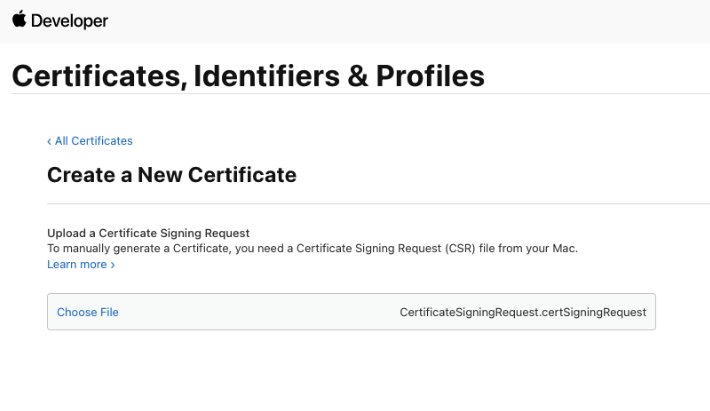
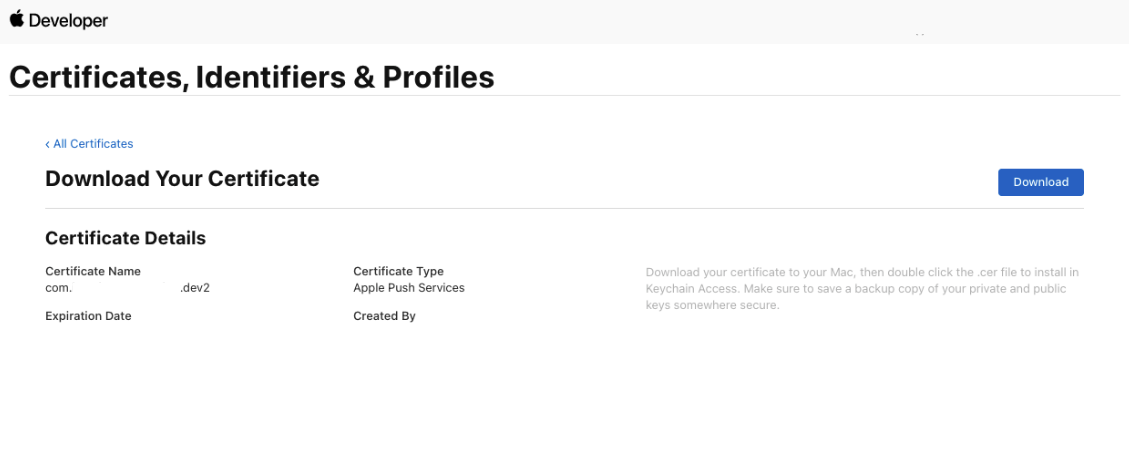
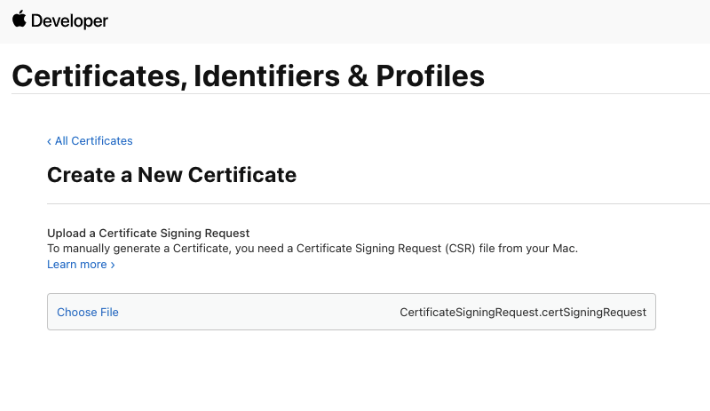
Upload CSR file., upload the CSR file you created through the Choose File button. To complete the process, choose Continue. When the certificate is ready, choose Download to save it to your Mac.
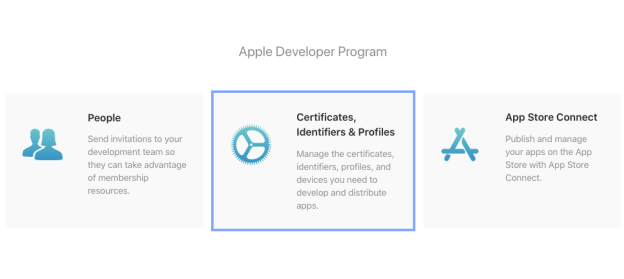
To generate a .p8 key file, go to Apple Developer Account, then select Certificates, IDs & Profiles.
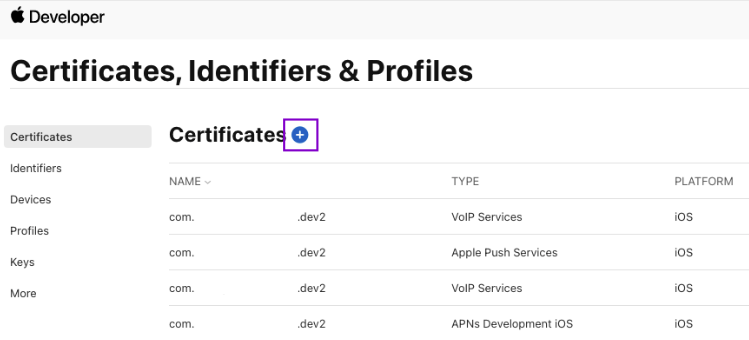
Select Keys and click on the ”+” button to add a new key.
In the new key page, type in your key name and check the Apple Push Notification service (APNs) box, then click “Continue” and click “Register”.
Then proceed to download the key file by clicking Download.
Make note of the Key ID, Team ID and your Bundle ID for saving in the Extension’s settings.
If you wish to use the .p12 certificate instead, do the following:
Type a name for the .p12 file and save it to your Mac.
Browse to the location where you saved your key, select it, and click Open. Add the key ID for the key (available in Certificates, Identifiers & Profiles in the Apple Developer Member Center) and export it.
DO NOT provide an export password when prompted.
The .p12 file will be required in the next step for uploading in the CometChat Dashboard.
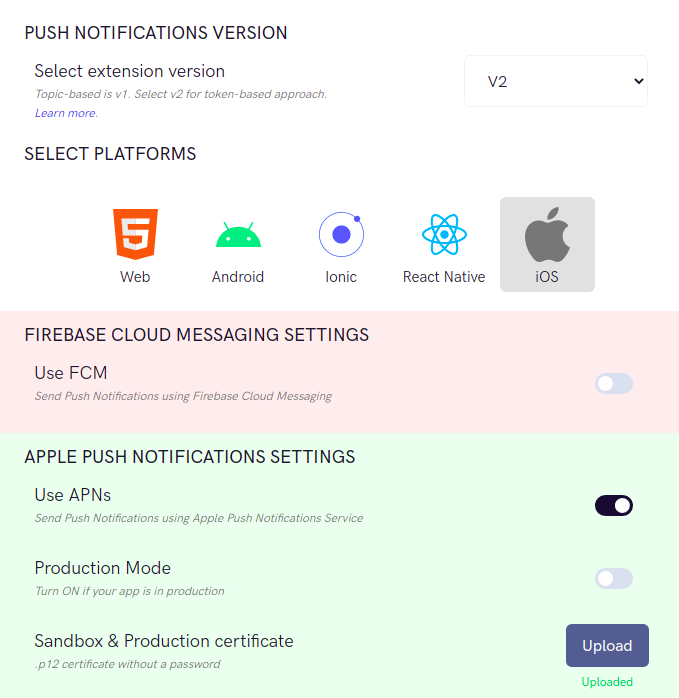
On the Settings page you need to enter the following:
Set extension version
The extension version has to be set to ‘V2’ or ‘V1 & V2’ in order to use APNs as the provider.
Select Platforms
You can select the platforms on which you wish to receive Push Notifications.
APNs Settings
You can turn off the Production mode when you create a development build of your application.
Upload the .p8 or .p12 certificate exported in the previous step.
Push payload message options
The maximum payload size supported by FCM and APNs for push notifications is approximately 4 KB. Due to the inclusion of CometChat’s message object, the payload size may exceed this limit, potentially leading to non-delivery of push notifications for certain messages. The options provided allow you to remove the sender’s metadata, receiver’s metadata, message metadata and trim the content of the text field.
The message metadata includes the outputs of the Thumbnail Generation, Image Moderation, and Smart Replies extensions. You may want to retain this metadata if you need to customize the notification displayed to the end user based on these outputs.
Notification Triggers
Select the triggers for sending Push Notifications. These triggers can be classified into 3 main categories:
Message Notifications
Call Notifications
Group Notifications
These are pretty self-explanatory and you can toggle them as per your requirement.
Call CometChat.init() method to initialize CometChat in your application. This needs to be called only once.
The user has to be logged in using CometChat.login() method. On the success callback, register the token with the extension. Two tokens need to be registered, out of which one is APNs token and other is CallKit token: a. CometChat.registerTokenForPushNotification(token: apnsToken, settings: ["voip":false])
b. CometChat.registerTokenForPushNotification(token: voipToken, settings: ["voip":true])
Swift
Report incorrect code
Copy
Ask AI
let authKey = "XXXX XXXX XXXXX"CometChat.login(UID: UID, authKey: authKey, onSuccess: { (current_user) in DispatchQueue.main.async { if let apnsToken = UserDefaults.standard.value(forKey: "apnsToken") as? String { print("APNS token is: \(apnsToken)") CometChat.registerTokenForPushNotification(token: apnsToken, settings: ["voip":false]) { (success) in print("onSuccess to registerTokenForPushNotification: \(success)") DispatchQueue.main.async {self.activityIndicator.stopAnimating() print("login success with : \(current_user.stringValue())") self.performSegue(withIdentifier: "presentPushNotification", sender: nil) } } onError: { (error) in print("error to registerTokenForPushNotification") } } if let voipToken = UserDefaults.standard.value(forKey: "voipToken") as? String { print("VOIP token is: \(voipToken)") CometChat.registerTokenForPushNotification(token: voipToken, settings: ["voip":true]) { (success) in print("onSuccess to registerTokenForPushNotification: \(success)") DispatchQueue.main.async {self.activityIndicator.stopAnimating() print("login success with : \(current_user.stringValue())") self.performSegue(withIdentifier: "presentPushNotification", sender: nil) } } onError: { (error) in print("error to registerTokenForPushNotification") } } } } }) { (error) in print("error while login", error); } }
Import PushKit and CallKit in AppDelegate.Swift file.
Add AppDelegate extension for VOIP notifications. Launch CallKit screen when the VOIP notification is received. Once the CallKit screen is displayed, you can Accept or Reject the CometChat call accordingly.
Swift
Report incorrect code
Copy
Ask AI
// MARK: CallKit & PushKitextension AppDelegate: PKPushRegistryDelegate , CXProviderDelegate {func pushRegistry(_ registry: PKPushRegistry, didUpdate pushCredentials: PKPushCredentials, for type: PKPushType) { let deviceToken = pushCredentials.token.reduce("", {$0 + String(format: "%02X", $1) }) print("voip token is: \(deviceToken)") UserDefaults.standard.set(deviceToken, forKey: "voipToken") CometChat.registerTokenForPushNotification(token: deviceToken, settings: ["voip":true]) { (success) in print("registerTokenForPushNotification voip: \(success)") } onError: { (error) in print("registerTokenForPushNotification error: \(error)") } }func pushRegistry(_ registry: PKPushRegistry, didReceiveIncomingPushWith payload: PKPushPayload, for type: PKPushType, completion: @escaping () -> Void) { if let userInfo = payload.dictionaryPayload as? [String : Any], let messageObject = userInfo["message"], let dict = messageObject as? [String : Any] { if let baseMessage = CometChat.processMessage(dict).0 { switch baseMessage.messageCategory { case .message: break case .action: break case .call: if let call = baseMessage as? Call { switch call.callStatus { case .initiated: self.activeCall = call self.uuid = UUID() if let name = (call.sender)?.name { let config = CXProviderConfiguration(localizedName: "APNS + Callkit") config.iconTemplateImageData = #imageLiteral(resourceName: "your_app_icon").pngData() config.includesCallsInRecents = false config.ringtoneSound = "ringtone.caf" config.supportsVideo = true provider = CXProvider(configuration: config) provider?.setDelegate(self, queue: nil) let update = CXCallUpdate() update.remoteHandle = CXHandle(type: .generic, value: name.capitalized) if call.callType == .video { update.hasVideo = true }else{ update.hasVideo = false } provider?.reportNewIncomingCall(with: self.uuid!, update: update, completion: { error in if error == nil { self.configureAudioSession() } }) } case .ongoing, .unanswered, .rejected, .busy, .cancelled: if self.activeCall != nil { if self.cancelCall { self.end(uuid: self.uuid!) } } case .ended: break @unknown default: break } } case .custom: break @unknown default: break } } } } internal func configureAudioSession() { do { try AVAudioSession.sharedInstance().setCategory(AVAudioSession.Category.playAndRecord, options: [.mixWithOthers, .allowBluetooth, .defaultToSpeaker]) try AVAudioSession.sharedInstance().setActive(true) } catch let error as NSError { print(error) } } func providerDidReset(_ provider: CXProvider) { if let uuid = self.uuid { onCall = true provider.reportCall(with: uuid, endedAt: Date(), reason: .unanswered) } }func provider(_ provider: CXProvider, perform action: CXAnswerCallAction) { if let activeCall = activeCall { startCall() } action.fulfill() }func provider(_ provider: CXProvider, perform action: CXEndCallAction) { NotificationCenter.default.post(name: NSNotification.Name(rawValue: "didRejectButtonPressed"), object: nil, userInfo: nil) end(uuid: self.uuid!) onCall = true if let activeCall = activeCall { CometChat.rejectCall(sessionID: activeCall.sessionID ?? "", status: .rejected, onSuccess: {(rejectedCall) in DispatchQueue.main.async { CometChatSnackBoard.display(message: "CALL_REJECTED".localized(), mode: .info, duration: .short) } }) { (error) in DispatchQueue.main.async { if let errorMessage = error?.errorDescription { CometChatSnackBoard.display(message: "CALL_REJECTED".localized(), mode: .info, duration: .short) } } } provider.reportCall(with: self.uuid!, endedAt: Date(), reason: .remoteEnded) } action.fail() } func provider(_ provider: CXProvider, didDeactivate audioSession: AVAudioSession) { print(#function) } func provider(_ provider: CXProvider, timedOutPerforming action: CXAction) { action.fulfill() print(#function) } func provider(_ provider: CXProvider, perform action: CXSetHeldCallAction) { print(#function) } func provider(_ provider: CXProvider, perform action: CXSetMutedCallAction) { print(#function) } func end(uuid: UUID) { print("endUUID",uuid) let endCallAction = CXEndCallAction(call: uuid) let transaction = CXTransaction() transaction.addAction(endCallAction) requestTransaction(transaction, action: "") } func setHeld(uuid: UUID, onHold: Bool) { print("setHeld",uuid) let setHeldCallAction = CXSetHeldCallAction(call: uuid, onHold: onHold) let transaction = CXTransaction() transaction.addAction(setHeldCallAction) requestTransaction(transaction, action: "") } internal func requestTransaction(_ transaction: CXTransaction, action: String = "") { callController.request(transaction) { error in if let error = error { print("Error requesting transaction: \(error)") } else { print("Requested transaction successfully") } } } public func startCall(){ let activeCall = CometChatCall() cancelCall = false activeCall.modalPresentationStyle = .fullScreen if let window = UIApplication.shared.windows.first , let rootViewController = window.rootViewController { var currentController = rootViewController while let presentedController = currentController.presentedViewController { currentController = presentedController } currentController.present(activeCall, animated: true, completion: nil) } }}
Convert Push Notification payload to Message object
CometChat SDK provides a method CometChat.CometChatHelper.processMessage() which will take the JSON received in The push notification as input, and return the corresponding TextMessage, MediaMessage,CustomMessage or Call object in return. Once the message object is received, you can use the entity as per your requirements.This code needs to be added to the willPresent notification method of the UNUserNotificationCenterDelegate delegate.
Swift
Report incorrect code
Copy
Ask AI
func userNotificationCenter(_ center: UNUserNotificationCenter, willPresent notification: UNNotification, withCompletionHandler completionHandler: @escaping (UNNotificationPresentationOptions) -> Void) { if let userInfo = notification.request.content.userInfo as? [String : Any], let messageObject = userInfo["message"], let str = messageObject as? String, let dict = str.stringTodictionary() { if let baseMessage = CometChat.processMessage(dict).0 { switch baseMessage.messageCategory { case .message: if let message = baseMessage as? BaseMessage { switch message.messageType { case .text: print("text Messagge is: \((message as?TextMessage)?.stringValue())") case .image: print("image Messagge is: \((message as? MediaMessage)?.stringValue())") case .video: print("video Messagge is: \((message as? MediaMessage)?.stringValue())") case .audio: print("audio Messagge is: \((message as? MediaMessage)?.stringValue())") case .file: print("file Messagge is: \((message as? MediaMessage)?.stringValue())") case .custom: print("custom Messagge is: \((message as? MediaMessage)?.stringValue())") case .groupMember: break @unknown default:break} } case .action: break case .call: if let call = baseMessage as? Call { print("call is: \(call.stringValue())") } case .custom: if let customMessage = baseMessage as? CustomMessage { print("customMessage is: \(customMessage.stringValue())") } @unknown default: break } } } completionHandler([.alert, .badge, .sound]) }extension String { func stringTodictionary() -> [String:Any]? { var dictonary:[String:Any]? if let data = self.data(using: .utf8) { do { dictonary = try JSONSerialization.jsonObject(with: data, options: []) as? [String : Any] if let myDictionary = dictonary { return myDictionary; } } catch let error as NSError { print(error) } } return dictonary; }}
Learn how to implement Push notifications for the Flutter platform using FCM as well as APNs. This document guides you to set up Flutter push notifications as follows:
Using FCM to implement push notifications for messaging on Android and iOS.
Using APN to implement push notifications for messaging on iOS.
Flutter Push notifications supportPush Notifications are supported in Flutter for CometChat SDK v3.0.9 and above.
FCM: Push notifications for messaging on Android and iOS
For Push notifications from FCM to work on both Android and iOS, the push payload has to be of type Notification message.A Notification message is a push payload that has the notification key in it. These push notifications are handled directly by the OS and as a developer, you cannot customize these notifications.This simple setup can be used for apps that only implement messaging feature of CometChat.Learn more about FCM messages.
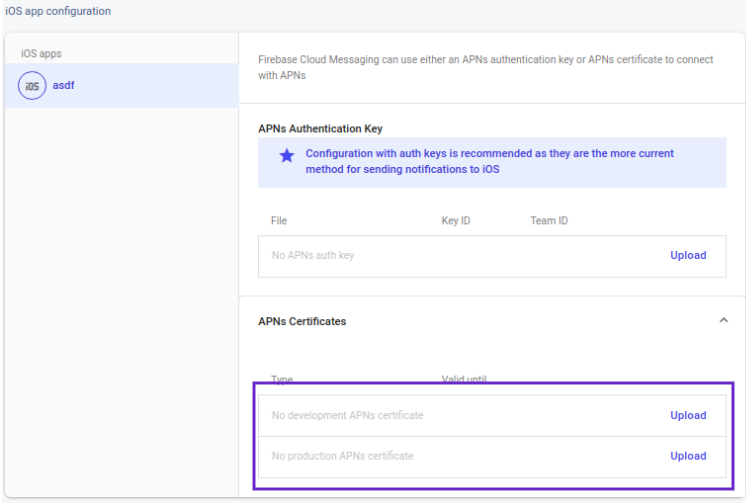
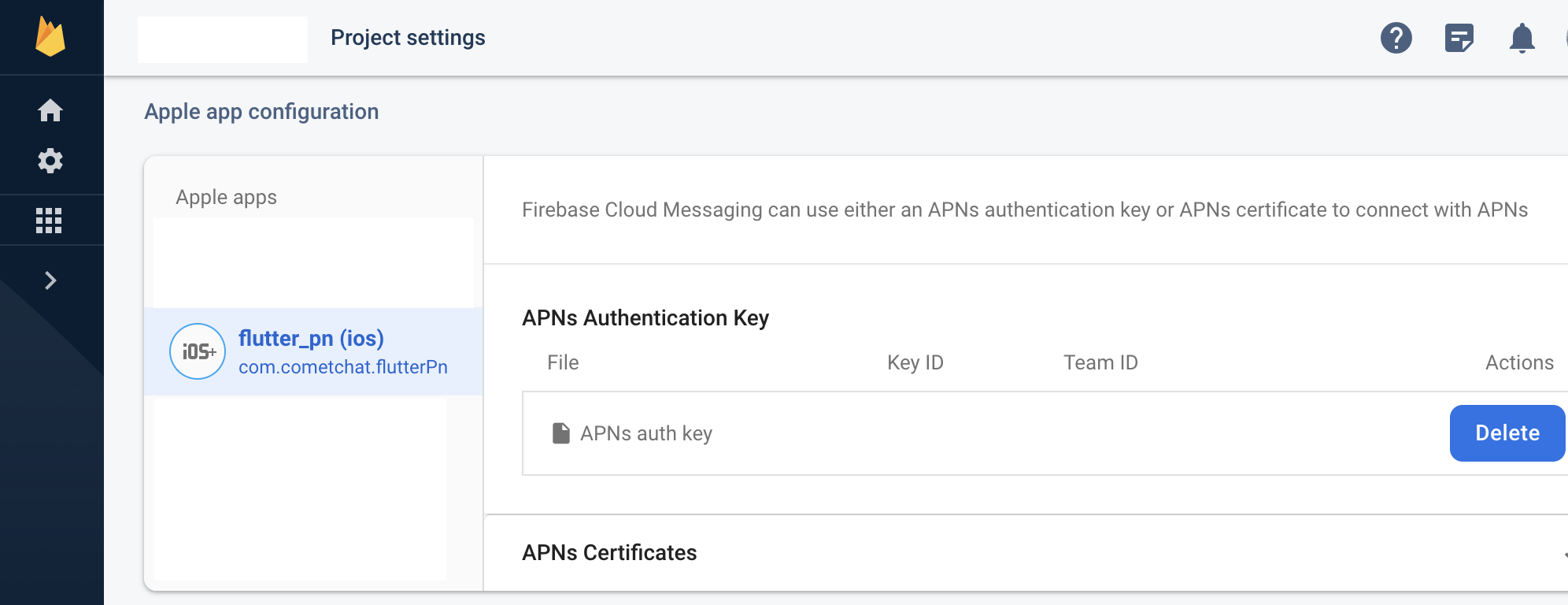
In your Firebase Console, go to project settings and upload the .p8 file obtained from the Apple Developer dashboard along with the Key ID and Team ID.
This requires you to first set up a global context. It will help you in opening your app once your notification is tapped. Using this global context, you can write a function to navigate to the screen of choice once the notification is tapped.
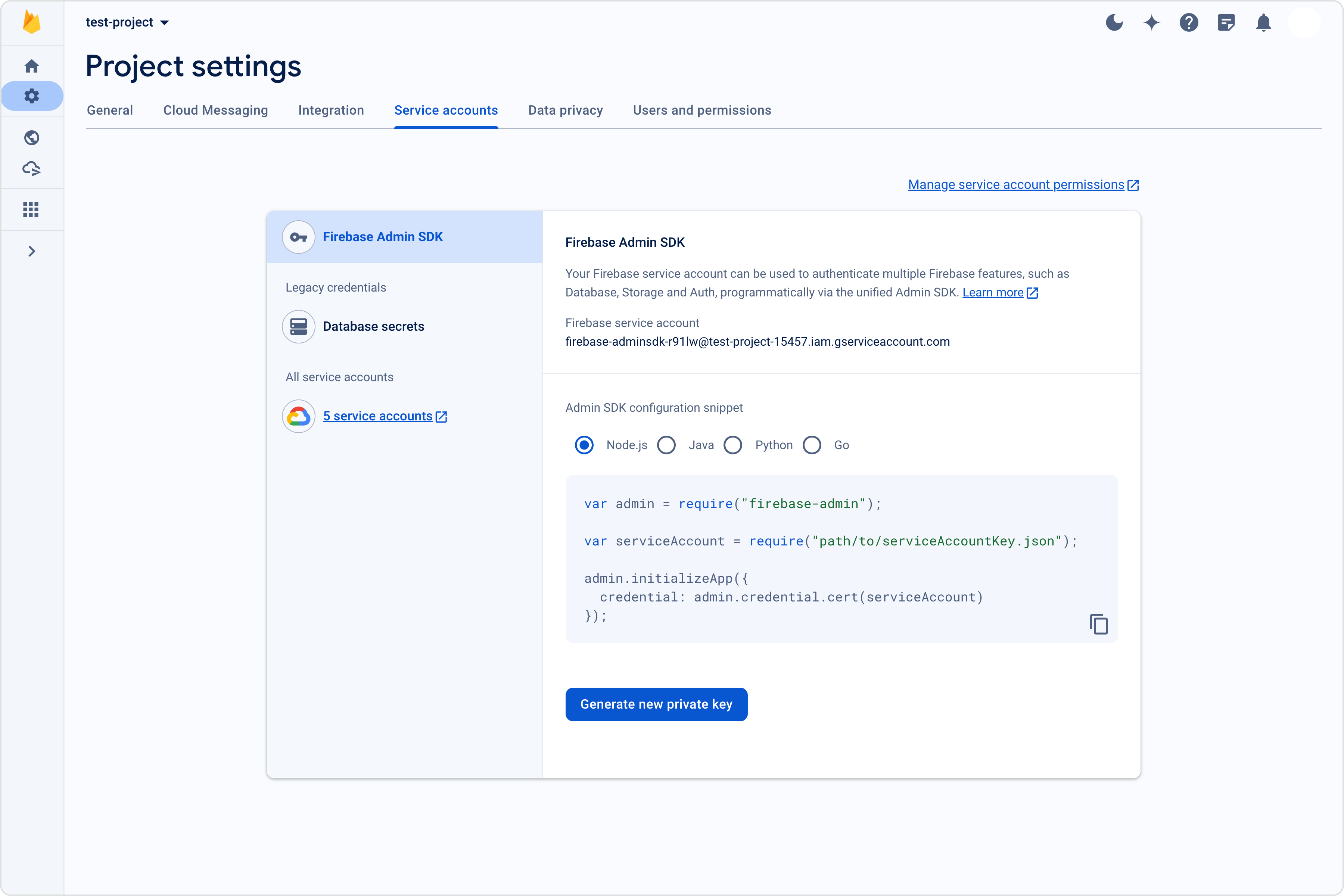
Upload the service account file that is available on the Firebase Console.
Make sure that you are including the notification key in the payload. Otherwise, this won’t work.
Push payload message options
The maximum payload size supported by FCM and APNs for push notifications is approximately 4 KB. Due to the inclusion of CometChat’s message object, the payload size may exceed this limit, potentially leading to non-delivery of push notifications for certain messages. The options provided allow you to remove the sender’s metadata, receiver’s metadata, message metadata and trim the content of the text field.The message metadata includes the outputs of the Thumbnail Generation, Image Moderation, and Smart Replies extensions. You may want to retain this metadata if you need to customize the notification displayed to the end user based on these outputs.
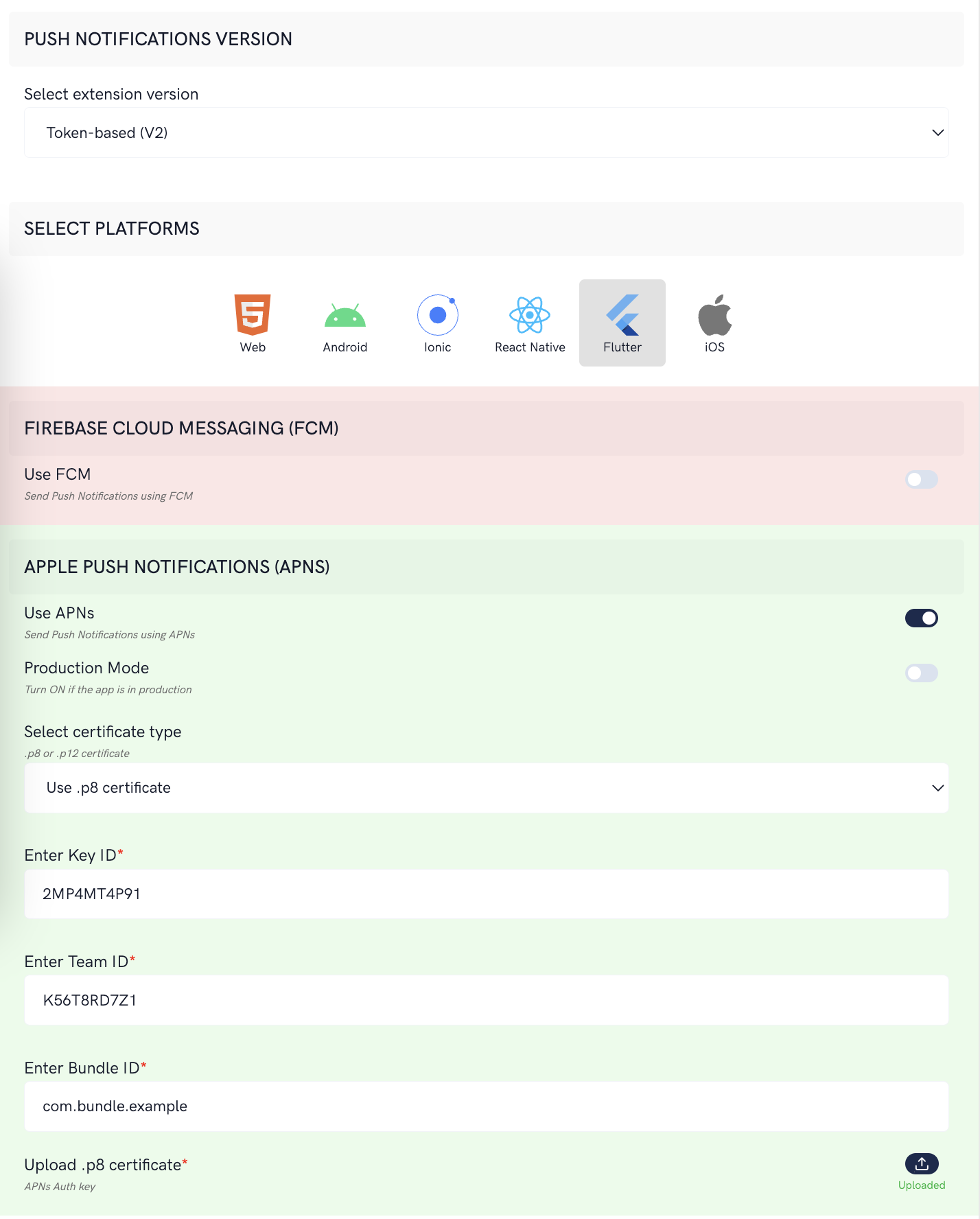
Apple Push Notifications service or APNs is only available for Apple devices. This will not work on Android devices.This setup ensures that the Push notifications for CometChat messages is sent using APNs device token.
Setup a global context to be able to open your app to a specific screen if the notification is tapped. Using the global context, write a function to navigate to the screen of your choice:
Once the CometChat has been initialized and the user has logged in, do the required setup for the above packages that handle APNs and VoIP notifications.
Run your app on a real device as Push notifications don’t work on emulators.Use the profile mode to see the behavior when the app is in the background or terminated states.
Save the Team ID, Key ID, Bundle ID and upload the p8 certificate obtained from Apple Developer console.
Push payload message options
The maximum payload size supported by FCM and APNs for push notifications is approximately 4 KB. Due to the inclusion of CometChat’s message object, the payload size may exceed this limit, potentially leading to non-delivery of push notifications for certain messages. The options provided allow you to remove the sender’s metadata, receiver’s metadata, message metadata and trim the content of the text field.
The message metadata includes the outputs of the Thumbnail Generation, Image Moderation, and Smart Replies extensions. You may want to retain this metadata if you need to customize the notification displayed to the end user based on these outputs.
On the Settings page you need to enter the following:
Set extension version
If you are setting it for the first time, Select V2 to start using the token-based version of the Push Notification extension.
If you already have an app using V1 and want to migrate your app to use V2, then Select V1 & V2 option. This ensures that the users viewing the older version of your app also receive Push Notifications.
Eventually, when all your users are on the latest version of your app, you can change this option to V2, thus turning off V1 (Topic-based) Push Notifications completely.
You can control if the notification key should be in the Payload or not. Learn more about the FCM Messages here.
Push payload message options
The maximum payload size supported by FCM and APNs for push notifications is approximately 4 KB. Due to the inclusion of CometChat’s message object, the payload size may exceed this limit, potentially leading to non-delivery of push notifications for certain messages. The options provided allow you to remove the sender’s metadata, receiver’s metadata, message metadata and trim the content of the text field.
The message metadata includes the outputs of the Thumbnail Generation, Image Moderation, and Smart Replies extensions. You may want to retain this metadata if you need to customize the notification displayed to the end user based on these outputs.
Notification Triggers
Select the triggers for sending Push Notifications. These triggers can be classified into 3 main categories:
Message Notifications
Call Notifications
Group Notifications
These are pretty self-explanatory and you can toggle them as per your requirement.
For React Native, there are numerous plugins available via NPM which can be used to set up push notifications for your apps. react-native-firebase and react-native-notifications are just the two out of many available.
To setup Push Notification, you need to follow the steps mentioned in the Plugin’s Documentation.
At this point, you will have:
Two separate apps created on the Firebase console. (For Android and iOS).
Plugin setup completed as per the respective documentation and our reference.
This step assumes that you already have a React Native app setup with CometChat installed. Make sure that the CometChat object is initialized and user has been logged in.
On the success callback of user login, you can fetch the FCM Token and register it with the extension as shown below:
JavaScript
Report incorrect code
Copy
Ask AI
// Pseudo-code with async-await syntaxconst APP_ID = 'APP_ID';const REGION = 'REGION';const AUTH_KEY = 'AUTH_KEY';const UID = 'UID';const APP_SETTINGS = new CometChat.AppSettingsBuilder() .subscribePresenceForAllUsers() .setRegion(REGION) .build();try { // First initialize the app await CometChat.init(APP_ID, APP_SETTINGS); // Login the user await CometChat.login(UID, AUTH_KEY); // Get the FCM device token // You should have imported the following in the file: // import messaging from '@react-native-firebase/messaging'; const FCM_TOKEN = await messaging().getToken(); // Register the token with Push Notifications (Legacy) await CometChat.registerTokenForPushNotification(FCM_TOKEN);} catch (error) { // Handle errors gracefully}
Registration also needs to happen in case of token refresh as shown below:
JavaScript
Report incorrect code
Copy
Ask AI
// Pseudo-code// You should have imported the following in the file:// import messaging from '@react-native-firebase/messaging';try { // Listen to whether the token changes return messaging().onTokenRefresh(FCM_TOKEN => { await CometChat.registerTokenForPushNotification(FCM_TOKEN); }); // ...} catch(error) { // Handle errors gracefully}
For React Native Firebase reference, visit the link below:
// Pseudo-codeimport messaging from '@react-native-firebase/messaging';import { Alert } from 'react-native';// Implementation can be done in a life-cycle method or hookconst unsubscribe = messaging().onMessage(async (remoteMessage) => { Alert.alert('A new FCM message arrived!', JSON.stringify(remoteMessage));});
We send Data Notifications and you need to handle displaying notifications at your end. For eg: Using Notifee
Simply logout the CometChat user and you will stop receiving notifications.
As a good practice, you can also delete the FCM Token by calling deleteToken on the messaging object.
JavaScript
Report incorrect code
Copy
Ask AI
// Pseudo-code using async-await syntaxlogout = async () => { // User logs out of the app await CometChat.logout(); // You should have imported the following in the file: // import messaging from '@react-native-firebase/messaging'; // This is a good practice. await messaging().deleteToken();};
Converting push notification payload to message object
CometChat SDK provides a method CometChat.CometChatHelper.processMessage() to convert the message JSON to the corresponding object of TextMessage, MediaMessage,CustomMessage, Action or Call.
JavaScript
Report incorrect code
Copy
Ask AI
var processedMessage = CometChat.CometChatHelper.processMessage(JSON_MESSAGE);
Type of Attachment can be of the following the type
1.CometChatConstants.MESSAGE_TYPE_IMAGE
2.CometChatConstants.MESSAGE_TYPE_VIDEO
3.CometChatConstants.MESSAGE_TYPE_AUDIO
4.CometChatConstants.MESSAGE_TYPE_FILE
Push Notification: Payload Sample for Text Message and Attachment/Media Message
Integrating ConnectionService and CallKit Using CometChat Push Notification
Currently we can only handle default calling notification
Whenever the user answers the call we use RNCallKeep.backToForeground(); method to bring the app in to foreground but in some devices you might need to add few more permissions for this to work For example, In MIUI 11 you need to permission for Display pop-up windows while running in the background
When the iOS app is in lock state we are not able to open the app so the call start on callkeep it self and you can hear the audio but if you want a video call then the user has to unlock the phone click on the app icon on call screen.
If you want to use the callkit and connection service in foreground then you might consider turning the callNotifications settings in UI kit settings. For more information in UI kit settings check the documentation.
Kindly follow the instruction for setting Firebase Cloud Messaging explained here
iOS
For iOS we use Apple Push Notification service or APNs to send push notification and VOIP notification. To configure this we need to follow some additional steps
To obtain a signing certificate required to sign apps for installation on iOS devices, you should first create a certificate signing request (CSR) file through Keychain Access on your Mac.
Open the Keychain Access from the utility folder, go to Keychain Access > Certificate Assistant > Request a Certificate From a Certificate Authority, and then click.
The Certificate Information dialog box appears. Enter the email address that you use in your Apple Developer account, and enter a common name for your private key. Don’t enter CA email address, choose Saved to disk, and then click the Continue button. <img align=“center” src=”./images/step1.2.png”> <br></br>
Specify the name of your CSR to save and choose the location to save the file on your local disk. Then your CSR file is created, which contains a public/private key pair.
Under Services, select - Apple Push Notification services SSL (Sandbox & Production)
Select your App ID from the dropdown.
Upload CSR file., upload the CSR file you created through the Choose File button. To complete the process, choose Continue. When the certificate is ready, choose Download to save it to your Mac.
To generate a .p8 key file, go to Apple Developer Account, then select Certificates, IDs & Profiles.
Select Keys and click on the ”+” button to add a new key.
In the new key page, type in your key name and check the Apple Push Notification service (APNs) box, then click “Continue” and click “Register”.
Then proceed to download the key file by clicking Download.
Make note of the Key ID, Team ID and your Bundle ID for saving in the Extension’s settings.
If you wish to use the .p12 certificate instead, do the following:
Type a name for the .p12 file and save it to your Mac.
Browse to the location where you saved your key, select it, and click Open. Add the key ID for the key (available in Certificates, Identifiers & Profiles in the Apple Developer Member Center) and export it.
DO NOT provide an export password when prompted.
The .p12 file will be required in the next step for uploading in the CometChat Dashboard.
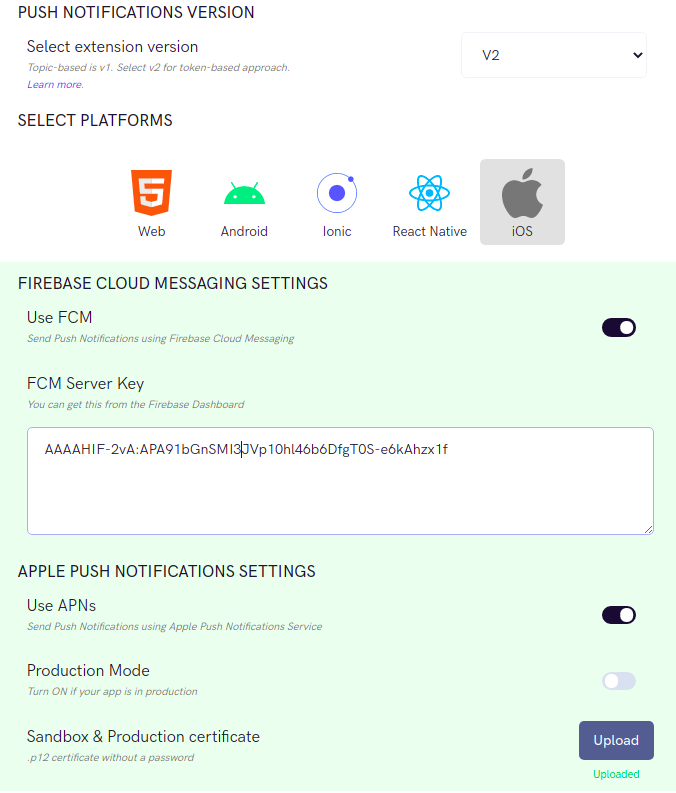
On the Settings page you need to enter the following:
Set extension versionThe extension version has to be set to ‘V2’ or ‘V1 & V2’ in order to use APNs as the provider.
Select PlatformsYou can select the platforms on which you wish to receive Push Notifications.
Firebase Cloud Messaging SettingsThis includes the FCM Server key that you can fetch from the Firebase Dashboard.
APNs SettingsYou can turn off the Production mode when you create a development build of your application. Upload the .p12 certificate exported in the previous step.
Push Notifications TitleThis is usually the name of your app.
Notification TriggersSelect the triggers for sending Push Notifications. These triggers can be classified into 3 main categories:
Message Notifications
Call Notifications
Group Notifications
These are pretty self-explanatory and you can toggle them as per your requirement.
In android we are going to use Firebase push notification to display Call notification So basically when ever we receive a push notification for call we display call notification.we need to add a listener to listen to notification when the app is background or foreground state.
JavaScript
Report incorrect code
Copy
Ask AI
messaging().setBackgroundMessageHandler(async (remoteMessage) => { RNCallKeep.setup(options); RNCallKeep.setAvailable(true); try { //Converting the message payload into CometChat Message. let msg = CometChat.CometChatHelper.processMessage( JSON.parse(remoteMessage.data.message) ); if (msg.category == 'call') { //need to check if the notification we received for Call initiated or ended if (msg.action == 'initiated') { CallKeepHelper.msg = msg; //setting the msg object in call keep helper class CallKeepHelper.displayCallAndroid(); //this method is used to display incoming calls in android t } else { //if sender cancels the call before receiver accept or reject call then we also need to stop our notification RNCallKeep.endCall(msg.conversationId); } } } catch (e) { console.log(e); }});
In iOS we use APNs push and voip push notification to display push notification and display call CallKit for calls. The notification are handled in Native iOS You need to add the code in AppDelegate.m file to display CallKit
Objective C
Report incorrect code
Copy
Ask AI
//add this import at the top or the file#import "RNCallKeep.h"#import "RNFBMessagingModule.h"#import <PushKit/PushKit.h>#import "RNVoipPushNotificationManager.h"_* <------ add this function *_- (void)pushRegistry:(PKPushRegistry *)registry didUpdatePushCredentials:(PKPushCredentials *)credentials forType:(PKPushType)type { // Register VoIP push token (a property of PKPushCredentials) with server [RNVoipPushNotificationManager didUpdatePushCredentials:credentials forType:(NSString *)type];}- (void)pushRegistry:(PKPushRegistry *)registry didInvalidatePushTokenForType:(PKPushType)type{ // --- The system calls this method when a previously provided push token is no longer valid for use. No action is necessary on your part to re-register the push type. Instead, use this method to notify your server not to send push notifications using the matching push token.}// --- Handle incoming pushes- (void)pushRegistry:(PKPushRegistry *)registry didReceiveIncomingPushWithPayload:(PKPushPayload *)payload forType:(PKPushType)type withCompletionHandler:(void (^)(void))completion { // --- NOTE: apple forced us to invoke callkit ASAP when we receive voip push // --- see: react-native-callkeep // --- Retrieve information from your voip push payload NSDictionary *content = [payload.dictionaryPayload valueForKey:@"aps"]; NSDictionary *sender = [content valueForKey:@"alert"]; NSString *uuid =[[[NSUUID UUID] UUIDString] lowercaseString]; NSString *callerName=[sender valueForKey:@"title"]; NSString *handle = [sender valueForKey:@"title"]; // --- Process the received push [RNVoipPushNotificationManager didReceiveIncomingPushWithPayload:payload forType:(NSString *)type]; [RNCallKeep reportNewIncomingCall: uuid handle: handle handleType: @"generic" hasVideo: NO localizedCallerName: callerName supportsHolding: YES supportsDTMF: YES supportsGrouping: YES supportsUngrouping: YES fromPushKit: YES payload: nil withCompletionHandler: completion];}
On the Settings page you need to enter the following:
Set extension version
If you are setting it for the first time, Select V2 to start using the token-based version of the Push Notification extension.
If you already have an app using V1 and want to migrate your app to use V2, then Select V1 & V2 option. This ensures that the users viewing the older version of your app also receive Push Notifications.
Eventually, when all your users are on the latest version of your app, you can change this option to V2, thus turning off V1 (Topic-based) Push Notifications completely.
You can control if the notification key should be in the Payload or not. Learn more about the FCM Messages here.
Push payload message options
The maximum payload size supported by FCM and APNs for push notifications is approximately 4 KB. Due to the inclusion of CometChat’s message object, the payload size may exceed this limit, potentially leading to non-delivery of push notifications for certain messages. The options provided allow you to remove the sender’s metadata, receiver’s metadata, message metadata and trim the content of the text field.
The message metadata includes the outputs of the Thumbnail Generation, Image Moderation, and Smart Replies extensions. You may want to retain this metadata if you need to customize the notification displayed to the end user based on these outputs.
Notification Triggers
Select the triggers for sending Push Notifications. These triggers can be classified into 3 main categories:
Message Notifications
Call Notifications
Group Notifications
These are pretty self-explanatory and you can toggle them as per your requirement.
For Cordova & Ionic, there are numerous plugins available via NPM which can be used to set up push notifications for your apps like FCM Plugin and Push Plugin.
To setup Push Notification, you need to follow the steps mentioned in the Plugin’s Documentation.
At this point, you will have:
Separate apps created on the Firebase console. (For Web, Android and iOS).
Plugin setup completed as per the respective documentation.
This step assumes that you already have a React Native app setup with CometChat installed. Make sure that the CometChat object is initialized and user has been logged in.
On the success callback of user login, you can fetch the FCM Token and register it with the extension as shown below:
JavaScript
Report incorrect code
Copy
Ask AI
// Pseudo-code with async-await syntax// Using the FCM Pluginconst APP_ID = 'APP_ID';const REGION = 'REGION';const AUTH_KEY = 'AUTH_KEY';const UID = 'UID';const APP_SETTINGS = new CometChat.AppSettingsBuilder() .subscribePresenceForAllUsers() .setRegion(REGION) .build();try { // First initialize the app await CometChat.init(APP_ID, APP_SETTINGS); // Login the user await CometChat.login(UID, AUTH_KEY); // Login is successful so next step // Get the FCM device token // You should have imported the following in the file: // import { FCM } from '@ionic-native_fcm'; const FCM_TOKEN = await fcm.getToken(); // Register the token for Push Notifications (legacy) await CometChat.registerTokenForPushNotification(FCM_TOKEN);} catch (error) { // Handle errors gracefully}
Registration also needs to happen in case of token refresh as shown below:
JavaScript
Report incorrect code
Copy
Ask AI
// Pseudo-code// You should have imported the following in the file:// import { FCM } from '@ionic-native_fcm';try { // Listen to whether the token changes return fcm.onTokenRefresh(FCM_TOKEN => { await CometChat.registerTokenForPushNotification(FCM_TOKEN); }); // ...} catch(error) { // Handle errors gracefully}
// Pseudo-codeimport messaging from '@react-native-firebase_messaging';import { Alert } from 'react-native';// Implementation can be done in a life-cycle method or hookconst unsubscribe = messaging().onMessage(async (remoteMessage) => { Alert.alert('A new FCM message arrived!', JSON.stringify(remoteMessage));});
Converting push notification payload to message object
CometChat SDK provides a method CometChat.CometChatHelper.processMessage() to convert the message JSON to the corresponding object of TextMessage, MediaMessage,CustomMessage, Action or Call.
JavaScript
Report incorrect code
Copy
Ask AI
var processedMessage = CometChat.CometChatHelper.processMessage(JSON_MESSAGE);
Type of Attachment can be of the following the type: CometChatConstants.MESSAGE_TYPE_IMAGE CometChatConstants.MESSAGE_TYPE_VIDEO CometChatConstants.MESSAGE_TYPE_AUDIO CometChatConstants.MESSAGE_TYPE_FILE
Push Notification: Payload Sample for Text Message and Attachment/Media Message
Learn how to enable your users to mute notifications for certain conversationsYou can silence one-on-one and/or group conversations for a specific amount of time using the Mute functionality. Aside from that, you can include a Push Notifications section in your apps’ settings. Your users can use this feature to turn off Push Notifications for certain chats or to opt-out of receiving Push Notifications altogether.
You can specify the UIDs and/or GUIDs to be muted. You can mute chats for these conversations for a specific amount of time.
Parameters
Value
Description
uids
Array of UIDs
This parameter allows you to mute one-on-one chat for the mentioned UIDs.
guids
Array of GUIDs
This parameter allows you to mute group chat for the mentioned GUIDs.
timeInMS
String consisting of UNIX timestamp
This parameter allows you to mute chats for a specific amount of time for the required UIDs or GUIDs After the mentioned duration, the Push Notifications are received. Eg: “1628425767881”
This functionality uses the callExtension() method provided by CometChat SDK.
You can specify the UIDs and/or GUIDs to be muted. You can mute calls for these conversations for the said amount of time.
Parameters
Value
Description
uids
Array of UIDs
This parameter allows you to mute one-on-one calls for the mentioned UIDs.
guids
Array of GUIDs
This parameter allows you to mute group calls for the mentioned GUIDs.
timeinMS
String consisting of UNIX timestamp
This parameter allows you to mute calls for a specific amount of time for the required UIDs or GUIDs After the mentioned duration, the Push Notifications are received. Eg: “1628425767881”
This functionality uses the callExtension() method provided by CometChat SDK.
Apart from the feature to mute/unmute a set of UIDs or GUIDs using the above APIs, apps can have push notifications according to the user settings.The following user settings can be set:
Settings
Description
Do Not Disturb
When turned ON, the “Do Not Disturb” parameter disables the Push Notifications entirely for the user. The user stops receiving push notifications until this setting is explicitly turned OFF. This overrides all the following settings.
Allow only Mentions
Until turned OFF, the notifications are only sent for text messages for the mentioned receiver of the message
Mute all one-on-one chat
This parameter can be used to mute chat notifications for all one-on-one conversations. The user will not receive push notifications until this is turned OFF.
Mute all group chat
This parameter can be used to mute chat notifications for all group conversations. The user will not receive push notifications until the parameter is turned OFF.
Mute all one-on-one calls
This preference can be used to mute call notifications for all one-on-one conversations. The user will not receive push notifications until the parameter is turned OFF.
Mute all group calls
This parameter can be used to mute call notifications for all group conversations. The user will not receive push notifications until this is turned OFF.
Fetches all the user settings that are saved by the user. This also returns the list of muted UIDs and GUIDs along with the said time for muting.This functionality uses the callExtension() method provided by CometChat SDK.
Token registration can now be done using the callExtension method provided by the CometChat SDK. The token can be FCM token or APNs token and VoIP token.This can be achieved using the code snippet below:For FCM token:
This provides a list of all the Push Notifications tokens that have been registered for the current user. The tokens are segregated based on the platform.
Token deletion is handled implicitly by the CometChat.logout() method. That is, once the user is logged out of the current CometChat session, his/her registered Push Notification token automatically gets deleted.The same can be achieved explicitly by making a call to the extension using callExtension method as shown below. However, the token that is deleted belongs to the current session of the end-user by passing all=false as a parameter.
JavaScript
Java
Swift
Report incorrect code
Copy
Ask AI
CometChat.callExtension('push-notification', 'DELETE', 'v2/tokens', { all: false, // true when ALL the registered tokens for the logged-in user need to be deleted}) .then((response) => { // Success response }) .catch((error) => { // Error occured });
Report incorrect code
Copy
Ask AI
import org.json.simple.JSONObject;JSONObject body=new JSONObject();body.put("all", false); // true when ALL the registered tokens for the logged-in user need to be deletedCometChat.callExtension("push-notification", "DELETE", "/v2/tokens", body, new CometChat.CallbackListener < JSONObject > () { @Override public void onSuccess(JSONObject jsonObject) { //On Success } @Override public void onError(CometChatException e) { //On Failure }});
Report incorrect code
Copy
Ask AI
CometChat.callExtension(slug: "push-notification", type: .delete, endPoint: "v2/tokens", body: ["all": false] as [String : Any], onSuccess: { (response) in // true when ALL the registered tokens for the logged-in user need to be deleted // Details about the created poll }) { (error) in // Error occured }
All the tokens for the current user will be deleted if you pass all=true. This needs to be used with care as the other logins of the current user will stop receiving Push Notifications.