

AI Integration Quick Reference
AI Integration Quick Reference
| Field | Value |
|---|---|
| Package | @cometchat/chat-uikit-react |
| Framework | Next.js (App Router) |
| Components | CometChatMessageHeader, CometChatMessageList, CometChatMessageComposer |
| Layout | Single chat window — no sidebar, no conversation list |
| Prerequisite | Complete Next.js Integration first |
| SSR | Component loaded with dynamic(() => import(...), { ssr: false }) |
| Pattern | Support chat, embedded widgets, focused messaging |
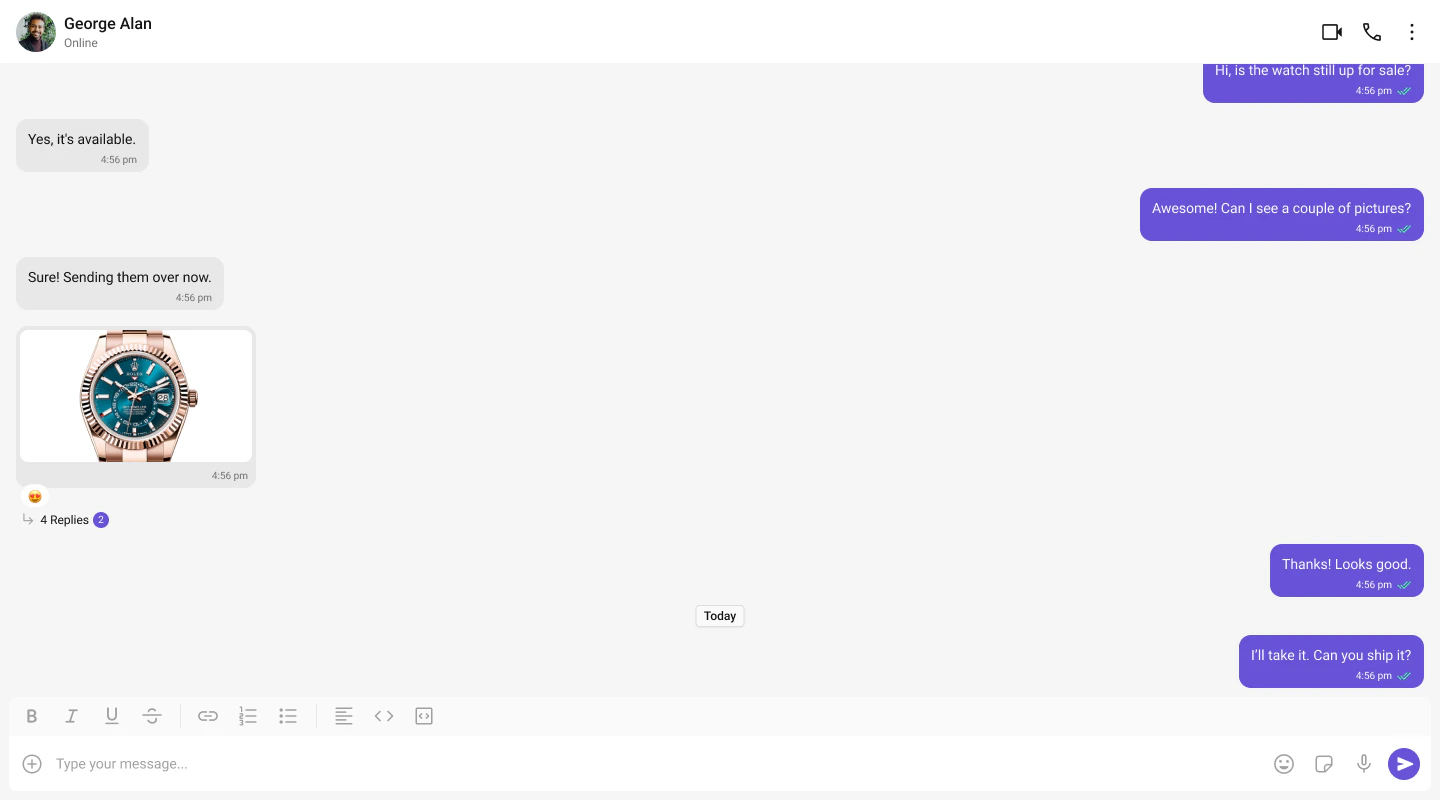
What You’re Building
Three components stacked vertically:- Chat header — displays recipient name, avatar, online status, and optional call buttons
- Message list — real-time chat history with scrolling
- Message composer — text input with media, emojis, and reactions
Full Code
Create the client component with the chat UI, then import it dynamically in your page.app/chat/CometChatClient.tsx
app/chat/page.tsx
'use client'is required — CometChat components use browser APIs (DOM, WebSocket).dynamic(() => import(...), { ssr: false })prevents server-side rendering of the chat component.CometChat.getUser(UID)fetches the full user object from the SDK — you need a real user object, not a manually constructed one.- Pass either
userorgroupto the message components, never both. - The
RECIPIENT_UIDshould be a user that exists in your CometChat app. Use one of the pre-created test UIDs:cometchat-uid-1throughcometchat-uid-5.
Switching to Group Chat
To load a group chat instead of one-to-one, fetch aGroup object and pass it to the message components:
app/chat/CometChatClient.tsx
CometChat.getGroup(GUID) instead of CometChat.getUser(UID), and pass group instead of user.
Run
http://localhost:3000/chat. You should see the chat window load with the conversation for the UID or GUID you set.
Next Steps
Conversation List + Messages
Two-panel layout with a sidebar
Tab-Based Chat
Tabbed navigation with Chats, Calls, Users
Components Overview
Browse all prebuilt UI components