

AI Integration Quick Reference
AI Integration Quick Reference
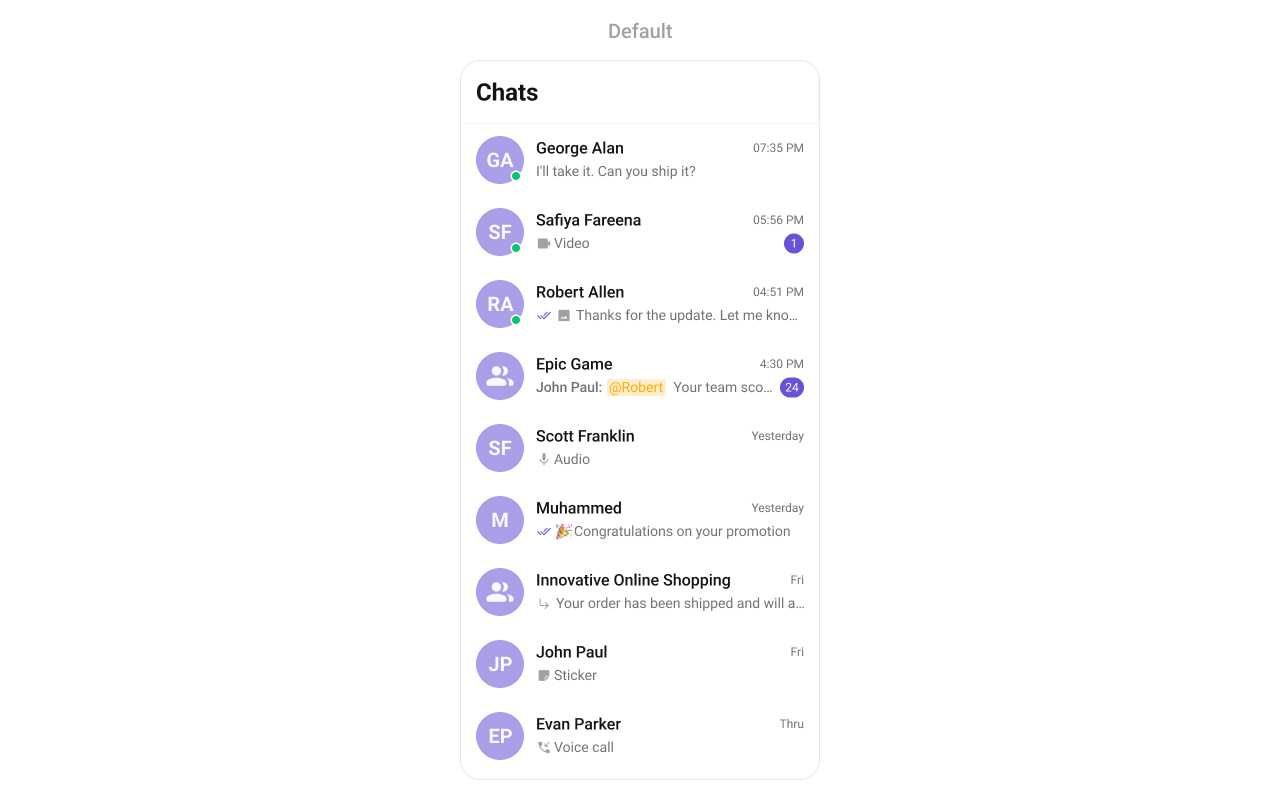
What You’re Building
Two screens working together:- Conversation list — shows all active conversations (users and groups)
- Message view — displays chat messages for the selected conversation with header, message list, and composer
Step 1 — Create the Messages Component
Create aMessages.tsx file that combines the message header, list, and composer:
- TypeScript
- JavaScript
Messages.tsx
CometChatMessageHeadershows the recipient’s name, avatar, and back buttonCometChatMessageListdisplays the chat history with real-time updatesCometChatMessageComposerprovides the text input with media, emojis, and send button- Pass either
userorgroupto the components, never both
Step 2 — Update App.tsx
Wire the conversation list and message components together:- TypeScript
- JavaScript
App.tsx
CometChatConversationsrenders the list of conversationsonItemPressfires when a user taps a conversation, extracting theUserorGroupmessageUser/messageGroupstate drives which chat is displayed- The conversation list is hidden (via
display: "none") when a chat is open handleBackclears the selection and returns to the conversation list
Step 3 — Run the Project
- iOS
- Android
Next Steps
Theming
Customize colors, fonts, and styles to match your brand
Components Overview
Browse all prebuilt UI components
React Native CLI Integration
Back to the main setup guide
Core Features
Chat features included out of the box