

Goal
By the end of this guide you will have a chat screen where users can pin a message so it’s highlighted for everyone in the conversation, open a screen of all pinned messages, and save a message privately to their own list — with a dedicated “Saved” screen to review saves across every conversation. Pin and save are two separate concepts:Prerequisites
- Completed the Integration Guide
- An existing chat screen using
CometChatMessageHeader,CometChatMessageList, andCometChatMessageComposer - Pin messages and Save messages enabled for your app through the
features.ux.messages.pinned.enabledandfeatures.ux.messages.saved.enabledapp settings. See Core Features → Pin & Save.
The pin/unpin and save/unsave options only appear in the message options when the corresponding feature is enabled for your app. The UI Kit reads that setting at login and re-reads it on every reconnection, so no extra wiring is needed to show or hide the options.
Step 1: The Message Options
Once the features are enabled,CometChatMessageList automatically adds Pin, Unpin, Save, and Unsave to the message options — no props required. You only need the hide* props if you want to remove one:
File: Messages.tsx
The options are hidden on messages the server would refuse anyway — an unsent message with no ID yet, a deleted message, or one moderation has disapproved. A message still pending a moderation verdict keeps both options: the kit offers them and lets the server decide, so a genuinely early tap earns a real error toast instead of a control that silently disappears and comes back.
Step 2: Open the Pinned Messages Screen
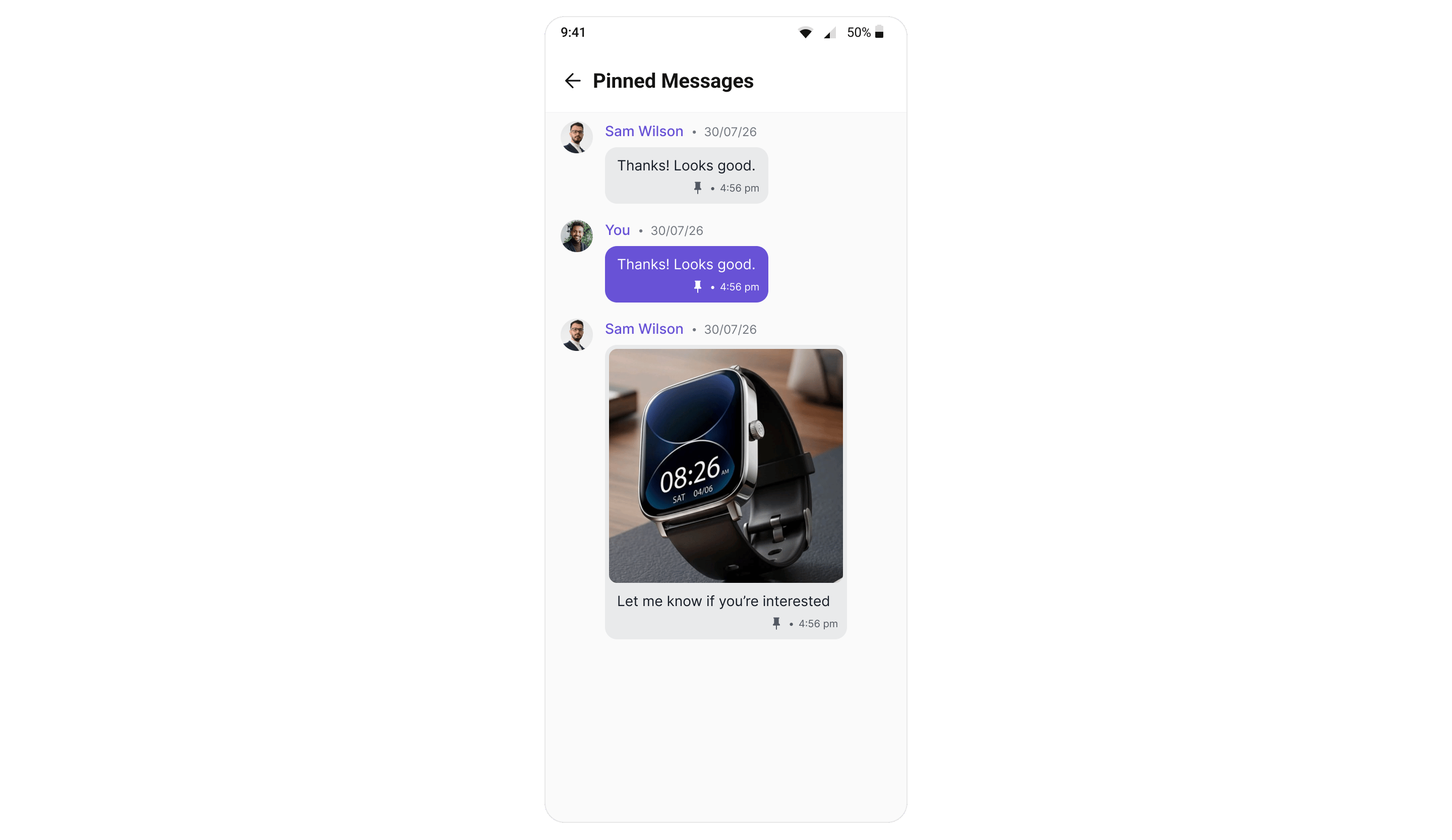
CometChatMessageHeader can add a Pinned Messages item to its ⋮ overflow menu. Set showPinnedMessagesButton and wire onPinnedMessagesPress — the entry only appears when both are given — to navigate to CometChatPinnedMessages, scoped to the same user/group.
File: Messages.tsx
CometChatPinnedMessages is per conversation — it takes the same user or group the chat screen was opened with, and lists that conversation’s pinned messages newest-pin first.
Step 3: Add a “Saved” Screen
CometChatSavedMessages is user-level, not per conversation — it lists everything the logged-in user has saved, across every chat. There is no built-in entry point, so open it from your own navigation: a menu item, a profile screen, or a tab.
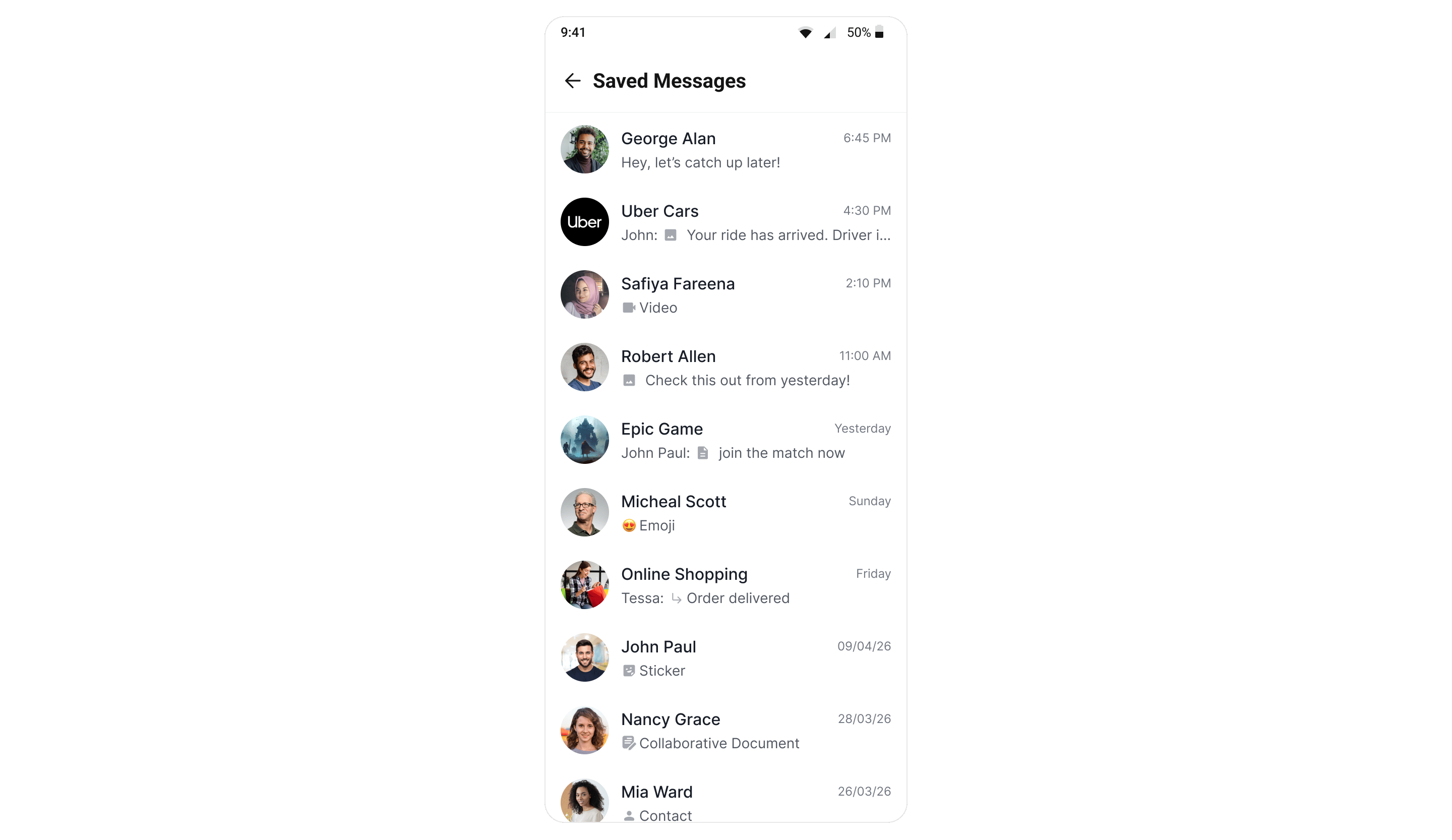
source carries that conversation as receiverType ("user" or "group") and receiverId, plus name, label and an optional avatar — see the component reference.
Step 4: Pinned & Saved Indicators
No wiring needed.CometChatMessageList renders a pin glyph and a filled bookmark in the message’s meta row, beside the timestamp, and keeps them in sync in real time:
- Pin is conversation-wide, so every participant sees the indicator appear and disappear as the message is pinned or unpinned.
- Save is private, so the indicator appears only for the user who saved it — and syncs to that user’s other devices.
Helpers
For your own UI — a custom bubble, a badge, a screen that needs to know before it renders — the kit exports the same helpers it uses itself:You do not need
refreshPinSaveFeatures() in normal use. The UI Kit resolves the flags at login and
re-reads them on every reconnect; call it only after changing the setting in the Dashboard and wanting
a running app to pick it up without a reconnect. Before the first resolution completes it returns
everything false.Step 5: App Settings and Limits
Each feature is switched on per app, and each carries a cap. Both are configured as app settings in the dashboard:
When a user hits a cap the action is rejected and the UI Kit shows a toast — you do not need to handle
the error yourself. The kit resolves the number from the app settings it caches at login, falling back
to
errorParams.limit when the rejection happens to carry one.
The toast does not always name a number. The server documents these caps as tenant-overridable
settings and does not promise them on the error payload, so when neither source has a value the kit
deliberately shows copy without a figure rather than printing a guess. Do not write UI that depends on
a number being present.
Complete Example
File: Messages.tsxgoToMessageId is what makes the jump actually happen: CometChatMessageList fetches the page around that ID and scrolls to it, so tapping a pinned or saved row lands on the message in its original conversation.
Next Steps
- CometChatPinnedMessages — the full component reference
- CometChatSavedMessages — the full component reference
- Pin Message (SDK) — the underlying SDK methods and listeners
- Save Message (SDK)
- Pin Conversation — pinning a whole chat to the top of the list