

AI Integration Quick Reference
AI Integration Quick Reference
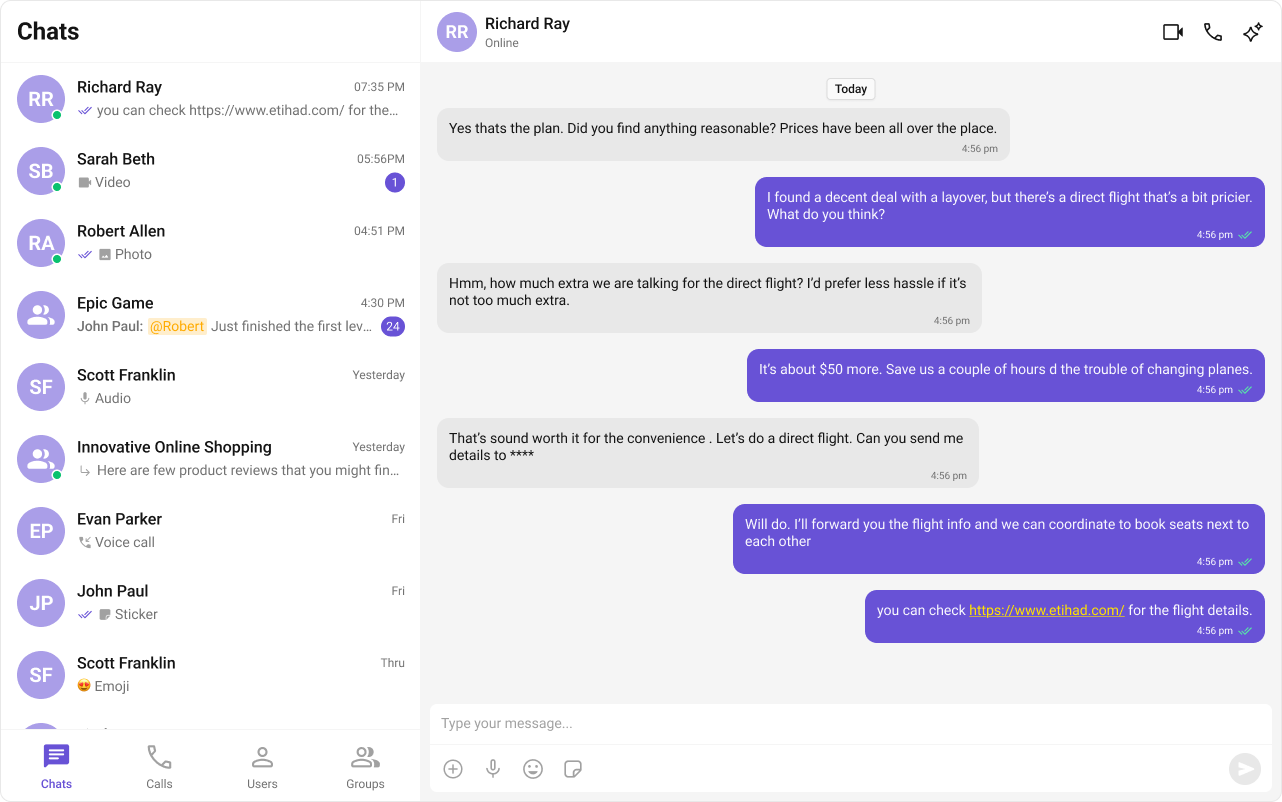
What You’re Building
Three sections working together:- Tab bar — switches between Chats, Call Logs, and Users
- List view — renders the list for the active tab (conversations, call logs, or users)
- Message view — header + messages + composer for the selected item
Step 1 — Update the Root Component
Wire everything together.ChatStateService handles the state — cometchat-conversations and cometchat-users automatically update the service when an item is clicked, and the message components auto-subscribe.
Angular 20+ names the root component
App in src/app/app.ts, as below. A project created with Angular 17–19 uses AppComponent in src/app/app.component.ts — use that file and class name instead.src/app/app.ts
body margin also pushes a 100dvh shell 16px past the viewport, so the page scrolls slightly. Reset it in your global stylesheet (below the CometChat @import if you chose that option in Step 5 of Integration):
src/styles.css
- The
activeTabproperty drives which list component renders —cometchat-conversations,cometchat-call-logs, orcometchat-users. cometchat-conversationscallsChatStateService.setActiveConversation()on click, which extracts theUserorGroupand sets it as the active entity.cometchat-userscallsChatStateService.setActiveUser()on click.cometchat-message-header,cometchat-message-list, andcometchat-message-composerauto-subscribe toChatStateService— no[user]or[group]bindings needed.- The
@ifblock readschatStateService.activeUser()andchatStateService.activeGroup()signals to show the chat window or the empty state.
Step 2 — Run the Project
Next Steps
Theming
Customize colors, fonts, and styles to match your brand
Components Overview
Browse all prebuilt UI components
Angular Integration
Back to the main setup guide
Core Features
Chat features included out of the box