

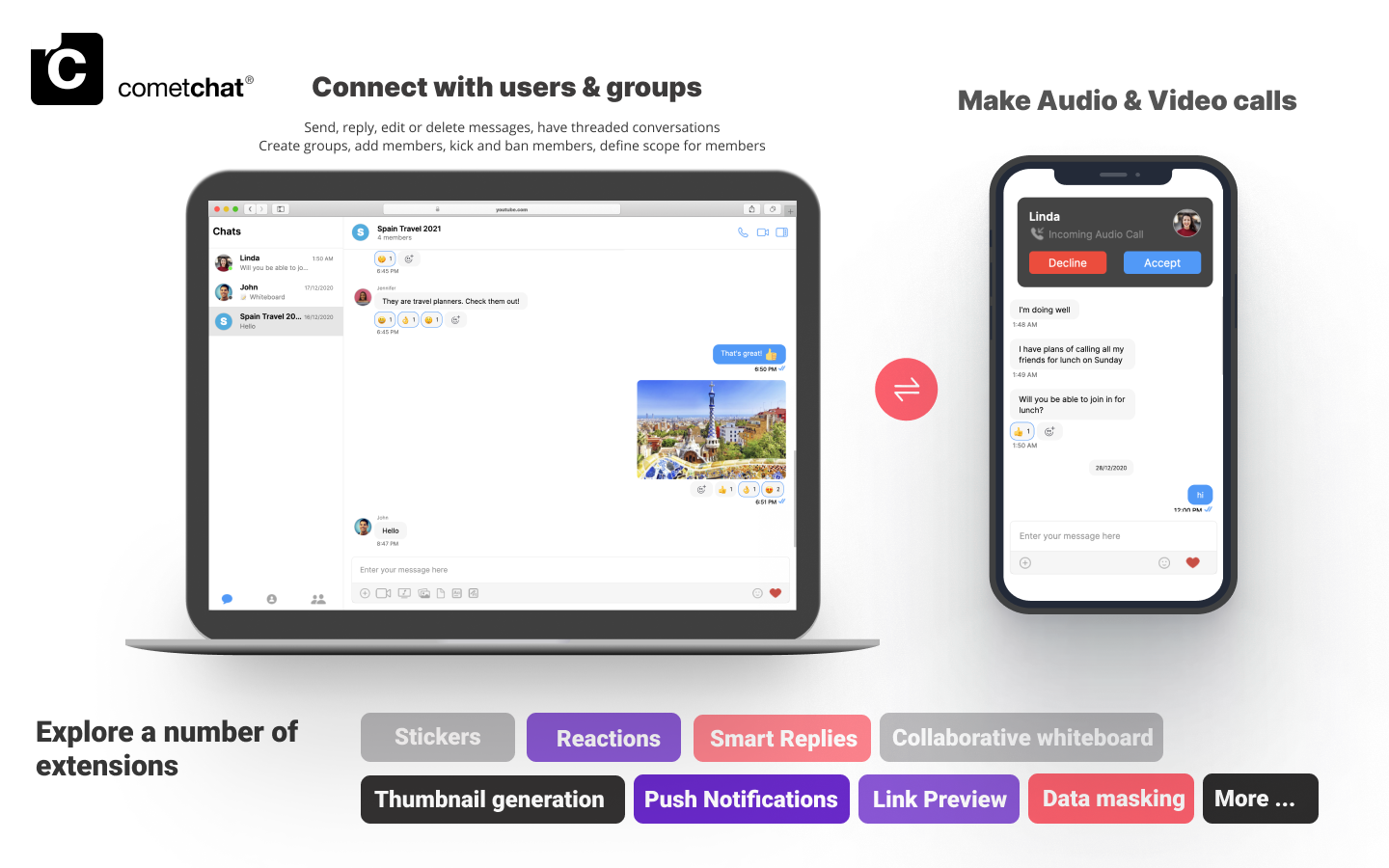
I want to checkout Vue UI Kit
Follow the steps mentioned in the
README.md file.Kindly, click on below button to download our Vue UI Kit.Vue UI Kit
View on Github
I want to explore the sample app
Prerequisites
Before you begin, ensure you have met the following requirements: For installing Vue 2- CLI
- CLI
Installing Vue UI Kit
Setup
-
Register on CometChat 🔧
- To install Vue UI Kit, you need to first register on the CometChat Dashboard. Click here to Sign Up.
- Get your application keys 🔑 a. Create a new app. b. Head over to the QuickStart or API & Auth Keys section and note the App ID, Auth Key, and Region.
- Add the CometChat dependency 📦
- CLI
Configure CometChat inside your app
- Import CometChat SDK
- JavaScript
- Initialize CometChat 🌟
- JavaScript
- Create user
User object and the Auth Key as input parameters and returns the created User object if the request is successful.
- JavaScript
- Login your user 👤
- JavaScript
We have set up 5 users for testing having UIDs: cometchat-uid-1, cometchat-uid-2, cometchat-uid-3, cometchat-uid-4, and cometchat-uid-5.We have used uid cometchat-uid-1 as an example here. You can create a User from CometChat Dashboard as well.
Add UI Kit to your project
- Clone this repository.
- CLI
- Copy the folder to your source folder.
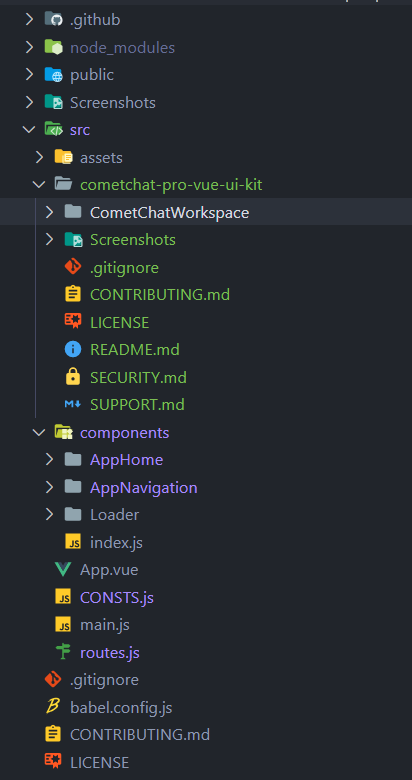
-
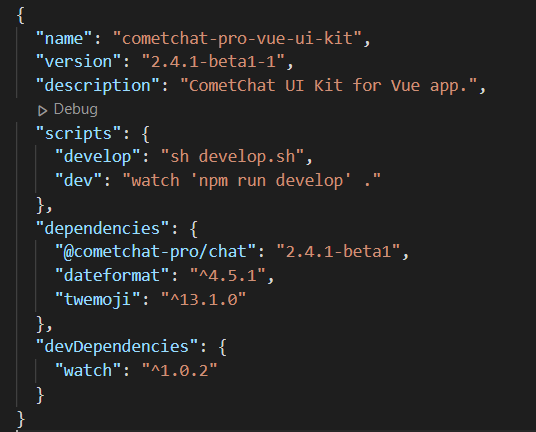
Copy all the dependencies from package.json of
cometchat-pro-vue-ui-kitinto your project’s package.json and install them. - We are using emoji-mart-vue-fast Please install respective library depending on your Vue version
-
- For Vue2 :
npm install emoji-mart-vue-fast@7.0.7 - For Vue3 :
npm install emoji-mart-vue-fast@8.0.3
- For Vue2 :
Launch CometChat
Using theCometChatUI component from the UI Kit, you can launch a fully functional chat application. In this component, all the UI Components are interlinked and work together to launch a fully functional chat on your website/application.
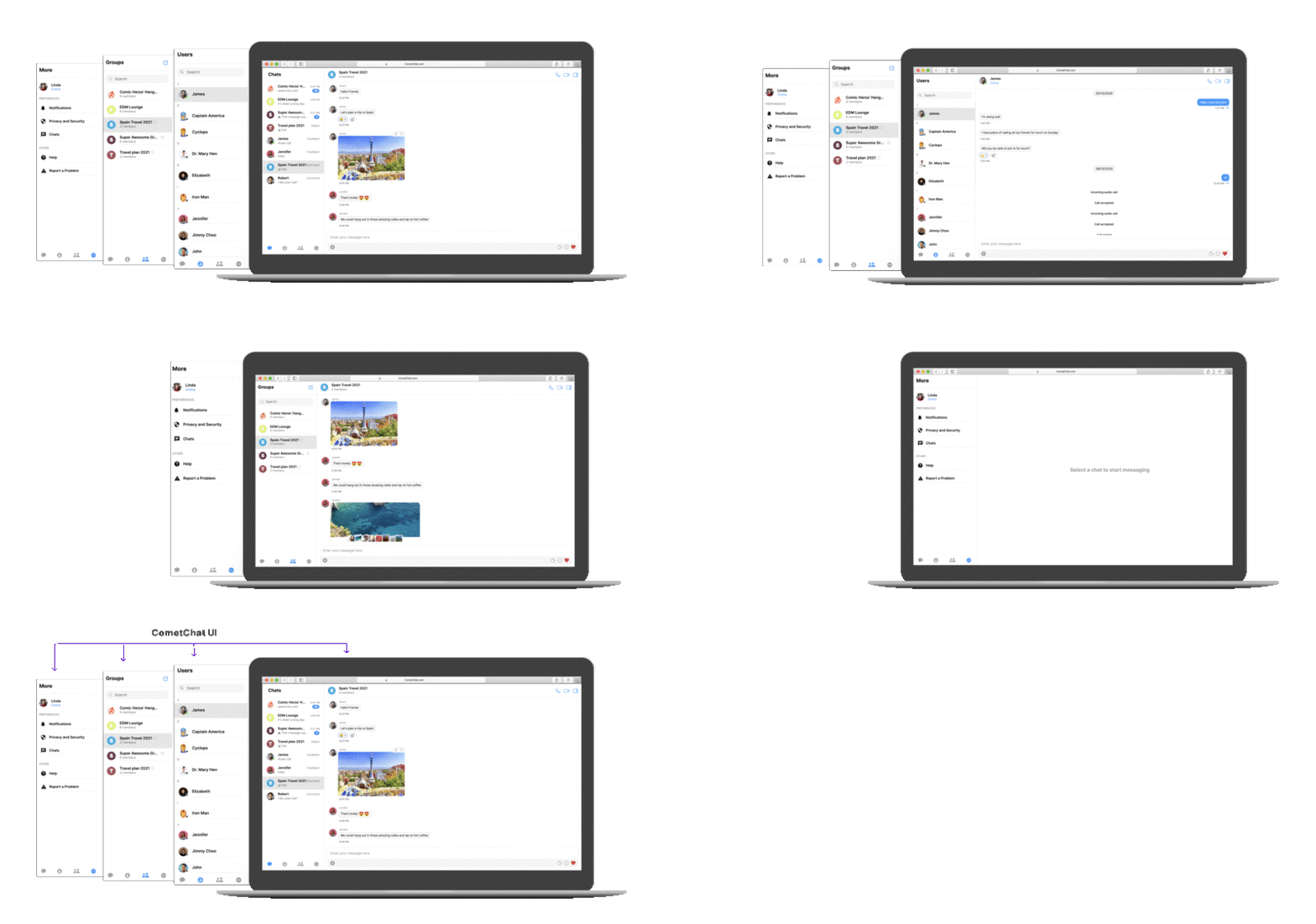
Usage
- Vue