Overview

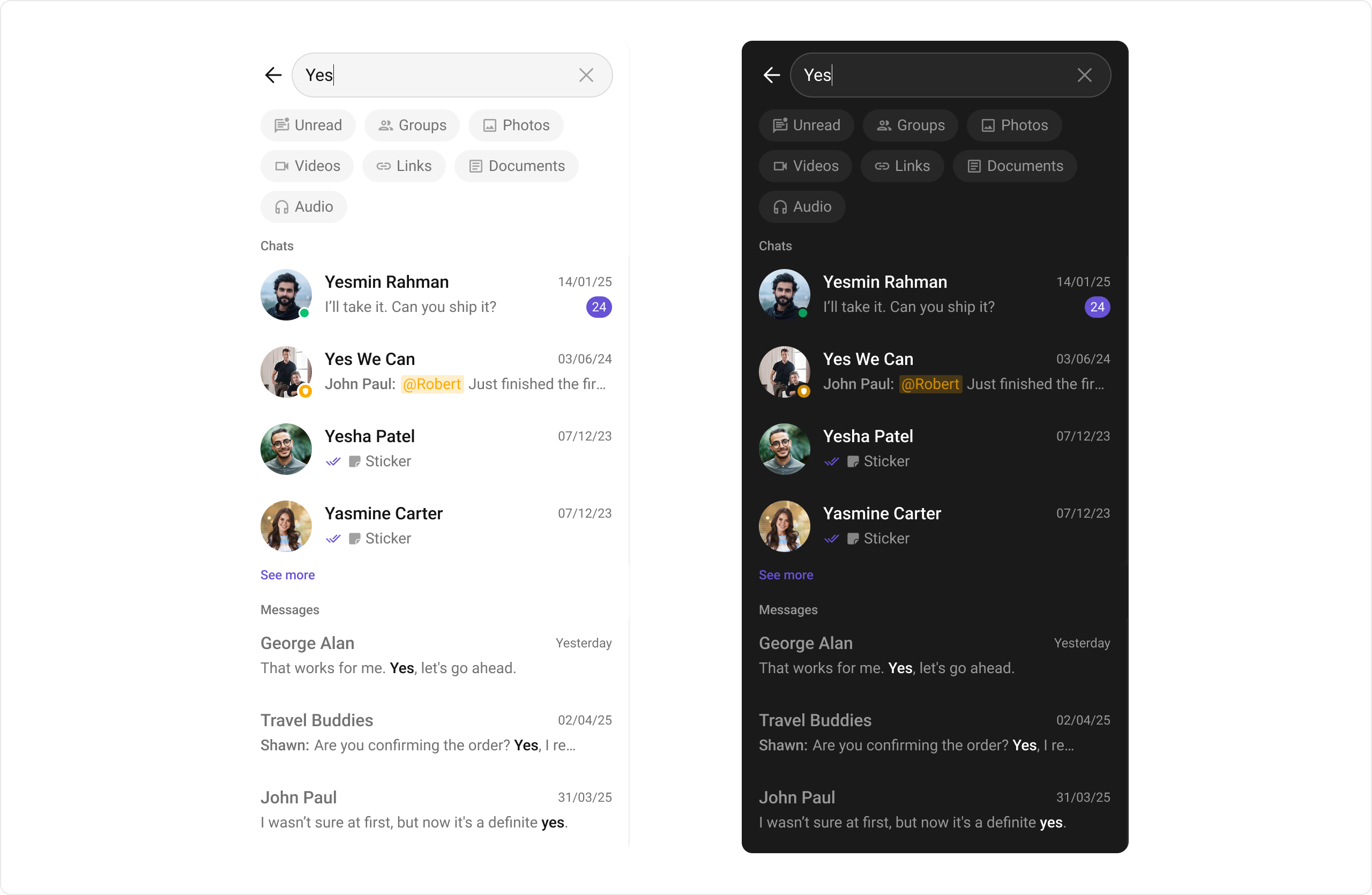
The CometChatSearch component is a powerful and customizable search interface that allows users to search across conversations and messages in real time. It supports a wide variety of filters, scopes, and customization options. CometChatSearch helps users find messages, conversations, media, and more through an intuitive and filterable search experience. It can be embedded in multiple contexts — as part of the conversation list, message header, or as a full-screen search experience.

Usage

Integration

You can launch CometChatSearch directly using Navigator.push, or you can define it as a widget within the build method of your State class.
1. Using Navigator to Launch CometChatSearch
Navigator.push(context, MaterialPageRoute(builder: (context) => CometChatSearch()));
2. Embedding CometChatSearch as a Widget in the build Method
import 'package:cometchat_chat_uikit/cometchat_chat_uikit.dart';
import 'package:flutter/material.dart';

class SearchComponent extends StatefulWidget {
  const SearchComponent({super.key});

  @override
  State<SearchComponent> createState() => _SearchComponentState();
}

class _SearchComponentState extends State<SearchComponent> {

  @override
  Widget build(BuildContext context) {
    return Scaffold(
        body: SafeArea(
            child: CometChatSearch(),
        )
    );
  }
}

Actions

Actions dictate how a widget functions. They are divided into two types: Predefined and User-defined. You can override either type, allowing you to tailor the behavior of the widget to fit your specific needs.

1. onConversationClicked

onConversationClicked is triggered when you click on a Conversation from the search result. The onConversationClicked action doesn’t have a predefined behavior. You can override this action using the following code snippet.
    CometChatSearch(
      onConversationClicked: (conversation) {
        // Handle conversation click
      },
    );

2. onMessageClicked

onMessageClicked is triggered when you click on a Message from the search result. The onMessageClicked action doesn’t have a predefined behavior. You can override this action using the following code snippet.
    CometChatSearch(
      onMessageClicked: (message) {
        // Handle message click
      },
    );

3. onBack

OnBack is triggered when you click on the back button of the Message Header component. You can override this action using the following code snippet.
    CometChatSearch(
      onBack: () {
        // Handle back action
      },
    );

4. onError

This action doesn’t change the behavior of the component but rather listens for any errors that occur in the Conversations component.
    CometChatSearch(
      onError: (e) {
        // Handle error
      },
    );

Filters

1. ConversationsRequestBuilder

You can set the ConversationsRequestBuilder in the Search Component to filter the search result. You can modify the builder as per your specific requirements with multiple options available to know more refer to ConversationRequestBuilder.
    CometChatSearch(
      conversationsRequestBuilder: ConversationsRequestBuilder(),
    );

2. MessagesRequestBuilder

You can set the MessagesRequestBuilder in the Search Component to filter the search result. You can modify the builder as per your specific requirements with multiple options available to know more refer to MessagesRequestBuilder.
    CometChatSearch(
      messagesRequestBuilder: MessagesRequestBuilder(),
    );

Events

Events are emitted by a Component. By using event you can extend existing functionality. Being global events, they can be applied in multiple locations and are capable of being added or removed. The CometChatSearch component does not produce any events.

Customization

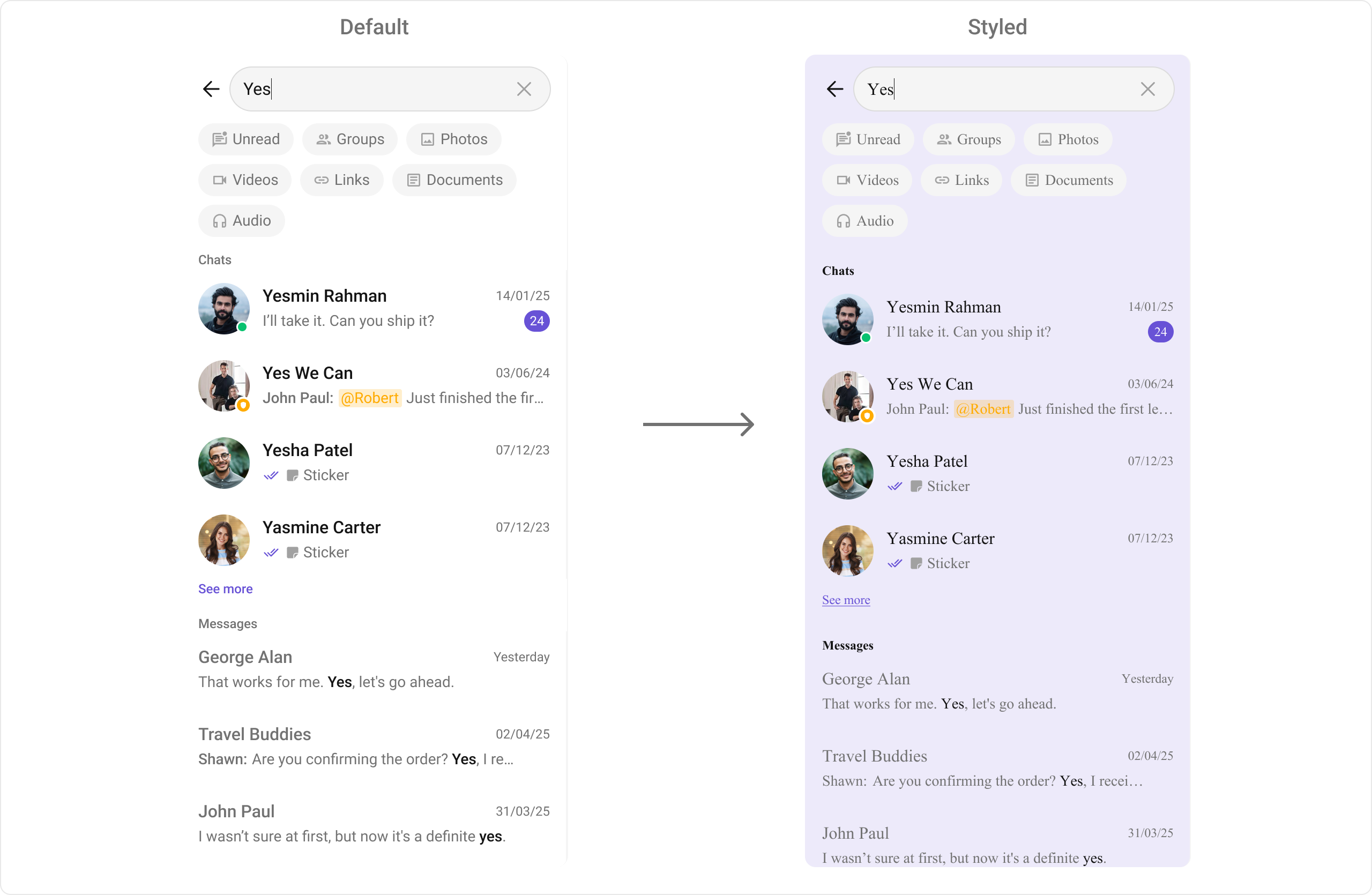
To fit your app’s design requirements, you can customize the appearance of the CometChatSearch component. We provide exposed methods that allow you to modify the experience and behavior according to your specific needs.

Style

Using Style you can customize the look and feel of the component in your app, These parameters typically control elements such as the color, size, shape, and fonts used within the component.
CometChatSearch(
      searchStyle: CometChatSearchStyle(
        backgroundColor: const Color(0xFFEDEAFA),
        searchFilterChipTextStyle: const TextStyle(fontFamily: 'TimesNewRoman'),
        searchSectionHeaderTextStyle: const TextStyle(fontFamily: 'TimesNewRoman'),

        searchConversationItemBackgroundColor: const Color(0xFFEDEAFA),
        searchConversationSubTitleTextStyle: const TextStyle(fontFamily: 'TimesNewRoman'),
        searchConversationTitleTextStyle: const TextStyle(fontFamily: 'TimesNewRoman'),
        searchConversationDateTextStyle: const TextStyle(
          fontFamily: 'TimesNewRoman',
          fontWeight: FontWeight.bold,
        ),

        searchSeeMoreStyle: const TextStyle(fontFamily: 'TimesNewRoman'),

        searchMessageItemBackgroundColor: const Color(0xFFEDEAFA),
        searchMessageTitleTextStyle: const TextStyle(fontFamily: 'TimesNewRoman'),
        searchMessageSubTitleTextStyle: const TextStyle(fontFamily: 'TimesNewRoman'),
        searchMessageTimeStampStyle: CometChatDateStyle(
          textStyle: const TextStyle(fontFamily: 'TimesNewRoman'),
        ),

        searchTextStyle: const TextStyle(fontFamily: 'TimesNewRoman'),
      ),
    );

Functionality

These are a set of small functional customizations that allow you to fine-tune the overall experience of the component. With these, you can toggle the visibility of UI elements. Below is a list of customizations along with corresponding code snippets

CometChatMessageHeader Properties

Following is a list of customizations along with their corresponding code snippets:
PropertyData TypeDescription
userUser?Set User object, one is mandatory either user or group.
groupGroup?Set Group object, one is mandatory either user or group.
usersStatusVisibilitybool?Controls visibility of status indicator shown if a user is online.
groupTypeVisibilitybool?Hide the group type icon which is visible on the group icon.
initialStateViewWidgetBuilder?Sets view fow initial state
loadingStateViewWidgetBuilder?Sets view fow loading state
emptyStateViewWidgetBuilder?Sets view fow empty state
errorStateViewWidgetBuilder?Sets view fow error state

Advanced

For advanced-level customization, you can set custom views to the component. This lets you tailor each aspect of the component to fit your exact needs and application aesthetics. You can create and define your views, layouts, and UI elements and then incorporate those into the component.

conversationItemView

With this function, you can assign a custom list item view to an conversation in the search result. For more information, refer to the listItemView prop of the CometChatConversations component.

conversationLeadingView

With this function, you can assign a custom leading view to an conversation in the search result. For more information, refer to the leadingView prop of the CometChatConversations component.

conversationTitleView

With this function, you can assign a custom title view of an conversation in the search result. For more information, refer to the titleview prop of the CometChatConversations component.

conversationSubtitleView

With this function, you can assign a custom subtitle view to an conversation in the search result. For more information, refer to the subtitleview prop of the CometChatConversations component.

conversationTailView

With this function, you can assign a custom tail view to an conversation in the search result. For more information, refer to the trailingview prop of the CometChatConversations component.

MessageItemView

With message item view functions, you can assign custom views to different types of messages in the search result. Here’s how you can override the default message item view with a custom one for text messages:
CometChatSearch(
      searchTextMessageView: (context, message) {
        String senderName = message.sender?.name ?? "Unknown";
        String messageText = "";
        messageText = message.text;
        return Container(
          padding: const EdgeInsets.all(16),
          width: double.infinity,
          color: const Color(0xFFE8E4F3),
          child: Row(
            children: [
              Text(
                "$senderName: ",
                style: const TextStyle(
                  color: Color(0xFF6B4FBB),
                  fontSize: 16,
                  fontWeight: FontWeight.bold,
                ),
              ),
              Expanded(
                child: Text(
                  messageText,
                  maxLines: 1,
                  overflow: TextOverflow.ellipsis,
                  style: const TextStyle(
                    color: Color(0xFF4A4A4A),
                    fontSize: 16,
                  ),
                ),
              ),
            ],
          ),
        );
      },
    );
Bellow is the list of message item view functions available for customization:
FunctionMessage Type
searchTextMessageViewText Message
searchImageMessageViewImage Message
searchAudioMessageViewAudio Message
searchFileMessageViewDocument Message
searchMessageLinkViewLink Message
searchVideoMessageViewVideo Message

DateTime Formatters

dateSeparatorFormatterCallback

You can modify the date pattern of the chat history date separator to your requirement using dateSeparatorFormatterCallback. This method accepts a function with a return type String. Inside the function, you can create your own pattern and return it as a String.

TextFormatters

Assigns the list of text formatters. If the provided list is not null, it sets the list. Otherwise, it assigns the default text formatters retrieved from the data source. To configure the existing Mentions look and feel check out MentionsFormatter Guide