

AI Integration Quick Reference
AI Integration Quick Reference
How a call works
- Placing a call is done by the UI Kit through the Calls SDK. The Chat SDK is not involved.
- Ringing the callee is done by the Push Notifications SDK from the call push. It rings with the app in the foreground, in the background or not running, draws the incoming-call screen, asks for the microphone (and the camera for a video call) on Answer, and opens the UI Kit’s call screen.
- Decline, timeout, busy and missed calls are handled by the Push SDK. The caller’s outgoing screen closes with the reason.
- The call itself runs in the Calls SDK session hosted by
CometChatOngoingCallActivity; hanging up leaves the session.
Integration
Three steps, all on the Calling Integration page:setEnableCalling(true)inUIKitSettings. The UI Kit initialises the Calls SDK and logs the user into it.CometChatPushNotifications.init()withsetProviderIdandsetAnswerActivity(CallAnswerActivity::class.java), a small answer activity that opensCometChatOngoingCallActivity, plus a three-lineFirebaseMessagingService.ensureRingReadyafter sign-in.POST_NOTIFICATIONS,RECORD_AUDIOandCAMERAmerge into your manifest from the SDKs; they only need granting at runtime.
There is no call listener to add. Apps that registered
CometChat.addCallListener to show CometChatIncomingCall should remove it; the Chat SDK’s calling APIs are superseded and no longer used. See Migrating from Legacy Ringing.Call Components
The CometChat Android UI Kit provides these components for calling. Each handles a specific part of the experience.Call Buttons
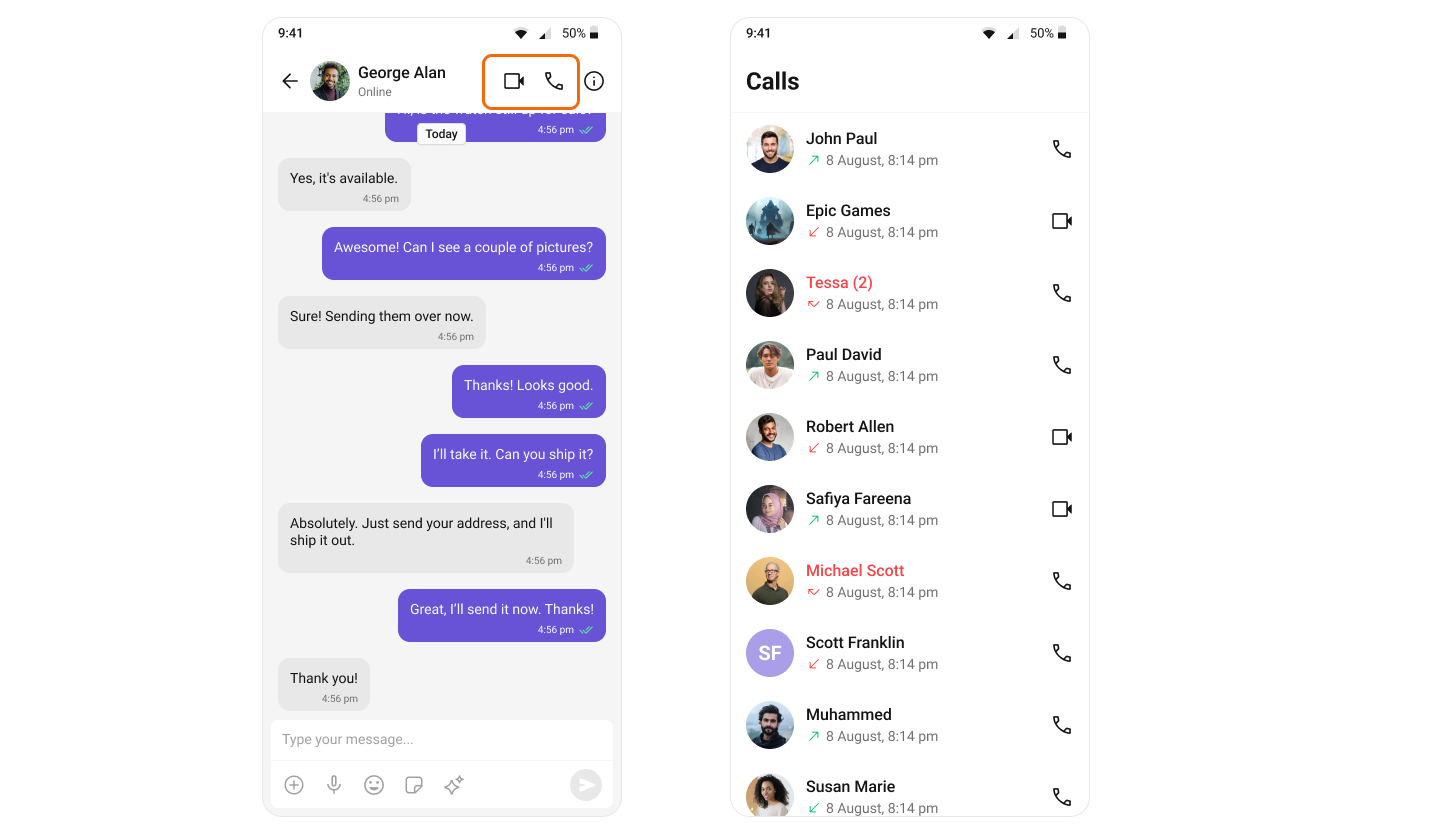
TheCometChatCallButtons component provides users with quick access to initiate audio and video calls. This component is automatically rendered in the MessageHeader when the Calls SDK is integrated.

Incoming Call
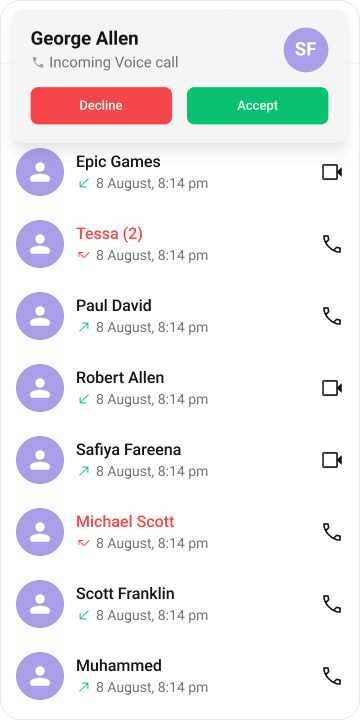
Incoming calls are rung and drawn by the Push Notifications SDK, so there is no UI Kit component to place. Its screen uses the UI Kit’s default colours, and follows your own UI Kit theme, light and dark, once you pass it withsetIncomingCallTheme (Styling the incoming-call screen). The deprecated CometChatIncomingCall component remains for apps that register their own ring screen.
Outgoing Call
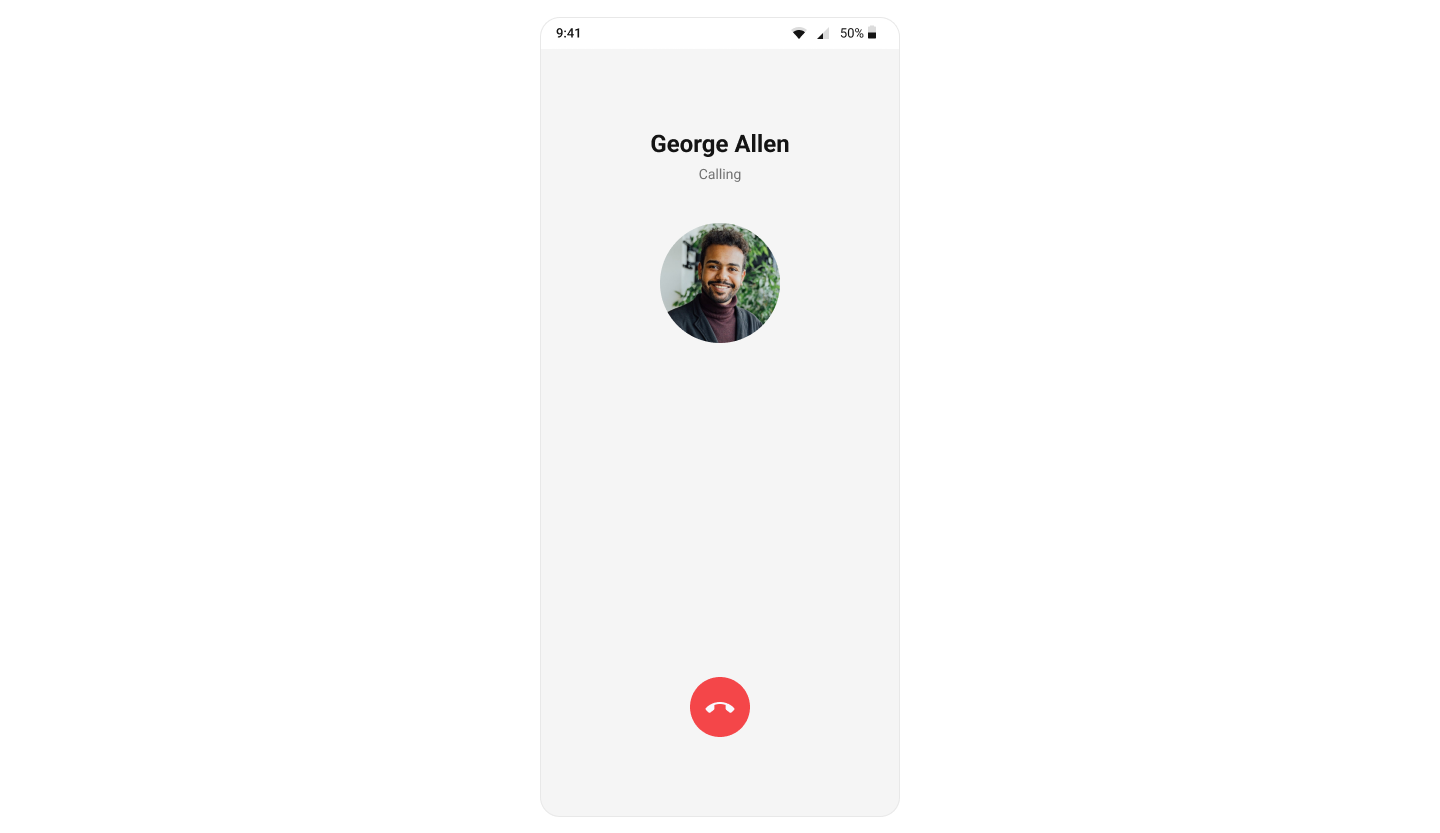
TheCometChatOutgoingCall component manages the outgoing call experience. It shows “calling…”, then “ringing…” once the callee’s device is reached, closes with the reason if the call is declined, busy or unanswered, and transitions to the active call screen once the callee joins.
Call Logs
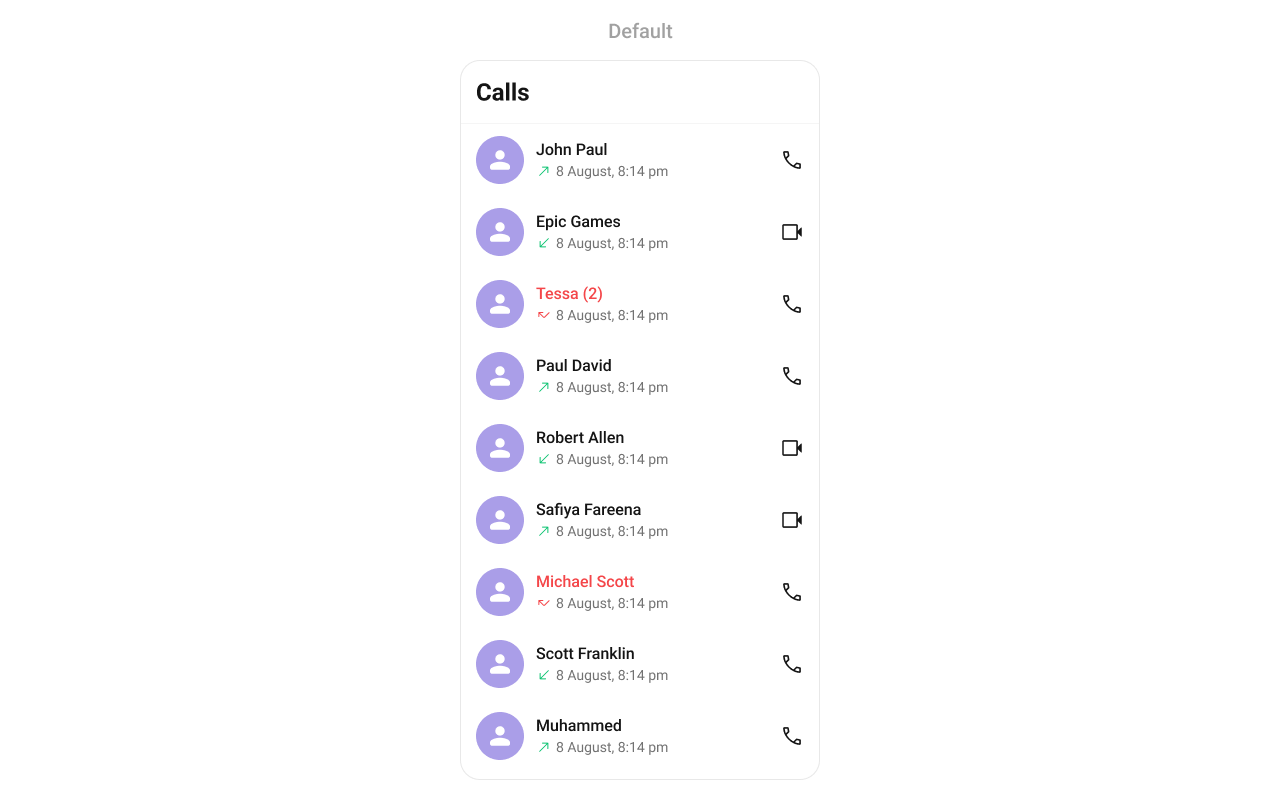
TheCometChatCallLogs component displays a history of all call activities, including missed, received, and dialed calls. Users can view call details and initiate new calls from the log.
Ongoing Call
TheCometChatOngoingCall component renders the active call screen with video feeds, mute/unmute controls, camera toggle, and end-call actions. CometChatOngoingCallActivity hosts it, supports picture-in-picture, and is the activity the Push SDK opens when the user answers an incoming call.
Learn more about Ongoing Call →