CometChat Calling SDK v4 - Legacy Release - Launch Call Screen On Tap Of Push Notification for iOS
You’re reading the legacy documentation for Calling SDK v4 (iOS).Follow this page only if your app is on v4.x. If you’re using v5, see the Calling SDK v5 documentation instead.Ready to move off v4? Follow the v4 → v5 migration guide.
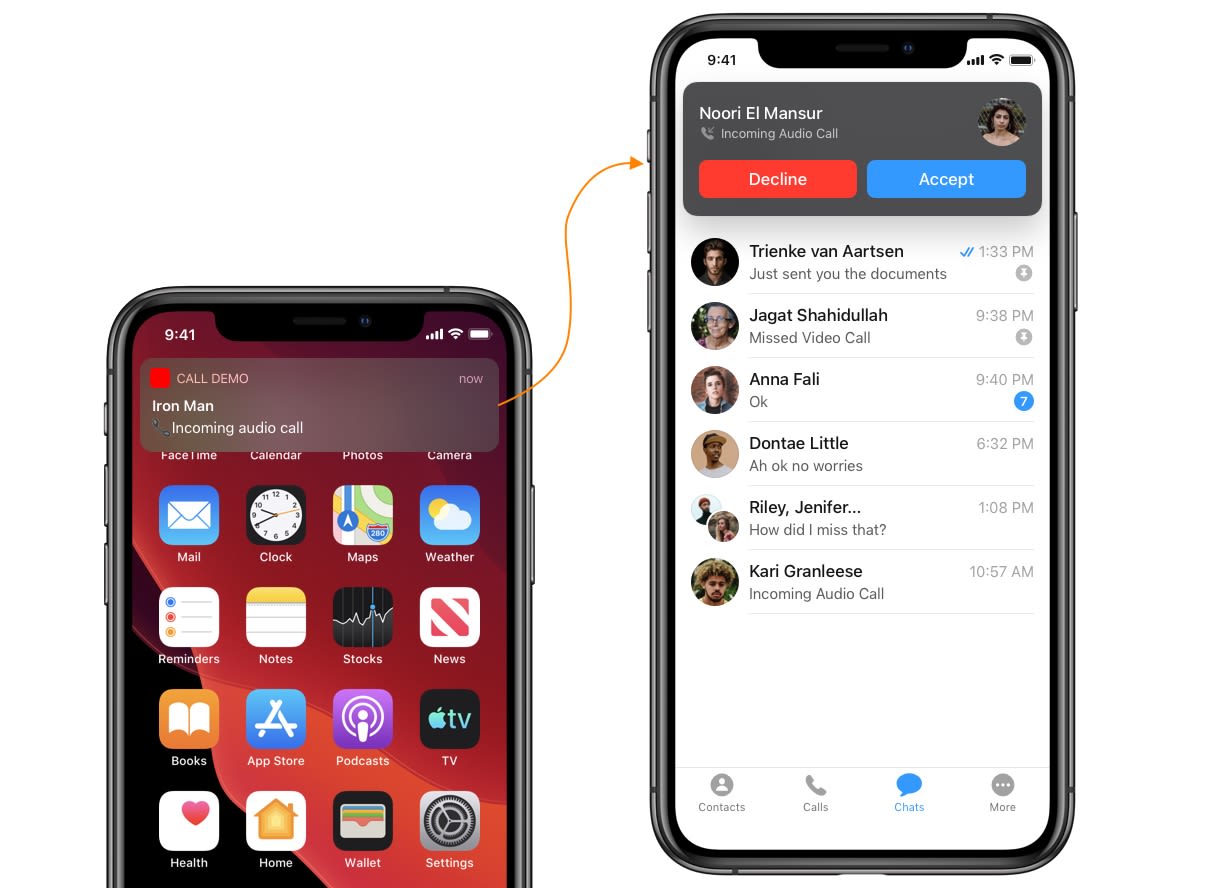
This guide helps you to launch an incoming call screen from the UI Kit library on receiving an incoming call notification.
CometChat SDK & UI Kit both need to be configured before launching the call screen.
Step 1. Process push notification payload and grab Call object
To present an incoming call screen, firstly you will need a Call object. You can grab this from the push notification payload itself of incoming call notification. You need to call CometChat.processMessage() method to process push notification payload.
Swift
 func userNotificationCenter(_ center: UNUserNotificationCenter,
                    didReceive response: UNNotificationResponse,
                    withCompletionHandler completionHandler: @escaping () -> Void) {

        if let userInfo = response.notification.request.content.userInfo as? [String : Any], let messageObject = userInfo["message"] as? [String:Any] {
           print("didReceive: \(userInfo)")
          if let baseMessage = CometChat.processMessage(messageObject).0 {
            switch baseMessage.messageCategory {
            case .message:
                print("Message Object Received: \(String(describing: (baseMessage as? TextMessage)?.stringValue()))")

            case .action: break
            case .call: break
            case .custom: break
            @unknown default: break
            }
          }
        }
        completionHandler()
      }
Step 2 . Launch call screen (Method 1)
You can directly launch the view controller from the app delegate once you receive Call Object.
Swift
  if let call = baseMessage as? Call {
      DispatchQueue.main.async {
      let call = CometChatIncomingCall()
      call.modalPresentationStyle = .custom
      call.setCall(call: call)
     if let window = self.window, let rootViewController = window.rootViewController      {
     var currentController = rootViewController
     while let presentedController = currentController.presentedViewController {
     currentController = presentedController
     }
      if (!call.isViewLoaded && (call.view.window != nil)) {
     currentController.present(call, animated: true, completion: nil)
      }
     }
   }
 }
If you are facing any difficulties while launching the Call Screen from App Delegate, then you can use another method.
Step 2 . Launch call screen (Method 2)
You can launch the call screen from your base view controller instead of launching it from the App Delegate. This method uses NotificationCenter to trigger and present Call Screen.
In this method you need to fire notification after you receive Call Object.
In Notification’s user info you can pass Call Object to that desired notification.