> ## Documentation Index
> Fetch the complete documentation index at: https://www.cometchat.com/docs/llms.txt
> Use this file to discover all available pages before exploring further.
# CometChat Widget Builder For Wix
> CometChat Widget Builder for Wix is a no-code solution that lets you embed a fully functional chat interface into any Wix website using a simple code snippet.
It provides a ready-to-use chat widget backed by CometChat's real-time infrastructure — add the embed code to your Wix site and go live.
With CometChat Widget Builder, you can:
* Embed chat and calling into any Wix website
* Customize themes, colors, and typography
* Toggle features on and off
* Go live with a simple embed code snippet
The widget connects to CometChat's SDK and infrastructure, which manages message transport, sync, and backend scaling.
Go to the Integration Guide
***
## Widget Builder Features
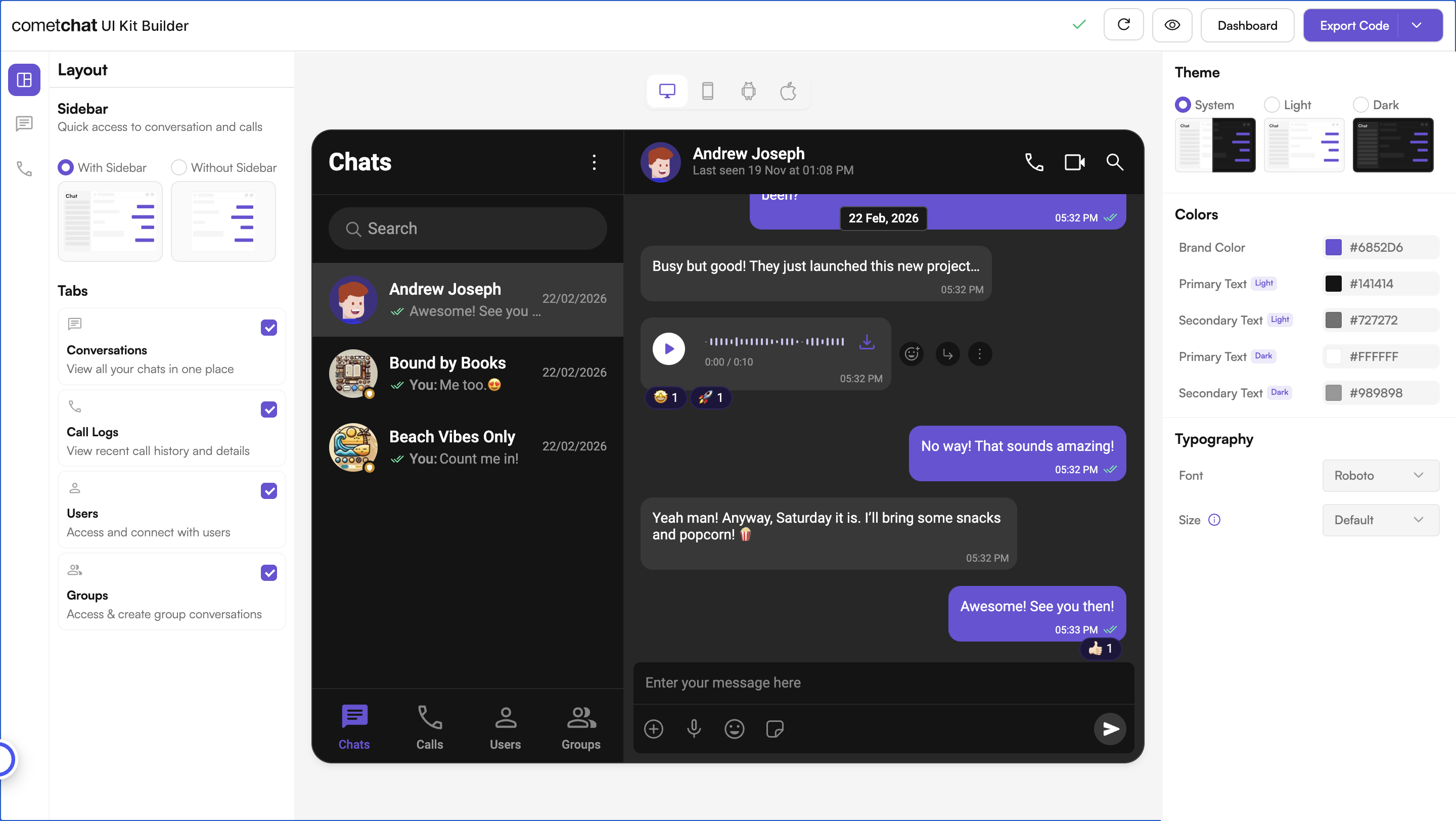
**No-Code Visual Configuration** — Widget Builder provides a visual configuration environment for designing your chat widget before embedding.
**Toggle-Based Feature Control** — Messaging and calling features can be controlled through configuration settings in the Widget Builder in dashboard.
**Ready-to-Embed Code** — After configuration, Widget Builder generates a code snippet you can embed into your Wix site using the HTML embed element.
***
## How to Use Widget Builder
### 1. Design
Customize your chat widget using the visual Widget Builder:
* **Configure layout** — Toggle all the required features in the dashboard.
* **Toggle features** — Turn chat and calling features on and off from the builder interface.
* **Themes** — Select between system, light, and dark themes. Choose custom colors and typography.
### 2. Get Embed Code
Once configured, get the embed code snippet for your widget.
1. Click on **Get Embedded Code**
2. Note your app credentials (App ID, Auth Key, Region, Variant ID)
3. Copy the code snippet
### 3. Integrate
Add the embed code to your Wix website and go live.
1. **Add an HTML embed element** — In the Wix Editor, add an Embed HTML component to your page
2. **Paste the code snippet** into the HTML embed element
3. **Configure credentials** — Set your App ID, Region, and Auth Key
4. **User Authentication** — CometChat uses a UID (User ID) to identify each user. Authenticate users to enable chat functionality.
5. **Launch** — Publish your Wix site and the chat widget is live
Step-by-step instructions for embedding the Widget Builder into your Wix website
***
## Try Live Demo
Experience the CometChat Widget Builder in action:
***
## Need Help?
Connect with other developers and get answers
Contact our support team for assistance
***
## Related Resources
Learn more about the CometChat JavaScript SDK
Widget Builder for HTML websites
Widget Builder for WordPress websites
Widget Builder for Squarespace websites
 ### 2. Get Embed Code
Once configured, get the embed code snippet for your widget.
1. Click on **Get Embedded Code**
2. Note your app credentials (App ID, Auth Key, Region, Variant ID)
3. Copy the code snippet
### 3. Integrate
Add the embed code to your Wix website and go live.
1. **Add an HTML embed element** — In the Wix Editor, add an Embed HTML component to your page
2. **Paste the code snippet** into the HTML embed element
3. **Configure credentials** — Set your App ID, Region, and Auth Key
4. **User Authentication** — CometChat uses a UID (User ID) to identify each user. Authenticate users to enable chat functionality.
5. **Launch** — Publish your Wix site and the chat widget is live
### 2. Get Embed Code
Once configured, get the embed code snippet for your widget.
1. Click on **Get Embedded Code**
2. Note your app credentials (App ID, Auth Key, Region, Variant ID)
3. Copy the code snippet
### 3. Integrate
Add the embed code to your Wix website and go live.
1. **Add an HTML embed element** — In the Wix Editor, add an Embed HTML component to your page
2. **Paste the code snippet** into the HTML embed element
3. **Configure credentials** — Set your App ID, Region, and Auth Key
4. **User Authentication** — CometChat uses a UID (User ID) to identify each user. Authenticate users to enable chat functionality.
5. **Launch** — Publish your Wix site and the chat widget is live