> ## Documentation Index
> Fetch the complete documentation index at: https://www.cometchat.com/docs/llms.txt
> Use this file to discover all available pages before exploring further.

# Conversation List + Message View

> Build a two-panel conversation list + message view layout in React Router with CometChat UI Kit.

<Accordion title="AI Integration Quick Reference">
  | Field        | Value                                                                                                  |
  | ------------ | ------------------------------------------------------------------------------------------------------ |
  | Package      | `@cometchat/chat-uikit-react`                                                                          |
  | Framework    | React Router                                                                                           |
  | Components   | `CometChatConversations`, `CometChatMessageHeader`, `CometChatMessageList`, `CometChatMessageComposer` |
  | Layout       | Two-panel — conversation list (left) + message view (right)                                            |
  | Prerequisite | Complete [React Router Integration](/ui-kit/react/react-router-integration) Steps 1–5 first            |
  | SSR          | Lazy import + mounted check — CometChat requires browser APIs                                          |
  | Pattern      | WhatsApp Web, Slack, Microsoft Teams                                                                   |
</Accordion>

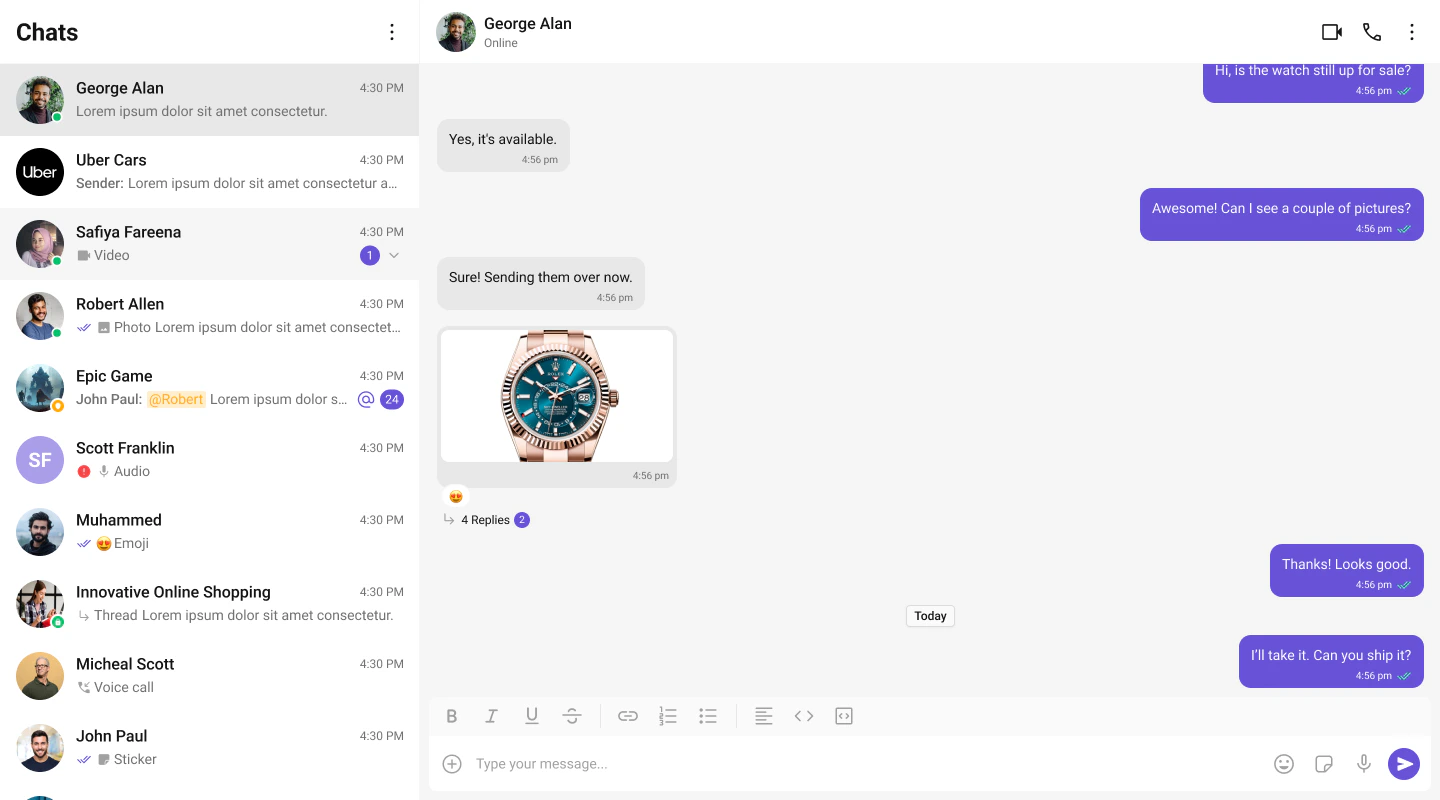
This guide builds a two-panel chat layout — conversation list on the left, messages on the right. Users tap a conversation to open it.

This assumes you've already completed [React Router Integration](/ui-kit/react/react-router-integration) (project created, UI Kit installed, CSS imported).

<Frame>
  <img src="https://mintcdn.com/cometchat-22654f5b/-YC7tOebleeoFejE/images/e6411d13-chat_experience_sidebar_message-35c431d8bf694e5690e4e0f3a74165af.png?fit=max&auto=format&n=-YC7tOebleeoFejE&q=85&s=03a9df5c80f787357ebc4508839a88cb" width="1282" height="802" data-path="images/e6411d13-chat_experience_sidebar_message-35c431d8bf694e5690e4e0f3a74165af.png" />
</Frame>

***

## What You're Building

Three sections working together:

1. **Sidebar (conversation list)** — shows all active conversations (users and groups)
2. **Message view** — displays chat messages for the selected conversation in real time
3. **Message composer** — text input with support for media, emojis, and reactions

***

## Step 1 — Create the Sidebar Component

<Tree>
  <Tree.Folder name="src" defaultOpen>
    <Tree.Folder name="app" defaultOpen>
      <Tree.Folder name="CometChatSelector" defaultOpen>
        <Tree.File name="CometChatSelector.tsx" />

        <Tree.File name="CometChatSelector.css" />
      </Tree.Folder>
    </Tree.Folder>
  </Tree.Folder>
</Tree>

<Tabs>
  <Tab title="TypeScript">
    ```tsx title="CometChatSelector.tsx" lines theme={null}
    import { useEffect, useState } from "react";
    import { Conversation, Group, User, CometChat } from "@cometchat/chat-sdk-javascript";
    import { CometChatConversations, CometChatUIKitLoginListener } from "@cometchat/chat-uikit-react";
    import "./CometChatSelector.css";

    interface SelectorProps {
      onSelectorItemClicked?: (input: User | Group | Conversation, type: string) => void;
    }

    export const CometChatSelector = (props: SelectorProps) => {
      const { onSelectorItemClicked = () => {} } = props;
      const [loggedInUser, setLoggedInUser] = useState<CometChat.User | null>();
      const [activeItem, setActiveItem] = useState<
        CometChat.Conversation | CometChat.User | CometChat.Group | undefined
      >();

      useEffect(() => {
        const user = CometChatUIKitLoginListener.getLoggedInUser();
        setLoggedInUser(user);
      }, []);

      return (
        <>
          {loggedInUser && (
            <CometChatConversations
              activeConversation={
                activeItem instanceof CometChat.Conversation ? activeItem : undefined
              }
              onItemClick={(e) => {
                setActiveItem(e);
                onSelectorItemClicked(e, "updateSelectedItem");
              }}
            />
          )}
        </>
      );
    };
    ```
  </Tab>

  <Tab title="CSS">
    ```css title="CometChatSelector.css" lines theme={null}
    .selector-wrapper .cometchat-conversations .cometchat-list__header-menu .cometchat-button__icon {
      background: var(--cometchat-icon-color-primary);
    }

    .cometchat-conversations .cometchat-list__header-menu .cometchat-button__icon:hover {
      background: var(--cometchat-icon-color-highlight);
    }

    .cometchat-list__header-search-bar {
      border-right: none;
    }

    .cometchat .cometchat-menu-list__sub-menu-list-item {
      text-align: left;
    }

    .cometchat .cometchat-conversations .cometchat-menu-list__sub-menu-list {
      width: 212px;
      top: 40px !important;
      left: 172px !important;
    }

    #logged-in-user {
      border-bottom: 2px solid var(--cometchat-border-color-default, #E8E8E8);
    }

    #logged-in-user .cometchat-menu-list__sub-menu-item-title,
    #logged-in-user .cometchat-menu-list__sub-menu-list-item {
      cursor: default;
    }

    .cometchat-menu-list__sub-menu-list-item-icon-log-out {
      background-color: var(--cometchat-error-color, #F44649);
    }

    .cometchat-menu-list__sub-menu-item-title-log-out {
      color: var(--cometchat-error-color, #F44649);
    }

    .chat-menu .cometchat .cometchat-menu-list__sub-menu-item-title {
      cursor: pointer;
    }

    .chat-menu .cometchat .cometchat-menu-list__sub-menu {
      box-shadow: none;
    }

    .chat-menu .cometchat .cometchat-menu-list__sub-menu-icon {
      background-color: var(--cometchat-icon-color-primary, #141414);
      width: 24px;
      height: 24px;
    }
    ```
  </Tab>
</Tabs>

***

## Step 2 — Create the CometChatNoSSR Component

This component handles init, login, and renders the full chat experience. It runs client-side only.

<Tree>
  <Tree.Folder name="src" defaultOpen>
    <Tree.Folder name="app" defaultOpen>
      <Tree.Folder name="CometChatNoSSR" defaultOpen>
        <Tree.File name="CometChatNoSSR.tsx" />

        <Tree.File name="CometChatNoSSR.css" />
      </Tree.Folder>
    </Tree.Folder>
  </Tree.Folder>
</Tree>

<Tabs>
  <Tab title="TypeScript">
    ```tsx title="CometChatNoSSR.tsx" lines highlight={14-16, 19} theme={null}
    import React, { useEffect, useState } from "react";
    import {
      CometChatMessageComposer,
      CometChatMessageHeader,
      CometChatMessageList,
      CometChatUIKit,
      UIKitSettingsBuilder,
    } from "@cometchat/chat-uikit-react";
    import { CometChat } from "@cometchat/chat-sdk-javascript";
    import { CometChatSelector } from "../CometChatSelector/CometChatSelector";
    import "./CometChatNoSSR.css";

    const COMETCHAT_CONSTANTS = {
      APP_ID: "",    // Replace with your App ID
      REGION: "",    // Replace with your Region
      AUTH_KEY: "",  // Replace with your Auth Key (dev only)
    };

    const UID = "cometchat-uid-1"; // Replace with your actual UID

    const CometChatNoSSR: React.FC = () => {
      const [initialized, setInitialized] = useState(false);
      const [user, setUser] = useState<CometChat.User | null>(null);
      const [selectedUser, setSelectedUser] = useState<CometChat.User>();
      const [selectedGroup, setSelectedGroup] = useState<CometChat.Group>();

      useEffect(() => {
        if (typeof window === "undefined") return;

        const UIKitSettings = new UIKitSettingsBuilder()
          .setAppId(COMETCHAT_CONSTANTS.APP_ID)
          .setRegion(COMETCHAT_CONSTANTS.REGION)
          .setAuthKey(COMETCHAT_CONSTANTS.AUTH_KEY)
          .subscribePresenceForAllUsers()
          .build();

        CometChatUIKit.init(UIKitSettings)
          ?.then(() => {
            console.log("Initialization completed successfully");
            setInitialized(true);
            CometChatUIKit.getLoggedinUser().then((loggedInUser) => {
              if (!loggedInUser) {
                CometChatUIKit.login(UID)
                  .then((u) => {
                    console.log("Login Successful", { u });
                    setUser(u);
                  })
                  .catch((error) => console.error("Login failed", error));
              } else {
                console.log("Already logged-in", { loggedInUser });
                setUser(loggedInUser);
              }
            });
          })
          .catch((error) => console.error("Initialization failed", error));
      }, []);

      if (!initialized || !user) {
        return <div>Initializing Chat...</div>;
      }

      return (
        <div className="conversations-with-messages">
          <div className="conversations-wrapper">
            <CometChatSelector
              onSelectorItemClicked={(activeItem) => {
                let item = activeItem;
                if (activeItem instanceof CometChat.Conversation) {
                  item = activeItem.getConversationWith();
                }
                if (item instanceof CometChat.User) {
                  setSelectedUser(item);
                  setSelectedGroup(undefined);
                } else if (item instanceof CometChat.Group) {
                  setSelectedUser(undefined);
                  setSelectedGroup(item);
                } else {
                  setSelectedUser(undefined);
                  setSelectedGroup(undefined);
                }
              }}
            />
          </div>

          {selectedUser || selectedGroup ? (
            <div className="messages-wrapper">
              <CometChatMessageHeader user={selectedUser} group={selectedGroup} />
              <CometChatMessageList user={selectedUser} group={selectedGroup} />
              <CometChatMessageComposer user={selectedUser} group={selectedGroup} />
            </div>
          ) : (
            <div className="empty-conversation">Select a conversation to start chatting</div>
          )}
        </div>
      );
    };

    export default CometChatNoSSR;
    ```
  </Tab>

  <Tab title="CSS">
    ```css title="CometChatNoSSR.css" lines theme={null}
    .conversations-with-messages {
      display: flex;
      height: 100%;
      width: 100%;
    }

    .conversations-wrapper {
      height: 100%;
      width: 480px;
      overflow: hidden;
      display: flex;
      flex-direction: column;
      height: inherit;
    }

    .conversations-wrapper > .cometchat {
      overflow: hidden;
    }

    .messages-wrapper {
      width: calc(100% - 480px);
      height: 100%;
      display: flex;
      flex-direction: column;
    }

    .empty-conversation {
      height: 100%;
      width: 100%;
      display: flex;
      justify-content: center;
      align-items: center;
      background: white;
      color: var(--cometchat-text-color-secondary, #727272);
      font: var(--cometchat-font-body-regular, 400 14px Roboto);
    }

    .cometchat .cometchat-message-composer {
      border-radius: 0px;
    }
    ```
  </Tab>
</Tabs>

***

## Step 3 — Disable SSR and Add the Route

Create `CometChat.tsx` inside the `routes` folder. This uses lazy loading and a mounted check to ensure CometChat only runs client-side.

```tsx title="routes/CometChat.tsx" lines theme={null}
import React, { lazy, Suspense, useEffect, useState } from "react";
import "@cometchat/chat-uikit-react/css-variables.css";

const CometChatNoSSR = lazy(() => import("../CometChatNoSSR/CometChatNoSSR"));

export default function CometChatRoute() {
  const [mounted, setMounted] = useState(false);

  useEffect(() => {
    setMounted(true);
  }, []);

  return mounted ? (
    <Suspense fallback={<div>Loading...</div>}>
      <CometChatNoSSR />
    </Suspense>
  ) : (
    <div>Loading...</div>
  );
}
```

Add the route to your routes config:

```ts title="routes.ts" lines theme={null}
import { type RouteConfig, index, route } from "@react-router/dev/routes";

export default [
  index("routes/home.tsx"),
  route("chat", "routes/CometChat.tsx"),
] satisfies RouteConfig;
```

CometChat depends on browser APIs (`window`, `WebSocket`, `document`). The lazy import + mounted check ensures the component only renders on the client.

***

## Step 4 — Run the Project

<Tabs>
  <Tab title="npm">
    ```bash lines theme={null}
    npm run dev
    ```
  </Tab>

  <Tab title="pnpm">
    ```bash lines theme={null}
    pnpm dev
    ```
  </Tab>

  <Tab title="yarn">
    ```bash lines theme={null}
    yarn dev
    ```
  </Tab>
</Tabs>

Navigate to `/chat` (e.g. `http://localhost:5173/chat`). You should see the conversation list on the left. Tap any conversation to load messages on the right.

***

## Next Steps

<CardGroup cols={2}>
  <Card title="Theming" icon="paintbrush" href="/ui-kit/react/theme">
    Customize colors, fonts, and styles to match your brand
  </Card>

  <Card title="Components Overview" icon="grid-2" href="/ui-kit/react/components-overview">
    Browse all prebuilt UI components
  </Card>

  <Card title="React Router Integration" icon="react" href="/ui-kit/react/react-router-integration">
    Back to the main setup guide
  </Card>

  <Card title="Core Features" icon="comments" href="/ui-kit/react/core-features">
    Chat features included out of the box
  </Card>
</CardGroup>
