> ## Documentation Index
> Fetch the complete documentation index at: https://www.cometchat.com/docs/llms.txt
> Use this file to discover all available pages before exploring further.
# Search
## Overview
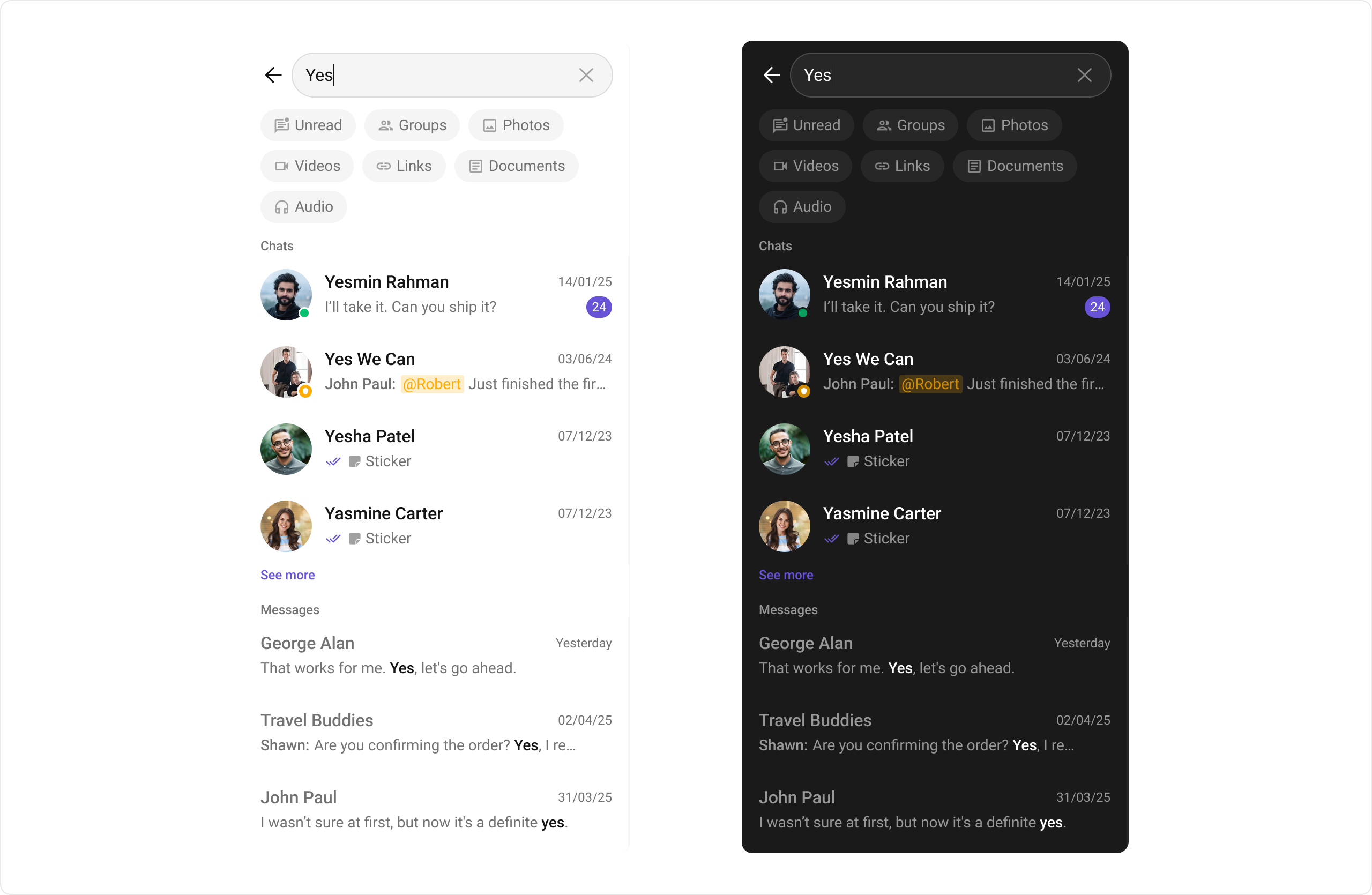
The `CometChatSearch` component is a powerful and customizable search interface that allows users to search across conversations and messages in real time. It supports a wide variety of filters, scopes, and customization options. `CometChatSearch` helps users find messages, conversations, media, and more through an intuitive and filterable search experience. It can be embedded in multiple contexts — as part of the conversation list, message header, or as a full-screen search experience.
 ***
## Usage
### Integration
```tsx theme={null}
import React from "react";
import { View } from "react-native";
import { CometChatSearch } from "@cometchat/chat-uikit-react-native";
function SearchDemo() {
return (
);
}
export default SearchDemo;
```
```tsx theme={null}
import React from "react";
import { View } from "react-native";
import { SearchDemo } from "./SearchDemo";
export default function App() {
return (
);
}
```
***
### Actions
[Actions](/docs/ui-kit/react-native/components-overview#actions) dictate how a component functions. They are divided into two types: Predefined and User-defined. You can override either type, allowing you to tailor the behavior of the component to fit your specific needs.
#### 1. onConversationClicked
`onConversationClicked` is triggered when you click on a Conversation from the search result. The `onConversationClicked` action doesn't have a predefined behavior. You can override this action using the following code snippet.
```tsx theme={null}
import React from "react";
import { CometChatSearch } from "@cometchat/chat-uikit-react-native";
import { CometChat } from "@cometchat/chat-sdk-react-native";
const openConversation = (conversation: CometChat.Conversation) => {
console.log("Conversation Selected:", conversation);
};
;
```
***
#### 2. onMessageClicked
`onMessageClicked` is triggered when you click on a Message from the search result. The `onMessageClicked` action doesn't have a predefined behavior. You can override this action using the following code snippet.
```tsx theme={null}
import React from "react";
import { CometChatSearch } from "@cometchat/chat-uikit-react-native";
import { CometChat } from "@cometchat/chat-sdk-react-native";
const goToMessage = (message: CometChat.BaseMessage) => {
console.log("Message Selected:", message);
};
;
```
***
#### 3. OnBack
`OnBack` is triggered when you click on the back button of the Message Header component. You can override this action using the following code snippet.
```tsx theme={null}
import React from "react";
import { CometChatSearch } from "@cometchat/chat-uikit-react-native";
const onBack = () => {
console.log("Back button pressed");
};
;
```
***
#### 4. onError
This action doesn't change the behavior of the component but rather listens for any errors that occur in the Conversations component.
```tsx theme={null}
import React from "react";
import { CometChatSearch } from "@cometchat/chat-uikit-react-native";
import { CometChat } from "@cometchat/chat-sdk-react-native";
const handleOnError = (error: CometChat.CometChatException) => {
// Your exception handling code
};
;
```
***
### Filters
#### 1. ConversationsRequestBuilder
You can set the `ConversationsRequestBuilder` in the Search Component to filter the search result. You can modify the builder as per your specific requirements with multiple options available to know more refer to [ConversationRequestBuilder](/docs/sdk/react-native/retrieve-conversations).
```tsx theme={null}
import React from "react";
import { CometChatSearch } from "@cometchat/chat-uikit-react-native";
import { CometChat } from "@cometchat/chat-sdk-react-native";
;
```
***
#### 2. MessagesRequestBuilder
You can set the `MessagesRequestBuilder` in the Search Component to filter the search result. You can modify the builder as per your specific requirements with multiple options available to know more refer to [MessagesRequestBuilder](/docs/sdk/react-native/additional-message-filtering).
```tsx theme={null}
import React from "react";
import { CometChatSearch } from "@cometchat/chat-uikit-react-native";
import { CometChat } from "@cometchat/chat-sdk-react-native";
;
```
***
### Events
[Events](/docs/ui-kit/react-native/components-overview#events) are emitted by a `Component`. By using event you can extend existing functionality. Being global events, they can be applied in multiple locations and are capable of being added or removed.
The `CometChatSearch` component does not produce any events.
***
## Customization
To fit your app's design requirements, you can customize the appearance of the `CometChatSearch` component. We provide exposed methods that allow you to modify the experience and behavior according to your specific needs.
### Style
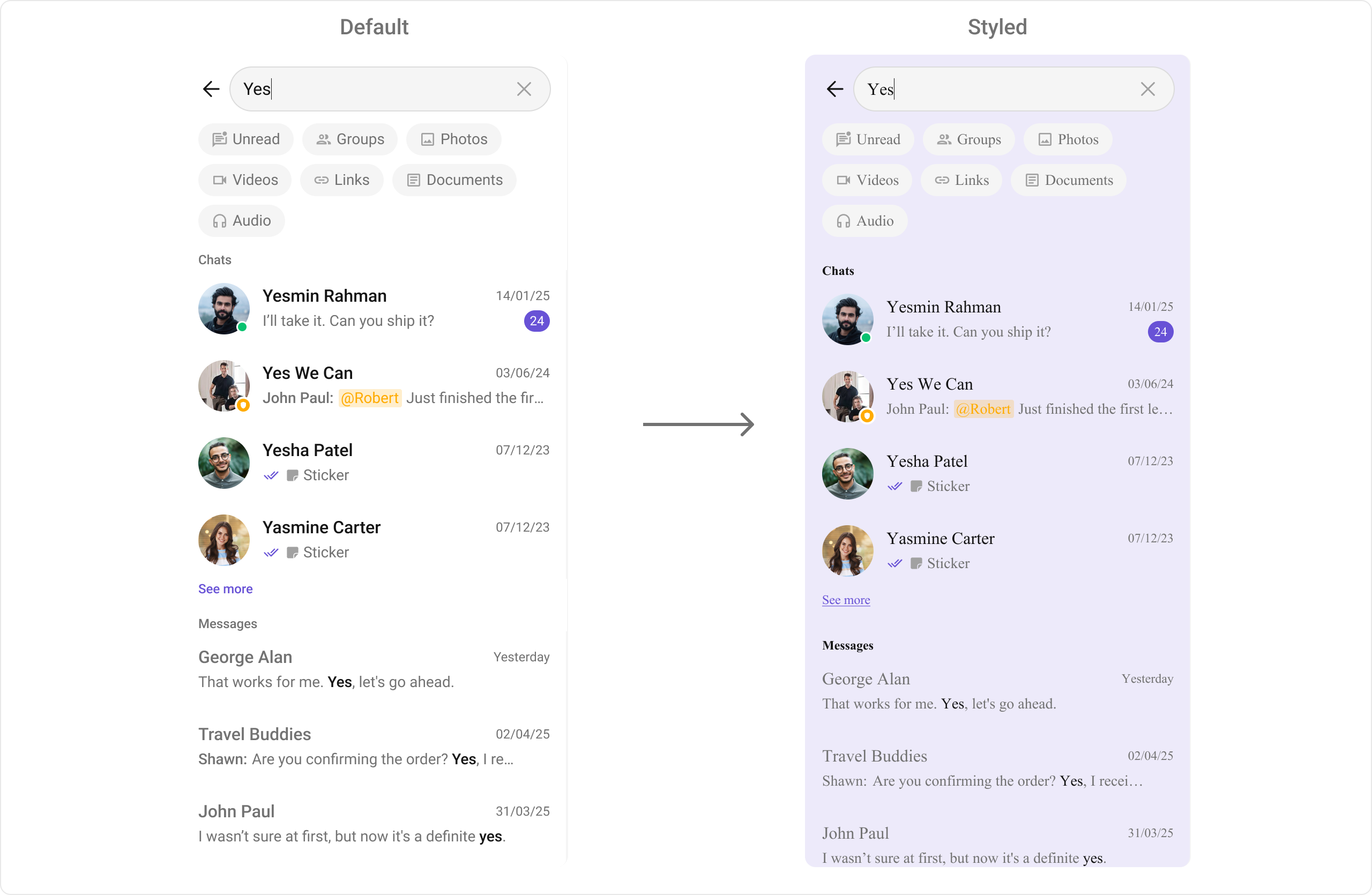
To customize the appearance, you can pass a custom `style` prop to `CometChatSearch`. The style prop accepts a `DeepPartial` object that allows you to override various style properties.
**Example**
***
## Usage
### Integration
```tsx theme={null}
import React from "react";
import { View } from "react-native";
import { CometChatSearch } from "@cometchat/chat-uikit-react-native";
function SearchDemo() {
return (
);
}
export default SearchDemo;
```
```tsx theme={null}
import React from "react";
import { View } from "react-native";
import { SearchDemo } from "./SearchDemo";
export default function App() {
return (
);
}
```
***
### Actions
[Actions](/docs/ui-kit/react-native/components-overview#actions) dictate how a component functions. They are divided into two types: Predefined and User-defined. You can override either type, allowing you to tailor the behavior of the component to fit your specific needs.
#### 1. onConversationClicked
`onConversationClicked` is triggered when you click on a Conversation from the search result. The `onConversationClicked` action doesn't have a predefined behavior. You can override this action using the following code snippet.
```tsx theme={null}
import React from "react";
import { CometChatSearch } from "@cometchat/chat-uikit-react-native";
import { CometChat } from "@cometchat/chat-sdk-react-native";
const openConversation = (conversation: CometChat.Conversation) => {
console.log("Conversation Selected:", conversation);
};
;
```
***
#### 2. onMessageClicked
`onMessageClicked` is triggered when you click on a Message from the search result. The `onMessageClicked` action doesn't have a predefined behavior. You can override this action using the following code snippet.
```tsx theme={null}
import React from "react";
import { CometChatSearch } from "@cometchat/chat-uikit-react-native";
import { CometChat } from "@cometchat/chat-sdk-react-native";
const goToMessage = (message: CometChat.BaseMessage) => {
console.log("Message Selected:", message);
};
;
```
***
#### 3. OnBack
`OnBack` is triggered when you click on the back button of the Message Header component. You can override this action using the following code snippet.
```tsx theme={null}
import React from "react";
import { CometChatSearch } from "@cometchat/chat-uikit-react-native";
const onBack = () => {
console.log("Back button pressed");
};
;
```
***
#### 4. onError
This action doesn't change the behavior of the component but rather listens for any errors that occur in the Conversations component.
```tsx theme={null}
import React from "react";
import { CometChatSearch } from "@cometchat/chat-uikit-react-native";
import { CometChat } from "@cometchat/chat-sdk-react-native";
const handleOnError = (error: CometChat.CometChatException) => {
// Your exception handling code
};
;
```
***
### Filters
#### 1. ConversationsRequestBuilder
You can set the `ConversationsRequestBuilder` in the Search Component to filter the search result. You can modify the builder as per your specific requirements with multiple options available to know more refer to [ConversationRequestBuilder](/docs/sdk/react-native/retrieve-conversations).
```tsx theme={null}
import React from "react";
import { CometChatSearch } from "@cometchat/chat-uikit-react-native";
import { CometChat } from "@cometchat/chat-sdk-react-native";
;
```
***
#### 2. MessagesRequestBuilder
You can set the `MessagesRequestBuilder` in the Search Component to filter the search result. You can modify the builder as per your specific requirements with multiple options available to know more refer to [MessagesRequestBuilder](/docs/sdk/react-native/additional-message-filtering).
```tsx theme={null}
import React from "react";
import { CometChatSearch } from "@cometchat/chat-uikit-react-native";
import { CometChat } from "@cometchat/chat-sdk-react-native";
;
```
***
### Events
[Events](/docs/ui-kit/react-native/components-overview#events) are emitted by a `Component`. By using event you can extend existing functionality. Being global events, they can be applied in multiple locations and are capable of being added or removed.
The `CometChatSearch` component does not produce any events.
***
## Customization
To fit your app's design requirements, you can customize the appearance of the `CometChatSearch` component. We provide exposed methods that allow you to modify the experience and behavior according to your specific needs.
### Style
To customize the appearance, you can pass a custom `style` prop to `CometChatSearch`. The style prop accepts a `DeepPartial` object that allows you to override various style properties.
**Example**
 ```tsx theme={null}
import React from "react";
import { CometChatSearch } from "@cometchat/chat-uikit-react-native";
import { SearchStyle } from "@cometchat/chat-uikit-react-native";
const customSearchStyle: Partial = {
containerStyle: {
backgroundColor: "#E8EAF6",
},
headerStyle: {
backgroundColor: "#5F35AE",
paddingVertical: 16,
},
backButtonIconStyle: {
tintColor: "#FFFFFF",
},
searchInputContainerStyle: {
backgroundColor: "#FFFFFF",
borderRadius: 8,
},
searchInputStyle: {
color: "#000000",
fontSize: 16,
},
filterButtonStyle: {
backgroundColor: "#FFFFFF",
borderRadius: 20,
paddingHorizontal: 16,
paddingVertical: 8,
},
filterButtonActiveStyle: {
backgroundColor: "#5F35AE",
},
filterButtonTextStyle: {
color: "#5F35AE",
fontSize: 14,
},
filterButtonTextActiveStyle: {
color: "#FFFFFF",
},
sectionTitleStyle: {
color: "#000000",
fontSize: 18,
fontWeight: "700",
},
conversationItemStyle: {
containerStyle: {
backgroundColor: "#E8EAF6",
paddingVertical: 12,
},
titleStyle: {
color: "#000000",
fontSize: 16,
fontWeight: "600",
},
subtitleStyle: {
color: "#666666",
fontSize: 14,
},
},
messageItemStyle: {
containerStyle: {
backgroundColor: "#FFFFFF",
paddingVertical: 12,
},
titleStyle: {
color: "#000000",
fontSize: 16,
fontWeight: "600",
},
subtitleStyle: {
color: "#666666",
fontSize: 14,
},
},
};
;
```
### Functionality
These are a set of small functional customizations that allow you to fine-tune the overall experience of the component. With these, you can change text, set custom icons, and toggle the visibility of UI elements.
Here is a code snippet demonstrating how you can customize the functionality of the Search component.
```tsx theme={null}
import React from "react";
import { CometChatSearch } from "@cometchat/chat-uikit-react-native";
;
```
Following is a list of customizations along with their corresponding code snippets:
| Property | Description | Code |
| ------------------------- | -------------------------------------------------------------------------------------- | ---------------------------------------------------------------------------------------------------------------------------------------------- |
| **uid** | A string representing the user ID in whose conversation the search will be performed. | `uid="user123"` |
| **guid** | A string representing the group ID in whose conversation the search will be performed. | `guid="group456"` |
| **Hide Back Button** | Hides the back button in the Search component. | `hideBackButton={true}` |
| **Search Filters** | List of filters to be rendered in the Search component. | `searchFilters={[CometChatSearchFilter.Messages, CometChatSearchFilter.Photos, CometChatSearchFilter.Audio, CometChatSearchFilter.Documents]}` |
| **Initial Search Filter** | The filter which will be active by default on load. | `initialSearchFilter={CometChatSearchFilter.Messages}` |
| **Search In** | List of entities in which the search should be performed. | `searchIn={[CometChatSearchScope.Conversations]}` |
| **Search Placeholder** | Custom placeholder text for the search input. | `searchPlaceholder="Search messages..."` |
| **Loading View** | A custom component to display during the loading state. | `loadingView={() => }` |
| **Empty View** | A custom component to display when there are no results available. | `emptyView={() => }` |
| **Error View** | A custom component to display when an error occurs. | `errorView={() => }` |
### Advanced
For advanced-level customization, you can set custom views to the component. This lets you tailor each aspect of the component to fit your exact needs and application aesthetics. You can create and define your views, layouts, and UI elements and then incorporate those into the component.
***
#### ConversationItemView
With this function, you can assign a custom list item view to a conversation in the search result.
**Example**
```tsx theme={null}
import React from "react";
import { View, Text } from "react-native";
import { CometChat } from "@cometchat/chat-sdk-react-native";
import { CometChatSearch } from "@cometchat/chat-uikit-react-native";
const getConversationItemView = (
conversation: CometChat.Conversation,
searchKeyword?: string
) => {
const conversationWith = conversation.getConversationWith();
const lastMessage = conversation.getLastMessage() as CometChat.TextMessage;
return (
{conversationWith.getName()}
{lastMessage?.getText?.() || "No messages yet"}
{conversation.getUnreadMessageCount() > 0
? conversation.getUnreadMessageCount()
: ""}
);
};
;
```
***
#### TextMessageItemView
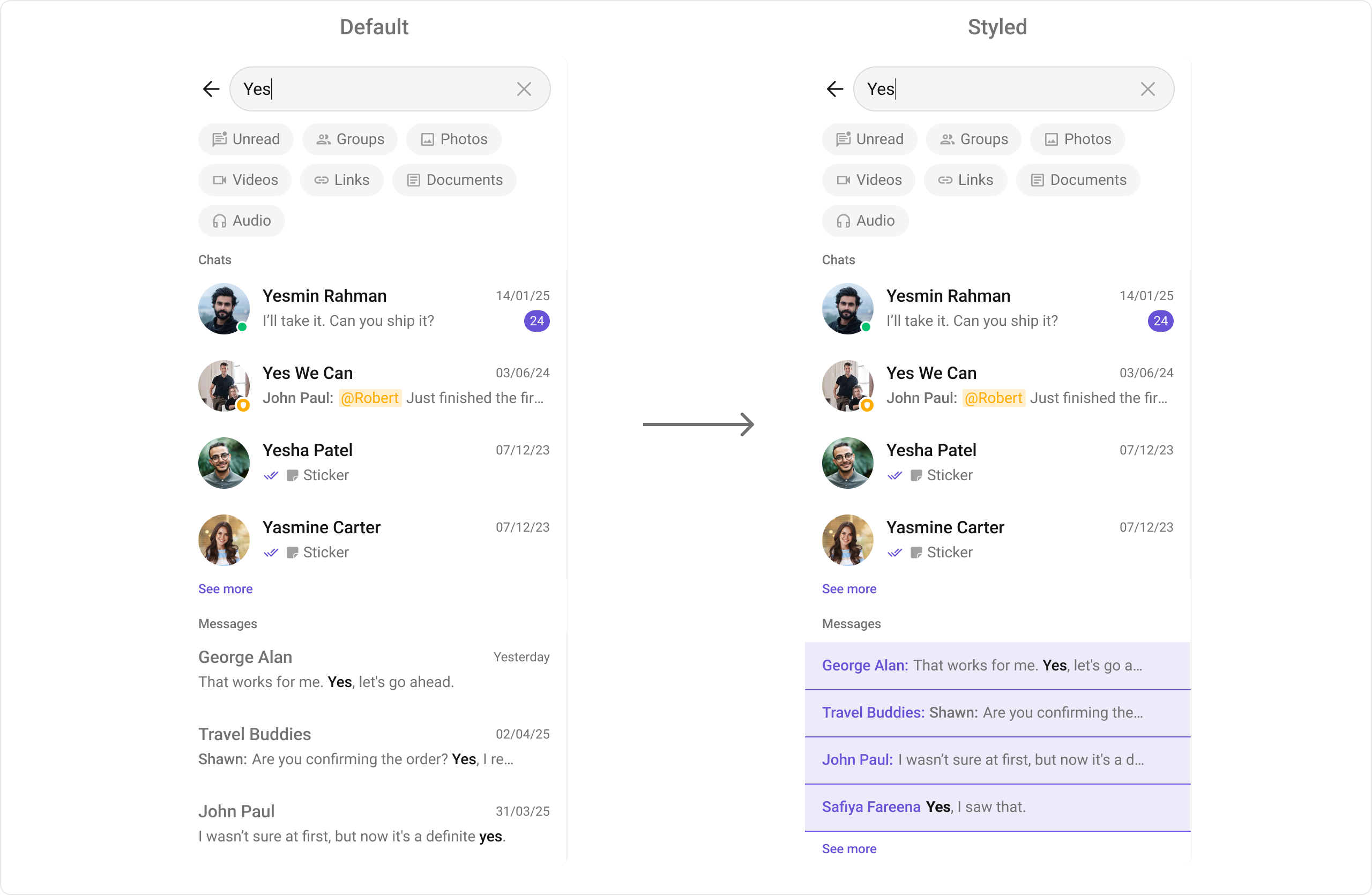
With this function, you can assign a custom view for text messages in the search result.
**Example**
```tsx theme={null}
import React from "react";
import { View, Text } from "react-native";
import { CometChat } from "@cometchat/chat-sdk-react-native";
import { CometChatSearch } from "@cometchat/chat-uikit-react-native";
const getTextMessageItemView = (
message: CometChat.BaseMessage,
searchKeyword?: string
) => {
const textMessage = message as CometChat.TextMessage;
return (
{message.getSender().getName()}:
{textMessage.getText()}
);
};
;
```
It should look like this in the app:
```tsx theme={null}
import React from "react";
import { CometChatSearch } from "@cometchat/chat-uikit-react-native";
import { SearchStyle } from "@cometchat/chat-uikit-react-native";
const customSearchStyle: Partial = {
containerStyle: {
backgroundColor: "#E8EAF6",
},
headerStyle: {
backgroundColor: "#5F35AE",
paddingVertical: 16,
},
backButtonIconStyle: {
tintColor: "#FFFFFF",
},
searchInputContainerStyle: {
backgroundColor: "#FFFFFF",
borderRadius: 8,
},
searchInputStyle: {
color: "#000000",
fontSize: 16,
},
filterButtonStyle: {
backgroundColor: "#FFFFFF",
borderRadius: 20,
paddingHorizontal: 16,
paddingVertical: 8,
},
filterButtonActiveStyle: {
backgroundColor: "#5F35AE",
},
filterButtonTextStyle: {
color: "#5F35AE",
fontSize: 14,
},
filterButtonTextActiveStyle: {
color: "#FFFFFF",
},
sectionTitleStyle: {
color: "#000000",
fontSize: 18,
fontWeight: "700",
},
conversationItemStyle: {
containerStyle: {
backgroundColor: "#E8EAF6",
paddingVertical: 12,
},
titleStyle: {
color: "#000000",
fontSize: 16,
fontWeight: "600",
},
subtitleStyle: {
color: "#666666",
fontSize: 14,
},
},
messageItemStyle: {
containerStyle: {
backgroundColor: "#FFFFFF",
paddingVertical: 12,
},
titleStyle: {
color: "#000000",
fontSize: 16,
fontWeight: "600",
},
subtitleStyle: {
color: "#666666",
fontSize: 14,
},
},
};
;
```
### Functionality
These are a set of small functional customizations that allow you to fine-tune the overall experience of the component. With these, you can change text, set custom icons, and toggle the visibility of UI elements.
Here is a code snippet demonstrating how you can customize the functionality of the Search component.
```tsx theme={null}
import React from "react";
import { CometChatSearch } from "@cometchat/chat-uikit-react-native";
;
```
Following is a list of customizations along with their corresponding code snippets:
| Property | Description | Code |
| ------------------------- | -------------------------------------------------------------------------------------- | ---------------------------------------------------------------------------------------------------------------------------------------------- |
| **uid** | A string representing the user ID in whose conversation the search will be performed. | `uid="user123"` |
| **guid** | A string representing the group ID in whose conversation the search will be performed. | `guid="group456"` |
| **Hide Back Button** | Hides the back button in the Search component. | `hideBackButton={true}` |
| **Search Filters** | List of filters to be rendered in the Search component. | `searchFilters={[CometChatSearchFilter.Messages, CometChatSearchFilter.Photos, CometChatSearchFilter.Audio, CometChatSearchFilter.Documents]}` |
| **Initial Search Filter** | The filter which will be active by default on load. | `initialSearchFilter={CometChatSearchFilter.Messages}` |
| **Search In** | List of entities in which the search should be performed. | `searchIn={[CometChatSearchScope.Conversations]}` |
| **Search Placeholder** | Custom placeholder text for the search input. | `searchPlaceholder="Search messages..."` |
| **Loading View** | A custom component to display during the loading state. | `loadingView={() => }` |
| **Empty View** | A custom component to display when there are no results available. | `emptyView={() => }` |
| **Error View** | A custom component to display when an error occurs. | `errorView={() => }` |
### Advanced
For advanced-level customization, you can set custom views to the component. This lets you tailor each aspect of the component to fit your exact needs and application aesthetics. You can create and define your views, layouts, and UI elements and then incorporate those into the component.
***
#### ConversationItemView
With this function, you can assign a custom list item view to a conversation in the search result.
**Example**
```tsx theme={null}
import React from "react";
import { View, Text } from "react-native";
import { CometChat } from "@cometchat/chat-sdk-react-native";
import { CometChatSearch } from "@cometchat/chat-uikit-react-native";
const getConversationItemView = (
conversation: CometChat.Conversation,
searchKeyword?: string
) => {
const conversationWith = conversation.getConversationWith();
const lastMessage = conversation.getLastMessage() as CometChat.TextMessage;
return (
{conversationWith.getName()}
{lastMessage?.getText?.() || "No messages yet"}
{conversation.getUnreadMessageCount() > 0
? conversation.getUnreadMessageCount()
: ""}
);
};
;
```
***
#### TextMessageItemView
With this function, you can assign a custom view for text messages in the search result.
**Example**
```tsx theme={null}
import React from "react";
import { View, Text } from "react-native";
import { CometChat } from "@cometchat/chat-sdk-react-native";
import { CometChatSearch } from "@cometchat/chat-uikit-react-native";
const getTextMessageItemView = (
message: CometChat.BaseMessage,
searchKeyword?: string
) => {
const textMessage = message as CometChat.TextMessage;
return (
{message.getSender().getName()}:
{textMessage.getText()}
);
};
;
```
It should look like this in the app:
 ***
#### ImageMessageItemView
With this function, you can assign a custom view for image messages in the search result.
**Example**
```tsx theme={null}
import React from "react";
import { View, Text, Image } from "react-native";
import { CometChat } from "@cometchat/chat-sdk-react-native";
import { CometChatSearch } from "@cometchat/chat-uikit-react-native";
const getImageMessageItemView = (
message: CometChat.BaseMessage,
searchKeyword?: string
) => {
const imageMessage = message as CometChat.MediaMessage;
const attachment = imageMessage.getAttachment();
const imageUrl = attachment?.url;
return (
{message.getSender().getName()}
📷 Photo
{imageUrl && (
)}
);
};
;
```
***
#### VideoMessageItemView
With this function, you can assign a custom view for video messages in the search result.
**Example**
```tsx theme={null}
import React from "react";
import { View, Text, Image } from "react-native";
import { CometChat } from "@cometchat/chat-sdk-react-native";
import { CometChatSearch } from "@cometchat/chat-uikit-react-native";
const getVideoMessageItemView = (
message: CometChat.BaseMessage,
searchKeyword?: string
) => {
const videoMessage = message as CometChat.MediaMessage;
const attachment = videoMessage.getAttachment();
const thumbnailUrl = attachment?.thumbnail || attachment?.url;
return (
{message.getSender().getName()}
🎥 Video
{thumbnailUrl && (
▶
)}
);
};
;
```
***
#### AudioMessageItemView
With this function, you can assign a custom view for audio messages in the search result.
**Example**
```tsx theme={null}
import React from "react";
import { View, Text } from "react-native";
import { CometChat } from "@cometchat/chat-sdk-react-native";
import { CometChatSearch } from "@cometchat/chat-uikit-react-native";
const getAudioMessageItemView = (
message: CometChat.BaseMessage,
searchKeyword?: string
) => {
const audioMessage = message as CometChat.MediaMessage;
const attachment = audioMessage.getAttachment();
const fileName = attachment?.name || "Audio Message";
return (
🎵
{message.getSender().getName()}
{fileName}
);
};
;
```
***
#### DocumentMessageItemView
With this function, you can assign a custom view for document/file messages in the search result.
**Example**
```tsx theme={null}
import React from "react";
import { View, Text } from "react-native";
import { CometChat } from "@cometchat/chat-sdk-react-native";
import { CometChatSearch } from "@cometchat/chat-uikit-react-native";
const getDocumentMessageItemView = (
message: CometChat.BaseMessage,
searchKeyword?: string
) => {
const fileMessage = message as CometChat.MediaMessage;
const attachment = fileMessage.getAttachment();
const fileName = attachment?.name || "Document";
const fileExtension = fileName.split('.').pop()?.toUpperCase() || "FILE";
return (
{fileExtension}
{message.getSender().getName()}
{fileName}
);
};
;
```
***
#### LinkMessageItemView
With this function, you can assign a custom view for link messages (text messages with link previews) in the search result.
**Example**
```tsx theme={null}
import React from "react";
import { View, Text, Image } from "react-native";
import { CometChat } from "@cometchat/chat-sdk-react-native";
import { CometChatSearch } from "@cometchat/chat-uikit-react-native";
const getLinkMessageItemView = (
message: CometChat.BaseMessage,
searchKeyword?: string
) => {
const textMessage = message as CometChat.TextMessage;
const metadata = textMessage.getMetadata();
const linkPreview = metadata?.['@injected']?.extensions?.['link-preview'];
const firstLink = linkPreview?.links?.[0];
const thumbnailUrl = firstLink?.image || firstLink?.favicon;
return (
{thumbnailUrl && (
)}
{message.getSender().getName()}
{textMessage.getText()}
{firstLink?.title && (
🔗 {firstLink.title}
)}
);
};
;
```
***
Below is a summary table of all message item view customization functions:
| Function | Message Type | Description |
| --------------------------- | --------------------- | ------------------------------------------------ |
| **textMessageItemView** | Text Message | Custom view for text messages |
| **imageMessageItemView** | Image Message | Custom view for image messages |
| **videoMessageItemView** | Video Message | Custom view for video messages |
| **audioMessageItemView** | Audio Message | Custom view for audio messages |
| **documentMessageItemView** | Document/File Message | Custom view for document and file messages |
| **linkMessageItemView** | Link Message | Custom view for text messages with link previews |
***
Assigns the list of text formatters. If the provided list is not null, it sets the list. Otherwise, it assigns the default text formatters retrieved from the data source.
***
#### ImageMessageItemView
With this function, you can assign a custom view for image messages in the search result.
**Example**
```tsx theme={null}
import React from "react";
import { View, Text, Image } from "react-native";
import { CometChat } from "@cometchat/chat-sdk-react-native";
import { CometChatSearch } from "@cometchat/chat-uikit-react-native";
const getImageMessageItemView = (
message: CometChat.BaseMessage,
searchKeyword?: string
) => {
const imageMessage = message as CometChat.MediaMessage;
const attachment = imageMessage.getAttachment();
const imageUrl = attachment?.url;
return (
{message.getSender().getName()}
📷 Photo
{imageUrl && (
)}
);
};
;
```
***
#### VideoMessageItemView
With this function, you can assign a custom view for video messages in the search result.
**Example**
```tsx theme={null}
import React from "react";
import { View, Text, Image } from "react-native";
import { CometChat } from "@cometchat/chat-sdk-react-native";
import { CometChatSearch } from "@cometchat/chat-uikit-react-native";
const getVideoMessageItemView = (
message: CometChat.BaseMessage,
searchKeyword?: string
) => {
const videoMessage = message as CometChat.MediaMessage;
const attachment = videoMessage.getAttachment();
const thumbnailUrl = attachment?.thumbnail || attachment?.url;
return (
{message.getSender().getName()}
🎥 Video
{thumbnailUrl && (
▶
)}
);
};
;
```
***
#### AudioMessageItemView
With this function, you can assign a custom view for audio messages in the search result.
**Example**
```tsx theme={null}
import React from "react";
import { View, Text } from "react-native";
import { CometChat } from "@cometchat/chat-sdk-react-native";
import { CometChatSearch } from "@cometchat/chat-uikit-react-native";
const getAudioMessageItemView = (
message: CometChat.BaseMessage,
searchKeyword?: string
) => {
const audioMessage = message as CometChat.MediaMessage;
const attachment = audioMessage.getAttachment();
const fileName = attachment?.name || "Audio Message";
return (
🎵
{message.getSender().getName()}
{fileName}
);
};
;
```
***
#### DocumentMessageItemView
With this function, you can assign a custom view for document/file messages in the search result.
**Example**
```tsx theme={null}
import React from "react";
import { View, Text } from "react-native";
import { CometChat } from "@cometchat/chat-sdk-react-native";
import { CometChatSearch } from "@cometchat/chat-uikit-react-native";
const getDocumentMessageItemView = (
message: CometChat.BaseMessage,
searchKeyword?: string
) => {
const fileMessage = message as CometChat.MediaMessage;
const attachment = fileMessage.getAttachment();
const fileName = attachment?.name || "Document";
const fileExtension = fileName.split('.').pop()?.toUpperCase() || "FILE";
return (
{fileExtension}
{message.getSender().getName()}
{fileName}
);
};
;
```
***
#### LinkMessageItemView
With this function, you can assign a custom view for link messages (text messages with link previews) in the search result.
**Example**
```tsx theme={null}
import React from "react";
import { View, Text, Image } from "react-native";
import { CometChat } from "@cometchat/chat-sdk-react-native";
import { CometChatSearch } from "@cometchat/chat-uikit-react-native";
const getLinkMessageItemView = (
message: CometChat.BaseMessage,
searchKeyword?: string
) => {
const textMessage = message as CometChat.TextMessage;
const metadata = textMessage.getMetadata();
const linkPreview = metadata?.['@injected']?.extensions?.['link-preview'];
const firstLink = linkPreview?.links?.[0];
const thumbnailUrl = firstLink?.image || firstLink?.favicon;
return (
{thumbnailUrl && (
)}
{message.getSender().getName()}
{textMessage.getText()}
{firstLink?.title && (
🔗 {firstLink.title}
)}
);
};
;
```
***
Below is a summary table of all message item view customization functions:
| Function | Message Type | Description |
| --------------------------- | --------------------- | ------------------------------------------------ |
| **textMessageItemView** | Text Message | Custom view for text messages |
| **imageMessageItemView** | Image Message | Custom view for image messages |
| **videoMessageItemView** | Video Message | Custom view for video messages |
| **audioMessageItemView** | Audio Message | Custom view for audio messages |
| **documentMessageItemView** | Document/File Message | Custom view for document and file messages |
| **linkMessageItemView** | Link Message | Custom view for text messages with link previews |
***
Assigns the list of text formatters. If the provided list is not null, it sets the list. Otherwise, it assigns the default text formatters retrieved from the data source.