> ## Documentation Index
> Fetch the complete documentation index at: https://www.cometchat.com/docs/llms.txt
> Use this file to discover all available pages before exploring further.
# Pin & Save Messages
> Let users pin important messages for everyone in a conversation and save messages privately for themselves.
## Goal
By the end of this guide you will have a chat screen where users can **pin** a message so it's highlighted for everyone in the conversation, open a screen of all pinned messages, and **save** a message privately to their own list — with a dedicated "Saved" screen to review saves across every conversation.
Pin and save are two separate concepts:
| | Pin | Save |
| --------------- | -------------------------------------------------------------------- | -------------------------------------------- |
| **Visible to** | Everyone in the conversation | Only the current user |
| **Scope** | One conversation | All conversations |
| **Surfaced by** | `CometChatPinnedMessages` (per conversation) | `CometChatSavedMessages` (a personal screen) |
| **Opened from** | The **Pinned Messages** item in the message header's ⋮ overflow menu | Your own navigation (no built-in trigger) |
## Prerequisites
* Completed the [Integration Guide](/docs/ui-kit/react-native/react-native-cli-integration)
* An existing chat screen using `CometChatMessageHeader`, `CometChatMessageList`, and `CometChatMessageComposer`
* **Pin messages** and **Save messages** enabled for your app through the `features.ux.messages.pinned.enabled` and `features.ux.messages.saved.enabled` app settings. See [Core Features → Pin & Save](/docs/ui-kit/react-native/core-features#pin-and-save-messages).
The pin/unpin and save/unsave options only appear in the message options when the corresponding feature is enabled for your app. The UI Kit reads that setting at login and re-reads it on every reconnection, so no extra wiring is needed to show or hide the options.
## Step 1: The Message Options
Once the features are enabled, `CometChatMessageList` automatically adds **Pin**, **Unpin**, **Save**, and **Unsave** to the message options — no props required. You only need the `hide*` props if you want to remove one:
*File: Messages.tsx*
```tsx theme={null}
import { CometChatMessageList } from "@cometchat/chat-uikit-react-native";
```
The **Pin/Unpin option is shown to every member** — the UI Kit does not gate it by role. Permission is enforced by the **server**: if a member isn't allowed to pin or unpin in that conversation, the action is rejected and the UI Kit shows a permission toast. Saving is per-user and always available.
The options are hidden on messages the server would refuse anyway — an unsent message with no ID yet, a deleted message, or one moderation has **disapproved**. A message still *pending* a moderation verdict keeps both options: the kit offers them and lets the server decide, so a genuinely early tap earns a real error toast instead of a control that silently disappears and comes back.
## Step 2: Open the Pinned Messages Screen
`CometChatMessageHeader` can add a **Pinned Messages** item to its ⋮ overflow menu. Set `showPinnedMessagesButton` **and** wire `onPinnedMessagesPress` — the entry only appears when both are given — to navigate to `CometChatPinnedMessages`, scoped to the same `user`/`group`.
*File: Messages.tsx*
```tsx theme={null}
import { CometChatMessageHeader } from "@cometchat/chat-uikit-react-native";
navigation.navigate("PinnedMessages", { user, group })
}
/>
```
*File: PinnedMessages.tsx*
```tsx theme={null}
import { CometChat } from "@cometchat/chat-sdk-react-native";
import { CometChatPinnedMessages } from "@cometchat/chat-uikit-react-native";
import { useNavigation, useRoute } from "@react-navigation/native";
import { SafeAreaView } from "react-native";
const PinnedMessages = () => {
const navigation = useNavigation();
const route = useRoute();
const { user, group } = route.params ?? {};
return (
navigation.goBack()}
onItemPress={(message: CometChat.BaseMessage) => {
// Jump the main message list to this message.
navigation.navigate("Messages", {
user,
group,
messageId: String(message.getId()),
});
}}
/>
);
};
export default PinnedMessages;
```
`CometChatPinnedMessages` is **per conversation** — it takes the same `user` or `group` the chat screen was opened with, and lists that conversation's pinned messages newest-pin first.
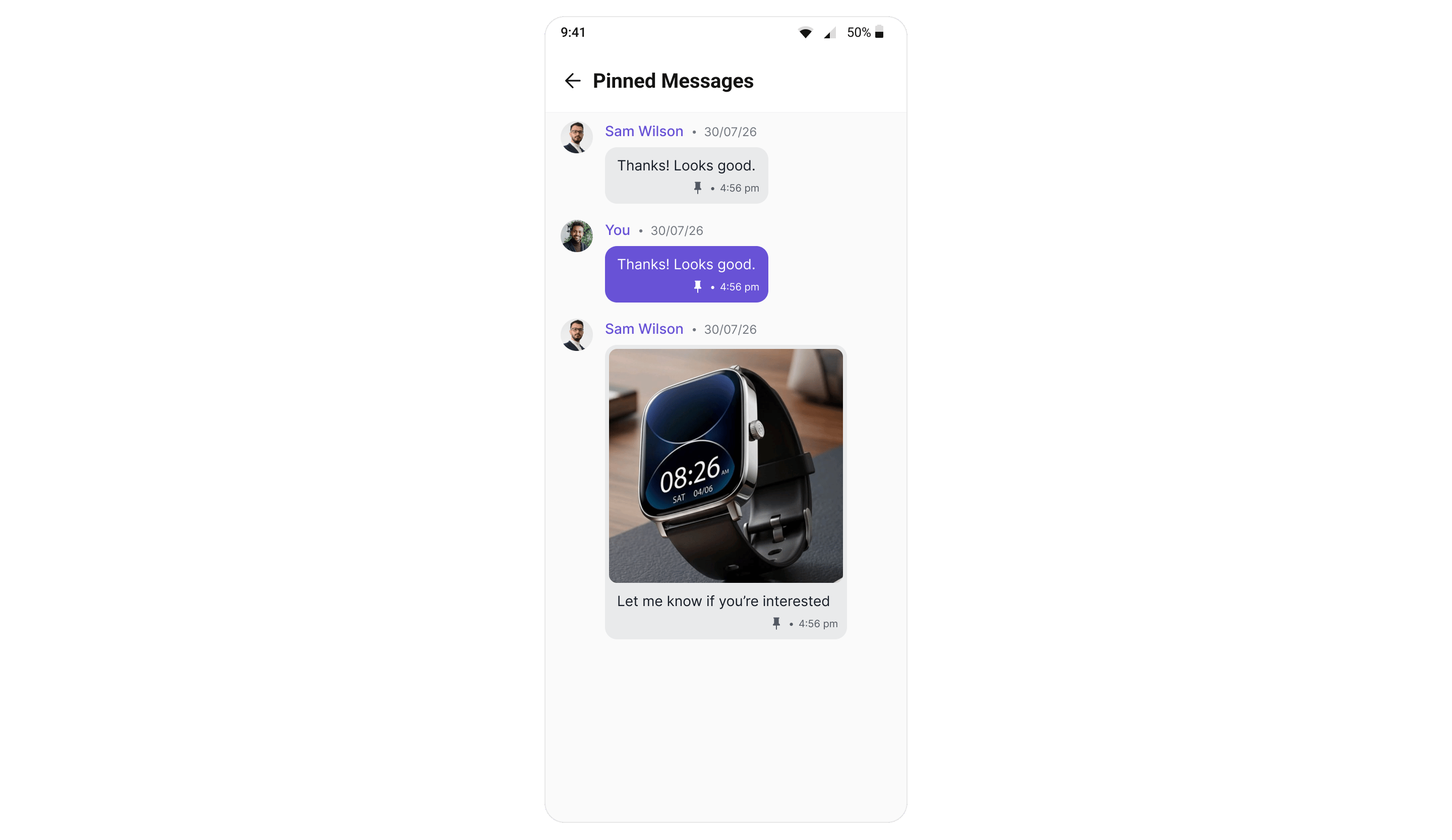 | Prop | Type | Description |
| ------------- | ------------------- | --------------------------------------------------------------------- |
| `user` | `CometChat.User` | 1-1 conversation. Mutually exclusive with `group`. |
| `group` | `CometChat.Group` | Group conversation. Mutually exclusive with `user`. |
| `limit` | `number` | Page size. Defaults to 30; the server caps a conversation at 100. |
| `onBack` | `() => void` | Closes the screen — rendered as the back control in the header. |
| `onItemPress` | `(message) => void` | Tapping a row, so the host can jump its message list to that message. |
## Step 3: Add a "Saved" Screen
`CometChatSavedMessages` is **user-level**, not per conversation — it lists everything the logged-in user has saved, across every chat. There is no built-in entry point, so open it from your own navigation: a menu item, a profile screen, or a tab.
| Prop | Type | Description |
| ------------- | ------------------- | --------------------------------------------------------------------- |
| `user` | `CometChat.User` | 1-1 conversation. Mutually exclusive with `group`. |
| `group` | `CometChat.Group` | Group conversation. Mutually exclusive with `user`. |
| `limit` | `number` | Page size. Defaults to 30; the server caps a conversation at 100. |
| `onBack` | `() => void` | Closes the screen — rendered as the back control in the header. |
| `onItemPress` | `(message) => void` | Tapping a row, so the host can jump its message list to that message. |
## Step 3: Add a "Saved" Screen
`CometChatSavedMessages` is **user-level**, not per conversation — it lists everything the logged-in user has saved, across every chat. There is no built-in entry point, so open it from your own navigation: a menu item, a profile screen, or a tab.
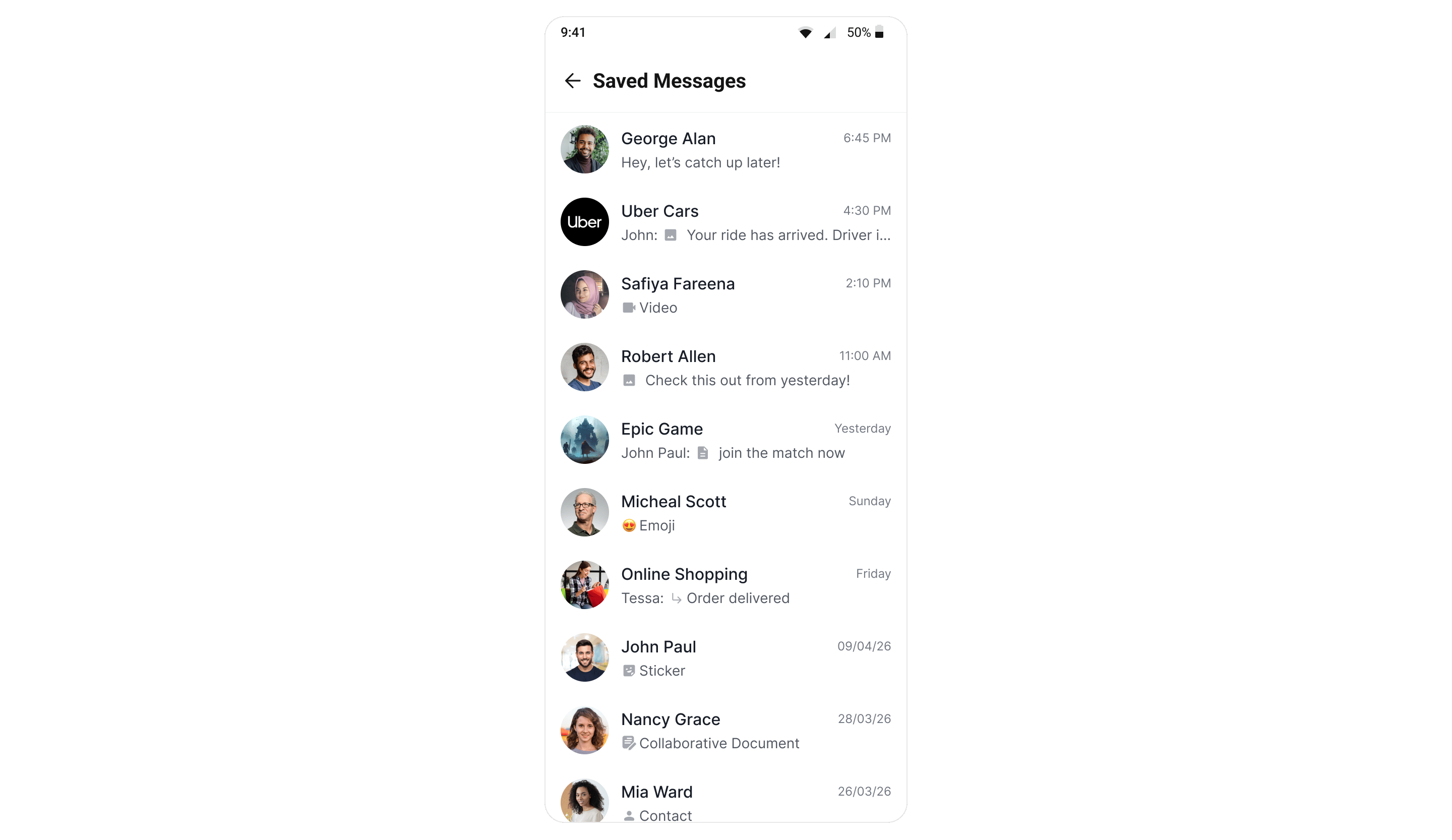 *File: SavedMessages.tsx*
```tsx theme={null}
import { CometChat } from "@cometchat/chat-sdk-react-native";
import { CometChatSavedMessages } from "@cometchat/chat-uikit-react-native";
import { useNavigation } from "@react-navigation/native";
import { SafeAreaView } from "react-native";
const SavedMessages = () => {
const navigation = useNavigation();
return (
navigation.goBack()}
onItemPress={async (message, source) => {
if (!source) return;
// `source` names the conversation as an id + type, so resolve it to the
// object the chat screen expects before navigating.
const party =
source.receiverType === "group"
? { group: await CometChat.getGroup(source.receiverId) }
: { user: await CometChat.getUser(source.receiverId) };
navigation.navigate("Messages", {
...party,
messageId: String(message.getId()),
});
}}
/>
);
};
export default SavedMessages;
```
Each row shows which conversation the message came from, so a saved message is never orphaned from its context. `source` carries that conversation as `receiverType` (`"user"` or `"group"`) and `receiverId`, plus `name`, `label` and an optional `avatar` — see the [component reference](/docs/ui-kit/react-native/saved-messages#onitempress).
| Prop | Type | Description |
| ------------- | --------------------------- | ---------------------------------------------------------------- |
| `limit` | `number` | Page size. Defaults to 30; the server caps the whole set at 100. |
| `onBack` | `() => void` | Closes the screen. |
| `onItemPress` | `(message, source) => void` | Receives the message and its resolved source conversation. |
## Step 4: Pinned & Saved Indicators
No wiring needed. `CometChatMessageList` renders a pin glyph and a filled bookmark in the message's meta row, beside the timestamp, and keeps them in sync in real time:
* **Pin** is conversation-wide, so every participant sees the indicator appear and disappear as the message is pinned or unpinned.
* **Save** is private, so the indicator appears only for the user who saved it — and syncs to that user's **other devices**.
## Helpers
For your own UI — a custom bubble, a badge, a screen that needs to know before it renders — the kit
exports the same helpers it uses itself:
| Helper | Signature | Returns |
| ------------------------ | ------------------------------------------------------ | ------------------------------------------------------------------------------------- |
| `isPinned` | `(message?: CometChat.BaseMessage \| null) => boolean` | Whether this message is pinned in its conversation |
| `isSystemPin` | `(message?: CometChat.BaseMessage \| null) => boolean` | Whether the pin was applied by the system rather than a user |
| `isSaved` | `(message?: CometChat.BaseMessage \| null) => boolean` | Whether the signed-in user has saved this message |
| `getPinSaveFeatures` | `() => PinSaveFeatureFlags` | The Dashboard flags as last resolved — `{ pinMessage, saveMessage, pinConversation }` |
| `refreshPinSaveFeatures` | `() => Promise` | Re-reads the flags from the server |
```tsx lines theme={null}
import { isPinned, isSaved, getPinSaveFeatures } from "@cometchat/chat-uikit-react-native";
const { pinMessage } = getPinSaveFeatures();
if (pinMessage && isPinned(message)) {
// your own pinned badge
}
```
You do not need `refreshPinSaveFeatures()` in normal use. The UI Kit resolves the flags at login and
re-reads them on every reconnect; call it only after changing the setting in the Dashboard and wanting
a running app to pick it up without a reconnect. Before the first resolution completes it returns
everything `false`.
## Step 5: App Settings and Limits
Each feature is switched on per app, and each carries a cap. Both are configured as app settings in
the dashboard:
| Setting | Controls |
| ------------------------------------------ | ------------------------------------------------- |
| `features.ux.messages.pinned.enabled` | Whether the pin options and panel render at all |
| `features.ux.messages.pinned.limit` | Pins per conversation |
| `features.ux.messages.saved.enabled` | Whether the save options and screen render at all |
| `features.ux.messages.saved.limit` | Saves per user, across all conversations |
| `features.ux.conversations.pinned.enabled` | Whether the pin/unpin conversation option renders |
| `features.ux.conversations.pinned.limit` | Pinned conversations per user |
When a user hits a cap the action is rejected and the UI Kit shows a toast — you do not need to handle
the error yourself. The kit resolves the number from the app settings it caches at login, falling back
to `errorParams.limit` when the rejection happens to carry one.
**The toast does not always name a number.** The server documents these caps as tenant-overridable
settings and does not promise them on the error payload, so when neither source has a value the kit
deliberately shows copy without a figure rather than printing a guess. Do not write UI that depends on
a number being present.
## Complete Example
*File: Messages.tsx*
```tsx theme={null}
import { CometChat } from "@cometchat/chat-sdk-react-native";
import {
CometChatMessageComposer,
CometChatMessageHeader,
CometChatMessageList,
} from "@cometchat/chat-uikit-react-native";
import { useNavigation, useRoute } from "@react-navigation/native";
import { View } from "react-native";
const Messages = ({ user, group }: { user?: CometChat.User; group?: CometChat.Group }) => {
const navigation = useNavigation();
const route = useRoute();
// Set when this screen was opened from the Pinned or Saved list.
const goToMessageId = route.params?.messageId;
return (
navigation.navigate("PinnedMessages", { user, group })
}
/>
);
};
export default Messages;
```
`goToMessageId` is what makes the jump actually happen: `CometChatMessageList` fetches the page around that ID and scrolls to it, so tapping a pinned or saved row lands on the message in its original conversation.
## Next Steps
* [CometChatPinnedMessages](/docs/ui-kit/react-native/pinned-messages) — the full component reference
* [CometChatSavedMessages](/docs/ui-kit/react-native/saved-messages) — the full component reference
* [Pin Message (SDK)](/docs/sdk/react-native/pin-message) — the underlying SDK methods and listeners
* [Save Message (SDK)](/docs/sdk/react-native/save-message)
* [Pin Conversation](/docs/ui-kit/react-native/core-features#pin-conversations) — pinning a whole chat to the top of the list
*File: SavedMessages.tsx*
```tsx theme={null}
import { CometChat } from "@cometchat/chat-sdk-react-native";
import { CometChatSavedMessages } from "@cometchat/chat-uikit-react-native";
import { useNavigation } from "@react-navigation/native";
import { SafeAreaView } from "react-native";
const SavedMessages = () => {
const navigation = useNavigation();
return (
navigation.goBack()}
onItemPress={async (message, source) => {
if (!source) return;
// `source` names the conversation as an id + type, so resolve it to the
// object the chat screen expects before navigating.
const party =
source.receiverType === "group"
? { group: await CometChat.getGroup(source.receiverId) }
: { user: await CometChat.getUser(source.receiverId) };
navigation.navigate("Messages", {
...party,
messageId: String(message.getId()),
});
}}
/>
);
};
export default SavedMessages;
```
Each row shows which conversation the message came from, so a saved message is never orphaned from its context. `source` carries that conversation as `receiverType` (`"user"` or `"group"`) and `receiverId`, plus `name`, `label` and an optional `avatar` — see the [component reference](/docs/ui-kit/react-native/saved-messages#onitempress).
| Prop | Type | Description |
| ------------- | --------------------------- | ---------------------------------------------------------------- |
| `limit` | `number` | Page size. Defaults to 30; the server caps the whole set at 100. |
| `onBack` | `() => void` | Closes the screen. |
| `onItemPress` | `(message, source) => void` | Receives the message and its resolved source conversation. |
## Step 4: Pinned & Saved Indicators
No wiring needed. `CometChatMessageList` renders a pin glyph and a filled bookmark in the message's meta row, beside the timestamp, and keeps them in sync in real time:
* **Pin** is conversation-wide, so every participant sees the indicator appear and disappear as the message is pinned or unpinned.
* **Save** is private, so the indicator appears only for the user who saved it — and syncs to that user's **other devices**.
## Helpers
For your own UI — a custom bubble, a badge, a screen that needs to know before it renders — the kit
exports the same helpers it uses itself:
| Helper | Signature | Returns |
| ------------------------ | ------------------------------------------------------ | ------------------------------------------------------------------------------------- |
| `isPinned` | `(message?: CometChat.BaseMessage \| null) => boolean` | Whether this message is pinned in its conversation |
| `isSystemPin` | `(message?: CometChat.BaseMessage \| null) => boolean` | Whether the pin was applied by the system rather than a user |
| `isSaved` | `(message?: CometChat.BaseMessage \| null) => boolean` | Whether the signed-in user has saved this message |
| `getPinSaveFeatures` | `() => PinSaveFeatureFlags` | The Dashboard flags as last resolved — `{ pinMessage, saveMessage, pinConversation }` |
| `refreshPinSaveFeatures` | `() => Promise` | Re-reads the flags from the server |
```tsx lines theme={null}
import { isPinned, isSaved, getPinSaveFeatures } from "@cometchat/chat-uikit-react-native";
const { pinMessage } = getPinSaveFeatures();
if (pinMessage && isPinned(message)) {
// your own pinned badge
}
```
You do not need `refreshPinSaveFeatures()` in normal use. The UI Kit resolves the flags at login and
re-reads them on every reconnect; call it only after changing the setting in the Dashboard and wanting
a running app to pick it up without a reconnect. Before the first resolution completes it returns
everything `false`.
## Step 5: App Settings and Limits
Each feature is switched on per app, and each carries a cap. Both are configured as app settings in
the dashboard:
| Setting | Controls |
| ------------------------------------------ | ------------------------------------------------- |
| `features.ux.messages.pinned.enabled` | Whether the pin options and panel render at all |
| `features.ux.messages.pinned.limit` | Pins per conversation |
| `features.ux.messages.saved.enabled` | Whether the save options and screen render at all |
| `features.ux.messages.saved.limit` | Saves per user, across all conversations |
| `features.ux.conversations.pinned.enabled` | Whether the pin/unpin conversation option renders |
| `features.ux.conversations.pinned.limit` | Pinned conversations per user |
When a user hits a cap the action is rejected and the UI Kit shows a toast — you do not need to handle
the error yourself. The kit resolves the number from the app settings it caches at login, falling back
to `errorParams.limit` when the rejection happens to carry one.
**The toast does not always name a number.** The server documents these caps as tenant-overridable
settings and does not promise them on the error payload, so when neither source has a value the kit
deliberately shows copy without a figure rather than printing a guess. Do not write UI that depends on
a number being present.
## Complete Example
*File: Messages.tsx*
```tsx theme={null}
import { CometChat } from "@cometchat/chat-sdk-react-native";
import {
CometChatMessageComposer,
CometChatMessageHeader,
CometChatMessageList,
} from "@cometchat/chat-uikit-react-native";
import { useNavigation, useRoute } from "@react-navigation/native";
import { View } from "react-native";
const Messages = ({ user, group }: { user?: CometChat.User; group?: CometChat.Group }) => {
const navigation = useNavigation();
const route = useRoute();
// Set when this screen was opened from the Pinned or Saved list.
const goToMessageId = route.params?.messageId;
return (
navigation.navigate("PinnedMessages", { user, group })
}
/>
);
};
export default Messages;
```
`goToMessageId` is what makes the jump actually happen: `CometChatMessageList` fetches the page around that ID and scrolls to it, so tapping a pinned or saved row lands on the message in its original conversation.
## Next Steps
* [CometChatPinnedMessages](/docs/ui-kit/react-native/pinned-messages) — the full component reference
* [CometChatSavedMessages](/docs/ui-kit/react-native/saved-messages) — the full component reference
* [Pin Message (SDK)](/docs/sdk/react-native/pin-message) — the underlying SDK methods and listeners
* [Save Message (SDK)](/docs/sdk/react-native/save-message)
* [Pin Conversation](/docs/ui-kit/react-native/core-features#pin-conversations) — pinning a whole chat to the top of the list