> ## Documentation Index
> Fetch the complete documentation index at: https://www.cometchat.com/docs/llms.txt
> Use this file to discover all available pages before exploring further.
# Call Features
> Add CometChat Angular UI Kit call features for voice and video calls, call logs, ongoing calls, incoming calls, and call buttons.
## Overview
CometChat Calls integrates 1:1 and group audio/video calling into the Angular UIKit. Install the Calls SDK and the UIKit auto-detects it, enabling call components.
Ensure `CometChatUIKit.init()` has completed and the user is logged in before using call features.
## Integration
Install the Calls SDK:
```bash theme={null}
npm install @cometchat/calls-sdk-javascript
```
Then enable calling in your `UIKitSettingsBuilder`:
```typescript theme={null}
const settings = new UIKitSettingsBuilder()
.setAppId('APP_ID')
.setRegion('REGION')
.setAuthKey('AUTH_KEY')
.setCallingEnabled(true)
.build();
```
Both steps are required. Installing the Calls SDK alone is not enough — you must also call `.setCallingEnabled(true)` on the builder. Without it, call buttons remain hidden and the Calls SDK is not initialized.
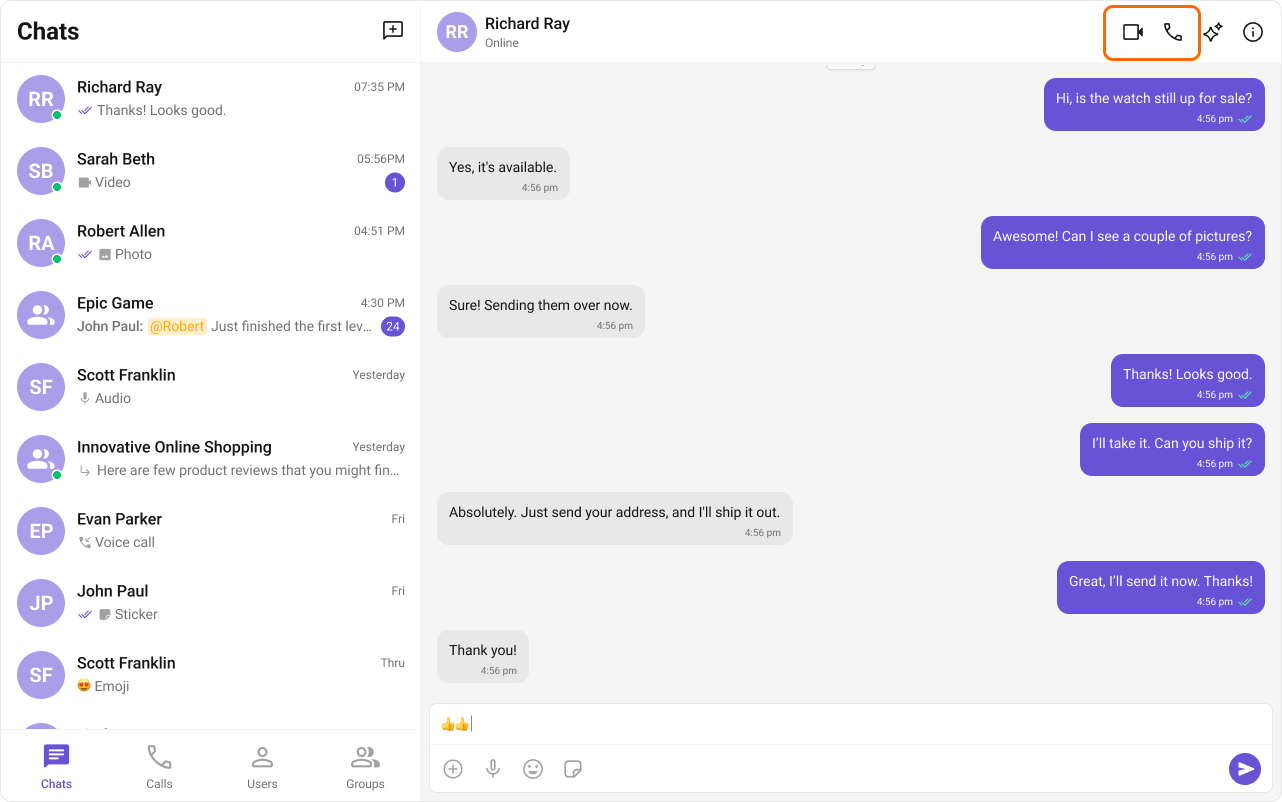
When enabled, [cometchat-call-buttons](/ui-kit/angular/components/cometchat-call-buttons) renders in [cometchat-message-header](/ui-kit/angular/components/cometchat-message-header) and the trailing call button appears in [cometchat-call-logs](/ui-kit/angular/components/cometchat-call-logs).
### Custom Call App Settings
By default the UIKit builds `CallAppSettings` from your `appId` and `region`. If you need custom configuration (e.g. a different region for the Calls SDK or additional settings), pass your own `CallAppSettings`:
```typescript theme={null}
import { CometChatUIKitCalls } from '@cometchat/calls-sdk-javascript';
const callAppSettings = new CometChatUIKitCalls.CallAppSettingsBuilder()
.setAppId('APP_ID')
.setRegion('REGION')
.build();
const settings = new UIKitSettingsBuilder()
.setAppId('APP_ID')
.setRegion('REGION')
.setAuthKey('AUTH_KEY')
.setCallingEnabled(true)
.setCallAppSettings(callAppSettings)
.build();
```
`setCallAppSettings` is optional. When omitted, the UIKit automatically creates settings from the `appId` and `region` you already provided.
 ## Features
### Incoming Call
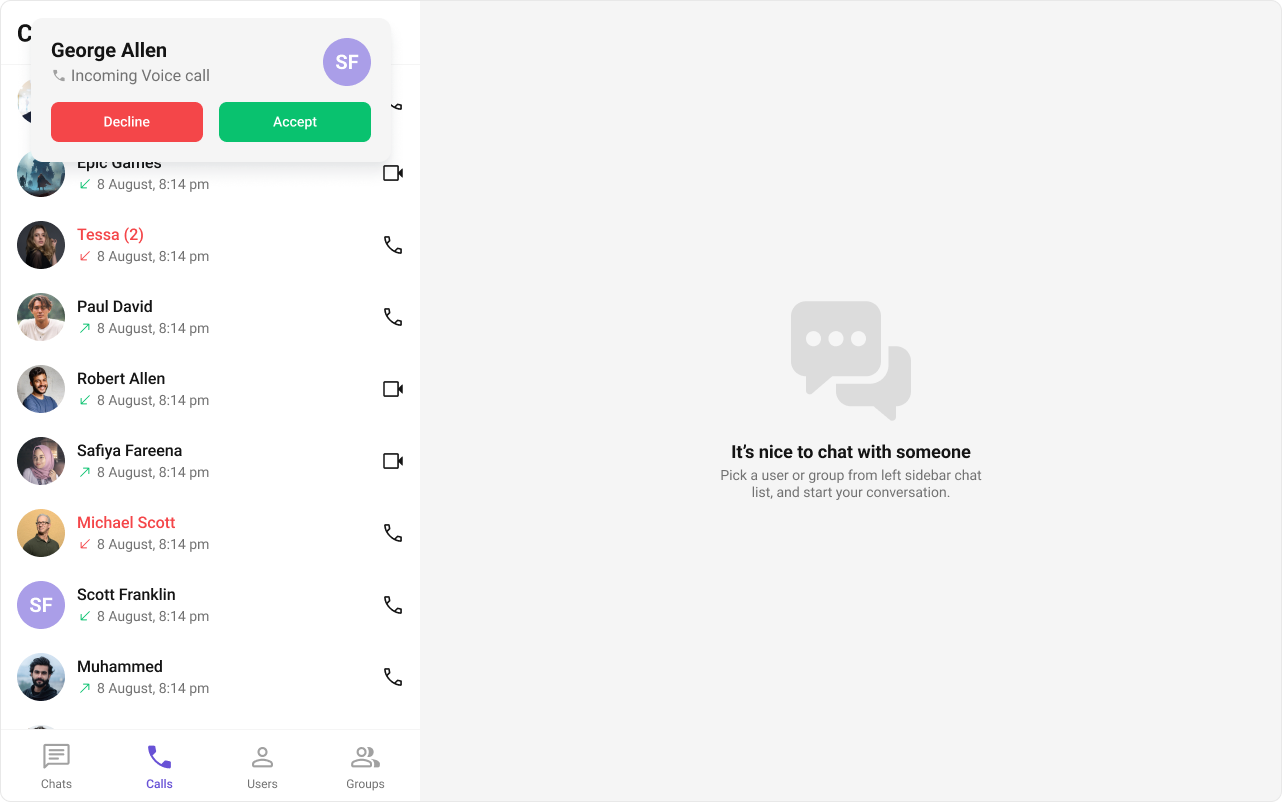
The [cometchat-incoming-call](/ui-kit/angular/components/cometchat-incoming-call) component displays a call screen when a call is received, showing caller info with accept/reject options.
## Features
### Incoming Call
The [cometchat-incoming-call](/ui-kit/angular/components/cometchat-incoming-call) component displays a call screen when a call is received, showing caller info with accept/reject options.
 ### Outgoing Call
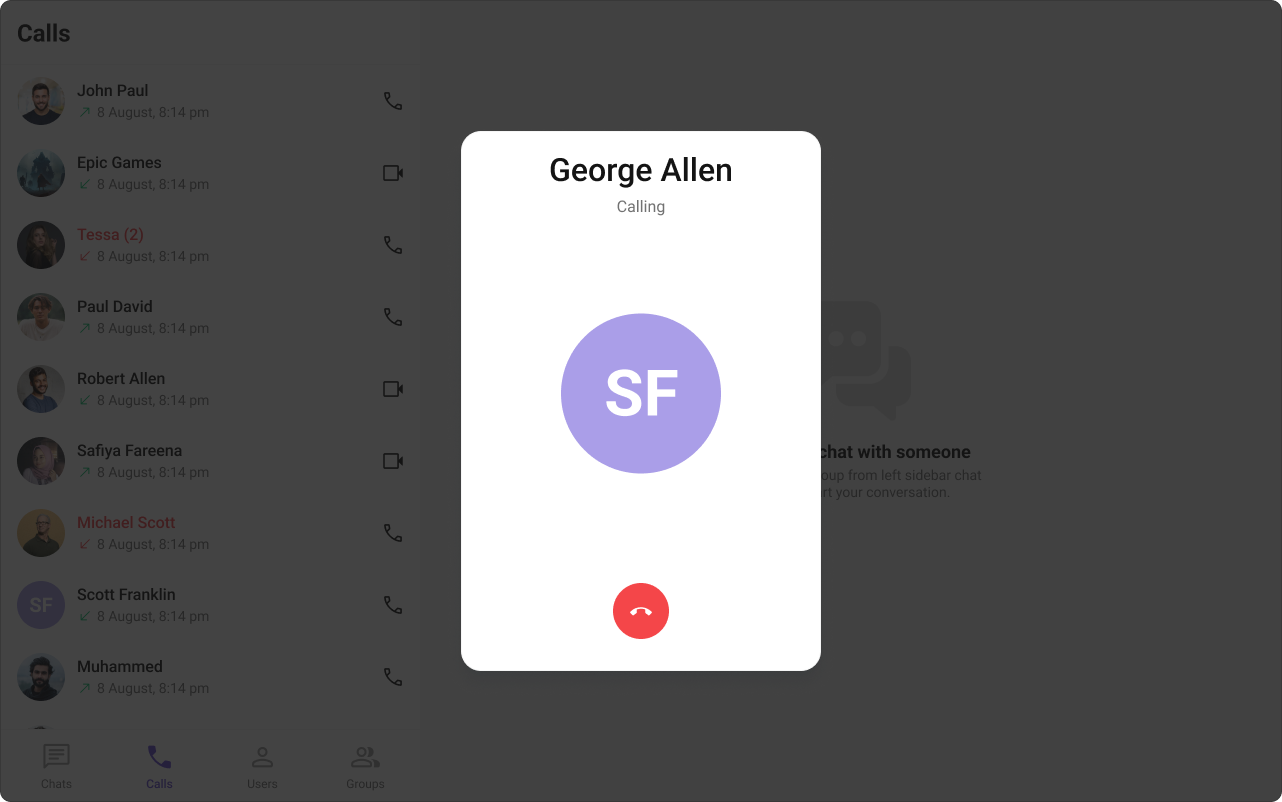
The [cometchat-outgoing-call](/ui-kit/angular/components/cometchat-outgoing-call) component displays an outgoing call screen with recipient info and call status. Transitions to the ongoing call screen when the receiver accepts.
### Outgoing Call
The [cometchat-outgoing-call](/ui-kit/angular/components/cometchat-outgoing-call) component displays an outgoing call screen with recipient info and call status. Transitions to the ongoing call screen when the receiver accepts.
 ### Call Logs
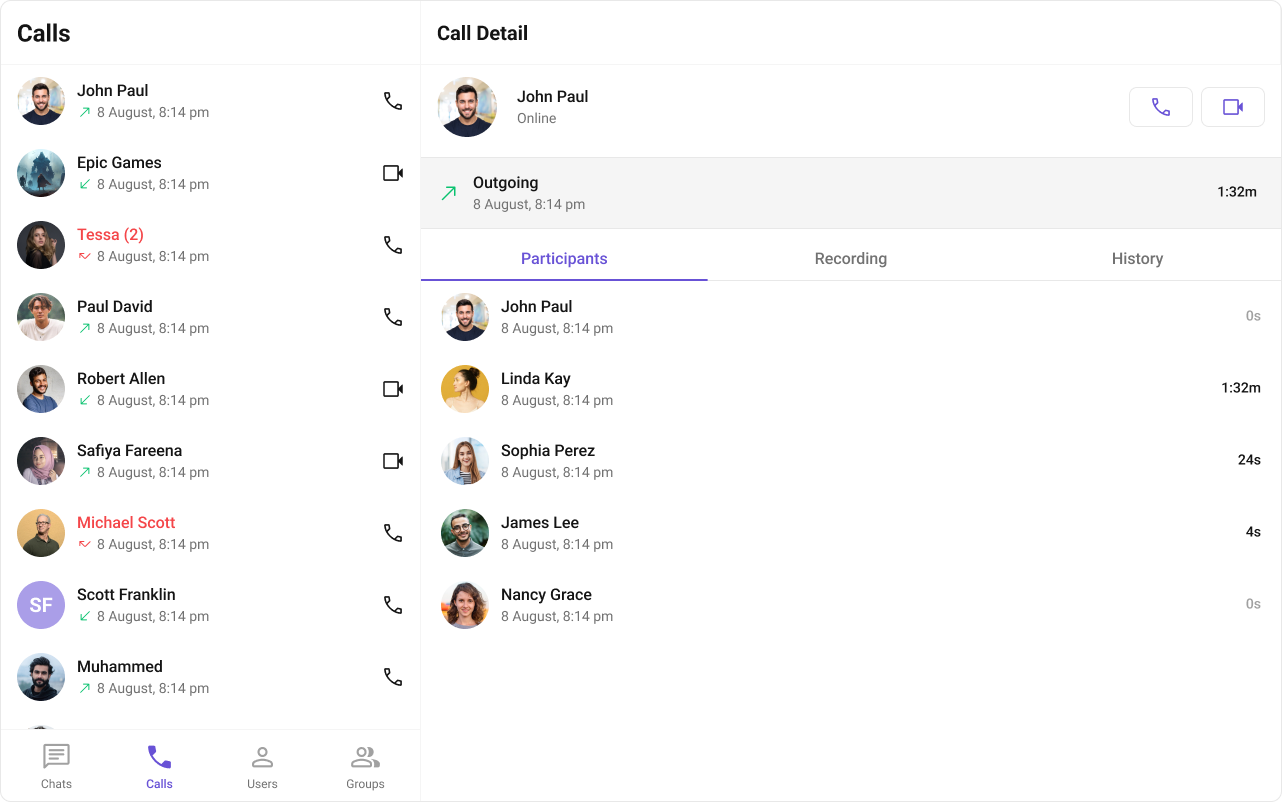
The [cometchat-call-logs](/ui-kit/angular/components/cometchat-call-logs) component displays call history — caller, time, and duration.
### Call Logs
The [cometchat-call-logs](/ui-kit/angular/components/cometchat-call-logs) component displays call history — caller, time, and duration.
 ## Next Steps
Audio and video call buttons
Incoming call notifications and UI
Call history and details
Core chat features
## Next Steps
Audio and video call buttons
Incoming call notifications and UI
Call history and details
Core chat features