> ## Documentation Index
> Fetch the complete documentation index at: https://www.cometchat.com/docs/llms.txt
> Use this file to discover all available pages before exploring further.
# Groups
> Groups — CometChat documentation.
## Overview
`CometChatGroups` functions as a standalone [component](/ui-kit/android/v4/components-overview#components) designed to create a screen displaying a list of groups, with the added functionality of enabling users to search for specific groups. Acting as a container component, CometChatGroups encapsulates and formats the `CometChatListBase` and `CometChatGroupList` components without introducing any additional behavior of its own.
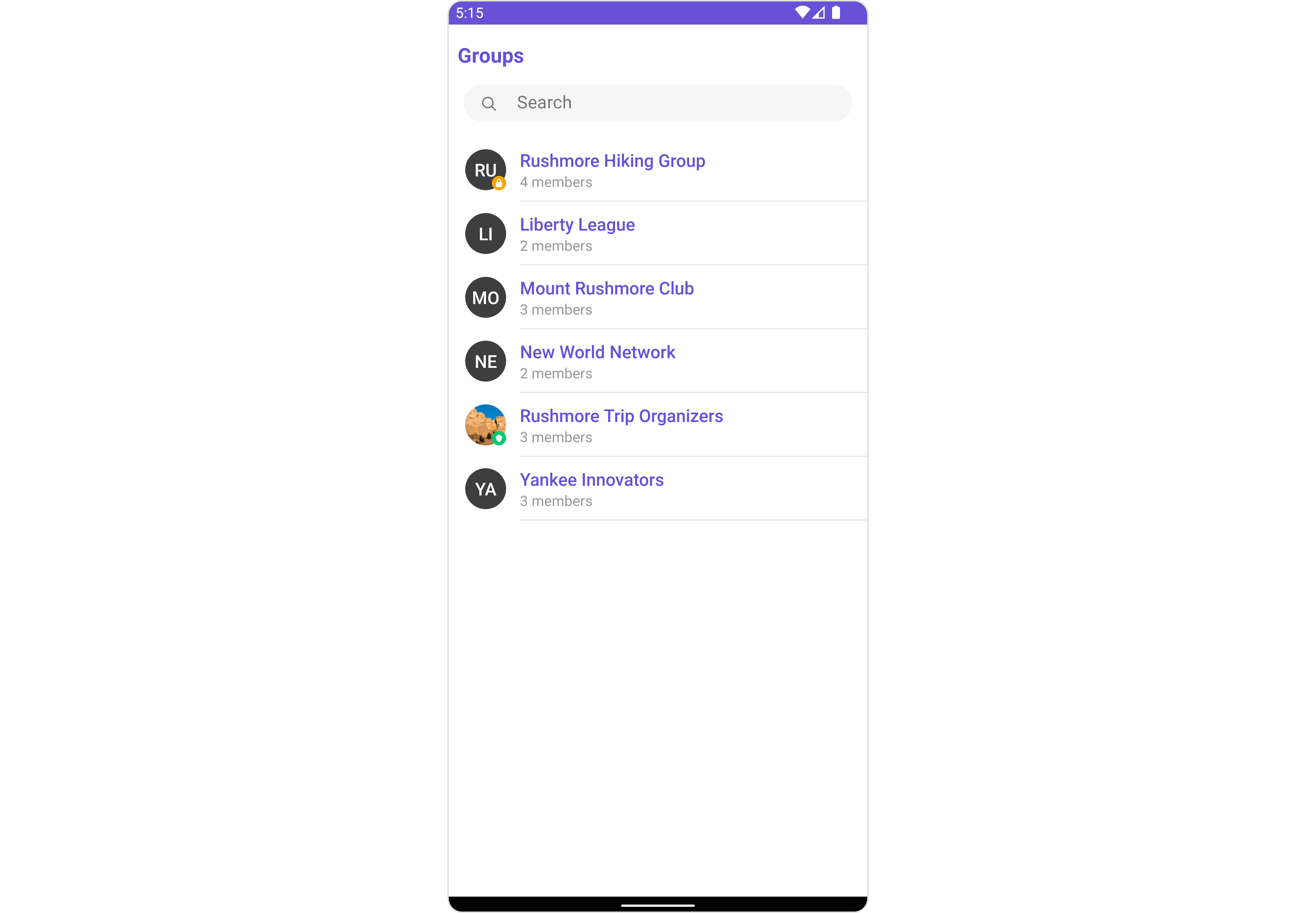 The `Groups` component is composed of the following BaseComponents:
| Components | Description |
| ------------------------------------------------- | ----------------------------------------------------------------------------------------------------------------------------------------------- |
| [CometChatListBase](/ui-kit/android/v4/list-base) | `CometChatListBase` is a container component having a title, search box, customizable `background`, and a List View |
| [CometChatListItem](/ui-kit/android/v4/list-item) | `CometChatListItem` is a component that renders data obtained from a Group object on a Tile having a title, subtitle, leading and trailing view |
***
## Usage
***
### Integration
The following code snippet illustrates how you can can launch `CometChatGroups`.
```xml theme={null}
```
***
### Actions
[Actions](/ui-kit/android/v4/components-overview#actions) dictate how a component functions. They are divided into two types: Predefined and User-defined. You can override either type, allowing you to tailor the behavior of the component to fit your specific needs.
##### 1. OnSelection
The `OnSelection` event is activated when you select the done icon in the Menubar while in selection mode. This returns a list of all the groups that you have selected.
This action does not come with any predefined behavior. However, you have the flexibility to override this event and tailor it to suit your needs using the following code snippet.
```java theme={null}
cometchatGroups.setOnSelection(new CometChatGroups.OnSelection() {
@Override
public void onSelection(List list) {
// Your custom Action
}
});
```
```kotlin theme={null}
cometchatGroups.setOnSelection(CometChatGroups.OnSelection {
// Your custom Action
})
```
***
##### 2. ItemClickListener
The `OnItemClickListener` event is activated when you click on the GroupList item. This action does not come with any predefined behavior.
However, you have the flexibility to override this event and tailor it to suit your needs using the following code snippet.
```java theme={null}
cometchatGroups.setItemClickListener(new OnItemClickListener() {
@Override
public void OnItemClick(Group group, int i) {
// Your custom Action
}
});
```
```kotlin theme={null}
cometchatGroups.setItemClickListener(object : OnItemClickListener() {
fun OnItemClick(group: Group?, i: Int) {
// Your custom Action
}
})
```
***
##### 3. BackPressListener
The `OnBackPressListener` function is built to respond when you tap the back button in the Toolbar of the activity.
By default, this action has a predefined behavior: it simply closes the current activity. However, the flexibility of CometChat UI Kit allows you to override this standard behavior according to your application's specific requirements. You can define a custom action that will be performed instead when the back button is pressed.
```java theme={null}
cometchatGroups.addOnBackPressListener(new CometChatListBase.OnBackPress() {
@Override
public void onBack() {
// Your custom Action
}
});
```
```kotlin theme={null}
cometchatGroups.addOnBackPressListener(CometChatListBase.OnBackPress {
// Your custom Action
})
```
***
##### 4. onError
This action doesn't change the behavior of the component but rather listens for any errors that occur in the Group component.
```java theme={null}
cometchatGroups.setOnError(new OnError() {
@Override
public void onError(Context context, CometChatException e) {
// Your custom Action
}
});
```
```kotlin theme={null}
cometchatGroups.setOnError(object : OnError() {
fun onError(context: Context?, e: CometChatException?) {
// Your custom Action
}
})
```
***
### Filters
Filters allow you to customize the data displayed in a list within a Component. You can filter the list based on your specific criteria, allowing for a more customized. Filters can be applied using RequestBuilders of Chat SDK.
##### 1. GroupsRequestBuilder
The [GroupsRequestBuilder](/sdk/android/retrieve-groups) enables you to filter and customize the group list based on available parameters in GroupsRequestBuilder. This feature allows you to create more specific and targeted queries when fetching groups. The following are the parameters available in [GroupsRequestBuilder](/sdk/android/retrieve-groups)
| Property | Description | Code |
| ------------------ | ------------------------------------------------------------------------------------------------------------------- | --------------------------- |
| **Limit** | Configure the maximum number of groups to fetch in a single request, optimizing pagination for smoother navigation. | `.setLimit(Int)` |
| **Search Keyword** | Employed to retrieve groups that match the provided string, facilitating precise searches. | `.setSearchKeyWord(String)` |
| **Joined Only** | Exclusively fetches joined groups. | `.joinedOnly(boolean)` |
| **Tags** | Utilized to fetch groups containing the specified tags. | `.setTags(List)` |
| **With Tags** | Utilized to retrieve groups with specific tags. | `.withTags(boolean)` |
**Example**
In the example below, we are applying a filter to the Group List based on only joined groups.
```java theme={null}
GroupsRequest.GroupsRequestBuilder builder = new GroupsRequest.GroupsRequestBuilder().setLimit(10).joinedOnly(true);
cometchatGroups.setGroupsRequestBuilder(builder);
```
```kotlin theme={null}
val builder = GroupsRequestBuilder().setLimit(10).joinedOnly(true)
cometchatGroups.setGroupsRequestBuilder(builder)
```
***
##### 2. SearchRequestBuilder
The SearchRequestBuilder uses [GroupsRequestBuilder](/sdk/android/retrieve-groups) enables you to filter and customize the search list based on available parameters in GroupsRequestBuilder. This feature allows you to keep uniformity between the displayed Groups List and searched Group List.
**Example**
```java theme={null}
GroupsRequest.GroupsRequestBuilder builder = new GroupsRequest.GroupsRequestBuilder().setLimit(10).setSearchKeyWord("**");
cometchatGroups.setSearchRequestBuilder(builder);
```
```kotlin theme={null}
val builder = GroupsRequestBuilder().setLimit(10).setSearchKeyWord("**")
cometchatGroups.setSearchRequestBuilder(builder)
```
***
### Events
[Events](/ui-kit/android/v4/components-overview#events) are emitted by a `Component`. By using event you can extend existing functionality. Being global events, they can be applied in Multiple Locations and are capable of being Added or Removed.
The list of events emitted by the Groups component is as follows.
| Events | Description |
| ----------------------------- | ---------------------------------------------------------------------------------------------------------- |
| `ccGroupCreated()` | This will get triggered when the logged in user creates a group |
| `ccGroupDeleted()` | This will get triggered when the logged in user deletes a group |
| `ccGroupLeft()` | This will get triggered when the logged in user leaves a group |
| `ccGroupMemberScopeChanged()` | This will get triggered when the logged in user changes the scope of another group member |
| `ccGroupMemberBanned()` | This will get triggered when the logged in user bans a group member from the group |
| `ccGroupMemberKicked()` | This will get triggered when the logged in user kicks another group member from the group |
| `ccGroupMemberUnbanned()` | This will get triggered when the logged in user unbans a user banned from the group |
| `ccGroupMemberJoined()` | This will get triggered when the logged in user joins a group |
| `ccGroupMemberAdded()` | This will get triggered when the logged in user add new members to the group |
| `ccOwnershipChanged` | This will get triggered when the logged in user transfer the ownership of their group to some other member |
##### 1. Add `CometChatGroupEvents` Listener's
```java theme={null}
CometChatGroupEvents.addGroupListener("LISTENER_TAG", new CometChatGroupEvents() {
@Override
public void ccGroupCreated(Group group) {
super.ccGroupCreated(group);
}
@Override
public void ccGroupDeleted(Group group) {
super.ccGroupDeleted(group);
}
@Override
public void ccGroupLeft(Action actionMessage, User leftUser, Group leftGroup) {
super.ccGroupLeft(actionMessage, leftUser, leftGroup);
}
@Override
public void ccGroupMemberJoined(User joinedUser, Group joinedGroup) {
super.ccGroupMemberJoined(joinedUser, joinedGroup);
}
@Override
public void ccGroupMemberAdded(List actionMessages, List usersAdded, Group userAddedIn, User addedBy) {
super.ccGroupMemberAdded(actionMessages, usersAdded, userAddedIn, addedBy);
}
@Override
public void ccGroupMemberKicked(Action actionMessage, User kickedUser, User kickedBy, Group kickedFrom) {
super.ccGroupMemberKicked(actionMessage, kickedUser, kickedBy, kickedFrom);
}
@Override
public void ccGroupMemberBanned(Action actionMessage, User bannedUser, User bannedBy, Group bannedFrom) {
super.ccGroupMemberBanned(actionMessage, bannedUser, bannedBy, bannedFrom);
}
@Override
public void ccGroupMemberUnBanned(Action actionMessage, User unbannedUser, User unBannedBy, Group unBannedFrom) {
super.ccGroupMemberUnBanned(actionMessage, unbannedUser, unBannedBy, unBannedFrom);
}
@Override
public void ccGroupMemberScopeChanged(Action actionMessage, User updatedUser, String scopeChangedTo, String scopeChangedFrom, Group group) {
super.ccGroupMemberScopeChanged(actionMessage, updatedUser, scopeChangedTo, scopeChangedFrom, group);
}
@Override
public void ccOwnershipChanged(Group group, GroupMember newOwner) {
super.ccOwnershipChanged(group, newOwner);
}
});
```
```kotlin theme={null}
CometChatGroupEvents.addGroupListener("LISTENER_TAG", object : CometChatGroupEvents() {
override fun ccGroupCreated(group: Group?) {
super.ccGroupCreated(group)
}
override fun ccGroupDeleted(group: Group?) {
super.ccGroupDeleted(group)
}
override fun ccGroupLeft(actionMessage: Action?, leftUser: User?, leftGroup: Group?) {
super.ccGroupLeft(actionMessage, leftUser, leftGroup)
}
override fun ccGroupMemberJoined(joinedUser: User?, joinedGroup: Group?) {
super.ccGroupMemberJoined(joinedUser, joinedGroup)
}
override fun ccGroupMemberAdded(
actionMessages: List?,
usersAdded: List?,
userAddedIn: Group?,
addedBy: User?
) {
super.ccGroupMemberAdded(actionMessages, usersAdded, userAddedIn, addedBy)
}
override fun ccGroupMemberKicked(
actionMessage: Action?,
kickedUser: User?,
kickedBy: User?,
kickedFrom: Group?
) {
super.ccGroupMemberKicked(actionMessage, kickedUser, kickedBy, kickedFrom)
}
override fun ccGroupMemberBanned(
actionMessage: Action?,
bannedUser: User?,
bannedBy: User?,
bannedFrom: Group?
) {
super.ccGroupMemberBanned(actionMessage, bannedUser, bannedBy, bannedFrom)
}
override fun ccGroupMemberUnBanned(
actionMessage: Action?,
unbannedUser: User?,
unBannedBy: User?,
unBannedFrom: Group?
) {
super.ccGroupMemberUnBanned(actionMessage, unbannedUser, unBannedBy, unBannedFrom)
}
override fun ccGroupMemberScopeChanged(
actionMessage: Action?,
updatedUser: User?,
scopeChangedTo: String?,
scopeChangedFrom: String?,
group: Group?
) {
super.ccGroupMemberScopeChanged(
actionMessage,
updatedUser,
scopeChangedTo,
scopeChangedFrom,
group
)
}
override fun ccOwnershipChanged(group: Group?, newOwner: GroupMember?) {
super.ccOwnershipChanged(group, newOwner)
}
})
```
***
##### 2. Removing `CometChatGroupEvents` Listener's
```java theme={null}
CometChatGroupEvents.removeListeners();
```
```kotlin theme={null}
CometChatGroupEvents.removeListeners()
```
***
## Customization
To fit your app's design requirements, you can customize the appearance of the groups component. We provide exposed methods that allow you to modify the experience and behavior according to your specific needs.
### Style
Using Style you can customize the look and feel of the component in your app, These parameters typically control elements such as the color, size, shape, and fonts used within the component.
##### 1. Groups Style
Enhance your Groups Component by setting the GroupsStyle to customize its appearance.
```java theme={null}
GroupsStyle groupsStyle = new GroupsStyle();
groupsStyle.setBackground(Color.BLACK);
groupsStyle.setCornerRadius(25f);
cometchatGroups.setStyle(groupsStyle);
```
```kotlin theme={null}
val groupsStyle = GroupsStyle()
groupsStyle.background = Color.BLACK
groupsStyle.cornerRadius = 25f
cometchatGroups.style = groupsStyle
```
List of properties exposed by GroupsStyle
| Property | Description | Code |
| ------------------------ | ------------------------------------------------------------------------------------------------------------------- | ---------------------------------------- |
| **Background** | Used to set the background color | `setBackground(@ColorInt int)` |
| **BorderWidth** | Used to set border width | `setBorderWidth(int)` |
| **BorderColor** | Used to set border color | `setBorderColor(@ColorInt int)` |
| **CornerRadius** | Used to set border radius | `setCornerRadius(float)` |
| **Background** | Used to set background Drawable | `setBackground(Drawable)` |
| **TitleAppearance** | Used to customise the appearance of the title in the app bar | `setTitleAppearance(@StyleRes int)` |
| **BackIconTint** | Used to set the color of the back icon in the app bar | `setBackIconTint(@ColorInt int)` |
| **SearchBackground** | Used to set the background color of the search box | `setSearchBackground(@ColorInt int)` |
| **SearchBorderRadius** | Used to set the border radius of the search box | `setSearchBorderRadius(int)` |
| **SearchIconTint** | Used to set the color of the search icon in the search box | `setSearchIconTint(@ColorInt int)` |
| **SearchBorderWidth** | Used to set the border width of the search box | `setSearchBorderWidth(int)` |
| **SearchTextAppearance** | Used to set the style of the text in the search box | `setSearchTextAppearance(@StyleRes int)` |
| **LoadingIconTint** | Used to set the color of the icon shown while the list of group members is being fetched | `setLoadingIconTint(@ColorInt int)` |
| **EmptyTextAppearance** | Used to set the style of the response text shown when fetchig the list of group members has returned an empty list | `setEmptyTextAppearance(@StyleRes int)` |
| **ErrorTextAppearance** | Used to set the style of the response text shown in case some error occurs while fetching the list of group members | `setErrorTextAppearance(@StyleRes int)` |
| **SeparatorColor** | Used to set the color of the divider separating the group member items | `setSeparatorColor(@ColorInt int)` |
***
##### 2. Avatar Style
To apply customized styles to the `Avatar` component in the Groups Component, you can use the following code snippet. For further insights on `Avatar` Styles [refer](/ui-kit/android/v4/avatar)
```java theme={null}
AvatarStyle avatarStyle = new AvatarStyle();
avatarStyle.setBorderWidth(10);
avatarStyle.setBorderColor(Color.BLACK);
cometchatGroups.setAvatarStyle(avatarStyle);
```
```kotlin theme={null}
val avatarStyle = AvatarStyle()
avatarStyle.borderWidth = 10
avatarStyle.borderColor = Color.BLACK
cometchatGroups.setAvatarStyle(avatarStyle)
```
***
##### 3. StatusIndicator Style
To apply customized styles to the Status Indicator component in the Groups Component, You can use the following code snippet. For further insights on Status Indicator Styles [refer](/ui-kit/android/v4/status-indicator)
```java theme={null}
StatusIndicatorStyle statusIndicatorStyle = new StatusIndicatorStyle();
statusIndicatorStyle.setCornerRadius(3.5f);
statusIndicatorStyle.setBorderColor(Color.GREEN);
cometchatGroups.setStatusIndicatorStyle(statusIndicatorStyle);
```
```kotlin theme={null}
val statusIndicatorStyle = StatusIndicatorStyle()
statusIndicatorStyle.cornerRadius = 3.5f
statusIndicatorStyle.borderColor = Color.GREEN
cometchatGroups.setStatusIndicatorStyle(statusIndicatorStyle)
```
***
##### 4. ListItem Style
To apply customized styles to the `List Item` component in the `Groups` Component, you can use the following code snippet. For further insights on `List Item` Styles [refer](/ui-kit/android/v4/list-item)
```java theme={null}
ListItemStyle listItemStyle = new ListItemStyle();
listItemStyle.setBackground(R.color.purple_200);
listItemStyle.setBorderWidth(2);
listItemStyle.setBorderColor(R.color.purple_700);
listItemStyle.setCornerRadius(20);
cometchatGroups.setListItemStyle(listItemStyle);
```
```kotlin theme={null}
val listItemStyle = ListItemStyle()
listItemStyle.setBackground(R.color.purple_200)
listItemStyle.setBorderWidth(2)
listItemStyle.setBorderColor(R.color.purple_700)
listItemStyle.setCornerRadius(20f)
cometchatGroups.setListItemStyle(listItemStyle)
```
***
### Functionality
These are a set of small functional customizations that allow you to fine-tune the overall experience of the component. With these, you can change text, set custom icons, and toggle the visibility of UI elements.
```java theme={null}
CometChatGroups cometChatGroups = findViewById(R.id.groups);
cometchatGroups.setTitle("Contacts");
cometchatGroups.showBackButton(true);
cometchatGroups.backIconTint(getResources().getColor(R.color.black));
```
```kotlin theme={null}
val cometChatGroups : CometChatGroups = findViewById(R.id.groups)
cometchatGroups.title = "Contacts"
cometchatGroups.showBackButton(true)
cometchatGroups.backIconTint = ContextCompat.getColor(this, R.color.black)
```
The `Groups` component is composed of the following BaseComponents:
| Components | Description |
| ------------------------------------------------- | ----------------------------------------------------------------------------------------------------------------------------------------------- |
| [CometChatListBase](/ui-kit/android/v4/list-base) | `CometChatListBase` is a container component having a title, search box, customizable `background`, and a List View |
| [CometChatListItem](/ui-kit/android/v4/list-item) | `CometChatListItem` is a component that renders data obtained from a Group object on a Tile having a title, subtitle, leading and trailing view |
***
## Usage
***
### Integration
The following code snippet illustrates how you can can launch `CometChatGroups`.
```xml theme={null}
```
***
### Actions
[Actions](/ui-kit/android/v4/components-overview#actions) dictate how a component functions. They are divided into two types: Predefined and User-defined. You can override either type, allowing you to tailor the behavior of the component to fit your specific needs.
##### 1. OnSelection
The `OnSelection` event is activated when you select the done icon in the Menubar while in selection mode. This returns a list of all the groups that you have selected.
This action does not come with any predefined behavior. However, you have the flexibility to override this event and tailor it to suit your needs using the following code snippet.
```java theme={null}
cometchatGroups.setOnSelection(new CometChatGroups.OnSelection() {
@Override
public void onSelection(List list) {
// Your custom Action
}
});
```
```kotlin theme={null}
cometchatGroups.setOnSelection(CometChatGroups.OnSelection {
// Your custom Action
})
```
***
##### 2. ItemClickListener
The `OnItemClickListener` event is activated when you click on the GroupList item. This action does not come with any predefined behavior.
However, you have the flexibility to override this event and tailor it to suit your needs using the following code snippet.
```java theme={null}
cometchatGroups.setItemClickListener(new OnItemClickListener() {
@Override
public void OnItemClick(Group group, int i) {
// Your custom Action
}
});
```
```kotlin theme={null}
cometchatGroups.setItemClickListener(object : OnItemClickListener() {
fun OnItemClick(group: Group?, i: Int) {
// Your custom Action
}
})
```
***
##### 3. BackPressListener
The `OnBackPressListener` function is built to respond when you tap the back button in the Toolbar of the activity.
By default, this action has a predefined behavior: it simply closes the current activity. However, the flexibility of CometChat UI Kit allows you to override this standard behavior according to your application's specific requirements. You can define a custom action that will be performed instead when the back button is pressed.
```java theme={null}
cometchatGroups.addOnBackPressListener(new CometChatListBase.OnBackPress() {
@Override
public void onBack() {
// Your custom Action
}
});
```
```kotlin theme={null}
cometchatGroups.addOnBackPressListener(CometChatListBase.OnBackPress {
// Your custom Action
})
```
***
##### 4. onError
This action doesn't change the behavior of the component but rather listens for any errors that occur in the Group component.
```java theme={null}
cometchatGroups.setOnError(new OnError() {
@Override
public void onError(Context context, CometChatException e) {
// Your custom Action
}
});
```
```kotlin theme={null}
cometchatGroups.setOnError(object : OnError() {
fun onError(context: Context?, e: CometChatException?) {
// Your custom Action
}
})
```
***
### Filters
Filters allow you to customize the data displayed in a list within a Component. You can filter the list based on your specific criteria, allowing for a more customized. Filters can be applied using RequestBuilders of Chat SDK.
##### 1. GroupsRequestBuilder
The [GroupsRequestBuilder](/sdk/android/retrieve-groups) enables you to filter and customize the group list based on available parameters in GroupsRequestBuilder. This feature allows you to create more specific and targeted queries when fetching groups. The following are the parameters available in [GroupsRequestBuilder](/sdk/android/retrieve-groups)
| Property | Description | Code |
| ------------------ | ------------------------------------------------------------------------------------------------------------------- | --------------------------- |
| **Limit** | Configure the maximum number of groups to fetch in a single request, optimizing pagination for smoother navigation. | `.setLimit(Int)` |
| **Search Keyword** | Employed to retrieve groups that match the provided string, facilitating precise searches. | `.setSearchKeyWord(String)` |
| **Joined Only** | Exclusively fetches joined groups. | `.joinedOnly(boolean)` |
| **Tags** | Utilized to fetch groups containing the specified tags. | `.setTags(List)` |
| **With Tags** | Utilized to retrieve groups with specific tags. | `.withTags(boolean)` |
**Example**
In the example below, we are applying a filter to the Group List based on only joined groups.
```java theme={null}
GroupsRequest.GroupsRequestBuilder builder = new GroupsRequest.GroupsRequestBuilder().setLimit(10).joinedOnly(true);
cometchatGroups.setGroupsRequestBuilder(builder);
```
```kotlin theme={null}
val builder = GroupsRequestBuilder().setLimit(10).joinedOnly(true)
cometchatGroups.setGroupsRequestBuilder(builder)
```
***
##### 2. SearchRequestBuilder
The SearchRequestBuilder uses [GroupsRequestBuilder](/sdk/android/retrieve-groups) enables you to filter and customize the search list based on available parameters in GroupsRequestBuilder. This feature allows you to keep uniformity between the displayed Groups List and searched Group List.
**Example**
```java theme={null}
GroupsRequest.GroupsRequestBuilder builder = new GroupsRequest.GroupsRequestBuilder().setLimit(10).setSearchKeyWord("**");
cometchatGroups.setSearchRequestBuilder(builder);
```
```kotlin theme={null}
val builder = GroupsRequestBuilder().setLimit(10).setSearchKeyWord("**")
cometchatGroups.setSearchRequestBuilder(builder)
```
***
### Events
[Events](/ui-kit/android/v4/components-overview#events) are emitted by a `Component`. By using event you can extend existing functionality. Being global events, they can be applied in Multiple Locations and are capable of being Added or Removed.
The list of events emitted by the Groups component is as follows.
| Events | Description |
| ----------------------------- | ---------------------------------------------------------------------------------------------------------- |
| `ccGroupCreated()` | This will get triggered when the logged in user creates a group |
| `ccGroupDeleted()` | This will get triggered when the logged in user deletes a group |
| `ccGroupLeft()` | This will get triggered when the logged in user leaves a group |
| `ccGroupMemberScopeChanged()` | This will get triggered when the logged in user changes the scope of another group member |
| `ccGroupMemberBanned()` | This will get triggered when the logged in user bans a group member from the group |
| `ccGroupMemberKicked()` | This will get triggered when the logged in user kicks another group member from the group |
| `ccGroupMemberUnbanned()` | This will get triggered when the logged in user unbans a user banned from the group |
| `ccGroupMemberJoined()` | This will get triggered when the logged in user joins a group |
| `ccGroupMemberAdded()` | This will get triggered when the logged in user add new members to the group |
| `ccOwnershipChanged` | This will get triggered when the logged in user transfer the ownership of their group to some other member |
##### 1. Add `CometChatGroupEvents` Listener's
```java theme={null}
CometChatGroupEvents.addGroupListener("LISTENER_TAG", new CometChatGroupEvents() {
@Override
public void ccGroupCreated(Group group) {
super.ccGroupCreated(group);
}
@Override
public void ccGroupDeleted(Group group) {
super.ccGroupDeleted(group);
}
@Override
public void ccGroupLeft(Action actionMessage, User leftUser, Group leftGroup) {
super.ccGroupLeft(actionMessage, leftUser, leftGroup);
}
@Override
public void ccGroupMemberJoined(User joinedUser, Group joinedGroup) {
super.ccGroupMemberJoined(joinedUser, joinedGroup);
}
@Override
public void ccGroupMemberAdded(List actionMessages, List usersAdded, Group userAddedIn, User addedBy) {
super.ccGroupMemberAdded(actionMessages, usersAdded, userAddedIn, addedBy);
}
@Override
public void ccGroupMemberKicked(Action actionMessage, User kickedUser, User kickedBy, Group kickedFrom) {
super.ccGroupMemberKicked(actionMessage, kickedUser, kickedBy, kickedFrom);
}
@Override
public void ccGroupMemberBanned(Action actionMessage, User bannedUser, User bannedBy, Group bannedFrom) {
super.ccGroupMemberBanned(actionMessage, bannedUser, bannedBy, bannedFrom);
}
@Override
public void ccGroupMemberUnBanned(Action actionMessage, User unbannedUser, User unBannedBy, Group unBannedFrom) {
super.ccGroupMemberUnBanned(actionMessage, unbannedUser, unBannedBy, unBannedFrom);
}
@Override
public void ccGroupMemberScopeChanged(Action actionMessage, User updatedUser, String scopeChangedTo, String scopeChangedFrom, Group group) {
super.ccGroupMemberScopeChanged(actionMessage, updatedUser, scopeChangedTo, scopeChangedFrom, group);
}
@Override
public void ccOwnershipChanged(Group group, GroupMember newOwner) {
super.ccOwnershipChanged(group, newOwner);
}
});
```
```kotlin theme={null}
CometChatGroupEvents.addGroupListener("LISTENER_TAG", object : CometChatGroupEvents() {
override fun ccGroupCreated(group: Group?) {
super.ccGroupCreated(group)
}
override fun ccGroupDeleted(group: Group?) {
super.ccGroupDeleted(group)
}
override fun ccGroupLeft(actionMessage: Action?, leftUser: User?, leftGroup: Group?) {
super.ccGroupLeft(actionMessage, leftUser, leftGroup)
}
override fun ccGroupMemberJoined(joinedUser: User?, joinedGroup: Group?) {
super.ccGroupMemberJoined(joinedUser, joinedGroup)
}
override fun ccGroupMemberAdded(
actionMessages: List?,
usersAdded: List?,
userAddedIn: Group?,
addedBy: User?
) {
super.ccGroupMemberAdded(actionMessages, usersAdded, userAddedIn, addedBy)
}
override fun ccGroupMemberKicked(
actionMessage: Action?,
kickedUser: User?,
kickedBy: User?,
kickedFrom: Group?
) {
super.ccGroupMemberKicked(actionMessage, kickedUser, kickedBy, kickedFrom)
}
override fun ccGroupMemberBanned(
actionMessage: Action?,
bannedUser: User?,
bannedBy: User?,
bannedFrom: Group?
) {
super.ccGroupMemberBanned(actionMessage, bannedUser, bannedBy, bannedFrom)
}
override fun ccGroupMemberUnBanned(
actionMessage: Action?,
unbannedUser: User?,
unBannedBy: User?,
unBannedFrom: Group?
) {
super.ccGroupMemberUnBanned(actionMessage, unbannedUser, unBannedBy, unBannedFrom)
}
override fun ccGroupMemberScopeChanged(
actionMessage: Action?,
updatedUser: User?,
scopeChangedTo: String?,
scopeChangedFrom: String?,
group: Group?
) {
super.ccGroupMemberScopeChanged(
actionMessage,
updatedUser,
scopeChangedTo,
scopeChangedFrom,
group
)
}
override fun ccOwnershipChanged(group: Group?, newOwner: GroupMember?) {
super.ccOwnershipChanged(group, newOwner)
}
})
```
***
##### 2. Removing `CometChatGroupEvents` Listener's
```java theme={null}
CometChatGroupEvents.removeListeners();
```
```kotlin theme={null}
CometChatGroupEvents.removeListeners()
```
***
## Customization
To fit your app's design requirements, you can customize the appearance of the groups component. We provide exposed methods that allow you to modify the experience and behavior according to your specific needs.
### Style
Using Style you can customize the look and feel of the component in your app, These parameters typically control elements such as the color, size, shape, and fonts used within the component.
##### 1. Groups Style
Enhance your Groups Component by setting the GroupsStyle to customize its appearance.
```java theme={null}
GroupsStyle groupsStyle = new GroupsStyle();
groupsStyle.setBackground(Color.BLACK);
groupsStyle.setCornerRadius(25f);
cometchatGroups.setStyle(groupsStyle);
```
```kotlin theme={null}
val groupsStyle = GroupsStyle()
groupsStyle.background = Color.BLACK
groupsStyle.cornerRadius = 25f
cometchatGroups.style = groupsStyle
```
List of properties exposed by GroupsStyle
| Property | Description | Code |
| ------------------------ | ------------------------------------------------------------------------------------------------------------------- | ---------------------------------------- |
| **Background** | Used to set the background color | `setBackground(@ColorInt int)` |
| **BorderWidth** | Used to set border width | `setBorderWidth(int)` |
| **BorderColor** | Used to set border color | `setBorderColor(@ColorInt int)` |
| **CornerRadius** | Used to set border radius | `setCornerRadius(float)` |
| **Background** | Used to set background Drawable | `setBackground(Drawable)` |
| **TitleAppearance** | Used to customise the appearance of the title in the app bar | `setTitleAppearance(@StyleRes int)` |
| **BackIconTint** | Used to set the color of the back icon in the app bar | `setBackIconTint(@ColorInt int)` |
| **SearchBackground** | Used to set the background color of the search box | `setSearchBackground(@ColorInt int)` |
| **SearchBorderRadius** | Used to set the border radius of the search box | `setSearchBorderRadius(int)` |
| **SearchIconTint** | Used to set the color of the search icon in the search box | `setSearchIconTint(@ColorInt int)` |
| **SearchBorderWidth** | Used to set the border width of the search box | `setSearchBorderWidth(int)` |
| **SearchTextAppearance** | Used to set the style of the text in the search box | `setSearchTextAppearance(@StyleRes int)` |
| **LoadingIconTint** | Used to set the color of the icon shown while the list of group members is being fetched | `setLoadingIconTint(@ColorInt int)` |
| **EmptyTextAppearance** | Used to set the style of the response text shown when fetchig the list of group members has returned an empty list | `setEmptyTextAppearance(@StyleRes int)` |
| **ErrorTextAppearance** | Used to set the style of the response text shown in case some error occurs while fetching the list of group members | `setErrorTextAppearance(@StyleRes int)` |
| **SeparatorColor** | Used to set the color of the divider separating the group member items | `setSeparatorColor(@ColorInt int)` |
***
##### 2. Avatar Style
To apply customized styles to the `Avatar` component in the Groups Component, you can use the following code snippet. For further insights on `Avatar` Styles [refer](/ui-kit/android/v4/avatar)
```java theme={null}
AvatarStyle avatarStyle = new AvatarStyle();
avatarStyle.setBorderWidth(10);
avatarStyle.setBorderColor(Color.BLACK);
cometchatGroups.setAvatarStyle(avatarStyle);
```
```kotlin theme={null}
val avatarStyle = AvatarStyle()
avatarStyle.borderWidth = 10
avatarStyle.borderColor = Color.BLACK
cometchatGroups.setAvatarStyle(avatarStyle)
```
***
##### 3. StatusIndicator Style
To apply customized styles to the Status Indicator component in the Groups Component, You can use the following code snippet. For further insights on Status Indicator Styles [refer](/ui-kit/android/v4/status-indicator)
```java theme={null}
StatusIndicatorStyle statusIndicatorStyle = new StatusIndicatorStyle();
statusIndicatorStyle.setCornerRadius(3.5f);
statusIndicatorStyle.setBorderColor(Color.GREEN);
cometchatGroups.setStatusIndicatorStyle(statusIndicatorStyle);
```
```kotlin theme={null}
val statusIndicatorStyle = StatusIndicatorStyle()
statusIndicatorStyle.cornerRadius = 3.5f
statusIndicatorStyle.borderColor = Color.GREEN
cometchatGroups.setStatusIndicatorStyle(statusIndicatorStyle)
```
***
##### 4. ListItem Style
To apply customized styles to the `List Item` component in the `Groups` Component, you can use the following code snippet. For further insights on `List Item` Styles [refer](/ui-kit/android/v4/list-item)
```java theme={null}
ListItemStyle listItemStyle = new ListItemStyle();
listItemStyle.setBackground(R.color.purple_200);
listItemStyle.setBorderWidth(2);
listItemStyle.setBorderColor(R.color.purple_700);
listItemStyle.setCornerRadius(20);
cometchatGroups.setListItemStyle(listItemStyle);
```
```kotlin theme={null}
val listItemStyle = ListItemStyle()
listItemStyle.setBackground(R.color.purple_200)
listItemStyle.setBorderWidth(2)
listItemStyle.setBorderColor(R.color.purple_700)
listItemStyle.setCornerRadius(20f)
cometchatGroups.setListItemStyle(listItemStyle)
```
***
### Functionality
These are a set of small functional customizations that allow you to fine-tune the overall experience of the component. With these, you can change text, set custom icons, and toggle the visibility of UI elements.
```java theme={null}
CometChatGroups cometChatGroups = findViewById(R.id.groups);
cometchatGroups.setTitle("Contacts");
cometchatGroups.showBackButton(true);
cometchatGroups.backIconTint(getResources().getColor(R.color.black));
```
```kotlin theme={null}
val cometChatGroups : CometChatGroups = findViewById(R.id.groups)
cometchatGroups.title = "Contacts"
cometchatGroups.showBackButton(true)
cometchatGroups.backIconTint = ContextCompat.getColor(this, R.color.black)
```
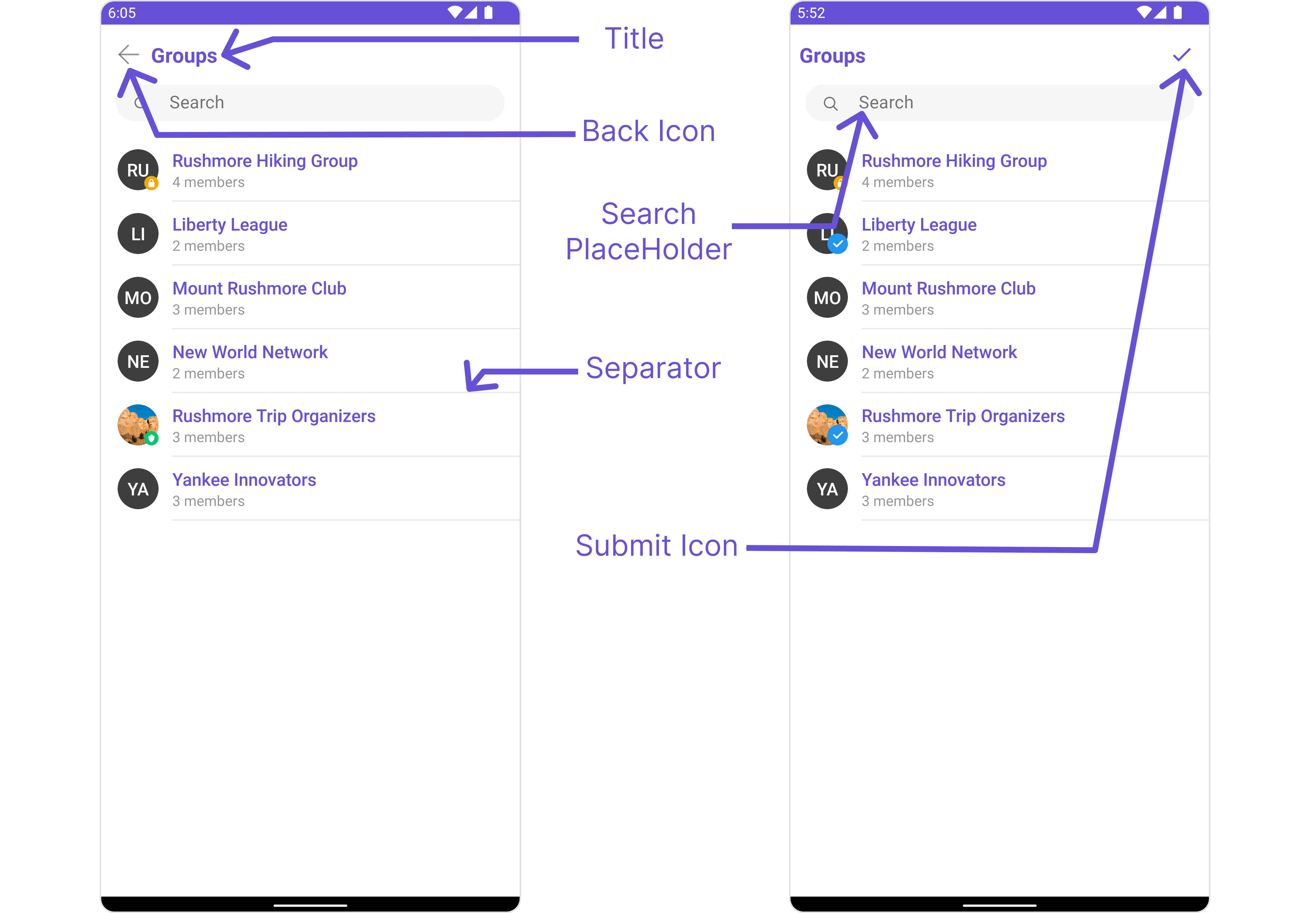 Below is a list of customizations along with corresponding code snippets
| Property | Description | Code |
| ----------------------------- | ---------------------------------------------------------------------------------------- | ----------------------------------------------- |
| **Set Title** | Used to set title in the app bar | `.setTitle("Your custom title")` |
| **Set SearchPlaceholderText** | Used to set search placeholder text | `.setSearchPlaceholderText("Your custom Text")` |
| **BackIcon** | Used to set back button icon | `.backIcon(@DrawableRes int res)` |
| **Show BackButton** | Used to toggle visibility for back button | `.showBackButton(boolean)` |
| **Set SearchBoxIcon** | Used to set search Icon in the search field | `.setSearchBoxIcon(@DrawableRes int res)` |
| **Hide Search** | Used to toggle visibility for search box | `.hideSearch(boolean)` |
| **Hide Error** | Used to hide error on fetching groups | `.hideError(boolean)` |
| **Hide Separator** | Used to hide the divider separating the group items | `.hideSeparator(boolean)` |
| **Set SubmitIcon** | Used to override the default selection complete icon | `.setSubmitIcon(@DrawableRes int res)` |
| **EmptyState Text** | Used to set a custom text response when fetching the groups has returned an empty list | `.emptyStateText("Your Text")` |
| **ErrorState Text** | Used to set a custom text response when some error occurs on fetching the list of groups | `.errorStateText("Your Text")` |
| **Private Group Icon** | Used to set the private group Icon | `.setPrivateGroupIcon(@DrawableRes int res)` |
***
### Advanced
For advanced-level customization, you can set custom views to the component. This lets you tailor each aspect of the component to fit your exact needs and application aesthetics. You can create and define your views, layouts, and UI elements and then incorporate those into the component.
#### SetListItemView
With this function, you can assign a custom ListItem to the Conversations Component.
```java theme={null}
cometchatGroups.setListItemView(new GroupsViewHolderListener() {
@Override
public View createView(Context context, CometChatListItem cometChatListItem) {
return null;
}
@Override
public void bindView(Context context, View view, Group group, RecyclerView.ViewHolder viewHolder, List list, int i) {
}
});
```
```kotlin theme={null}
cometchatGroups.setListItemView(object : GroupsViewHolderListener() {
override fun createView(
context: Context?,
cometChatListItem: CometChatListItem?
): View? {
return null
}
override fun bindView(
context: Context?,
view: View?,
group: Group?,
viewHolder: RecyclerView.ViewHolder?,
list: List?,
i: Int
) {
}
})
```
**Example**
Below is a list of customizations along with corresponding code snippets
| Property | Description | Code |
| ----------------------------- | ---------------------------------------------------------------------------------------- | ----------------------------------------------- |
| **Set Title** | Used to set title in the app bar | `.setTitle("Your custom title")` |
| **Set SearchPlaceholderText** | Used to set search placeholder text | `.setSearchPlaceholderText("Your custom Text")` |
| **BackIcon** | Used to set back button icon | `.backIcon(@DrawableRes int res)` |
| **Show BackButton** | Used to toggle visibility for back button | `.showBackButton(boolean)` |
| **Set SearchBoxIcon** | Used to set search Icon in the search field | `.setSearchBoxIcon(@DrawableRes int res)` |
| **Hide Search** | Used to toggle visibility for search box | `.hideSearch(boolean)` |
| **Hide Error** | Used to hide error on fetching groups | `.hideError(boolean)` |
| **Hide Separator** | Used to hide the divider separating the group items | `.hideSeparator(boolean)` |
| **Set SubmitIcon** | Used to override the default selection complete icon | `.setSubmitIcon(@DrawableRes int res)` |
| **EmptyState Text** | Used to set a custom text response when fetching the groups has returned an empty list | `.emptyStateText("Your Text")` |
| **ErrorState Text** | Used to set a custom text response when some error occurs on fetching the list of groups | `.errorStateText("Your Text")` |
| **Private Group Icon** | Used to set the private group Icon | `.setPrivateGroupIcon(@DrawableRes int res)` |
***
### Advanced
For advanced-level customization, you can set custom views to the component. This lets you tailor each aspect of the component to fit your exact needs and application aesthetics. You can create and define your views, layouts, and UI elements and then incorporate those into the component.
#### SetListItemView
With this function, you can assign a custom ListItem to the Conversations Component.
```java theme={null}
cometchatGroups.setListItemView(new GroupsViewHolderListener() {
@Override
public View createView(Context context, CometChatListItem cometChatListItem) {
return null;
}
@Override
public void bindView(Context context, View view, Group group, RecyclerView.ViewHolder viewHolder, List list, int i) {
}
});
```
```kotlin theme={null}
cometchatGroups.setListItemView(object : GroupsViewHolderListener() {
override fun createView(
context: Context?,
cometChatListItem: CometChatListItem?
): View? {
return null
}
override fun bindView(
context: Context?,
view: View?,
group: Group?,
viewHolder: RecyclerView.ViewHolder?,
list: List?,
i: Int
) {
}
})
```
**Example**
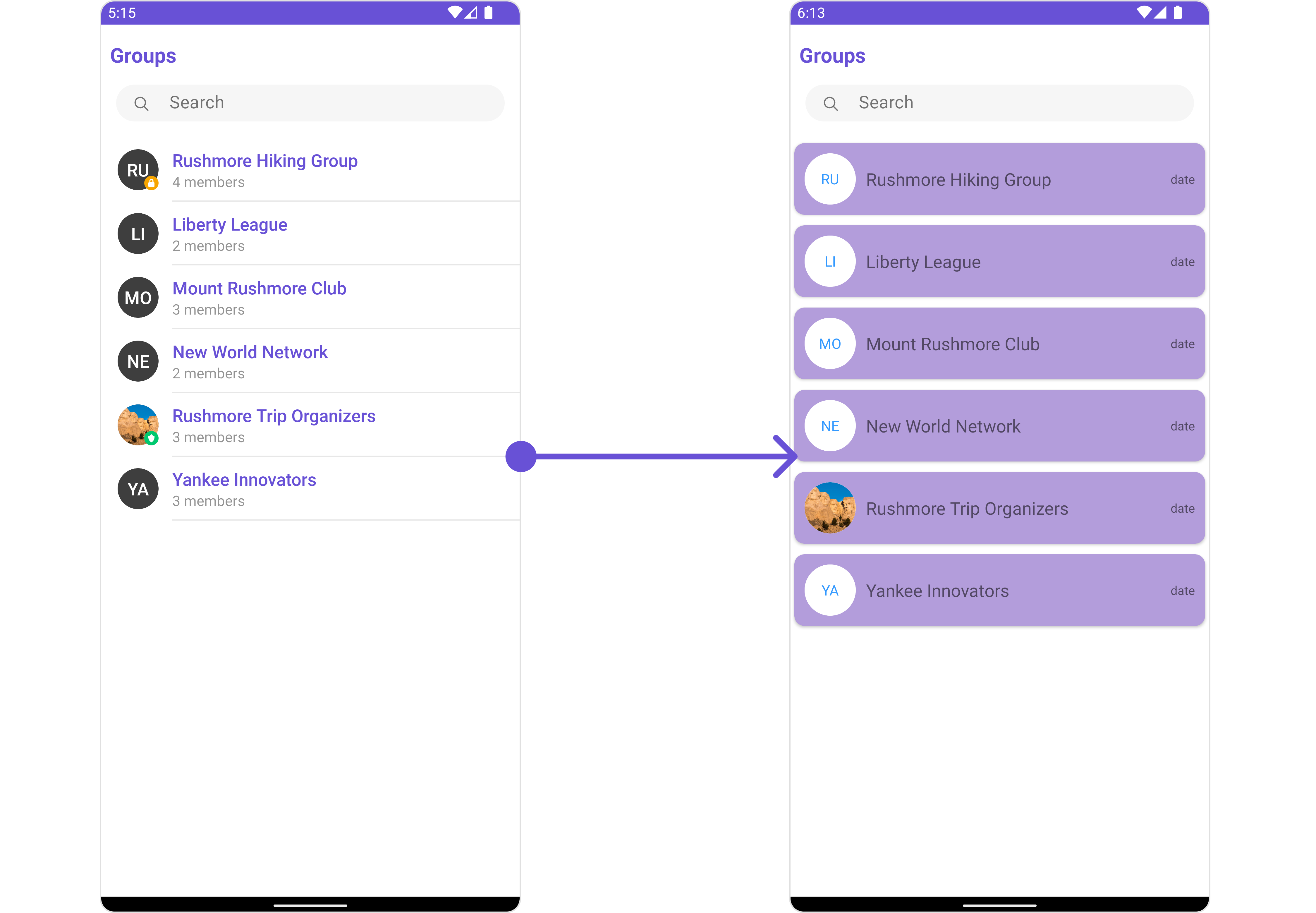 You can indeed create a custom layout file named `item_list.xml` for more complex or unique list items.
Once this layout file is made, you would inflate it inside the `createView()` method of the `GroupsViewHolderListener`. The inflation process prepares the layout for use in your application:
Following this, you would use the `bindView()` method to initialize and assign values to your individual views. This could include setting text on TextViews, images on ImageViews, and so on based on the properties of the Group object:
```xml item_list.xml theme={null}
```
```java YourActivity.java theme={null}
cometchatGroups.setListItemView(new GroupsViewHolderListener() {
@Override
public View createView(Context context, CometChatListItem cometChatListItem) {
View view = getLayoutInflater().inflate(R.layout.item_list, null);
return view;
}
@Override
public void bindView(Context context, View view, Group group, RecyclerView.ViewHolder viewHolder, List list, int i) {
CometChatAvatar avatarView = view.findViewById(R.id.item_avatar);
avatarView.setRadius(100);
TextView nameView = view.findViewById(R.id.txt_item_name);
nameView.setText(group.getName());
avatarView.setImage(group.getIcon(),group.getName());
}
});
```
```kotlin YourActivity.kt theme={null}
cometchatGroups.setListItemView(object : GroupsViewHolderListener() {
override fun createView(
context: Context?,
cometChatListItem: CometChatListItem?
): View {
val view: View = layoutInflater.inflate(R.layout.item_list, null)
return view
}
override fun bindView(
context: Context?,
view: View,
group: Group,
viewHolder: RecyclerView.ViewHolder?,
list: List?,
i: Int
) {
val avatarView = view.findViewById(R.id.item_avatar)
avatarView.radius = 100f
val nameView = view.findViewById(R.id.txt_item_name)
nameView.setText(group.getName())
avatarView.setImage(group.getIcon(), group.getName())
}
})
```
***
#### SetSubTitleView
You can customize the subtitle view for each conversation item to meet your requirements
```java theme={null}
GroupsViewHolderListener groupsViewHolderListener = new GroupsViewHolderListener(){
@Override
public View createView(Context context, CometChatListItem cometChatListItem) {
return null;
}
@Override
public void bindView(Context context, View view, Group group, RecyclerView.ViewHolder viewHolder, List list, int i) {
}
};
cometchatGroups.setSubtitleView(groupsViewHolderListener);
```
```kotlin theme={null}
val groupsViewHolderListener: GroupsViewHolderListener =
object : GroupsViewHolderListener() {
override fun createView(
context: Context?,
cometChatListItem: CometChatListItem?
): View? {
return null
}
override fun bindView(
context: Context?,
view: View?,
group: Group?,
viewHolder: RecyclerView.ViewHolder?,
list: List?,
i: Int
) {
}
}
cometchatGroups.setSubtitleView(groupsViewHolderListener)
```
**Example**
You can indeed create a custom layout file named `item_list.xml` for more complex or unique list items.
Once this layout file is made, you would inflate it inside the `createView()` method of the `GroupsViewHolderListener`. The inflation process prepares the layout for use in your application:
Following this, you would use the `bindView()` method to initialize and assign values to your individual views. This could include setting text on TextViews, images on ImageViews, and so on based on the properties of the Group object:
```xml item_list.xml theme={null}
```
```java YourActivity.java theme={null}
cometchatGroups.setListItemView(new GroupsViewHolderListener() {
@Override
public View createView(Context context, CometChatListItem cometChatListItem) {
View view = getLayoutInflater().inflate(R.layout.item_list, null);
return view;
}
@Override
public void bindView(Context context, View view, Group group, RecyclerView.ViewHolder viewHolder, List list, int i) {
CometChatAvatar avatarView = view.findViewById(R.id.item_avatar);
avatarView.setRadius(100);
TextView nameView = view.findViewById(R.id.txt_item_name);
nameView.setText(group.getName());
avatarView.setImage(group.getIcon(),group.getName());
}
});
```
```kotlin YourActivity.kt theme={null}
cometchatGroups.setListItemView(object : GroupsViewHolderListener() {
override fun createView(
context: Context?,
cometChatListItem: CometChatListItem?
): View {
val view: View = layoutInflater.inflate(R.layout.item_list, null)
return view
}
override fun bindView(
context: Context?,
view: View,
group: Group,
viewHolder: RecyclerView.ViewHolder?,
list: List?,
i: Int
) {
val avatarView = view.findViewById(R.id.item_avatar)
avatarView.radius = 100f
val nameView = view.findViewById(R.id.txt_item_name)
nameView.setText(group.getName())
avatarView.setImage(group.getIcon(), group.getName())
}
})
```
***
#### SetSubTitleView
You can customize the subtitle view for each conversation item to meet your requirements
```java theme={null}
GroupsViewHolderListener groupsViewHolderListener = new GroupsViewHolderListener(){
@Override
public View createView(Context context, CometChatListItem cometChatListItem) {
return null;
}
@Override
public void bindView(Context context, View view, Group group, RecyclerView.ViewHolder viewHolder, List list, int i) {
}
};
cometchatGroups.setSubtitleView(groupsViewHolderListener);
```
```kotlin theme={null}
val groupsViewHolderListener: GroupsViewHolderListener =
object : GroupsViewHolderListener() {
override fun createView(
context: Context?,
cometChatListItem: CometChatListItem?
): View? {
return null
}
override fun bindView(
context: Context?,
view: View?,
group: Group?,
viewHolder: RecyclerView.ViewHolder?,
list: List?,
i: Int
) {
}
}
cometchatGroups.setSubtitleView(groupsViewHolderListener)
```
**Example**
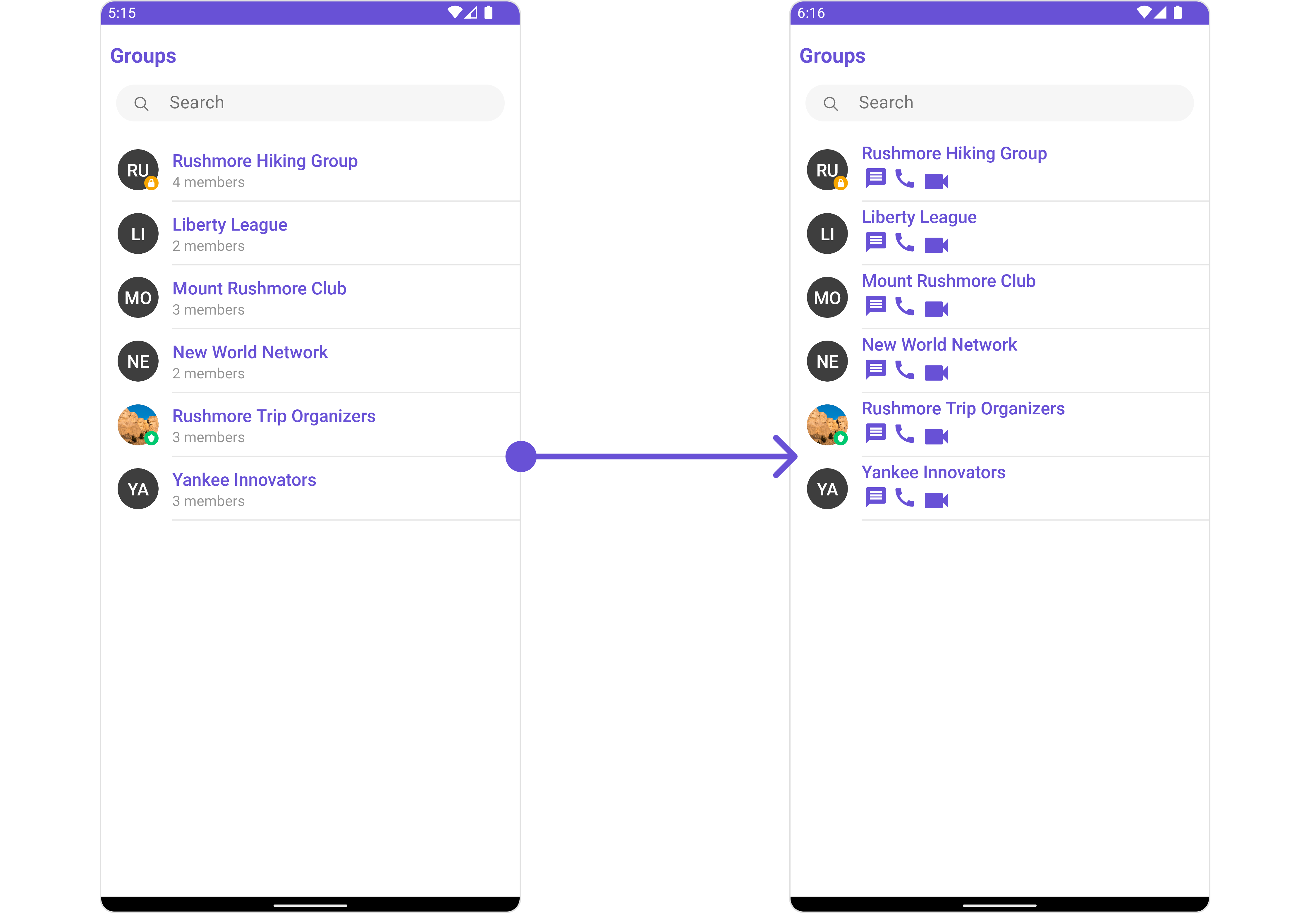 You can indeed create a custom layout file named `subtitle_layout.xml` for more complex or unique list items.
Once this layout file is made, you would inflate it inside the `createView()` method of the `GroupsViewHolderListener`. The inflation process prepares the layout for use in your application:
Following this, you would use the `bindView()` method to initialize and assign values to your individual views. This could include setting text on TextViews, images on ImageViews, and so on based on the properties of the Group object:
```xml subtitle_layout.xml theme={null}
```
```java YourActivity.java theme={null}
GroupsViewHolderListener groupsViewHolderListener = new GroupsViewHolderListener(){
@Override
public View createView(Context context, CometChatListItem cometChatListItem) {
View view = getLayoutInflater().inflate(R.layout.subtitle_layout, null);
return view;
}
@Override
public void bindView(Context context, View view, Group group, RecyclerView.ViewHolder viewHolder, List list, int i) {
TextView txtSubtitle = view.findViewById(R.id.txt_subtitle);
ImageView imgConversation = view.findViewById(R.id.img_conversation);
ImageView imgAudioCall = view.findViewById(R.id.img_audio_call);;
ImageView imgVideCall = view.findViewById(R.id.img_video_call);;
txtSubtitle.setText(group.getName());
imgConversation.setOnClickListener(v -> {
Toast.makeText(context, "Conversation Clicked", Toast.LENGTH_SHORT).show();
});
imgAudioCall.setOnClickListener(v -> {
Toast.makeText(context, "Audio Call Clicked", Toast.LENGTH_SHORT).show();
});
imgVideCall.setOnClickListener(v -> {
Toast.makeText(context, "Video Call Clicked", Toast.LENGTH_SHORT).show();
});
}
};
cometchatGroups.setSubtitleView(groupsViewHolderListener);
```
```kotlin YourActivity.kt theme={null}
val groupsViewHolderListener: GroupsViewHolderListener =
object : GroupsViewHolderListener() {
override fun createView(
context: Context?,
cometChatListItem: CometChatListItem?
): View {
val view: View = layoutInflater.inflate(R.layout.subtitle_layout, null)
return view
}
override fun bindView(
context: Context?,
view: View,
group: Group,
viewHolder: RecyclerView.ViewHolder?,
list: List?,
i: Int
) {
val txtSubtitle = view.findViewById(R.id.txt_subtitle)
val imgConversation = view.findViewById(R.id.img_conversation)
val imgAudioCall = view.findViewById(R.id.img_audio_call)
val imgVideCall = view.findViewById(R.id.img_video_call)
txtSubtitle.setText(group.getName())
imgConversation.setOnClickListener { v: View? ->
Toast.makeText(context, "Conversation Clicked", Toast.LENGTH_SHORT).show()
}
imgAudioCall.setOnClickListener { v: View? ->
Toast.makeText(context, "Audio Call Clicked", Toast.LENGTH_SHORT).show()
}
imgVideCall.setOnClickListener { v: View? ->
Toast.makeText(context, "Video Call Clicked", Toast.LENGTH_SHORT).show()
}
}
}
cometchatGroups.setSubtitleView(groupsViewHolderListener)
```
***
#### SetTailView
Used to generate a custom trailing view for the GroupList item. You can add a Tail view using the following method.
```java theme={null}
cometchatGroups.setTailView(new GroupsViewHolderListener() {
@Override
public View createView(Context context, CometChatListItem cometChatListItem) {
return null;
}
@Override
public void bindView(Context context, View view, Group group, RecyclerView.ViewHolder viewHolder, List list, int i) {
}
});
```
```kotlin theme={null}
cometchatGroups.setTailView(object : GroupsViewHolderListener() {
override fun createView(
context: Context?,
cometChatListItem: CometChatListItem?
): View? {
return null
}
override fun bindView(
context: Context?,
view: View?,
group: Group?,
viewHolder: RecyclerView.ViewHolder?,
list: List?,
i: Int
) {
}
})
```
**Example**
You can indeed create a custom layout file named `subtitle_layout.xml` for more complex or unique list items.
Once this layout file is made, you would inflate it inside the `createView()` method of the `GroupsViewHolderListener`. The inflation process prepares the layout for use in your application:
Following this, you would use the `bindView()` method to initialize and assign values to your individual views. This could include setting text on TextViews, images on ImageViews, and so on based on the properties of the Group object:
```xml subtitle_layout.xml theme={null}
```
```java YourActivity.java theme={null}
GroupsViewHolderListener groupsViewHolderListener = new GroupsViewHolderListener(){
@Override
public View createView(Context context, CometChatListItem cometChatListItem) {
View view = getLayoutInflater().inflate(R.layout.subtitle_layout, null);
return view;
}
@Override
public void bindView(Context context, View view, Group group, RecyclerView.ViewHolder viewHolder, List list, int i) {
TextView txtSubtitle = view.findViewById(R.id.txt_subtitle);
ImageView imgConversation = view.findViewById(R.id.img_conversation);
ImageView imgAudioCall = view.findViewById(R.id.img_audio_call);;
ImageView imgVideCall = view.findViewById(R.id.img_video_call);;
txtSubtitle.setText(group.getName());
imgConversation.setOnClickListener(v -> {
Toast.makeText(context, "Conversation Clicked", Toast.LENGTH_SHORT).show();
});
imgAudioCall.setOnClickListener(v -> {
Toast.makeText(context, "Audio Call Clicked", Toast.LENGTH_SHORT).show();
});
imgVideCall.setOnClickListener(v -> {
Toast.makeText(context, "Video Call Clicked", Toast.LENGTH_SHORT).show();
});
}
};
cometchatGroups.setSubtitleView(groupsViewHolderListener);
```
```kotlin YourActivity.kt theme={null}
val groupsViewHolderListener: GroupsViewHolderListener =
object : GroupsViewHolderListener() {
override fun createView(
context: Context?,
cometChatListItem: CometChatListItem?
): View {
val view: View = layoutInflater.inflate(R.layout.subtitle_layout, null)
return view
}
override fun bindView(
context: Context?,
view: View,
group: Group,
viewHolder: RecyclerView.ViewHolder?,
list: List?,
i: Int
) {
val txtSubtitle = view.findViewById(R.id.txt_subtitle)
val imgConversation = view.findViewById(R.id.img_conversation)
val imgAudioCall = view.findViewById(R.id.img_audio_call)
val imgVideCall = view.findViewById(R.id.img_video_call)
txtSubtitle.setText(group.getName())
imgConversation.setOnClickListener { v: View? ->
Toast.makeText(context, "Conversation Clicked", Toast.LENGTH_SHORT).show()
}
imgAudioCall.setOnClickListener { v: View? ->
Toast.makeText(context, "Audio Call Clicked", Toast.LENGTH_SHORT).show()
}
imgVideCall.setOnClickListener { v: View? ->
Toast.makeText(context, "Video Call Clicked", Toast.LENGTH_SHORT).show()
}
}
}
cometchatGroups.setSubtitleView(groupsViewHolderListener)
```
***
#### SetTailView
Used to generate a custom trailing view for the GroupList item. You can add a Tail view using the following method.
```java theme={null}
cometchatGroups.setTailView(new GroupsViewHolderListener() {
@Override
public View createView(Context context, CometChatListItem cometChatListItem) {
return null;
}
@Override
public void bindView(Context context, View view, Group group, RecyclerView.ViewHolder viewHolder, List list, int i) {
}
});
```
```kotlin theme={null}
cometchatGroups.setTailView(object : GroupsViewHolderListener() {
override fun createView(
context: Context?,
cometChatListItem: CometChatListItem?
): View? {
return null
}
override fun bindView(
context: Context?,
view: View?,
group: Group?,
viewHolder: RecyclerView.ViewHolder?,
list: List?,
i: Int
) {
}
})
```
**Example**
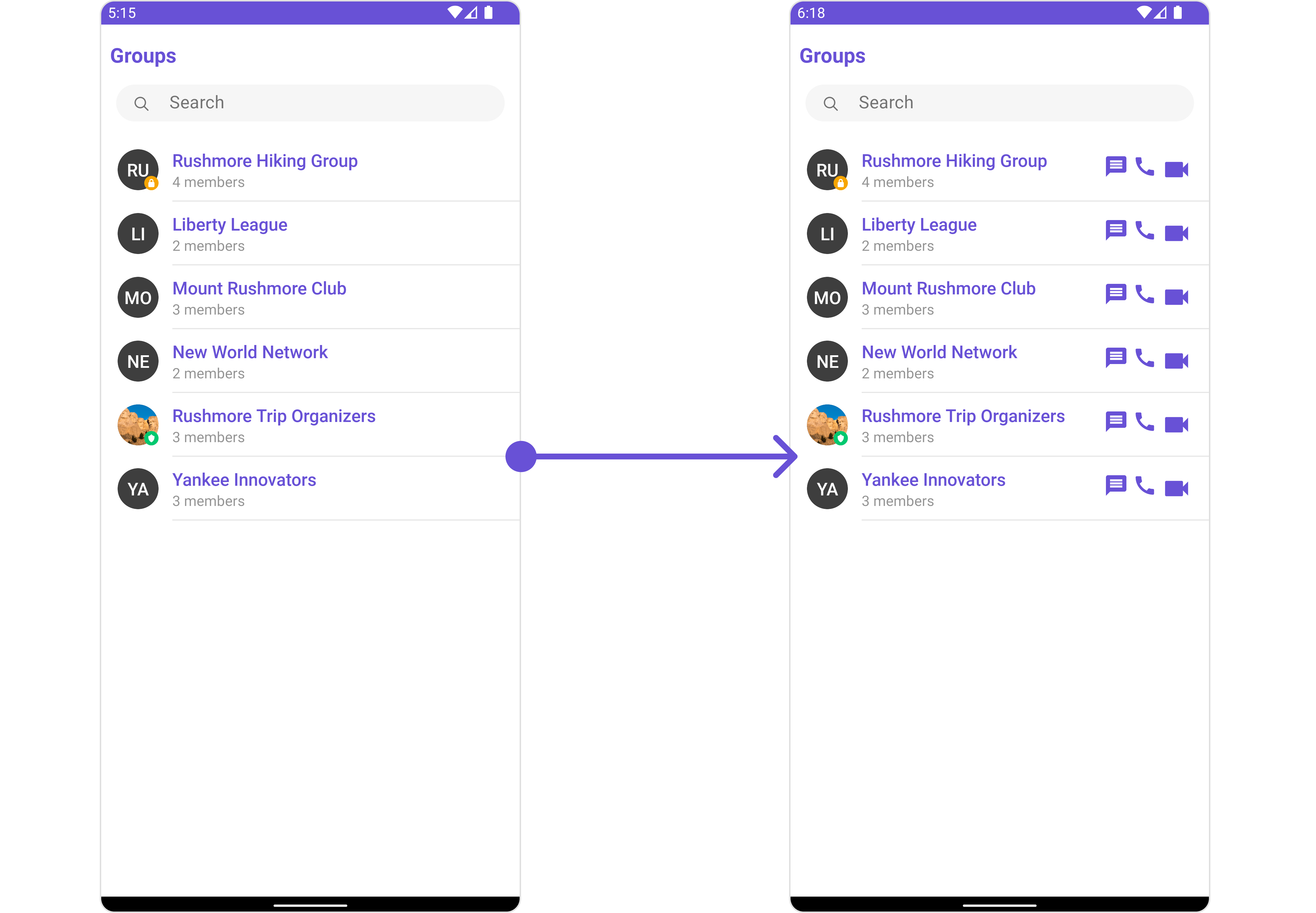 You can indeed create a custom layout file named `tail_view_layout.xml` for more complex or unique list items.
Once this layout file is made, you would inflate it inside the `createView()` method of the `GroupsViewHolderListener`. The inflation process prepares the layout for use in your application:
Following this, you would use the `bindView()` method to initialize and assign values to your individual views. This could include setting text on TextViews, images on ImageViews, and so on based on the properties of the Group object:
```xml tail_view_layout.xml theme={null}
```
```java YourActivity.java theme={null}
cometchatGroups.setTailView(new GroupsViewHolderListener() {
@Override
public View createView(Context context, CometChatListItem cometChatListItem) {
View view = getLayoutInflater().inflate(R.layout.subtitle_layout, null);
return view;
}
@Override
public void bindView(Context context, View view, Group group, RecyclerView.ViewHolder viewHolder, List list, int i) {
TextView txtSubtitle = view.findViewById(R.id.txt_subtitle);
ImageView imgConversation = view.findViewById(R.id.img_conversation);
ImageView imgAudioCall = view.findViewById(R.id.img_audio_call);;
ImageView imgVideCall = view.findViewById(R.id.img_video_call);;
txtSubtitle.setText(group.getName());
imgConversation.setOnClickListener(v -> {
Toast.makeText(context, "Conversation Clicked", Toast.LENGTH_SHORT).show();
});
imgAudioCall.setOnClickListener(v -> {
Toast.makeText(context, "Audio Call Clicked", Toast.LENGTH_SHORT).show();
});
imgVideCall.setOnClickListener(v -> {
Toast.makeText(context, "Video Call Clicked", Toast.LENGTH_SHORT).show();
});
}
});
```
```kotlin YourActivity.kt theme={null}
cometchatGroups.setTailView(object : GroupsViewHolderListener() {
override fun createView(
context: Context?,
cometChatListItem: CometChatListItem?
): View {
val view: View = layoutInflater.inflate(R.layout.subtitle_layout, null)
return view
}
override fun bindView(
context: Context?,
view: View,
group: Group,
viewHolder: RecyclerView.ViewHolder?,
list: List?,
i: Int
) {
val txtSubtitle = view.findViewById(R.id.txt_subtitle)
val imgConversation = view.findViewById(R.id.img_conversation)
val imgAudioCall = view.findViewById(R.id.img_audio_call)
val imgVideCall = view.findViewById(R.id.img_video_call)
txtSubtitle.setText(group.getName())
imgConversation.setOnClickListener { v: View? ->
Toast.makeText(context, "Conversation Clicked", Toast.LENGTH_SHORT).show()
}
imgAudioCall.setOnClickListener { v: View? ->
Toast.makeText(context, "Audio Call Clicked", Toast.LENGTH_SHORT).show()
}
imgVideCall.setOnClickListener { v: View? ->
Toast.makeText(context, "Video Call Clicked", Toast.LENGTH_SHORT).show()
}
}
})
```
***
#### SetMenu
You can set the Custom Menu view to add more options to the Groups component.
```java theme={null}
cometchatGroups.setMenu(View v);
```
```kotlin theme={null}
cometchatGroups.setMenu(v)
```
**Example**
You can indeed create a custom layout file named `tail_view_layout.xml` for more complex or unique list items.
Once this layout file is made, you would inflate it inside the `createView()` method of the `GroupsViewHolderListener`. The inflation process prepares the layout for use in your application:
Following this, you would use the `bindView()` method to initialize and assign values to your individual views. This could include setting text on TextViews, images on ImageViews, and so on based on the properties of the Group object:
```xml tail_view_layout.xml theme={null}
```
```java YourActivity.java theme={null}
cometchatGroups.setTailView(new GroupsViewHolderListener() {
@Override
public View createView(Context context, CometChatListItem cometChatListItem) {
View view = getLayoutInflater().inflate(R.layout.subtitle_layout, null);
return view;
}
@Override
public void bindView(Context context, View view, Group group, RecyclerView.ViewHolder viewHolder, List list, int i) {
TextView txtSubtitle = view.findViewById(R.id.txt_subtitle);
ImageView imgConversation = view.findViewById(R.id.img_conversation);
ImageView imgAudioCall = view.findViewById(R.id.img_audio_call);;
ImageView imgVideCall = view.findViewById(R.id.img_video_call);;
txtSubtitle.setText(group.getName());
imgConversation.setOnClickListener(v -> {
Toast.makeText(context, "Conversation Clicked", Toast.LENGTH_SHORT).show();
});
imgAudioCall.setOnClickListener(v -> {
Toast.makeText(context, "Audio Call Clicked", Toast.LENGTH_SHORT).show();
});
imgVideCall.setOnClickListener(v -> {
Toast.makeText(context, "Video Call Clicked", Toast.LENGTH_SHORT).show();
});
}
});
```
```kotlin YourActivity.kt theme={null}
cometchatGroups.setTailView(object : GroupsViewHolderListener() {
override fun createView(
context: Context?,
cometChatListItem: CometChatListItem?
): View {
val view: View = layoutInflater.inflate(R.layout.subtitle_layout, null)
return view
}
override fun bindView(
context: Context?,
view: View,
group: Group,
viewHolder: RecyclerView.ViewHolder?,
list: List?,
i: Int
) {
val txtSubtitle = view.findViewById(R.id.txt_subtitle)
val imgConversation = view.findViewById(R.id.img_conversation)
val imgAudioCall = view.findViewById(R.id.img_audio_call)
val imgVideCall = view.findViewById(R.id.img_video_call)
txtSubtitle.setText(group.getName())
imgConversation.setOnClickListener { v: View? ->
Toast.makeText(context, "Conversation Clicked", Toast.LENGTH_SHORT).show()
}
imgAudioCall.setOnClickListener { v: View? ->
Toast.makeText(context, "Audio Call Clicked", Toast.LENGTH_SHORT).show()
}
imgVideCall.setOnClickListener { v: View? ->
Toast.makeText(context, "Video Call Clicked", Toast.LENGTH_SHORT).show()
}
}
})
```
***
#### SetMenu
You can set the Custom Menu view to add more options to the Groups component.
```java theme={null}
cometchatGroups.setMenu(View v);
```
```kotlin theme={null}
cometchatGroups.setMenu(v)
```
**Example**
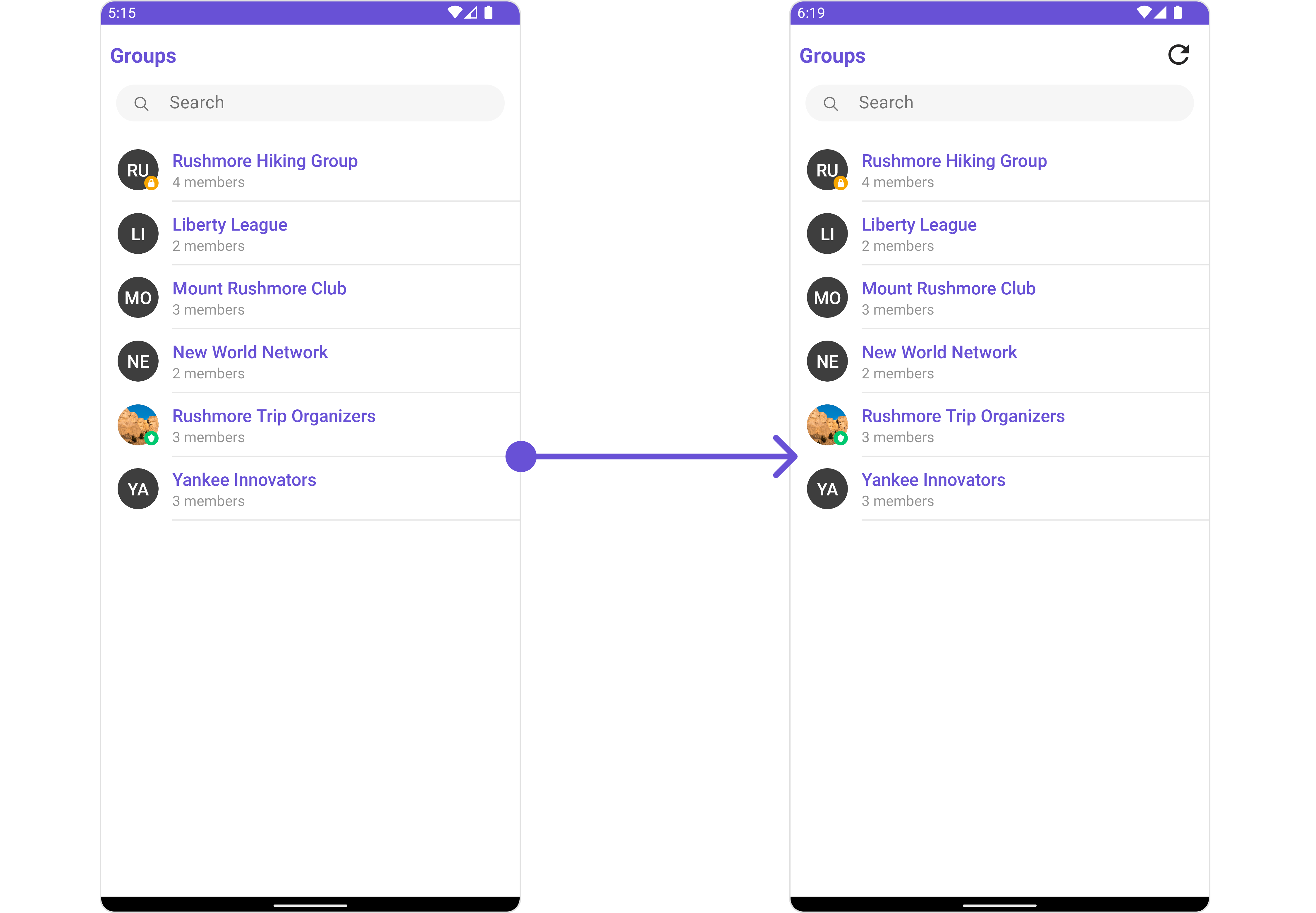 You need to create a `view_menu.xml` as a custom view file. Which we will inflate and pass to `.setMenu()`.
```xml view_menu.xml theme={null}
```
You inflate the view and pass it to `setMenu`. You can get the child view reference and can handle click actions.
```java YourActivity.java theme={null}
View view = getLayoutInflater().inflate(R.layout.view_menu, null);
ImageView imgRefresh = view.findViewById(R.id.img_refresh);
imgRefresh.setOnClickListener(v -> {
Toast.makeText(requireContext(), "Clicked on Refresh", Toast.LENGTH_SHORT).show();
});
cometchatGroups.setMenu(view);
```
```kotlin YourActivity.kt theme={null}
val view: View = layoutInflater.inflate(R.layout.view_menu, null)
val imgRefresh = view.findViewById(R.id.img_refresh)
imgRefresh.setOnClickListener { v: View? ->
Toast.makeText(requireContext(), "Clicked on Refresh", Toast.LENGTH_SHORT).show()
}
cometchatGroups.setMenu(view)
```
***
#### SetLoadingStateView
You can set a custom loader view using `setLoadingStateView` to match the loading view of your app.
```java theme={null}
cometchatGroups.setLoadingStateView();
```
```kotlin theme={null}
cometchatGroups.setLoadingStateView()
```
**Example**
You need to create a `view_menu.xml` as a custom view file. Which we will inflate and pass to `.setMenu()`.
```xml view_menu.xml theme={null}
```
You inflate the view and pass it to `setMenu`. You can get the child view reference and can handle click actions.
```java YourActivity.java theme={null}
View view = getLayoutInflater().inflate(R.layout.view_menu, null);
ImageView imgRefresh = view.findViewById(R.id.img_refresh);
imgRefresh.setOnClickListener(v -> {
Toast.makeText(requireContext(), "Clicked on Refresh", Toast.LENGTH_SHORT).show();
});
cometchatGroups.setMenu(view);
```
```kotlin YourActivity.kt theme={null}
val view: View = layoutInflater.inflate(R.layout.view_menu, null)
val imgRefresh = view.findViewById(R.id.img_refresh)
imgRefresh.setOnClickListener { v: View? ->
Toast.makeText(requireContext(), "Clicked on Refresh", Toast.LENGTH_SHORT).show()
}
cometchatGroups.setMenu(view)
```
***
#### SetLoadingStateView
You can set a custom loader view using `setLoadingStateView` to match the loading view of your app.
```java theme={null}
cometchatGroups.setLoadingStateView();
```
```kotlin theme={null}
cometchatGroups.setLoadingStateView()
```
**Example**
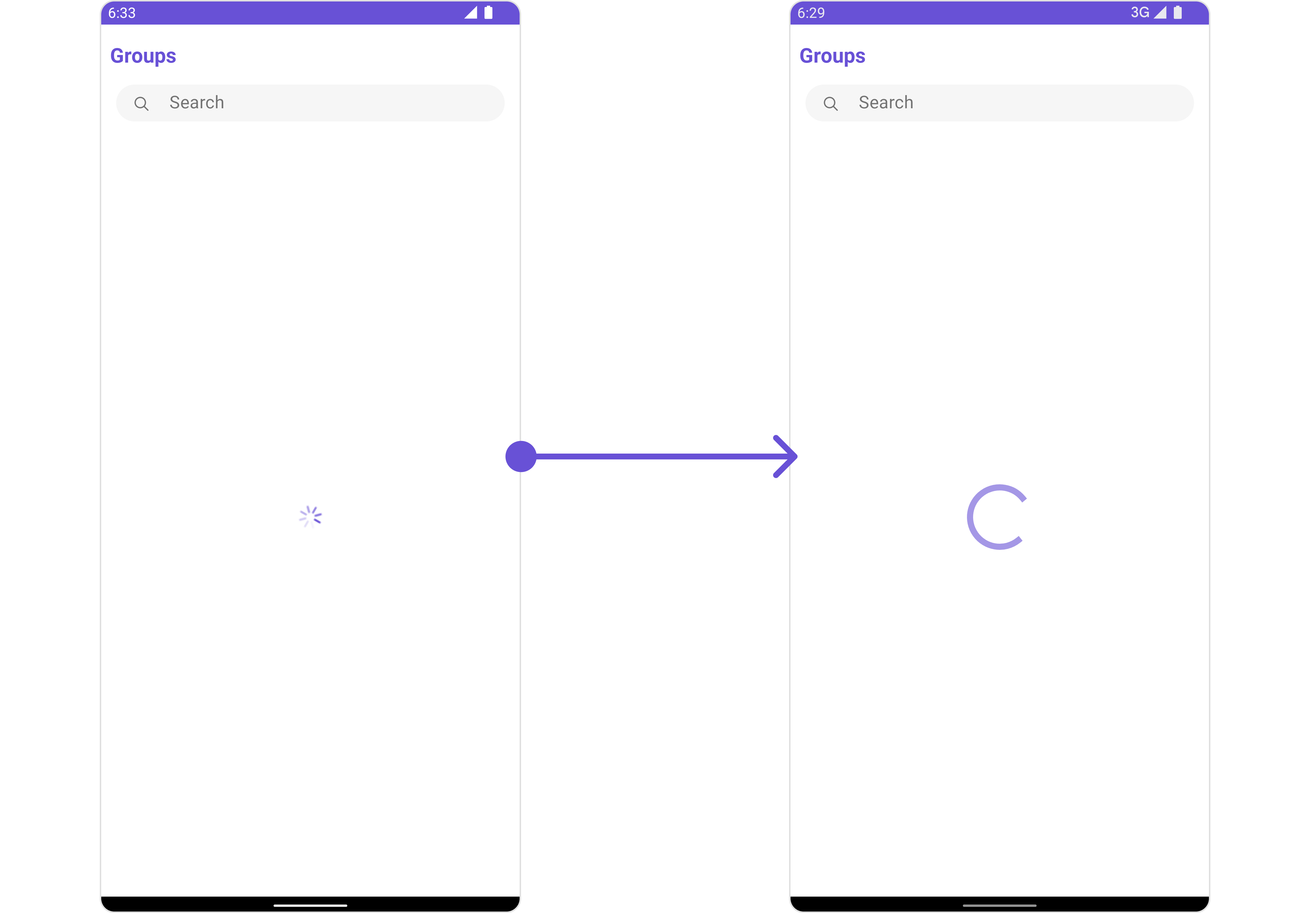 We have added a `ContentLoadingProgressBar` to `loading_view_layout.xml`. You can choose any view you prefer. This view should be inflated and passed to the `setLoadingStateView()` method.
```xml loading_view_layout.xml theme={null}
```
```java YourActivity.java theme={null}
cometchatGroups.setLoadingStateView(R.layout.loading_view_layout);
```
```kotlin YourActivity.kt theme={null}
cometchatGroups.setLoadingStateView(R.layout.loading_view_layout)
```
***
#### SetEmptyStateView
You can set a custom `EmptyStateView` using `setEmptyStateView` to match the empty view of your app.
```java theme={null}
cometchatGroups.setEmptyStateView();
```
```kotlin theme={null}
cometchatGroups.setEmptyStateView()
```
**Examples**
We have added a `ContentLoadingProgressBar` to `loading_view_layout.xml`. You can choose any view you prefer. This view should be inflated and passed to the `setLoadingStateView()` method.
```xml loading_view_layout.xml theme={null}
```
```java YourActivity.java theme={null}
cometchatGroups.setLoadingStateView(R.layout.loading_view_layout);
```
```kotlin YourActivity.kt theme={null}
cometchatGroups.setLoadingStateView(R.layout.loading_view_layout)
```
***
#### SetEmptyStateView
You can set a custom `EmptyStateView` using `setEmptyStateView` to match the empty view of your app.
```java theme={null}
cometchatGroups.setEmptyStateView();
```
```kotlin theme={null}
cometchatGroups.setEmptyStateView()
```
**Examples**
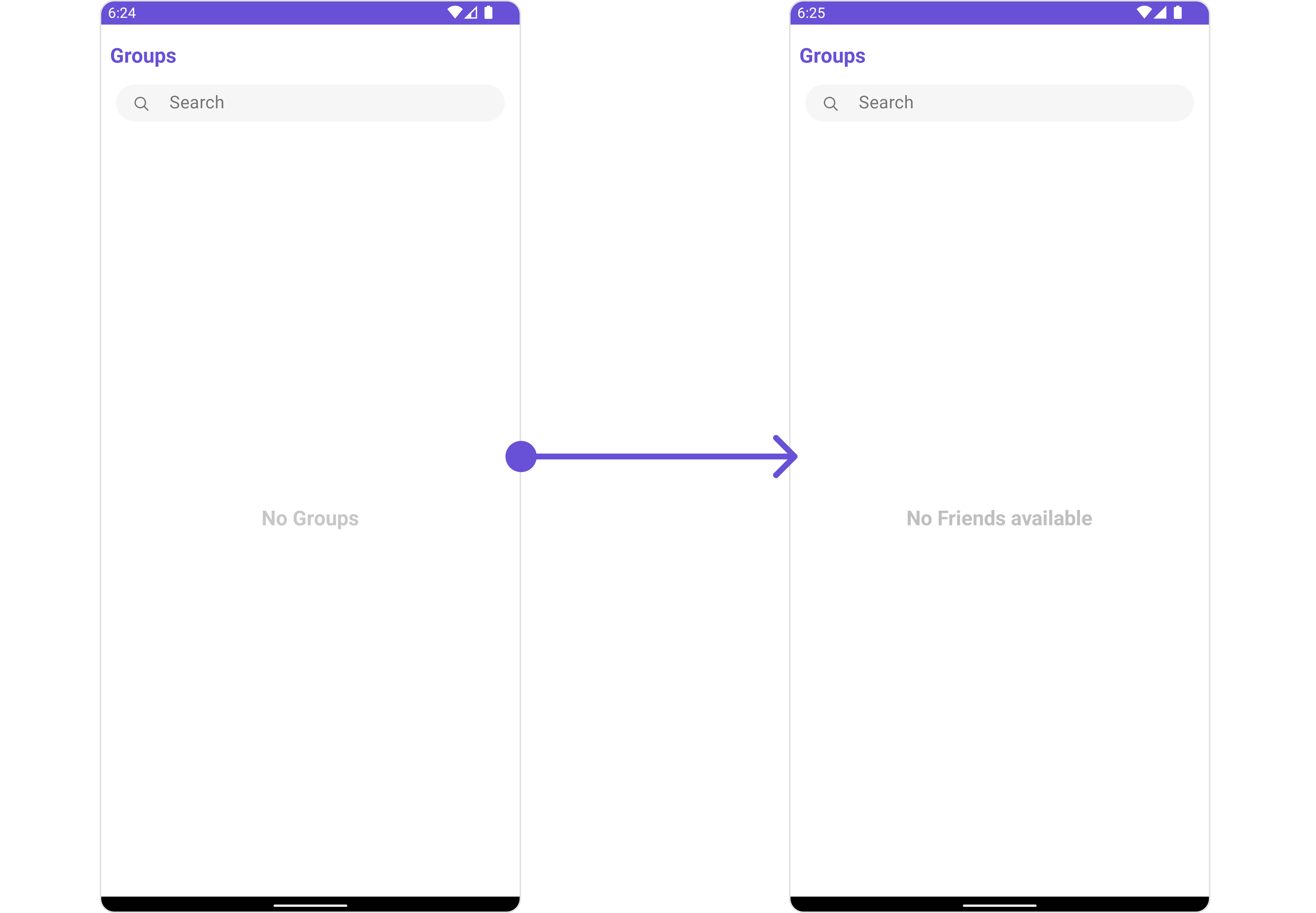 We have added an error view to `empty_view_layout.xml`. You can choose any view you prefer. This view should be inflated and passed to the `setEmptyStateView()` method.
```xml empty_view_layout.xml theme={null}
```
```java YourActivity.java theme={null}
cometchatGroups.setEmptyStateView(R.layout.empty_view_layout);
```
```kotlin YourActivity.kt theme={null}
cometchatGroups.setEmptyStateView(R.layout.empty_view_layout)
```
***
#### SetErrorStateView
You can set a custom `ErrorStateView` using `setErrorStateView` to match the error view of your app.
```java theme={null}
cometchatGroups.setErrorStateView();
```
```kotlin theme={null}
cometchatGroups.setErrorStateView()
```
**Example**
We have added an error view to `empty_view_layout.xml`. You can choose any view you prefer. This view should be inflated and passed to the `setEmptyStateView()` method.
```xml empty_view_layout.xml theme={null}
```
```java YourActivity.java theme={null}
cometchatGroups.setEmptyStateView(R.layout.empty_view_layout);
```
```kotlin YourActivity.kt theme={null}
cometchatGroups.setEmptyStateView(R.layout.empty_view_layout)
```
***
#### SetErrorStateView
You can set a custom `ErrorStateView` using `setErrorStateView` to match the error view of your app.
```java theme={null}
cometchatGroups.setErrorStateView();
```
```kotlin theme={null}
cometchatGroups.setErrorStateView()
```
**Example**
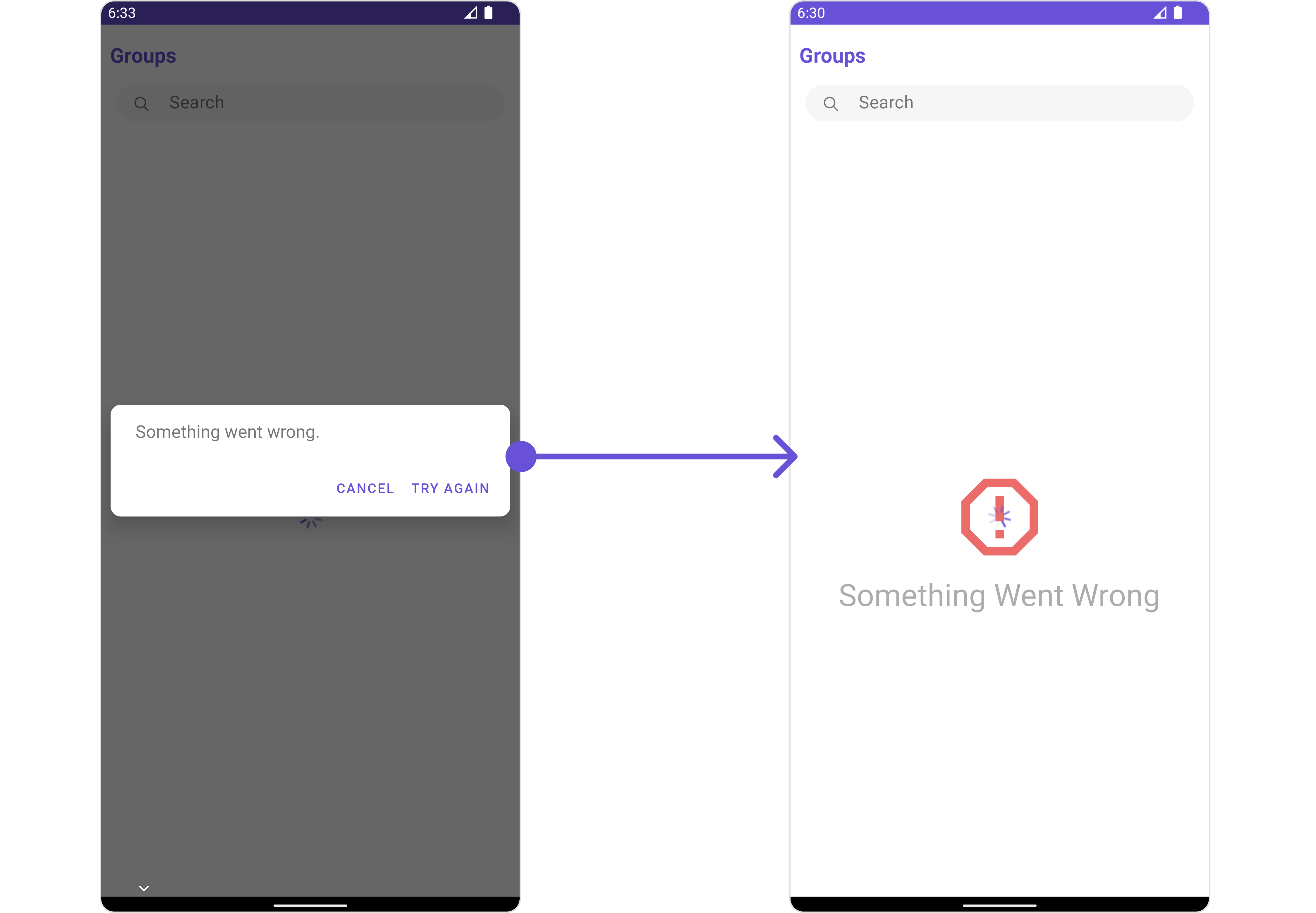 We have added an error view to `error_state_view_layout.xml`. You can choose any view you prefer. This view should be inflated and passed to the `setErrorStateView()` method.
```xml error_state_view_layout.xml theme={null}
```
```java YourActivity.java theme={null}
cometchatGroups.setErrorStateView(R.layout.error_state_view_layout);
```
"
```kotlin YourActivity.kt theme={null}
cometchatGroups.setErrorStateView(R.layout.error_state_view_layout);
```
***
We have added an error view to `error_state_view_layout.xml`. You can choose any view you prefer. This view should be inflated and passed to the `setErrorStateView()` method.
```xml error_state_view_layout.xml theme={null}
```
```java YourActivity.java theme={null}
cometchatGroups.setErrorStateView(R.layout.error_state_view_layout);
```
"
```kotlin YourActivity.kt theme={null}
cometchatGroups.setErrorStateView(R.layout.error_state_view_layout);
```
***