> ## Documentation Index
> Fetch the complete documentation index at: https://www.cometchat.com/docs/llms.txt
> Use this file to discover all available pages before exploring further.
# Add Members
> Add Members — CometChat documentation.
## Overview
`CometChatAddMembers` is a [Component](/ui-kit/android/v4/components-overview#components) that empowers administrators or group owners with the ability to expand group membership by seamlessly adding new participants. This component facilitates effortless management of group membership and enhances collaboration within the group's discussions and activities. Administrators can meticulously select desired users to join the group, whether by targeted search or from a list of available users. Selected users receive notifications, streamlining the process of joining the group and ensuring smooth integration into the community.
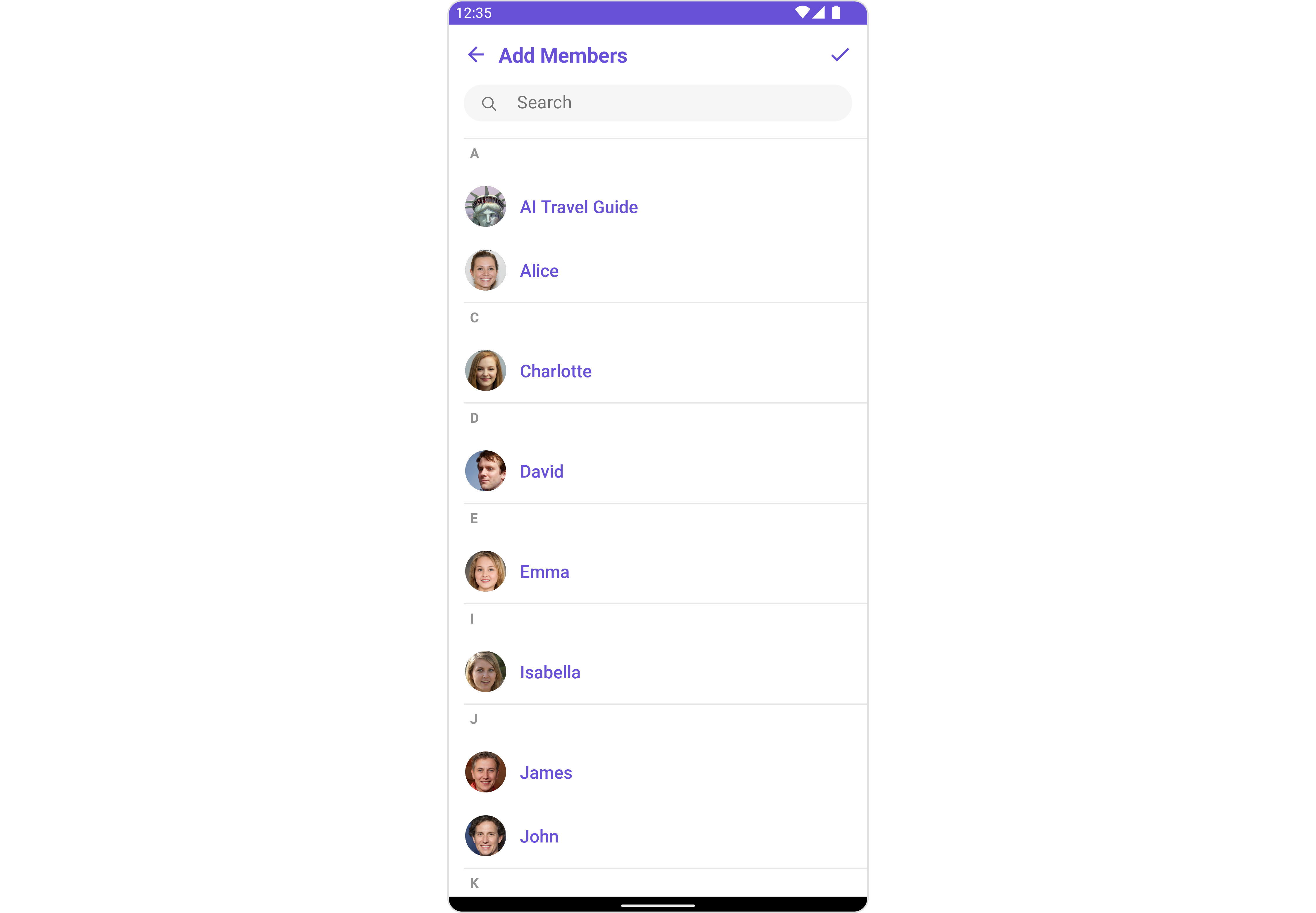 The `CometChatAddMembers` component is composed of the following BaseComponents:
| Components | Description |
| ------------------------------------------------- | ------------------------------------------------------------------------------------------------------------------------------------------------------------------------------------------------------------------------------------------------------------------------------------------------------------------------------------------------------------- |
| [CometChatUsers](/ui-kit/android/v4/users) | `CometChatUsers` is a standalone component that presents a user list and enables targeted user searches. As a container inheriting from `CometChatListBase`, it seamlessly incorporates the `CometChatUserList` component. This setup streamlines user browsing and search capabilities, enhancing overall usability and facilitating efficient interactions. |
| [CometChatListItem](/ui-kit/android/v4/list-item) | This component renders information extracted from a `User` object onto a tile, featuring a title, subtitle, leading view, and trailing view. experience, facilitating seamless navigation and interaction within the component. |
***
## Usage
### Integration
`CometChatAddMembers`, as a Composite Component, offers flexible integration options, allowing it to be launched directly via button clicks or any user-triggered action. Additionally, it seamlessly integrates into tab view controllers. With add members, users gain access to a wide range of parameters and methods for effortless customization of its user interface.
The following code snippet exemplifies how you can seamlessly integrate the GroupMembers component into your application.
```xml theme={null}
```
If you're defining the Group members within the XML code, you'll need to extract them and set them on the Group object using the appropriate method.
```java theme={null}
CometChatAddMembers cometchatAddMembers = binding.groupMember;
Group group = new Group();
group.setGuid("GROUP_ID");
group.setName("GROUP_NAME");
cometchatAddMembers.setGroup(group);
```
```kotlin theme={null}
val cometchatAddMembers: CometChatAddMembers = binding.groupMember
val group: Group = Group()
group.setGuid("GROUP_ID")
group.setName("GROUP_NAME")
cometchatAddMembers.setGroup(group)
```
***
### Actions
[Actions](/ui-kit/android/v4/components-overview#actions) dictate how a component functions. They are divided into two types: Predefined and User-defined. You can override either type, allowing you to tailor the behavior of the component to fit your specific needs.
##### 1. SetOnItemClick
This method proves valuable when users seek to override onItemClick functionality within CometChatAddMembers, empowering them with greater control and customization options.
The `setOnItemClick` action doesn't have a predefined behavior. You can override this action using the following code snippet.
```java theme={null}
cometchatAddMembers.setItemClickListener(new OnItemClickListener() {
@Override
public void OnItemClick(User user, int i) {
}
});
```
```kotlin theme={null}
cometchatAddMembers.setItemClickListener(object : OnItemClickListener() {
override fun OnItemClick(user: User, i: Int) {
}
})
```
***
##### 2. OnSelection
The `OnSelection` event is triggered upon the completion of a selection in `SelectionMode`. It does not have a default behavior. However, you can override its behavior using the following code snippet.
```java YourActivity.java theme={null}
cometchatAddMembers.setSelectionMode(UIKitConstants.SelectionMode.MULTIPLE);
cometchatAddMembers.setOnSelection(new CometChatUsers.OnSelection() {
@Override
public void onSelection(List list) {
// Handle selected members here
}
});
```
```kotlin YourActivity.kt theme={null}
cometchatAddMembers.setSelectionMode(UIKitConstants.SelectionMode.MULTIPLE)
cometchatAddMembers.setOnSelection { list ->
// Handle selected members here
}
```
***
##### 3. SetOnError
You can customize this behavior by using the provided code snippet to override the `On Error` and improve error handling.
```java theme={null}
cometchatAddMembers.setOnError(new OnError() {
@Override
public void onError(Context context, CometChatException e) {
}
});
```
```kotlin theme={null}
cometchatAddMembers.setOnError(OnError { context, e ->
})
```
***
##### 4. AddOnBackPressListener
You can customize this behavior by using the provided code snippet to override the `addOnBackPressListener` and improve error handling.
```java theme={null}
cometchatAddMembers.addOnBackPressListener(new CometChatListBase.OnBackPress() {
@Override
public void onBack() {
}
});
```
```kotlin theme={null}
cometchatAddMembers.addOnBackPressListener(CometChatListBase.OnBackPress {
})
```
***
### Filters
**Filters** allow you to customize the data displayed in a list within a `Component`. You can filter the list based on your specific criteria, allowing for a more customized. Filters can be applied using `RequestBuilders` of Chat SDK.
##### 1. UsersRequestBuilder
The [UsersRequestBuilder](/sdk/android/retrieve-users) enables you to filter and customize the group list based on available parameters in UsersRequestBuilder. This feature allows you to create more specific and targeted queries when fetching users. The following are the parameters available in [UsersRequestBuilder](/sdk/android/retrieve-users)
| Property | Description | Code |
| ------------------ | ------------------------------------------------------------------------------------------------------------------- | --------------------------- |
| **Limit** | Configure the maximum number of groups to fetch in a single request, optimizing pagination for smoother navigation. | `.setLimit(Int)` |
| **Search Keyword** | Employed to retrieve groups that match the provided string, facilitating precise searches. | `.setSearchKeyword(String)` |
| **Tags** | Used for fetching users containing the passed tags. | `.setTags(List)` |
| **Roles** | Used for fetching users containing the passed roles. | `.setRoles(List)` |
| **UIDs** | Used for fetching users containing the passed UIDs. | `.setUIDs(List)` |
| **User Status** | Used for fetching users by their status online or offline. | `.setUserStatus(String)` |
**Example**
```java theme={null}
UsersRequest.UsersRequestBuilder usersRequestBuilder = new UsersRequest.UsersRequestBuilder()
.setLimit(LIMIT)
.setTags(new ArrayList<>())
.setRoles(new ArrayList<>())
.setUIDs(new ArrayList<>())
.setUserStatus(STATUS);
cometchatAddMembers.setUsersRequestBuilder(usersRequestBuilder);
```
```kotlin theme={null}
val usersRequestBuilder = UsersRequestBuilder()
.setLimit(LIMIT)
.setTags(arrayListOf())
.setRoles(arrayListOf())
.setUIDs(arrayListOf())
.setUserStatus(STATUS)
cometchatAddMembers.setUsersRequestBuilder(usersRequestBuilder)
```
***
##### 2. SearchRequestBuilder
The SearchRequestBuilder uses [UsersRequestBuilder](/sdk/android/retrieve-users) enables you to filter and customize the search list based on available parameters in UsersRequestBuilder. This feature allows you to keep uniformity between the displayed User List and searched User List.
**Example**
```java theme={null}
UsersRequest.UsersRequestBuilder usersRequestBuilder = new UsersRequest.UsersRequestBuilder()
.setLimit(LIMIT)
.setSearchKeyword(SEARCH_KEYWORD);
cometchatAddMembers.setSearchRequestBuilder(usersRequestBuilder);
```
```kotlin theme={null}
val usersRequestBuilder = UsersRequestBuilder()
.setLimit(LIMIT)
.setSearchKeyword(SEARCH_KEYWORD)
cometchatAddMembers.setSearchRequestBuilder(usersRequestBuilder)
```
***
### Events
[Events](/ui-kit/android/v4/components-overview#events) are emitted by a `Component`. By using event you can extend existing functionality. Being global events, they can be applied in Multiple Locations and are capable of being Added or Removed.
Events emitted by the Join Group component is as follows.
| Event | Description |
| ---------------------- | -------------------------------------------------- |
| **ccGroupMemberAdded** | Triggers when a user added to a group successfully |
```java theme={null}
CometChatGroupEvents.addGroupListener("LISTENER_ID", new CometChatGroupEvents() {
@Override
public void ccGroupMemberAdded(List actionMessages, List usersAdded, Group userAddedIn, User addedBy) {
super.ccGroupMemberAdded(actionMessages, usersAdded, userAddedIn, addedBy);
}
});
```
```kotlin theme={null}
CometChatGroupEvents.addGroupListener("LISTENER_ID", object : CometChatGroupEvents() {
override fun ccGroupMemberAdded(
actionMessages: List,
usersAdded: List,
userAddedIn: Group,
addedBy: User
) {
super.ccGroupMemberAdded(actionMessages, usersAdded, userAddedIn, addedBy)
}
})
```
Remove the added listener
```java theme={null}
CometChatGroupEvents.removeListener("LISTENER_ID");
```
```kotlin theme={null}
CometChatGroupEvents.removeListener("LISTENER_ID")
```
## Customization
To fit your app's design requirements, you can customize the appearance of the Groups component. We provide exposed methods that allow you to modify the experience and behavior according to your specific needs.
### Style
Using **Style** you can **customize** the look and feel of the component in your app, These parameters typically control elements such as the **color**, **size**, **shape**, and **fonts** used within the component.
##### 1. AddMembers Style
To apply customized styles to the `AddMembers` component in the Group Member Component, you can use the following code snippet.
```java theme={null}
AddMembersStyle addMembersStyle = new AddMembersStyle();
addMembersStyle.setBackground(getResources().getColor(android.R.color.holo_red_dark));
addMembersStyle.setTitleColor(getResources().getColor(R.color.red));
cometchatAddMembers.setStyle(addMembersStyle);
```
```kotlin theme={null}
val addMembersStyle = AddMembersStyle()
addMembersStyle.setBackground(resources.getColor(R.color.holo_red_dark))
addMembersStyle.setTitleColor(resources.getColor(R.color.red))
cometchatAddMembers.setStyle(addMembersStyle)
```
List of properties exposed by `AddMembersStyle`
| Methods | Type | Description |
| --------------------------------- | ------------- | ------------------------------------------------------------------------------------------------------------------- |
| **Background** | @ColorInt int | Used to set the background color |
| **Border Width** | int | Used to set border |
| **Border Color** | @ColorInt int | Used to set border color |
| **Corner Radius** | float | Used to set border radius |
| **Background** | Drawable | Used to set background Drawable |
| **Title Appearance** | @StyleRes int | Used to customise the appearance of the title in the app bar |
| **Back Icon Tint** | @ColorInt int | Used to set the color of the back icon in the app bar |
| **Search Background** | @ColorInt int | Used to set the background color of the search box |
| **Search Border Radius** | int | Used to set the border radius of the search box |
| **Search Icon Tint** | @ColorInt int | Used to set the color of the search icon in the search box |
| **Search Border Width** | int | Used to set the border width of the search box |
| **Search Text Appearance** | @StyleRes int | Used to set the style of the text in the search box |
| **Loading Icon Tint** | @ColorInt int | Used to set the color of the icon shown while the list of group members is being fetched |
| **Empty Text Appearance** | @StyleRes int | Used to set the style of the response text shown when fetchig the list of group members has returned an empty list |
| **Error Text Appearance** | @StyleRes int | Used to set the style of the response text shown in case some error occurs while fetching the list of group members |
| **Online Status Color** | @ColorInt int | Used to set the color of the status indicator shown if a group member is online |
| **Separator Color** | @ColorInt int | Used to set the color of the divider separating the group member items |
| **Section Header TextAppearance** | @StyleRes int | Used to customise the appearance of the section header text. |
| **Section Header TextColor** | @ColorInt int | Used to set the color of the section header text. |
***
##### 2. Avatar Style
To apply customized styles to the `Avatar` component in the Group Member Component, you can use the following code snippet. For further insights on `Avatar` Styles [refer](/ui-kit/android/v4/avatar)
```java theme={null}
AvatarStyle avatarStyle = new AvatarStyle();
avatarStyle.setBorderWidth(10);
avatarStyle.setBorderColor(Color.BLACK);
cometchatAddMembers.setAvatarStyle(avatarStyle);
```
```kotlin theme={null}
val avatarStyle = AvatarStyle()
avatarStyle.borderWidth = 10
avatarStyle.borderColor = Color.BLACK
cometchatAddMembers.setAvatarStyle(avatarStyle)
```
***
##### 3. StatusIndicator Style
To apply customized styles to the Status Indicator component in the Group Member Component, You can use the following code snippet. For further insights on Status Indicator Styles [refer](/ui-kit/android/v4/status-indicator)
```java theme={null}
StatusIndicatorStyle statusIndicatorStyle = new StatusIndicatorStyle();
statusIndicatorStyle.setCornerRadius(3.5f);
statusIndicatorStyle.setBorderColor(Color.GREEN);
cometchatAddMembers.setStatusIndicatorStyle(statusIndicatorStyle);
```
```kotlin theme={null}
val statusIndicatorStyle = StatusIndicatorStyle()
statusIndicatorStyle.cornerRadius = 3.5f
statusIndicatorStyle.borderColor = Color.GREEN
cometchatAddMembers.setStatusIndicatorStyle(statusIndicatorStyle)
```
***
##### 4. ListItem Style
To apply customized styles to the `List Item` component in the `Group Member` Component, you can use the following code snippet. For further insights on `List Item` Styles [refer](/ui-kit/android/v4/list-item)
```java theme={null}
ListItemStyle listItemStyle = new ListItemStyle();
listItemStyle.setBackground(R.color.purple_200);
listItemStyle.setBorderWidth(2);
listItemStyle.setBorderColor(R.color.purple_700);
listItemStyle.setCornerRadius(20);
cometchatAddMembers.setListItemStyle(listItemStyle);
```
```kotlin theme={null}
val listItemStyle = ListItemStyle()
listItemStyle.setBackground(R.color.purple_200)
listItemStyle.setBorderWidth(2)
listItemStyle.setBorderColor(R.color.purple_700)
listItemStyle.setCornerRadius(20f)
cometchatAddMembers.setListItemStyle(listItemStyle)
```
***
### Functionality
These are a set of small functional customizations that allow you to fine-tune the overall experience of the component. With these, you can change text, set custom icons, and toggle the visibility of UI elements.
```java theme={null}
cometchatAddMembers.setTitle("Your Title");
cometchatAddMembers.disableUsersPresence(true);
cometchatAddMembers.hideSeparator(true);
```
```kotlin theme={null}
cometchatAddMembers.setTitle("Your Title")
cometchatAddMembers.disableUsersPresence(true)
cometchatAddMembers.hideSeparator(true)
```
List of functionality exposed by `CometChatAddMembers`
\| Property | Description | Code | | --------------------------- | ----------------------------------------------------------------------------------------------------------------------------------------------- | ------------------------------------------------ | --- | | **Group** | The group to which the users selected will be added. A required parameter. | `.setGroup(Group)` | | **Title** | Used to set title in the app bar | `.setTitle(String)` | | **Style** | Used to set styling properties | `.setStyle(AddMembersStyle)` | | **Avatar Style** | Used to customise the Avatar of the group member | `.setAvatarStyle(AvatarStyle)` | | **Status Indicator Style** | Used to customise the status indicator shown if a group member is online | `.setStatusIndicatorStyle(StatusIndicatorStyle)` | | **Search Placeholder Text** | Used to set search placeholder text | `.setSearchPlaceholderText(String)` | | **Back Icon** | Used to set back button icon | `.backIcon(@DrawableRes int res)` | | **Show Back Button** | Used to toggle visibility for back button | `.showBackButton(boolean)` | | **Search Box Icon** | Used to set search Icon in the search field | `.setSearchBoxIcon(@DrawableRes int res)` | | **Hide Search** | Used to toggle visibility for search box | `.hideSearch(boolean)` | | **Hide Error** | Used to hide error on fetching users and failing to add selected users to the group. | `.hideError(boolean)` | | **Hide Separator** | Used to hide the divider separating the user items | `.hideSeparator(boolean)` | | **Hide Section Separator** | Used to hide the text separating grouped user items | `.hideSectionSeparator(boolean)` | | **Disable Users Presence** | Used to control visibility of user indicator shown if user is online | `.disableUsersPresence(boolean)` | | **Selection Icon** | Used to override the default selection complete icon | `.setSelectionIcon(@DrawableRes int res)` | | **Submit Icon** | Used to override the default selection complete icon | `.setSubmitIcon(@DrawableRes int res)` | | **Selection Mode** | Used to set the number of users that can be selected. By default it is `SelectionMode.multiple`. SelectionMode can be single, multiple or none. | `.setSelectionMode(SelectionMode)` | |
***
### Advanced
For advanced-level customization, you can set custom views to the component. This lets you tailor each aspect of the component to fit your exact needs and application aesthetics. You can create and define your own views, layouts, and UI elements and then incorporate those into the component.
The `Add Members` component does not provide additional functionalities beyond this level of customization.
#### SetListItemView
With this function, you can assign a custom ListItem to the Conversations Component.
```java theme={null}
cometchatAddMembers.setListItemView(new UsersViewHolderListener() {
@Override
public View createView(Context context, CometChatListItem cometChatListItem) {
return null;
}
@Override
public void bindView(Context context, View view, User user, RecyclerView.ViewHolder viewHolder, List list, int i) {
}
});
```
```kotlin theme={null}
cometchatAddMembers.setListItemView(object : UsersViewHolderListener() {
override fun createView(context: Context, cometChatListItem: CometChatListItem): View? {
return null
}
override fun bindView(
context: Context,
view: View,
user: User,
viewHolder: RecyclerView.ViewHolder,
list: List,
i: Int
) {
}
})
```
**Example**
The `CometChatAddMembers` component is composed of the following BaseComponents:
| Components | Description |
| ------------------------------------------------- | ------------------------------------------------------------------------------------------------------------------------------------------------------------------------------------------------------------------------------------------------------------------------------------------------------------------------------------------------------------- |
| [CometChatUsers](/ui-kit/android/v4/users) | `CometChatUsers` is a standalone component that presents a user list and enables targeted user searches. As a container inheriting from `CometChatListBase`, it seamlessly incorporates the `CometChatUserList` component. This setup streamlines user browsing and search capabilities, enhancing overall usability and facilitating efficient interactions. |
| [CometChatListItem](/ui-kit/android/v4/list-item) | This component renders information extracted from a `User` object onto a tile, featuring a title, subtitle, leading view, and trailing view. experience, facilitating seamless navigation and interaction within the component. |
***
## Usage
### Integration
`CometChatAddMembers`, as a Composite Component, offers flexible integration options, allowing it to be launched directly via button clicks or any user-triggered action. Additionally, it seamlessly integrates into tab view controllers. With add members, users gain access to a wide range of parameters and methods for effortless customization of its user interface.
The following code snippet exemplifies how you can seamlessly integrate the GroupMembers component into your application.
```xml theme={null}
```
If you're defining the Group members within the XML code, you'll need to extract them and set them on the Group object using the appropriate method.
```java theme={null}
CometChatAddMembers cometchatAddMembers = binding.groupMember;
Group group = new Group();
group.setGuid("GROUP_ID");
group.setName("GROUP_NAME");
cometchatAddMembers.setGroup(group);
```
```kotlin theme={null}
val cometchatAddMembers: CometChatAddMembers = binding.groupMember
val group: Group = Group()
group.setGuid("GROUP_ID")
group.setName("GROUP_NAME")
cometchatAddMembers.setGroup(group)
```
***
### Actions
[Actions](/ui-kit/android/v4/components-overview#actions) dictate how a component functions. They are divided into two types: Predefined and User-defined. You can override either type, allowing you to tailor the behavior of the component to fit your specific needs.
##### 1. SetOnItemClick
This method proves valuable when users seek to override onItemClick functionality within CometChatAddMembers, empowering them with greater control and customization options.
The `setOnItemClick` action doesn't have a predefined behavior. You can override this action using the following code snippet.
```java theme={null}
cometchatAddMembers.setItemClickListener(new OnItemClickListener() {
@Override
public void OnItemClick(User user, int i) {
}
});
```
```kotlin theme={null}
cometchatAddMembers.setItemClickListener(object : OnItemClickListener() {
override fun OnItemClick(user: User, i: Int) {
}
})
```
***
##### 2. OnSelection
The `OnSelection` event is triggered upon the completion of a selection in `SelectionMode`. It does not have a default behavior. However, you can override its behavior using the following code snippet.
```java YourActivity.java theme={null}
cometchatAddMembers.setSelectionMode(UIKitConstants.SelectionMode.MULTIPLE);
cometchatAddMembers.setOnSelection(new CometChatUsers.OnSelection() {
@Override
public void onSelection(List list) {
// Handle selected members here
}
});
```
```kotlin YourActivity.kt theme={null}
cometchatAddMembers.setSelectionMode(UIKitConstants.SelectionMode.MULTIPLE)
cometchatAddMembers.setOnSelection { list ->
// Handle selected members here
}
```
***
##### 3. SetOnError
You can customize this behavior by using the provided code snippet to override the `On Error` and improve error handling.
```java theme={null}
cometchatAddMembers.setOnError(new OnError() {
@Override
public void onError(Context context, CometChatException e) {
}
});
```
```kotlin theme={null}
cometchatAddMembers.setOnError(OnError { context, e ->
})
```
***
##### 4. AddOnBackPressListener
You can customize this behavior by using the provided code snippet to override the `addOnBackPressListener` and improve error handling.
```java theme={null}
cometchatAddMembers.addOnBackPressListener(new CometChatListBase.OnBackPress() {
@Override
public void onBack() {
}
});
```
```kotlin theme={null}
cometchatAddMembers.addOnBackPressListener(CometChatListBase.OnBackPress {
})
```
***
### Filters
**Filters** allow you to customize the data displayed in a list within a `Component`. You can filter the list based on your specific criteria, allowing for a more customized. Filters can be applied using `RequestBuilders` of Chat SDK.
##### 1. UsersRequestBuilder
The [UsersRequestBuilder](/sdk/android/retrieve-users) enables you to filter and customize the group list based on available parameters in UsersRequestBuilder. This feature allows you to create more specific and targeted queries when fetching users. The following are the parameters available in [UsersRequestBuilder](/sdk/android/retrieve-users)
| Property | Description | Code |
| ------------------ | ------------------------------------------------------------------------------------------------------------------- | --------------------------- |
| **Limit** | Configure the maximum number of groups to fetch in a single request, optimizing pagination for smoother navigation. | `.setLimit(Int)` |
| **Search Keyword** | Employed to retrieve groups that match the provided string, facilitating precise searches. | `.setSearchKeyword(String)` |
| **Tags** | Used for fetching users containing the passed tags. | `.setTags(List)` |
| **Roles** | Used for fetching users containing the passed roles. | `.setRoles(List)` |
| **UIDs** | Used for fetching users containing the passed UIDs. | `.setUIDs(List)` |
| **User Status** | Used for fetching users by their status online or offline. | `.setUserStatus(String)` |
**Example**
```java theme={null}
UsersRequest.UsersRequestBuilder usersRequestBuilder = new UsersRequest.UsersRequestBuilder()
.setLimit(LIMIT)
.setTags(new ArrayList<>())
.setRoles(new ArrayList<>())
.setUIDs(new ArrayList<>())
.setUserStatus(STATUS);
cometchatAddMembers.setUsersRequestBuilder(usersRequestBuilder);
```
```kotlin theme={null}
val usersRequestBuilder = UsersRequestBuilder()
.setLimit(LIMIT)
.setTags(arrayListOf())
.setRoles(arrayListOf())
.setUIDs(arrayListOf())
.setUserStatus(STATUS)
cometchatAddMembers.setUsersRequestBuilder(usersRequestBuilder)
```
***
##### 2. SearchRequestBuilder
The SearchRequestBuilder uses [UsersRequestBuilder](/sdk/android/retrieve-users) enables you to filter and customize the search list based on available parameters in UsersRequestBuilder. This feature allows you to keep uniformity between the displayed User List and searched User List.
**Example**
```java theme={null}
UsersRequest.UsersRequestBuilder usersRequestBuilder = new UsersRequest.UsersRequestBuilder()
.setLimit(LIMIT)
.setSearchKeyword(SEARCH_KEYWORD);
cometchatAddMembers.setSearchRequestBuilder(usersRequestBuilder);
```
```kotlin theme={null}
val usersRequestBuilder = UsersRequestBuilder()
.setLimit(LIMIT)
.setSearchKeyword(SEARCH_KEYWORD)
cometchatAddMembers.setSearchRequestBuilder(usersRequestBuilder)
```
***
### Events
[Events](/ui-kit/android/v4/components-overview#events) are emitted by a `Component`. By using event you can extend existing functionality. Being global events, they can be applied in Multiple Locations and are capable of being Added or Removed.
Events emitted by the Join Group component is as follows.
| Event | Description |
| ---------------------- | -------------------------------------------------- |
| **ccGroupMemberAdded** | Triggers when a user added to a group successfully |
```java theme={null}
CometChatGroupEvents.addGroupListener("LISTENER_ID", new CometChatGroupEvents() {
@Override
public void ccGroupMemberAdded(List actionMessages, List usersAdded, Group userAddedIn, User addedBy) {
super.ccGroupMemberAdded(actionMessages, usersAdded, userAddedIn, addedBy);
}
});
```
```kotlin theme={null}
CometChatGroupEvents.addGroupListener("LISTENER_ID", object : CometChatGroupEvents() {
override fun ccGroupMemberAdded(
actionMessages: List,
usersAdded: List,
userAddedIn: Group,
addedBy: User
) {
super.ccGroupMemberAdded(actionMessages, usersAdded, userAddedIn, addedBy)
}
})
```
Remove the added listener
```java theme={null}
CometChatGroupEvents.removeListener("LISTENER_ID");
```
```kotlin theme={null}
CometChatGroupEvents.removeListener("LISTENER_ID")
```
## Customization
To fit your app's design requirements, you can customize the appearance of the Groups component. We provide exposed methods that allow you to modify the experience and behavior according to your specific needs.
### Style
Using **Style** you can **customize** the look and feel of the component in your app, These parameters typically control elements such as the **color**, **size**, **shape**, and **fonts** used within the component.
##### 1. AddMembers Style
To apply customized styles to the `AddMembers` component in the Group Member Component, you can use the following code snippet.
```java theme={null}
AddMembersStyle addMembersStyle = new AddMembersStyle();
addMembersStyle.setBackground(getResources().getColor(android.R.color.holo_red_dark));
addMembersStyle.setTitleColor(getResources().getColor(R.color.red));
cometchatAddMembers.setStyle(addMembersStyle);
```
```kotlin theme={null}
val addMembersStyle = AddMembersStyle()
addMembersStyle.setBackground(resources.getColor(R.color.holo_red_dark))
addMembersStyle.setTitleColor(resources.getColor(R.color.red))
cometchatAddMembers.setStyle(addMembersStyle)
```
List of properties exposed by `AddMembersStyle`
| Methods | Type | Description |
| --------------------------------- | ------------- | ------------------------------------------------------------------------------------------------------------------- |
| **Background** | @ColorInt int | Used to set the background color |
| **Border Width** | int | Used to set border |
| **Border Color** | @ColorInt int | Used to set border color |
| **Corner Radius** | float | Used to set border radius |
| **Background** | Drawable | Used to set background Drawable |
| **Title Appearance** | @StyleRes int | Used to customise the appearance of the title in the app bar |
| **Back Icon Tint** | @ColorInt int | Used to set the color of the back icon in the app bar |
| **Search Background** | @ColorInt int | Used to set the background color of the search box |
| **Search Border Radius** | int | Used to set the border radius of the search box |
| **Search Icon Tint** | @ColorInt int | Used to set the color of the search icon in the search box |
| **Search Border Width** | int | Used to set the border width of the search box |
| **Search Text Appearance** | @StyleRes int | Used to set the style of the text in the search box |
| **Loading Icon Tint** | @ColorInt int | Used to set the color of the icon shown while the list of group members is being fetched |
| **Empty Text Appearance** | @StyleRes int | Used to set the style of the response text shown when fetchig the list of group members has returned an empty list |
| **Error Text Appearance** | @StyleRes int | Used to set the style of the response text shown in case some error occurs while fetching the list of group members |
| **Online Status Color** | @ColorInt int | Used to set the color of the status indicator shown if a group member is online |
| **Separator Color** | @ColorInt int | Used to set the color of the divider separating the group member items |
| **Section Header TextAppearance** | @StyleRes int | Used to customise the appearance of the section header text. |
| **Section Header TextColor** | @ColorInt int | Used to set the color of the section header text. |
***
##### 2. Avatar Style
To apply customized styles to the `Avatar` component in the Group Member Component, you can use the following code snippet. For further insights on `Avatar` Styles [refer](/ui-kit/android/v4/avatar)
```java theme={null}
AvatarStyle avatarStyle = new AvatarStyle();
avatarStyle.setBorderWidth(10);
avatarStyle.setBorderColor(Color.BLACK);
cometchatAddMembers.setAvatarStyle(avatarStyle);
```
```kotlin theme={null}
val avatarStyle = AvatarStyle()
avatarStyle.borderWidth = 10
avatarStyle.borderColor = Color.BLACK
cometchatAddMembers.setAvatarStyle(avatarStyle)
```
***
##### 3. StatusIndicator Style
To apply customized styles to the Status Indicator component in the Group Member Component, You can use the following code snippet. For further insights on Status Indicator Styles [refer](/ui-kit/android/v4/status-indicator)
```java theme={null}
StatusIndicatorStyle statusIndicatorStyle = new StatusIndicatorStyle();
statusIndicatorStyle.setCornerRadius(3.5f);
statusIndicatorStyle.setBorderColor(Color.GREEN);
cometchatAddMembers.setStatusIndicatorStyle(statusIndicatorStyle);
```
```kotlin theme={null}
val statusIndicatorStyle = StatusIndicatorStyle()
statusIndicatorStyle.cornerRadius = 3.5f
statusIndicatorStyle.borderColor = Color.GREEN
cometchatAddMembers.setStatusIndicatorStyle(statusIndicatorStyle)
```
***
##### 4. ListItem Style
To apply customized styles to the `List Item` component in the `Group Member` Component, you can use the following code snippet. For further insights on `List Item` Styles [refer](/ui-kit/android/v4/list-item)
```java theme={null}
ListItemStyle listItemStyle = new ListItemStyle();
listItemStyle.setBackground(R.color.purple_200);
listItemStyle.setBorderWidth(2);
listItemStyle.setBorderColor(R.color.purple_700);
listItemStyle.setCornerRadius(20);
cometchatAddMembers.setListItemStyle(listItemStyle);
```
```kotlin theme={null}
val listItemStyle = ListItemStyle()
listItemStyle.setBackground(R.color.purple_200)
listItemStyle.setBorderWidth(2)
listItemStyle.setBorderColor(R.color.purple_700)
listItemStyle.setCornerRadius(20f)
cometchatAddMembers.setListItemStyle(listItemStyle)
```
***
### Functionality
These are a set of small functional customizations that allow you to fine-tune the overall experience of the component. With these, you can change text, set custom icons, and toggle the visibility of UI elements.
```java theme={null}
cometchatAddMembers.setTitle("Your Title");
cometchatAddMembers.disableUsersPresence(true);
cometchatAddMembers.hideSeparator(true);
```
```kotlin theme={null}
cometchatAddMembers.setTitle("Your Title")
cometchatAddMembers.disableUsersPresence(true)
cometchatAddMembers.hideSeparator(true)
```
List of functionality exposed by `CometChatAddMembers`
\| Property | Description | Code | | --------------------------- | ----------------------------------------------------------------------------------------------------------------------------------------------- | ------------------------------------------------ | --- | | **Group** | The group to which the users selected will be added. A required parameter. | `.setGroup(Group)` | | **Title** | Used to set title in the app bar | `.setTitle(String)` | | **Style** | Used to set styling properties | `.setStyle(AddMembersStyle)` | | **Avatar Style** | Used to customise the Avatar of the group member | `.setAvatarStyle(AvatarStyle)` | | **Status Indicator Style** | Used to customise the status indicator shown if a group member is online | `.setStatusIndicatorStyle(StatusIndicatorStyle)` | | **Search Placeholder Text** | Used to set search placeholder text | `.setSearchPlaceholderText(String)` | | **Back Icon** | Used to set back button icon | `.backIcon(@DrawableRes int res)` | | **Show Back Button** | Used to toggle visibility for back button | `.showBackButton(boolean)` | | **Search Box Icon** | Used to set search Icon in the search field | `.setSearchBoxIcon(@DrawableRes int res)` | | **Hide Search** | Used to toggle visibility for search box | `.hideSearch(boolean)` | | **Hide Error** | Used to hide error on fetching users and failing to add selected users to the group. | `.hideError(boolean)` | | **Hide Separator** | Used to hide the divider separating the user items | `.hideSeparator(boolean)` | | **Hide Section Separator** | Used to hide the text separating grouped user items | `.hideSectionSeparator(boolean)` | | **Disable Users Presence** | Used to control visibility of user indicator shown if user is online | `.disableUsersPresence(boolean)` | | **Selection Icon** | Used to override the default selection complete icon | `.setSelectionIcon(@DrawableRes int res)` | | **Submit Icon** | Used to override the default selection complete icon | `.setSubmitIcon(@DrawableRes int res)` | | **Selection Mode** | Used to set the number of users that can be selected. By default it is `SelectionMode.multiple`. SelectionMode can be single, multiple or none. | `.setSelectionMode(SelectionMode)` | |
***
### Advanced
For advanced-level customization, you can set custom views to the component. This lets you tailor each aspect of the component to fit your exact needs and application aesthetics. You can create and define your own views, layouts, and UI elements and then incorporate those into the component.
The `Add Members` component does not provide additional functionalities beyond this level of customization.
#### SetListItemView
With this function, you can assign a custom ListItem to the Conversations Component.
```java theme={null}
cometchatAddMembers.setListItemView(new UsersViewHolderListener() {
@Override
public View createView(Context context, CometChatListItem cometChatListItem) {
return null;
}
@Override
public void bindView(Context context, View view, User user, RecyclerView.ViewHolder viewHolder, List list, int i) {
}
});
```
```kotlin theme={null}
cometchatAddMembers.setListItemView(object : UsersViewHolderListener() {
override fun createView(context: Context, cometChatListItem: CometChatListItem): View? {
return null
}
override fun bindView(
context: Context,
view: View,
user: User,
viewHolder: RecyclerView.ViewHolder,
list: List,
i: Int
) {
}
})
```
**Example**
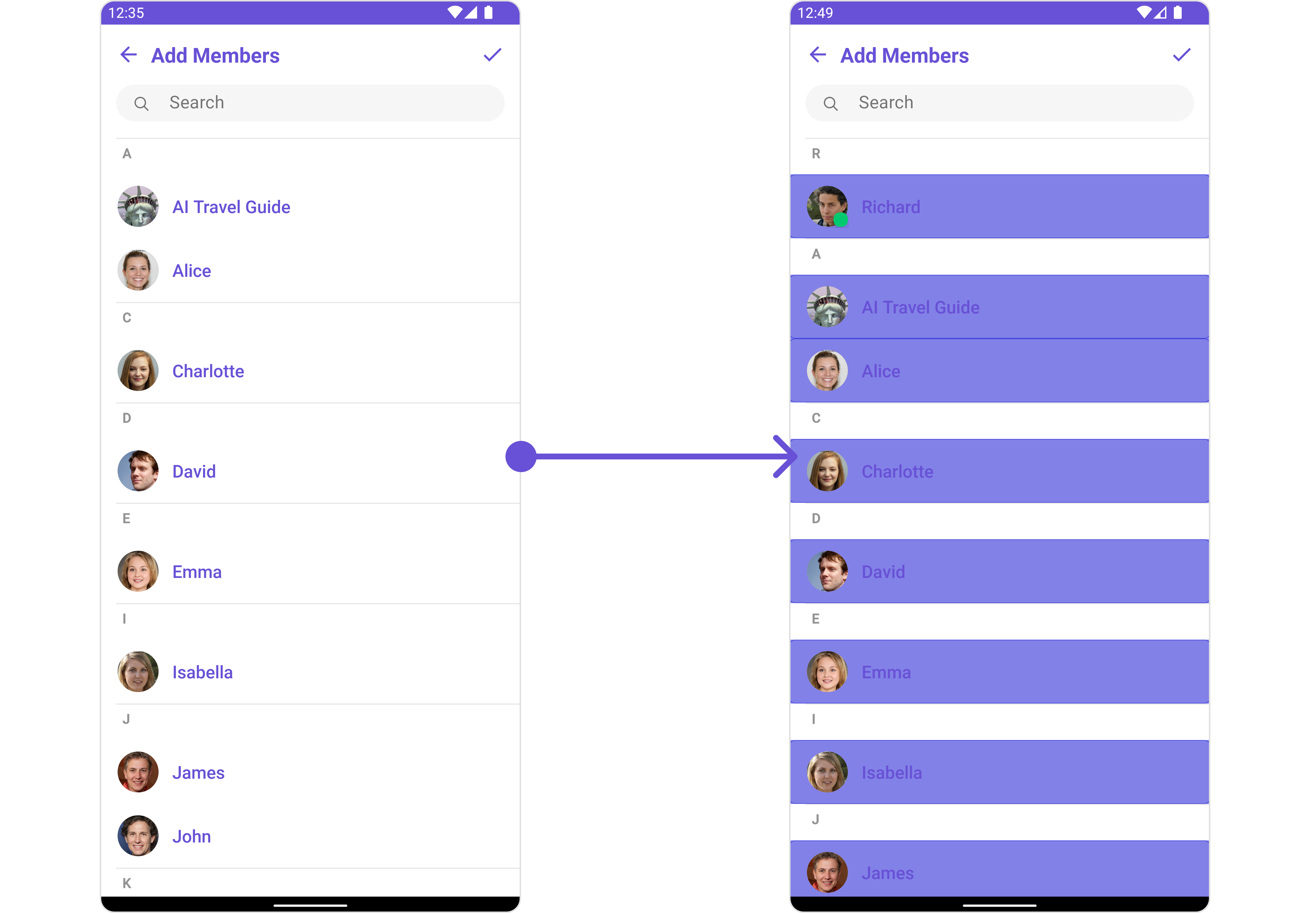 You can indeed create a custom layout file named `item_list.xml` for more complex or unique list items.
Once this layout file is made, you would inflate it inside the `createView()` method of the `UsersViewHolderListener`. The inflation process prepares the layout for use in your application:
Following this, you would use the `bindView()` method to initialize and assign values to your individual views. This could include setting text on TextViews, images on ImageViews, and so on based on the properties of the Group object:
```xml item_list.xml theme={null}
```
```java YourActivity.java theme={null}
cometchatAddMembers.setListItemView(new UsersViewHolderListener() {
@Override
public View createView(Context context, CometChatListItem cometChatListItem) {
View view = getLayoutInflater().inflate(R.layout.item_list, null);
return view;
}
@Override
public void bindView(Context context, View view, User user, RecyclerView.ViewHolder viewHolder, List list, int i) {
CometChatAvatar avatarView = view.findViewById(R.id.item_avatar);
avatarView.setRadius(100);
TextView nameView = view.findViewById(R.id.txt_item_name);
nameView.setText(user.getName());
avatarView.setImage(user.getAvatar());
}
});
```
```kotlin YourActivity.kt theme={null}
cometchatAddMembers.setListItemView(object : UsersViewHolderListener() {
override fun createView(context: Context, cometChatListItem: CometChatListItem): View {
val view: View = layoutInflater.inflate(R.layout.item_list, null)
return view
}
override fun bindView(
context: Context,
view: View,
user: User,
viewHolder: RecyclerView.ViewHolder,
list: List,
i: Int
) {
val avatarView = view.findViewById(R.id.item_avatar)
avatarView.radius = 100f
val nameView = view.findViewById(R.id.txt_item_name)
nameView.text = user.name
avatarView.setImage(user.avatar)
}
})
```
***
#### SetSubTitleView
You can customize the subtitle view for each conversation item to meet your requirements
```java theme={null}
cometchatAddMembers.setSubTitleView(new UsersViewHolderListener() {
@Override
public View createView(Context context, CometChatListItem cometChatListItem) {
return null;
}
@Override
public void bindView(Context context, View view, User user, RecyclerView.ViewHolder viewHolder, List list, int i) {
}
});
```
```kotlin theme={null}
cometchatAddMembers.setSubTitleView(object : UsersViewHolderListener() {
override fun createView(context: Context, cometChatListItem: CometChatListItem): View? {
return null
}
override fun bindView(
context: Context,
view: View,
user: User,
viewHolder: RecyclerView.ViewHolder,
list: List,
i: Int
) {
}
})
```
**Example**
You can indeed create a custom layout file named `item_list.xml` for more complex or unique list items.
Once this layout file is made, you would inflate it inside the `createView()` method of the `UsersViewHolderListener`. The inflation process prepares the layout for use in your application:
Following this, you would use the `bindView()` method to initialize and assign values to your individual views. This could include setting text on TextViews, images on ImageViews, and so on based on the properties of the Group object:
```xml item_list.xml theme={null}
```
```java YourActivity.java theme={null}
cometchatAddMembers.setListItemView(new UsersViewHolderListener() {
@Override
public View createView(Context context, CometChatListItem cometChatListItem) {
View view = getLayoutInflater().inflate(R.layout.item_list, null);
return view;
}
@Override
public void bindView(Context context, View view, User user, RecyclerView.ViewHolder viewHolder, List list, int i) {
CometChatAvatar avatarView = view.findViewById(R.id.item_avatar);
avatarView.setRadius(100);
TextView nameView = view.findViewById(R.id.txt_item_name);
nameView.setText(user.getName());
avatarView.setImage(user.getAvatar());
}
});
```
```kotlin YourActivity.kt theme={null}
cometchatAddMembers.setListItemView(object : UsersViewHolderListener() {
override fun createView(context: Context, cometChatListItem: CometChatListItem): View {
val view: View = layoutInflater.inflate(R.layout.item_list, null)
return view
}
override fun bindView(
context: Context,
view: View,
user: User,
viewHolder: RecyclerView.ViewHolder,
list: List,
i: Int
) {
val avatarView = view.findViewById(R.id.item_avatar)
avatarView.radius = 100f
val nameView = view.findViewById(R.id.txt_item_name)
nameView.text = user.name
avatarView.setImage(user.avatar)
}
})
```
***
#### SetSubTitleView
You can customize the subtitle view for each conversation item to meet your requirements
```java theme={null}
cometchatAddMembers.setSubTitleView(new UsersViewHolderListener() {
@Override
public View createView(Context context, CometChatListItem cometChatListItem) {
return null;
}
@Override
public void bindView(Context context, View view, User user, RecyclerView.ViewHolder viewHolder, List list, int i) {
}
});
```
```kotlin theme={null}
cometchatAddMembers.setSubTitleView(object : UsersViewHolderListener() {
override fun createView(context: Context, cometChatListItem: CometChatListItem): View? {
return null
}
override fun bindView(
context: Context,
view: View,
user: User,
viewHolder: RecyclerView.ViewHolder,
list: List,
i: Int
) {
}
})
```
**Example**
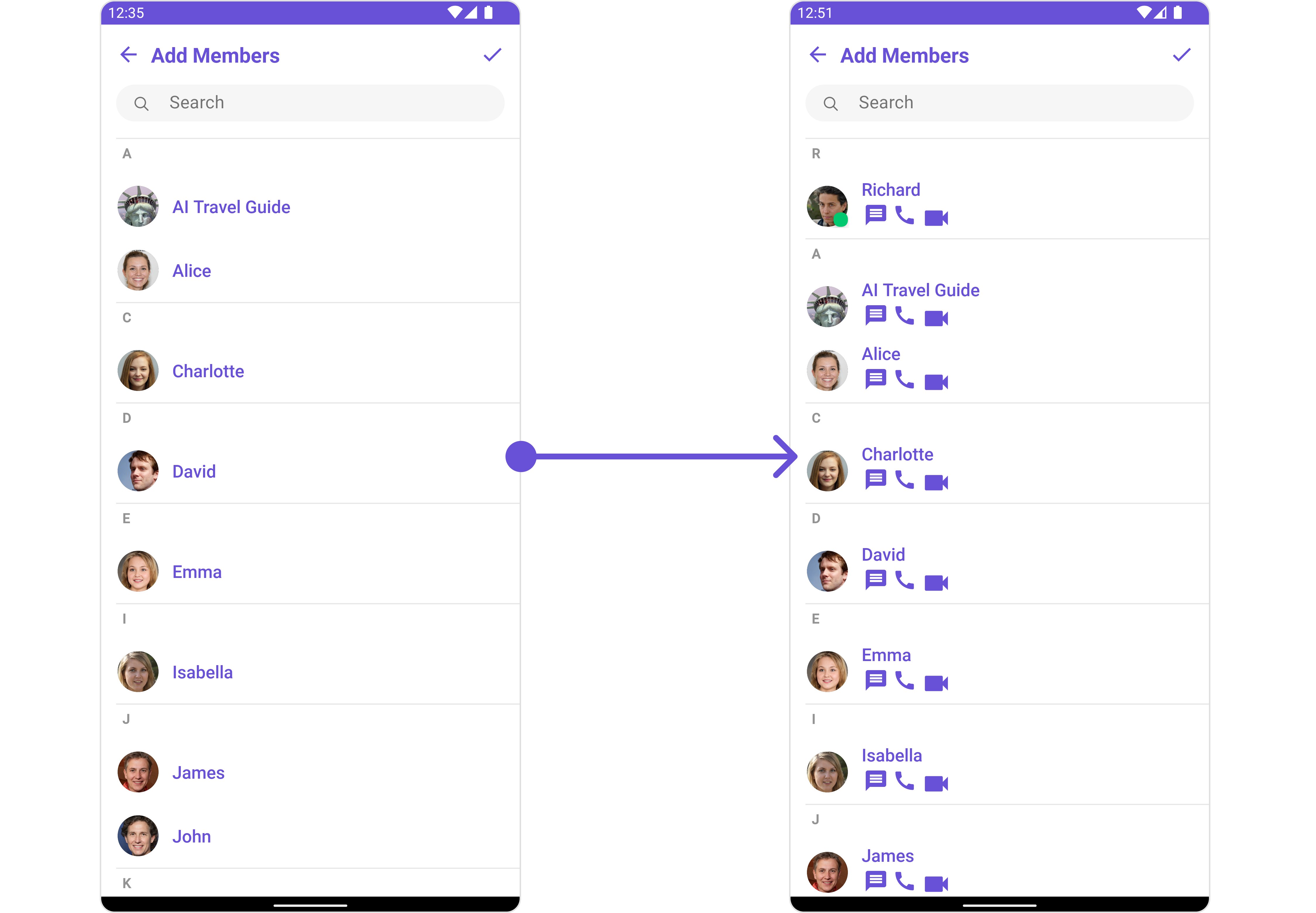 You can indeed create a custom layout file named `subtitle_layout.xml` for more complex or unique list items.
Once this layout file is made, you would inflate it inside the `createView()` method of the `UsersViewHolderListener`. The inflation process prepares the layout for use in your application:
Following this, you would use the `bindView()` method to initialize and assign values to your individual views. This could include setting text on TextViews, images on ImageViews, and so on based on the properties of the Group object:
```xml subtitle_layout.xml theme={null}
```
```java YourActivity.java theme={null}
cometchatAddMembers.setSubTitleView(new UsersViewHolderListener() {
@Override
public View createView(Context context, CometChatListItem cometChatListItem) {
View view = getLayoutInflater().inflate(R.layout.subtitle_layout, null);
return view;
}
@Override
public void bindView(Context context, View view, User user, RecyclerView.ViewHolder viewHolder, List list, int i) {
TextView txtSubtitle = view.findViewById(R.id.txt_subtitle);
ImageView imgConversation = view.findViewById(R.id.img_conversation);
ImageView imgAudioCall = view.findViewById(R.id.img_audio_call);;
ImageView imgVideCall = view.findViewById(R.id.img_video_call);;
txtSubtitle.setText(user.getName());
imgConversation.setOnClickListener(v -> {
Toast.makeText(context, "Conversation Clicked", Toast.LENGTH_SHORT).show();
});
imgAudioCall.setOnClickListener(v -> {
Toast.makeText(context, "Audio Call Clicked", Toast.LENGTH_SHORT).show();
});
imgVideCall.setOnClickListener(v -> {
Toast.makeText(context, "Video Call Clicked", Toast.LENGTH_SHORT).show();
});
}
});
```
```kotlin YourActivity.kt theme={null}
cometchatAddMembers.setSubTitleView(object : UsersViewHolderListener() {
override fun createView(context: Context, cometChatListItem: CometChatListItem): View {
val view: View = layoutInflater.inflate(R.layout.subtitle_layout, null)
return view
}
override fun bindView(
context: Context,
view: View,
user: User,
viewHolder: RecyclerView.ViewHolder,
list: List,
i: Int
) {
val txtSubtitle = view.findViewById(R.id.txt_subtitle)
val imgConversation = view.findViewById(R.id.img_conversation)
val imgAudioCall = view.findViewById(R.id.img_audio_call)
val imgVideCall = view.findViewById(R.id.img_video_call)
txtSubtitle.text = user.name
imgConversation.setOnClickListener { v: View? ->
Toast.makeText(context, "Conversation Clicked", Toast.LENGTH_SHORT).show()
}
imgAudioCall.setOnClickListener { v: View? ->
Toast.makeText(context, "Audio Call Clicked", Toast.LENGTH_SHORT).show()
}
imgVideCall.setOnClickListener { v: View? ->
Toast.makeText(context, "Video Call Clicked", Toast.LENGTH_SHORT).show()
}
}
})
```
***
#### SetTailView
Used to generate a custom trailing view for the GroupList item. You can add a Tail view using the following method.
```java theme={null}
cometchatAddMembers.setTailView(new UsersViewHolderListener() {
@Override
public View createView(Context context, CometChatListItem cometChatListItem) {
return null;
}
@Override
public void bindView(Context context, View view, User user, RecyclerView.ViewHolder viewHolder, List list, int i) {
}
});
```
```kotlin theme={null}
cometchatAddMembers.setTailView(object : UsersViewHolderListener() {
override fun createView(context: Context, cometChatListItem: CometChatListItem): View? {
return null
}
override fun bindView(
context: Context,
view: View,
user: User,
viewHolder: RecyclerView.ViewHolder,
list: List,
i: Int
) { }
})
```
**Example**
You can indeed create a custom layout file named `subtitle_layout.xml` for more complex or unique list items.
Once this layout file is made, you would inflate it inside the `createView()` method of the `UsersViewHolderListener`. The inflation process prepares the layout for use in your application:
Following this, you would use the `bindView()` method to initialize and assign values to your individual views. This could include setting text on TextViews, images on ImageViews, and so on based on the properties of the Group object:
```xml subtitle_layout.xml theme={null}
```
```java YourActivity.java theme={null}
cometchatAddMembers.setSubTitleView(new UsersViewHolderListener() {
@Override
public View createView(Context context, CometChatListItem cometChatListItem) {
View view = getLayoutInflater().inflate(R.layout.subtitle_layout, null);
return view;
}
@Override
public void bindView(Context context, View view, User user, RecyclerView.ViewHolder viewHolder, List list, int i) {
TextView txtSubtitle = view.findViewById(R.id.txt_subtitle);
ImageView imgConversation = view.findViewById(R.id.img_conversation);
ImageView imgAudioCall = view.findViewById(R.id.img_audio_call);;
ImageView imgVideCall = view.findViewById(R.id.img_video_call);;
txtSubtitle.setText(user.getName());
imgConversation.setOnClickListener(v -> {
Toast.makeText(context, "Conversation Clicked", Toast.LENGTH_SHORT).show();
});
imgAudioCall.setOnClickListener(v -> {
Toast.makeText(context, "Audio Call Clicked", Toast.LENGTH_SHORT).show();
});
imgVideCall.setOnClickListener(v -> {
Toast.makeText(context, "Video Call Clicked", Toast.LENGTH_SHORT).show();
});
}
});
```
```kotlin YourActivity.kt theme={null}
cometchatAddMembers.setSubTitleView(object : UsersViewHolderListener() {
override fun createView(context: Context, cometChatListItem: CometChatListItem): View {
val view: View = layoutInflater.inflate(R.layout.subtitle_layout, null)
return view
}
override fun bindView(
context: Context,
view: View,
user: User,
viewHolder: RecyclerView.ViewHolder,
list: List,
i: Int
) {
val txtSubtitle = view.findViewById(R.id.txt_subtitle)
val imgConversation = view.findViewById(R.id.img_conversation)
val imgAudioCall = view.findViewById(R.id.img_audio_call)
val imgVideCall = view.findViewById(R.id.img_video_call)
txtSubtitle.text = user.name
imgConversation.setOnClickListener { v: View? ->
Toast.makeText(context, "Conversation Clicked", Toast.LENGTH_SHORT).show()
}
imgAudioCall.setOnClickListener { v: View? ->
Toast.makeText(context, "Audio Call Clicked", Toast.LENGTH_SHORT).show()
}
imgVideCall.setOnClickListener { v: View? ->
Toast.makeText(context, "Video Call Clicked", Toast.LENGTH_SHORT).show()
}
}
})
```
***
#### SetTailView
Used to generate a custom trailing view for the GroupList item. You can add a Tail view using the following method.
```java theme={null}
cometchatAddMembers.setTailView(new UsersViewHolderListener() {
@Override
public View createView(Context context, CometChatListItem cometChatListItem) {
return null;
}
@Override
public void bindView(Context context, View view, User user, RecyclerView.ViewHolder viewHolder, List list, int i) {
}
});
```
```kotlin theme={null}
cometchatAddMembers.setTailView(object : UsersViewHolderListener() {
override fun createView(context: Context, cometChatListItem: CometChatListItem): View? {
return null
}
override fun bindView(
context: Context,
view: View,
user: User,
viewHolder: RecyclerView.ViewHolder,
list: List,
i: Int
) { }
})
```
**Example**
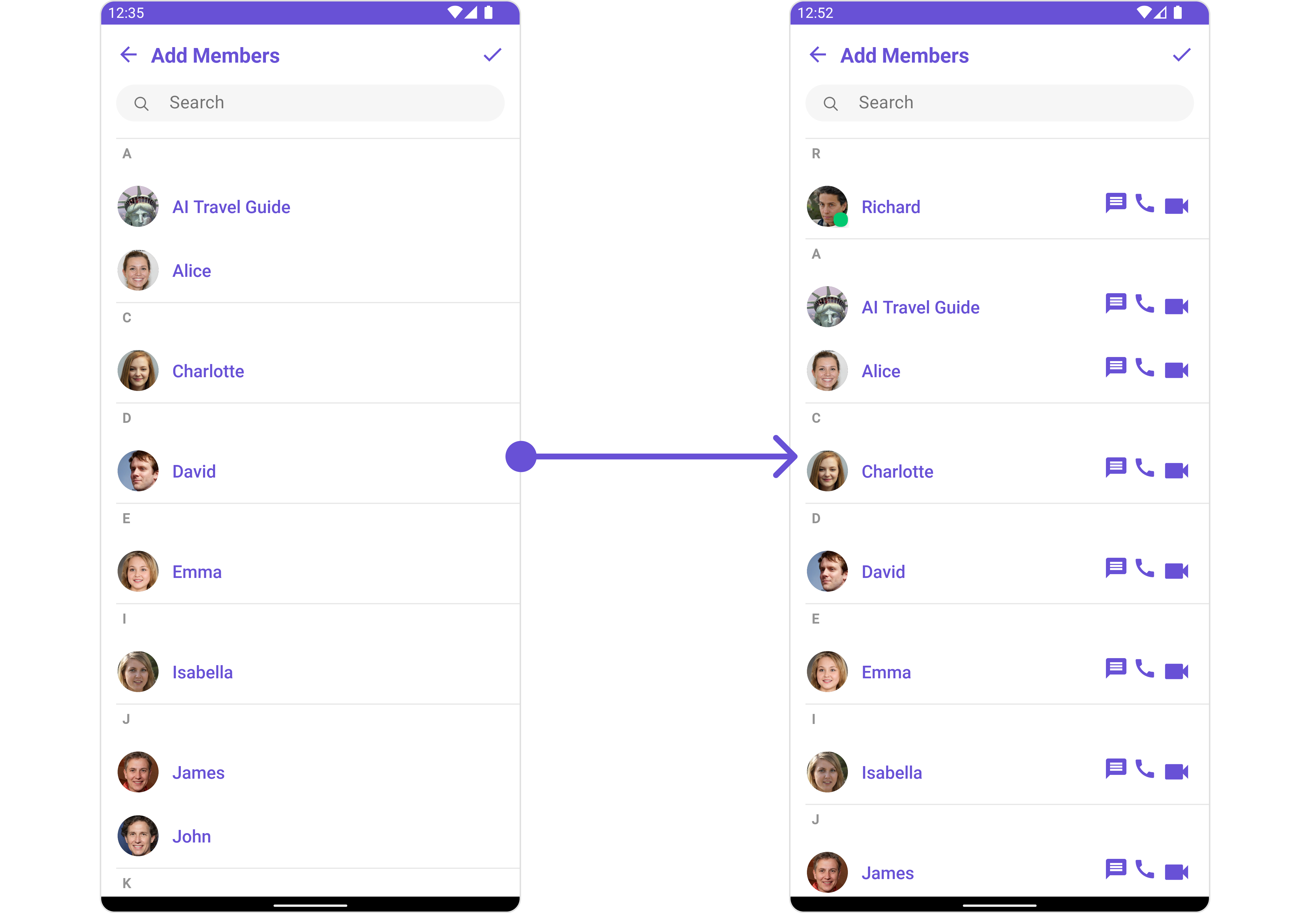 You can indeed create a custom layout file named `tail_view_layout.xml` for more complex or unique list items.
Once this layout file is made, you would inflate it inside the `createView()` method of the `UsersViewHolderListener`. The inflation process prepares the layout for use in your application:
Following this, you would use the `bindView()` method to initialize and assign values to your individual views. This could include setting text on TextViews, images on ImageViews, and so on based on the properties of the Group object:
```xml tail_view_layout.xml theme={null}
```
```java YourActivity.java theme={null}
cometchatAddMembers.setTailView(new UsersViewHolderListener() {
@Override
public View createView(Context context, CometChatListItem cometChatListItem) {
View view = getLayoutInflater().inflate(R.layout.subtitle_layout, null);
return view;
}
@Override
public void bindView(Context context, View view, User user, RecyclerView.ViewHolder viewHolder, List list, int i) {
TextView txtSubtitle = view.findViewById(R.id.txt_subtitle);
ImageView imgConversation = view.findViewById(R.id.img_conversation);
ImageView imgAudioCall = view.findViewById(R.id.img_audio_call);;
ImageView imgVideCall = view.findViewById(R.id.img_video_call);;
txtSubtitle.setText(user.getName());
imgConversation.setOnClickListener(v -> {
Toast.makeText(context, "Conversation Clicked", Toast.LENGTH_SHORT).show();
});
imgAudioCall.setOnClickListener(v -> {
Toast.makeText(context, "Audio Call Clicked", Toast.LENGTH_SHORT).show();
});
imgVideCall.setOnClickListener(v -> {
Toast.makeText(context, "Video Call Clicked", Toast.LENGTH_SHORT).show();
});
}
});
```
```kotlin YourActivity.kt theme={null}
cometchatAddMembers.setTailView(object : UsersViewHolderListener() {
override fun createView(context: Context, cometChatListItem: CometChatListItem): View {
val view: View = layoutInflater.inflate(R.layout.subtitle_layout, null)
return view
}
override fun bindView(
context: Context,
view: View,
user: User,
viewHolder: RecyclerView.ViewHolder,
list: List,
i: Int
) {
val txtSubtitle = view.findViewById(R.id.txt_subtitle)
val imgConversation = view.findViewById(R.id.img_conversation)
val imgAudioCall = view.findViewById(R.id.img_audio_call)
val imgVideCall = view.findViewById(R.id.img_video_call)
txtSubtitle.text = user.name
imgConversation.setOnClickListener { v: View? ->
Toast.makeText(context, "Conversation Clicked", Toast.LENGTH_SHORT).show()
}
imgAudioCall.setOnClickListener { v: View? ->
Toast.makeText(context, "Audio Call Clicked", Toast.LENGTH_SHORT).show()
}
imgVideCall.setOnClickListener { v: View? ->
Toast.makeText(context, "Video Call Clicked", Toast.LENGTH_SHORT).show()
}
}
})
```
***
#### SetMenu
You can set the Custom Menu view to add more options to the Groups component.
```java theme={null}
cometchatAddMembers.setMenu(View v);
```
```kotlin theme={null}
cometchatAddMembers.setMenu(v)
```
**Example**
You can indeed create a custom layout file named `tail_view_layout.xml` for more complex or unique list items.
Once this layout file is made, you would inflate it inside the `createView()` method of the `UsersViewHolderListener`. The inflation process prepares the layout for use in your application:
Following this, you would use the `bindView()` method to initialize and assign values to your individual views. This could include setting text on TextViews, images on ImageViews, and so on based on the properties of the Group object:
```xml tail_view_layout.xml theme={null}
```
```java YourActivity.java theme={null}
cometchatAddMembers.setTailView(new UsersViewHolderListener() {
@Override
public View createView(Context context, CometChatListItem cometChatListItem) {
View view = getLayoutInflater().inflate(R.layout.subtitle_layout, null);
return view;
}
@Override
public void bindView(Context context, View view, User user, RecyclerView.ViewHolder viewHolder, List list, int i) {
TextView txtSubtitle = view.findViewById(R.id.txt_subtitle);
ImageView imgConversation = view.findViewById(R.id.img_conversation);
ImageView imgAudioCall = view.findViewById(R.id.img_audio_call);;
ImageView imgVideCall = view.findViewById(R.id.img_video_call);;
txtSubtitle.setText(user.getName());
imgConversation.setOnClickListener(v -> {
Toast.makeText(context, "Conversation Clicked", Toast.LENGTH_SHORT).show();
});
imgAudioCall.setOnClickListener(v -> {
Toast.makeText(context, "Audio Call Clicked", Toast.LENGTH_SHORT).show();
});
imgVideCall.setOnClickListener(v -> {
Toast.makeText(context, "Video Call Clicked", Toast.LENGTH_SHORT).show();
});
}
});
```
```kotlin YourActivity.kt theme={null}
cometchatAddMembers.setTailView(object : UsersViewHolderListener() {
override fun createView(context: Context, cometChatListItem: CometChatListItem): View {
val view: View = layoutInflater.inflate(R.layout.subtitle_layout, null)
return view
}
override fun bindView(
context: Context,
view: View,
user: User,
viewHolder: RecyclerView.ViewHolder,
list: List,
i: Int
) {
val txtSubtitle = view.findViewById(R.id.txt_subtitle)
val imgConversation = view.findViewById(R.id.img_conversation)
val imgAudioCall = view.findViewById(R.id.img_audio_call)
val imgVideCall = view.findViewById(R.id.img_video_call)
txtSubtitle.text = user.name
imgConversation.setOnClickListener { v: View? ->
Toast.makeText(context, "Conversation Clicked", Toast.LENGTH_SHORT).show()
}
imgAudioCall.setOnClickListener { v: View? ->
Toast.makeText(context, "Audio Call Clicked", Toast.LENGTH_SHORT).show()
}
imgVideCall.setOnClickListener { v: View? ->
Toast.makeText(context, "Video Call Clicked", Toast.LENGTH_SHORT).show()
}
}
})
```
***
#### SetMenu
You can set the Custom Menu view to add more options to the Groups component.
```java theme={null}
cometchatAddMembers.setMenu(View v);
```
```kotlin theme={null}
cometchatAddMembers.setMenu(v)
```
**Example**
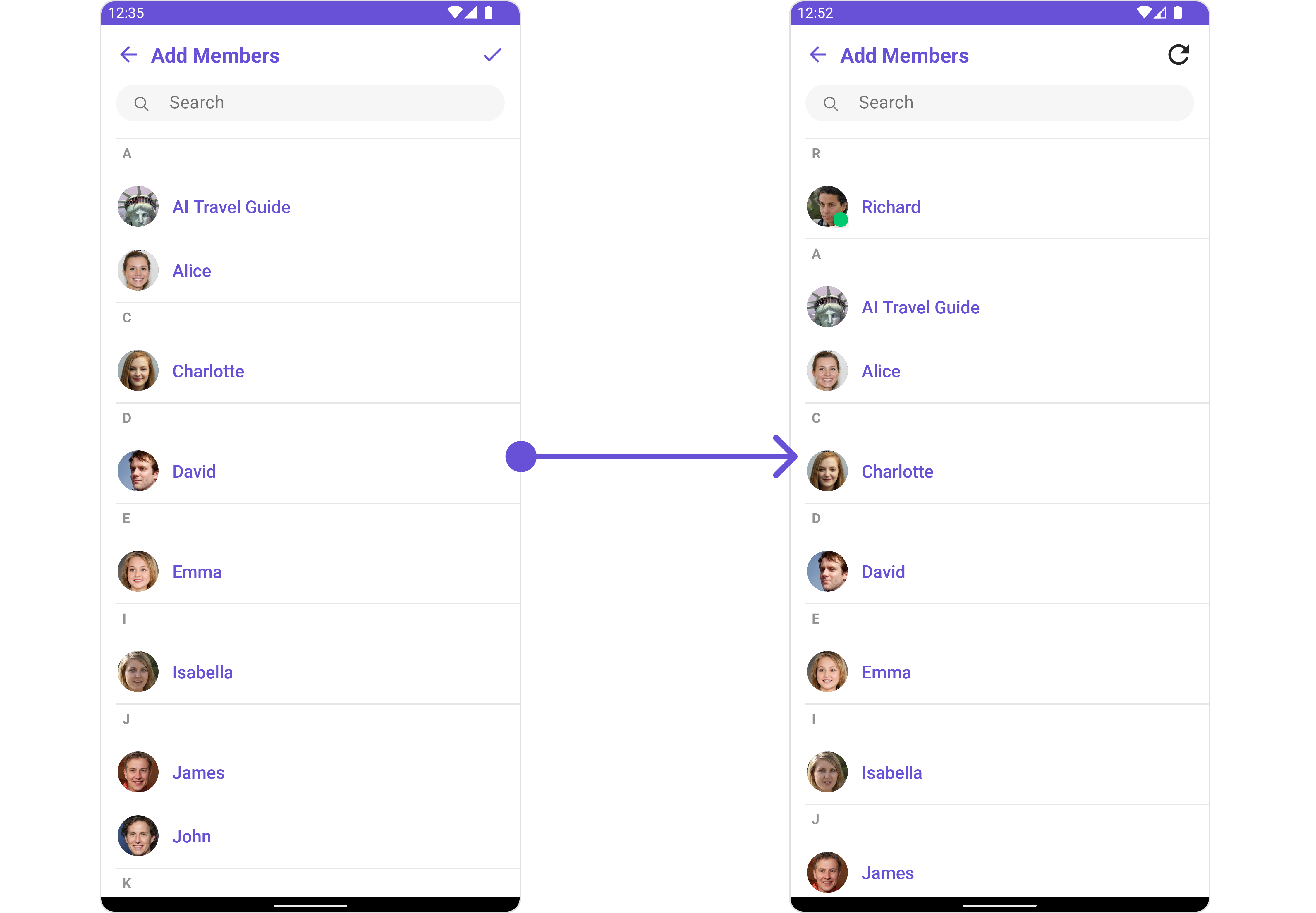 You need to create a `view_menu.xml` as a custom view file. Which we will inflate and pass to `.setMenu()`.
```xml view_menu.xml theme={null}
```
You inflate the view and pass it to `setMenu`. You can get the child view reference and can handle click actions.
```java YourActivity.java theme={null}
View view = getLayoutInflater().inflate(R.layout.view_menu, null);
ImageView imgRefresh = view.findViewById(R.id.img_refresh);
imgRefresh.setOnClickListener(v -> {
Toast.makeText(requireContext(), "Clicked on Refresh", Toast.LENGTH_SHORT).show();
});
cometchatAddMembers.setMenu(view);
```
```kotlin YourActivity.kt theme={null}
val view: View = layoutInflater.inflate(R.layout.view_menu, null)
val imgRefresh = view.findViewById(R.id.img_refresh)
imgRefresh.setOnClickListener { v: View? ->
Toast.makeText(requireContext(), "Clicked on Refresh", Toast.LENGTH_SHORT).show()
}
cometchatAddMembers.setMenu(view)
```
***
#### SetLoadingStateView
You can set a custom loader view using `setLoadingStateView` to match the loading view of your app.
```java theme={null}
cometchatAddMembers.setLoadingStateView();
```
```kotlin theme={null}
cometchatAddMembers.setLoadingStateView()
```
**Example**
You need to create a `view_menu.xml` as a custom view file. Which we will inflate and pass to `.setMenu()`.
```xml view_menu.xml theme={null}
```
You inflate the view and pass it to `setMenu`. You can get the child view reference and can handle click actions.
```java YourActivity.java theme={null}
View view = getLayoutInflater().inflate(R.layout.view_menu, null);
ImageView imgRefresh = view.findViewById(R.id.img_refresh);
imgRefresh.setOnClickListener(v -> {
Toast.makeText(requireContext(), "Clicked on Refresh", Toast.LENGTH_SHORT).show();
});
cometchatAddMembers.setMenu(view);
```
```kotlin YourActivity.kt theme={null}
val view: View = layoutInflater.inflate(R.layout.view_menu, null)
val imgRefresh = view.findViewById(R.id.img_refresh)
imgRefresh.setOnClickListener { v: View? ->
Toast.makeText(requireContext(), "Clicked on Refresh", Toast.LENGTH_SHORT).show()
}
cometchatAddMembers.setMenu(view)
```
***
#### SetLoadingStateView
You can set a custom loader view using `setLoadingStateView` to match the loading view of your app.
```java theme={null}
cometchatAddMembers.setLoadingStateView();
```
```kotlin theme={null}
cometchatAddMembers.setLoadingStateView()
```
**Example**
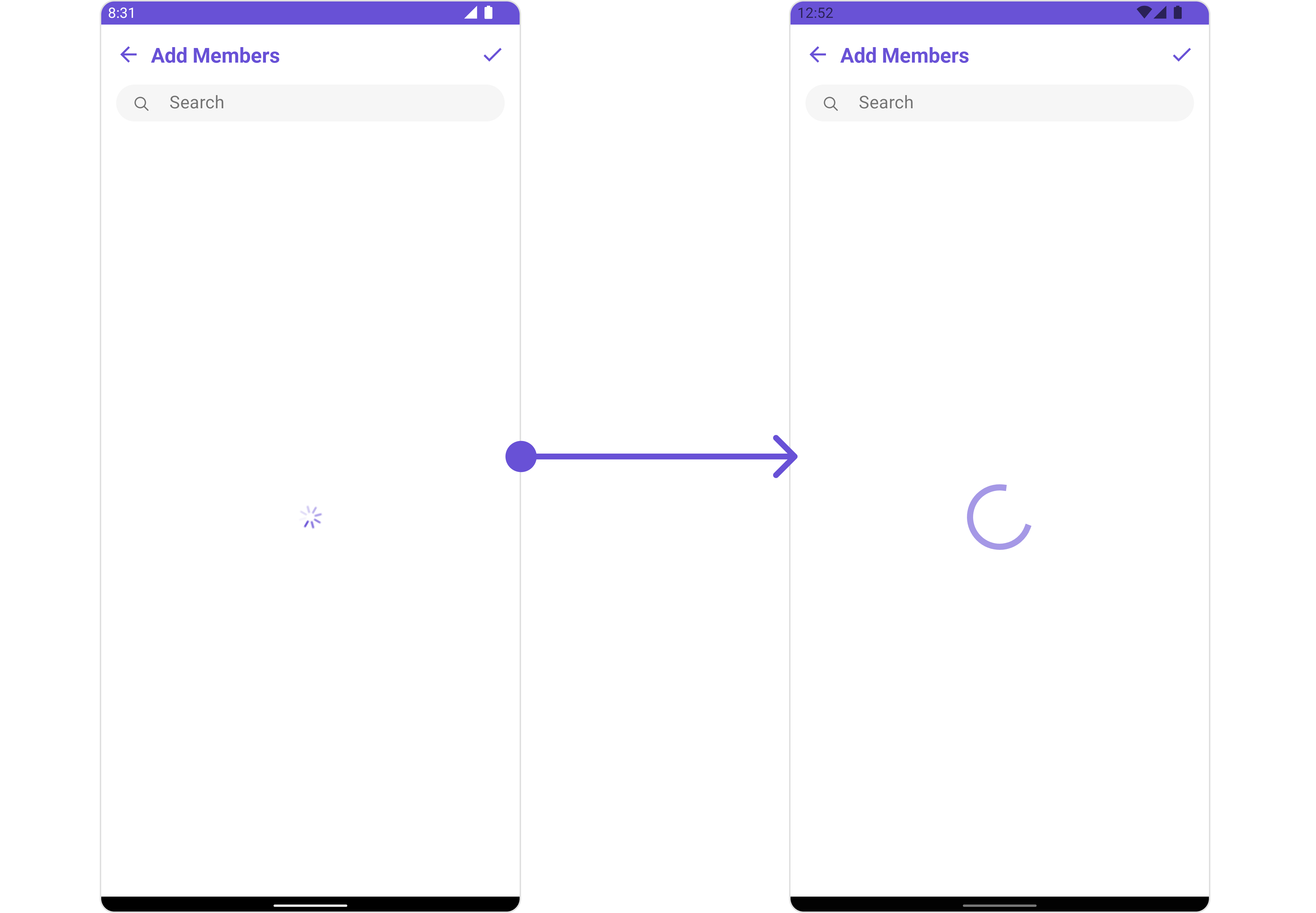 We have added a `ContentLoadingProgressBar` to `loading_view_layout.xml`. You can choose any view you prefer. This view should be inflated and passed to the `setLoadingStateView()` method.
```xml loading_view_layout.xml theme={null}
```
```java YourActivity.java theme={null}
cometchatAddMembers.setLoadingStateView(R.layout.loading_view_layout);
```
```kotlin YourActivity.kt theme={null}
cometchatAddMembers.setLoadingStateView(R.layout.loading_view_layout)
```
***
#### SetEmptyStateView
You can set a custom `EmptyStateView` using `setEmptyStateView` to match the empty view of your app.
```java theme={null}
cometchatAddMembers.setEmptyStateView();
```
```kotlin theme={null}
cometchatAddMembers.setEmptyStateView()
```
**Examples**
We have added an error view to `empty_view_layout.xml`. You can choose any view you prefer. This view should be inflated and passed to the `setEmptyStateView()` method.
```xml empty_view_layout.xml theme={null}
```
```java YourActivity.java theme={null}
cometchatAddMembers.setEmptyStateView(R.layout.empty_view_layout);
```
```kotlin YourActivity.kt theme={null}
cometchatAddMembers.setEmptyStateView(R.layout.empty_view_layout);
```
***
#### SetErrorStateView
You can set a custom `ErrorStateView` using `setErrorStateView` to match the error view of your app.
```java theme={null}
cometchatAddMembers.setErrorStateView();
```
```kotlin theme={null}
cometchatAddMembers.setErrorStateView()
```
**Example**
We have added a `ContentLoadingProgressBar` to `loading_view_layout.xml`. You can choose any view you prefer. This view should be inflated and passed to the `setLoadingStateView()` method.
```xml loading_view_layout.xml theme={null}
```
```java YourActivity.java theme={null}
cometchatAddMembers.setLoadingStateView(R.layout.loading_view_layout);
```
```kotlin YourActivity.kt theme={null}
cometchatAddMembers.setLoadingStateView(R.layout.loading_view_layout)
```
***
#### SetEmptyStateView
You can set a custom `EmptyStateView` using `setEmptyStateView` to match the empty view of your app.
```java theme={null}
cometchatAddMembers.setEmptyStateView();
```
```kotlin theme={null}
cometchatAddMembers.setEmptyStateView()
```
**Examples**
We have added an error view to `empty_view_layout.xml`. You can choose any view you prefer. This view should be inflated and passed to the `setEmptyStateView()` method.
```xml empty_view_layout.xml theme={null}
```
```java YourActivity.java theme={null}
cometchatAddMembers.setEmptyStateView(R.layout.empty_view_layout);
```
```kotlin YourActivity.kt theme={null}
cometchatAddMembers.setEmptyStateView(R.layout.empty_view_layout);
```
***
#### SetErrorStateView
You can set a custom `ErrorStateView` using `setErrorStateView` to match the error view of your app.
```java theme={null}
cometchatAddMembers.setErrorStateView();
```
```kotlin theme={null}
cometchatAddMembers.setErrorStateView()
```
**Example**
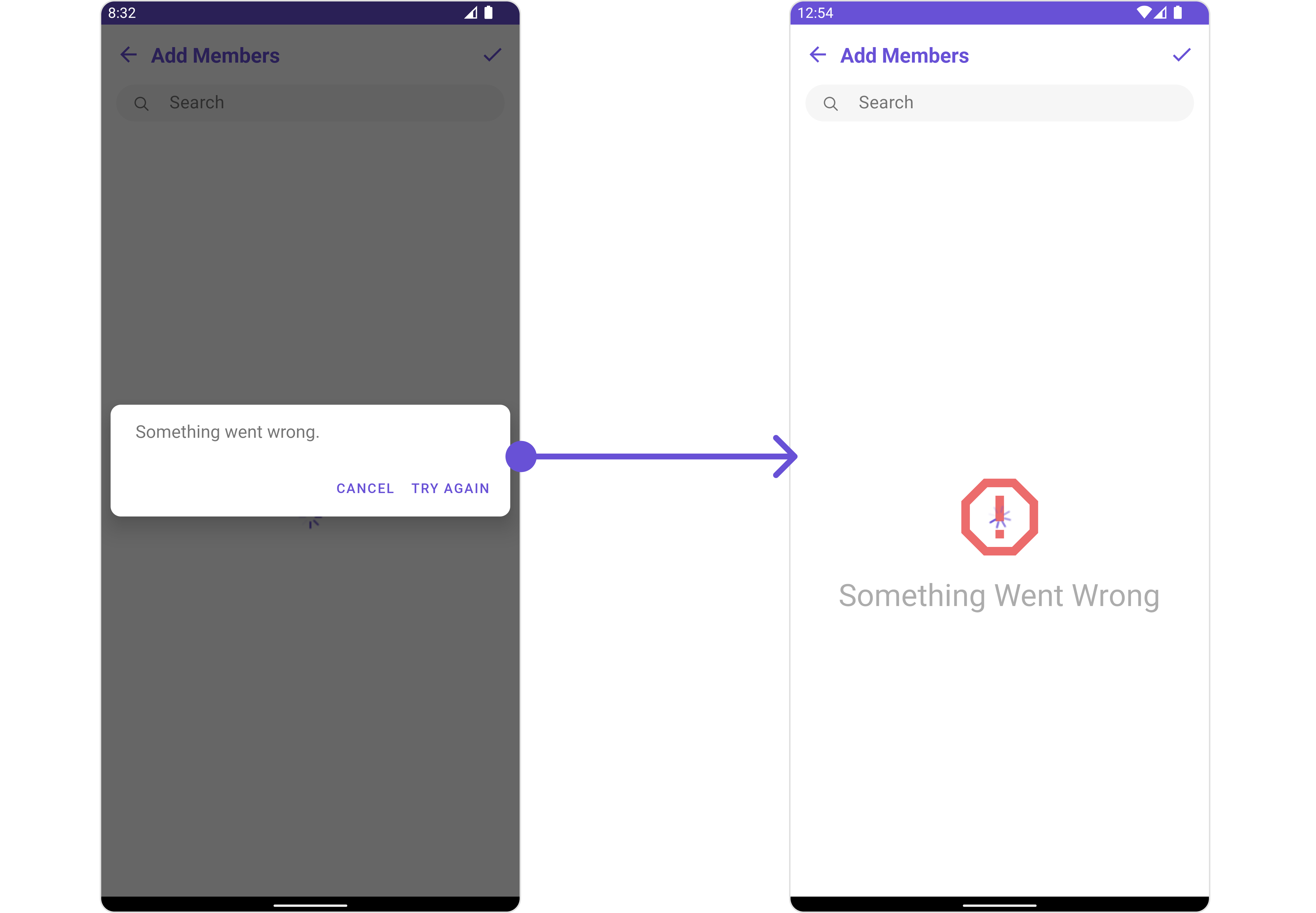 We have added an error view to `error_state_view_layout.xml`. You can choose any view you prefer. This view should be inflated and passed to the `setErrorStateView()` method.
```xml error_state_view_layout.xml theme={null}
```
```java YourActivity.java theme={null}
cometchatAddMembers.setErrorStateView(R.layout.error_state_view_layout);
```
```kotlin YourActivity.kt theme={null}
cometchatAddMembers.setErrorStateView(R.layout.error_state_view_layout);
```
We have added an error view to `error_state_view_layout.xml`. You can choose any view you prefer. This view should be inflated and passed to the `setErrorStateView()` method.
```xml error_state_view_layout.xml theme={null}
```
```java YourActivity.java theme={null}
cometchatAddMembers.setErrorStateView(R.layout.error_state_view_layout);
```
```kotlin YourActivity.kt theme={null}
cometchatAddMembers.setErrorStateView(R.layout.error_state_view_layout);
```