> ## Documentation Index
> Fetch the complete documentation index at: https://www.cometchat.com/docs/llms.txt
> Use this file to discover all available pages before exploring further.
# Call Log Recordings
> Call Log Recordings — CometChat documentation.
## Overview
`CometChatCallLogRecordings` is a [Component](/ui-kit/android/v4/components-overview#components) that shows a paginated list of recordings for a particular call. This allows the user to view all recordings, see the duration of each recording, and access a download link to download the recordings.
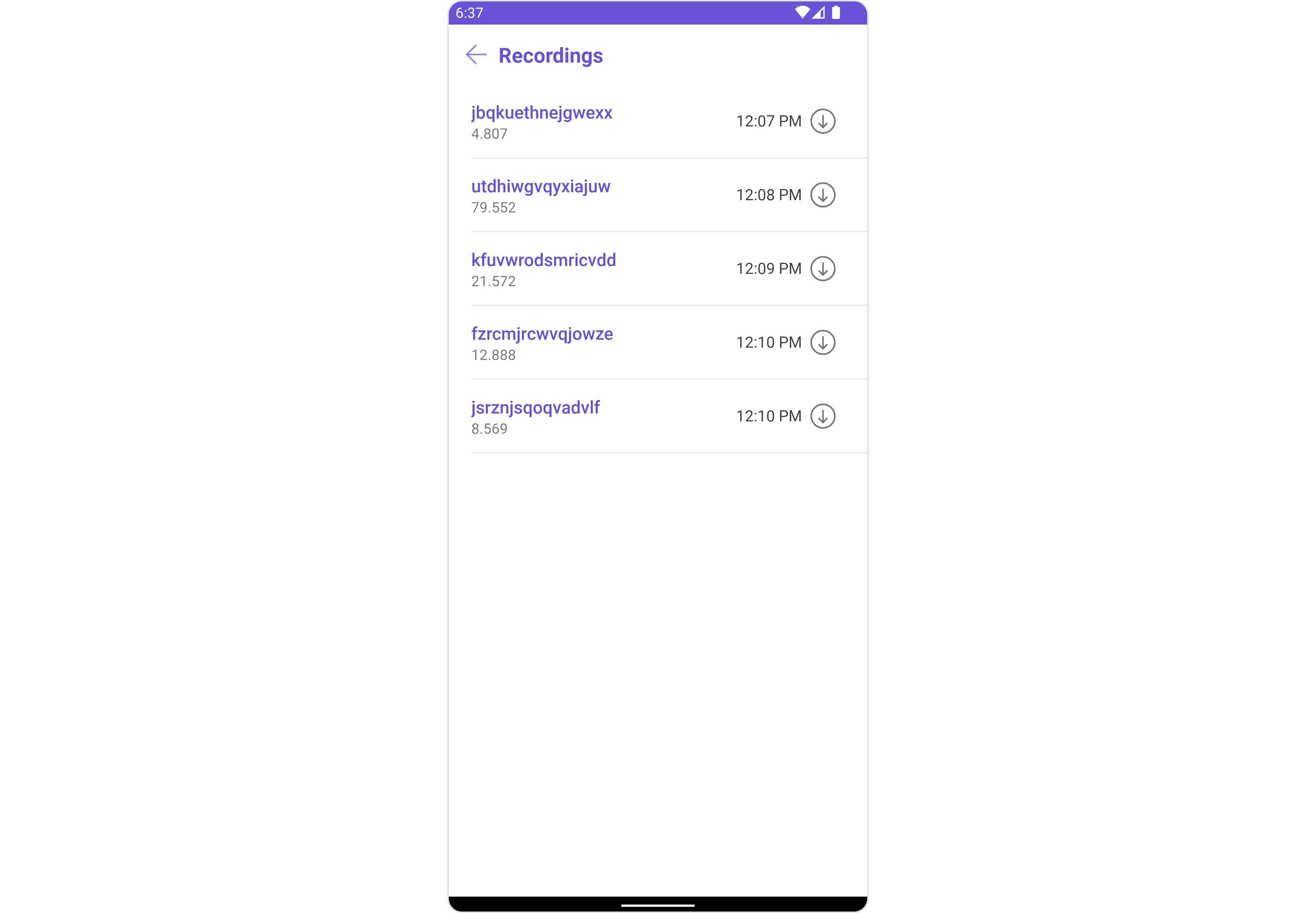 The `CometChatCallLogRecordings` component is composed of the following BaseComponents:
| Components | Description |
| ------------------------------------------------- | ---------------------------------------------------------------------------------------------------------------------------------------------------------------------------------------- |
| [CometChatListBase](/ui-kit/android/v4/list-base) | `CometChatListBase` is a container component featuring a title, customizable background options, and a dedicated list view for seamless integration within your application's interface. |
| [CometChatListItem](/ui-kit/android/v4/list-item) | This component displays data retrieved from a CallLog object on a card, presenting a title and subtitle. |
## Usage
### Integration
`CometChatCallLogRecordings` is a component that seamlessly integrates into your application. To present the details of call recordings, you can simply instantiate the `CometChatCallLogRecordings` instance and set the list of recordings using its `setRecordingList()` property. This allows for easy customization and efficient display of call log recordings within your application's interface.
Since `CometChatCallLogRecordings` can be launched by adding the following code snippet into the XML layout file.
```xml theme={null}
```
If you're defining the `CometChatCallLogRecordings` within the XML code or in your activity or fragment then you'll need to extract them and set the Recording List using the `setRecordingList()` method.
```java theme={null}
CometChatCallLogRecordings cometchatCallLogRecordings = binding.callLogRecording; // 'binding' is a view binding instance. Initialize it with `binding = YourXmlFileNameBinding.inflate(getLayoutInflater());` to use views like `binding.callLogRecording` after enabling view binding.
cometchatCallLogRecordings.setRecordingList(recordingList); // Required - Get the recording list from the CallLog object using getRecordings(), e.g., callLogObject.getRecordings()
```
```kotlin theme={null}
val cometchatCallLogRecordings: CometChatCallLogRecordings = binding.callLogRecording // 'binding' is a view binding instance. Initialize it with `binding = YourXmlFileNameBinding.inflate(layoutInflater)` to use views like `binding.callLogRecording` after enabling view binding.
cometchatCallLogRecordings.setRecordingList(recordingList) // Required - Get the recording list from the CallLog object using getRecordings(), e.g., callLogObject.getRecordings()
```
##### Activity and Fragment
You can integrate `CometChatCallLogRecordings` into your Activity and Fragment by adding the following code snippets into the respective classes.
```java YourActivity.java theme={null}
CometChatCallLogRecordings cometchatCallLogRecordings;
@Override
protected void onCreate(Bundle savedInstanceState) {
super.onCreate(savedInstanceState);
cometchatCallLogRecordings = new CometChatCallLogRecordings(this);
cometchatCallLogRecordings.setRecordingList(recordingList); // Required - Get the recording list from the CallLog object using getRecordings(), e.g., callLogObject.getRecordings()
setContentView(cometchatCallLogRecordings);
}
```
```kotlin YourActivity.kt theme={null}
private lateinit var cometchatCallLogRecordings: CometChatCallLogRecordings
override fun onCreate(savedInstanceState: Bundle?) {
super.onCreate(savedInstanceState)
cometchatCallLogRecordings = CometChatCallLogRecordings(this)
cometchatCallLogRecordings.setRecordingList(recordingList) // Required - Get the recording list from the CallLog object using getRecordings(), e.g., callLogObject.getRecordings()
setContentView(cometchatCallLogRecordings)
}
```
```java YourFragment.java theme={null}
CometChatCallLogRecordings cometchatCallLogRecordings;
@Override
public View onCreateView(@NonNull LayoutInflater inflater, ViewGroup container, Bundle savedInstanceState) {
cometchatCallLogRecordings = new CometChatCallLogRecordings(requireActivity());
cometchatCallLogRecordings.setRecordingList(recordingList); // Required - Get the recording list from the CallLog object using getRecordings(), e.g., callLogObject.getRecordings()
return cometchatCallLogRecordings;
}
```
```kotlin YourFragment.kt theme={null}
private lateinit var cometchatCallLogRecordings: CometChatCallLogRecordings
override fun onCreateView(
inflater: LayoutInflater,
container: ViewGroup?,
savedInstanceState: Bundle?
): View {
cometchatCallLogRecordings = CometChatCallLogRecordings(requireActivity())
cometchatCallLogRecordings.setRecordingList(recordingList) // Required - Get the recording list from the CallLog object using getRecordings(), e.g., callLogObject.getRecordings()
return cometchatCallLogRecordings
}
```
***
### Actions
[Actions](/ui-kit/android/v4/components-overview#actions) dictate how a component functions. They are divided into two types: Predefined and User-defined. You can override either type, allowing you to tailor the behavior of the component to fit your specific needs.
##### 1. SetOnDownloadClickListener
The `setOnDownloadClickListener` action is typically triggered when a user taps the download button associated with a recording in the call log. However, by utilizing the provided code snippet, you can seamlessly customize or override this default behavior to align with your specific application requirements.
```java theme={null}
cometchatCallLogRecordings.setOnDownloadClickListener(new OnItemClickListener() {
@Override
public void OnItemClick(Recording recording, int i) {
//TODO
}
});
```
```kotlin theme={null}
cometchatCallLogRecordings.setOnDownloadClickListener(object :
OnItemClickListener() {
override fun OnItemClick(recording: Recording, i: Int) {
//TODO
}
})
```
***
### Filters
**Filters** allow you to customize the data displayed in a list within a Component. You can filter the list based on your specific criteria, allowing for a more customized. Filters can be applied using RequestBuilders of Chat SDK.
The `CometChatCallLogRecordings` component does not have any exposed filters.
***
### Events
[Events](/ui-kit/android/v4/components-overview#events) are emitted by a `Component`. By using event you can extend existing functionality. Being global events, they can be applied in Multiple Locations and are capable of being Added or Removed.
The `CometChatCallLogRecordings` component does not have any exposed events.
***
## Customization
To fit your app's design requirements, you can customize the appearance of the conversation component. We provide exposed methods that allow you to modify the experience and behavior according to your specific needs.
### Style
Using Style you can customize the look and feel of the component in your app, These parameters typically control elements such as the color, size, shape, and fonts used within the component.
##### 1. CallLogRecordings Style
You can customize the appearance of the `CometChatCallLogRecordings` Component by applying the `CallLogRecordingsStyle` to it using the following code snippet.
```java theme={null}
CallLogRecordingsStyle callLogRecordingsStyle = new CallLogRecordingsStyle();
callLogRecordingsStyle.setTitleColor(Color.RED);
callLogRecordingsStyle.setTitleAppearance(R.style.MyTitleStyle);
callLogRecordingsStyle.setBackIconTint(Color.RED);
cometchatCallLogRecordings.setStyle(callLogRecordingsStyle);
```
```kotlin theme={null}
val callLogRecordingsStyle = CallLogRecordingsStyle()
callLogRecordingsStyle.setTitleColor(Color.RED)
callLogRecordingsStyle.setTitleAppearance(R.style.MyTitleStyle)
callLogRecordingsStyle.setBackIconTint(Color.RED)
cometchatCallLogRecordings.setStyle(callLogRecordingsStyle)
```
List of properties exposed by `CallLogRecordingsStyle`
| Property | Description | Code |
| ------------------------- | ---------------------------------------------------------------------------- | ---------------------------------------- |
| **Background** | Used to set background color | `.setBackground(@ColorInt int)` |
| **Background** | Used to set background Drawable | `.setBackground(Drawable)` |
| **Border Color** | Used to set border color | `.setBorderColor(@ColorInt int)` |
| **Border Width** | Used to set border | `.setBorderWidth(@Dimension int)` |
| **CornerRadius** | Used to set border radius | `.setCornerRadius(float)` |
| **Empty Text Appearance** | Used to set the appearance of the text shown when list is empty. | `.setEmptyTextAppearance(@StyleRes int)` |
| **Empty Text Font** | Used to set the font of the Empty text which appears when the list is empty. | `.setEmptyTextFont(String)` |
| **Empty Text Color** | Used to set the color of the Empty text. | `.setEmptyTextColor(@ColorInt int)` |
| **Back Icon Tint** | Used to set the backIcon Tint color | `.setBackIconTint(@ColorInt int)` |
| **Title Appearance** | Used to set the appearance of the title text. | `.setTitleAppearance(@StyleRes int)` |
| **Title Color** | Used to set the color of the title text. | `.setTitleColor(@ColorInt int)` |
| **Title Font** | Used to set the Title Color | `.setTitleFont(String)` |
##### 2. ListItem Styles
To apply customized styles to the `ListItemStyle` component in the `CallLogRecordings` Component, you can use the following code snippet. For further insights on `ListItemStyle` Styles [refer](/ui-kit/android/v4/list-item)
```java theme={null}
ListItemStyle listItemStyle = new ListItemStyle();
listItemStyle.setBackground(Color.parseColor("#C0C0C0"));
cometchatCallLogRecordings.setListItemStyle(listItemStyle);
```
```kotlin theme={null}
val listItemStyle = ListItemStyle()
listItemStyle.setBackground(Color.parseColor("#C0C0C0"))
cometchatCallLogRecordings.setListItemStyle(listItemStyle)
```
***
### Functionality
These are a set of small functional customizations that allow you to fine-tune the overall experience of the component. With these, you can change text, set custom icons, and toggle the visibility of UI elements.
The `CometChatCallLogRecordings` component is composed of the following BaseComponents:
| Components | Description |
| ------------------------------------------------- | ---------------------------------------------------------------------------------------------------------------------------------------------------------------------------------------- |
| [CometChatListBase](/ui-kit/android/v4/list-base) | `CometChatListBase` is a container component featuring a title, customizable background options, and a dedicated list view for seamless integration within your application's interface. |
| [CometChatListItem](/ui-kit/android/v4/list-item) | This component displays data retrieved from a CallLog object on a card, presenting a title and subtitle. |
## Usage
### Integration
`CometChatCallLogRecordings` is a component that seamlessly integrates into your application. To present the details of call recordings, you can simply instantiate the `CometChatCallLogRecordings` instance and set the list of recordings using its `setRecordingList()` property. This allows for easy customization and efficient display of call log recordings within your application's interface.
Since `CometChatCallLogRecordings` can be launched by adding the following code snippet into the XML layout file.
```xml theme={null}
```
If you're defining the `CometChatCallLogRecordings` within the XML code or in your activity or fragment then you'll need to extract them and set the Recording List using the `setRecordingList()` method.
```java theme={null}
CometChatCallLogRecordings cometchatCallLogRecordings = binding.callLogRecording; // 'binding' is a view binding instance. Initialize it with `binding = YourXmlFileNameBinding.inflate(getLayoutInflater());` to use views like `binding.callLogRecording` after enabling view binding.
cometchatCallLogRecordings.setRecordingList(recordingList); // Required - Get the recording list from the CallLog object using getRecordings(), e.g., callLogObject.getRecordings()
```
```kotlin theme={null}
val cometchatCallLogRecordings: CometChatCallLogRecordings = binding.callLogRecording // 'binding' is a view binding instance. Initialize it with `binding = YourXmlFileNameBinding.inflate(layoutInflater)` to use views like `binding.callLogRecording` after enabling view binding.
cometchatCallLogRecordings.setRecordingList(recordingList) // Required - Get the recording list from the CallLog object using getRecordings(), e.g., callLogObject.getRecordings()
```
##### Activity and Fragment
You can integrate `CometChatCallLogRecordings` into your Activity and Fragment by adding the following code snippets into the respective classes.
```java YourActivity.java theme={null}
CometChatCallLogRecordings cometchatCallLogRecordings;
@Override
protected void onCreate(Bundle savedInstanceState) {
super.onCreate(savedInstanceState);
cometchatCallLogRecordings = new CometChatCallLogRecordings(this);
cometchatCallLogRecordings.setRecordingList(recordingList); // Required - Get the recording list from the CallLog object using getRecordings(), e.g., callLogObject.getRecordings()
setContentView(cometchatCallLogRecordings);
}
```
```kotlin YourActivity.kt theme={null}
private lateinit var cometchatCallLogRecordings: CometChatCallLogRecordings
override fun onCreate(savedInstanceState: Bundle?) {
super.onCreate(savedInstanceState)
cometchatCallLogRecordings = CometChatCallLogRecordings(this)
cometchatCallLogRecordings.setRecordingList(recordingList) // Required - Get the recording list from the CallLog object using getRecordings(), e.g., callLogObject.getRecordings()
setContentView(cometchatCallLogRecordings)
}
```
```java YourFragment.java theme={null}
CometChatCallLogRecordings cometchatCallLogRecordings;
@Override
public View onCreateView(@NonNull LayoutInflater inflater, ViewGroup container, Bundle savedInstanceState) {
cometchatCallLogRecordings = new CometChatCallLogRecordings(requireActivity());
cometchatCallLogRecordings.setRecordingList(recordingList); // Required - Get the recording list from the CallLog object using getRecordings(), e.g., callLogObject.getRecordings()
return cometchatCallLogRecordings;
}
```
```kotlin YourFragment.kt theme={null}
private lateinit var cometchatCallLogRecordings: CometChatCallLogRecordings
override fun onCreateView(
inflater: LayoutInflater,
container: ViewGroup?,
savedInstanceState: Bundle?
): View {
cometchatCallLogRecordings = CometChatCallLogRecordings(requireActivity())
cometchatCallLogRecordings.setRecordingList(recordingList) // Required - Get the recording list from the CallLog object using getRecordings(), e.g., callLogObject.getRecordings()
return cometchatCallLogRecordings
}
```
***
### Actions
[Actions](/ui-kit/android/v4/components-overview#actions) dictate how a component functions. They are divided into two types: Predefined and User-defined. You can override either type, allowing you to tailor the behavior of the component to fit your specific needs.
##### 1. SetOnDownloadClickListener
The `setOnDownloadClickListener` action is typically triggered when a user taps the download button associated with a recording in the call log. However, by utilizing the provided code snippet, you can seamlessly customize or override this default behavior to align with your specific application requirements.
```java theme={null}
cometchatCallLogRecordings.setOnDownloadClickListener(new OnItemClickListener() {
@Override
public void OnItemClick(Recording recording, int i) {
//TODO
}
});
```
```kotlin theme={null}
cometchatCallLogRecordings.setOnDownloadClickListener(object :
OnItemClickListener() {
override fun OnItemClick(recording: Recording, i: Int) {
//TODO
}
})
```
***
### Filters
**Filters** allow you to customize the data displayed in a list within a Component. You can filter the list based on your specific criteria, allowing for a more customized. Filters can be applied using RequestBuilders of Chat SDK.
The `CometChatCallLogRecordings` component does not have any exposed filters.
***
### Events
[Events](/ui-kit/android/v4/components-overview#events) are emitted by a `Component`. By using event you can extend existing functionality. Being global events, they can be applied in Multiple Locations and are capable of being Added or Removed.
The `CometChatCallLogRecordings` component does not have any exposed events.
***
## Customization
To fit your app's design requirements, you can customize the appearance of the conversation component. We provide exposed methods that allow you to modify the experience and behavior according to your specific needs.
### Style
Using Style you can customize the look and feel of the component in your app, These parameters typically control elements such as the color, size, shape, and fonts used within the component.
##### 1. CallLogRecordings Style
You can customize the appearance of the `CometChatCallLogRecordings` Component by applying the `CallLogRecordingsStyle` to it using the following code snippet.
```java theme={null}
CallLogRecordingsStyle callLogRecordingsStyle = new CallLogRecordingsStyle();
callLogRecordingsStyle.setTitleColor(Color.RED);
callLogRecordingsStyle.setTitleAppearance(R.style.MyTitleStyle);
callLogRecordingsStyle.setBackIconTint(Color.RED);
cometchatCallLogRecordings.setStyle(callLogRecordingsStyle);
```
```kotlin theme={null}
val callLogRecordingsStyle = CallLogRecordingsStyle()
callLogRecordingsStyle.setTitleColor(Color.RED)
callLogRecordingsStyle.setTitleAppearance(R.style.MyTitleStyle)
callLogRecordingsStyle.setBackIconTint(Color.RED)
cometchatCallLogRecordings.setStyle(callLogRecordingsStyle)
```
List of properties exposed by `CallLogRecordingsStyle`
| Property | Description | Code |
| ------------------------- | ---------------------------------------------------------------------------- | ---------------------------------------- |
| **Background** | Used to set background color | `.setBackground(@ColorInt int)` |
| **Background** | Used to set background Drawable | `.setBackground(Drawable)` |
| **Border Color** | Used to set border color | `.setBorderColor(@ColorInt int)` |
| **Border Width** | Used to set border | `.setBorderWidth(@Dimension int)` |
| **CornerRadius** | Used to set border radius | `.setCornerRadius(float)` |
| **Empty Text Appearance** | Used to set the appearance of the text shown when list is empty. | `.setEmptyTextAppearance(@StyleRes int)` |
| **Empty Text Font** | Used to set the font of the Empty text which appears when the list is empty. | `.setEmptyTextFont(String)` |
| **Empty Text Color** | Used to set the color of the Empty text. | `.setEmptyTextColor(@ColorInt int)` |
| **Back Icon Tint** | Used to set the backIcon Tint color | `.setBackIconTint(@ColorInt int)` |
| **Title Appearance** | Used to set the appearance of the title text. | `.setTitleAppearance(@StyleRes int)` |
| **Title Color** | Used to set the color of the title text. | `.setTitleColor(@ColorInt int)` |
| **Title Font** | Used to set the Title Color | `.setTitleFont(String)` |
##### 2. ListItem Styles
To apply customized styles to the `ListItemStyle` component in the `CallLogRecordings` Component, you can use the following code snippet. For further insights on `ListItemStyle` Styles [refer](/ui-kit/android/v4/list-item)
```java theme={null}
ListItemStyle listItemStyle = new ListItemStyle();
listItemStyle.setBackground(Color.parseColor("#C0C0C0"));
cometchatCallLogRecordings.setListItemStyle(listItemStyle);
```
```kotlin theme={null}
val listItemStyle = ListItemStyle()
listItemStyle.setBackground(Color.parseColor("#C0C0C0"))
cometchatCallLogRecordings.setListItemStyle(listItemStyle)
```
***
### Functionality
These are a set of small functional customizations that allow you to fine-tune the overall experience of the component. With these, you can change text, set custom icons, and toggle the visibility of UI elements.
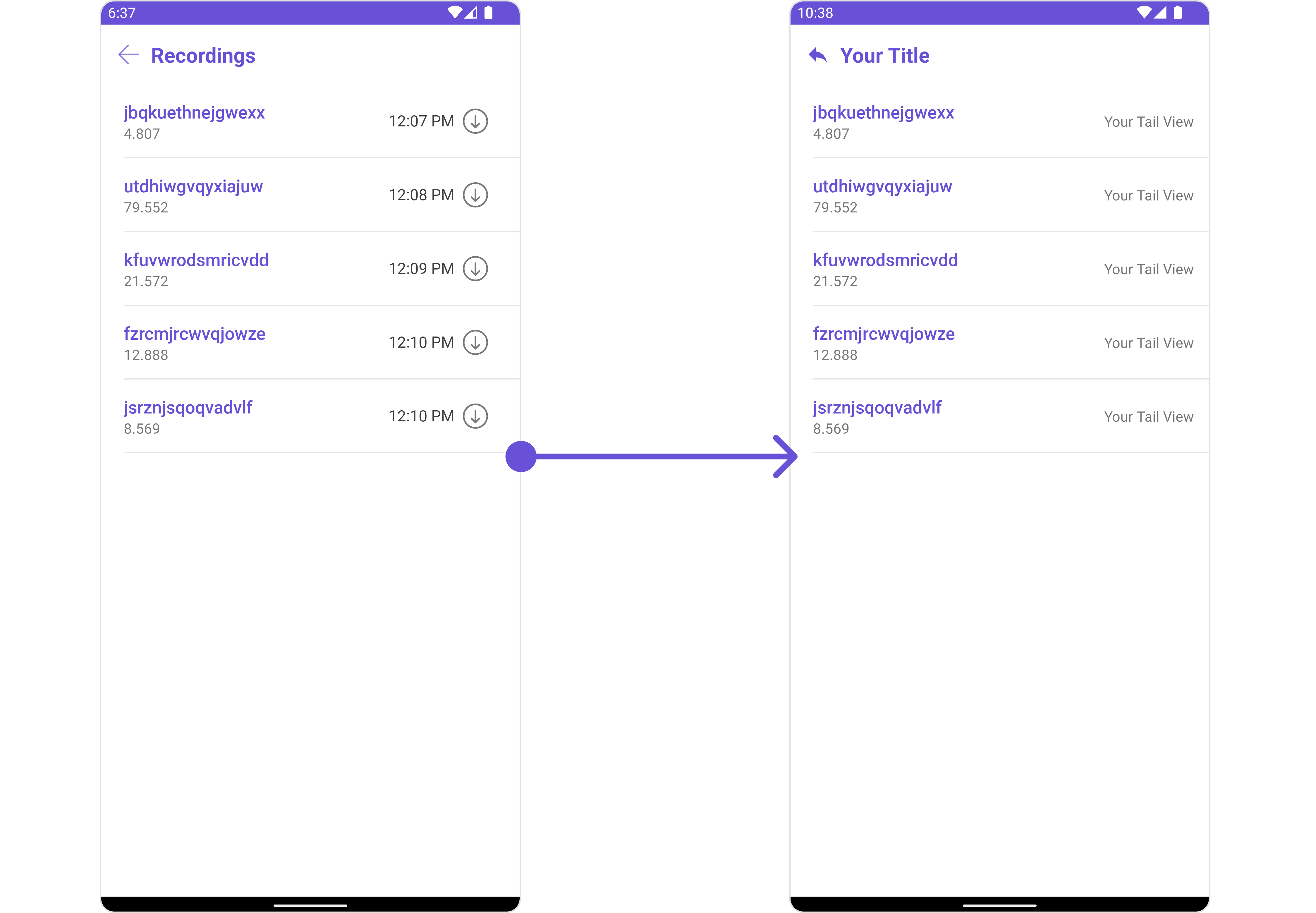 ```java theme={null}
cometchatCallLogRecordings.setTitle("Your Title");
cometchatCallLogRecordings.backIcon(R.drawable.ic_reply);
cometchatCallLogRecordings.setTail(new Function2() {
@Override
public View apply(Context context, Recording recording) {
TextView textView = new TextView(context);
textView.setText("Your Tail View");
return textView;
}
});
```
```kotlin theme={null}
cometchatCallLogRecordings.setTitle("Your Title")
cometchatCallLogRecordings.backIcon(R.drawable.ic_reply)
cometchatCallLogRecordings.setTail { context, recording ->
val textView = TextView(context)
textView.text = "Your Tail View"
textView
}
```
Below is a list of customizations along with corresponding code snippets
| Property | Description | Code |
| -------------------- | ----------------------------------------------------------- | ----------------------------------------- |
| **Back Icon** | Used to set back button icon | `.backIcon(@DrawableRes int res)` |
| **Empty State Text** | Used to set a custom text when the Recording array is empty | `.emptyStateText(String)` |
| **Selection Icon** | Used to override the default selection complete icon | `.setSelectionIcon(@DrawableRes int res)` |
| **Set Submit Icon** | Used to override the default selection complete icon | `.setSubmitIcon(@DrawableRes int res)` |
| **Set Title** | Used to set title in the app bar | `.setTitle(String)` |
***
### Advanced
For advanced-level customization, you can set custom views to the component. This lets you tailor each aspect of the component to fit your exact needs and application aesthetics. You can create and define your views, layouts, and UI elements and then incorporate those into the component.
#### SetEmptyStateView 🛑
You can set a custom EmptyStateView using `setEmptyStateView()` to match the error view of your app.
```java theme={null}
cometchatCallLogRecordings.setEmptyStateView();
```
```kotlin theme={null}
cometchatCallLogRecordings.setEmptyStateView()
```
Example
```java theme={null}
cometchatCallLogRecordings.setTitle("Your Title");
cometchatCallLogRecordings.backIcon(R.drawable.ic_reply);
cometchatCallLogRecordings.setTail(new Function2() {
@Override
public View apply(Context context, Recording recording) {
TextView textView = new TextView(context);
textView.setText("Your Tail View");
return textView;
}
});
```
```kotlin theme={null}
cometchatCallLogRecordings.setTitle("Your Title")
cometchatCallLogRecordings.backIcon(R.drawable.ic_reply)
cometchatCallLogRecordings.setTail { context, recording ->
val textView = TextView(context)
textView.text = "Your Tail View"
textView
}
```
Below is a list of customizations along with corresponding code snippets
| Property | Description | Code |
| -------------------- | ----------------------------------------------------------- | ----------------------------------------- |
| **Back Icon** | Used to set back button icon | `.backIcon(@DrawableRes int res)` |
| **Empty State Text** | Used to set a custom text when the Recording array is empty | `.emptyStateText(String)` |
| **Selection Icon** | Used to override the default selection complete icon | `.setSelectionIcon(@DrawableRes int res)` |
| **Set Submit Icon** | Used to override the default selection complete icon | `.setSubmitIcon(@DrawableRes int res)` |
| **Set Title** | Used to set title in the app bar | `.setTitle(String)` |
***
### Advanced
For advanced-level customization, you can set custom views to the component. This lets you tailor each aspect of the component to fit your exact needs and application aesthetics. You can create and define your views, layouts, and UI elements and then incorporate those into the component.
#### SetEmptyStateView 🛑
You can set a custom EmptyStateView using `setEmptyStateView()` to match the error view of your app.
```java theme={null}
cometchatCallLogRecordings.setEmptyStateView();
```
```kotlin theme={null}
cometchatCallLogRecordings.setEmptyStateView()
```
Example
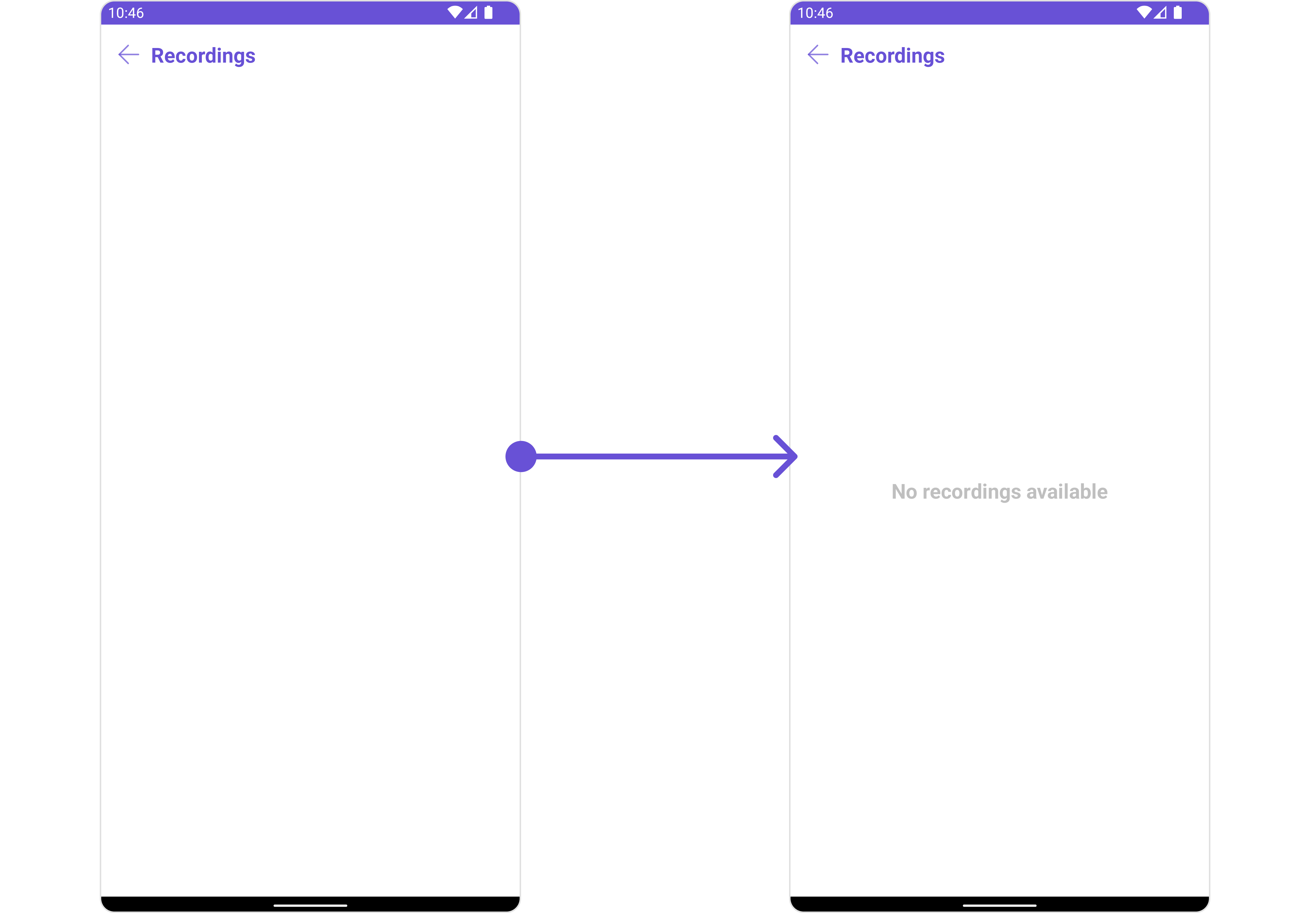 You need to create a `empty_view_layout.xml` as a custom view file. Which we will inflate and pass to `.setEmptyStateView()`.
```xml empty_view_layout.xml theme={null}
```
You inflate the view and pass it to `setEmptyStateView`. You can get the child view reference and can handle click actions.
```java theme={null}
cometchatCallLogRecordings.setEmptyStateView(R.layout.empty_view_layout);
```
```kotlin theme={null}
cometchatCallLogRecordings.setEmptyStateView(R.layout.empty_view_layout)
```
***
#### Menu
You can set the Custom Menu to add more options to the `CometChatCallLogRecordings` component.
```java theme={null}
cometchatCallLogRecordings.setMenu();
```
```kotlin theme={null}
cometchatCallLogRecordings.setMenu()
```
Example
You need to create a `empty_view_layout.xml` as a custom view file. Which we will inflate and pass to `.setEmptyStateView()`.
```xml empty_view_layout.xml theme={null}
```
You inflate the view and pass it to `setEmptyStateView`. You can get the child view reference and can handle click actions.
```java theme={null}
cometchatCallLogRecordings.setEmptyStateView(R.layout.empty_view_layout);
```
```kotlin theme={null}
cometchatCallLogRecordings.setEmptyStateView(R.layout.empty_view_layout)
```
***
#### Menu
You can set the Custom Menu to add more options to the `CometChatCallLogRecordings` component.
```java theme={null}
cometchatCallLogRecordings.setMenu();
```
```kotlin theme={null}
cometchatCallLogRecordings.setMenu()
```
Example
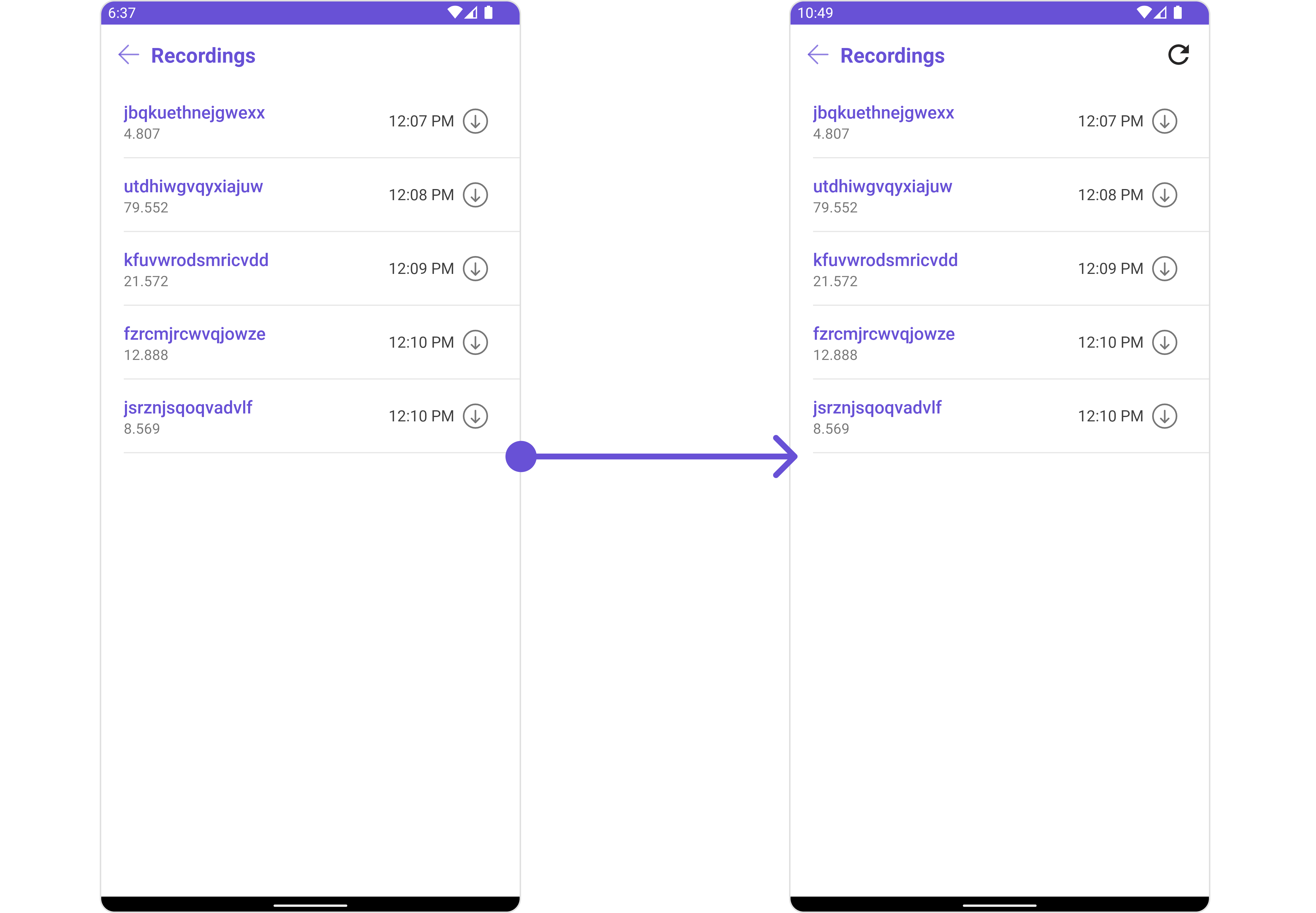 You need to create a `view_menu.xml` as a custom view file. Which we will inflate and pass to `.setMenu()`.
```xml view_menu.xml theme={null}
```
You inflate the view and pass it to `setMenu`. You can get the child view reference and can handle click actions.
```java YourActivity.java theme={null}
View view = getLayoutInflater().inflate(R.layout.view_menu, null);
ImageView imgRefresh = view.findViewById(R.id.img_refresh);
imgRefresh.setOnClickListener(v -> {
Toast.makeText(this, "Clicked on Refresh", Toast.LENGTH_SHORT).show();
});
cometchatCallLogRecordings.setMenu(view);
```
```kotlin YourActivity.kt theme={null}
val view: View = layoutInflater.inflate(R.layout.view_menu, null)
val imgRefresh = view.findViewById(R.id.img_refresh)
imgRefresh.setOnClickListener { v: View? ->
Toast.makeText(this, "Clicked on Refresh", Toast.LENGTH_SHORT).show()
}
cometchatCallLogRecordings.setMenu(view)
```
You need to create a `view_menu.xml` as a custom view file. Which we will inflate and pass to `.setMenu()`.
```xml view_menu.xml theme={null}
```
You inflate the view and pass it to `setMenu`. You can get the child view reference and can handle click actions.
```java YourActivity.java theme={null}
View view = getLayoutInflater().inflate(R.layout.view_menu, null);
ImageView imgRefresh = view.findViewById(R.id.img_refresh);
imgRefresh.setOnClickListener(v -> {
Toast.makeText(this, "Clicked on Refresh", Toast.LENGTH_SHORT).show();
});
cometchatCallLogRecordings.setMenu(view);
```
```kotlin YourActivity.kt theme={null}
val view: View = layoutInflater.inflate(R.layout.view_menu, null)
val imgRefresh = view.findViewById(R.id.img_refresh)
imgRefresh.setOnClickListener { v: View? ->
Toast.makeText(this, "Clicked on Refresh", Toast.LENGTH_SHORT).show()
}
cometchatCallLogRecordings.setMenu(view)
```