> ## Documentation Index
> Fetch the complete documentation index at: https://www.cometchat.com/docs/llms.txt
> Use this file to discover all available pages before exploring further.
# React Native Push Notification (Android)
> Bring the SampleAppWithPushNotifications experience—FCM + VoIP calls—into any React Native project using CometChat UI Kit.
| Field | Value |
| ------------- | -------------------------------------------------------------------------------------------------- |
| Platform | Android (FCM) |
| Key Classes | `CometChatNotifications`, `VoipNotificationHandler`, `PendingCallManager` |
| Key Methods | `registerPushToken()`, `unregisterPushToken()`, `messaging().getToken()` |
| Push Platform | `CometChatNotifications.PushPlatforms.FCM_REACT_NATIVE_ANDROID` |
| Prerequisites | CometChat SDK initialized, user logged in, FCM configured, `google-services.json` in `android/app` |
Reference implementation of React Native UI Kit, FCM and Push Notification Setup.
## What this guide covers
* CometChat Dashboard setup (enable push, add FCM providers).
* Platform credentials (Firebase).
* Copying the sample notification stack and aligning IDs/provider IDs.
* Native glue for Android (manifest permissions).
* VoIP call alerts with FCM data-only pushes + CallKeep native dialer.
* Token registration, navigation from pushes, testing, and troubleshooting.
## What you need first
* CometChat app credentials (App ID, Region, Auth Key) and Push Notifications enabled with an **FCM provider (React Native Android)**.
* Firebase project with an Android app (`google-services.json` in `android/app`) and Cloud Messaging enabled.
* React Native 0.81+, Node 18+, physical Android devices for reliable push/call testing.
## How FCM + CometChat work together
* **FCM (Android) is the transport:** Firebase issues the Android FCM token and delivers payloads to devices.
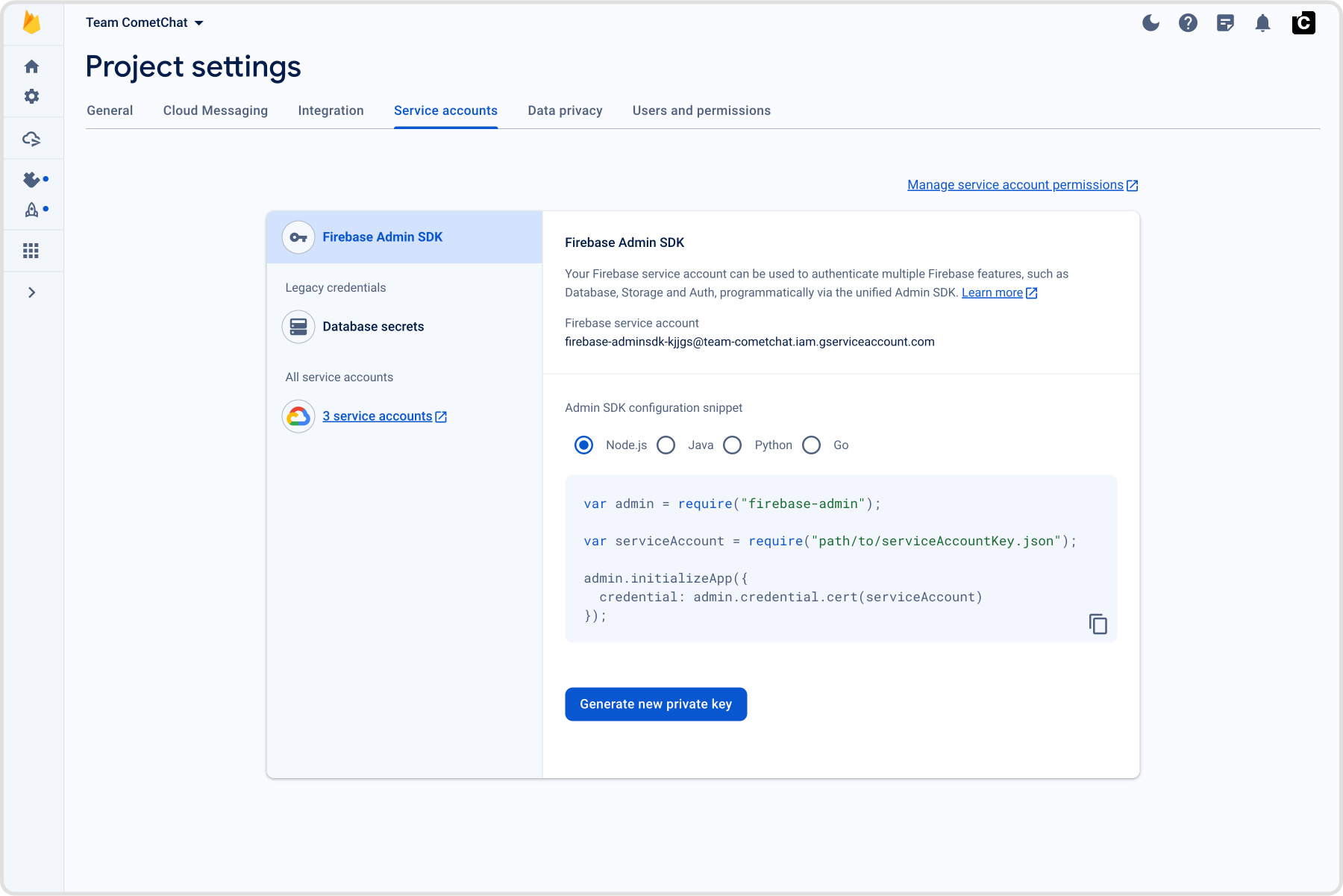
* **CometChat provider holds your credentials:** The FCM provider you add (for React Native Android) stores your Firebase service account JSON.
* **Registration flow:** Request permission → Android returns the FCM token → after `CometChat.login`, register with `CometChatNotifications.registerPushToken(token, platform, providerId)` using `FCM_REACT_NATIVE_ANDROID` → CometChat sends pushes to FCM on your behalf → the app handles taps/foreground events via Notifee.
## 1. Enable push and add providers (CometChat Dashboard)
1. Go to **Notifications → Settings** and enable **Push Notifications**.
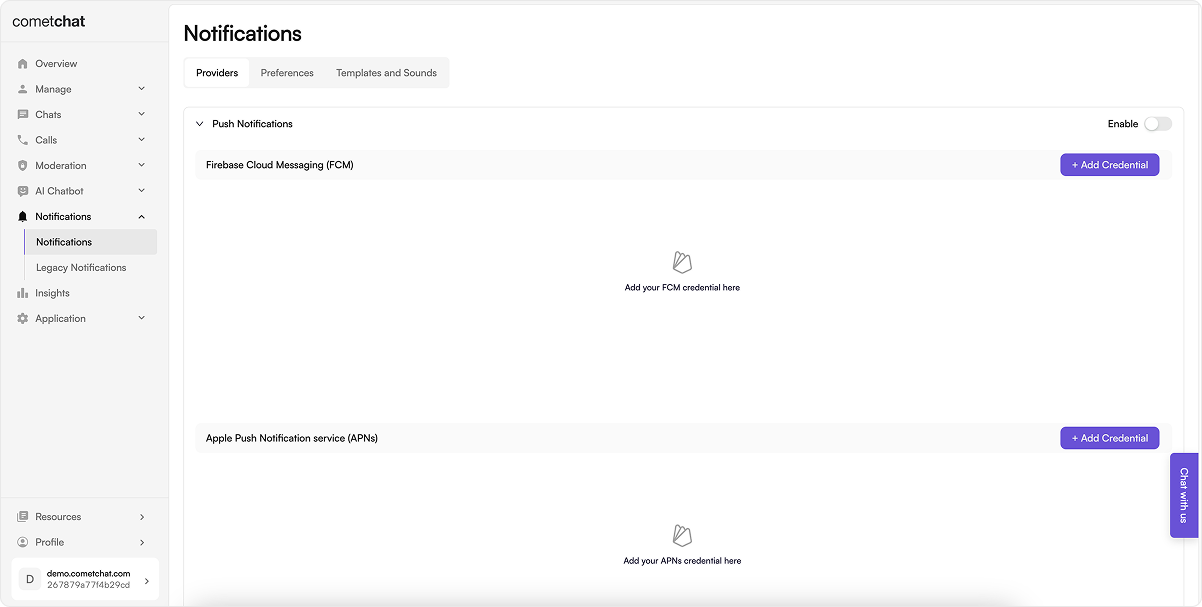 2. Add an **FCM** provider for React Native Android; upload the Firebase service account JSON and copy the Provider ID.
 ## 2. Prepare platform credentials
### 2.1 Firebase Console
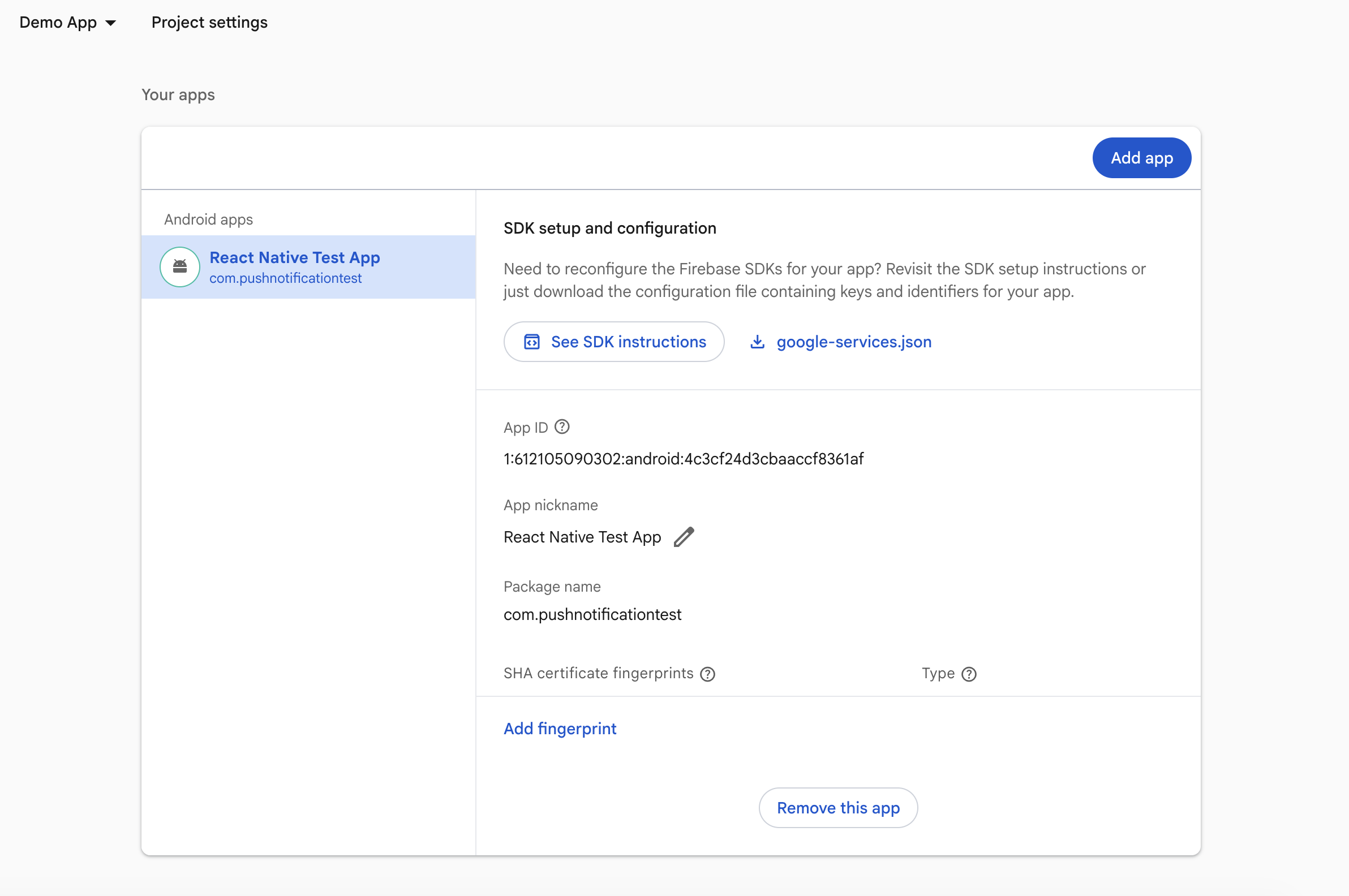
1. Register your Android package name (same as `applicationId` in `android/app/build.gradle`) and download `google-services.json` into `android/app`.
2. Enable Cloud Messaging.
## 2. Prepare platform credentials
### 2.1 Firebase Console
1. Register your Android package name (same as `applicationId` in `android/app/build.gradle`) and download `google-services.json` into `android/app`.
2. Enable Cloud Messaging.
 ## 3. Local configuration
* Update `src/utils/AppConstants.tsx` with `appId`, `authKey`, `region`, and `fcmProviderId`.
* Keep `app.json` name consistent with your bundle ID / applicationId.
```ts lines theme={null}
const APP_ID = "";
const AUTH_KEY = "";
const REGION = "";
const DEMO_UID = "cometchat-uid-1";
```
### 3.1 Dependencies snapshot (from Sample App)
Install these dependencies in your React Native app:
```npm lines theme={null}
npm install \
@react-native-firebase/app@23.4.0 \
@react-native-firebase/messaging@23.4.0 \
@notifee/react-native@9.1.8 \
@cometchat/chat-sdk-react-native@4.0.18 \
@cometchat/calls-sdk-react-native@4.4.0 \
@cometchat/chat-uikit-react-native@5.2.6 \
@react-native-async-storage/async-storage@2.2.0 \
react-native-callkeep@github:cometchat/react-native-callkeep \
react-native-voip-push-notification@3.3.3
```
Match these or newer compatible versions in your app.
## 4. Android App Setup
### 4.1 Configure Firebase with Android credentials
To allow Firebase on Android to use the credentials, the `google-services` plugin must be enabled on the project. This requires modification to two files in the Android directory.
First, add the google-services plugin as a dependency inside of your `/android/build.gradle` file:
```android lines theme={null}
buildscript {
dependencies {
// ... other dependencies
classpath("com.google.gms:google-services:4.4.4")
}
}
```
Lastly, execute the plugin by adding the following to your `/android/app/build.gradle` file:
```android lines theme={null}
apply plugin: 'com.android.application'
apply plugin: 'com.google.gms.google-services'
```
### 4.2 Configure required permissions in `AndroidManifest.xml` as shown.
```xml lines theme={null}
```
and ask for runtime permissions where needed (e.g. `POST_NOTIFICATIONS` on Android 13+).
```tsx lines theme={null}
import { PermissionsAndroid, Platform } from "react-native";
const requestAndroidPermissions = async () => {
if (Platform.OS !== 'android') return;
try {
// Ask for push‑notification permission
const authStatus = await messaging().requestPermission();
const enabled =
authStatus === messaging.AuthorizationStatus.AUTHORIZED ||
authStatus === messaging.AuthorizationStatus.PROVISIONAL;
if (!enabled) {
console.warn('Notification permission denied (FCM).');
}
} catch (error) {
console.warn('FCM permission request error:', error);
}
try {
await PermissionsAndroid.requestMultiple([
PermissionsAndroid.PERMISSIONS.WRITE_EXTERNAL_STORAGE,
PermissionsAndroid.PERMISSIONS.READ_EXTERNAL_STORAGE,
PermissionsAndroid.PERMISSIONS.CAMERA,
PermissionsAndroid.PERMISSIONS.RECORD_AUDIO,
PermissionsAndroid.PERMISSIONS.POST_NOTIFICATIONS,
]);
} catch (err) {
console.warn('Android permissions error:', err);
}
}
```
### 4.3 Register FCM token with CometChat
Inside your main app file where you initialize CometChat, add the below code snippet after the user has logged in successfully.
Initilize and register the FCM token for Android as shown:
```ts lines theme={null}
requestAndroidPermissions();
const FCM_TOKEN = await messaging().getToken();
console.log("FCM Token:", FCM_TOKEN);
// For React Native Android
CometChatNotifications.registerPushToken(
FCM_TOKEN,
CometChatNotifications.PushPlatforms.FCM_REACT_NATIVE_ANDROID,
"YOUR_FCM_PROVIDER_ID" // from CometChat Dashboard
)
.then(() => {
console.log("Token registration successful");
})
.catch((err) => {
console.log("Token registration failed:", err);
});
```
### 4.4 Unregister FCM token on logout
Typically, push token unregistration should occur prior to user logout, using the `CometChat.logout()` method.
For token unregistration, use the `CometChatNotifications.unregisterPushToken()` method provided by the SDKs.
## 5. VoIP call notifications
These steps are Android-only—copy/paste and fill your IDs.
### 5.1 Add CallKeep services to `android/app/src/main/AndroidManifest.xml`
Inside the `` tag add:
```xml lines theme={null}
```
### 5.2 Background handler for call pushes (`index.js`)
Data-only FCM calls show the native dialer even when the app is killed.
```js lines theme={null}
import messaging from "@react-native-firebase/messaging";
import { Platform } from "react-native";
import { CometChat } from "@cometchat/chat-sdk-react-native";
import { voipHandler } from "./VoipNotificationHandler";
import { displayLocalNotification } from "./LocalNotificationHandler";
if (Platform.OS === "android") {
messaging().setBackgroundMessageHandler(async remoteMessage => {
const data = remoteMessage.data || {};
if (data.type === "call") {
await voipHandler.initialize();
switch (data.callAction) {
case "initiated":
voipHandler.msg = data;
await voipHandler.displayCallAndroid();
break;
case "ended":
case "unanswered":
case "busy":
case "rejected":
case "cancelled":
CometChat.clearActiveCall();
if (voipHandler?.callerId) {
voipHandler.removeCallDialerWithUUID(voipHandler.callerId);
}
await voipHandler.endCall({ callUUID: voipHandler.callerId });
break;
case "ongoing":
voipHandler.displayNotification({
title: data?.receiverName || "",
body: "ongoing call",
});
break;
default:
break;
}
return;
}
await displayLocalNotification(remoteMessage);
});
}
```
### 5.3 Drop in `VoipNotificationHandler.ts`
Handles CallKeep setup, shows the incoming call UI, accepts/rejects via CometChat, and defers acceptance if login/navigation isn’t ready.
```ts lines theme={null}
import { Platform } from "react-native";
import notifee, { AndroidImportance } from "@notifee/react-native";
import RNCallKeep, { IOptions } from "react-native-callkeep";
import { CometChat } from "@cometchat/chat-sdk-react-native";
import { setPendingAnsweredCall } from "./PendingCallManager";
const options: IOptions = {
android: {
alertTitle: "VoIP permissions",
alertDescription: "Allow phone account access to show incoming calls",
cancelButton: "Cancel",
okButton: "OK",
imageName: "ic_notification",
additionalPermissions: [],
foregroundService: {
channelId: "com.cometchat.sampleapp.reactnative.android",
channelName: "Sampleapp Channel",
notificationTitle: "Sampleapp is running in the background",
},
},
ios: { appName: "Sampleapp" },
};
function uuid() {
return "xxxxxxxx-xxxx-4xxx-yxxx-xxxxxxxxxxxx".replace(/[xy]/g, (c) => {
const r = Math.floor(Math.random() * 16);
const v = c === "x" ? r : (r & 0x3) | 0x8;
return v.toString(16);
});
}
class VoipNotificationHandler {
channelId = "";
isRinging = false;
isAnswered = false;
pendingAcceptance = false;
callerId = "";
msg: any = {};
initialized = false;
private setupPromise: Promise | null = null;
private listenersAttached = false;
async initialize() {
if (this.initialized && this.setupPromise) {
await this.setupPromise;
return;
}
if (!this.setupPromise) {
this.setupPromise = (async () => {
if (Platform.OS === "android") {
await this.createNotificationChannel();
}
await this.getPermissions();
this.setupEventListeners();
this.initialized = true;
})().catch((err) => {
this.setupPromise = null;
throw err;
});
}
await this.setupPromise;
}
async getPermissions() {
await RNCallKeep.setup(options);
RNCallKeep.setAvailable(true);
RNCallKeep.setReachable();
try {
await RNCallKeep.checkPhoneAccountEnabled();
} catch {}
}
async createNotificationChannel() {
this.channelId = await notifee.createChannel({
id: "message",
name: "Messages",
lights: true,
vibration: true,
importance: AndroidImportance.HIGH,
});
}
async displayNotification({
title,
body,
data,
}: {
title: string;
body: string;
data?: any;
}) {
if (Platform.OS === "android" && !this.channelId)
await this.createNotificationChannel();
await notifee.displayNotification({
title,
body,
data,
android: this.channelId
? { channelId: this.channelId, smallIcon: "ic_launcher" }
: undefined,
});
}
async displayCallAndroid() {
if (this.isAnswered || this.pendingAcceptance) return;
await this.initialize();
this.isRinging = true;
this.callerId = uuid();
const callerName = this.msg?.senderName || "Incoming Call";
await RNCallKeep.displayIncomingCall(
this.callerId,
callerName,
callerName,
"generic",
);
}
onAnswerCall = async ({ callUUID }: { callUUID: string }) => {
if (this.isAnswered) return;
this.isRinging = false;
this.isAnswered = true;
const sessionID = this.msg?.sessionId;
if (!sessionID) return;
setTimeout(async () => {
const loggedInUser = await CometChat.getLoggedinUser().catch(() => null);
if (!loggedInUser) {
this.pendingAcceptance = true;
await setPendingAnsweredCall({
sessionId: sessionID,
raw: this.msg,
storedAt: Date.now(),
});
try {
RNCallKeep.backToForeground();
} catch (err) {
// Activity may not exist yet if app was killed - the pending call will be handled when app opens
console.log(
"[VoIP] backToForeground failed, pending call saved:",
err,
);
}
return;
}
try {
await CometChat.acceptCall(sessionID);
} catch (error: any) {
if (error?.code !== "ERR_CALL_USER_ALREADY_JOINED") throw error;
}
RNCallKeep.endAllCalls();
this.pendingAcceptance = false;
}, 600);
};
endCall = async ({ callUUID }: { callUUID: string }) => {
if (this.msg?.type === "call") {
const sessionID = this.msg.sessionId;
if (this.isAnswered && sessionID) {
this.isAnswered = false;
CometChat.endCall(sessionID);
} else if (sessionID) {
const loggedInUser = await CometChat.getLoggedinUser().catch(
() => null,
);
if (loggedInUser) {
setTimeout(() => {
CometChat.rejectCall(sessionID, CometChat.CALL_STATUS.REJECTED);
}, 300);
}
}
}
const id = callUUID || this.callerId;
if (id) RNCallKeep.endCall(id);
RNCallKeep.endAllCalls();
this.isRinging = false;
this.isAnswered = false;
this.pendingAcceptance = false;
this.callerId = "";
this.msg = {};
};
removeCallDialerWithUUID = (callerId: string) => {
const id = callerId || this.callerId;
if (id) RNCallKeep.reportEndCallWithUUID(id, 6);
};
setupEventListeners() {
if (this.listenersAttached) return;
RNCallKeep.addEventListener("answerCall", this.onAnswerCall);
RNCallKeep.addEventListener("endCall", this.endCall);
RNCallKeep.addEventListener("didDisplayIncomingCall", ({ callUUID }) => {
if (callUUID) this.callerId = callUUID;
this.isRinging = true;
});
this.listenersAttached = true;
}
}
export const voipHandler = new VoipNotificationHandler();
```
### 5.4 Add `PendingCallManager.ts`
Stores an answered call during cold-start so you can accept it once login/navigation is ready.
```ts lines theme={null}
import AsyncStorage from "@react-native-async-storage/async-storage";
export interface PendingAnsweredCallPayload {
sessionId: string;
raw: any;
storedAt: number;
}
let inMemoryPending: PendingAnsweredCallPayload | null = null;
const STORAGE_KEY = "pendingAnsweredCall";
export async function setPendingAnsweredCall(payload: PendingAnsweredCallPayload) {
inMemoryPending = payload;
try { await AsyncStorage.setItem(STORAGE_KEY, JSON.stringify(payload)); } catch {}
}
export async function consumePendingAnsweredCall(): Promise {
if (inMemoryPending) {
const tmp = inMemoryPending;
inMemoryPending = null;
try { await AsyncStorage.removeItem(STORAGE_KEY); } catch {}
return tmp;
}
try {
const raw = await AsyncStorage.getItem(STORAGE_KEY);
if (raw) {
await AsyncStorage.removeItem(STORAGE_KEY);
const parsed: PendingAnsweredCallPayload = JSON.parse(raw);
inMemoryPending = null;
return parsed;
}
} catch {}
return null;
}
export function isPendingStale(p: PendingAnsweredCallPayload, maxAgeMs = 2 * 60 * 1000) {
return Date.now() - p.storedAt > maxAgeMs;
}
```
### 5.5 Wire `App.tsx` to init VoIP + consume pending accepts
Add this after CometChat init/login:
```ts lines theme={null}
import { Platform } from "react-native";
import messaging from "@react-native-firebase/messaging";
import { CometChat, CometChatNotifications } from "@cometchat/chat-sdk-react-native";
import { voipHandler } from "./VoipNotificationHandler";
import { consumePendingAnsweredCall, isPendingStale } from "./PendingCallManager";
if (Platform.OS === "android") {
const fcmToken = await messaging().getToken();
await CometChatNotifications.registerPushToken(
fcmToken,
CometChatNotifications.PushPlatforms.FCM_REACT_NATIVE_ANDROID,
"YOUR_FCM_PROVIDER_ID"
);
}
useEffect(() => {
if (Platform.OS === "android" && loggedIn) {
const t = setTimeout(() => voipHandler.initialize(), 3000);
return () => clearTimeout(t);
}
}, [loggedIn]);
// Handle pending calls in a useEffect
useEffect(() => {
const handlePendingCall = async () => {
const pending = await consumePendingAnsweredCall();
if (pending && !isPendingStale(pending)) {
try {
await CometChat.acceptCall(pending.sessionId);
} catch (err) {
console.log(err);
}
}
};
handlePendingCall();
}, []);
```
### 5.6 Call push payload (FCM data)
Send a data-only FCM message like:
```json theme={null}
{
"to": "",
"priority": "high",
"data": {
"type": "call",
"callAction": "initiated",
"sessionId": "",
"senderName": "Alice",
"receiverName": "Bob"
}
}
```
### 5.7 Local notification helper (`LocalNotificationHandler.ts`)
> Ensure `@notifee/react-native` is installed (listed in Dependencies above).
> Add this helper next to your `index.js` to show local alerts for non-call pushes:
```ts lines theme={null}
import { Platform } from "react-native";
import notifee, { AndroidImportance } from "@notifee/react-native";
const CHANNEL_ID = "default";
async function ensureChannel(): Promise {
if (Platform.OS !== "android") return undefined;
return notifee.createChannel({
id: CHANNEL_ID,
name: "Default",
lights: true,
vibration: true,
importance: AndroidImportance.HIGH,
});
}
export async function displayLocalNotification(remoteMessage: any) {
try {
const { notification = {}, data = {} } = remoteMessage || {};
const title = notification?.title || data?.title || "Notification";
const body = notification?.body || data?.body || "";
if (Platform.OS === "ios") {
await notifee.requestPermission();
}
const channelId = await ensureChannel();
await notifee.displayNotification({
title,
body,
data,
android: channelId
? {
channelId,
pressAction: { id: "default" },
importance: AndroidImportance.HIGH,
smallIcon: "ic_launcher",
}
: undefined,
});
} catch (error) {
console.error("[LocalNotificationHandler] Failed to display notification", error);
}
}
```
* For a proper notification icon, create a dedicated `ic_notification.xml` (vector) or PNG in `android/app/src/main/res/drawable/`; Android expects a white glyph with transparency for best results.
## 6. Handling notification taps and navigation
To handle notification taps and navigate to the appropriate chat screen, you need to set up handlers for both foreground and background notifications.
## 7. Badge Count Implementation
CometChat's Enhanced Push Notification payload includes an `unreadMessageCount` field that represents the total number of unread messages across all conversations for the logged-in user. You can use this value to update the app icon badge, providing users with a visual indicator of unread messages.
### 7.1 Enable Unread Badge Count on the CometChat Dashboard
Go to **CometChat Dashboard → Notifications Engine → Settings → Preferences → Push Notification Preferences**.
Scroll down and enable the **Unread Badge Count** toggle.
Once enabled, CometChat automatically includes the `unreadMessageCount` field in every push payload sent to your app.
### 7.2 Expected Payload Format
CometChat sends push notifications with the following structure:
```json theme={null}
{
"data": {
"unreadMessageCount": "5",
"title": "New Message",
"body": "John: Hello!",
"conversationId": "user_abc123",
"receiverType": "user",
"type": "chat"
}
}
```
The `unreadMessageCount` field is a **string** representing the total unread messages across all conversations for the logged-in user.
### 7.3 Handle Badge Count in Background Messages
Update your FCM background message handler in `index.js` to extract and set the badge count:
```javascript theme={null}
import messaging from "@react-native-firebase/messaging";
import notifee from "@notifee/react-native";
messaging().setBackgroundMessageHandler(async (remoteMessage) => {
const data = remoteMessage.data || {};
// Extract and set badge count from push payload
const unreadCount = data?.unreadMessageCount;
if (unreadCount !== undefined && unreadCount !== null) {
const count = parseInt(unreadCount, 10);
if (!isNaN(count) && count >= 0) {
try {
await notifee.setBadgeCount(count);
console.log("Badge count updated (Android):", count);
} catch (error) {
console.error("Error setting badge:", error);
}
}
}
// Display local notification
await displayLocalNotification(remoteMessage);
});
```
### 7.4 Handle Badge Count in Foreground Messages
In your `App.tsx`, set up a listener for foreground FCM messages:
```typescript theme={null}
import messaging from "@react-native-firebase/messaging";
import notifee from "@notifee/react-native";
useEffect(() => {
if (Platform.OS === "android") {
const unsubscribe = messaging().onMessage(async (remoteMessage) => {
// Extract and set badge count from push payload
const unreadCount = remoteMessage.data?.unreadMessageCount;
if (unreadCount !== undefined && unreadCount !== null) {
const count = parseInt(unreadCount as string, 10);
if (!isNaN(count) && count >= 0) {
try {
await notifee.setBadgeCount(count);
console.log("Badge count updated (Android):", count);
} catch (error) {
console.error("Error setting badge:", error);
}
}
}
// Display local notification
await displayLocalNotification(remoteMessage);
});
return () => unsubscribe();
}
}, []);
```
### 7.5 Display Local Notification with Badge Count
Update your notification display function to include the badge count:
```typescript theme={null}
import notifee, { AndroidImportance } from "@notifee/react-native";
export async function displayLocalNotification(remoteMessage: any) {
const { title, body, senderAvatar } = remoteMessage.data || {};
// Create notification channel
const channelId = await notifee.createChannel({
id: "chat-messages",
name: "Chat Messages",
vibration: true,
importance: AndroidImportance.HIGH,
});
// Parse badge count from payload
const unreadCount = remoteMessage.data?.unreadMessageCount;
const badgeCount = unreadCount ? parseInt(unreadCount, 10) : undefined;
// Optionally enhance title with unread count
const displayTitle =
badgeCount && badgeCount > 1
? `${title || "New Message"} (${badgeCount} unread)`
: title || "New Message";
// Update badge count
if (badgeCount && badgeCount > 0) {
await notifee.setBadgeCount(badgeCount);
}
// Display notification with fixed ID to prevent badge accumulation
// on devices that sum badge counts from multiple notifications
await notifee.displayNotification({
id: "chat-notification",
title: displayTitle,
body: body || "You received a new message.",
android: {
channelId,
autoCancel: true,
smallIcon: "ic_notification",
largeIcon:
senderAvatar ||
"https://cdn-icons-png.flaticon.com/512/149/149071.png",
importance: AndroidImportance.HIGH,
badgeCount: badgeCount,
pressAction: {
id: "default",
},
},
data: {
receiverType: remoteMessage.data?.receiverType,
sender: remoteMessage.data?.sender,
conversationId: remoteMessage.data?.conversationId,
},
});
}
```
### 7.6 Clear Badge When App Becomes Active
Clear all notifications and reset the badge when the app returns to the foreground:
```typescript theme={null}
import { AppState, AppStateStatus, Platform } from "react-native";
import notifee from "@notifee/react-native";
useEffect(() => {
const handleAppStateChange = async (nextState: AppStateStatus) => {
if (nextState === "active" && Platform.OS === "android") {
// Clear all notifications (also resets badge count)
await notifee.cancelAllNotifications();
console.log("Notifications cleared (Android)");
}
};
const subscription = AppState.addEventListener("change", handleAppStateChange);
return () => subscription.remove();
}, []);
```
### 7.7 Clear Badge on Logout
When a user logs out, clear the badge so it doesn't show a stale count on the login screen or for the next user:
```typescript theme={null}
import notifee from "@notifee/react-native";
import { CometChat, CometChatNotifications } from "@cometchat/chat-sdk-react-native";
const handleLogout = async () => {
// Unregister push token first
await CometChatNotifications.unregisterPushToken();
// Clear badge before logout
await notifee.setBadgeCount(0);
await notifee.cancelAllNotifications();
// Logout from CometChat
await CometChat.logout();
console.log("User logged out, badge cleared");
};
```
### 7.8 Clear Badge on Fresh Install / No Logged-In User
Clear the badge during app initialization when no user is logged in. This handles cases where badge count may persist after app reinstall:
```typescript theme={null}
import notifee from "@notifee/react-native";
import { CometChat } from "@cometchat/chat-sdk-react-native";
// During app initialization, after CometChat.init()
const initializeApp = async () => {
// Initialize CometChat first
await CometChatUIKit.init(uiKitSettings);
// Check if user is logged in
const loggedInUser = await CometChat.getLoggedinUser();
if (!loggedInUser) {
// No user logged in - clear any stale badge
await notifee.setBadgeCount(0);
await notifee.cancelAllNotifications();
console.log("No logged-in user, badge cleared");
}
};
```
### 7.9 Clear Badge in Login Listener (Safety Net)
Register a login listener to clear the badge on logout as a backup mechanism:
```typescript theme={null}
import notifee from "@notifee/react-native";
import { CometChat } from "@cometchat/chat-sdk-react-native";
useEffect(() => {
const listenerID = "BADGE_LOGOUT_LISTENER";
CometChat.addLoginListener(
listenerID,
new CometChat.LoginListener({
logoutOnSuccess: async () => {
// Safety net: clear badge when logout succeeds
await notifee.setBadgeCount(0);
await notifee.cancelAllNotifications();
console.log("Logout listener: badge cleared");
},
})
);
return () => {
CometChat.removeLoginListener(listenerID);
};
}, []);
```
### 7.10 Key Implementation Notes
| Consideration | Details |
| ------------------------------ | ----------------------------------------------------------------------------------------------------------------------------------------------------------------------------------------------------------------------- |
| **Backend-driven badge count** | The `unreadMessageCount` value comes directly from CometChat's backend via the push payload, ensuring consistency across all devices. |
| **Fixed notification ID** | Using a fixed notification ID (`'chat-notification'`) prevents certain devices from accumulating badge counts across multiple notifications. The badge always reflects the exact `unreadMessageCount` from the backend. |
| **Clear on app active** | Always clear the badge when the app becomes active. New notifications will update the badge with the fresh `unreadMessageCount` from the backend. |
| **Clear on logout** | Always clear the badge when a user logs out to prevent stale counts for the next user. |
| **Clear on fresh install** | Clear the badge during app initialization when no user is logged in to handle reinstall scenarios. |
| **Login listener safety net** | Use CometChat's login listener as a backup to ensure badge is cleared on logout. |
| **Title enhancement** | Optionally display the unread count in the notification title (e.g., "John (5 unread)") for devices that don't support app icon badges. |
## 8. Testing Checklist
1. Install on a physical Android device, grant `POST_NOTIFICATIONS` permission, log in, and verify FCM token registration succeeds.
2. Send a message from another user:
* **Foreground:** Notifee banner appears unless that chat is already open.
* **Background/terminated:** Tap opens the correct conversation; Notifee background handler runs.
3. **VoIP call:** Send a `callAction=initiated` push; expect the native dialer to appear. Answer and verify the call connects; send `callAction=ended` to dismiss it.
4. Rotate tokens (reinstall or revoke) and confirm `onTokenRefresh` re-registers the new token.
## 9. Troubleshooting
| Symptom | Quick Checks |
| ------------------------ | ------------------------------------------------------------------------------------------------------------------------------------------- |
| No pushes | Confirm `google-services.json` location, package IDs match Firebase, Push extension enabled with correct provider IDs, permissions granted. |
| Token registration fails | Ensure registration runs **after login**, provider IDs are set, and `registerDeviceForRemoteMessages()` is called. |
{/* | Call UI not showing | Verify CallKeep setup, telecom permissions, and that `VoipNotificationHandler.initialize()` runs post-login. | */}
***
## Next Steps
Set up APNs push notifications for iOS
Strip HTML tags and customize notification content
Learn how to send different types of messages
Handle incoming messages in real time
## 3. Local configuration
* Update `src/utils/AppConstants.tsx` with `appId`, `authKey`, `region`, and `fcmProviderId`.
* Keep `app.json` name consistent with your bundle ID / applicationId.
```ts lines theme={null}
const APP_ID = "";
const AUTH_KEY = "";
const REGION = "";
const DEMO_UID = "cometchat-uid-1";
```
### 3.1 Dependencies snapshot (from Sample App)
Install these dependencies in your React Native app:
```npm lines theme={null}
npm install \
@react-native-firebase/app@23.4.0 \
@react-native-firebase/messaging@23.4.0 \
@notifee/react-native@9.1.8 \
@cometchat/chat-sdk-react-native@4.0.18 \
@cometchat/calls-sdk-react-native@4.4.0 \
@cometchat/chat-uikit-react-native@5.2.6 \
@react-native-async-storage/async-storage@2.2.0 \
react-native-callkeep@github:cometchat/react-native-callkeep \
react-native-voip-push-notification@3.3.3
```
Match these or newer compatible versions in your app.
## 4. Android App Setup
### 4.1 Configure Firebase with Android credentials
To allow Firebase on Android to use the credentials, the `google-services` plugin must be enabled on the project. This requires modification to two files in the Android directory.
First, add the google-services plugin as a dependency inside of your `/android/build.gradle` file:
```android lines theme={null}
buildscript {
dependencies {
// ... other dependencies
classpath("com.google.gms:google-services:4.4.4")
}
}
```
Lastly, execute the plugin by adding the following to your `/android/app/build.gradle` file:
```android lines theme={null}
apply plugin: 'com.android.application'
apply plugin: 'com.google.gms.google-services'
```
### 4.2 Configure required permissions in `AndroidManifest.xml` as shown.
```xml lines theme={null}
```
and ask for runtime permissions where needed (e.g. `POST_NOTIFICATIONS` on Android 13+).
```tsx lines theme={null}
import { PermissionsAndroid, Platform } from "react-native";
const requestAndroidPermissions = async () => {
if (Platform.OS !== 'android') return;
try {
// Ask for push‑notification permission
const authStatus = await messaging().requestPermission();
const enabled =
authStatus === messaging.AuthorizationStatus.AUTHORIZED ||
authStatus === messaging.AuthorizationStatus.PROVISIONAL;
if (!enabled) {
console.warn('Notification permission denied (FCM).');
}
} catch (error) {
console.warn('FCM permission request error:', error);
}
try {
await PermissionsAndroid.requestMultiple([
PermissionsAndroid.PERMISSIONS.WRITE_EXTERNAL_STORAGE,
PermissionsAndroid.PERMISSIONS.READ_EXTERNAL_STORAGE,
PermissionsAndroid.PERMISSIONS.CAMERA,
PermissionsAndroid.PERMISSIONS.RECORD_AUDIO,
PermissionsAndroid.PERMISSIONS.POST_NOTIFICATIONS,
]);
} catch (err) {
console.warn('Android permissions error:', err);
}
}
```
### 4.3 Register FCM token with CometChat
Inside your main app file where you initialize CometChat, add the below code snippet after the user has logged in successfully.
Initilize and register the FCM token for Android as shown:
```ts lines theme={null}
requestAndroidPermissions();
const FCM_TOKEN = await messaging().getToken();
console.log("FCM Token:", FCM_TOKEN);
// For React Native Android
CometChatNotifications.registerPushToken(
FCM_TOKEN,
CometChatNotifications.PushPlatforms.FCM_REACT_NATIVE_ANDROID,
"YOUR_FCM_PROVIDER_ID" // from CometChat Dashboard
)
.then(() => {
console.log("Token registration successful");
})
.catch((err) => {
console.log("Token registration failed:", err);
});
```
### 4.4 Unregister FCM token on logout
Typically, push token unregistration should occur prior to user logout, using the `CometChat.logout()` method.
For token unregistration, use the `CometChatNotifications.unregisterPushToken()` method provided by the SDKs.
## 5. VoIP call notifications
These steps are Android-only—copy/paste and fill your IDs.
### 5.1 Add CallKeep services to `android/app/src/main/AndroidManifest.xml`
Inside the `` tag add:
```xml lines theme={null}
```
### 5.2 Background handler for call pushes (`index.js`)
Data-only FCM calls show the native dialer even when the app is killed.
```js lines theme={null}
import messaging from "@react-native-firebase/messaging";
import { Platform } from "react-native";
import { CometChat } from "@cometchat/chat-sdk-react-native";
import { voipHandler } from "./VoipNotificationHandler";
import { displayLocalNotification } from "./LocalNotificationHandler";
if (Platform.OS === "android") {
messaging().setBackgroundMessageHandler(async remoteMessage => {
const data = remoteMessage.data || {};
if (data.type === "call") {
await voipHandler.initialize();
switch (data.callAction) {
case "initiated":
voipHandler.msg = data;
await voipHandler.displayCallAndroid();
break;
case "ended":
case "unanswered":
case "busy":
case "rejected":
case "cancelled":
CometChat.clearActiveCall();
if (voipHandler?.callerId) {
voipHandler.removeCallDialerWithUUID(voipHandler.callerId);
}
await voipHandler.endCall({ callUUID: voipHandler.callerId });
break;
case "ongoing":
voipHandler.displayNotification({
title: data?.receiverName || "",
body: "ongoing call",
});
break;
default:
break;
}
return;
}
await displayLocalNotification(remoteMessage);
});
}
```
### 5.3 Drop in `VoipNotificationHandler.ts`
Handles CallKeep setup, shows the incoming call UI, accepts/rejects via CometChat, and defers acceptance if login/navigation isn’t ready.
```ts lines theme={null}
import { Platform } from "react-native";
import notifee, { AndroidImportance } from "@notifee/react-native";
import RNCallKeep, { IOptions } from "react-native-callkeep";
import { CometChat } from "@cometchat/chat-sdk-react-native";
import { setPendingAnsweredCall } from "./PendingCallManager";
const options: IOptions = {
android: {
alertTitle: "VoIP permissions",
alertDescription: "Allow phone account access to show incoming calls",
cancelButton: "Cancel",
okButton: "OK",
imageName: "ic_notification",
additionalPermissions: [],
foregroundService: {
channelId: "com.cometchat.sampleapp.reactnative.android",
channelName: "Sampleapp Channel",
notificationTitle: "Sampleapp is running in the background",
},
},
ios: { appName: "Sampleapp" },
};
function uuid() {
return "xxxxxxxx-xxxx-4xxx-yxxx-xxxxxxxxxxxx".replace(/[xy]/g, (c) => {
const r = Math.floor(Math.random() * 16);
const v = c === "x" ? r : (r & 0x3) | 0x8;
return v.toString(16);
});
}
class VoipNotificationHandler {
channelId = "";
isRinging = false;
isAnswered = false;
pendingAcceptance = false;
callerId = "";
msg: any = {};
initialized = false;
private setupPromise: Promise | null = null;
private listenersAttached = false;
async initialize() {
if (this.initialized && this.setupPromise) {
await this.setupPromise;
return;
}
if (!this.setupPromise) {
this.setupPromise = (async () => {
if (Platform.OS === "android") {
await this.createNotificationChannel();
}
await this.getPermissions();
this.setupEventListeners();
this.initialized = true;
})().catch((err) => {
this.setupPromise = null;
throw err;
});
}
await this.setupPromise;
}
async getPermissions() {
await RNCallKeep.setup(options);
RNCallKeep.setAvailable(true);
RNCallKeep.setReachable();
try {
await RNCallKeep.checkPhoneAccountEnabled();
} catch {}
}
async createNotificationChannel() {
this.channelId = await notifee.createChannel({
id: "message",
name: "Messages",
lights: true,
vibration: true,
importance: AndroidImportance.HIGH,
});
}
async displayNotification({
title,
body,
data,
}: {
title: string;
body: string;
data?: any;
}) {
if (Platform.OS === "android" && !this.channelId)
await this.createNotificationChannel();
await notifee.displayNotification({
title,
body,
data,
android: this.channelId
? { channelId: this.channelId, smallIcon: "ic_launcher" }
: undefined,
});
}
async displayCallAndroid() {
if (this.isAnswered || this.pendingAcceptance) return;
await this.initialize();
this.isRinging = true;
this.callerId = uuid();
const callerName = this.msg?.senderName || "Incoming Call";
await RNCallKeep.displayIncomingCall(
this.callerId,
callerName,
callerName,
"generic",
);
}
onAnswerCall = async ({ callUUID }: { callUUID: string }) => {
if (this.isAnswered) return;
this.isRinging = false;
this.isAnswered = true;
const sessionID = this.msg?.sessionId;
if (!sessionID) return;
setTimeout(async () => {
const loggedInUser = await CometChat.getLoggedinUser().catch(() => null);
if (!loggedInUser) {
this.pendingAcceptance = true;
await setPendingAnsweredCall({
sessionId: sessionID,
raw: this.msg,
storedAt: Date.now(),
});
try {
RNCallKeep.backToForeground();
} catch (err) {
// Activity may not exist yet if app was killed - the pending call will be handled when app opens
console.log(
"[VoIP] backToForeground failed, pending call saved:",
err,
);
}
return;
}
try {
await CometChat.acceptCall(sessionID);
} catch (error: any) {
if (error?.code !== "ERR_CALL_USER_ALREADY_JOINED") throw error;
}
RNCallKeep.endAllCalls();
this.pendingAcceptance = false;
}, 600);
};
endCall = async ({ callUUID }: { callUUID: string }) => {
if (this.msg?.type === "call") {
const sessionID = this.msg.sessionId;
if (this.isAnswered && sessionID) {
this.isAnswered = false;
CometChat.endCall(sessionID);
} else if (sessionID) {
const loggedInUser = await CometChat.getLoggedinUser().catch(
() => null,
);
if (loggedInUser) {
setTimeout(() => {
CometChat.rejectCall(sessionID, CometChat.CALL_STATUS.REJECTED);
}, 300);
}
}
}
const id = callUUID || this.callerId;
if (id) RNCallKeep.endCall(id);
RNCallKeep.endAllCalls();
this.isRinging = false;
this.isAnswered = false;
this.pendingAcceptance = false;
this.callerId = "";
this.msg = {};
};
removeCallDialerWithUUID = (callerId: string) => {
const id = callerId || this.callerId;
if (id) RNCallKeep.reportEndCallWithUUID(id, 6);
};
setupEventListeners() {
if (this.listenersAttached) return;
RNCallKeep.addEventListener("answerCall", this.onAnswerCall);
RNCallKeep.addEventListener("endCall", this.endCall);
RNCallKeep.addEventListener("didDisplayIncomingCall", ({ callUUID }) => {
if (callUUID) this.callerId = callUUID;
this.isRinging = true;
});
this.listenersAttached = true;
}
}
export const voipHandler = new VoipNotificationHandler();
```
### 5.4 Add `PendingCallManager.ts`
Stores an answered call during cold-start so you can accept it once login/navigation is ready.
```ts lines theme={null}
import AsyncStorage from "@react-native-async-storage/async-storage";
export interface PendingAnsweredCallPayload {
sessionId: string;
raw: any;
storedAt: number;
}
let inMemoryPending: PendingAnsweredCallPayload | null = null;
const STORAGE_KEY = "pendingAnsweredCall";
export async function setPendingAnsweredCall(payload: PendingAnsweredCallPayload) {
inMemoryPending = payload;
try { await AsyncStorage.setItem(STORAGE_KEY, JSON.stringify(payload)); } catch {}
}
export async function consumePendingAnsweredCall(): Promise {
if (inMemoryPending) {
const tmp = inMemoryPending;
inMemoryPending = null;
try { await AsyncStorage.removeItem(STORAGE_KEY); } catch {}
return tmp;
}
try {
const raw = await AsyncStorage.getItem(STORAGE_KEY);
if (raw) {
await AsyncStorage.removeItem(STORAGE_KEY);
const parsed: PendingAnsweredCallPayload = JSON.parse(raw);
inMemoryPending = null;
return parsed;
}
} catch {}
return null;
}
export function isPendingStale(p: PendingAnsweredCallPayload, maxAgeMs = 2 * 60 * 1000) {
return Date.now() - p.storedAt > maxAgeMs;
}
```
### 5.5 Wire `App.tsx` to init VoIP + consume pending accepts
Add this after CometChat init/login:
```ts lines theme={null}
import { Platform } from "react-native";
import messaging from "@react-native-firebase/messaging";
import { CometChat, CometChatNotifications } from "@cometchat/chat-sdk-react-native";
import { voipHandler } from "./VoipNotificationHandler";
import { consumePendingAnsweredCall, isPendingStale } from "./PendingCallManager";
if (Platform.OS === "android") {
const fcmToken = await messaging().getToken();
await CometChatNotifications.registerPushToken(
fcmToken,
CometChatNotifications.PushPlatforms.FCM_REACT_NATIVE_ANDROID,
"YOUR_FCM_PROVIDER_ID"
);
}
useEffect(() => {
if (Platform.OS === "android" && loggedIn) {
const t = setTimeout(() => voipHandler.initialize(), 3000);
return () => clearTimeout(t);
}
}, [loggedIn]);
// Handle pending calls in a useEffect
useEffect(() => {
const handlePendingCall = async () => {
const pending = await consumePendingAnsweredCall();
if (pending && !isPendingStale(pending)) {
try {
await CometChat.acceptCall(pending.sessionId);
} catch (err) {
console.log(err);
}
}
};
handlePendingCall();
}, []);
```
### 5.6 Call push payload (FCM data)
Send a data-only FCM message like:
```json theme={null}
{
"to": "",
"priority": "high",
"data": {
"type": "call",
"callAction": "initiated",
"sessionId": "",
"senderName": "Alice",
"receiverName": "Bob"
}
}
```
### 5.7 Local notification helper (`LocalNotificationHandler.ts`)
> Ensure `@notifee/react-native` is installed (listed in Dependencies above).
> Add this helper next to your `index.js` to show local alerts for non-call pushes:
```ts lines theme={null}
import { Platform } from "react-native";
import notifee, { AndroidImportance } from "@notifee/react-native";
const CHANNEL_ID = "default";
async function ensureChannel(): Promise {
if (Platform.OS !== "android") return undefined;
return notifee.createChannel({
id: CHANNEL_ID,
name: "Default",
lights: true,
vibration: true,
importance: AndroidImportance.HIGH,
});
}
export async function displayLocalNotification(remoteMessage: any) {
try {
const { notification = {}, data = {} } = remoteMessage || {};
const title = notification?.title || data?.title || "Notification";
const body = notification?.body || data?.body || "";
if (Platform.OS === "ios") {
await notifee.requestPermission();
}
const channelId = await ensureChannel();
await notifee.displayNotification({
title,
body,
data,
android: channelId
? {
channelId,
pressAction: { id: "default" },
importance: AndroidImportance.HIGH,
smallIcon: "ic_launcher",
}
: undefined,
});
} catch (error) {
console.error("[LocalNotificationHandler] Failed to display notification", error);
}
}
```
* For a proper notification icon, create a dedicated `ic_notification.xml` (vector) or PNG in `android/app/src/main/res/drawable/`; Android expects a white glyph with transparency for best results.
## 6. Handling notification taps and navigation
To handle notification taps and navigate to the appropriate chat screen, you need to set up handlers for both foreground and background notifications.
## 7. Badge Count Implementation
CometChat's Enhanced Push Notification payload includes an `unreadMessageCount` field that represents the total number of unread messages across all conversations for the logged-in user. You can use this value to update the app icon badge, providing users with a visual indicator of unread messages.
### 7.1 Enable Unread Badge Count on the CometChat Dashboard
Go to **CometChat Dashboard → Notifications Engine → Settings → Preferences → Push Notification Preferences**.
Scroll down and enable the **Unread Badge Count** toggle.
Once enabled, CometChat automatically includes the `unreadMessageCount` field in every push payload sent to your app.
### 7.2 Expected Payload Format
CometChat sends push notifications with the following structure:
```json theme={null}
{
"data": {
"unreadMessageCount": "5",
"title": "New Message",
"body": "John: Hello!",
"conversationId": "user_abc123",
"receiverType": "user",
"type": "chat"
}
}
```
The `unreadMessageCount` field is a **string** representing the total unread messages across all conversations for the logged-in user.
### 7.3 Handle Badge Count in Background Messages
Update your FCM background message handler in `index.js` to extract and set the badge count:
```javascript theme={null}
import messaging from "@react-native-firebase/messaging";
import notifee from "@notifee/react-native";
messaging().setBackgroundMessageHandler(async (remoteMessage) => {
const data = remoteMessage.data || {};
// Extract and set badge count from push payload
const unreadCount = data?.unreadMessageCount;
if (unreadCount !== undefined && unreadCount !== null) {
const count = parseInt(unreadCount, 10);
if (!isNaN(count) && count >= 0) {
try {
await notifee.setBadgeCount(count);
console.log("Badge count updated (Android):", count);
} catch (error) {
console.error("Error setting badge:", error);
}
}
}
// Display local notification
await displayLocalNotification(remoteMessage);
});
```
### 7.4 Handle Badge Count in Foreground Messages
In your `App.tsx`, set up a listener for foreground FCM messages:
```typescript theme={null}
import messaging from "@react-native-firebase/messaging";
import notifee from "@notifee/react-native";
useEffect(() => {
if (Platform.OS === "android") {
const unsubscribe = messaging().onMessage(async (remoteMessage) => {
// Extract and set badge count from push payload
const unreadCount = remoteMessage.data?.unreadMessageCount;
if (unreadCount !== undefined && unreadCount !== null) {
const count = parseInt(unreadCount as string, 10);
if (!isNaN(count) && count >= 0) {
try {
await notifee.setBadgeCount(count);
console.log("Badge count updated (Android):", count);
} catch (error) {
console.error("Error setting badge:", error);
}
}
}
// Display local notification
await displayLocalNotification(remoteMessage);
});
return () => unsubscribe();
}
}, []);
```
### 7.5 Display Local Notification with Badge Count
Update your notification display function to include the badge count:
```typescript theme={null}
import notifee, { AndroidImportance } from "@notifee/react-native";
export async function displayLocalNotification(remoteMessage: any) {
const { title, body, senderAvatar } = remoteMessage.data || {};
// Create notification channel
const channelId = await notifee.createChannel({
id: "chat-messages",
name: "Chat Messages",
vibration: true,
importance: AndroidImportance.HIGH,
});
// Parse badge count from payload
const unreadCount = remoteMessage.data?.unreadMessageCount;
const badgeCount = unreadCount ? parseInt(unreadCount, 10) : undefined;
// Optionally enhance title with unread count
const displayTitle =
badgeCount && badgeCount > 1
? `${title || "New Message"} (${badgeCount} unread)`
: title || "New Message";
// Update badge count
if (badgeCount && badgeCount > 0) {
await notifee.setBadgeCount(badgeCount);
}
// Display notification with fixed ID to prevent badge accumulation
// on devices that sum badge counts from multiple notifications
await notifee.displayNotification({
id: "chat-notification",
title: displayTitle,
body: body || "You received a new message.",
android: {
channelId,
autoCancel: true,
smallIcon: "ic_notification",
largeIcon:
senderAvatar ||
"https://cdn-icons-png.flaticon.com/512/149/149071.png",
importance: AndroidImportance.HIGH,
badgeCount: badgeCount,
pressAction: {
id: "default",
},
},
data: {
receiverType: remoteMessage.data?.receiverType,
sender: remoteMessage.data?.sender,
conversationId: remoteMessage.data?.conversationId,
},
});
}
```
### 7.6 Clear Badge When App Becomes Active
Clear all notifications and reset the badge when the app returns to the foreground:
```typescript theme={null}
import { AppState, AppStateStatus, Platform } from "react-native";
import notifee from "@notifee/react-native";
useEffect(() => {
const handleAppStateChange = async (nextState: AppStateStatus) => {
if (nextState === "active" && Platform.OS === "android") {
// Clear all notifications (also resets badge count)
await notifee.cancelAllNotifications();
console.log("Notifications cleared (Android)");
}
};
const subscription = AppState.addEventListener("change", handleAppStateChange);
return () => subscription.remove();
}, []);
```
### 7.7 Clear Badge on Logout
When a user logs out, clear the badge so it doesn't show a stale count on the login screen or for the next user:
```typescript theme={null}
import notifee from "@notifee/react-native";
import { CometChat, CometChatNotifications } from "@cometchat/chat-sdk-react-native";
const handleLogout = async () => {
// Unregister push token first
await CometChatNotifications.unregisterPushToken();
// Clear badge before logout
await notifee.setBadgeCount(0);
await notifee.cancelAllNotifications();
// Logout from CometChat
await CometChat.logout();
console.log("User logged out, badge cleared");
};
```
### 7.8 Clear Badge on Fresh Install / No Logged-In User
Clear the badge during app initialization when no user is logged in. This handles cases where badge count may persist after app reinstall:
```typescript theme={null}
import notifee from "@notifee/react-native";
import { CometChat } from "@cometchat/chat-sdk-react-native";
// During app initialization, after CometChat.init()
const initializeApp = async () => {
// Initialize CometChat first
await CometChatUIKit.init(uiKitSettings);
// Check if user is logged in
const loggedInUser = await CometChat.getLoggedinUser();
if (!loggedInUser) {
// No user logged in - clear any stale badge
await notifee.setBadgeCount(0);
await notifee.cancelAllNotifications();
console.log("No logged-in user, badge cleared");
}
};
```
### 7.9 Clear Badge in Login Listener (Safety Net)
Register a login listener to clear the badge on logout as a backup mechanism:
```typescript theme={null}
import notifee from "@notifee/react-native";
import { CometChat } from "@cometchat/chat-sdk-react-native";
useEffect(() => {
const listenerID = "BADGE_LOGOUT_LISTENER";
CometChat.addLoginListener(
listenerID,
new CometChat.LoginListener({
logoutOnSuccess: async () => {
// Safety net: clear badge when logout succeeds
await notifee.setBadgeCount(0);
await notifee.cancelAllNotifications();
console.log("Logout listener: badge cleared");
},
})
);
return () => {
CometChat.removeLoginListener(listenerID);
};
}, []);
```
### 7.10 Key Implementation Notes
| Consideration | Details |
| ------------------------------ | ----------------------------------------------------------------------------------------------------------------------------------------------------------------------------------------------------------------------- |
| **Backend-driven badge count** | The `unreadMessageCount` value comes directly from CometChat's backend via the push payload, ensuring consistency across all devices. |
| **Fixed notification ID** | Using a fixed notification ID (`'chat-notification'`) prevents certain devices from accumulating badge counts across multiple notifications. The badge always reflects the exact `unreadMessageCount` from the backend. |
| **Clear on app active** | Always clear the badge when the app becomes active. New notifications will update the badge with the fresh `unreadMessageCount` from the backend. |
| **Clear on logout** | Always clear the badge when a user logs out to prevent stale counts for the next user. |
| **Clear on fresh install** | Clear the badge during app initialization when no user is logged in to handle reinstall scenarios. |
| **Login listener safety net** | Use CometChat's login listener as a backup to ensure badge is cleared on logout. |
| **Title enhancement** | Optionally display the unread count in the notification title (e.g., "John (5 unread)") for devices that don't support app icon badges. |
## 8. Testing Checklist
1. Install on a physical Android device, grant `POST_NOTIFICATIONS` permission, log in, and verify FCM token registration succeeds.
2. Send a message from another user:
* **Foreground:** Notifee banner appears unless that chat is already open.
* **Background/terminated:** Tap opens the correct conversation; Notifee background handler runs.
3. **VoIP call:** Send a `callAction=initiated` push; expect the native dialer to appear. Answer and verify the call connects; send `callAction=ended` to dismiss it.
4. Rotate tokens (reinstall or revoke) and confirm `onTokenRefresh` re-registers the new token.
## 9. Troubleshooting
| Symptom | Quick Checks |
| ------------------------ | ------------------------------------------------------------------------------------------------------------------------------------------- |
| No pushes | Confirm `google-services.json` location, package IDs match Firebase, Push extension enabled with correct provider IDs, permissions granted. |
| Token registration fails | Ensure registration runs **after login**, provider IDs are set, and `registerDeviceForRemoteMessages()` is called. |
{/* | Call UI not showing | Verify CallKeep setup, telecom permissions, and that `VoipNotificationHandler.initialize()` runs post-login. | */}
***
## Next Steps
Set up APNs push notifications for iOS
Strip HTML tags and customize notification content
Learn how to send different types of messages
Handle incoming messages in real time