> ## Documentation Index
> Fetch the complete documentation index at: https://www.cometchat.com/docs/llms.txt
> Use this file to discover all available pages before exploring further.
# Flutter Push Notifications (Android)
> CometChat push notifications in Flutter apps on Android using Firebase Cloud Messaging (FCM).
Reference implementation of Flutter UI Kit, FCM and Push Notification Setup.
## What this guide covers
* CometChat dashboard setup (enable push, add FCM provider) with screenshots.
* Firebase/FCM + Flutter wiring (credentials, pubspec, Firebase init).
* Copying the sample notification stack and aligning package IDs/provider IDs.
* Native Android glue (manifest, MethodChannel, lock-screen call activity/receiver).
* Token registration, notification/call handling, navigation, testing, and troubleshooting.
* App icon badge count and grouped notifications using `unreadMessageCount` from the CometChat push payload.
## How FCM + CometChat work together
* **FCM’s role:** Issues the Android registration token and delivers the push payload to the device.
* **CometChat’s role:** The FCM provider you add in the CometChat dashboard stores your Firebase service account. When `PNRegistry.registerPNService(token, true, false)` runs after login, CometChat binds that token to the logged-in user and sends pushes to FCM on your behalf.
* **Flow:** Permission (Android 13+ `POST_NOTIFICATIONS`) → Firebase returns FCM token → after `CometChatUIKit.login`, register with `PNRegistry` (uses `AppCredentials.fcmProviderId`) → CometChat sends to FCM → FCM delivers to the device → `NotificationLaunchHandler` / `VoipNotificationHandler` route taps and call actions.
## 1. Enable push and add providers (CometChat Dashboard)
1. Go to **Notifications → Settings** and enable **Push Notifications**.
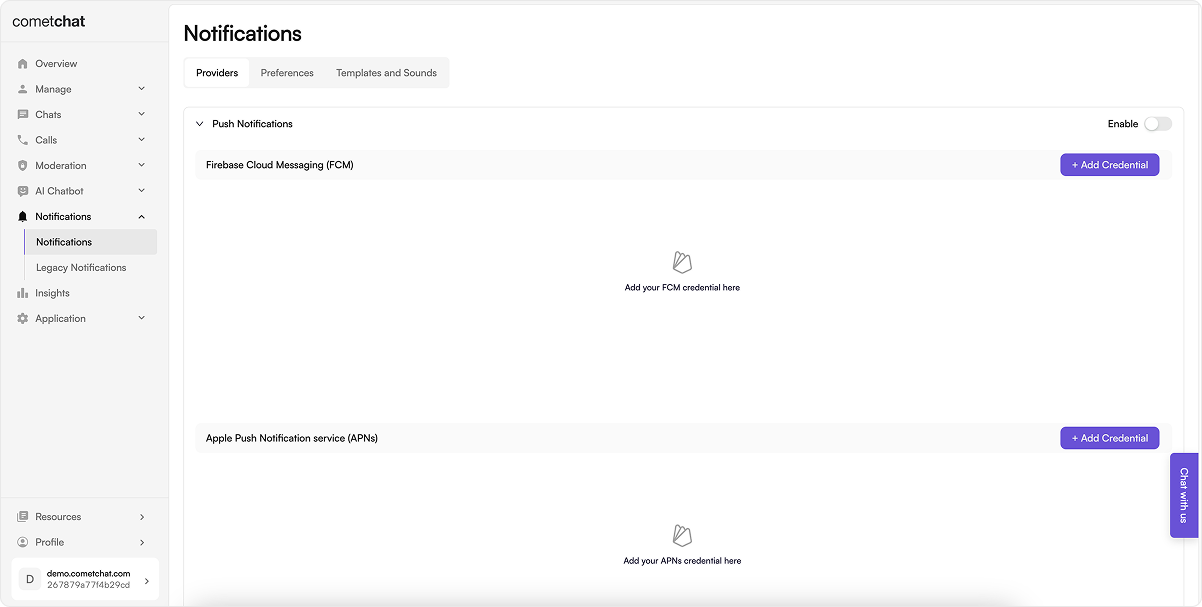 2. Click **Add Credentials**, choose **FCM**, upload the Firebase service account JSON (Firebase → Project settings → Service accounts → Generate new private key), and copy the Provider ID.
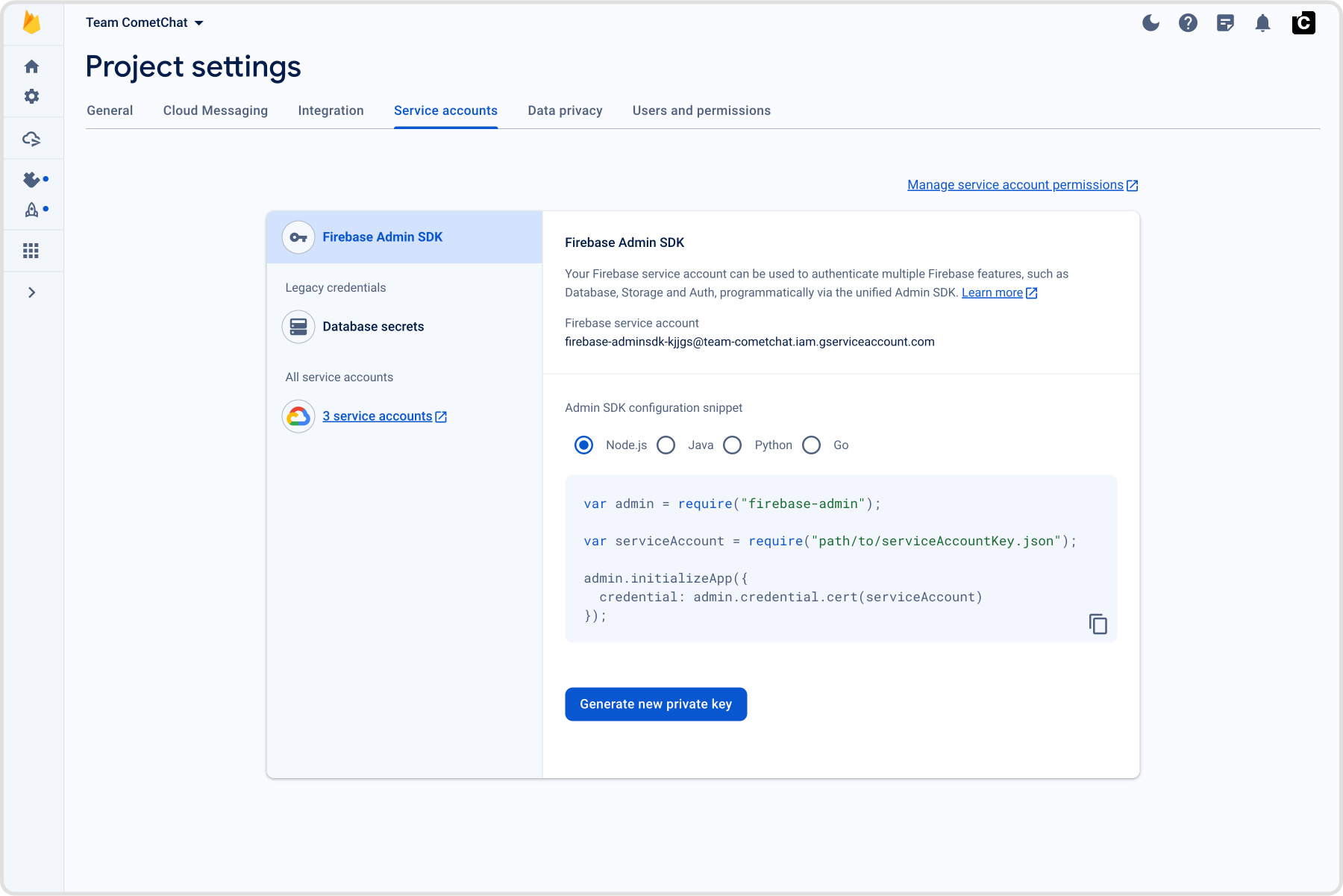 Keep the provider ID—you’ll use it in `AppCredentials.fcmProviderId`.
## 2. Prepare Firebase and credentials
### 2.1 Firebase Console
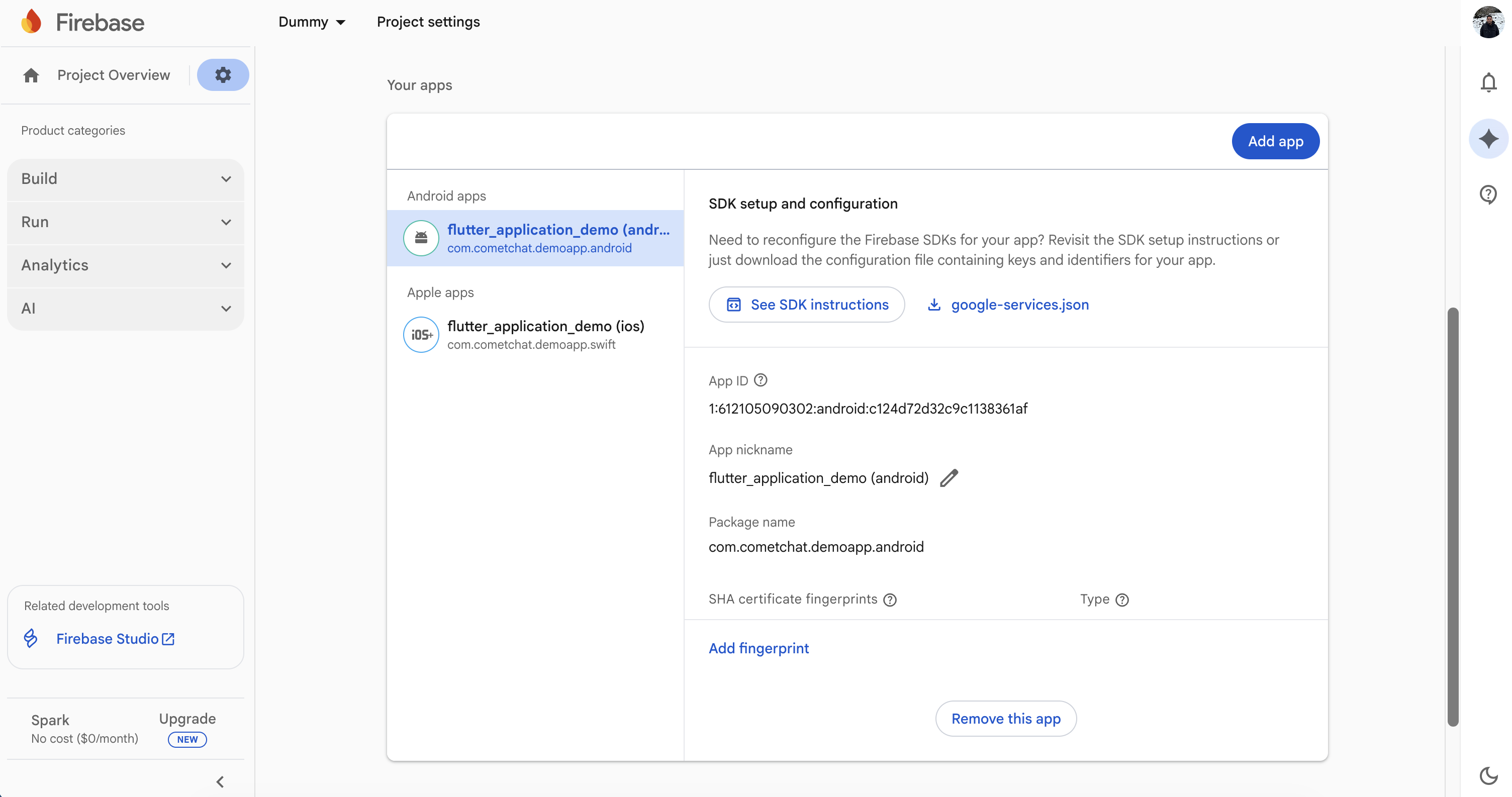
1. Register your Android package name (the same as `applicationId` in `android/app/build.gradle`) and download `google-services.json` into `android/app`.
2. Enable Cloud Messaging and copy the Server key if you want to send test messages manually.
Keep the provider ID—you’ll use it in `AppCredentials.fcmProviderId`.
## 2. Prepare Firebase and credentials
### 2.1 Firebase Console
1. Register your Android package name (the same as `applicationId` in `android/app/build.gradle`) and download `google-services.json` into `android/app`.
2. Enable Cloud Messaging and copy the Server key if you want to send test messages manually.
 ### 2.3 Local configuration file
Update [`lib/app_credentials.dart`](https://github.com/cometchat/cometchat-uikit-flutter/blob/v5/sample_app_push_notifications/lib/app_credentials.dart) so it exposes your credentials and provider IDs:
```dart lines theme={null}
class AppCredentials {
static String _appId = "YOUR_APP_ID";
static String _authKey = "YOUR_AUTH_KEY";
static String _region = "YOUR_REGION";
static String _fcmProviderId = "FCM-PROVIDER-ID";
}
```
The sample persists these values to `SharedPreferences`; `saveAppSettingsToNative()` passes them to Android so `CallActionReceiver` can reject calls even if Flutter is not running.
## 3. Bring the notification stack into Flutter
### 3.1 Copy [`lib/notifications`](https://github.com/cometchat/cometchat-uikit-flutter/tree/v5/sample_app_push_notifications/lib/notifications)
* Clone or download the sample once.
* Copy the entire `lib/notifications` directory (models, Android/iOS services, helpers) into your app.
* Update the import prefixes (for example replace `package:sample_app_push_notifications/...` with your own package name). Keeping the same folder names avoids manual refactors later.
### 3.2 Wire the entry points
**[`lib/main.dart`](https://github.com/cometchat/cometchat-uikit-flutter/blob/v5/sample_app_push_notifications/lib/main.dart)**
* Initialize `SharedPreferencesClass`, `FlutterLocalNotificationsPlugin`, and Firebase before calling `runApp`.
* Cache `NotificationLaunchHandler.pendingNotificationResponse` when the app is launched from a tapped notification while terminated.
* Keep the `callMain` entrypoint; `CallActivity` uses it to render the ongoing-call UI over the lock screen.
**[`lib/guard_screen.dart`](https://github.com/cometchat/cometchat-uikit-flutter/blob/v5/sample_app_push_notifications/lib/guard_screen.dart) / [`lib/dashboard.dart`](https://github.com/cometchat/cometchat-uikit-flutter/blob/v5/sample_app_push_notifications/lib/dashboard.dart) (or your first screen after login)**
* Ensure `CometChatUIKit.init()` and `CometChatUIKit.login()` finish before rendering the dashboard.
* On Android, instantiate `FirebaseService` and call `notificationService.init(context)` once; on iOS, keep `APNSService`.
* Replay `NotificationLaunchHandler.pendingNotificationResponse` after the widget tree builds so taps from a killed app still navigate to `MessagesScreen`.
* Forward lifecycle changes to `IncomingCallOverlay` / `BoolSingleton` to hide stale overlays when the app resumes.
* `VoipNotificationHandler.handleNativeCallIntent(context)` runs after the first frame to act on accept/decline actions that were tapped from the Android notification before Flutter started.
### 3.3 Align dependencies and configuration
Mirror the sample `pubspec.yaml` versions (update as needed when newer releases ship):
```yaml lines theme={null}
dependencies:
firebase_core: ^3.9.0
firebase_messaging: ^15.1.6
flutter_local_notifications: ^18.0.0
flutter_callkit_incoming:
path: ../sample_app_push_notifications/flutter_callkit_incoming
cometchat_chat_uikit: ^5.2.5
cometchat_calls_uikit: ^5.0.11
permission_handler: ^11.3.1
shared_preferences: ^2.2.1
```
Run `flutter pub get`, then `flutterfire configure` if you still need to generate `firebase_options.dart`.
## 4. Configure the native Android layer
### 4.1 Gradle + Firebase
1. Add `google-services.json` to `android/app`.
2. Ensure `android/app/build.gradle` applies the plugins used in the sample:
```gradle lines theme={null}
plugins {
id "com.android.application"
id "com.google.gms.google-services"
id "kotlin-android"
id "dev.flutter.flutter-gradle-plugin"
}
```
Set `applicationId` to your package name and keep `minSdk 24` or higher. `compileSdk 36` / `targetSdk 35` match the sample but can be raised if your project already targets a newer API.
### 4.2 Manifest permissions and components
Use the sample [`AndroidManifest.xml`](https://github.com/cometchat/cometchat-uikit-flutter/blob/v5/sample_app_push_notifications/android/app/src/main/AndroidManifest.xml) as a baseline:
* Permissions for notifications, audio/video, and lock-screen call UI: `POST_NOTIFICATIONS`, `RECORD_AUDIO`, `CAMERA`, `FOREGROUND_SERVICE`, `USE_FULL_SCREEN_INTENT`, `WAKE_LOCK`, `SHOW_WHEN_LOCKED`, `TURN_SCREEN_ON`, and `SYSTEM_ALERT_WINDOW`.
* `MainActivity` uses `launchMode="singleTask"` with `android:showWhenLocked="true"` / `android:turnScreenOn="true"` so incoming calls can wake the screen.
* `CallActivity` is a dedicated entrypoint (uses `callMain`) to render the ongoing call over the lock screen and is excluded from recents.
* `CallActionReceiver` listens to `flutter_callkit_incoming` actions (and mirrored app-specific actions) so Accept/Decline from the native notification reach Flutter.
* Set `default_notification_icon` meta-data to your icon if you change the launcher asset.
### 4.3 Kotlin bridge for call intents
* [`MainActivity.kt`](https://github.com/cometchat/cometchat-uikit-flutter/blob/v5/sample_app_push_notifications/android/app/src/main/kotlin/com/cometchat/sampleapp/flutter/android/MainActivity.kt) exposes a `MethodChannel("com.cometchat.sampleapp")` that supports:
* `get_initial_call_intent` – read and clear any call intent extras so `VoipNotificationHandler.handleNativeCallIntent` in Dart can react after Flutter launches.
* `setupLockScreenForCall` / `restoreLockScreenAfterCall` – temporarily bypass and then restore the lock screen when a call is accepted.
* `saveAppSettings` – stores your App ID and Region for the broadcast receiver.
* [`CallActionReceiver.kt`](https://github.com/cometchat/cometchat-uikit-flutter/blob/v5/sample_app_push_notifications/android/app/src/main/kotlin/com/cometchat/sampleapp/flutter/android/CallActionReceiver.kt) wakes the app for Accept/Decline actions. On decline, it can initialize the CometChat SDK headlessly (using the saved App ID/Region) to reject the call as busy even if Flutter is not running.
* [`CallActivity.kt`](https://github.com/cometchat/cometchat-uikit-flutter/blob/v5/sample_app_push_notifications/android/app/src/main/kotlin/com/cometchat/sampleapp/flutter/android/CallActivity.kt) overrides `getDartEntrypointFunctionName` to `callMain`, letting the ongoing-call UI render in its own activity with lock-screen flags.
If you change the MethodChannel name in Kotlin, update `voipPlatformChannel` inside [`lib/notifications/services/save_settings_to_native.dart`](https://github.com/cometchat/cometchat-uikit-flutter/blob/v5/sample_app_push_notifications/lib/notifications/services/save_settings_to_native.dart) to match.
## 5. Token registration and runtime events
### 5.1 FCM tokens
`FirebaseService.init` requests notification permission, sets the background handler (`firebaseMessagingBackgroundHandler`), and registers tokens:
```dart lines theme={null}
final token = await FirebaseMessaging.instance.getToken();
if (token != null) {
PNRegistry.registerPNService(token, true, false); // platform: FCM_FLUTTER_ANDROID
}
FirebaseMessaging.instance.onTokenRefresh.listen(
(token) => PNRegistry.registerPNService(token, true, false),
);
```
`PNRegistry` pulls the provider ID from `AppCredentials.fcmProviderId`. Call this only after `CometChatUIKit.login` succeeds.
### 5.2 Local notifications and navigation
* `LocalNotificationService.showNotification` renders a high-priority local notification when the incoming CometChat message does not belong to the currently open conversation.
* `NotificationLaunchHandler.pendingNotificationResponse` caches taps triggered while the app is terminated; `dashboard.dart` replays it after navigation is ready.
* `LocalNotificationService.handleNotificationTap` fetches the user/group and pushes `MessagesScreen` when a notification is tapped from foreground, background, or terminated states.
### 5.3 Call events (VoIP-like pushes)
* The top-level `firebaseMessagingBackgroundHandler` shows the incoming-call UI by calling `VoipNotificationHandler.displayIncomingCall`, which uses `flutter_callkit_incoming` to render a full-screen notification.
* `FirebaseService.initializeCallKitListeners` binds `FlutterCallkitIncoming.onEvent` so Accept/Decline/Timeout actions map to `VoipNotificationHandler.acceptVoipCall`, `declineVoipCall`, or `endCall`.
* `VoipNotificationHandler.handleNativeCallIntent` reads Accept/Decline extras passed from `CallActionReceiver` via the MethodChannel if the user acted before Flutter started.
* `saveAppSettingsToNative()` runs during `FirebaseService.init` to persist App ID/Region for the native receiver; keep it in place or `CallActionReceiver` cannot initialize CometChat when rejecting a call from the lock screen.
## 6. Badge count and grouped notifications
CometChat's Enhanced Push Notification payload includes an `unreadMessageCount` field (a string) representing the total unread messages across all conversations for the logged-in user. You can use this to set the app icon badge and enrich local notifications.
### 6.1 Enable unread badge count on the CometChat Dashboard
1. Go to **CometChat Dashboard → Notification Engine → Settings → Preferences → Push Notification Preferences**.
2. Scroll to the bottom and enable the **Unread Badge Count** toggle.
This ensures CometChat includes the `unreadMessageCount` field in every push payload sent to your app.
### 6.2 Add the `app_badge_plus` dependency
```yaml lines theme={null}
dependencies:
app_badge_plus: ^1.2.6
```
Run `flutter pub get`.
### 6.3 Expected payload format
CometChat sends FCM data messages with this structure (relevant fields):
```json theme={null}
{
"data": {
"unreadMessageCount": "5",
"title": "New Message",
"alert": "John: Hello!",
"conversationId": "user_abc123",
"conversationType": "user"
}
}
```
`unreadMessageCount` is a string representing the total unread messages across all conversations for the logged-in user.
### 6.4 Update the app badge from the push payload
Inside your local notification handler (for example `LocalNotificationService.showNotification`), parse `unreadMessageCount` and update the badge:
```dart lines theme={null}
import 'package:app_badge_plus/app_badge_plus.dart';
// Inside showNotification, after receiving notificationData:
final unreadCountRaw = notificationData['unreadMessageCount'];
int unreadMessageCount = int.tryParse(unreadCountRaw?.toString() ?? '') ?? 0;
if (unreadMessageCount >= 0) {
try {
await AppBadgePlus.updateBadge(unreadMessageCount);
} catch (e) {
debugPrint('Error updating badge count: $e');
}
}
```
On Android, `app_badge_plus` uses launcher-specific APIs (Samsung, Huawei, etc.) to display a badge number on the app icon. Passing `0` clears the badge.
### 6.5 Show grouped notifications with unread count
Use `conversationId.hashCode` as the notification ID so each new message from the same conversation replaces the previous notification instead of creating a new one. Accumulate message lines per conversation for inbox-style display:
```dart lines theme={null}
// Stable notification ID per conversation
final int notificationId = conversationId.isNotEmpty
? conversationId.hashCode
: DateTime.now().microsecondsSinceEpoch.hashCode;
// Accumulate messages for inbox-style display
static final Map> _conversationMessages = {};
_conversationMessages.putIfAbsent(conversationId, () => []);
_conversationMessages[conversationId]!.add(messageBody);
final messages = _conversationMessages[conversationId]!;
// Choose notification style based on message count
StyleInformation styleInformation;
if (messages.length == 1) {
styleInformation = const DefaultStyleInformation(false, false);
} else {
styleInformation = InboxStyleInformation(
messages,
contentTitle: title,
summaryText: unreadMessageCount > 0
? '$unreadMessageCount unread ${unreadMessageCount == 1 ? 'message' : 'messages'}'
: '${messages.length} messages',
);
}
final androidDetails = AndroidNotificationDetails(
notificationChannelId,
notificationChannelName,
importance: Importance.max,
priority: Priority.high,
icon: 'ic_launcher',
styleInformation: styleInformation,
subText: unreadMessageCount > 0
? '$unreadMessageCount unread ${unreadMessageCount == 1 ? 'message' : 'messages'}'
: null,
number: messages.length > 1 ? messages.length : null,
);
```
* `subText` shows the unread count below the notification title on most Android devices.
* `number` displays a count badge on the notification icon (Samsung One UI).
* When the user opens a conversation, clear its accumulated messages by removing the key from `_conversationMessages`.
### 6.6 Clear badge and notifications when the app opens
Clear the badge count and dismiss all local notifications when the app launches and every time it resumes from the background. Add `WidgetsBindingObserver` to your root widget and register/remove the observer in `initState()` and `dispose()`:
```dart lines theme={null}
Future _clearBadge() async {
try {
LocalNotificationService.flutterLocalNotificationsPlugin.cancelAll();
await AppBadgePlus.updateBadge(0);
debugPrint("The badge was cleared");
} catch (e) {
debugPrint("Error in clearing the badge value $e");
}
}
@override
void initState() {
super.initState();
WidgetsBinding.instance.addObserver(this);
_clearBadge();
}
@override
void didChangeAppLifecycleState(AppLifecycleState state) {
if (state == AppLifecycleState.resumed) {
_clearBadge();
}
}
@override
void dispose() {
WidgetsBinding.instance.removeObserver(this);
super.dispose();
}
```
`cancelAll()` removes stale notification banners from the tray so they stay in sync with the badge count.
## 7. Testing checklist
1. Run on a physical Android device. Grant notification, microphone, and camera permissions when prompted (Android 13+ requires `POST_NOTIFICATIONS`).
2. Send a message from another user:
* Foreground: a local notification banner shows (unless you are in that chat).
* Background: FCM notification appears; tapping opens the right conversation.
3. Force-quit the app, send another message push, tap it, and confirm `NotificationLaunchHandler` launches `MessagesScreen`.
4. Trigger an incoming CometChat call. Ensure:
* The full-screen call UI shows caller name/type with Accept/Decline.
* Accepting on the lock screen notifies Flutter (`handleNativeCallIntent`), starts the call session, and dismisses the native UI when the call ends.
* Declining from the notification triggers `CallActionReceiver` to reject the call server-side.
5. Rotate through Wi-Fi/cellular and reinstall the app to confirm token registration works after refresh events.
## 8. Troubleshooting tips
| Symptom | Quick checks |
| ------------------------------------------------- | ----------------------------------------------------------------------------------------------------------------------------------------------------------------------------------------------- |
| No notifications received | Confirm `google-services.json` is in `android/app`, the package name matches Firebase, and notification permission is granted (Android 13+). |
| Token registration errors | Double-check `AppCredentials.fcmProviderId` and that `PNRegistry.registerPNService` runs after login. |
| Call actions never reach Flutter | Ensure `CallActionReceiver` is declared in the manifest, MethodChannel names match `voipPlatformChannel`, and `VoipNotificationHandler.handleNativeCallIntent` is called from `dashboard.dart`. |
| Full-screen call UI not showing | Verify `USE_FULL_SCREEN_INTENT`, `WAKE_LOCK`, and `SHOW_WHEN_LOCKED` permissions plus `android:showWhenLocked="true"` / `android:turnScreenOn="true"` on `MainActivity` and `CallActivity`. |
| Tapping notification from killed app does nothing | Keep the `NotificationLaunchHandler` logic in `main.dart` and replay it after the navigator key is ready (post-frame callback). |
### 2.3 Local configuration file
Update [`lib/app_credentials.dart`](https://github.com/cometchat/cometchat-uikit-flutter/blob/v5/sample_app_push_notifications/lib/app_credentials.dart) so it exposes your credentials and provider IDs:
```dart lines theme={null}
class AppCredentials {
static String _appId = "YOUR_APP_ID";
static String _authKey = "YOUR_AUTH_KEY";
static String _region = "YOUR_REGION";
static String _fcmProviderId = "FCM-PROVIDER-ID";
}
```
The sample persists these values to `SharedPreferences`; `saveAppSettingsToNative()` passes them to Android so `CallActionReceiver` can reject calls even if Flutter is not running.
## 3. Bring the notification stack into Flutter
### 3.1 Copy [`lib/notifications`](https://github.com/cometchat/cometchat-uikit-flutter/tree/v5/sample_app_push_notifications/lib/notifications)
* Clone or download the sample once.
* Copy the entire `lib/notifications` directory (models, Android/iOS services, helpers) into your app.
* Update the import prefixes (for example replace `package:sample_app_push_notifications/...` with your own package name). Keeping the same folder names avoids manual refactors later.
### 3.2 Wire the entry points
**[`lib/main.dart`](https://github.com/cometchat/cometchat-uikit-flutter/blob/v5/sample_app_push_notifications/lib/main.dart)**
* Initialize `SharedPreferencesClass`, `FlutterLocalNotificationsPlugin`, and Firebase before calling `runApp`.
* Cache `NotificationLaunchHandler.pendingNotificationResponse` when the app is launched from a tapped notification while terminated.
* Keep the `callMain` entrypoint; `CallActivity` uses it to render the ongoing-call UI over the lock screen.
**[`lib/guard_screen.dart`](https://github.com/cometchat/cometchat-uikit-flutter/blob/v5/sample_app_push_notifications/lib/guard_screen.dart) / [`lib/dashboard.dart`](https://github.com/cometchat/cometchat-uikit-flutter/blob/v5/sample_app_push_notifications/lib/dashboard.dart) (or your first screen after login)**
* Ensure `CometChatUIKit.init()` and `CometChatUIKit.login()` finish before rendering the dashboard.
* On Android, instantiate `FirebaseService` and call `notificationService.init(context)` once; on iOS, keep `APNSService`.
* Replay `NotificationLaunchHandler.pendingNotificationResponse` after the widget tree builds so taps from a killed app still navigate to `MessagesScreen`.
* Forward lifecycle changes to `IncomingCallOverlay` / `BoolSingleton` to hide stale overlays when the app resumes.
* `VoipNotificationHandler.handleNativeCallIntent(context)` runs after the first frame to act on accept/decline actions that were tapped from the Android notification before Flutter started.
### 3.3 Align dependencies and configuration
Mirror the sample `pubspec.yaml` versions (update as needed when newer releases ship):
```yaml lines theme={null}
dependencies:
firebase_core: ^3.9.0
firebase_messaging: ^15.1.6
flutter_local_notifications: ^18.0.0
flutter_callkit_incoming:
path: ../sample_app_push_notifications/flutter_callkit_incoming
cometchat_chat_uikit: ^5.2.5
cometchat_calls_uikit: ^5.0.11
permission_handler: ^11.3.1
shared_preferences: ^2.2.1
```
Run `flutter pub get`, then `flutterfire configure` if you still need to generate `firebase_options.dart`.
## 4. Configure the native Android layer
### 4.1 Gradle + Firebase
1. Add `google-services.json` to `android/app`.
2. Ensure `android/app/build.gradle` applies the plugins used in the sample:
```gradle lines theme={null}
plugins {
id "com.android.application"
id "com.google.gms.google-services"
id "kotlin-android"
id "dev.flutter.flutter-gradle-plugin"
}
```
Set `applicationId` to your package name and keep `minSdk 24` or higher. `compileSdk 36` / `targetSdk 35` match the sample but can be raised if your project already targets a newer API.
### 4.2 Manifest permissions and components
Use the sample [`AndroidManifest.xml`](https://github.com/cometchat/cometchat-uikit-flutter/blob/v5/sample_app_push_notifications/android/app/src/main/AndroidManifest.xml) as a baseline:
* Permissions for notifications, audio/video, and lock-screen call UI: `POST_NOTIFICATIONS`, `RECORD_AUDIO`, `CAMERA`, `FOREGROUND_SERVICE`, `USE_FULL_SCREEN_INTENT`, `WAKE_LOCK`, `SHOW_WHEN_LOCKED`, `TURN_SCREEN_ON`, and `SYSTEM_ALERT_WINDOW`.
* `MainActivity` uses `launchMode="singleTask"` with `android:showWhenLocked="true"` / `android:turnScreenOn="true"` so incoming calls can wake the screen.
* `CallActivity` is a dedicated entrypoint (uses `callMain`) to render the ongoing call over the lock screen and is excluded from recents.
* `CallActionReceiver` listens to `flutter_callkit_incoming` actions (and mirrored app-specific actions) so Accept/Decline from the native notification reach Flutter.
* Set `default_notification_icon` meta-data to your icon if you change the launcher asset.
### 4.3 Kotlin bridge for call intents
* [`MainActivity.kt`](https://github.com/cometchat/cometchat-uikit-flutter/blob/v5/sample_app_push_notifications/android/app/src/main/kotlin/com/cometchat/sampleapp/flutter/android/MainActivity.kt) exposes a `MethodChannel("com.cometchat.sampleapp")` that supports:
* `get_initial_call_intent` – read and clear any call intent extras so `VoipNotificationHandler.handleNativeCallIntent` in Dart can react after Flutter launches.
* `setupLockScreenForCall` / `restoreLockScreenAfterCall` – temporarily bypass and then restore the lock screen when a call is accepted.
* `saveAppSettings` – stores your App ID and Region for the broadcast receiver.
* [`CallActionReceiver.kt`](https://github.com/cometchat/cometchat-uikit-flutter/blob/v5/sample_app_push_notifications/android/app/src/main/kotlin/com/cometchat/sampleapp/flutter/android/CallActionReceiver.kt) wakes the app for Accept/Decline actions. On decline, it can initialize the CometChat SDK headlessly (using the saved App ID/Region) to reject the call as busy even if Flutter is not running.
* [`CallActivity.kt`](https://github.com/cometchat/cometchat-uikit-flutter/blob/v5/sample_app_push_notifications/android/app/src/main/kotlin/com/cometchat/sampleapp/flutter/android/CallActivity.kt) overrides `getDartEntrypointFunctionName` to `callMain`, letting the ongoing-call UI render in its own activity with lock-screen flags.
If you change the MethodChannel name in Kotlin, update `voipPlatformChannel` inside [`lib/notifications/services/save_settings_to_native.dart`](https://github.com/cometchat/cometchat-uikit-flutter/blob/v5/sample_app_push_notifications/lib/notifications/services/save_settings_to_native.dart) to match.
## 5. Token registration and runtime events
### 5.1 FCM tokens
`FirebaseService.init` requests notification permission, sets the background handler (`firebaseMessagingBackgroundHandler`), and registers tokens:
```dart lines theme={null}
final token = await FirebaseMessaging.instance.getToken();
if (token != null) {
PNRegistry.registerPNService(token, true, false); // platform: FCM_FLUTTER_ANDROID
}
FirebaseMessaging.instance.onTokenRefresh.listen(
(token) => PNRegistry.registerPNService(token, true, false),
);
```
`PNRegistry` pulls the provider ID from `AppCredentials.fcmProviderId`. Call this only after `CometChatUIKit.login` succeeds.
### 5.2 Local notifications and navigation
* `LocalNotificationService.showNotification` renders a high-priority local notification when the incoming CometChat message does not belong to the currently open conversation.
* `NotificationLaunchHandler.pendingNotificationResponse` caches taps triggered while the app is terminated; `dashboard.dart` replays it after navigation is ready.
* `LocalNotificationService.handleNotificationTap` fetches the user/group and pushes `MessagesScreen` when a notification is tapped from foreground, background, or terminated states.
### 5.3 Call events (VoIP-like pushes)
* The top-level `firebaseMessagingBackgroundHandler` shows the incoming-call UI by calling `VoipNotificationHandler.displayIncomingCall`, which uses `flutter_callkit_incoming` to render a full-screen notification.
* `FirebaseService.initializeCallKitListeners` binds `FlutterCallkitIncoming.onEvent` so Accept/Decline/Timeout actions map to `VoipNotificationHandler.acceptVoipCall`, `declineVoipCall`, or `endCall`.
* `VoipNotificationHandler.handleNativeCallIntent` reads Accept/Decline extras passed from `CallActionReceiver` via the MethodChannel if the user acted before Flutter started.
* `saveAppSettingsToNative()` runs during `FirebaseService.init` to persist App ID/Region for the native receiver; keep it in place or `CallActionReceiver` cannot initialize CometChat when rejecting a call from the lock screen.
## 6. Badge count and grouped notifications
CometChat's Enhanced Push Notification payload includes an `unreadMessageCount` field (a string) representing the total unread messages across all conversations for the logged-in user. You can use this to set the app icon badge and enrich local notifications.
### 6.1 Enable unread badge count on the CometChat Dashboard
1. Go to **CometChat Dashboard → Notification Engine → Settings → Preferences → Push Notification Preferences**.
2. Scroll to the bottom and enable the **Unread Badge Count** toggle.
This ensures CometChat includes the `unreadMessageCount` field in every push payload sent to your app.
### 6.2 Add the `app_badge_plus` dependency
```yaml lines theme={null}
dependencies:
app_badge_plus: ^1.2.6
```
Run `flutter pub get`.
### 6.3 Expected payload format
CometChat sends FCM data messages with this structure (relevant fields):
```json theme={null}
{
"data": {
"unreadMessageCount": "5",
"title": "New Message",
"alert": "John: Hello!",
"conversationId": "user_abc123",
"conversationType": "user"
}
}
```
`unreadMessageCount` is a string representing the total unread messages across all conversations for the logged-in user.
### 6.4 Update the app badge from the push payload
Inside your local notification handler (for example `LocalNotificationService.showNotification`), parse `unreadMessageCount` and update the badge:
```dart lines theme={null}
import 'package:app_badge_plus/app_badge_plus.dart';
// Inside showNotification, after receiving notificationData:
final unreadCountRaw = notificationData['unreadMessageCount'];
int unreadMessageCount = int.tryParse(unreadCountRaw?.toString() ?? '') ?? 0;
if (unreadMessageCount >= 0) {
try {
await AppBadgePlus.updateBadge(unreadMessageCount);
} catch (e) {
debugPrint('Error updating badge count: $e');
}
}
```
On Android, `app_badge_plus` uses launcher-specific APIs (Samsung, Huawei, etc.) to display a badge number on the app icon. Passing `0` clears the badge.
### 6.5 Show grouped notifications with unread count
Use `conversationId.hashCode` as the notification ID so each new message from the same conversation replaces the previous notification instead of creating a new one. Accumulate message lines per conversation for inbox-style display:
```dart lines theme={null}
// Stable notification ID per conversation
final int notificationId = conversationId.isNotEmpty
? conversationId.hashCode
: DateTime.now().microsecondsSinceEpoch.hashCode;
// Accumulate messages for inbox-style display
static final Map> _conversationMessages = {};
_conversationMessages.putIfAbsent(conversationId, () => []);
_conversationMessages[conversationId]!.add(messageBody);
final messages = _conversationMessages[conversationId]!;
// Choose notification style based on message count
StyleInformation styleInformation;
if (messages.length == 1) {
styleInformation = const DefaultStyleInformation(false, false);
} else {
styleInformation = InboxStyleInformation(
messages,
contentTitle: title,
summaryText: unreadMessageCount > 0
? '$unreadMessageCount unread ${unreadMessageCount == 1 ? 'message' : 'messages'}'
: '${messages.length} messages',
);
}
final androidDetails = AndroidNotificationDetails(
notificationChannelId,
notificationChannelName,
importance: Importance.max,
priority: Priority.high,
icon: 'ic_launcher',
styleInformation: styleInformation,
subText: unreadMessageCount > 0
? '$unreadMessageCount unread ${unreadMessageCount == 1 ? 'message' : 'messages'}'
: null,
number: messages.length > 1 ? messages.length : null,
);
```
* `subText` shows the unread count below the notification title on most Android devices.
* `number` displays a count badge on the notification icon (Samsung One UI).
* When the user opens a conversation, clear its accumulated messages by removing the key from `_conversationMessages`.
### 6.6 Clear badge and notifications when the app opens
Clear the badge count and dismiss all local notifications when the app launches and every time it resumes from the background. Add `WidgetsBindingObserver` to your root widget and register/remove the observer in `initState()` and `dispose()`:
```dart lines theme={null}
Future _clearBadge() async {
try {
LocalNotificationService.flutterLocalNotificationsPlugin.cancelAll();
await AppBadgePlus.updateBadge(0);
debugPrint("The badge was cleared");
} catch (e) {
debugPrint("Error in clearing the badge value $e");
}
}
@override
void initState() {
super.initState();
WidgetsBinding.instance.addObserver(this);
_clearBadge();
}
@override
void didChangeAppLifecycleState(AppLifecycleState state) {
if (state == AppLifecycleState.resumed) {
_clearBadge();
}
}
@override
void dispose() {
WidgetsBinding.instance.removeObserver(this);
super.dispose();
}
```
`cancelAll()` removes stale notification banners from the tray so they stay in sync with the badge count.
## 7. Testing checklist
1. Run on a physical Android device. Grant notification, microphone, and camera permissions when prompted (Android 13+ requires `POST_NOTIFICATIONS`).
2. Send a message from another user:
* Foreground: a local notification banner shows (unless you are in that chat).
* Background: FCM notification appears; tapping opens the right conversation.
3. Force-quit the app, send another message push, tap it, and confirm `NotificationLaunchHandler` launches `MessagesScreen`.
4. Trigger an incoming CometChat call. Ensure:
* The full-screen call UI shows caller name/type with Accept/Decline.
* Accepting on the lock screen notifies Flutter (`handleNativeCallIntent`), starts the call session, and dismisses the native UI when the call ends.
* Declining from the notification triggers `CallActionReceiver` to reject the call server-side.
5. Rotate through Wi-Fi/cellular and reinstall the app to confirm token registration works after refresh events.
## 8. Troubleshooting tips
| Symptom | Quick checks |
| ------------------------------------------------- | ----------------------------------------------------------------------------------------------------------------------------------------------------------------------------------------------- |
| No notifications received | Confirm `google-services.json` is in `android/app`, the package name matches Firebase, and notification permission is granted (Android 13+). |
| Token registration errors | Double-check `AppCredentials.fcmProviderId` and that `PNRegistry.registerPNService` runs after login. |
| Call actions never reach Flutter | Ensure `CallActionReceiver` is declared in the manifest, MethodChannel names match `voipPlatformChannel`, and `VoipNotificationHandler.handleNativeCallIntent` is called from `dashboard.dart`. |
| Full-screen call UI not showing | Verify `USE_FULL_SCREEN_INTENT`, `WAKE_LOCK`, and `SHOW_WHEN_LOCKED` permissions plus `android:showWhenLocked="true"` / `android:turnScreenOn="true"` on `MainActivity` and `CallActivity`. |
| Tapping notification from killed app does nothing | Keep the `NotificationLaunchHandler` logic in `main.dart` and replay it after the navigator key is ready (post-frame callback). |