> ## Documentation Index
> Fetch the complete documentation index at: https://www.cometchat.com/docs/llms.txt
> Use this file to discover all available pages before exploring further.
# Reviewed Messages
> Track CometChat reviewed messages with moderation decisions, moderator actions, filters, and compliance audit history.
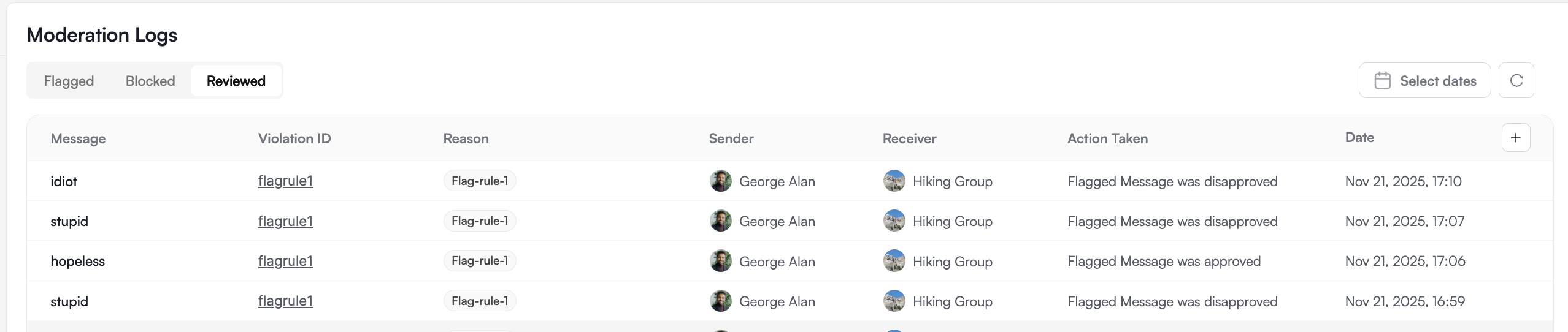
Reviewed Messages is your audit trail for all moderation decisions. When a moderator takes action on a flagged or blocked message (approve, block, or mark as reviewed), it automatically moves here for record-keeping.
**Complete moderation history.** Use this dashboard to track moderator activity, audit decisions, and maintain compliance records.
***
## Quick Start
Access your moderation history:
Login to [CometChat Dashboard](https://app.cometchat.com) → Select your app → **Moderation** → **Reviewed Messages**
Use date range, status, or moderator filters to find specific decisions
Click on any message to see the original content, rule triggered, and moderator action taken
 ***
## How Messages Get Here
```mermaid theme={null}
flowchart LR
A[Flagged Message] -->|Approve| C[Reviewed Messages]
A -->|Block| C
B[Blocked Message] -->|Approve| C
B -->|Mark as Reviewed| C
```
| Source | Action Taken | Result |
| --------------- | ---------------- | -------------------------------------- |
| Flagged Message | Approved | Message visible, marked reviewed |
| Flagged Message | Blocked | Message hidden, marked reviewed |
| Blocked Message | Approved | Message unblocked, marked reviewed |
| Blocked Message | Mark as Reviewed | Message stays blocked, marked reviewed |
***
## What You Can See
Each reviewed message includes:
| Field | Description |
| ------------------- | ----------------------------------------------------- |
| **Message Content** | The original text, image, or media that was moderated |
| **Sender** | User who sent the message |
| **Rule Triggered** | Which moderation rule flagged/blocked the message |
| **Action Taken** | Approved, Blocked, or Marked as Reviewed |
| **Moderator** | Who made the decision |
| **Timestamp** | When the decision was made |
***
## Use Cases
| Use Case | Description |
| ------------------------- | ----------------------------------------------------------------------- |
| **Compliance Audits** | Maintain records of all moderation decisions for regulatory compliance. |
| **Moderator Performance** | Track moderator activity and decision patterns. |
| **Rule Effectiveness** | Analyze which rules generate the most reviews to optimize your setup. |
| **Dispute Resolution** | Reference historical decisions when users dispute moderation actions. |
***
## FAQ
You cannot directly undo from the Reviewed Messages list. However, if a message was blocked, you can find it and approve it to make it visible again.
Reviewed messages are stored according to your data retention settings. Check your app settings for specific retention periods.
Yes, you can export reviewed messages for compliance or analysis purposes from the Dashboard.
***
## Related Resources
Messages pending review
Automatically blocked content
Configure moderation rules
Learn about the moderation system
***
## How Messages Get Here
```mermaid theme={null}
flowchart LR
A[Flagged Message] -->|Approve| C[Reviewed Messages]
A -->|Block| C
B[Blocked Message] -->|Approve| C
B -->|Mark as Reviewed| C
```
| Source | Action Taken | Result |
| --------------- | ---------------- | -------------------------------------- |
| Flagged Message | Approved | Message visible, marked reviewed |
| Flagged Message | Blocked | Message hidden, marked reviewed |
| Blocked Message | Approved | Message unblocked, marked reviewed |
| Blocked Message | Mark as Reviewed | Message stays blocked, marked reviewed |
***
## What You Can See
Each reviewed message includes:
| Field | Description |
| ------------------- | ----------------------------------------------------- |
| **Message Content** | The original text, image, or media that was moderated |
| **Sender** | User who sent the message |
| **Rule Triggered** | Which moderation rule flagged/blocked the message |
| **Action Taken** | Approved, Blocked, or Marked as Reviewed |
| **Moderator** | Who made the decision |
| **Timestamp** | When the decision was made |
***
## Use Cases
| Use Case | Description |
| ------------------------- | ----------------------------------------------------------------------- |
| **Compliance Audits** | Maintain records of all moderation decisions for regulatory compliance. |
| **Moderator Performance** | Track moderator activity and decision patterns. |
| **Rule Effectiveness** | Analyze which rules generate the most reviews to optimize your setup. |
| **Dispute Resolution** | Reference historical decisions when users dispute moderation actions. |
***
## FAQ
You cannot directly undo from the Reviewed Messages list. However, if a message was blocked, you can find it and approve it to make it visible again.
Reviewed messages are stored according to your data retention settings. Check your app settings for specific retention periods.
Yes, you can export reviewed messages for compliance or analysis purposes from the Dashboard.
***
## Related Resources
Messages pending review
Automatically blocked content
Configure moderation rules
Learn about the moderation system