> ## Documentation Index
> Fetch the complete documentation index at: https://www.cometchat.com/docs/llms.txt
> Use this file to discover all available pages before exploring further.
# OpenAI Moderation
> Configure OpenAI moderation in CometChat with custom prompts, model settings, thresholds, fallback behavior, and actions.
CometChat allows you to integrate OpenAI for real-time message moderation, enabling automated detection of harmful, offensive, or inappropriate content.
## Integration Steps
### Step 1: Create an OpenAI Prompt List
First, you need to create a list that defines your moderation prompt.
1. Navigate to the [CometChat Dashboard](https://app.cometchat.com) and select your app.
2. Go to **Moderation** → **Settings** from the left-hand menu.
3. Click on the **List** tab.
4. Click **Add List** to create a new list.
5. Fill in the required fields:
* **Name**: Enter a descriptive name for your OpenAI moderation list (e.g., `openai-moderation`)
* **ID**: Enter a unique identifier for the list (e.g., `openai-moderation-list`)
* **Category**: Select **OpenAI Prompt** from the dropdown
* **Description**: Enter a description (optional)
* **Prompt**: Enter your moderation prompt. This prompt defines the criteria OpenAI will use to evaluate content. For example, to detect phone numbers:
```
Detect if the message contains any phone numbers, mobile numbers, or contact numbers in any format.
```
6. Click **Save** to create the list.
### Step 2: Configure Advanced Settings
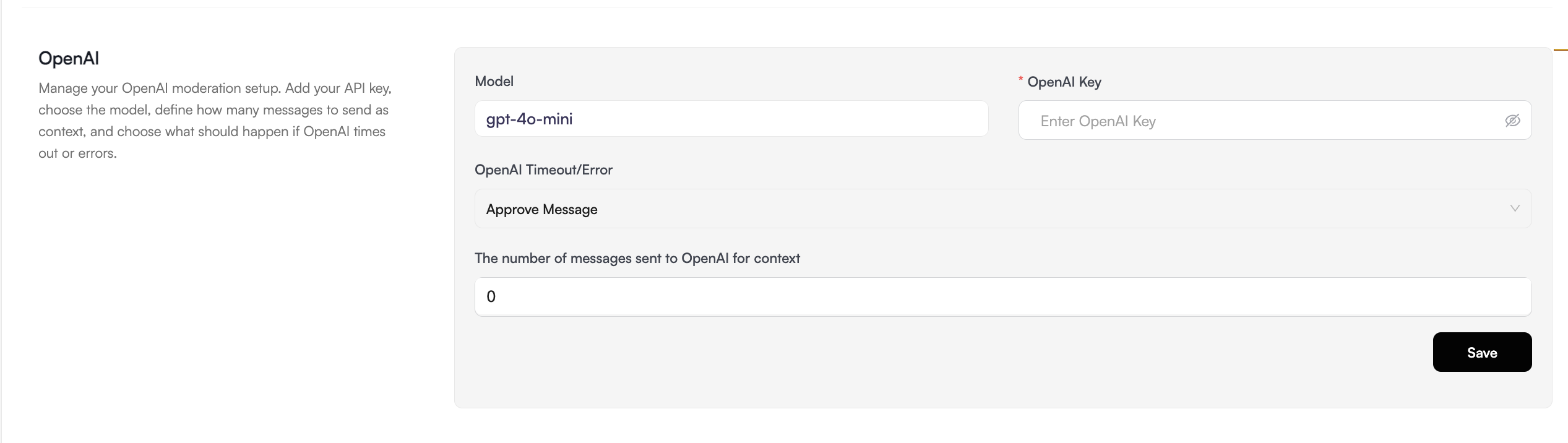
Next, configure the OpenAI model and error handling settings for your OpenAI API.
1. Navigate to **Moderation** → **Settings**.
2. Click on the **Advanced Settings** tab.
3. Scroll down to the **OpenAI** section.
4. Configure the following options:
* **Model**: Enter the OpenAI model you want to use (e.g., `gpt-4-turbo`)
* **OpenAI Key**: Enter your OpenAI API key to authenticate requests
* **The number of messages sent to OpenAI for context**:
* Set the number of previous messages to include as context (0-10)
* This enables context-aware moderation by providing conversation history
* Set to `0` if you don't need context and only want to moderate individual messages
* **On OpenAI Error**:
* **Approve Message** (Default): Messages are automatically approved if OpenAI is unavailable
* **Block Message**: Messages are blocked when OpenAI is inaccessible, ensuring no unmoderated content passes through
5. Click **Save** to apply the settings.
 ### Step 3: Create a Moderation Rule
Now, map your OpenAI list to a moderation rule to activate the moderation.
1. Navigate to **Moderation** → **Rules**.
2. Click **Create New Rule**.
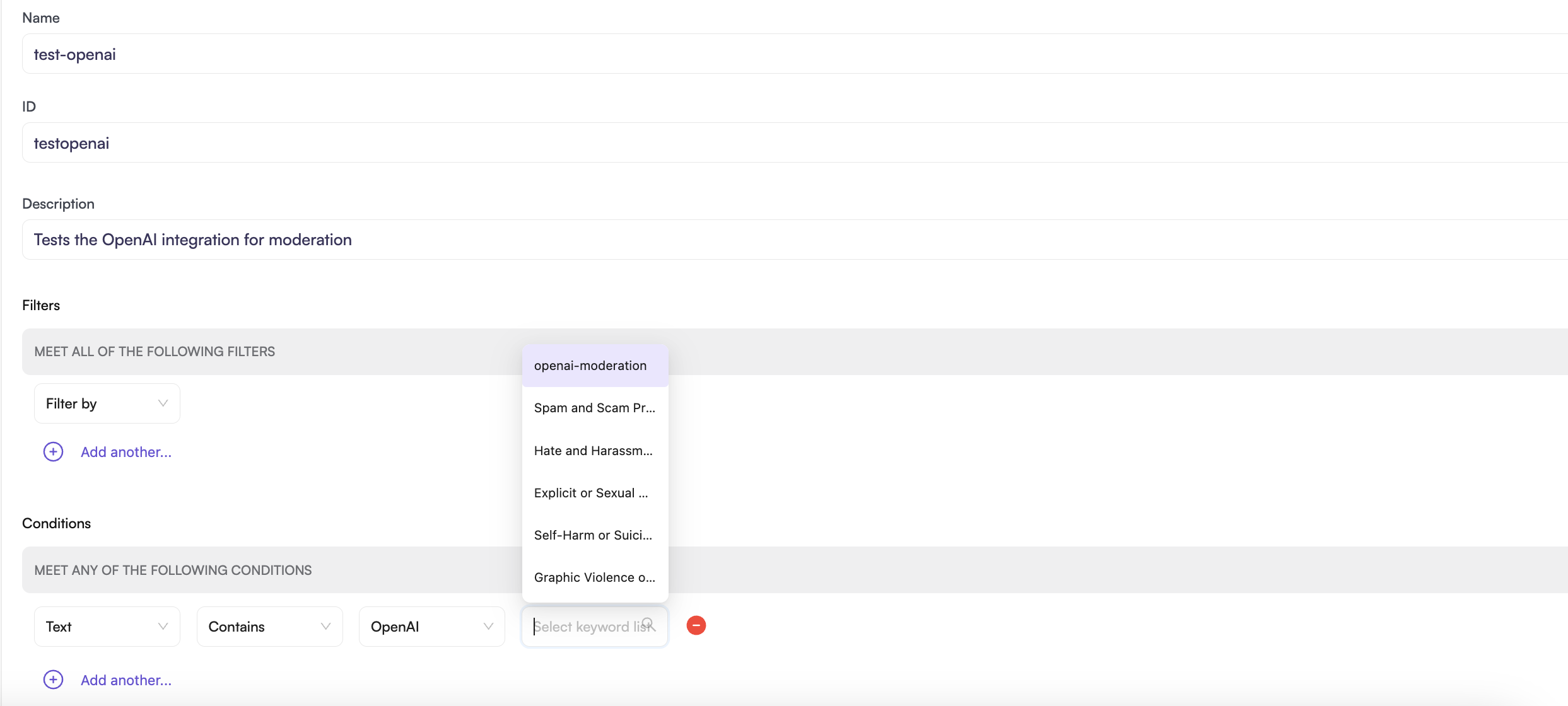
3. Fill in the mandatory fields:
* **Name**: Enter a name for the rule (e.g., `test-openai`)
* **ID**: Enter a unique identifier (e.g., `testopenai`)
* **Description**: Optionally describe what this rule does
4. Configure the **Conditions**:
* Select the content type to moderate (e.g., **Text**)
* Select **Contains**
* Select **OpenAI**
* Choose the OpenAI list you created in Step 1 from the dropdown
* Set the **confidence** threshold (e.g., `greater than 80%`)
* Higher percentages result in stricter matching
* Lower percentages allow more content to pass through
5. Configure the **Actions** to perform when content is flagged (block, flag for review, etc.).
6. Click **Save** to create the rule.
7. **Enable the rule** by toggling it on.
### Step 3: Create a Moderation Rule
Now, map your OpenAI list to a moderation rule to activate the moderation.
1. Navigate to **Moderation** → **Rules**.
2. Click **Create New Rule**.
3. Fill in the mandatory fields:
* **Name**: Enter a name for the rule (e.g., `test-openai`)
* **ID**: Enter a unique identifier (e.g., `testopenai`)
* **Description**: Optionally describe what this rule does
4. Configure the **Conditions**:
* Select the content type to moderate (e.g., **Text**)
* Select **Contains**
* Select **OpenAI**
* Choose the OpenAI list you created in Step 1 from the dropdown
* Set the **confidence** threshold (e.g., `greater than 80%`)
* Higher percentages result in stricter matching
* Lower percentages allow more content to pass through
5. Configure the **Actions** to perform when content is flagged (block, flag for review, etc.).
6. Click **Save** to create the rule.
7. **Enable the rule** by toggling it on.
 The rule you create should be of type **Text Contains** or **Image Contains** to work with OpenAI moderation.
***
The rule you create should be of type **Text Contains** or **Image Contains** to work with OpenAI moderation.
***