> ## Documentation Index
> Fetch the complete documentation index at: https://www.cometchat.com/docs/llms.txt
> Use this file to discover all available pages before exploring further.
# Flagged Messages
> Review CometChat flagged messages, inspect context and reasons, then approve or block content from the moderation queue.
Flagged Messages allows moderators to review messages that have been flagged for potentially violating moderation rules. Messages can be flagged automatically by the rule engine or manually by end users who find content inappropriate.
Flagged messages remain visible to users until a moderator reviews and takes action.
***
## Quick Start
Review flagged messages in under 2 minutes:
Login to [CometChat Dashboard](https://app.cometchat.com) → Select your app → **Moderation** → **Flagged Messages**
Click on a flagged message to see details, context, and the reason it was flagged
Click **Approve** (message stays visible) or **Block** (message is hidden)
***
## How It Works
```mermaid theme={null}
flowchart LR
A[Message Sent] --> B{Flagging}
B --> C[Manual Flag by User]
B --> D[Auto Flag by Rule Engine]
C --> E[Review Queue]
D --> E
E --> F{Moderator Action}
F --> G[Approve]
F --> H[Block]
G --> I[Reviewed List]
H --> I
```
| Step | Description |
| ------------------- | ------------------------------------------------------------------------------- |
| 1. Message Sent | A user sends a message in a conversation |
| 2. Flagging | Message is flagged either manually by users or automatically by the rule engine |
| 3. Review Queue | Flagged message appears in the Dashboard for moderator review |
| 4. Moderator Action | Moderator reviews and either approves or blocks the message |
| 5. Reviewed List | Message moves to the reviewed list with its final status |
***
## Flagging Methods
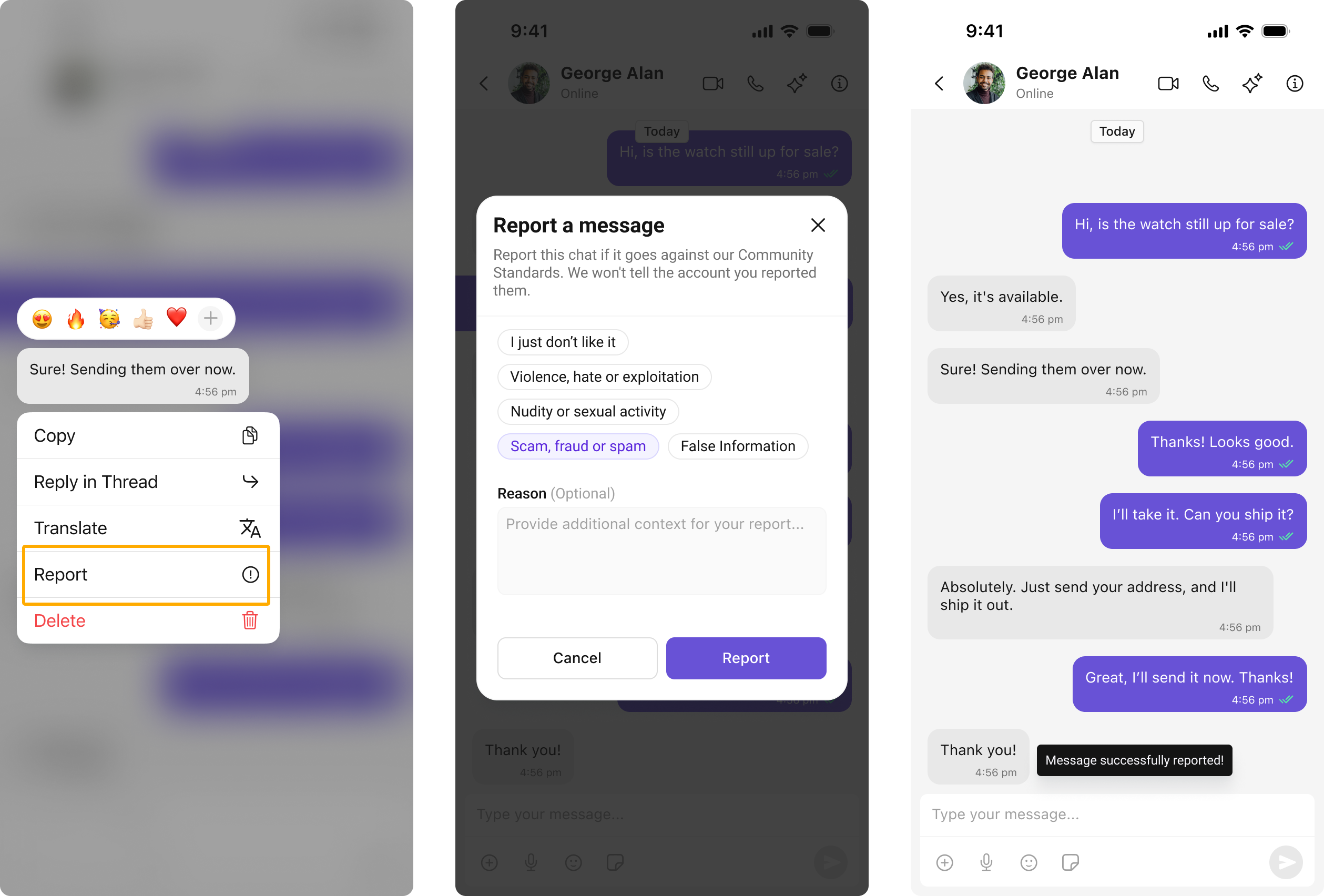
End users can manually flag messages they find inappropriate by selecting from a predefined list of reasons.
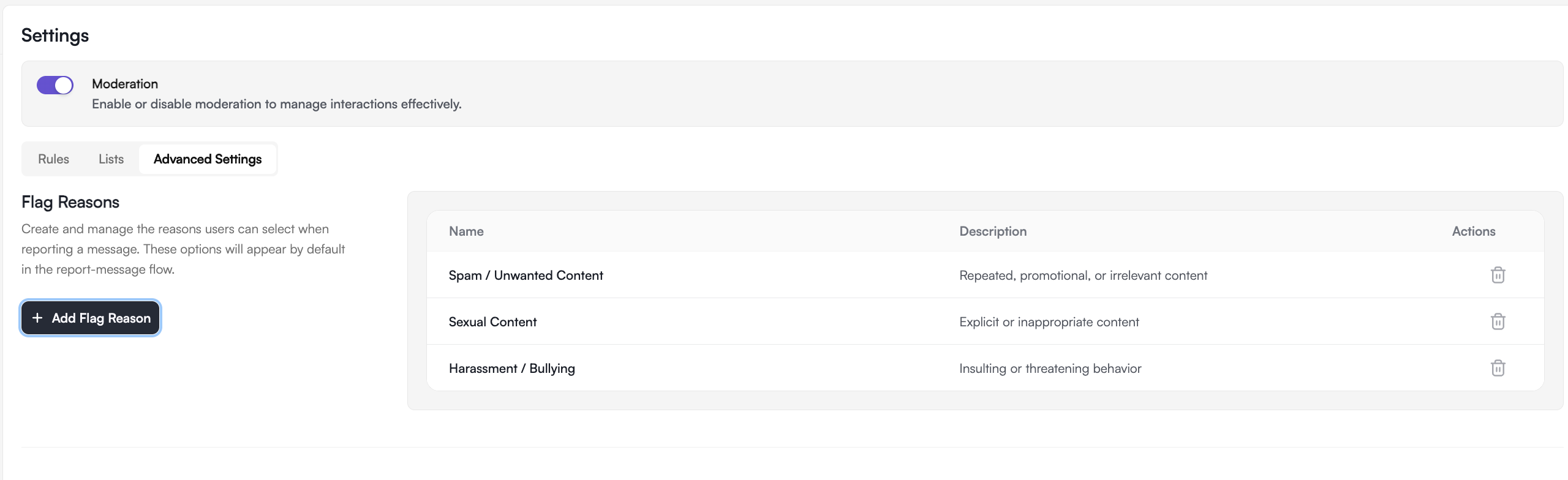
 **Configure flag reasons:** Dashboard → **Moderation** → **Advanced Settings**
 Messages are automatically flagged when they match moderation rules configured with the "Flag" action.
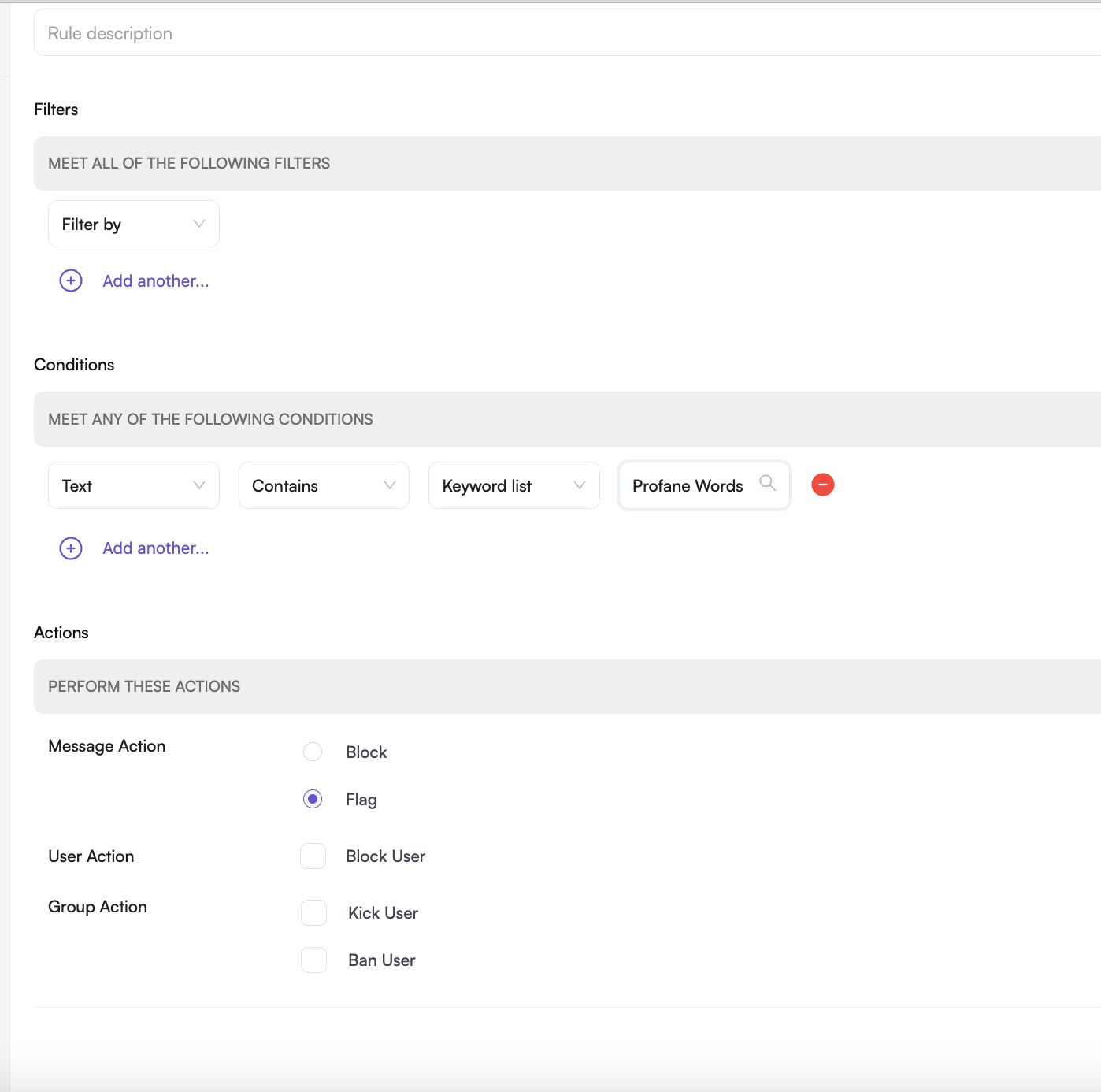 **Set up auto-flagging:** Create a rule in [Rules Management](/docs/moderation/rules-management) with Action set to "Flag"
***
## Enable Flagging in Your App
The Report Message feature is available in CometChat UI Kits. Users can report messages directly from the message actions menu:
} href="/ui-kit/react/core-features#report-message" horizontal />
} href="/ui-kit/react-native/core-features" horizontal />
} href="/ui-kit/android/core-features" horizontal />
} href="/ui-kit/ios/core-features" horizontal />
} href="/ui-kit/flutter/core-features" horizontal />
} href="/ui-kit/angular/core-features" horizontal />
} href="/ui-kit/vue/overview" horizontal />
Implement message flagging directly using CometChat Chat SDKs:
} href="/sdk/javascript/flag-message" horizontal />
} href="/sdk/react-native/flag-message" horizontal />
} href="/sdk/android/flag-message" horizontal />
} href="/sdk/ios/flag-message" horizontal />
} href="/sdk/flutter/flag-message" horizontal />
***
## Managing Flagged Messages
### List Flagged Messages
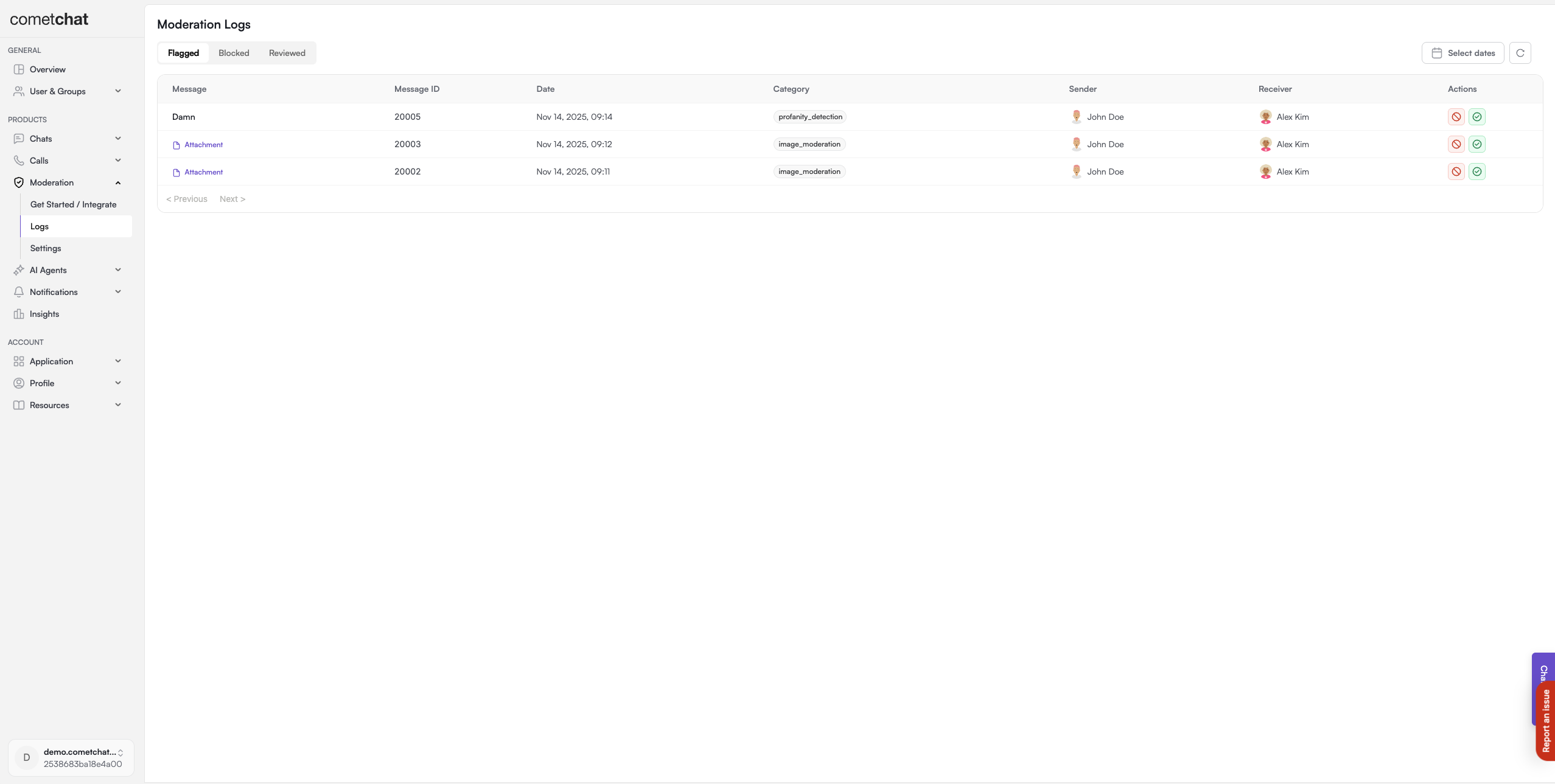
View all messages pending review in the Flagged Messages tab.
**Set up auto-flagging:** Create a rule in [Rules Management](/docs/moderation/rules-management) with Action set to "Flag"
***
## Enable Flagging in Your App
The Report Message feature is available in CometChat UI Kits. Users can report messages directly from the message actions menu:
} href="/ui-kit/react/core-features#report-message" horizontal />
} href="/ui-kit/react-native/core-features" horizontal />
} href="/ui-kit/android/core-features" horizontal />
} href="/ui-kit/ios/core-features" horizontal />
} href="/ui-kit/flutter/core-features" horizontal />
} href="/ui-kit/angular/core-features" horizontal />
} href="/ui-kit/vue/overview" horizontal />
Implement message flagging directly using CometChat Chat SDKs:
} href="/sdk/javascript/flag-message" horizontal />
} href="/sdk/react-native/flag-message" horizontal />
} href="/sdk/android/flag-message" horizontal />
} href="/sdk/ios/flag-message" horizontal />
} href="/sdk/flutter/flag-message" horizontal />
***
## Managing Flagged Messages
### List Flagged Messages
View all messages pending review in the Flagged Messages tab.
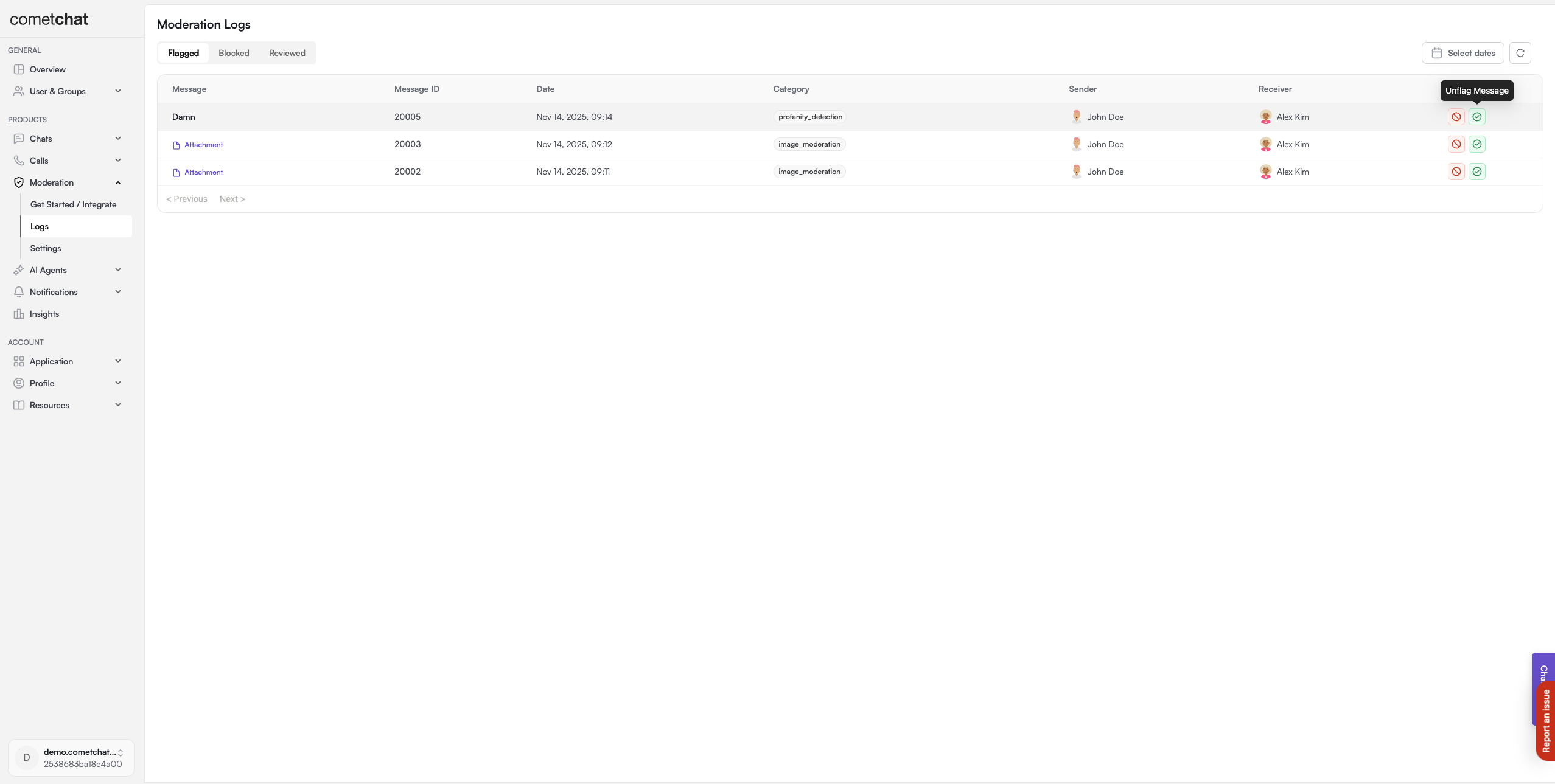
 ### Approve Message
Approving indicates the message is acceptable. It remains visible to all users and moves to the Reviewed list.
### Approve Message
Approving indicates the message is acceptable. It remains visible to all users and moves to the Reviewed list.
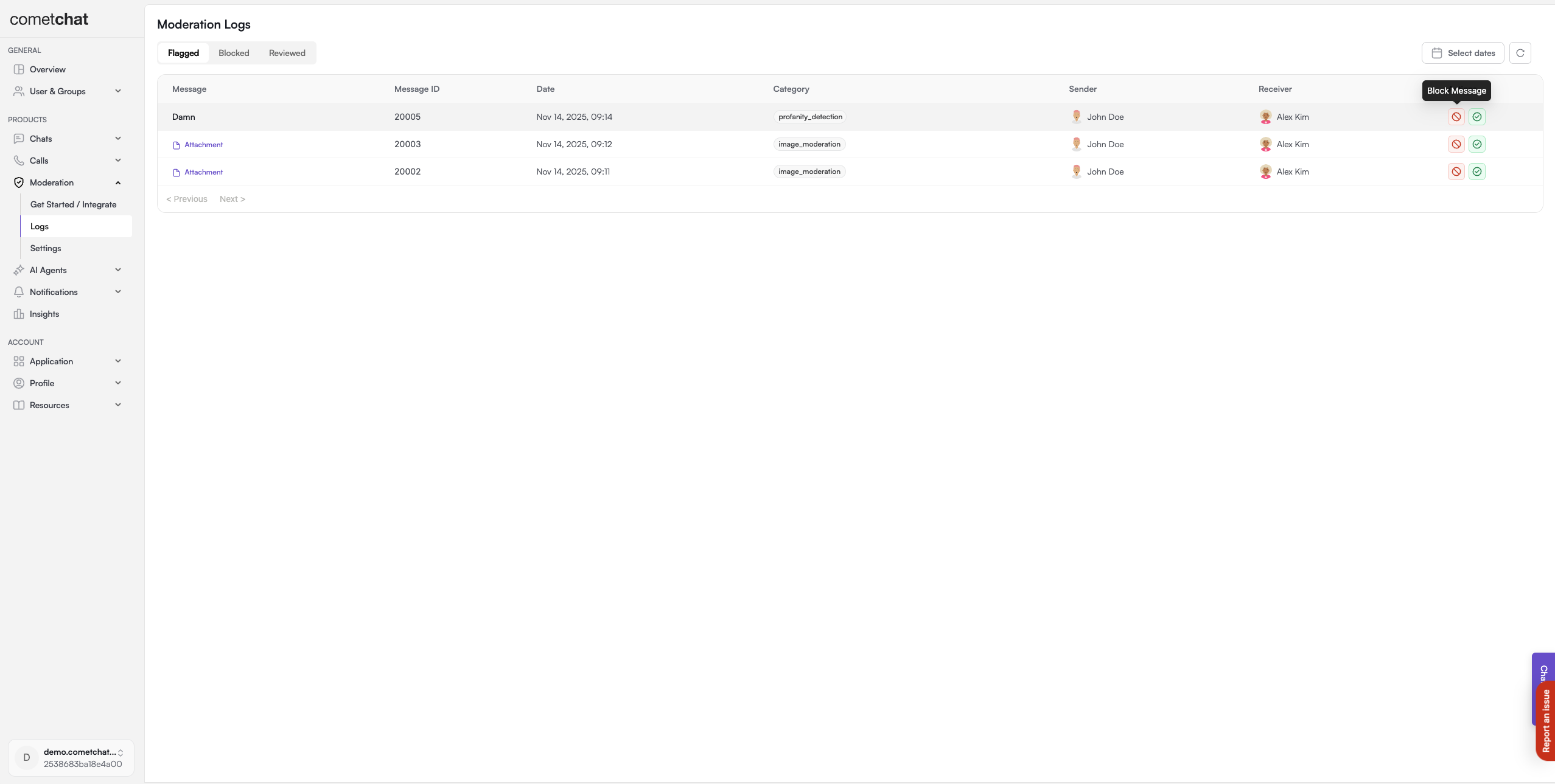
 ### Block Message
Blocking marks the message as disapproved. It's hidden from the conversation and moves to the Reviewed list.
### Block Message
Blocking marks the message as disapproved. It's hidden from the conversation and moves to the Reviewed list.
 **Bulk actions supported.** Select multiple flagged messages and approve or block them in a single action.
***
## FAQ
Blocked messages are hidden from the conversation and no longer visible to users. The message is marked as disapproved and moved to the Reviewed list.
By default, users are not notified when their message is blocked. The message simply becomes hidden from the conversation.
Yes, the Dashboard supports bulk actions. Select multiple flagged messages and approve or block them in a single action.
Flagged messages are pending review and remain visible until a moderator takes action. Blocked messages are immediately hidden and don't require review.
***
## Related Resources
Configure rules to auto-flag messages
View immediately blocked content
Create keyword lists for flagging
Learn about the moderation system
**Bulk actions supported.** Select multiple flagged messages and approve or block them in a single action.
***
## FAQ
Blocked messages are hidden from the conversation and no longer visible to users. The message is marked as disapproved and moved to the Reviewed list.
By default, users are not notified when their message is blocked. The message simply becomes hidden from the conversation.
Yes, the Dashboard supports bulk actions. Select multiple flagged messages and approve or block them in a single action.
Flagged messages are pending review and remain visible until a moderator takes action. Blocked messages are immediately hidden and don't require review.
***
## Related Resources
Configure rules to auto-flag messages
View immediately blocked content
Create keyword lists for flagging
Learn about the moderation system