> ## Documentation Index
> Fetch the complete documentation index at: https://www.cometchat.com/docs/llms.txt
> Use this file to discover all available pages before exploring further.
# Custom API Moderation
> Integrate custom moderation APIs with CometChat using webhooks, message context, confidence scores, and moderation actions.
CometChat allows you to integrate your own moderation logic using a **Custom API**. With this feature, you can define a webhook URL where CometChat will send messages for moderation along with relevant context from the conversation. This enables you to use your own moderation service, third-party AI moderation APIs, or custom business logic to moderate content.
## Integration Steps
### Step 1: Create a Custom API List
First, you need to create a list that defines your Custom API webhook configuration.
1. Navigate to the [CometChat Dashboard](https://app.cometchat.com) and select your app.
2. Go to **Moderation** → **Settings** from the left-hand menu.
3. Click on the **List** tab.
4. Click **Add List** to create a new list.
5. Fill in the required fields:
* **Name**: Enter a descriptive name for your custom moderation list (e.g., `custom-moderation`)
* **ID**: Enter a unique identifier for the list (e.g., `custom-moderation-list`)
* **Category**: Select **Custom API** from the dropdown
* **URL**: Enter the webhook URL where CometChat will POST message data for moderation
6. **Enable Basic Auth** (Optional but Recommended):
* Toggle on **Enable Basic Auth** for added security
* Enter your **Basic Auth Username**
* Enter your **Basic Auth Password**
* CometChat will include these credentials in the `Authorization` header when calling your webhook
7. Click **Save** to create the list.
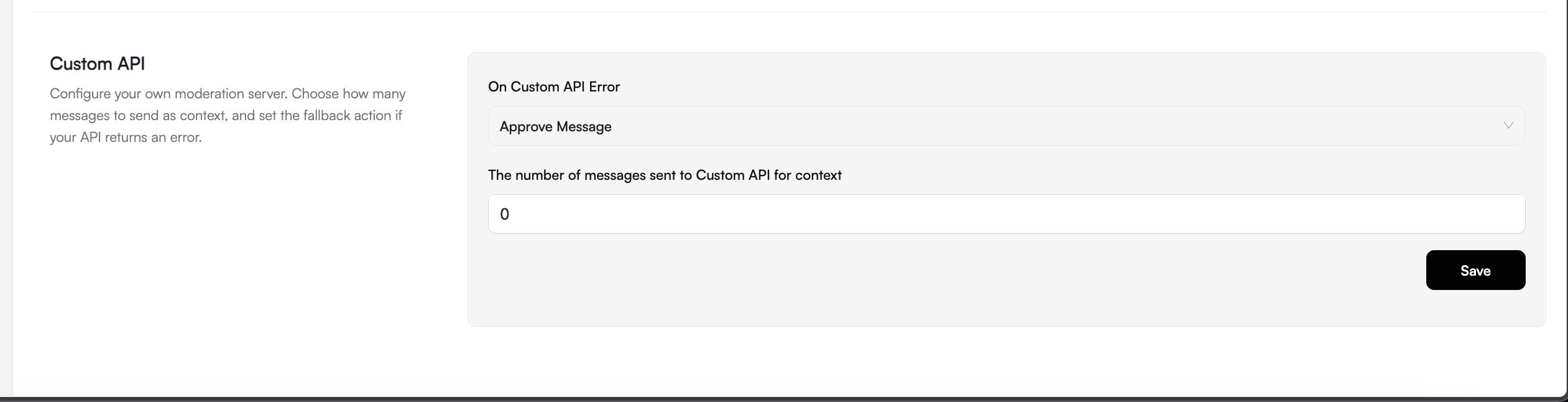
### Step 2: Configure Advanced Settings
Next, configure the context and error handling settings for your Custom API.
1. Navigate to **Moderation** → **Settings**.
2. Click on the **Advanced Settings** tab.
3. Scroll down to the **Custom API** section.
4. Configure the following options:
* **The number of messages sent to Custom API for context**:
* Set the number of previous messages to include as context (0-10)
* This enables context-aware moderation by providing conversation history
* Set to `0` if you don't need context and only want to moderate individual messages
* **On Custom API Error**:
* **Approve Message** (Default): Messages are automatically approved if your webhook is unavailable or returns an error
* **Block Message**: Messages are blocked when your webhook is inaccessible, ensuring no unmoderated content passes through
5. Click **Save** to apply the settings.
 ### Step 3: Create a Moderation Rule
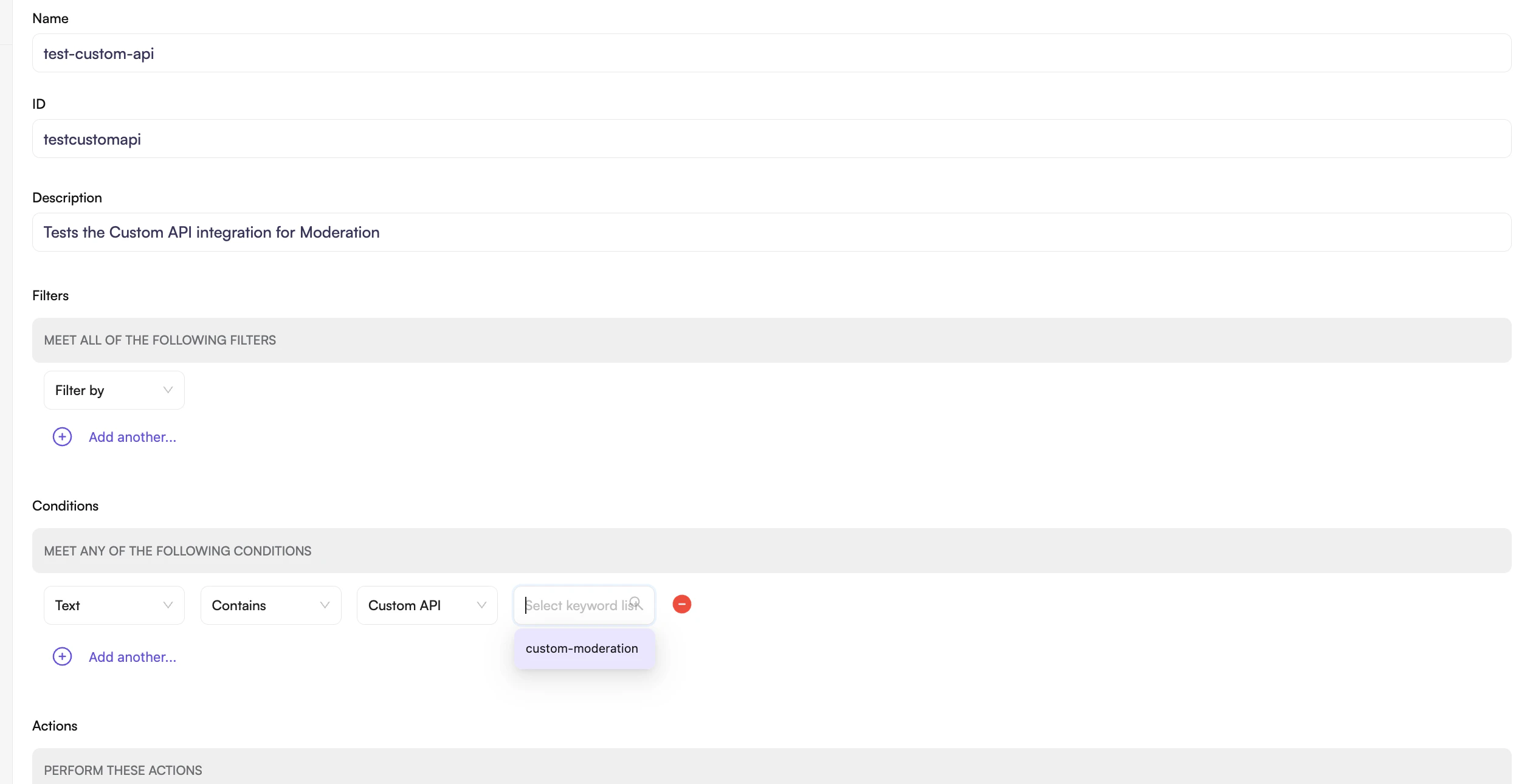
Now, map your Custom API list to a moderation rule to activate the moderation.
1. Navigate to **Moderation** → **Rules**.
2. Click **Create New Rule**.
3. Fill in the mandatory fields:
* **Name**: Enter a name for the rule (e.g., `test-custom-api`)
* **ID**: Enter a unique identifier (e.g., `testcustomapi`)
* **Description**: Optionally describe what this rule does
4. Configure the **Conditions**:
* Select the content type to moderate (e.g., **Text**)
* Select **Contains**
* Select **Custom API**
* Choose the Custom API list you created in Step 1 from the dropdown
* Set the **confidence** threshold (e.g., `greater than 80%`)
* Higher percentages result in stricter matching
* Lower percentages allow more content to be flagged
5. Configure the **Actions** to perform when content is flagged (block, flag for review, etc.).
6. Click **Save** to create the rule.
7. **Enable the rule** by toggling it on.
### Step 3: Create a Moderation Rule
Now, map your Custom API list to a moderation rule to activate the moderation.
1. Navigate to **Moderation** → **Rules**.
2. Click **Create New Rule**.
3. Fill in the mandatory fields:
* **Name**: Enter a name for the rule (e.g., `test-custom-api`)
* **ID**: Enter a unique identifier (e.g., `testcustomapi`)
* **Description**: Optionally describe what this rule does
4. Configure the **Conditions**:
* Select the content type to moderate (e.g., **Text**)
* Select **Contains**
* Select **Custom API**
* Choose the Custom API list you created in Step 1 from the dropdown
* Set the **confidence** threshold (e.g., `greater than 80%`)
* Higher percentages result in stricter matching
* Lower percentages allow more content to be flagged
5. Configure the **Actions** to perform when content is flagged (block, flag for review, etc.).
6. Click **Save** to create the rule.
7. **Enable the rule** by toggling it on.
 Once enabled, all messages matching your filter criteria will be sent to your webhook URL for moderation.
***
## Webhook Request
When a message is sent, CometChat will POST the message data to your configured webhook URL.
### Headers
| Header | Description |
| --------------- | -------------------------------------- |
| `Content-Type` | `application/json` |
| `Authorization` | Basic auth credentials (if configured) |
### Payload Structure
The payload includes:
* **Context messages**: Previous messages in the conversation (as plain text) based on your context window setting
* **Latest message**: The message being moderated (full message object with all details)
```json theme={null}
{
"contextMessages": [
{
"cometchat-uid-1": "Hello there!"
},
{
"cometchat-uid-2": "Hey, how are you?"
},
{
"cometchat-uid-1": "Let's team up."
},
{
"cometchat-uid-2": {
"id": "30431",
"muid": "_r49ocm6oj",
"conversationId": "cometchat-uid-1_user_cometchat-uid-2",
"sender": "cometchat-uid-1",
"receiverType": "user",
"receiver": "cometchat-uid-2",
"category": "message",
"type": "text",
"data": {
"text": "ok",
"resource": "WEB-4_0_10-04aecbad-8354-4fc8-98df-d0119e1a9539-1747717193939",
"entities": {
"sender": {
"entity": {
"uid": "cometchat-uid-1",
"name": "Andrew Joseph",
"avatar": "https://data-us.cometchat-staging.com/assets/images/avatars/andrewjoseph.png",
"status": "available",
"role": "default",
"lastActiveAt": 1747717203
},
"entityType": "user"
},
"receiver": {
"entity": {
"uid": "cometchat-uid-2",
"name": "George Alan",
"avatar": "https://data-us.cometchat-staging.com/assets/images/avatars/georgealan.png",
"status": "offline",
"role": "default",
"lastActiveAt": 1721138868,
"conversationId": "cometchat-uid-1_user_cometchat-uid-2"
},
"entityType": "user"
}
},
"moderation": {
"status": "pending"
}
},
"sentAt": 1747717214,
"updatedAt": 1747717214
}
}
]
}
```
***
## Webhook Response
Your webhook must return a JSON response indicating the moderation decision.
### When content violates rules
```json theme={null}
{
"isMatchingCondition": true,
"confidence": 0.95,
"reason": "Contains prohibited content"
}
```
### When content is safe
```json theme={null}
{
"isMatchingCondition": false,
"confidence": 0.98,
"reason": ""
}
```
### Response Fields
| Field | Type | Required | Description |
| --------------------- | ------- | -------- | ---------------------------------------------------------------------------------------------------------------- |
| `isMatchingCondition` | boolean | Yes | `true` if the message violates the rule, `false` if safe |
| `confidence` | number | Yes | Confidence score of the decision (0.0 - 1.0). This is compared against the threshold set in your rule conditions |
| `reason` | string | No | Reason for flagging (can be empty for safe content) |
The `confidence` value returned by your webhook is compared against the confidence threshold configured in your moderation rule. For example, if your rule is set to trigger when confidence is "greater than 80%" and your webhook returns `0.95`, the rule action will be executed.
Once enabled, all messages matching your filter criteria will be sent to your webhook URL for moderation.
***
## Webhook Request
When a message is sent, CometChat will POST the message data to your configured webhook URL.
### Headers
| Header | Description |
| --------------- | -------------------------------------- |
| `Content-Type` | `application/json` |
| `Authorization` | Basic auth credentials (if configured) |
### Payload Structure
The payload includes:
* **Context messages**: Previous messages in the conversation (as plain text) based on your context window setting
* **Latest message**: The message being moderated (full message object with all details)
```json theme={null}
{
"contextMessages": [
{
"cometchat-uid-1": "Hello there!"
},
{
"cometchat-uid-2": "Hey, how are you?"
},
{
"cometchat-uid-1": "Let's team up."
},
{
"cometchat-uid-2": {
"id": "30431",
"muid": "_r49ocm6oj",
"conversationId": "cometchat-uid-1_user_cometchat-uid-2",
"sender": "cometchat-uid-1",
"receiverType": "user",
"receiver": "cometchat-uid-2",
"category": "message",
"type": "text",
"data": {
"text": "ok",
"resource": "WEB-4_0_10-04aecbad-8354-4fc8-98df-d0119e1a9539-1747717193939",
"entities": {
"sender": {
"entity": {
"uid": "cometchat-uid-1",
"name": "Andrew Joseph",
"avatar": "https://data-us.cometchat-staging.com/assets/images/avatars/andrewjoseph.png",
"status": "available",
"role": "default",
"lastActiveAt": 1747717203
},
"entityType": "user"
},
"receiver": {
"entity": {
"uid": "cometchat-uid-2",
"name": "George Alan",
"avatar": "https://data-us.cometchat-staging.com/assets/images/avatars/georgealan.png",
"status": "offline",
"role": "default",
"lastActiveAt": 1721138868,
"conversationId": "cometchat-uid-1_user_cometchat-uid-2"
},
"entityType": "user"
}
},
"moderation": {
"status": "pending"
}
},
"sentAt": 1747717214,
"updatedAt": 1747717214
}
}
]
}
```
***
## Webhook Response
Your webhook must return a JSON response indicating the moderation decision.
### When content violates rules
```json theme={null}
{
"isMatchingCondition": true,
"confidence": 0.95,
"reason": "Contains prohibited content"
}
```
### When content is safe
```json theme={null}
{
"isMatchingCondition": false,
"confidence": 0.98,
"reason": ""
}
```
### Response Fields
| Field | Type | Required | Description |
| --------------------- | ------- | -------- | ---------------------------------------------------------------------------------------------------------------- |
| `isMatchingCondition` | boolean | Yes | `true` if the message violates the rule, `false` if safe |
| `confidence` | number | Yes | Confidence score of the decision (0.0 - 1.0). This is compared against the threshold set in your rule conditions |
| `reason` | string | No | Reason for flagging (can be empty for safe content) |
The `confidence` value returned by your webhook is compared against the confidence threshold configured in your moderation rule. For example, if your rule is set to trigger when confidence is "greater than 80%" and your webhook returns `0.95`, the rule action will be executed.