> ## Documentation Index
> Fetch the complete documentation index at: https://www.cometchat.com/docs/llms.txt
> Use this file to discover all available pages before exploring further.
# Key Concepts
> Understand CometChat key concepts including apps, users, UIDs, roles, authentication, groups, messages, calls, and webhooks.
## Dashboard
* The CometChat Dashboard enables you to create new apps (projects) and manage your existing apps.
* Ideally, you should create two apps - one for development and one for production.
* Do not create separate apps for every platform; if you do, your users on different platforms will not be able to communicate with each other!
* For every app, a unique App ID (`appId`) is generated. This `appId` will be required when integrating CometChat within your app.
## Users
* In CometChat, a "user" refers to anyone who utilizes the service for communication.
* Each user is uniquely identified using `uid`.
* The `uid` is typically the primary ID of the user from your database.
* A `uid` can be alphanumeric with underscore (`_`) and hyphen (`-`). Spaces, punctuation and other special characters are not allowed.
### User Roles
* A role is a category for a group of similar users.
* For example, you may want to group your premium users using the role "Premium".
* You then use this to filter users or enable/disable features by writing conditional code.
### User List
* The User List can be used to build the **Contacts** or **Who's Online** view in your app.
* The list of users can be different based on the logged-in user.
## Authentication
* For a user to engage with other users using CometChat, they must be authenticated and logged into CometChat's system, typically after they have logged into your application or website.
* **CometChat does not take care of user management** tasks such as registration and login processes. These aspects must be managed within your own application or website. Once a user is logged into your service, you can then programmatically log them into CometChat, ensuring that users never have to log into CometChat directly.
* Similarly, **CometChat does not manage friendships or contacts** within its platform. If your application requires a feature where users can add each other as friends, this must be handled on your end. After two users have established a mutual friend connection in your application, you can then reflect this relationship within CometChat, linking them as friends in the messaging system.
### Auth workflow
| Your App | Your Server | CometChat |
| ----------------------------- | ------------------------------------------------------------------------------------------------------------- | ------------------------------------------------------------------------ |
| User registers in your app | You store the user information in your database (e.g. ID, name, email, phone, location etc. in `users` table) | You add the user to CometChat (only ID & name) using the Rest API |
| User logs in to your app | You verify the credentials, login the user and retrieve the user ID | You log in the user to CometChat using the same user ID programmatically |
| User sends a friend request | You display the request to the potential friend | No action required |
| User accepts a friend request | You display the users as friends | You add both the users as friends using the Rest API |
### Auth & Rest API Keys
* From the CometChat dashboard, you can generate two types of keys.
* Each key serves a distinct purpose and provides different levels of access to the CometChat platform, ensuring that your application's interaction with CometChat is secure and appropriate permissions are maintained.
| Type | Privileges | Recommended Use |
| ------------ | ---------------------------------------------------------------- | --------------------------------------------- |
| Auth Key | The Auth Key can be used to create & login users. | In your client-side code (during development) |
| Rest API Key | The Rest API Key can be used to perform any CometChat operation. | In your server-side code |
### Auth token
* Auth tokens are associated with users in CometChat. A single user can have multiple auth tokens. The auth tokens should be **per user per device**.
* It should be generated by API call ideally, via server to server call. The auth token should then be given to CometChat for login.
* An Auth Token can only be deleted via dashboard or using REST API.
## Groups
* A group in CometChat is a feature that allows multiple users to engage in conversations about specific topics or shared interests. It facilitates collective communication and collaboration among its members.
* Each group is uniquely identified using `guid`.
* The `guid` is typically the primary ID of the group from your database.
* If you do not store group information in your database, you can generate a random string for use as `guid`.
* A `guid` can be alphanumeric with underscore (`_`) and hyphen (`-`). Spaces, punctuation and other special characters are not allowed.
### Group types
CometChat supports three different types of groups.
| Type | Visibility | Participation |
| -------- | ---------------------------- | ------------------------------------------------- |
| Public | All users | Any user can choose to join |
| Password | All users | Any user with a valid password can choose to join |
| Private | Only users part of the group | Invited users will be auto-joined |
### Group members
* After joining a group on CometChat, a participant is considered a member of that group.
* This membership is ongoing, meaning they will continue to receive messages, calls, and notifications from the group indefinitely.
* If a member no longer wishes to receive these communications, they must actively leave the group or be removed by being kicked out or banned by a group administrator.
CometChat supports three different types of member scopes in a group:
| Member | Default | Privileges |
| ----------- | -------------------------------------------- | ------------------------------------------------------------------------------------------------------------------------------------------------------------------------------------------------------------- |
| Admin | Group creator is assigned Admin scope | - Change scope of Group Members to admin, moderator or participant. - Can add members to a group. - Kick & Ban Participants/Moderators/Admins - Send & Receive Messages & Calls - Update group - Delete group |
| Moderator | A participant can be made a moderator | - Change scope of moderator or participant. - Update group - Kick & Ban Participants - Send & Receive Messages & Calls |
| Participant | Any other user is assigned Participant scope | - Send & Receive Messages & Calls |
## Messaging
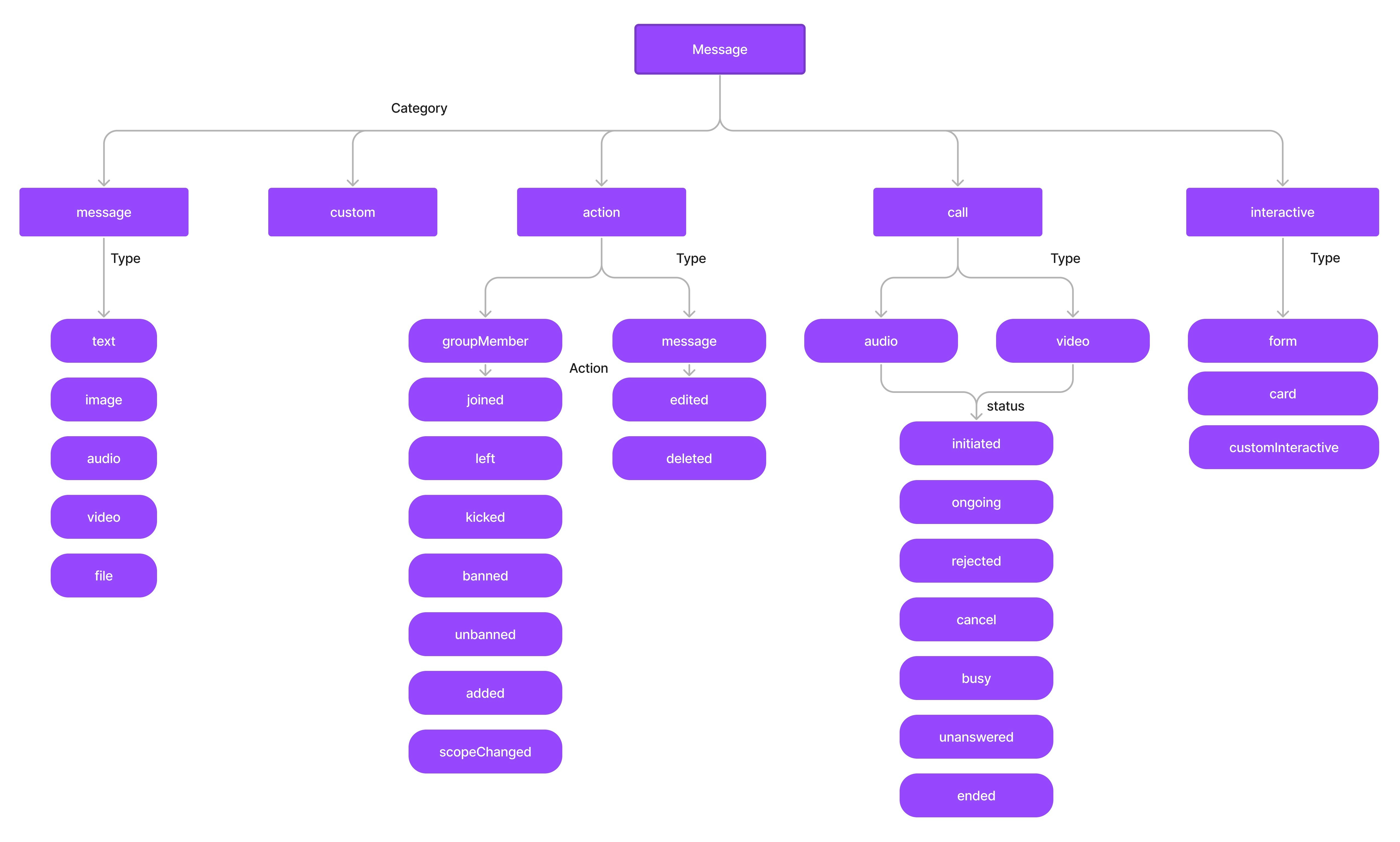 Every message in CometChat belongs to either one of the five categories:
1. Message
2. Custom
3. Action
4. Call
5. Interactive
Each category can be further be classified into types.
### Message
The category `message` can be used to send messages of the following types:
1. `text` - A plain text message
2. `image`- An image message
3. `video`- A video message
4. `audio`- An audio message
5. `file`- A file message
### Custom
* In the case of messages that belong to the `custom` category, there are no predefined types.
* Custom messages can be used by developers to send messages that do not fit in the default category and types provided by CometChat.
* For messages with the category `custom`, the developers can set their own type to uniquely identify the custom message.
* A very good example of a custom message would be the sharing of location co-ordinates. In this case, the developer can decide to use the custom message with type set to `location`.
### Action
Action messages are system-generated messages. Messages belonging to the `action` category can further be classified into one of the below types:
1. `groupMember` - action performed on a group member.
2. `message` - action performed on a message.
Action messages hold another property called `action` which actually determine the action that has been performed For the type `groupMember` the action can be either one of the below:
1. `joined` - when a group member joins a group
2. `left` - when a group member leaves a group
3. `kicked` - when a group member is kicked from the group
4. `banned` - when a group member is banned from the group
5. `unbanned` - when a group member is unbanned from the group
6. `added` - when a user is added to the group
7. `scopeChanged` - When the scope of a group member is changed.
For the type `message`, the action can be either one of the below:
1. `edited` - when a message is edited.
2. `deleted` - when a message is deleted.
### Call
Messages with the category `call` are Calling related messages. These can belong to either one of the 2 types
1. `audio`
2. `video`
The call messages have a property called status that helps you figure out the status of the call. The status can be either one of the below values:
1. `initiated` - when a is initiated to a user/group
2. `ongoing` - when the receiver of the call has accepted the call
3. `canceled` - when the call has been canceled by the initiator of the call
4. `rejected` - when the call has been rejected by the receiver of the call
5. `unanswered` - when the call was not answered by the receiver.
6. `busy` - when the receiver of the call was busy on another call.
7. `ended` - when the call was successfully completed and ended by either the initiator or receiver.
### Interactive
Messages with the category `interactive` are useful where users can perform some action without leaving the conversation. Interactive messages can be of the following types:
1. `form`
2. `card`
3. `scheduler`
4. `customInteractive`
Every message in CometChat belongs to either one of the five categories:
1. Message
2. Custom
3. Action
4. Call
5. Interactive
Each category can be further be classified into types.
### Message
The category `message` can be used to send messages of the following types:
1. `text` - A plain text message
2. `image`- An image message
3. `video`- A video message
4. `audio`- An audio message
5. `file`- A file message
### Custom
* In the case of messages that belong to the `custom` category, there are no predefined types.
* Custom messages can be used by developers to send messages that do not fit in the default category and types provided by CometChat.
* For messages with the category `custom`, the developers can set their own type to uniquely identify the custom message.
* A very good example of a custom message would be the sharing of location co-ordinates. In this case, the developer can decide to use the custom message with type set to `location`.
### Action
Action messages are system-generated messages. Messages belonging to the `action` category can further be classified into one of the below types:
1. `groupMember` - action performed on a group member.
2. `message` - action performed on a message.
Action messages hold another property called `action` which actually determine the action that has been performed For the type `groupMember` the action can be either one of the below:
1. `joined` - when a group member joins a group
2. `left` - when a group member leaves a group
3. `kicked` - when a group member is kicked from the group
4. `banned` - when a group member is banned from the group
5. `unbanned` - when a group member is unbanned from the group
6. `added` - when a user is added to the group
7. `scopeChanged` - When the scope of a group member is changed.
For the type `message`, the action can be either one of the below:
1. `edited` - when a message is edited.
2. `deleted` - when a message is deleted.
### Call
Messages with the category `call` are Calling related messages. These can belong to either one of the 2 types
1. `audio`
2. `video`
The call messages have a property called status that helps you figure out the status of the call. The status can be either one of the below values:
1. `initiated` - when a is initiated to a user/group
2. `ongoing` - when the receiver of the call has accepted the call
3. `canceled` - when the call has been canceled by the initiator of the call
4. `rejected` - when the call has been rejected by the receiver of the call
5. `unanswered` - when the call was not answered by the receiver.
6. `busy` - when the receiver of the call was busy on another call.
7. `ended` - when the call was successfully completed and ended by either the initiator or receiver.
### Interactive
Messages with the category `interactive` are useful where users can perform some action without leaving the conversation. Interactive messages can be of the following types:
1. `form`
2. `card`
3. `scheduler`
4. `customInteractive`