> ## Documentation Index
> Fetch the complete documentation index at: https://www.cometchat.com/docs/llms.txt
> Use this file to discover all available pages before exploring further.
# Collaborative Whiteboard
> Start CometChat collaborative whiteboard sessions from one-on-one or group chats and share invitation links with participants.
Connect with other users of the app and collaborate using a Whiteboard.
## Extension settings
1. Login to [CometChat](https://app.cometchat.com/login) and select your app.
2. Go to the Extensions section and enable the Collaborative Whiteboard extension.
## How does it work?
### Initiating the session
Using the Collaborative Whiteboard extension is pretty straight-forward. As an initiator, you only have to create a session. The extension will handle the following for you:
1. Provide you with a link for collaboration.
2. Forward the link as an invitation to the receivers.
You can initiate a whiteboard in either one-on-one chat or a group chat. The session can be shared by simply submitting the `receiver` (uid/guid) and `receiverType` (user/group).
This extension uses the `callExtension` method provided by our SDKs.
```js theme={null}
CometChat.callExtension("whiteboard", "POST", "v1/create", {
receiver: "UID/GUID",
receiverType: "user/group",
})
.then((response) => {
// Response with board_url
})
.catch((error) => {
// Some error occured
});
```
```ts theme={null}
CometChat.callExtension("whiteboard", "POST", "v1/create", {
receiver: "UID/GUID",
receiverType: "user/group",
})
.then((response: any) => {
// Response with board_url
})
.catch((error: any) => {
// Some error occurred
});
```
```java theme={null}
import org.json.simple.JSONObject;
JSONObject body=new JSONObject();
body.put("receiverType", "user/group");
body.put("receiver", "uid/guid");
CometChat.callExtension("whiteboard", "POST", "/v1/create", body,
new CometChat.CallbackListener() {
@Override
public void onSuccess(JSONObject responseObject) {
// The whiteboard link to join as an initiator.
}
@Override
public void onError(CometChatException e) {
// Some error occured.
}
});
```
```swift theme={null}
CometChat.callExtension(slug: "whiteboard", type: .post, endPoint: "v1/create", body: ["receiverType":"user/group", "receiver":"uidguid"], onSuccess: { (response) in
// Success response
}) { (error) in
// Some error occured
}
```
```dart theme={null}
Map body = {
'receiverType': 'user/group',
'receiver': 'uid/guid',
};
CometChat.callExtension("whiteboard", "POST", "/v1/create", body, onSuccess: (map) {
}, onError: (e) {
});
```
### Receiving the details
#### As an initiator
You will be receiving the `board_url` of the whiteboard session in the success callback of the `callExtension` method as shown in the above code sample.
#### As a collaborator
The receiver (a user or group) will get a message with the following properties:
1. category: `custom`
2. type: `extension_whiteboard`
You have to implement the Custom message listener to get the message. Please check out our [Receive Messages](/sdk/javascript/receive-message) documentation under the SDK of your choice.
By default, the unread count is not incremented for Custom Messages.
Hence, the `metadata`contains `incrementUnreadCount` with value as `true`. Use this for incrementing the unread count every time a Collaborative whiteboard's custom message is received.
### Append username to the Whiteboard URL
On the whiteboard screen, the mouse pointers of the collaborating users can be identified with the help of usernames. This username can be appended to the whiteboard URL before opening it.
You can use `CometChat.getLoggedinUser()` method to get the details about the logged-in user. Refer to our [Retrieve Users](/sdk/javascript/retrieve-users) documentation for retrieving the details about the logged-in user. The following is for your reference:
```js theme={null}
CometChat.getLoggedinUser().then(
(user) => {
// Replace spaces with underscore
let username = user.name.split(" ").join("_");
// Append the username to the board_url
board_url = board_url + "&username=" + username;
},
(error) => {
console.log("error getting details:", { error });
}
);
```
```ts theme={null}
CometChat.getLoggedinUser().then(
(user: CometChat.User | null) => {
// Replace spaces with underscore
let username = user!.getName().split(" ").join("_");
// Append the username to the board_url
board_url += "&username=" + username;
},
(error: any) => {
console.log("error getting details:", { error });
}
);
```
```java theme={null}
User user = CometChat.getLoggedInUser();
if (user != null) {
String username = user.getName().replace(" ", "_");
String boardUrl = "your_board_url_here"; // replace with your actual URL
boardUrl = boardUrl + "&username=" + username;
Log.i(TAG, "boardUrl" + boardUrl); // or use the URL as needed
}
```
```swift theme={null}
if let loggedInUser = CometChat.getLoggedInUser() {
let userName = loggedInUser.name
let boardUrl = "your_board_url_here"; // replace with your actual URL
boardUrl = "\(boardUrl)&username=\(username)"
print(boardUrl)
}
```
```dart theme={null}
CometChat.getLoggedInUser().then((user) {
if(user != null) {
String username = user.name.replaceAll(' ', '_');
String boardUrl = 'your_board_url_here'; // replace with your actual URL
boardUrl = '$boardUrl&username=$username';
debugPrint(boardUrl); // or use the URL as needed
}
}).catchError((error) {
debugPrint('Error getting details: $error');
});
```
### Whiteboard metadata
The metadata section will have the details about the `board_url`.
```json theme={null}
"metadata": {
"@injected": {
"extensions": {
"whiteboard": {
"board_url": "https://whiteboard-.cometchat.io?whiteboardid=abc"
}
}
}
}
```
You can make use of the getMetadata() method for extracting the details. Refer the code samples below:
```js theme={null}
if (metadata != null) {
var injectedObject = metadata["@injected"];
if (injectedObject != null && injectedObject.hasOwnProperty("extensions")) {
var extensionsObject = injectedObject["extensions"];
if (
extensionsObject != null &&
extensionsObject.hasOwnProperty("whiteboard")
) {
var whiteboardObject = extensionsObject["whiteboard"];
var board_url = whiteboardObject["board_url"];
}
}
}
```
```ts theme={null}
if (metadata != null) {
const injectedObject = metadata["@injected"];
if (injectedObject != null && injectedObject.hasOwnProperty("extensions")) {
const extensionsObject = injectedObject["extensions"];
if (
extensionsObject != null &&
extensionsObject.hasOwnProperty("whiteboard")
) {
const whiteboardObject = extensionsObject["whiteboard"];
const board_url = whiteboardObject["board_url"];
}
}
}
```
```java theme={null}
JSONObject metadata = message.getMetadata();
if (metadata != null) {
JSONObject injectedObject = metadata.getJSONObject("@injected");
if (injectedObject != null && injectedObject.has("extensions")) {
JSONObject extensionsObject = injectedObject.getJSONObject("extensions");
if (extensionsObject != null && extensionsObject.has("whiteboard"))
{
JSONObject whiteboardObject = extensionsObject.getJSONObject("whiteboard");
String board_url = whiteboardObject.getString("board_url");
}
}
}
```
```swift theme={null}
let textMessage = message as? TextMessage
var metadata : [String : Any]? = textMessage.metaData
if metadata != nil {
var injectedObject : [String : Any]? = (metadata?["@injected"] as? [String : Any])!
if injectedObject != nil && (injectedObject!["extensions"] != nil){
var extensionsObject : [String : Any]? = injectedObject?["extensions"] as? [String : Any]
if extensionsObject != nil && extensionsObject?["whiteboard"] != nil {
var whiteboardObject = extensionsObject?["whiteboard"] as! [String : Any]
let board_url = whiteboardObject["board_url"] as! String
}
}
}
```
```dart theme={null}
if (metadata != null) {
if (metadata.containsKey('@injected')) {
Map? injectedJSONObject = metadata['@injected'];
if (injectedJSONObject.containsKey('extensions')) {
Map? extensionsObject = injectedJSONObject['extensions'];
if (extensionsObject != null && extensionsObject.containsKey('whiteboard')) {
Map? whiteboardObject = extensionsObject['whiteboard'];
if (whiteboardObject != null && whiteboardObject.containsKey('board_url')) {
String boardUrl = whiteboardObject['board_url'];
debugPrint(boardUrl); // or use the boardUrl as needed
}
}
}
}
}
```
### Start collaborating
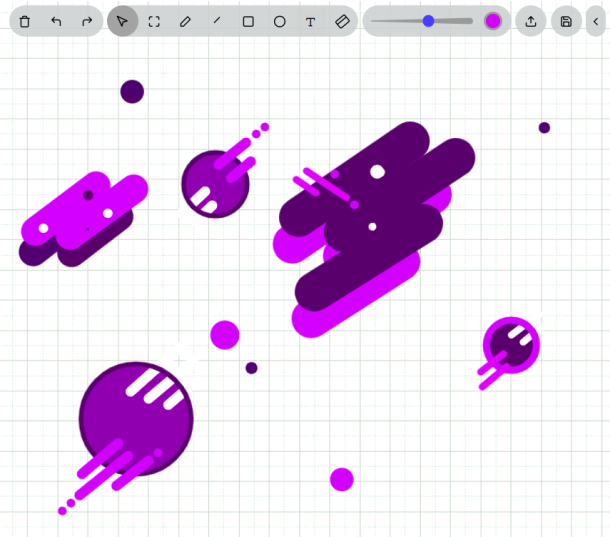 Our whiteboard implementation provides the following features:
1. **Edit** a. Clear board b. Undo c. Redo
2. **Tools** a. Mouse pointer b. Select an area c. Pen d. Line e. Rectangle f. Circle g. Text h. Eraser
3. **Tool properties** a. Thickness b. Color
4. **Upload image to whiteboard**
5. **Export whiteboard as image**
Our whiteboard implementation provides the following features:
1. **Edit** a. Clear board b. Undo c. Redo
2. **Tools** a. Mouse pointer b. Select an area c. Pen d. Line e. Rectangle f. Circle g. Text h. Eraser
3. **Tool properties** a. Thickness b. Color
4. **Upload image to whiteboard**
5. **Export whiteboard as image**