> ## Documentation Index
> Fetch the complete documentation index at: https://www.cometchat.com/docs/llms.txt
> Use this file to discover all available pages before exploring further.
# Customizing Your UI Kit Builder
> Customize React UI Kit Builder components by adjusting CometChat app props, styling, group messages, and behavior.
The `CometChatSettings.ts` file handles basic feature toggles. For deeper customizations, modify component props or source code directly.
***
## **App-Level Customizations**
These ready-to-use props on the `CometChatApp` component let you quickly adjust common behaviors without modifying any internal components.
### **Group Action Messages**
Control the visibility of group action messages using the `showGroupActionMessages` prop:
```jsx theme={null}
```
* `true` (default) — Group action messages are **visible**
* `false` — Group action messages are **hidden**
### **Auto Open First Item**
Control whether the first item in lists automatically opens on render using the `autoOpenFirstItem` prop:
```jsx theme={null}
```
* `true` (default) — The first item in conversation list, user list, or group list opens automatically on first render
* `false` — No item opens until the user clicks on one
***
## **Component-Level Customizations**
For more advanced customizations tailored to your app's needs, you can modify individual UI Kit components directly.
### **How to Customize**
1. Find the component in the [UI Kit Components Overview](/ui-kit/react/components-overview)
2. Check available props and customization options
3. Update props or edit the component source code
Below are some examples to help you get started with common customizations like date formats, conversation subtitles, and send buttons.
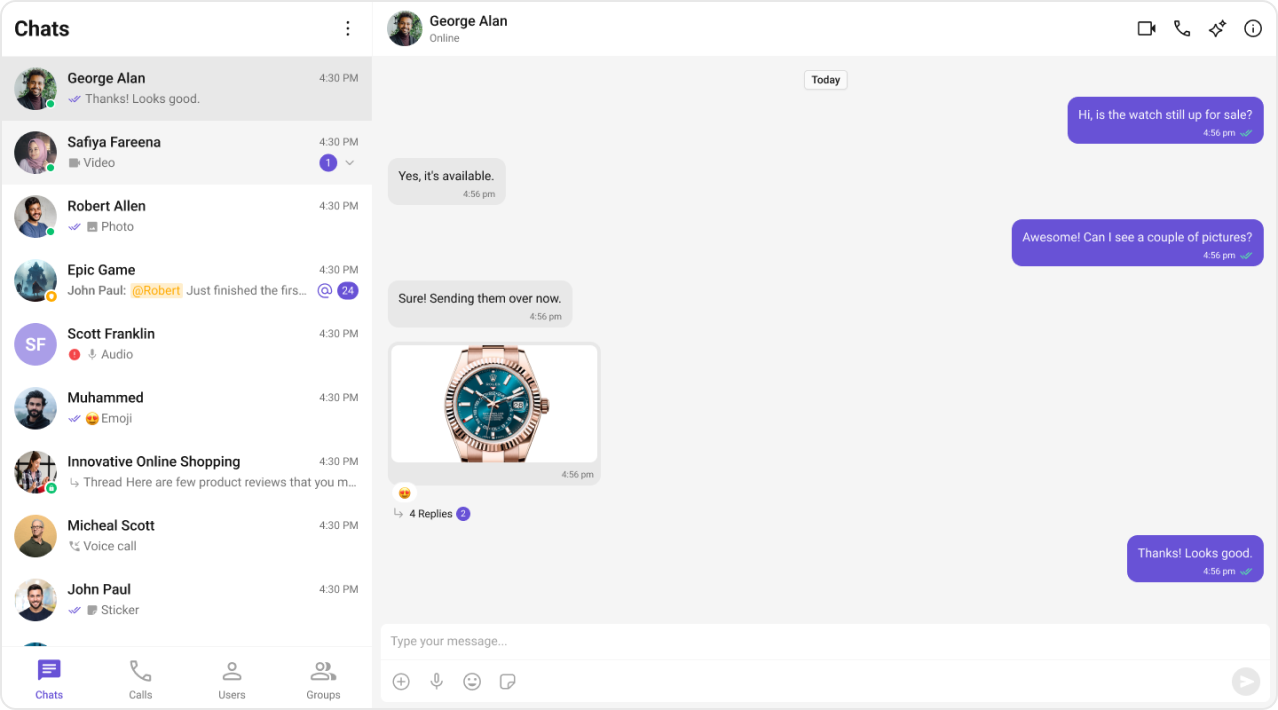
### **Custom Date Format**
Customize how sticky date headers appear in the message list.
**Component**: [Message List](/ui-kit/react/message-list) → [`stickyDateTimeFormat`](/ui-kit/react/message-list#sticky-datetime-format)
```jsx lines theme={null}
import {
CometChatMessageList,
CalendarObject,
} from "@cometchat/chat-uikit-react";
const dateFormat = new CalendarObject({
today: "hh:mm A", // "10:30 AM"
yesterday: "[Yesterday]",
otherDays: "DD/MM/YYYY", // "25/05/2025"
});
;
```
 **Default format** (for reference):
```javascript lines theme={null}
new CalendarObject({
today: "today",
yesterday: "yesterday",
otherDays: "DD MMM, YYYY", // "25 Jan, 2025"
});
```
***
### **Custom Conversation Subtitle**
Show online status or member count instead of the default last message preview.
**Component**: [Conversations](/ui-kit/react/conversations) → [`subtitleView`](/ui-kit/react/conversations#subtitleview)
```jsx lines theme={null}
import { CometChat } from "@cometchat/chat-sdk-javascript";
import { CometChatConversations } from "@cometchat/chat-uikit-react";
const customSubtitleView = (conversation) => {
if (conversation.getConversationType() === "user") {
const user = conversation.getConversationWith();
return (
{user.getStatus() === "online" ? "🟢 Online" : "⚫ Offline"}
);
} else {
const group = conversation.getConversationWith();
return {group.getMembersCount()} members;
}
};
;
```
***
### **Custom Send Button**
Replace the default send button with your brand's icon.
**Component**: [Message Composer](/ui-kit/react/message-composer) → [`sendButtonView`](/ui-kit/react/message-composer#sendbuttonview)
```jsx lines theme={null}
import {
CometChatMessageComposer,
CometChatButton,
} from "@cometchat/chat-uikit-react";
const brandedSendButton = (
{
// Your custom send logic
}}
/>
);
;
```
```css lines theme={null}
/* Style the custom send button */
.cometchat-message-composer .cometchat-button {
background: #6852d6;
border-radius: 50%;
}
.cometchat-message-composer .cometchat-button__icon {
background: #ffffff;
}
```
***
## **Next Steps**
Configure feature toggles and behavior
Explore all available UI components
Customize colors, typography, and styling
Add multi-language support
**Default format** (for reference):
```javascript lines theme={null}
new CalendarObject({
today: "today",
yesterday: "yesterday",
otherDays: "DD MMM, YYYY", // "25 Jan, 2025"
});
```
***
### **Custom Conversation Subtitle**
Show online status or member count instead of the default last message preview.
**Component**: [Conversations](/ui-kit/react/conversations) → [`subtitleView`](/ui-kit/react/conversations#subtitleview)
```jsx lines theme={null}
import { CometChat } from "@cometchat/chat-sdk-javascript";
import { CometChatConversations } from "@cometchat/chat-uikit-react";
const customSubtitleView = (conversation) => {
if (conversation.getConversationType() === "user") {
const user = conversation.getConversationWith();
return (
{user.getStatus() === "online" ? "🟢 Online" : "⚫ Offline"}
);
} else {
const group = conversation.getConversationWith();
return {group.getMembersCount()} members;
}
};
;
```
***
### **Custom Send Button**
Replace the default send button with your brand's icon.
**Component**: [Message Composer](/ui-kit/react/message-composer) → [`sendButtonView`](/ui-kit/react/message-composer#sendbuttonview)
```jsx lines theme={null}
import {
CometChatMessageComposer,
CometChatButton,
} from "@cometchat/chat-uikit-react";
const brandedSendButton = (
{
// Your custom send logic
}}
/>
);
;
```
```css lines theme={null}
/* Style the custom send button */
.cometchat-message-composer .cometchat-button {
background: #6852d6;
border-radius: 50%;
}
.cometchat-message-composer .cometchat-button__icon {
background: #ffffff;
}
```
***
## **Next Steps**
Configure feature toggles and behavior
Explore all available UI components
Customize colors, typography, and styling
Add multi-language support