> ## Documentation Index
> Fetch the complete documentation index at: https://www.cometchat.com/docs/llms.txt
> Use this file to discover all available pages before exploring further.
# Recording (Beta)
> CometChat Calling SDK v4 - Stable Release - Recording for React Native
**Quick Reference** - Start and stop call recording:
```javascript theme={null}
// Start recording
CometChatCalls.startRecording();
// Stop recording
CometChatCalls.stopRecording();
// Or enable auto-recording via CallSettings
new CometChatCalls.CallSettingsBuilder()
.startRecordingOnCallStart(true)
.showRecordingButton(true)
.build();
```
**Available via:** SDK | UI Kits
## Overview
This section guides you through implementing call recording for voice and video calls.
Once you have decided to implement [Ringing](/docs/calls/v4/react-native/ringing) or [Call Session](/docs/calls/v4/react-native/call-session) and followed the steps to implement them, a few additional listeners and methods will help you quickly implement call recording in your app.
You need to make changes in the `CometChatCalls.OngoingCallListener` constructor and add the required listeners for recording. Please make sure your callSettings is configured accordingly for [Ringing](/docs/calls/v4/react-native/ringing) or [Call Session](/docs/calls/v4/react-native/call-session).
A basic example of how to make changes to implement recording:
```javascript theme={null}
const callListener = new CometChatCalls.OngoingCallListener({
onRecordingStarted: recordingStartedBy => {
console.log("Listener => onRecordingStarted:", recordingStartedBy);
},
onRecordingStopped: recordingStoppedBy => {
console.log("Listener => onRecordingStopped:", recordingStoppedBy);
},
});
const callSettings = new CometChatCalls.CallSettingsBuilder()
.enableDefaultLayout(true)
.setIsAudioOnlyCall(false)
.setCallEventListener(callListener)
.build();
return (
);
```
```typescript theme={null}
const callListener = new CometChatCalls.OngoingCallListener({
onRecordingStarted: recordingStartedBy => {
console.log("Listener => onRecordingStarted:", recordingStartedBy);
},
onRecordingStopped: recordingStoppedBy => {
console.log("Listener => onRecordingStopped:", recordingStoppedBy);
},
});
const callSettings = new CometChatCalls.CallSettingsBuilder()
.enableDefaultLayout(true)
.setIsAudioOnlyCall(false)
.setCallEventListener(callListener)
.build();
return (
);
```
## Settings for Call Recording
| Setting | Description |
| --------------------------------------------------------------- | ---------------------------------------------------------------------------------------------------- |
| `showRecordingButton(showRecordingButton: boolean)` | If set to `true` it displays the Recording button in the button Layout. **Default value = false** |
| `startRecordingOnCallStart(startRecordingOnCallStart: boolean)` | If set to `true` call recording will start as soon as the call is started. **Default value = false** |
### Start Recording
```javascript theme={null}
CometChatCalls.startRecording();
```
### Stop Recording
```javascript theme={null}
CometChatCalls.stopRecording();
```
## Downloading Recording
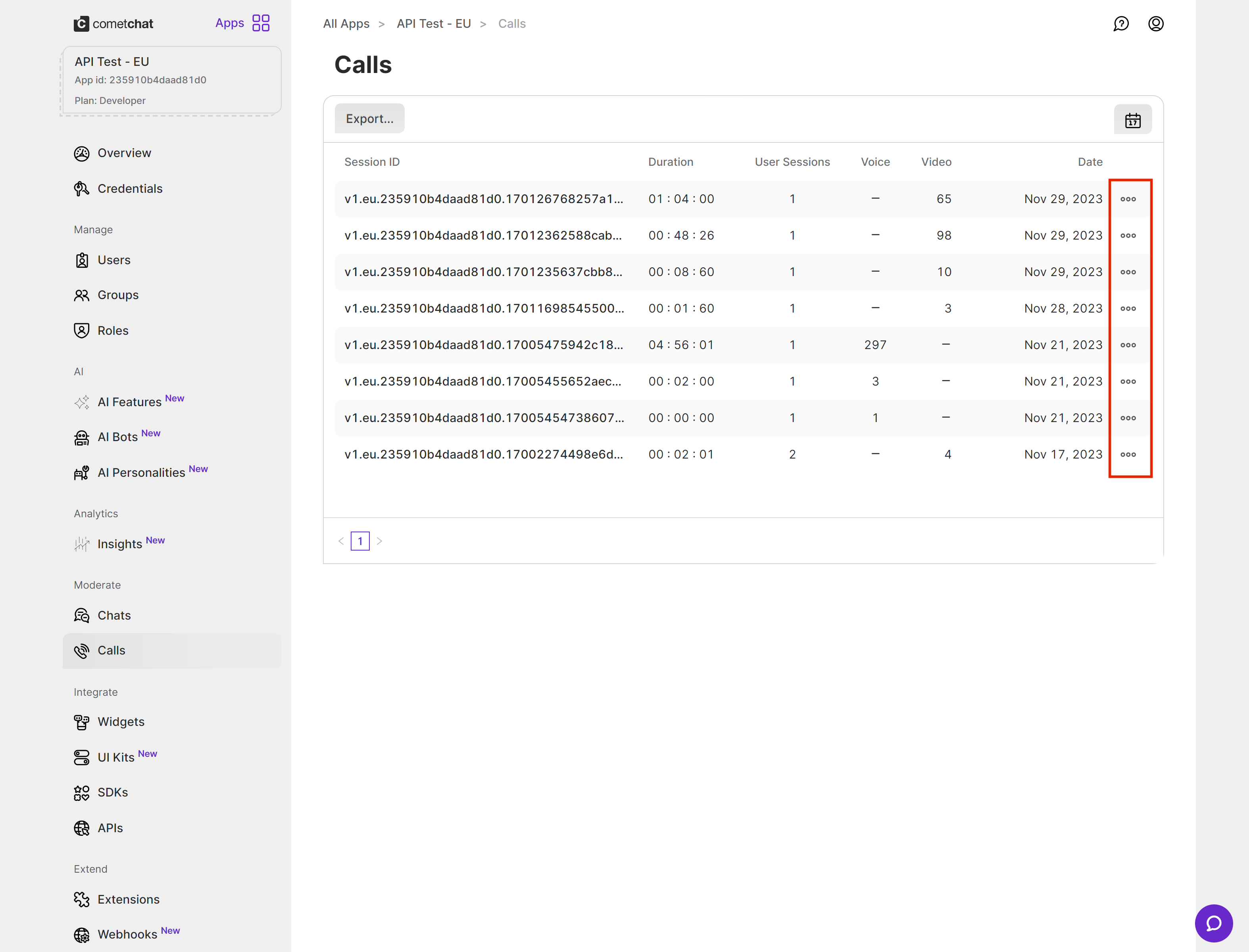
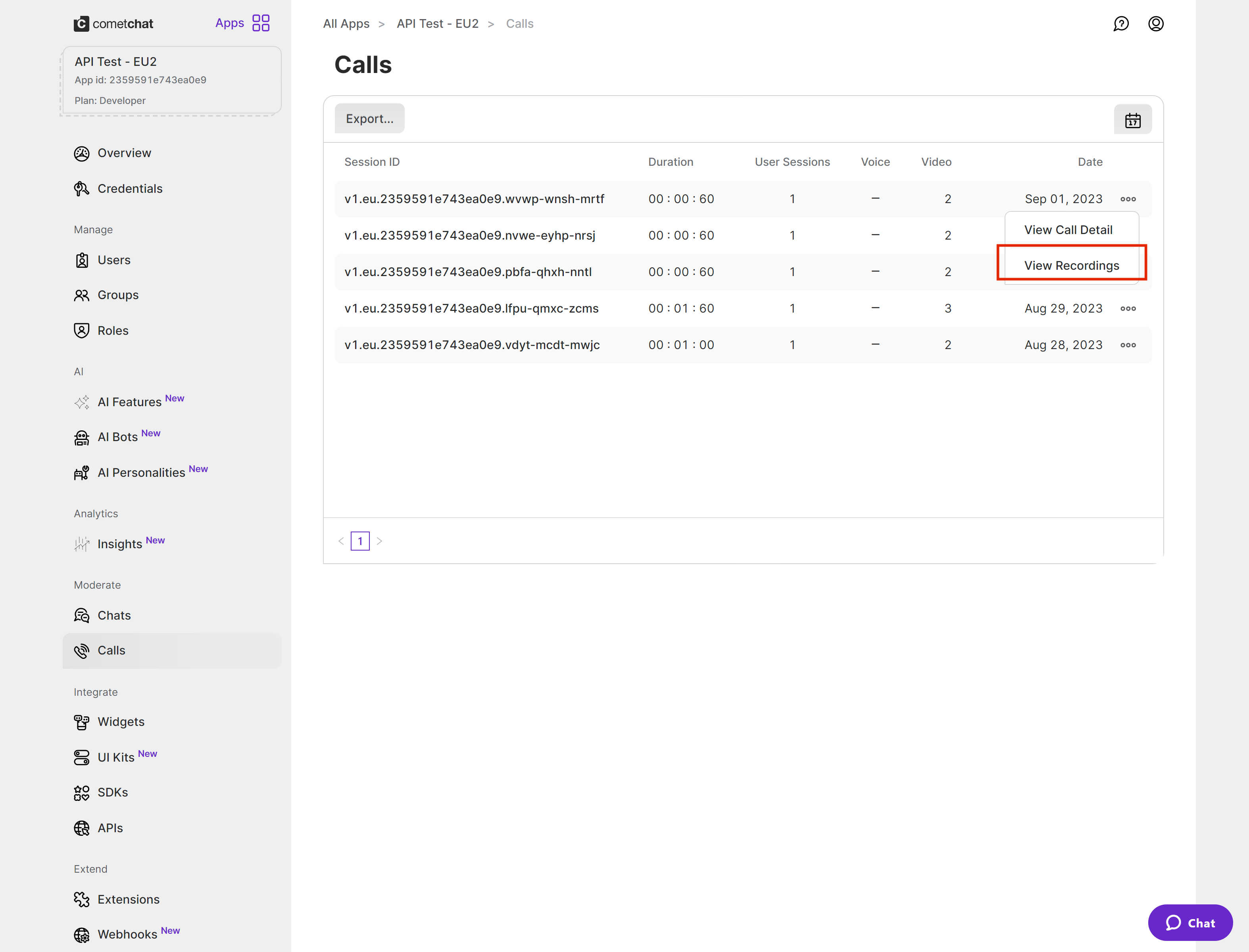
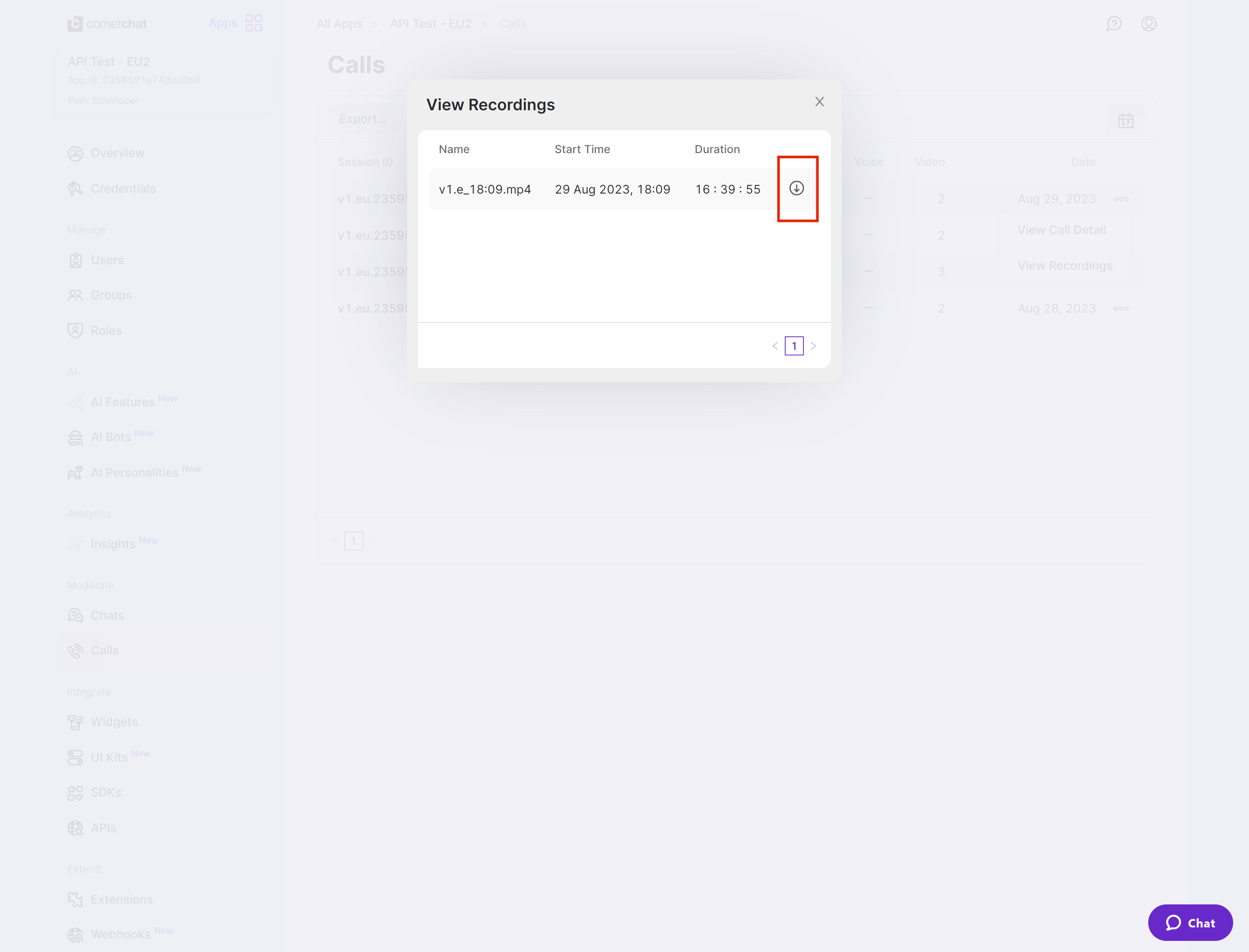
Currently, the call recordings are available on the [CometChat Dashboard](https://app.cometchat.com) under the Calls Section.
 * The ongoing call component automatically displays a recording badge when recording starts
* Use auto-recording for compliance use cases with `startRecordingOnCallStart(true)`
* If using a custom layout, track recording state using `onRecordingStarted` and `onRecordingStopped` listeners
* **Recording button not visible:** Ensure `showRecordingButton(true)` is set and `enableDefaultLayout(true)` is enabled
* **onRecordingStarted / onRecordingStopped not firing:** These listeners require JS SDK v3.0.8 or later
* **Recording not found on Dashboard:** Recordings may take a few minutes to process after the call ends
## Next Steps
Start and manage call sessions with full configuration options
Implement a complete calling experience with incoming and outgoing call UI
Customize the main video container and participant tiles
Retrieve and display call history including duration and participants
* The ongoing call component automatically displays a recording badge when recording starts
* Use auto-recording for compliance use cases with `startRecordingOnCallStart(true)`
* If using a custom layout, track recording state using `onRecordingStarted` and `onRecordingStopped` listeners
* **Recording button not visible:** Ensure `showRecordingButton(true)` is set and `enableDefaultLayout(true)` is enabled
* **onRecordingStarted / onRecordingStopped not firing:** These listeners require JS SDK v3.0.8 or later
* **Recording not found on Dashboard:** Recordings may take a few minutes to process after the call ends
## Next Steps
Start and manage call sessions with full configuration options
Implement a complete calling experience with incoming and outgoing call UI
Customize the main video container and participant tiles
Retrieve and display call history including duration and participants