> ## Documentation Index
> Fetch the complete documentation index at: https://www.cometchat.com/docs/llms.txt
> Use this file to discover all available pages before exploring further.
# Create an AI Agent with LangGraph
> Connect a LangGraph agent (TypeScript or Python) to CometChat, customize it in UI Kit Builder, and ship the experience as code or a widget.
## What you’ll build
* A **LangGraph** agent (TypeScript or Python) that streams messages and tool calls.
* The same agent **connected to CometChat** via Agent ID + Deployment URL.
* A **customized chat experience** using **UI Kit Builder**.
* An export to **React UI Kit code** or **Chat Widget**, plus reference demos (knowledge + Product Hunt).
* A streaming contract: `text_start` → `text_delta` → `tool_call_start/args/end` (+ `tool_result`) → `text_end` → `done` (+ `error`), carrying `message_id` and optional `thread_id`/`run_id`.
***
## Prerequisites
* A CometChat account and an app: **[Create App](https://app.cometchat.com/apps)**
* A LangGraph endpoint that streams responses (SSE or NDJSON). Examples live in **ai-agent-lang-graph-examples** for both TypeScript and Python.
* Node.js 18+ (for TypeScript examples) or Python 3.10+ (for Python examples).
* `OPENAI_API_KEY`; optional model overrides: TypeScript (`KNOWLEDGE_OPENAI_MODEL`, `PRODUCT_OPENAI_MODEL`), Python (`MODEL`).
***
## Step 1 - Create your CometChat app
Sign in at app.cometchat.com. Create a new app or open an existing one.
Note your App ID, Region, and Auth Key (used if you export the Chat Widget later).
***
## Step 2 - Connect your LangGraph agent
Navigate to **AI Agent → BYO Agents** and then **Get Started / Integrate**.
Select **LangGraph**.
Provide:
- Name and optional Icon
- (Optional) Greeting and Introductory Message
- (Optional) Suggested messages
Paste/define:
- Agent ID — unique handle you will route to (e.g.,
support or launch).
- Deployment URL — public HTTPS endpoint that wraps your LangGraph stream.
- (Optional) Headers — JSON auth headers your service expects.
Click Save, then ensure the agent’s toggle is ON in the AI Agents list.
***
## Step 3 - Define Frontend Actions (Optional)
Go to AI Agent → Actions and click Add to create a frontend action the agent can call (e.g., “Open Product,” “Start Demo,” “Book Slot”).
Include:
- Display Name
- Execution Text — how the agent should describe running it.
- Name — code-friendly key (e.g.,
open\_product).
- Description — when to trigger the action.
- Parameters — JSON Schema inputs (the agent will populate these).
Listen for tool calls and execute them client-side (routes, modals, highlights, celebrations).
***
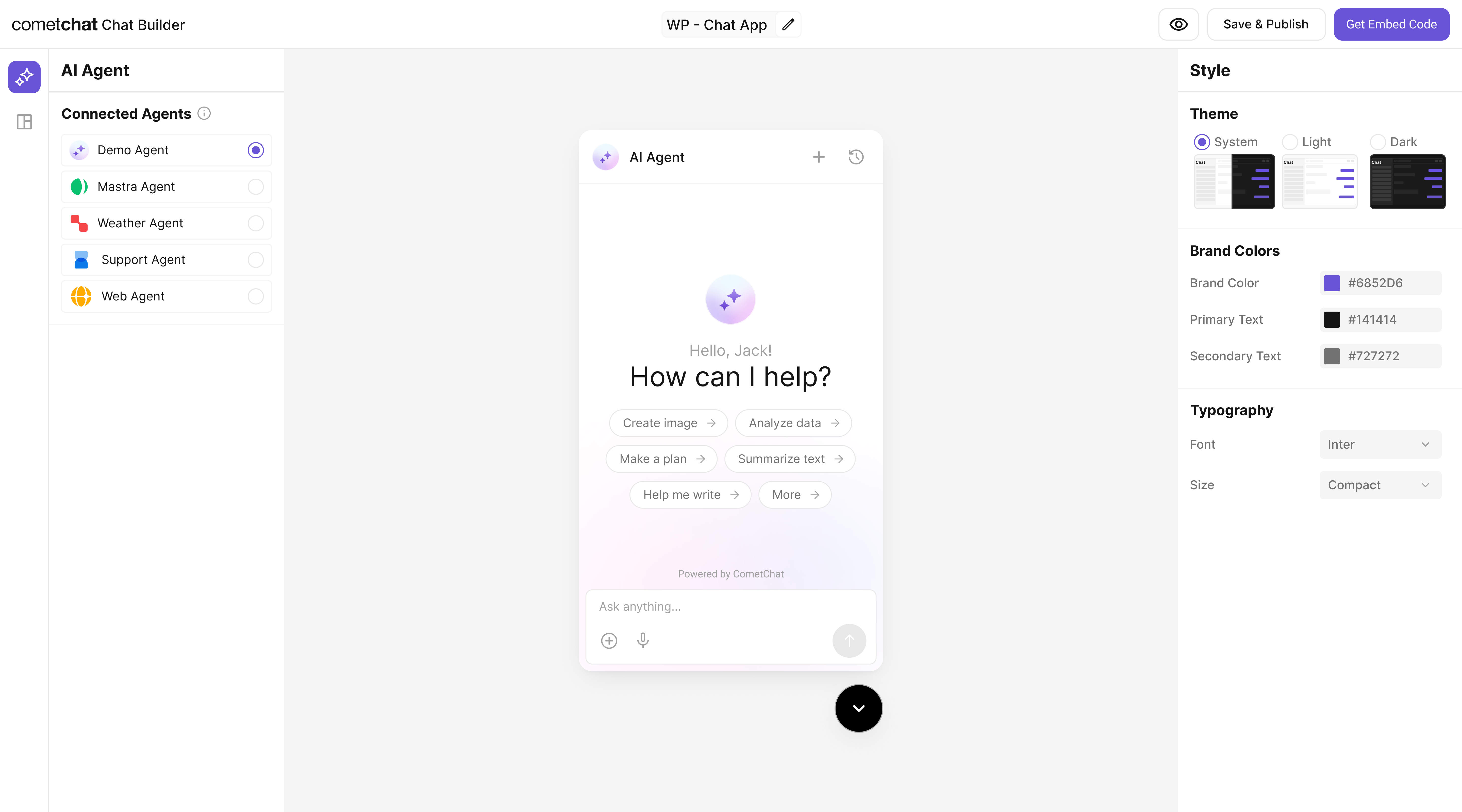
## Step 4 - Customize in UI Kit Builder
From AI Agents, open your agent to enter UI Kit Builder.
Select Customize and Deploy.
Update theme, layout, and features; confirm your LangGraph agent is attached.
Use live preview to validate streaming responses and any frontend actions.
 ***
## Step 5 - Export & Integrate
Choose how you’ll ship the experience (Widget or React UI Kit export).
} description="Embed / script" href="/widget/ai-agents" horizontal />
} href="https://www.cometchat.com/docs/ui-kit/react/ai-assistant-chat" horizontal>Pre Built UI Components
> The LangGraph agent from Step 2 is included automatically in exported variants—no extra config needed for basic conversations.
Pick Chat Widget (fastest) or export React UI Kit for code-level customization.
Open Widget Builder → Get Embedded Code → copy script + credentials.
Export the variant as code if you need deeper theming or custom logic.
Preview to confirm your LangGraph agent responds and streams correctly.
## REST API Reference
For programmatic agent management, see the [Agent Builder APIs](/docs/rest-api/ai-agents-apis/overview) and [BYO Agent APIs](/docs/rest-api/byo-ai-agents-apis/overview).
## Troubleshooting
| Issue | Solution |
| ---------------------- | ------------------------------------------------------------------------------------------------------------- |
| Agent not responding | Verify your LangGraph server is running and the endpoint URL is accessible from CometChat's servers. |
| Messages not appearing | Check that the `onBehalfOf` header is set correctly and the user exists in CometChat. |
| Tool calls failing | Ensure tools are properly registered in both LangGraph and CometChat. Check the agent logs for error details. |
| Webhook not triggering | Verify the webhook URL is publicly accessible and returns a 200 status code. |
***
## Step 5 - Export & Integrate
Choose how you’ll ship the experience (Widget or React UI Kit export).
} description="Embed / script" href="/widget/ai-agents" horizontal />
} href="https://www.cometchat.com/docs/ui-kit/react/ai-assistant-chat" horizontal>Pre Built UI Components
> The LangGraph agent from Step 2 is included automatically in exported variants—no extra config needed for basic conversations.
Pick Chat Widget (fastest) or export React UI Kit for code-level customization.
Open Widget Builder → Get Embedded Code → copy script + credentials.
Export the variant as code if you need deeper theming or custom logic.
Preview to confirm your LangGraph agent responds and streams correctly.
## REST API Reference
For programmatic agent management, see the [Agent Builder APIs](/docs/rest-api/ai-agents-apis/overview) and [BYO Agent APIs](/docs/rest-api/byo-ai-agents-apis/overview).
## Troubleshooting
| Issue | Solution |
| ---------------------- | ------------------------------------------------------------------------------------------------------------- |
| Agent not responding | Verify your LangGraph server is running and the endpoint URL is accessible from CometChat's servers. |
| Messages not appearing | Check that the `onBehalfOf` header is set correctly and the user exists in CometChat. |
| Tool calls failing | Ensure tools are properly registered in both LangGraph and CometChat. Check the agent logs for error details. |
| Webhook not triggering | Verify the webhook URL is publicly accessible and returns a 200 status code. |