> ## Documentation Index
> Fetch the complete documentation index at: https://www.cometchat.com/docs/llms.txt
> Use this file to discover all available pages before exploring further.
# Create an AI Agent with Agno
> Connect an Agno agent to CometChat, customize it with UI Kit Builder, and ship it as React UI Kit code or a Chat Widget.
## What you’ll build
* An **Agno** agent served with **FastAPI** that streams responses and exposes tools.
* The same agent **connected to CometChat** through Agent ID + Deployment URL routing.
* A **customized chat experience** using **UI Kit Builder**.
* An export to **React UI Kit code** *or* **Chat Widget** for integration.
***
## Prerequisites
* A CometChat account and an app: **[Create App](https://app.cometchat.com/apps)**
* An Agno agent endpoint (see Step 6 for the example services).
* Python 3.10+ with `pip`, plus access to an OpenAI-compatible model (`OPENAI_API_KEY`).
***
## Step 1 - Create your CometChat app
Sign in at app.cometchat.com. Create a new app or open an existing one.
Note your App ID, Region, and Auth Key (needed if you export the Chat Widget later).
***
## Step 2 - Connect your Agno Agent
Navigate to **AI Agent → Get Started** and then **AI Agents → Add Agent**.
Select **Agno**.
Provide:
- Name and optional Icon
- (Optional) Greeting and Introductory Message
- (Optional) Suggested messages
Paste/define:
- Agent ID — a unique handle that matches how you route traffic (e.g.,
support).
- Deployment URL — the public HTTPS endpoint exposed by your Agno service.
- (Optional) Headers — JSON auth headers that your FastAPI deployment expects.
Click Save, then ensure the agent’s toggle is ON in the AI Agents list.
> **Tip:** The Agno examples stream newline-delimited JSON events using CometChat’s Bring Your Own Agent format. Keep the **Agent ID** and **Deployment URL** stable so you don’t need to reconnect.
CometChat includes `thread_id`, `run_id`, the recent `messages`, and optional `namespace` (or `toolParams.namespace`) in every `/stream` request. Echo those IDs back in each event so UI Kit Builder variants can stitch partial responses correctly.
***
## Step 3 - Define Frontend Actions (Optional)
Go to AI Agent → Actions and click Add to create a frontend action your agent can call (e.g., “Open Product,” “Start Demo,” “Book Slot”).
Include:
- Display Name — Shown to users (e.g., “Open Product Page”).
- Execution Text — How the agent describes running it (e.g., “Opening product details for the user.”).
- Name — A unique, code-friendly key (e.g.,
open\_product).
- Description — What the tool does and when to use it.
- Parameters — JSON Schema describing inputs (the agent will fill these).
Example parameters JSON:
```json theme={null}
{
"type": "object",
"required": ["productId"],
"properties": {
"productId": {
"type": "string",
"description": "The internal product ID to open"
},
"utm": {
"type": "string",
"description": "Optional tracking code"
}
}
}
```
At runtime, listen for tool calls and execute them client-side (e.g., route changes, modals, highlights).
***
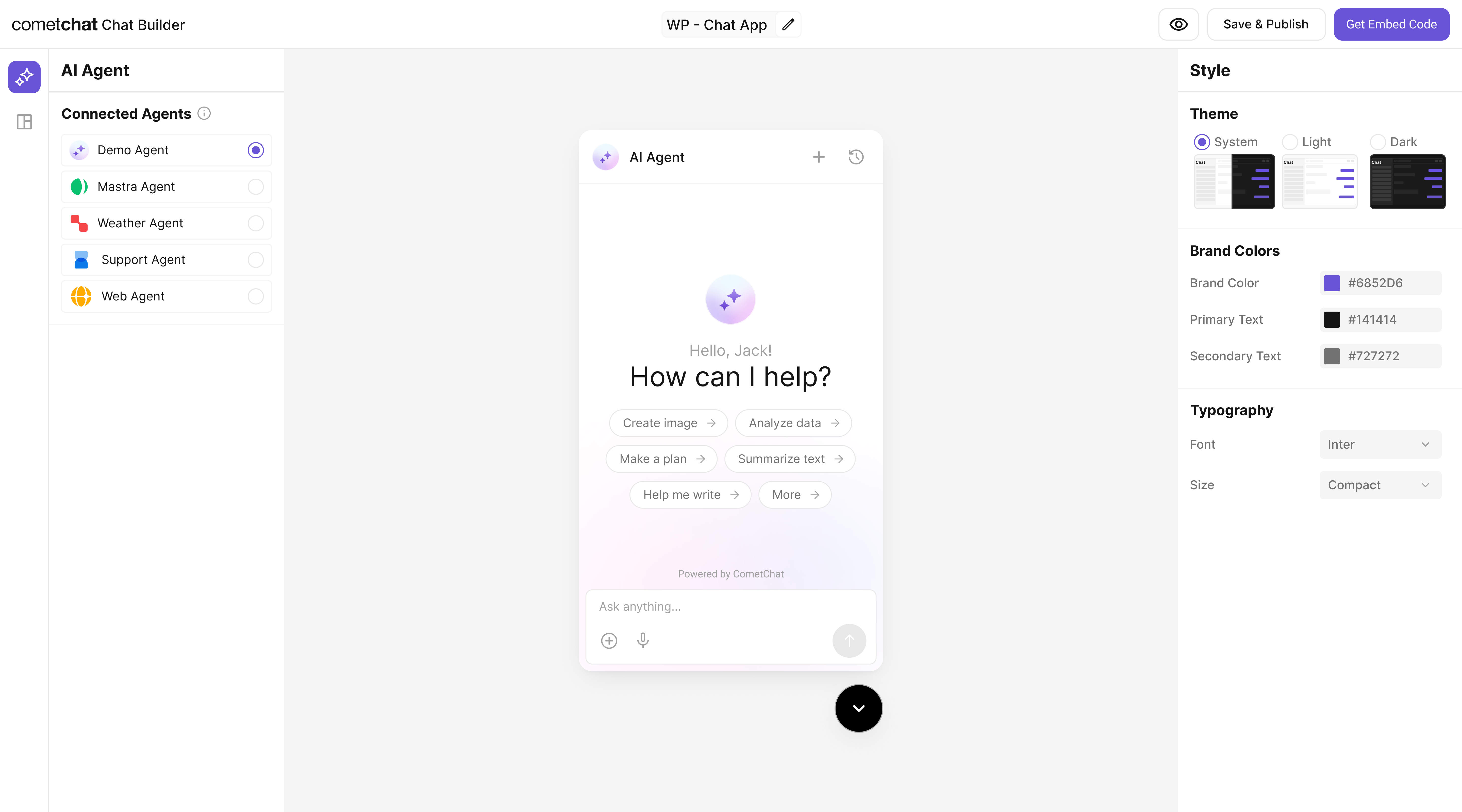
## Step 4 - Customize in UI Kit Builder
From AI Agents click the variant (or Get Started) to enter UI Kit Builder.
Select Customize and Deploy.
Update theme, layout, and features; confirm the Agno agent is attached.
Use live preview to validate responses & any tool triggers.
 ***
## Step 5 - Export & Integrate
Choose how you’ll ship the experience (Widget or React UI Kit export).
} description="Embed / script" href="/widget/ai-agents" horizontal />
} href="https://www.cometchat.com/docs/ui-kit/react/ai-assistant-chat" horizontal>Pre Built UI Components
> The Agno agent from Step 2 is included automatically in exported variants—no extra code needed for basic conversations.
Pick Chat Widget (fastest) or export React UI Kit for code-level customization.
Open Widget Builder → Get Embedded Code → copy script + credentials.
Export the variant as code (UI Kit) if you need deep theming or custom logic.
Preview: the Agno agent should appear without extra config.
***
## Step 6 - Deploy & Secure (Reference)
Need an Agno backend? Use these reference projects to define, expose, and deploy FastAPI services that stream directly into CometChat.
Clone the examples, install dependencies, and start the FastAPI server:
```bash theme={null}
git clone https://github.com/cometchat/ai-agent-agno-examples.git
cd ai-agent-agno-examples
python3 -m venv .venv
source .venv/bin/activate
pip install -e .
uvicorn knowledge_agent.main:app --host 0.0.0.0 --port 8000 --reload
```
Key points:
* `knowledge_agent/main.py` exposes `/api/tools/ingest`, `/api/tools/searchDocs`, `/api/agents/knowledge/generate`, and `/stream` (newline-delimited JSON with `text_delta`, `tool_*`, `text_done`, `done`, `error`).
* `KnowledgeManager` creates an Agno agent bound to a per-namespace vector store and enforces retrieval-before-answer behavior with citations.
* Configure secrets via `.env` (`OPENAI_API_KEY`, optional `KNOWLEDGE_*` overrides). The example persists markdown under `knowledge_agent/data/knowledge/`.
Launch the Product Hunt assistant on another port:
```bash theme={null}
uvicorn product_hunt_agent.main:app --host 0.0.0.0 --port 8001 --reload
```
Highlights:
* `/api/top`, `/api/top-week`, `/api/top-range`, and `/api/search` surface Algolia + GraphQL data for Product Hunt launches.
* `/api/chat` and `/stream` share the same newline-delimited event schema as the knowledge agent, so CometChat receives consistent payloads (`text_delta`, `tool_*`, `text_done`, `done`).
* Provide `PRODUCTHUNT_API_TOKEN` for live data (the agent falls back gracefully when it’s absent) and customize tool prompts in `agent_builder.py`.
> Deploy behind HTTPS and secure with auth headers or gateway middleware before pointing CometChat at the `/stream` endpoint.
***
## Step 5 - Export & Integrate
Choose how you’ll ship the experience (Widget or React UI Kit export).
} description="Embed / script" href="/widget/ai-agents" horizontal />
} href="https://www.cometchat.com/docs/ui-kit/react/ai-assistant-chat" horizontal>Pre Built UI Components
> The Agno agent from Step 2 is included automatically in exported variants—no extra code needed for basic conversations.
Pick Chat Widget (fastest) or export React UI Kit for code-level customization.
Open Widget Builder → Get Embedded Code → copy script + credentials.
Export the variant as code (UI Kit) if you need deep theming or custom logic.
Preview: the Agno agent should appear without extra config.
***
## Step 6 - Deploy & Secure (Reference)
Need an Agno backend? Use these reference projects to define, expose, and deploy FastAPI services that stream directly into CometChat.
Clone the examples, install dependencies, and start the FastAPI server:
```bash theme={null}
git clone https://github.com/cometchat/ai-agent-agno-examples.git
cd ai-agent-agno-examples
python3 -m venv .venv
source .venv/bin/activate
pip install -e .
uvicorn knowledge_agent.main:app --host 0.0.0.0 --port 8000 --reload
```
Key points:
* `knowledge_agent/main.py` exposes `/api/tools/ingest`, `/api/tools/searchDocs`, `/api/agents/knowledge/generate`, and `/stream` (newline-delimited JSON with `text_delta`, `tool_*`, `text_done`, `done`, `error`).
* `KnowledgeManager` creates an Agno agent bound to a per-namespace vector store and enforces retrieval-before-answer behavior with citations.
* Configure secrets via `.env` (`OPENAI_API_KEY`, optional `KNOWLEDGE_*` overrides). The example persists markdown under `knowledge_agent/data/knowledge/`.
Launch the Product Hunt assistant on another port:
```bash theme={null}
uvicorn product_hunt_agent.main:app --host 0.0.0.0 --port 8001 --reload
```
Highlights:
* `/api/top`, `/api/top-week`, `/api/top-range`, and `/api/search` surface Algolia + GraphQL data for Product Hunt launches.
* `/api/chat` and `/stream` share the same newline-delimited event schema as the knowledge agent, so CometChat receives consistent payloads (`text_delta`, `tool_*`, `text_done`, `done`).
* Provide `PRODUCTHUNT_API_TOKEN` for live data (the agent falls back gracefully when it’s absent) and customize tool prompts in `agent_builder.py`.
> Deploy behind HTTPS and secure with auth headers or gateway middleware before pointing CometChat at the `/stream` endpoint.